Guide
How to Create Google Play Screenshots: Step-by-Step Guide (2026)
Your Google Play screenshots are the most powerful conversion tool on your store listing. Most users decide whether to install an app based on screenshots alone, without reading a single line of your description. This guide covers everything you need to go from raw screen captures to polished, upload-ready images.

Scott Stewart · Mar 30, 2026
Quick answer
Capture your best app screens on an Android device or emulator. Design screenshots at 1080 x 1920 px (phone) using a tool like Screenshot Otter. Add short, benefit-focused captions. Export as PNG. Upload in Play Console under your store listing’s Graphics section. Fill all 8 slots.
Step 1: Know the requirements before you start
Before opening any design tool, lock in the technical specs. Uploading images that violate Google’s requirements will trigger a rejection, and Play Console does not always explain why. Getting the basics right from the start saves you from frustrating rework.
Phone screenshots: 1080 x 1920 px (portrait) or 1920 x 1080 px (landscape). This is the most important size because phone listings drive the vast majority of installs. Portrait is strongly recommended because it takes more vertical space in search results, giving you a larger visual footprint.
Tablet screenshots: Google recognizes two tablet tiers. 7-inch tablets use 1080 x 1920 px and 10-inch tablets use 1200 x 1920 px or similar. If your app has a tablet layout, create separate screenshots that show the tablet UI. If not, your phone screenshots will display as a fallback, but this looks unpolished and signals that tablet support is an afterthought.
File format: JPEG or 24-bit PNG with no alpha channel. Maximum file size is 8 MB per image. PNG is the better choice for screenshots with text overlays because it preserves sharp edges without compression artifacts.
Count: Minimum 2 screenshots, maximum 8 per device type. Always fill all 8 slots. Users who scroll through all your screenshots are your warmest prospects, and giving them only 2 or 3 images signals that you did not put much effort into your listing.
For a full breakdown of every dimension and edge case, see our Google Play Screenshot Requirements reference.
Step 2: Capture your raw screenshots
You need clean, high-resolution captures of your app showing its best features. There are three ways to get them, each with trade-offs.
Physical device: The most accurate representation of your app. Use a recent Pixel or Samsung flagship running the latest Android version. Hold the power and volume-down buttons simultaneously (or use the screenshot shortcut in the notification shade). The resulting image matches your real users’ experience, which builds trust.
Android Emulator: If you do not have a physical device, Android Studio’s emulator works well. Create a virtual device with a resolution of 1080 x 1920 or higher. Take screenshots using the camera icon in the emulator toolbar. The advantage here is repeatability: you can set up specific data states and retake captures without recreating conditions on a real phone.
In-app recording: Some developers use adb shell screencap via the Android Debug Bridge. This is useful for automation and for capturing screens that are hard to trigger manually, like loading states or permission dialogs.
Regardless of your capture method, plan your screenshots before you start. Decide which 8 screens best represent your app’s value. Lead with your strongest feature, not your onboarding flow or splash screen. Think of it this way: the first screenshot is your billboard. It must communicate your app’s core benefit in under two seconds.
Step 3: Design your screenshot layouts
Raw screen captures are not ready for Google Play. The top-performing listings wrap their captures in designed layouts with backgrounds, device frames, and captions. This is where most developers either overspend (hiring a designer for $500+) or underspend (uploading raw screenshots with no context).
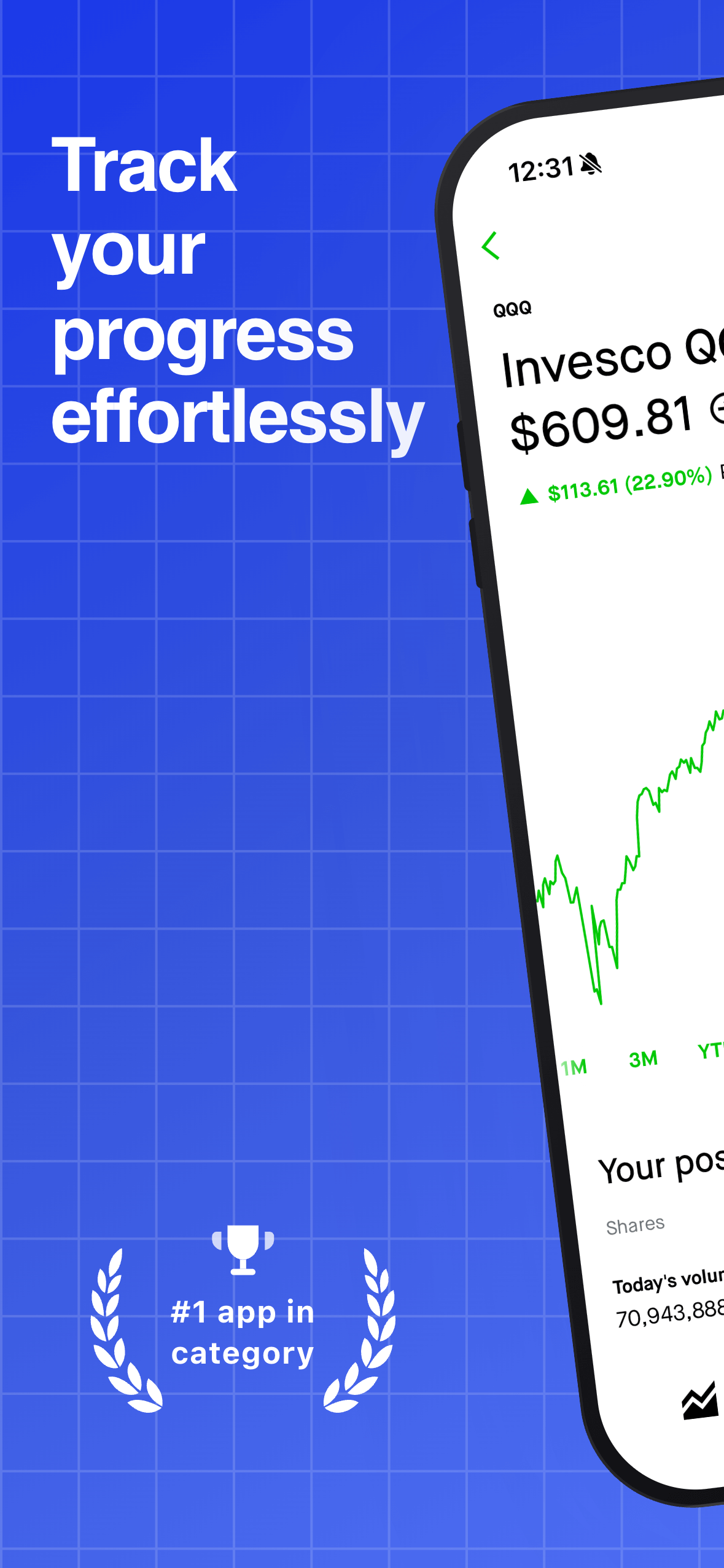
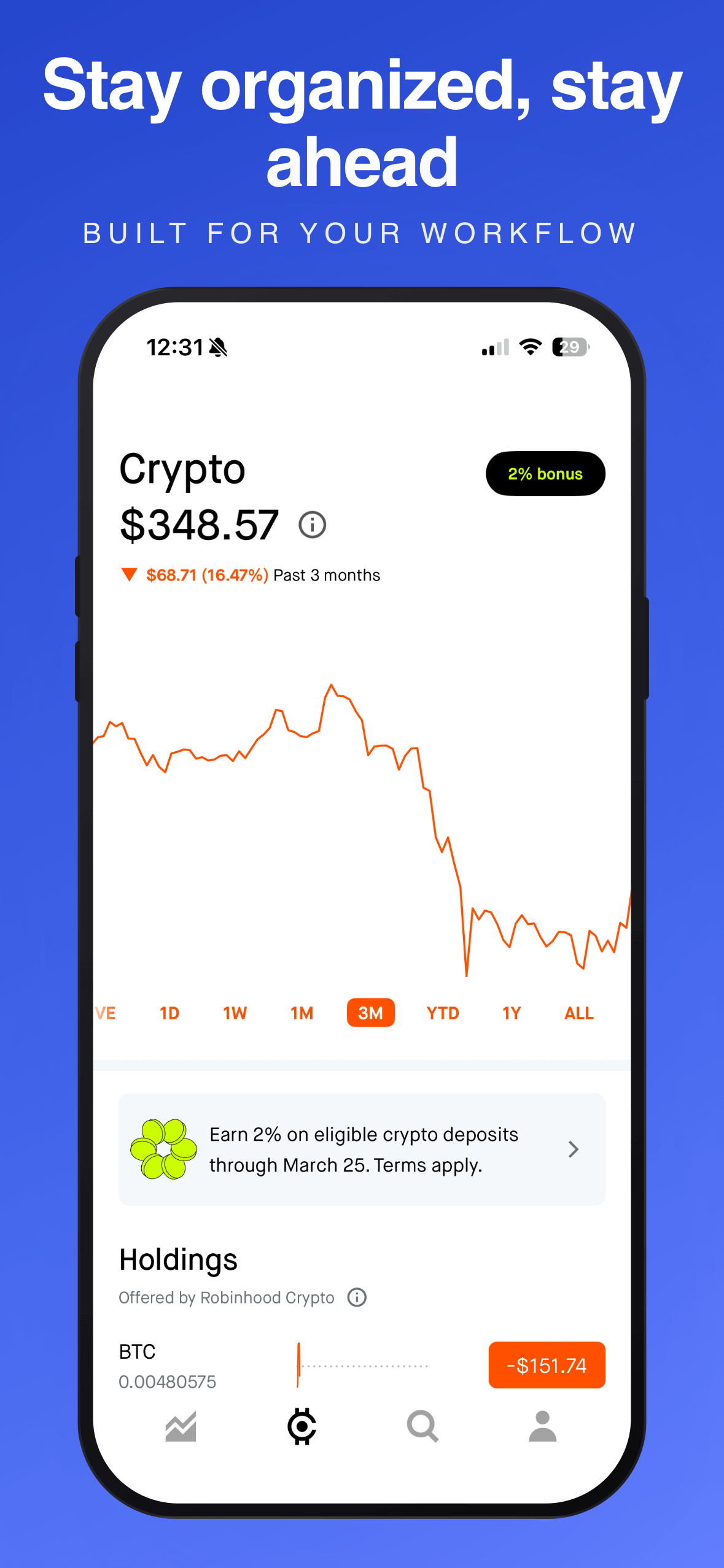
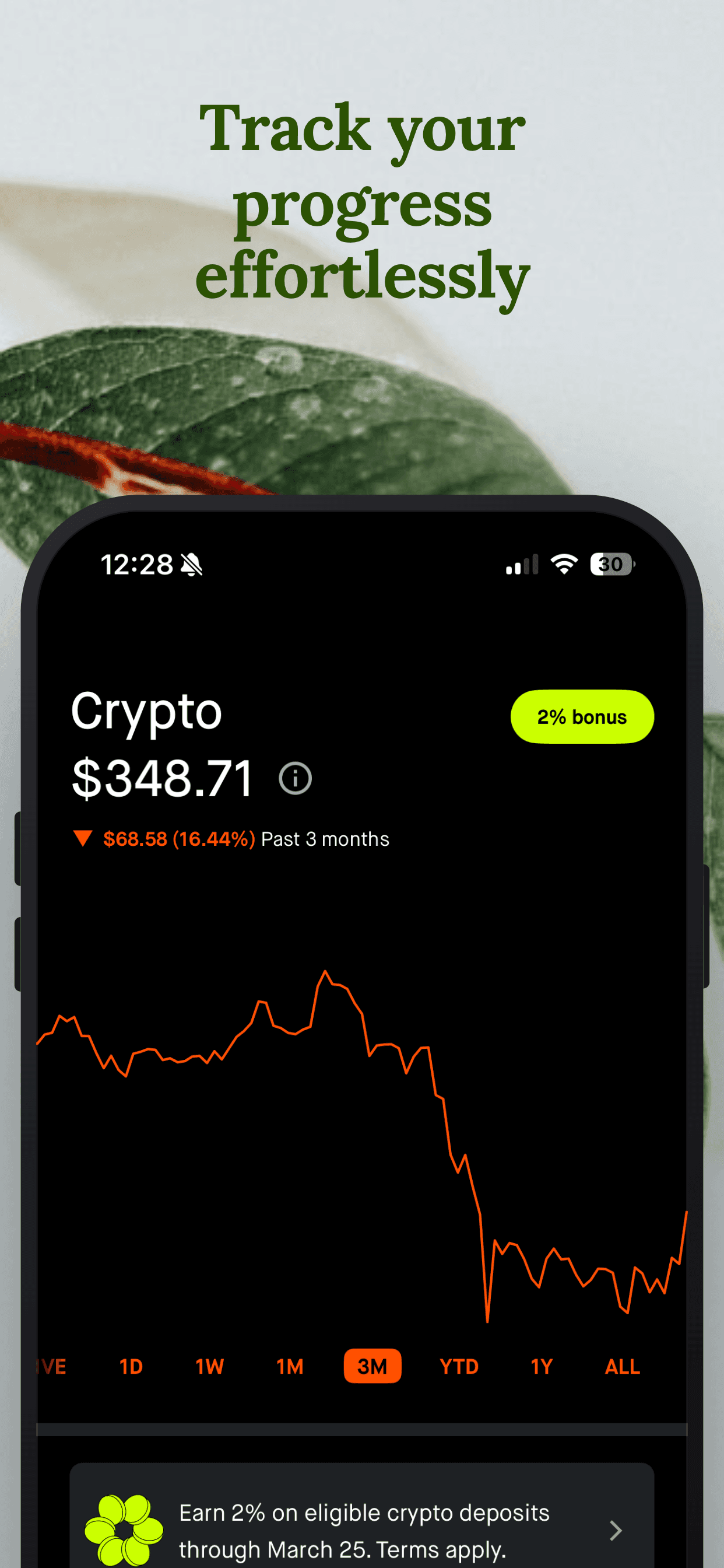
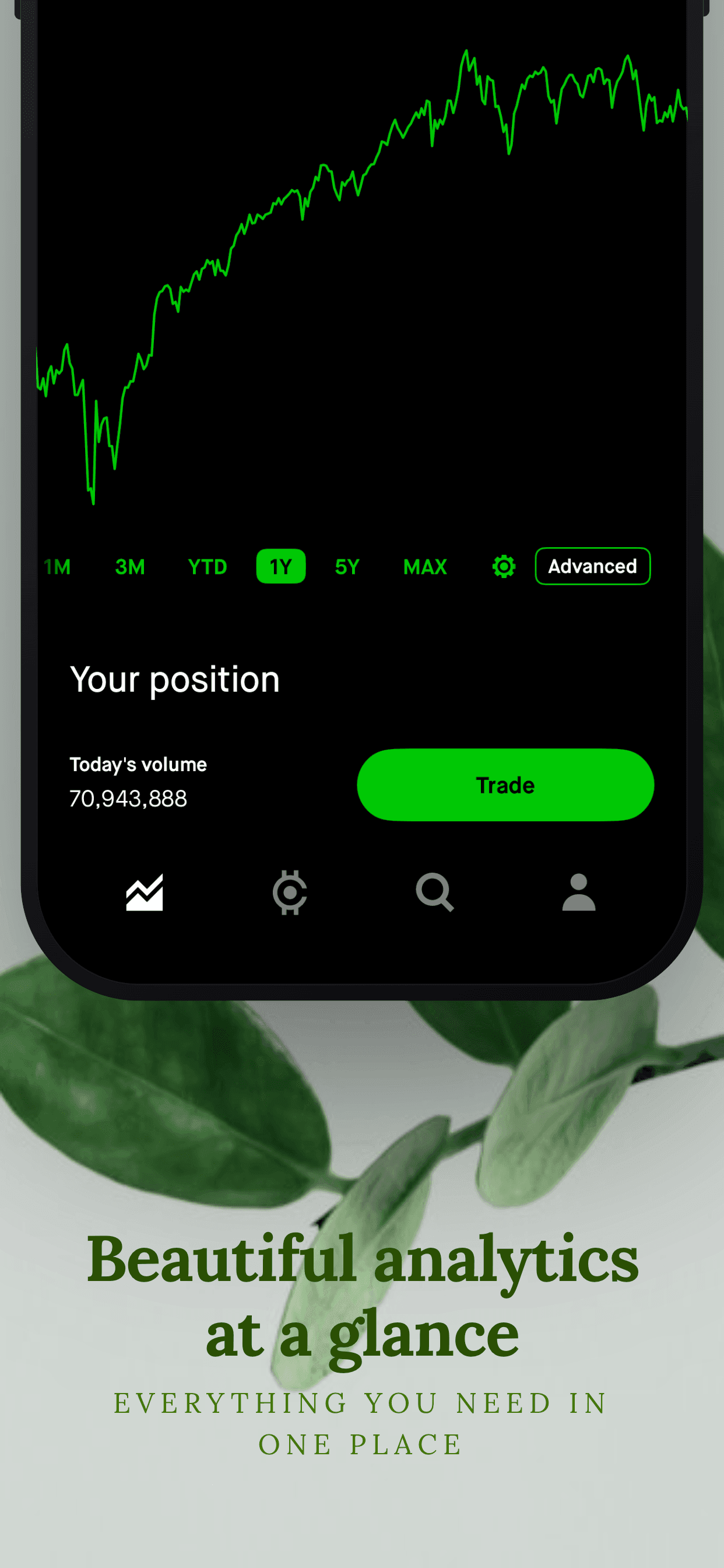
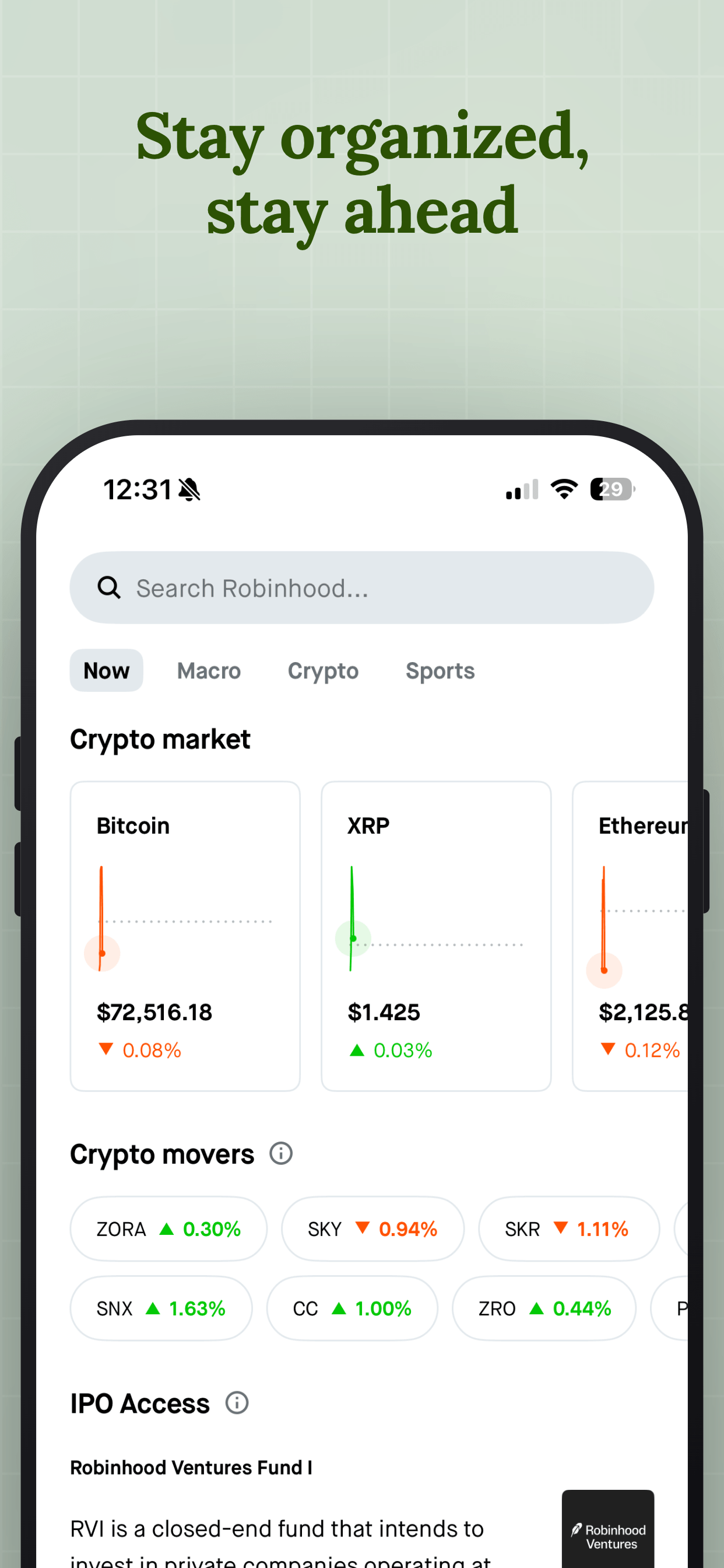
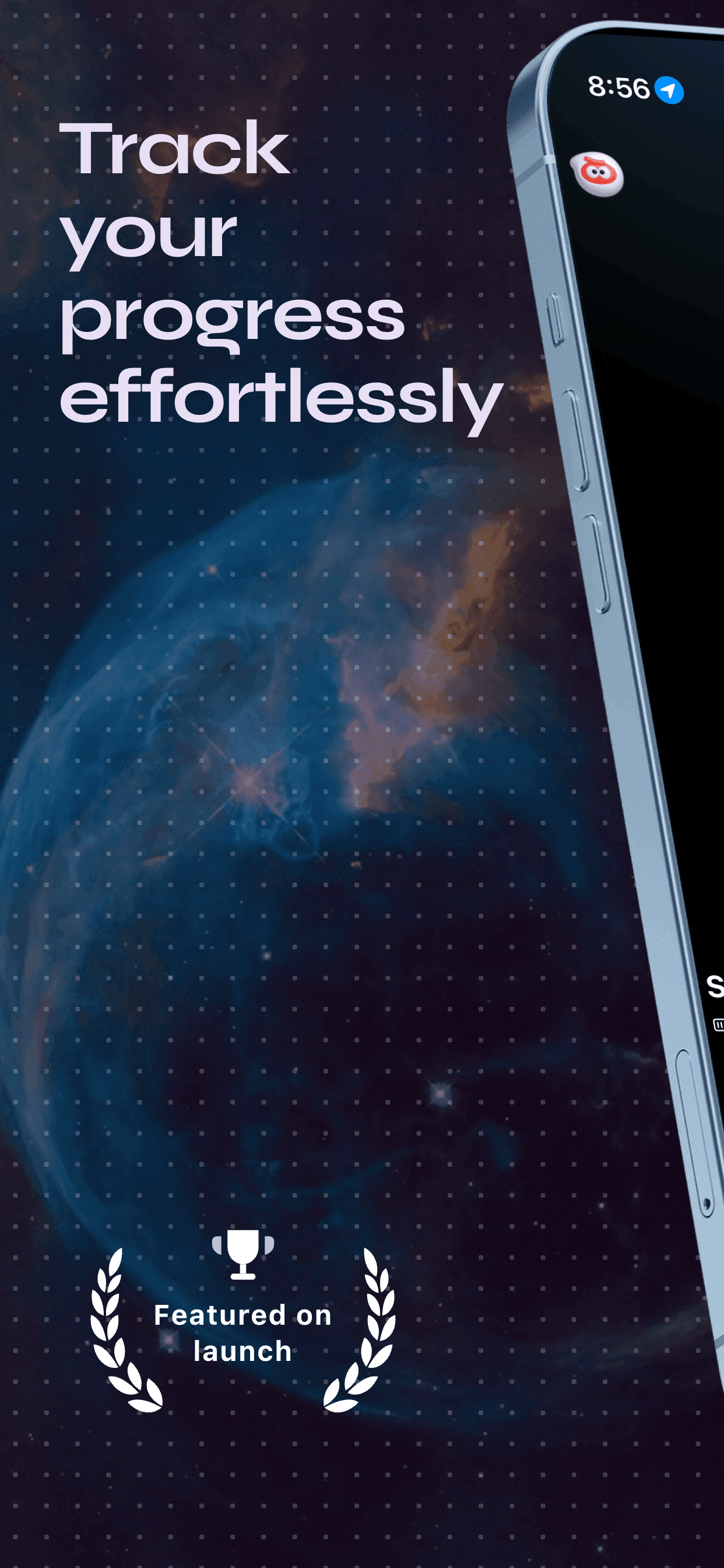
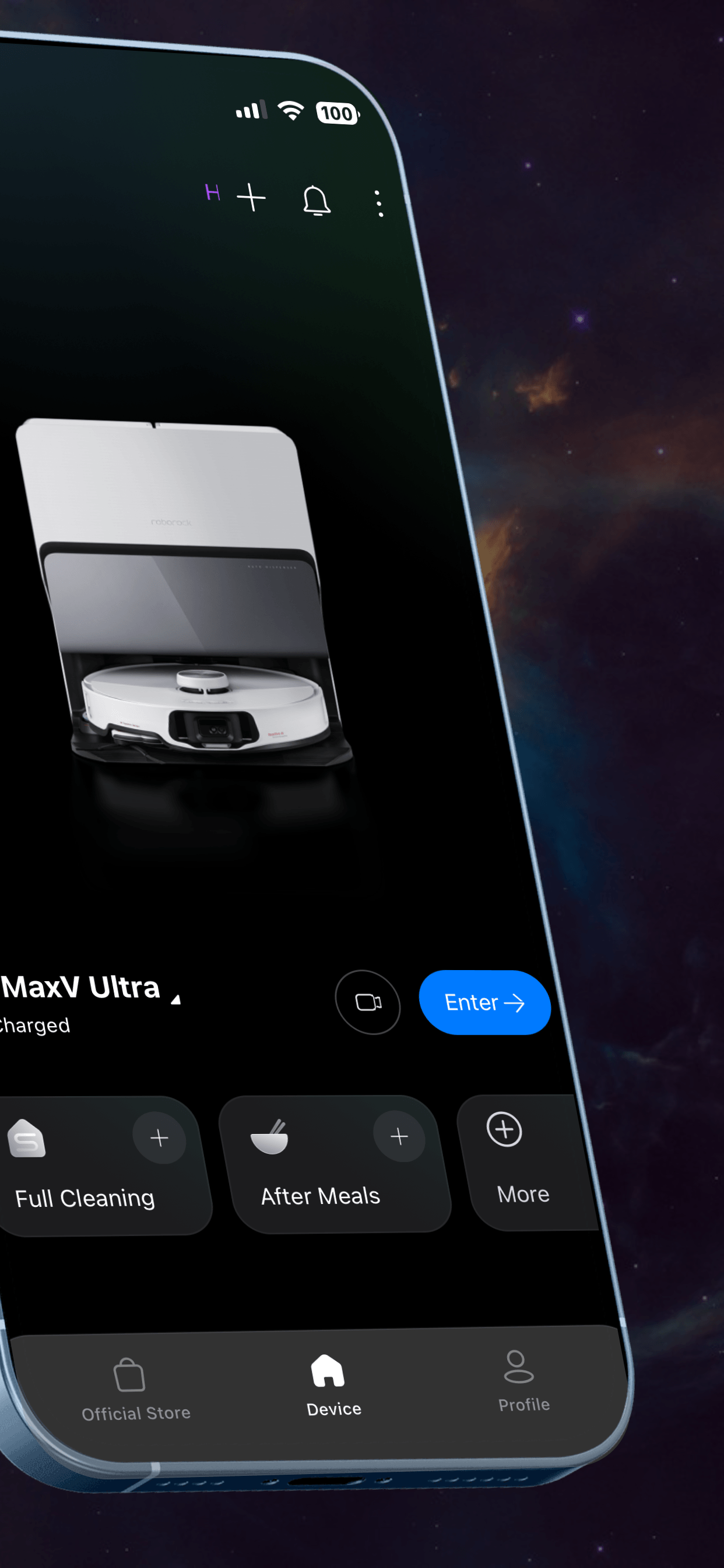
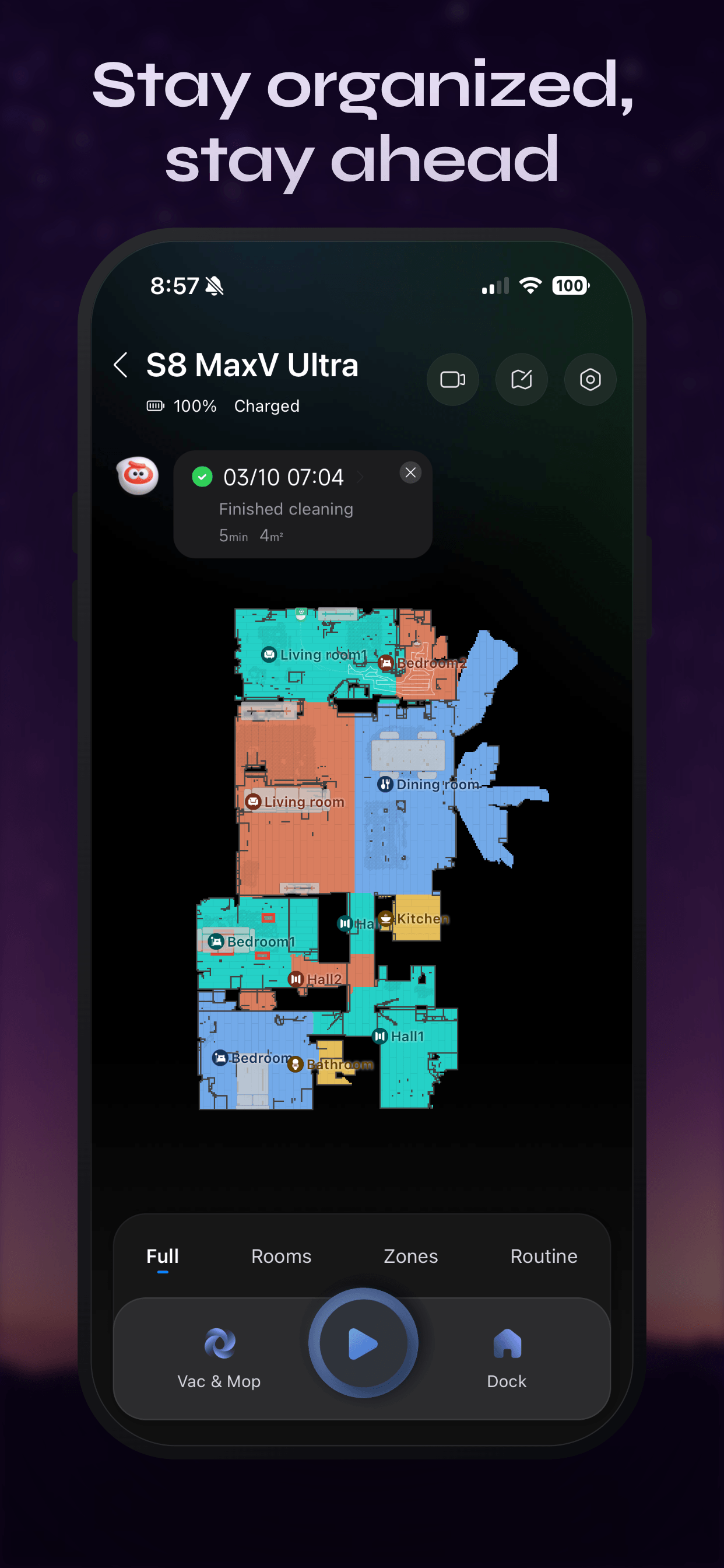
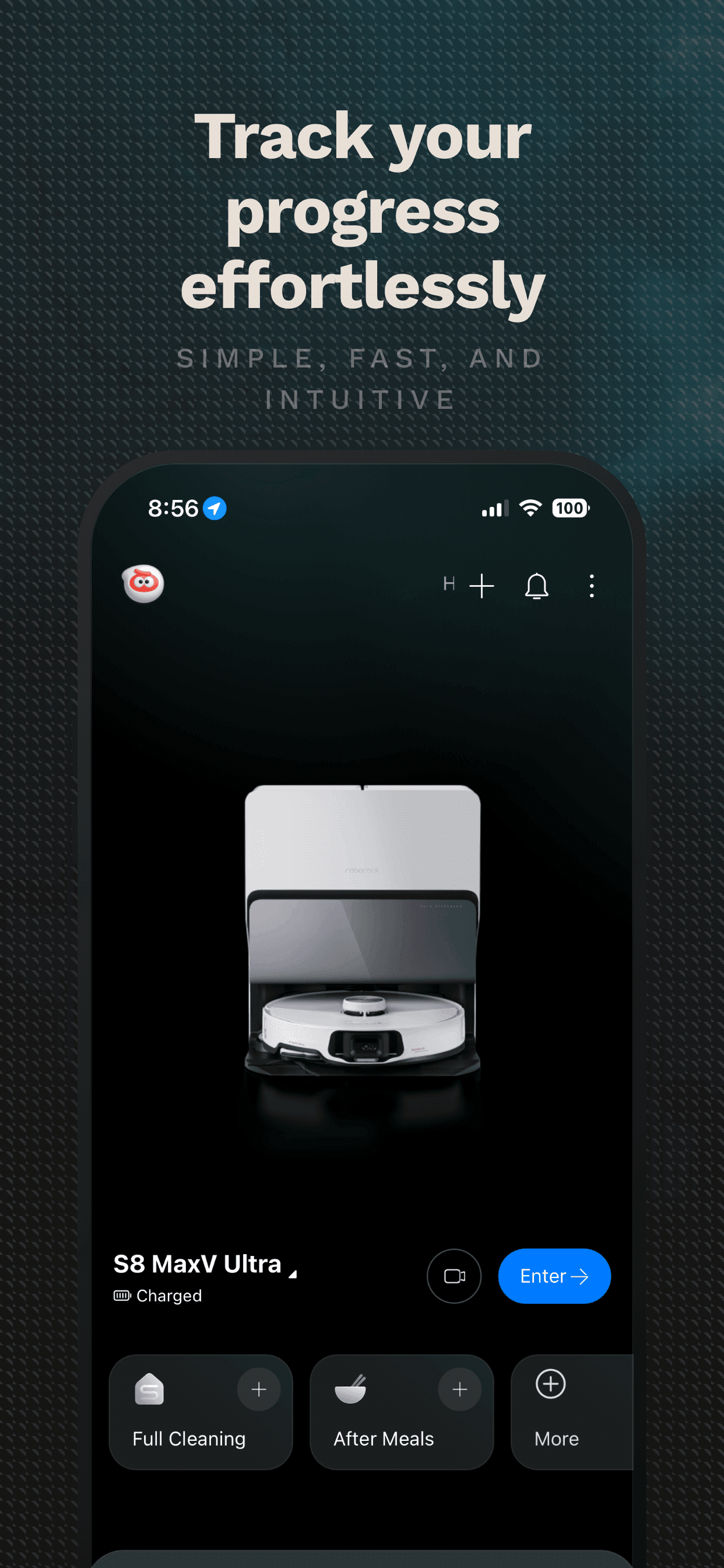
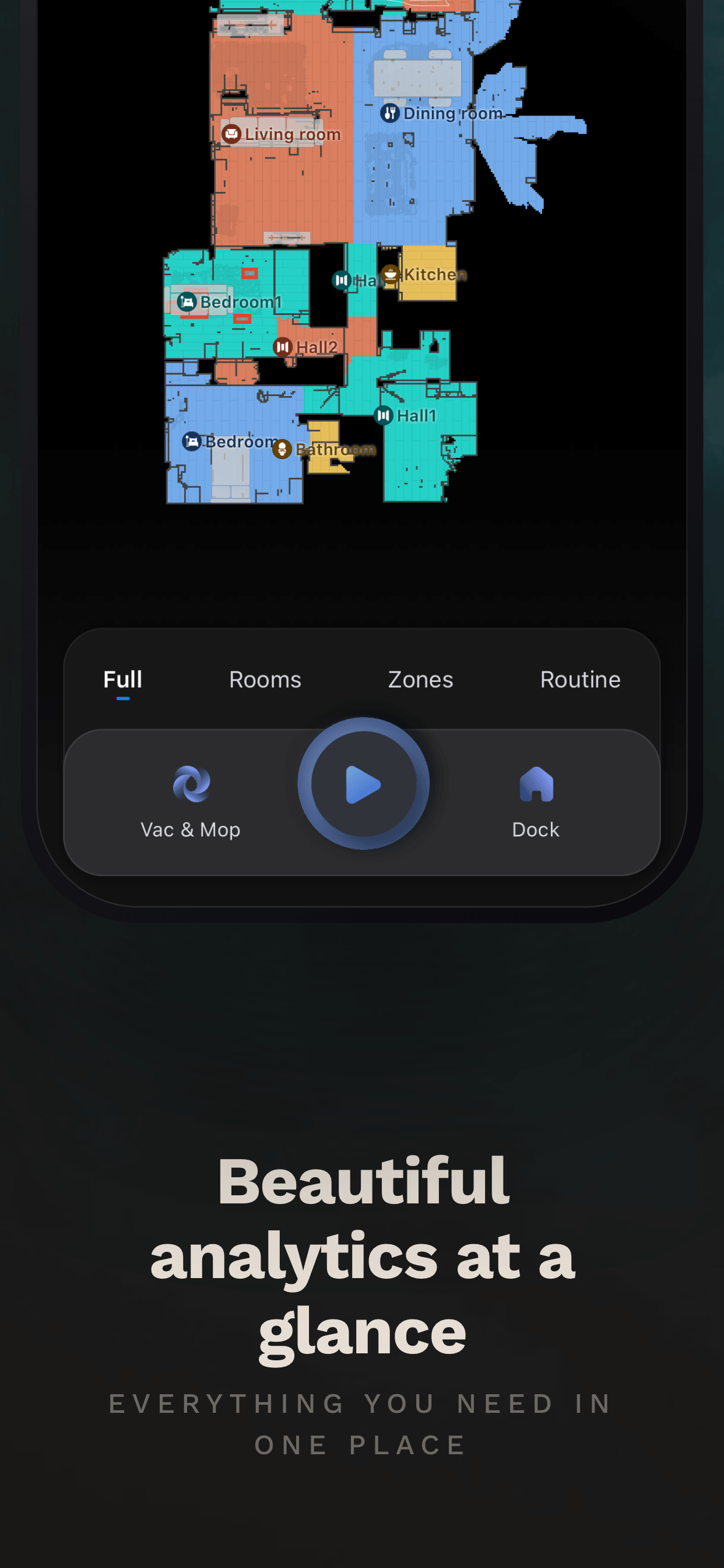
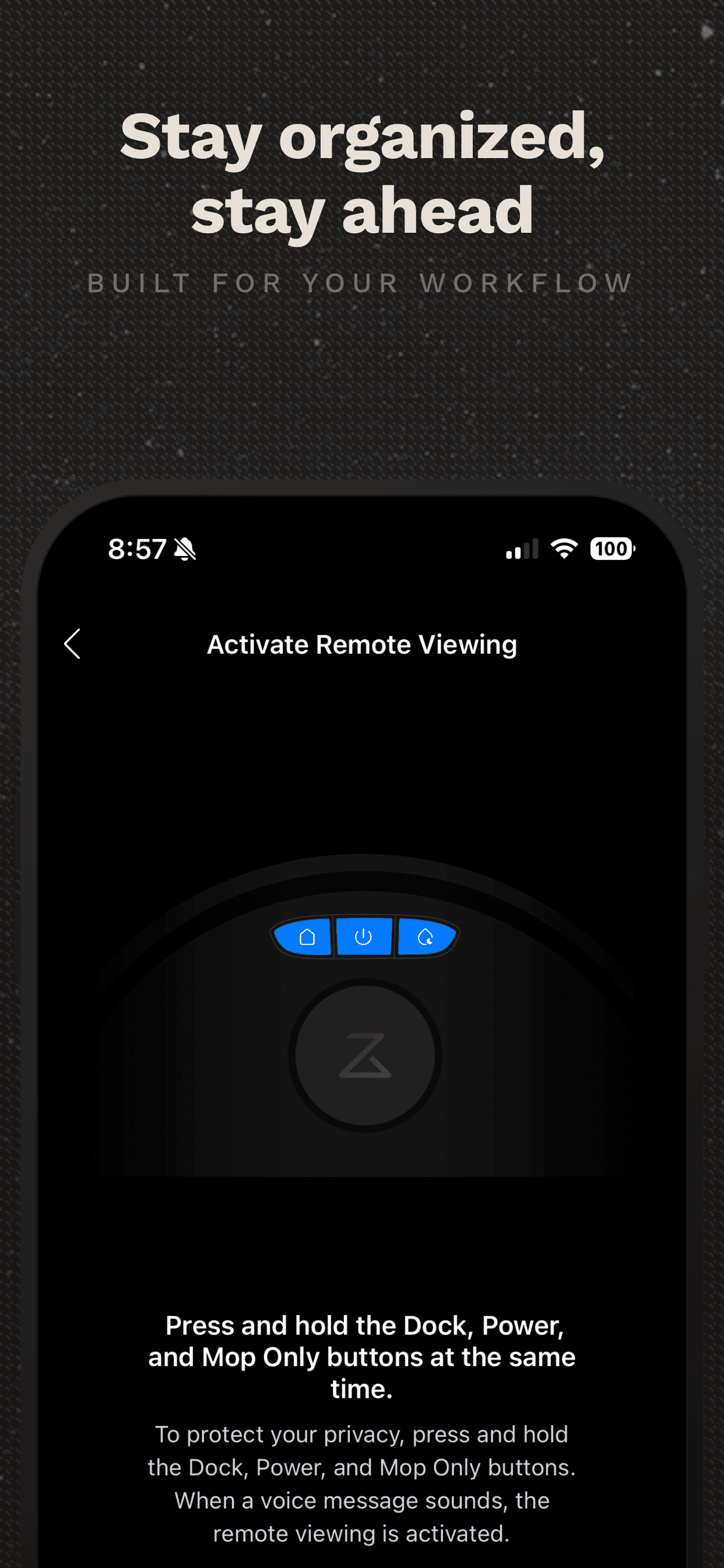
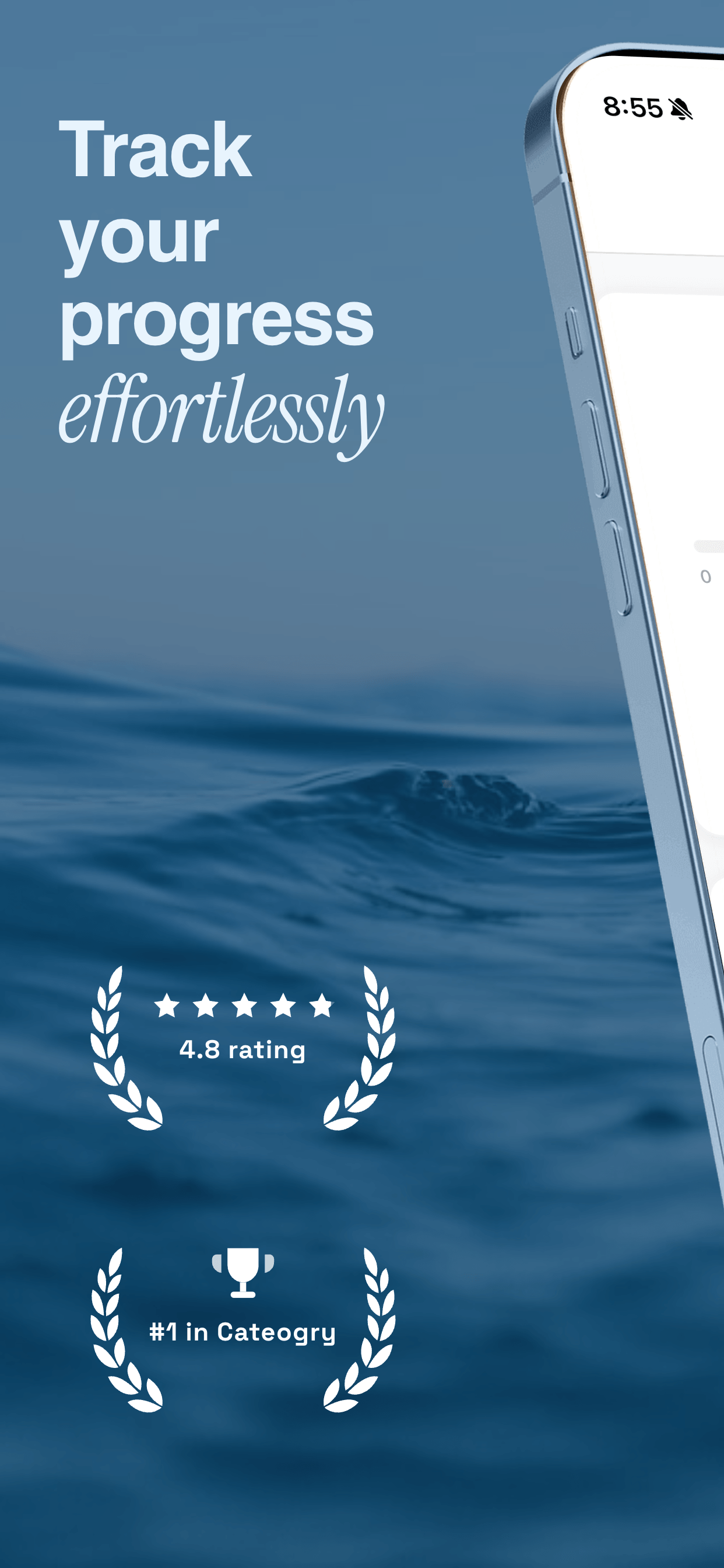
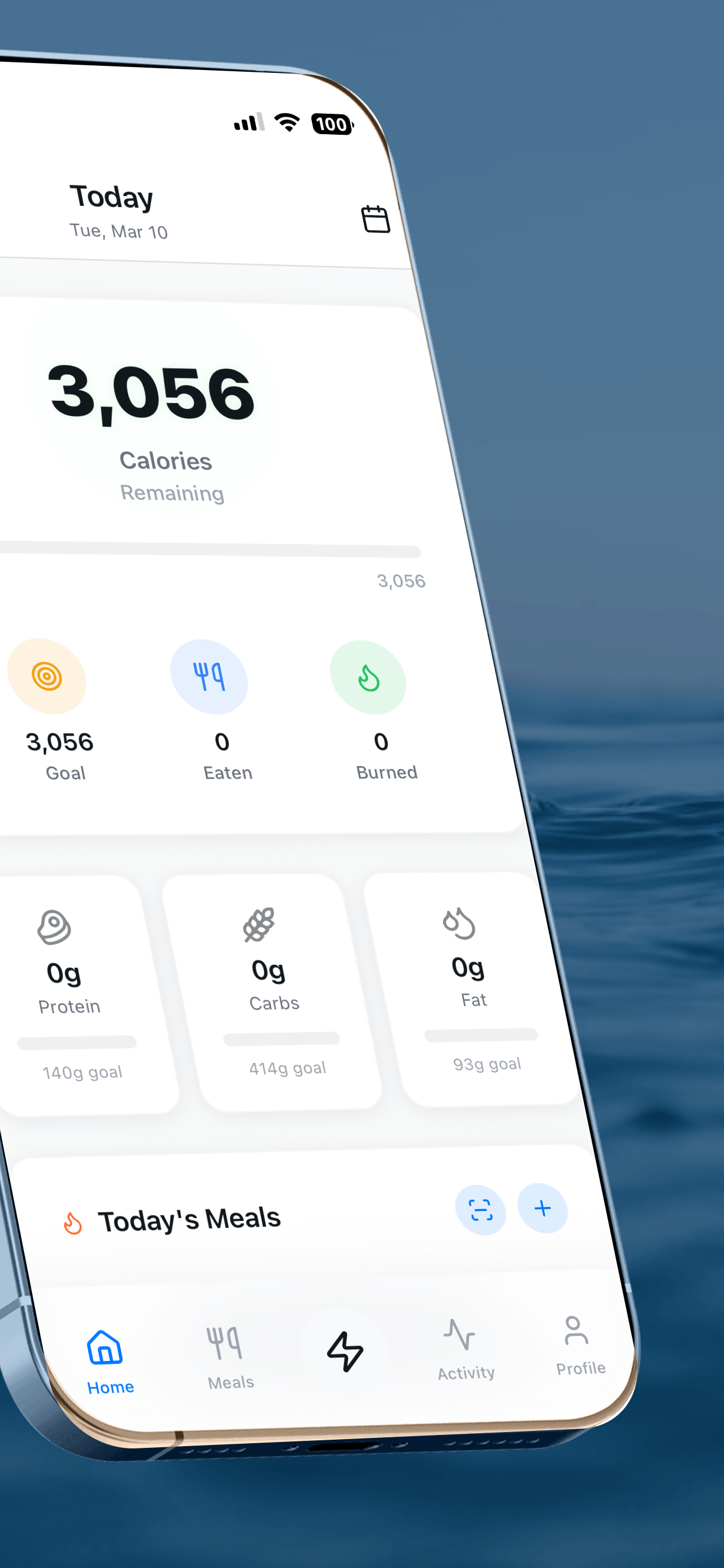
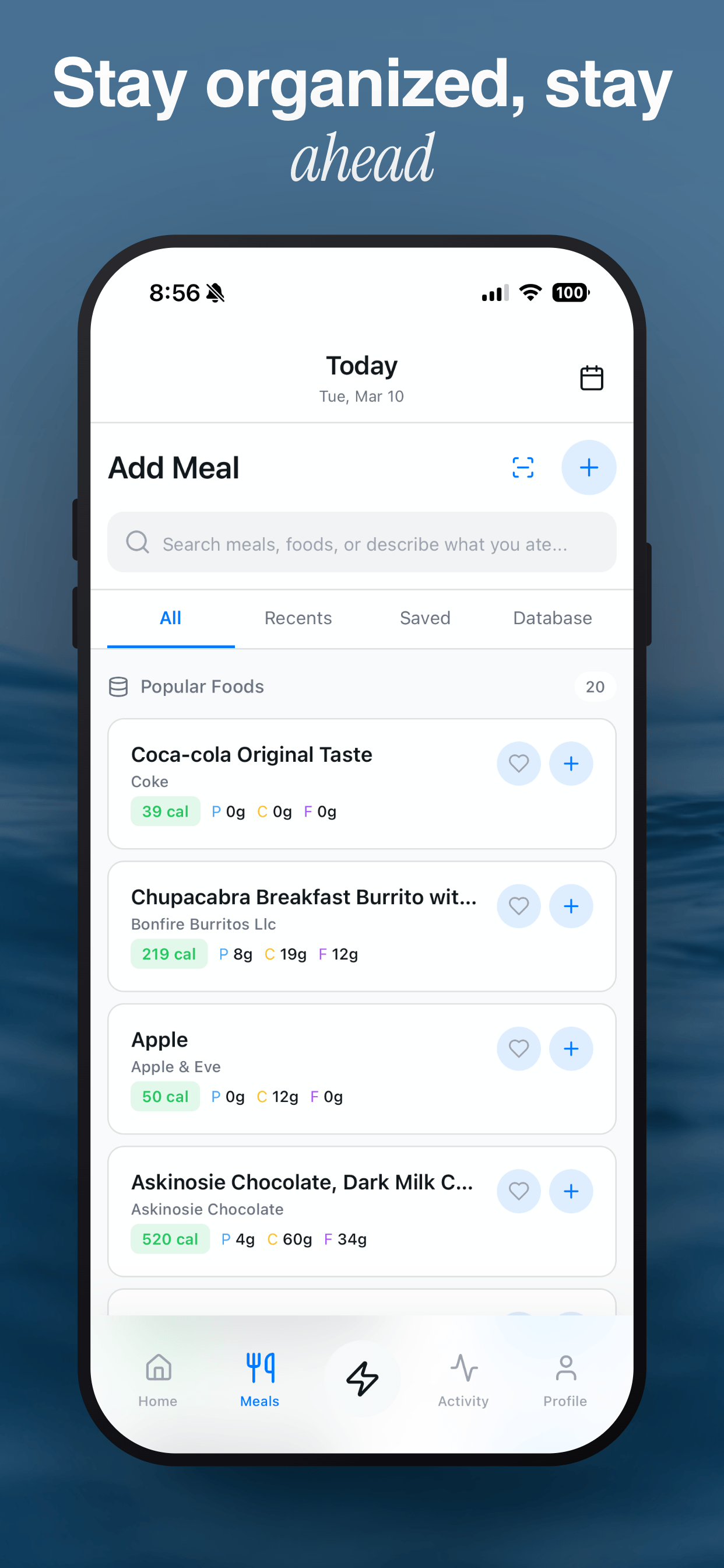
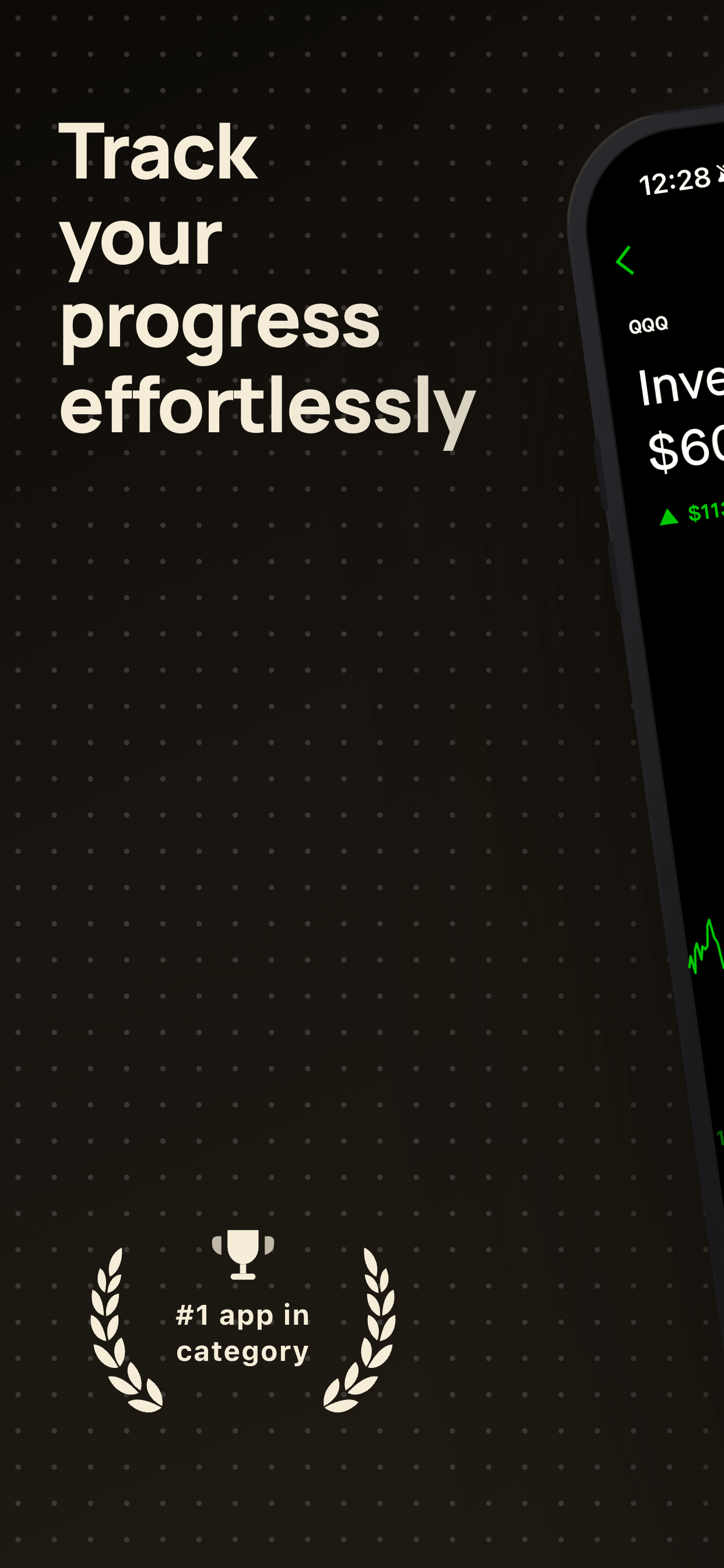
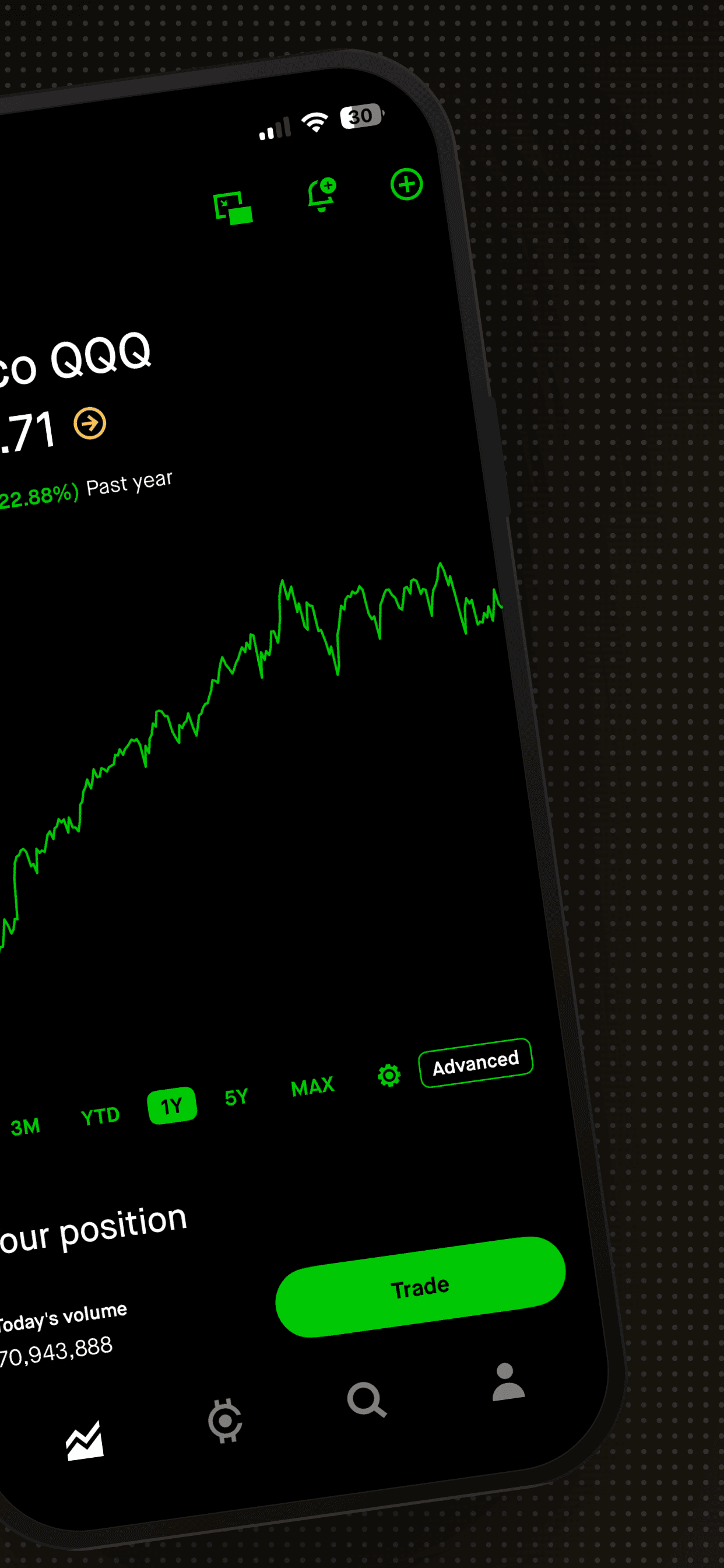
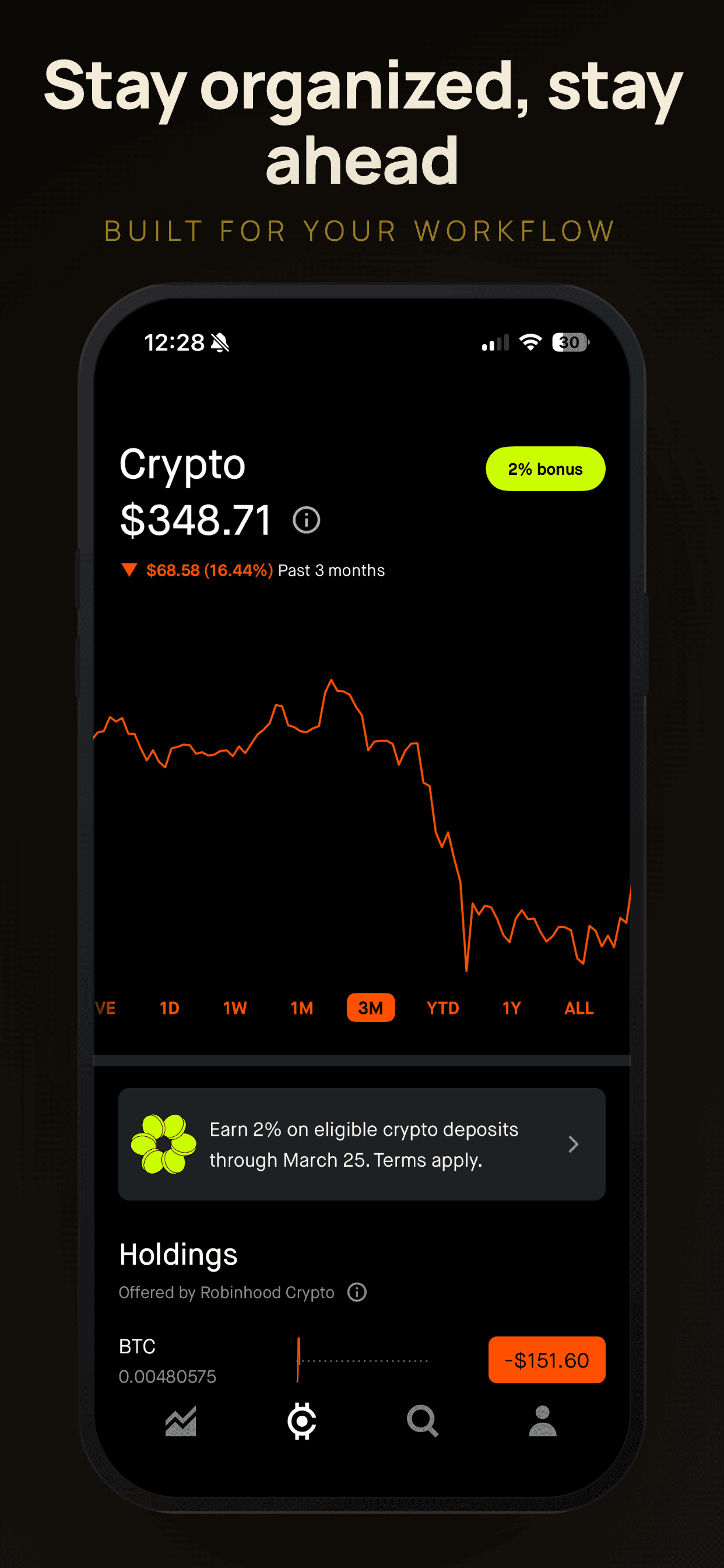
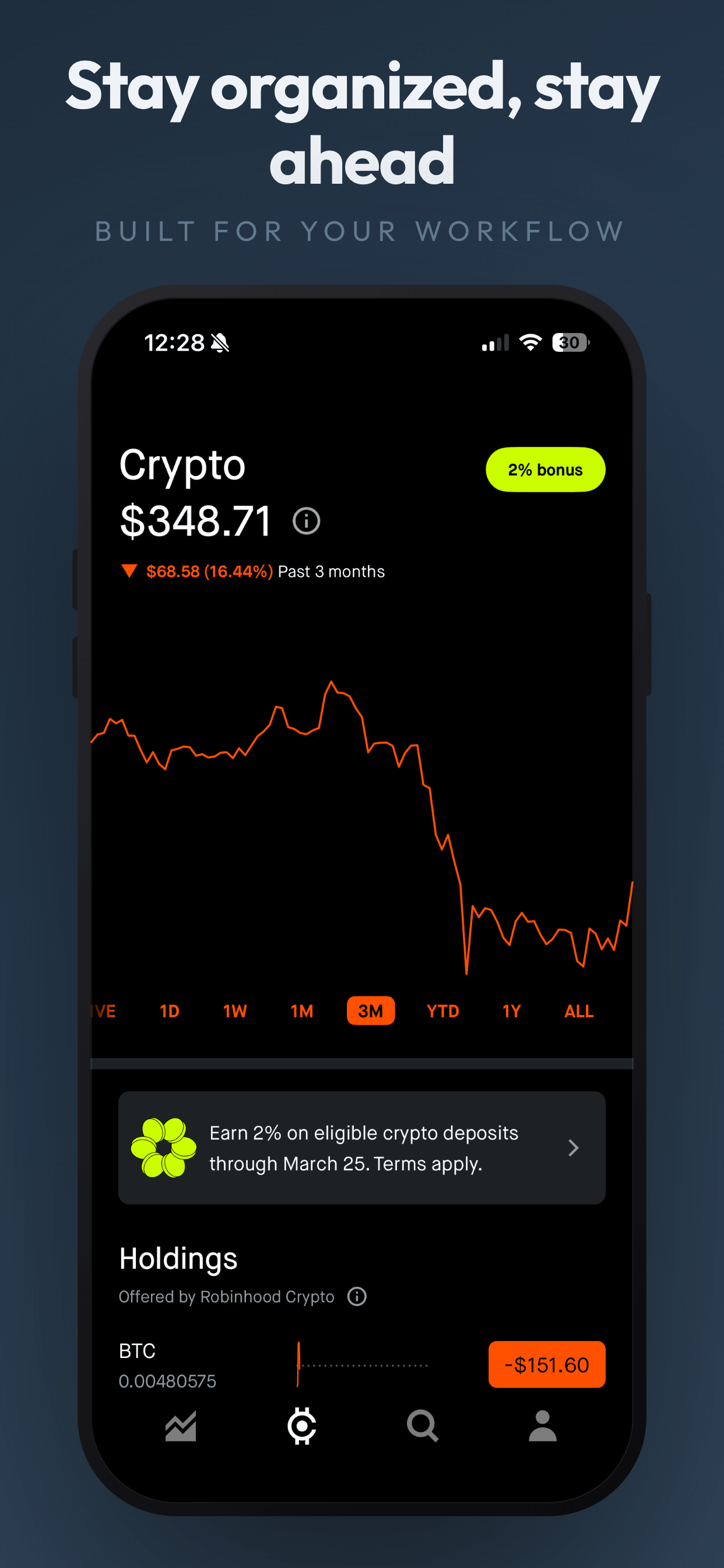
A good screenshot layout has three elements working together: a clean background, a device frame showing your app, and a short caption that tells the user what they are looking at.
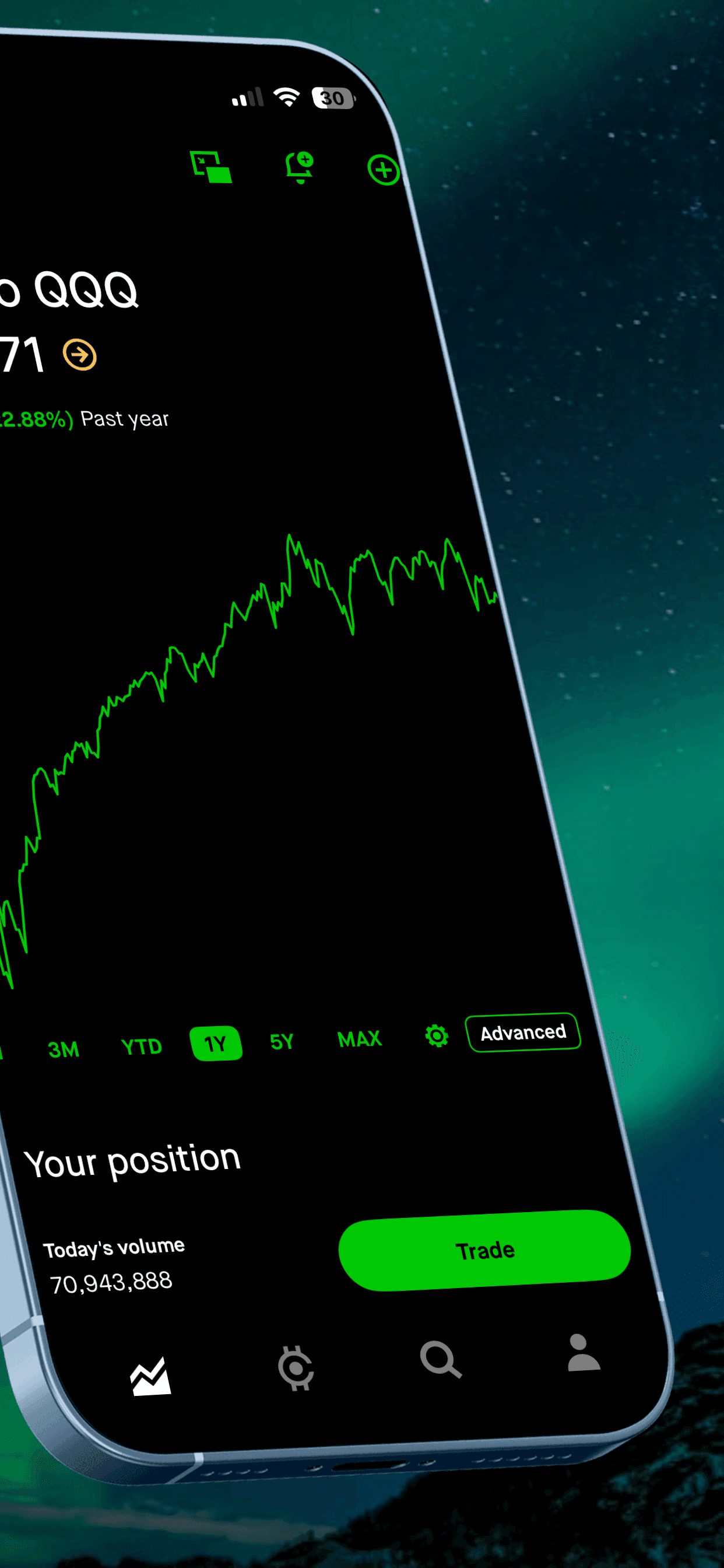
Background: Choose a color or gradient that creates contrast with your app UI. Dark backgrounds (navy, charcoal) make bright app screens pop. Light backgrounds (white, soft gray) work well when your app has rich, colorful content. The key is separation: the user should instantly see where the background ends and your app begins. Our background guide covers this in detail.
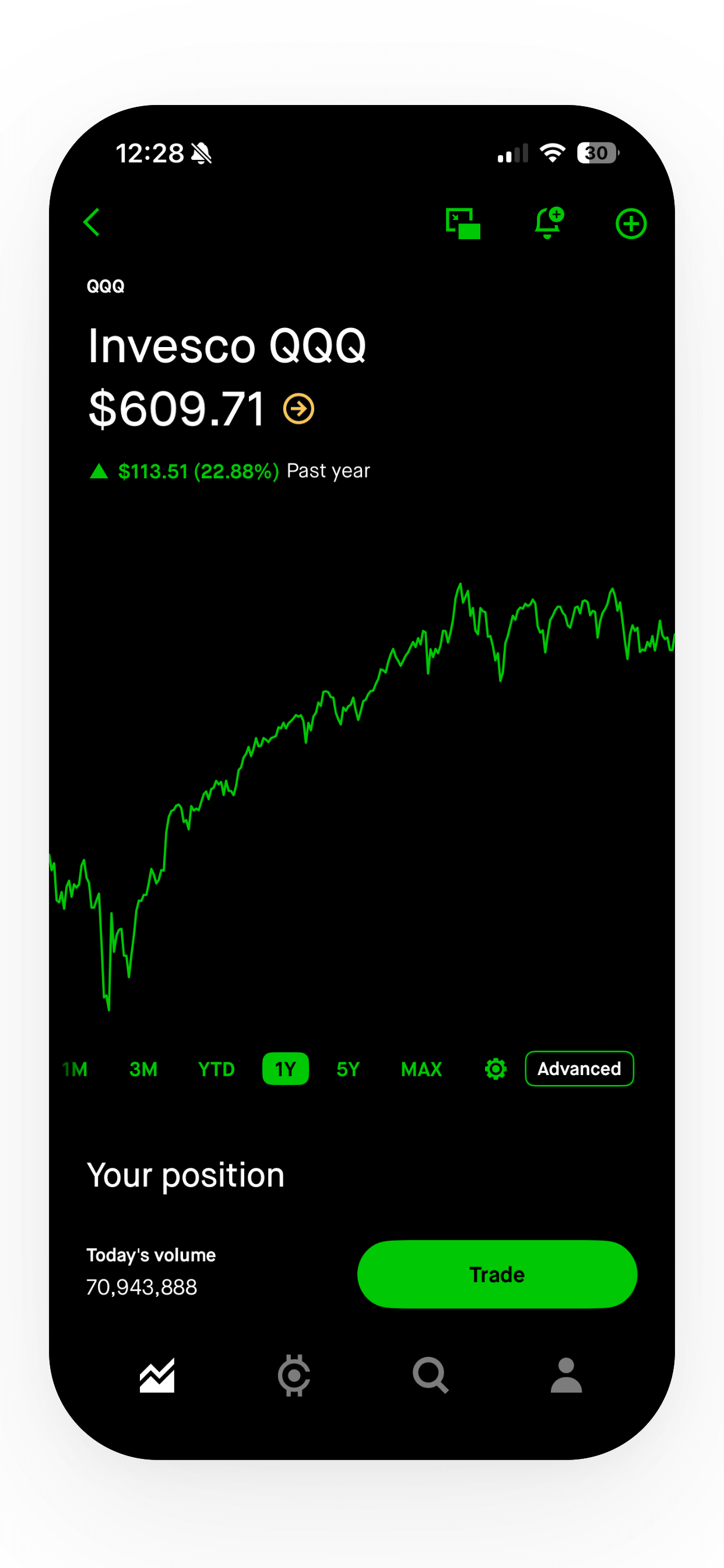
Device frame: Adding a phone frame around your screenshot makes it feel tangible. It helps users mentally place your app on their own device. Most screenshot tools, including Screenshot Otter, add device frames automatically when you pick a template.
Caption: This is the short headline above or below the device frame. Keep it to 6-8 words maximum. Focus on the benefit, not the feature. Instead of “Advanced Filter System,” write “Find exactly what you need.” The caption is doing persuasion work. The UI inside the device shows the feature. For more on writing captions, see our caption writing guide.
Founder's take
“The biggest mistake I see Android developers make is treating Google Play screenshots as an afterthought. They spend weeks on App Store screenshots and then just resize them for Google Play. Android users have different expectations. The Play Store shows screenshots more prominently in search results, which means your first two screenshots carry even more weight.”
Scott Stewart, founder of Screenshot Otter
Step 4: Pick a screenshot tool (or do it manually)
You have two paths: design everything from scratch in Figma or Photoshop, or use a dedicated screenshot tool that handles the layout, framing, and export for you.
Manual design (Figma, Sketch, Photoshop): Full creative control. You can build any layout you imagine. The cost is time. Expect to spend 4-8 hours creating a full set of 8 screenshots, more if you are also making tablet variants. You also need to maintain the source files and update them with every app release.
Screenshot tools: Tools like Screenshot Otter let you upload your raw captures, choose a template, add captions, and export a full set in minutes. The templates handle backgrounds, device frames, and typography automatically. Most tools support both App Store and Google Play export sizes, so you can create both sets from the same project.
If you are a solo developer or a small team shipping frequently, a screenshot tool will save you significant time on every release. If you have a dedicated designer and need highly custom layouts, manual design gives you more flexibility. For a detailed comparison of the available tools, see our screenshot tools comparison.
Step 5: Sequence your screenshots strategically
The order of your screenshots matters. Google Play shows the first two screenshots in search results, which means they need to carry the entire pitch on their own. The remaining screenshots serve users who tap into your full listing and want to learn more.
Screenshot 1: Your strongest feature and biggest benefit. This is your hook. A user scanning search results should see this screenshot and immediately understand what your app does and why it is worth trying.
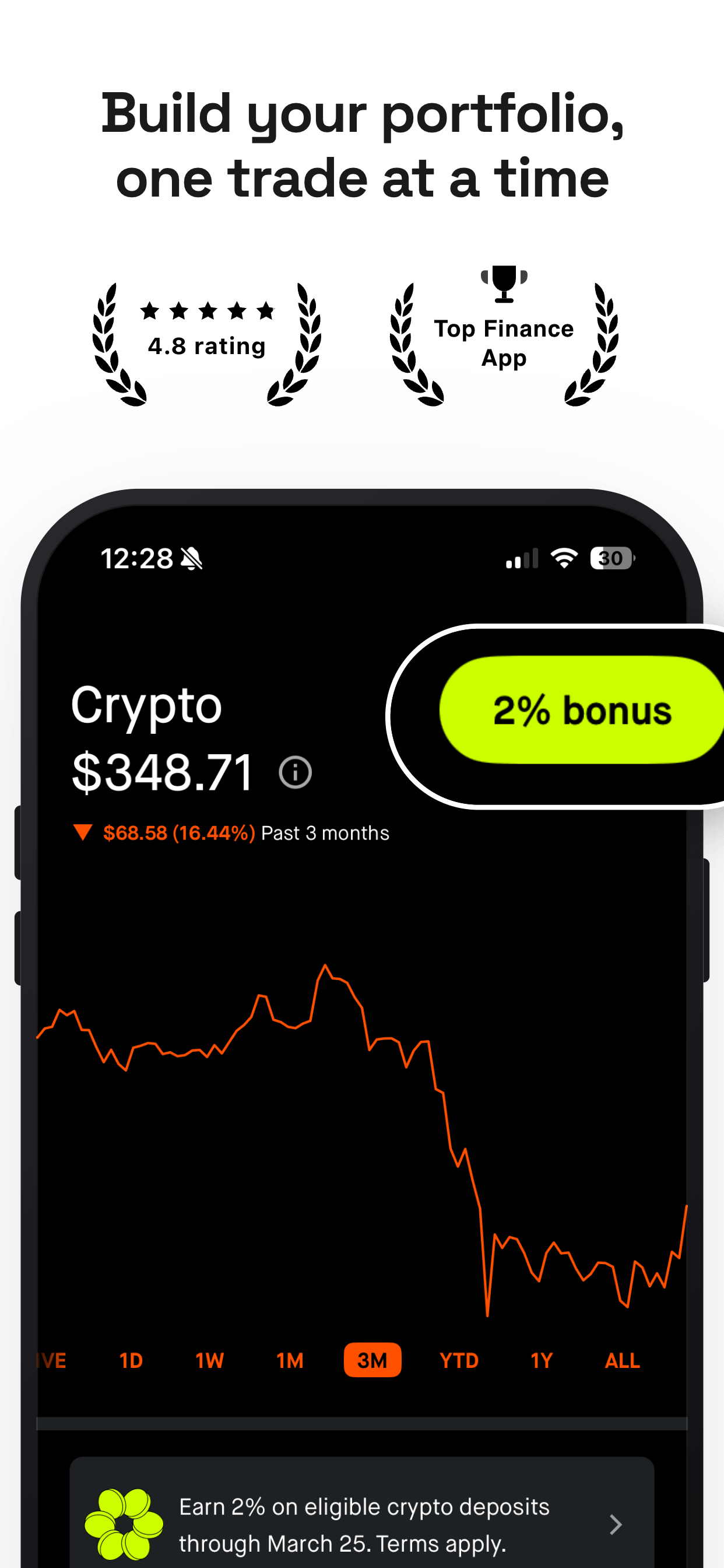
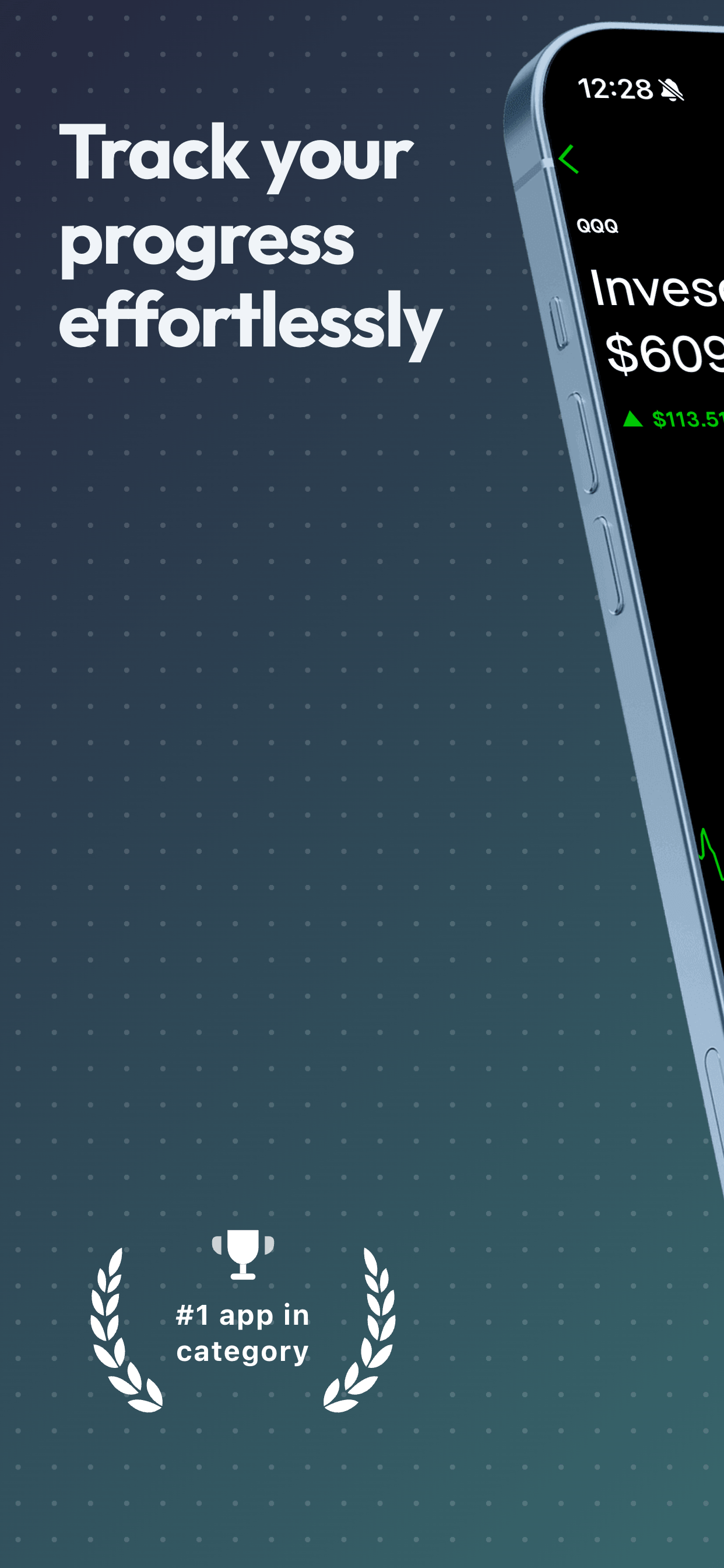
Screenshot 2: Your second-most compelling feature or a social proof element (ratings, awards, user count). This screenshot supports the first one and gives users a reason to tap into your listing.
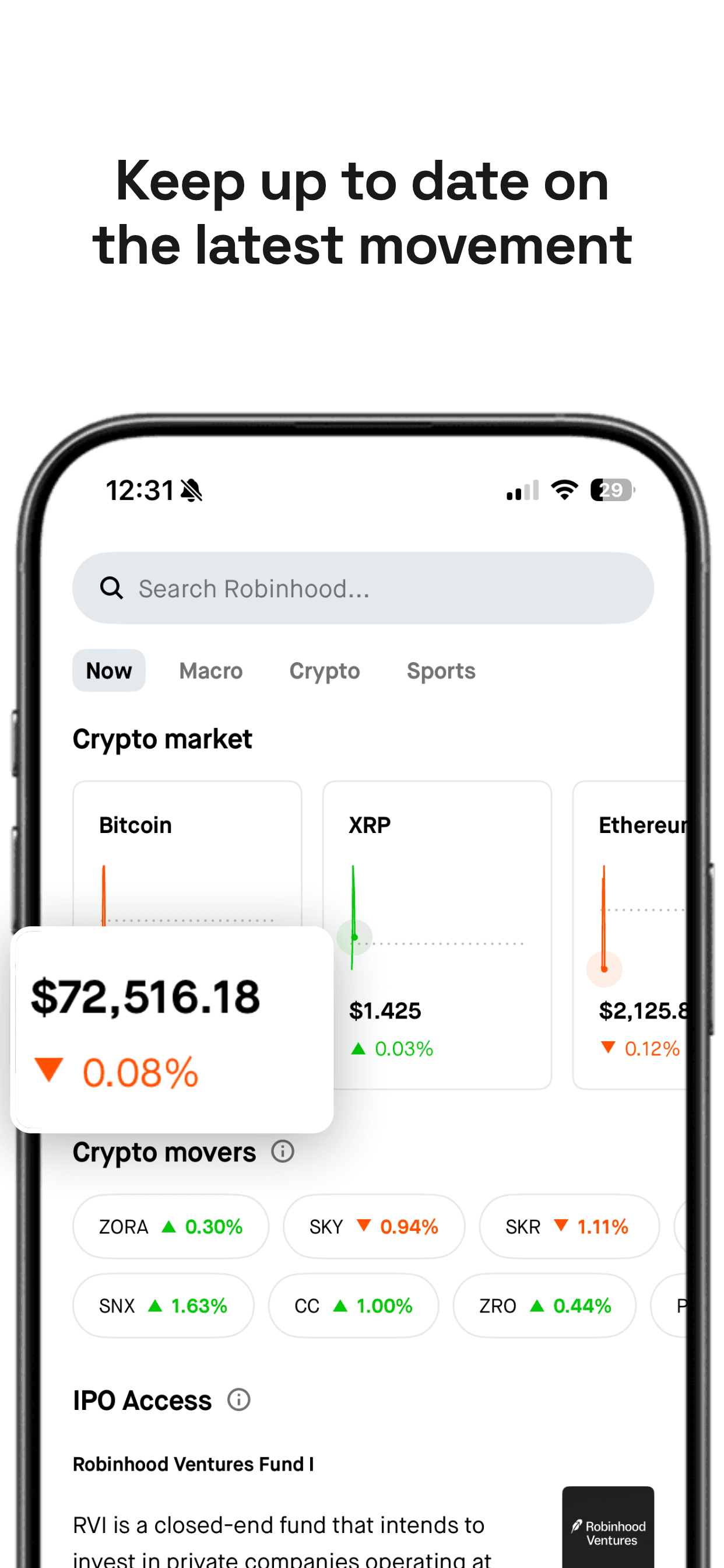
Screenshots 3-6: Walk through additional features in order of importance. Each screenshot should show one feature with one caption. Do not try to cram multiple features into a single screenshot. Clarity wins.
Screenshots 7-8: Close with a summary or differentiator. This could be your pricing advantage, a privacy statement, platform availability, or a closing CTA. Users who reach this point are seriously considering your app, so give them the final push.
Step 6: Optimize for Google Play specifically
If you are coming from the App Store side, there are a few important differences to account for when designing for Google Play.
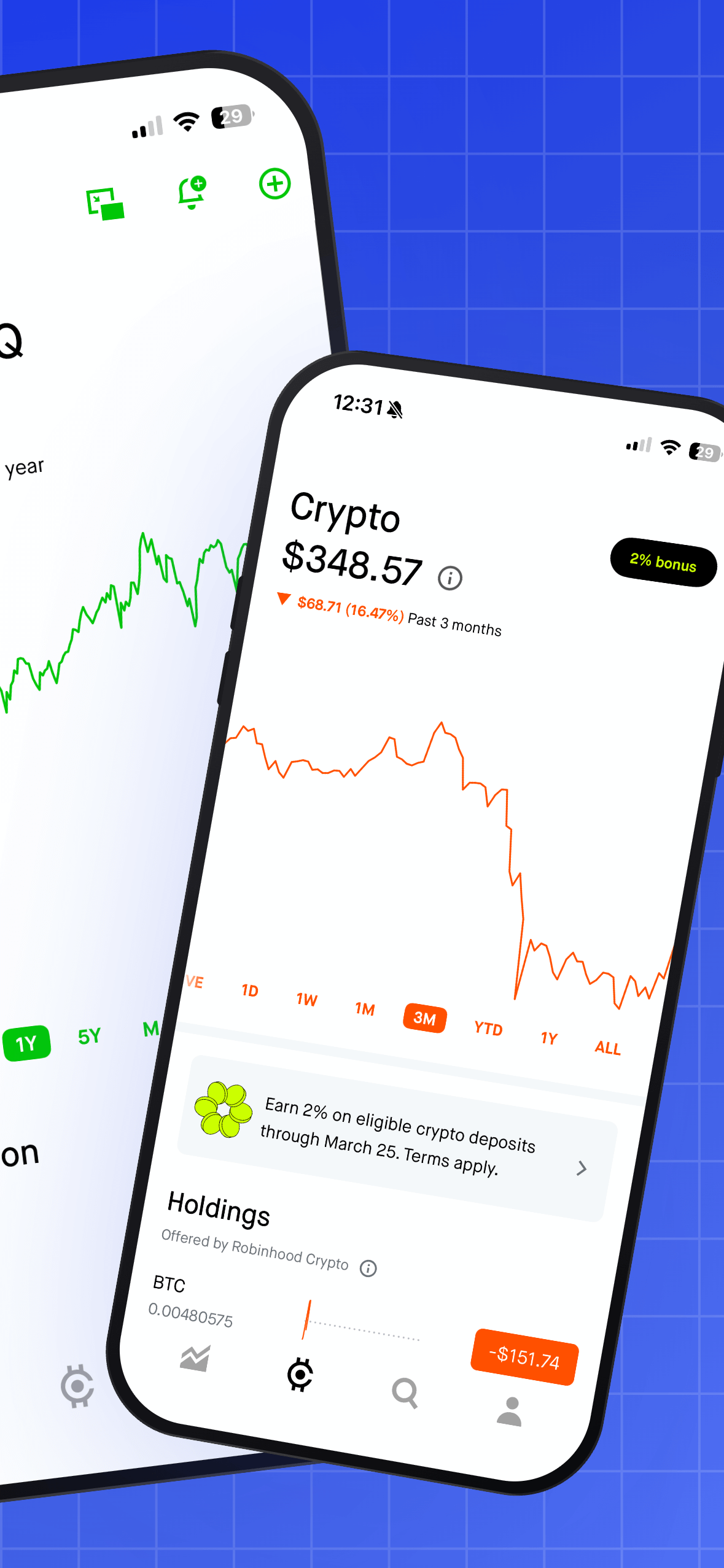
No panoramic screenshots: Apple supports panoramic (multi-screenshot) layouts where two images form a continuous scene. Google Play does not. Each screenshot stands on its own, so design every frame to work independently.
Feature graphic: Google Play has a Feature Graphic (1024 x 500 px) that appears at the top of your listing page. This is separate from your screenshots and serves as a banner image. Think of it as your listing’s hero image. It does not replace screenshots, but it adds another visual touchpoint that reinforces your brand.
Store listing experiments: Google Play Console includes built-in A/B testing (called store listing experiments). You can test different screenshot sets against each other and measure which version drives more installs. This is a free, powerful tool that most developers never use. Set up an experiment after your initial launch and let it run for at least 7 days to get meaningful data. Our A/B testing guide walks through the process.
Localization: Google Play supports localized screenshots for every language you publish in. If your app is available in multiple languages, translating your screenshot captions is one of the highest-leverage ASO moves you can make. Users in non-English markets are far more likely to install when the screenshots speak their language. See our localization strategy guide for the full playbook.
Step 7: Export and upload to Play Console
Once your screenshots are designed, export them as PNG files at the correct dimensions. Name your files descriptively (like 01-hero-feature.png, 02-search.png) so you can easily reorder them later.
In Google Play Console, navigate to your app, then go to Grow > Store presence > Main store listing. Scroll to the Graphics section. Upload your phone screenshots in order. Google Play preserves the upload order, so drag them into the correct sequence if needed.
If you have tablet screenshots, upload them under the appropriate device type tab (7-inch tablet, 10-inch tablet). Review each image in the preview pane to make sure captions are readable and device frames are not cropped.
After uploading, save your changes and submit the update for review. Screenshot updates typically go live within a few hours, though Google’s review queue can sometimes take up to 24 hours.
Common Google Play screenshot mistakes
Uploading raw screenshots with no design. Raw captures with no background, frame, or caption look unfinished. They signal low effort and low quality, even if your app is excellent. At minimum, add a colored background and a short caption.
Using iOS device frames on Google Play. This is more common than you would expect. If your screenshot shows an iPhone notch or Dynamic Island on a Google Play listing, Android users will notice, and it sends the signal that your Android app is a second-class port.
Ignoring the first two screenshots. Google Play displays only the first two screenshots in search results. If those two images are generic or unclear, users will scroll past your listing. Put your absolute best content in positions 1 and 2.
Captions that describe features instead of benefits. “Calendar Sync” is a feature. “Never miss an appointment” is a benefit. Users care about what your app does for them, not the technical name of the capability.
Forgetting to update screenshots after redesigns. Stale screenshots that show an old UI erode trust. When users install your app and see something different from what the screenshots promised, they are more likely to uninstall and leave a negative review. Update your screenshots with every major release.
Google Play screenshot checklist
- 1.Phone screenshots are 1080 x 1920 px, portrait, PNG format
- 2.All 8 screenshot slots are filled
- 3.First screenshot communicates your core value instantly
- 4.Every caption is benefit-focused, 6-8 words maximum
- 5.Device frames match Android (no iOS frames)
- 6.Background creates clear contrast with your app UI
- 7.Tablet screenshots uploaded if your app supports tablets
- 8.Feature Graphic (1024 x 500 px) is uploaded
- 9.Screenshots are localized for your top markets
- 10.A/B test is scheduled after initial upload
Frequently Asked Questions
- What size should Google Play screenshots be?
- For phone listings, the recommended size is 1080 x 1920 pixels (portrait) or 1920 x 1080 pixels (landscape). Google requires a minimum of 320px on the short side and 3840px maximum on the long side. The aspect ratio must not exceed 2:1. Most developers use 1080 x 1920 for phone screenshots.
- How many screenshots can I upload to Google Play?
- You can upload between 2 and 8 screenshots per device type (phone, 7-inch tablet, 10-inch tablet, Android TV, and Wear OS). You need a minimum of 2 phone screenshots to publish your listing. Most successful apps upload all 8 slots.
- What image format does Google Play accept for screenshots?
- Google Play accepts JPEG and 24-bit PNG files (no alpha/transparency). Each file must be under 8 MB. PNG is generally preferred because it preserves sharp text and UI details without compression artifacts.
- Can I use the same screenshots for the App Store and Google Play?
- You can, but the dimensions differ. App Store screenshots are typically 1290 x 2796 px or 1320 x 2868 px for the latest iPhones, while Google Play uses 1080 x 1920 px. A screenshot tool that supports both stores (like Screenshot Otter) lets you export the same design at both sizes without reworking your layouts.
Related
Create your Google Play screenshots in minutes
Upload your Android captures, pick a template, export at the right size. Free, no signup required.
Try Screenshot Otter free →