Guide
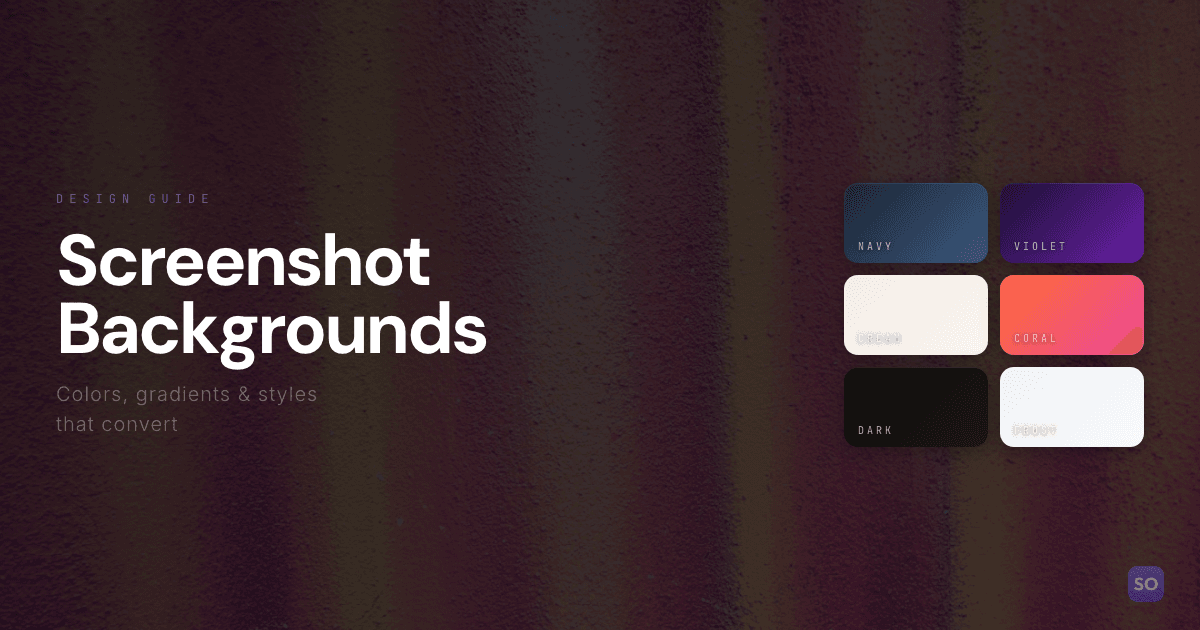
App Store Screenshot Backgrounds: How to Choose Colors and Styles That Convert
Your background color is the first thing a user registers when scrolling through search results. It sets the emotional tone before they read a single word of your caption. Here’s how to choose wisely.

Scott Stewart · Mar 23, 2026
Quick answer
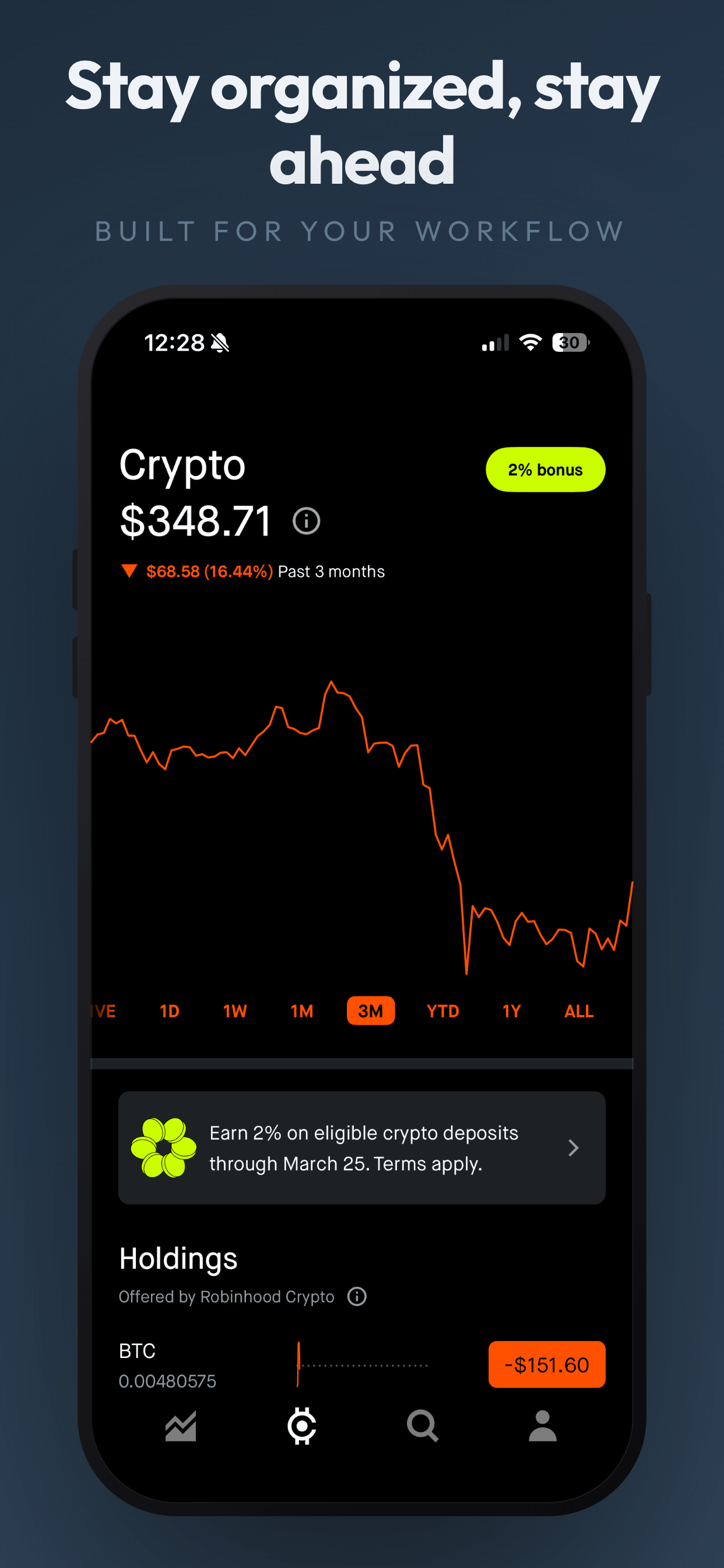
Dark backgrounds (navy, charcoal, deep purple) feel premium and make bright app screens pop. Light backgrounds (white, soft gray) feel clean and approachable. Gradients add depth but should be subtle. The most important factor is contrast between the background and your device frame, and alignment with your app’s brand. When in doubt, check what your competitors use in search results and choose something that stands apart.
Why your background color matters more than you think
Users form a visual impression of your app listing in under 50 milliseconds. That is not enough time to read your caption or evaluate your UI. It is enough time to register a color, a level of contrast, and an overall vibe. Your screenshot background is doing the heavy lifting in that split second.
In the App Store search results grid, your screenshots appear as small thumbnails alongside your competitors. The background color is what creates visual separation between your listing and the ones above and below it. A well-chosen background pulls the eye. A generic one blends into the noise.
Beyond first impressions, the background also affects readability. A caption on a dark background needs to be white or light-colored. A caption on a light background needs darker text. If the contrast between your text and background is too low, your message disappears, and so does your conversion rate.
Dark backgrounds vs. light backgrounds
This is the most fundamental choice you will make, and both directions have real strengths.
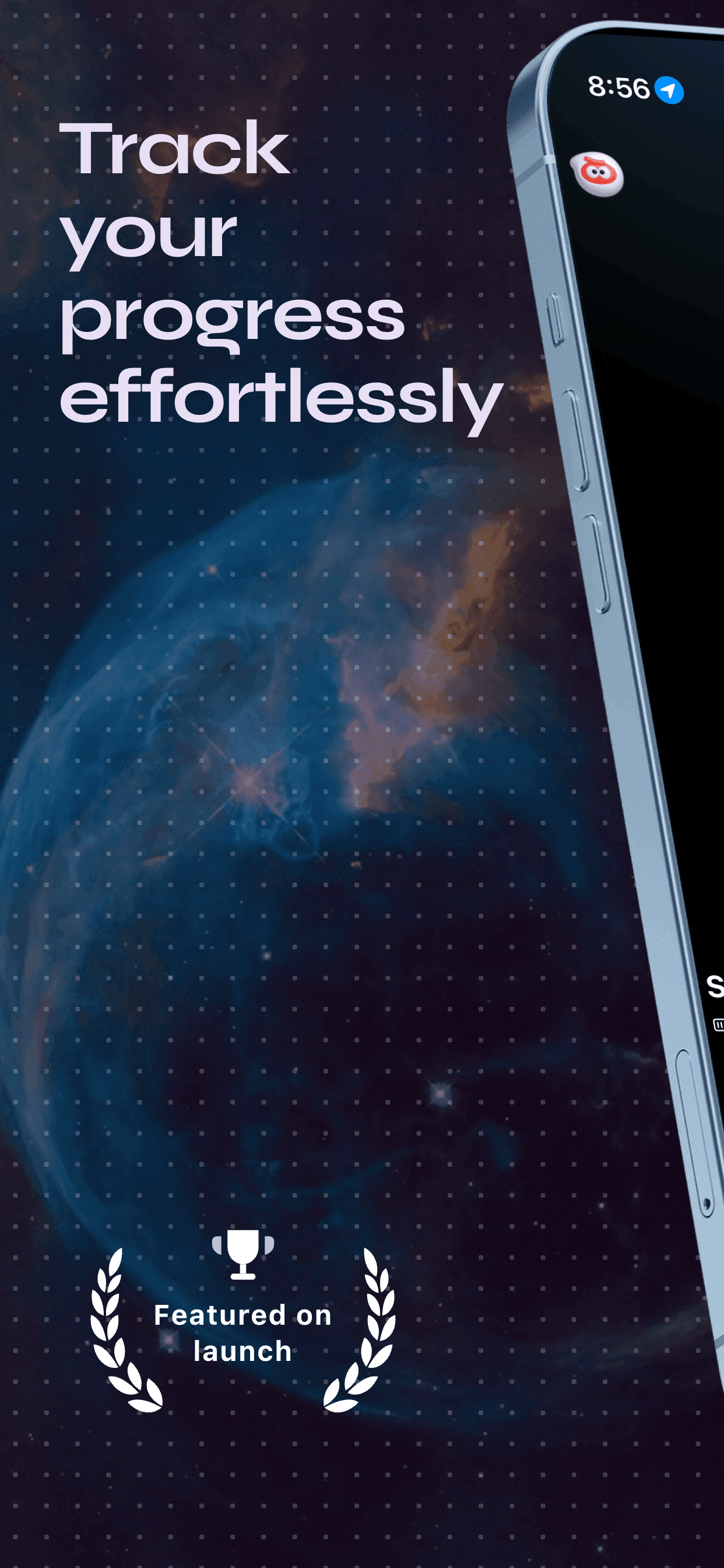
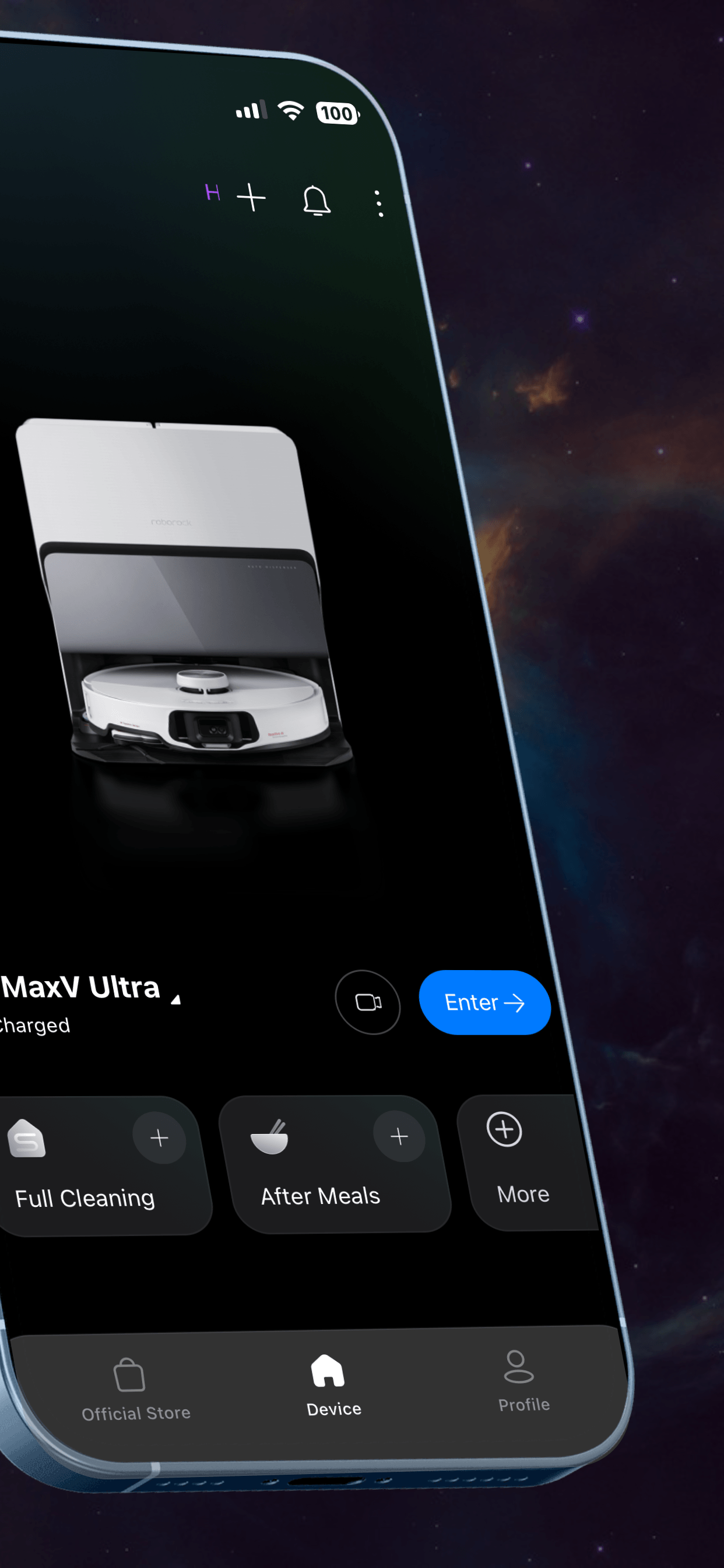
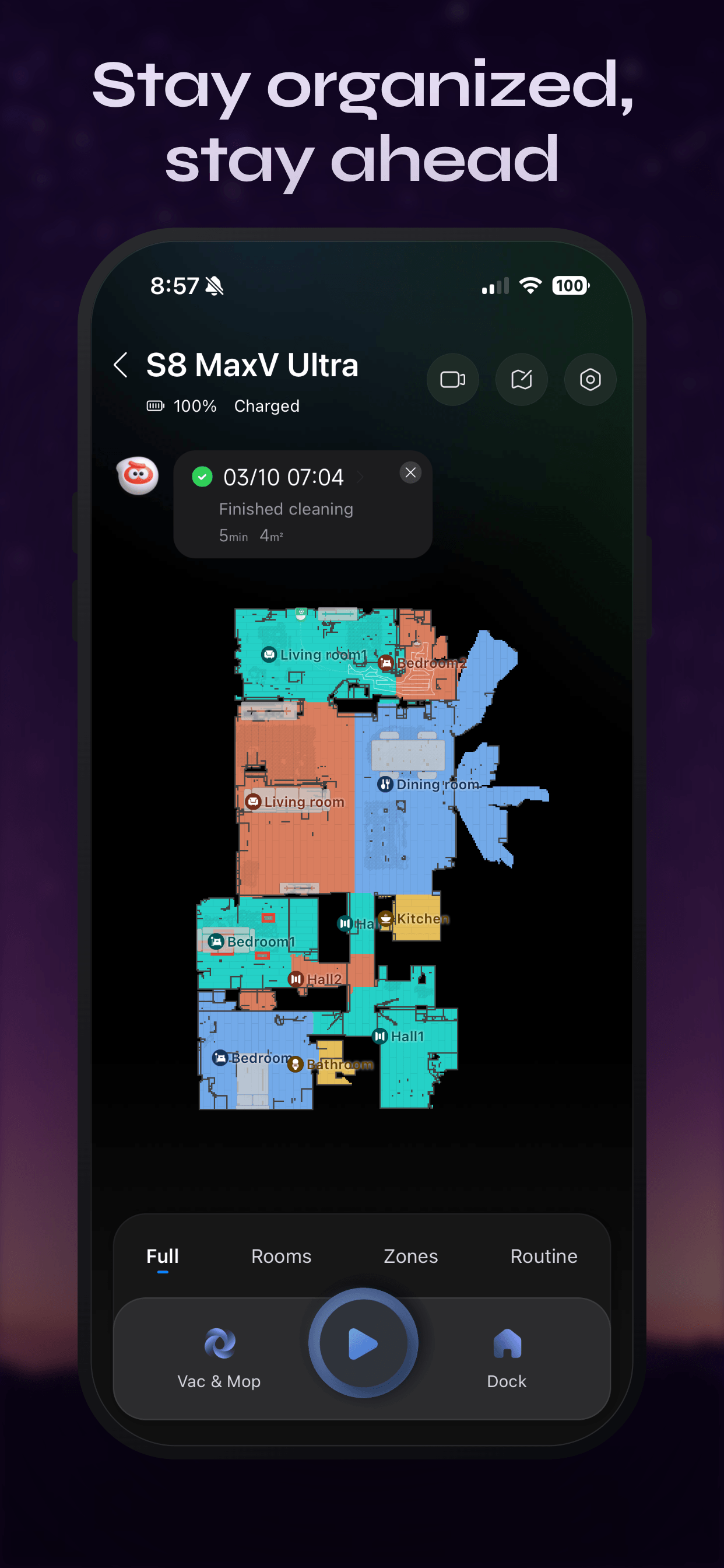
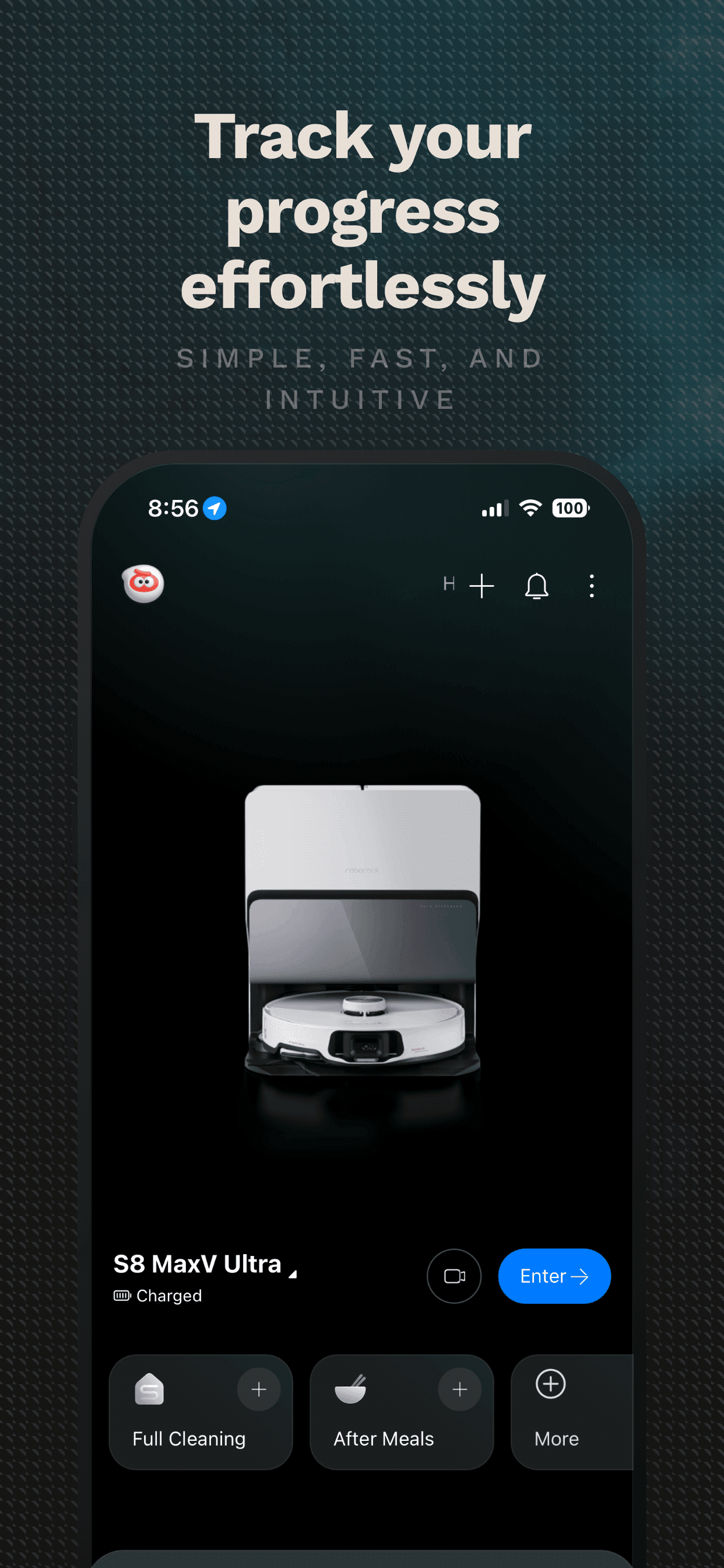
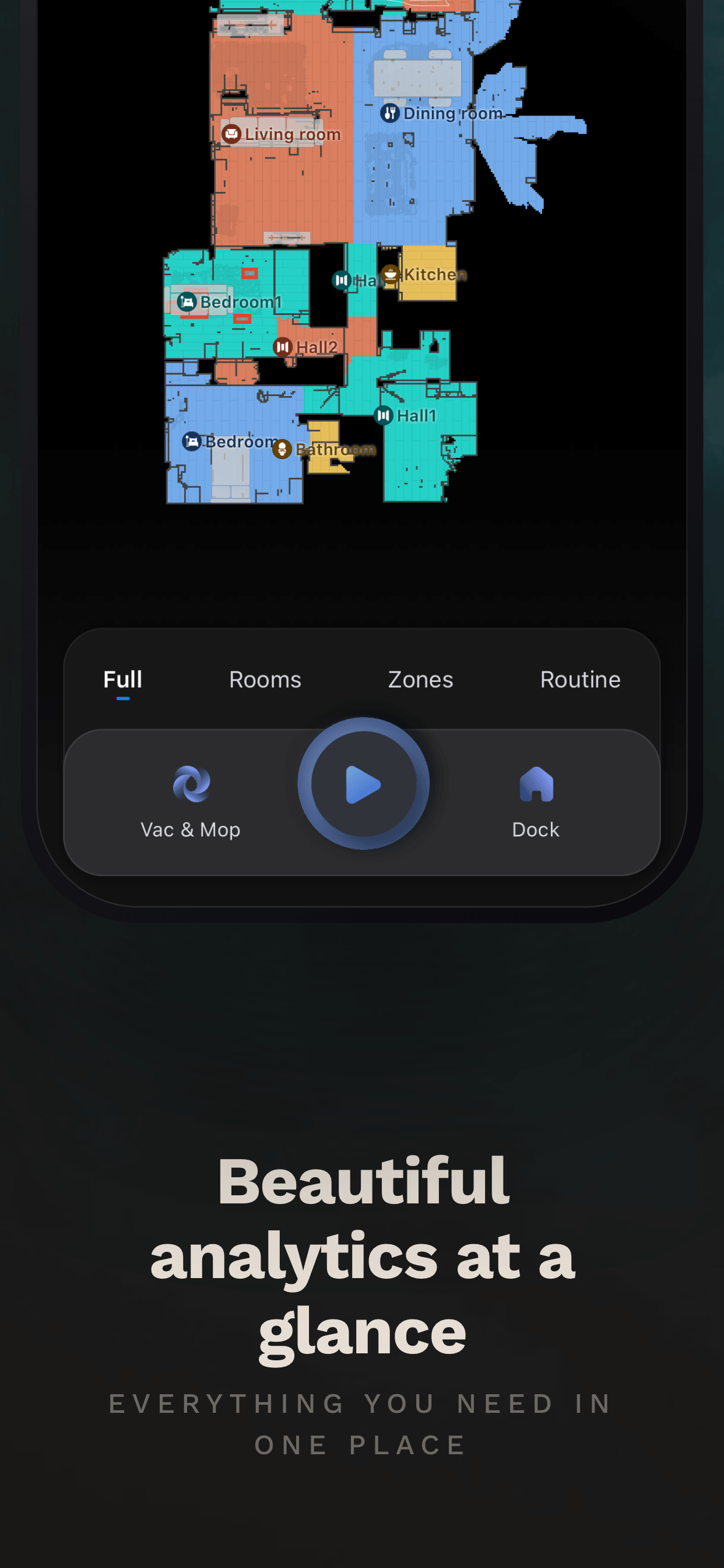
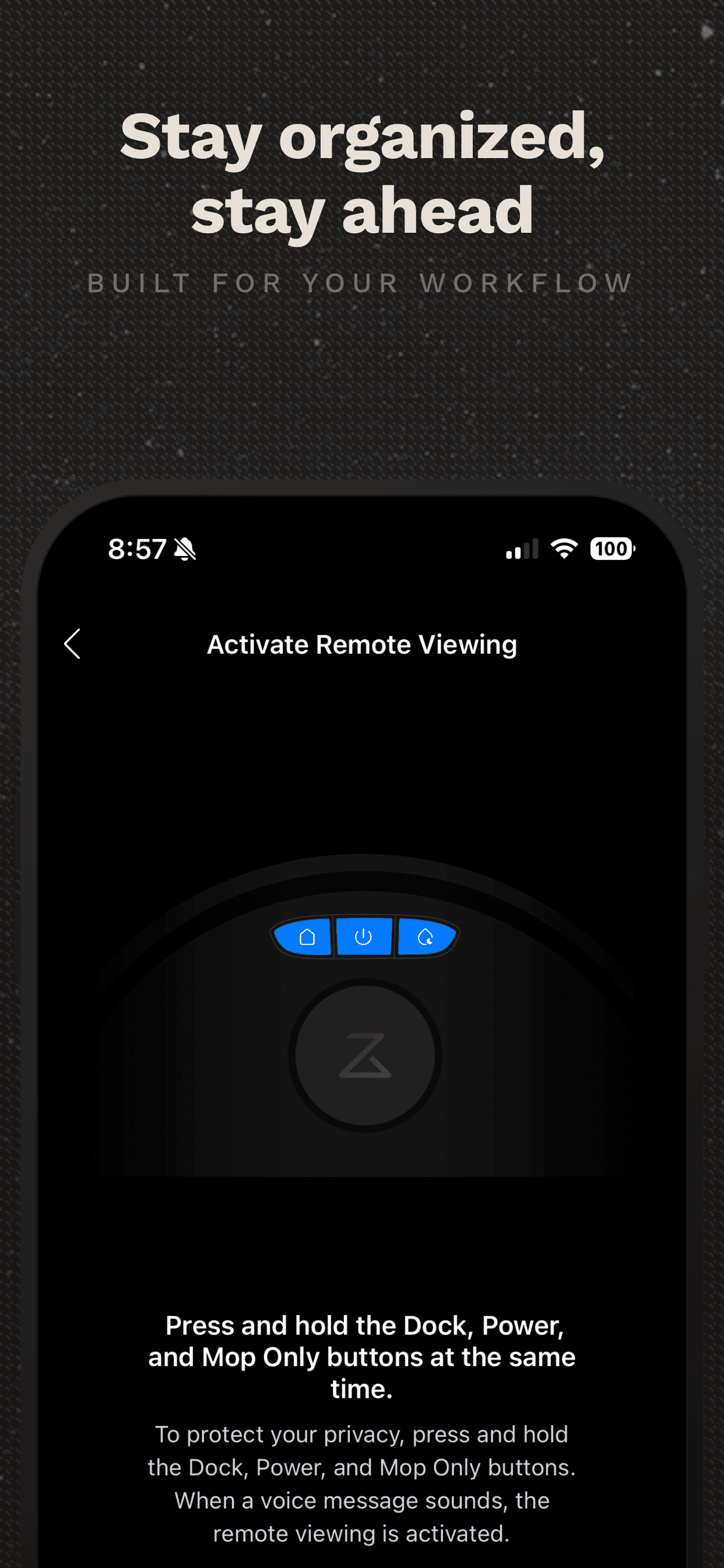
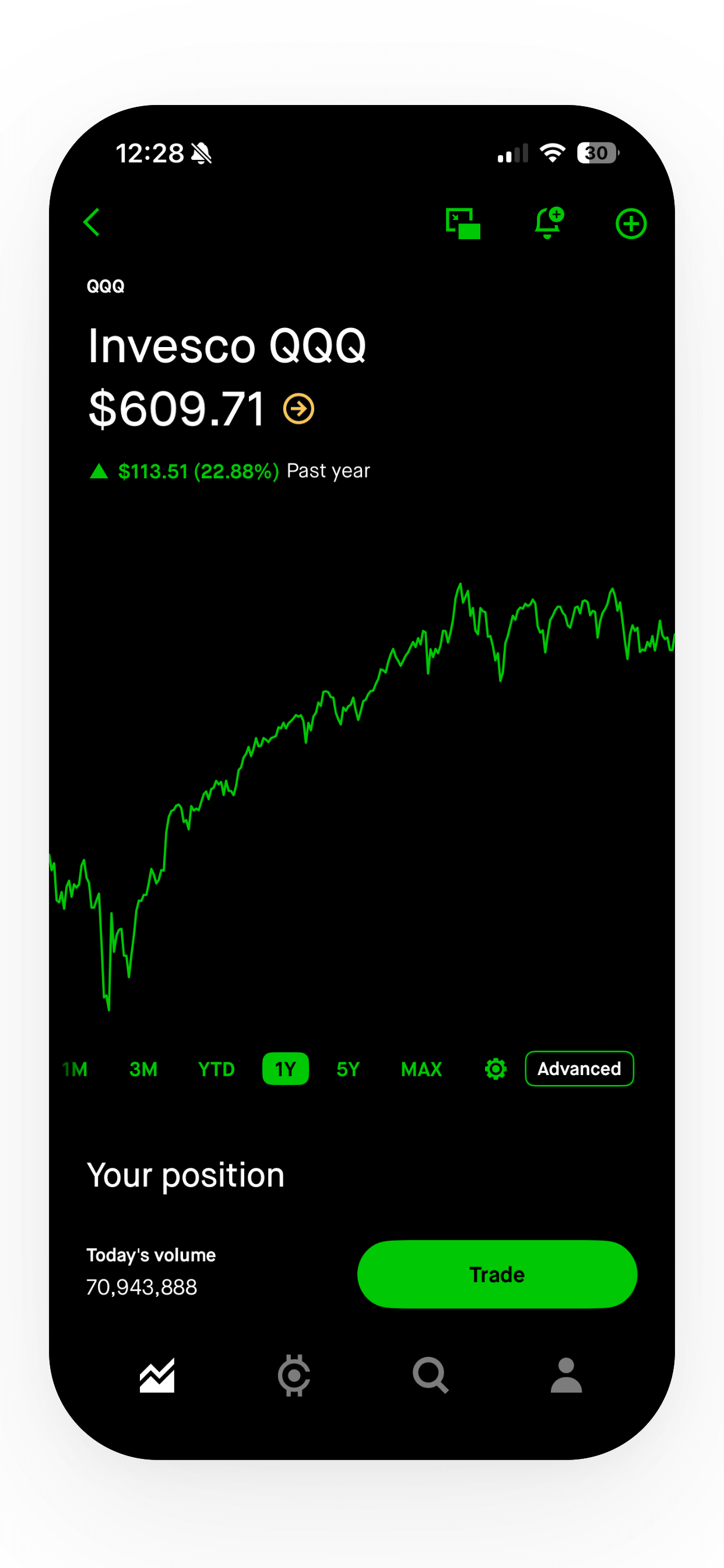
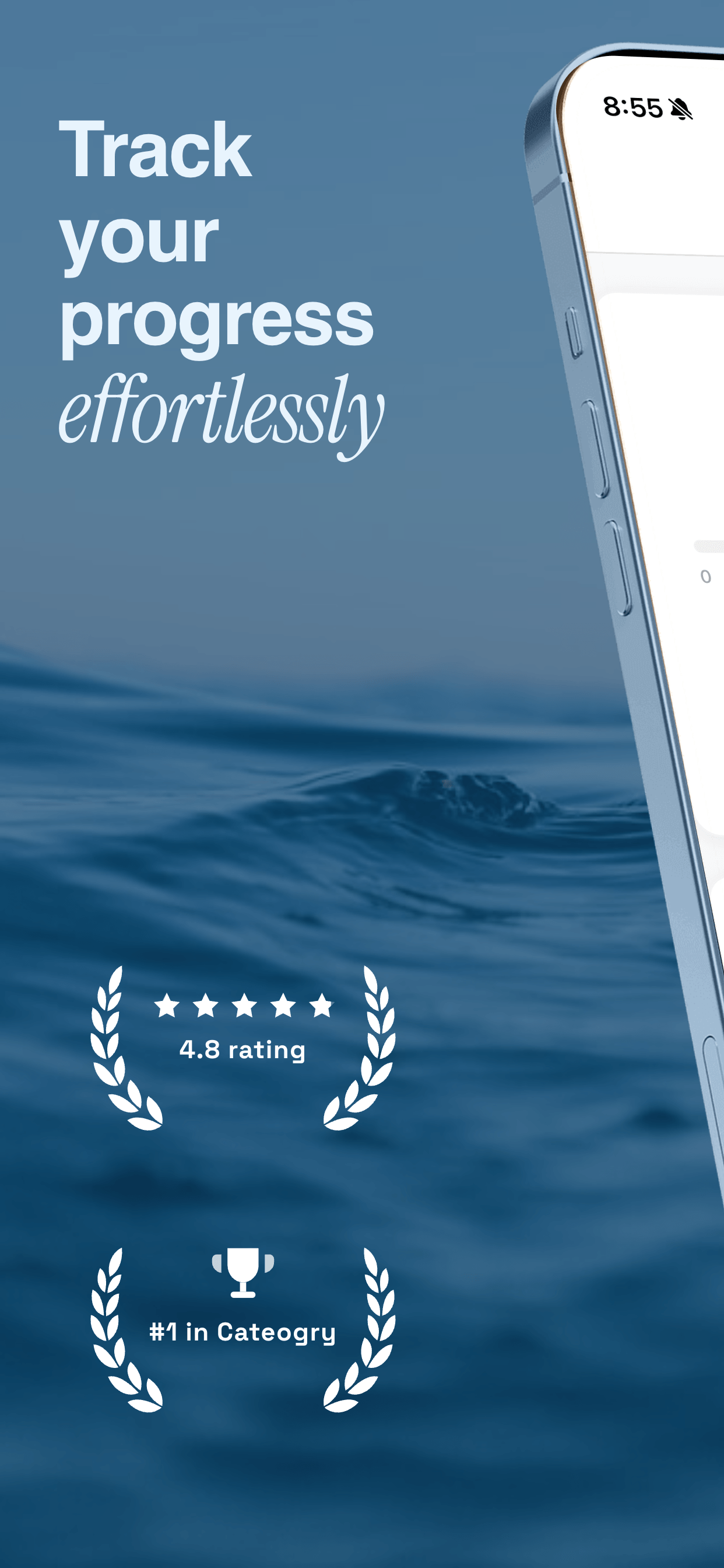
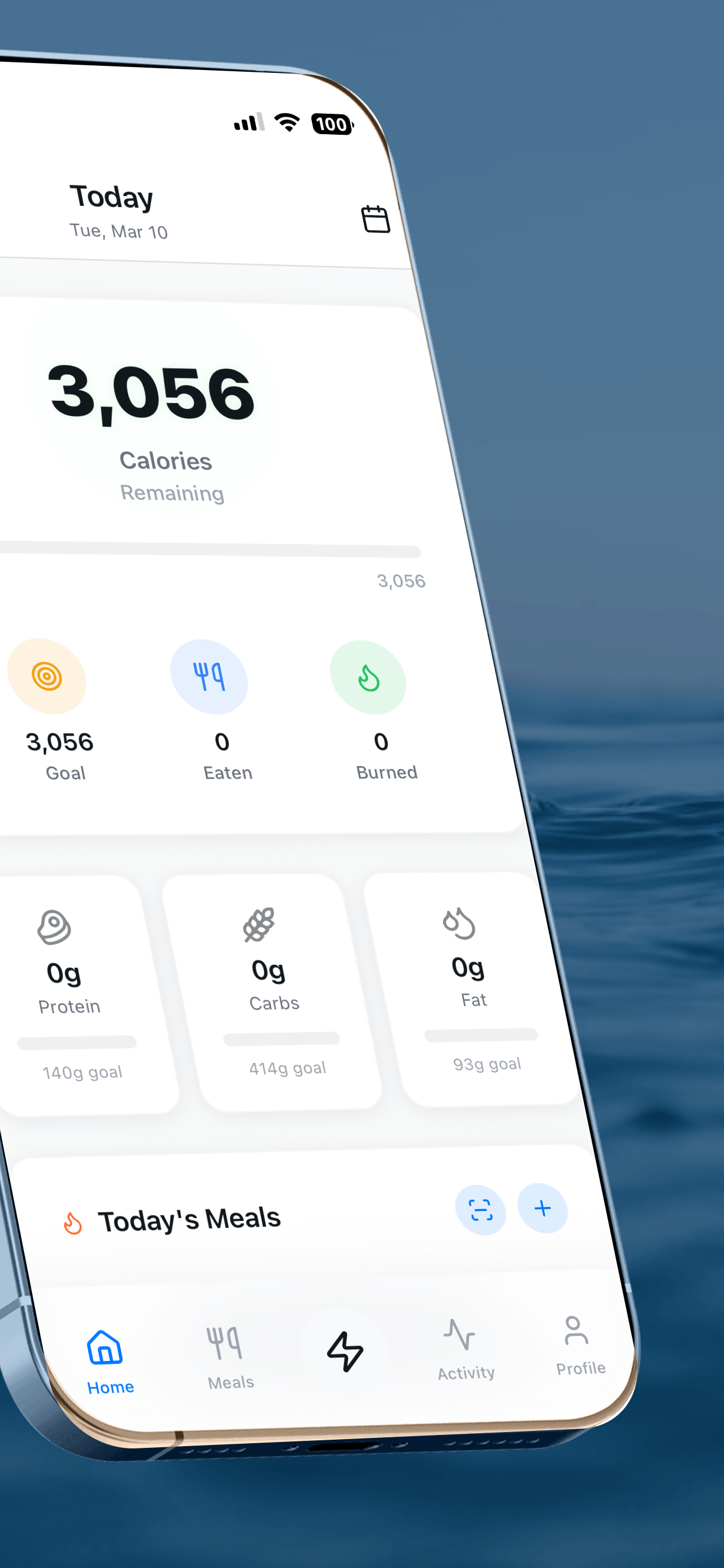
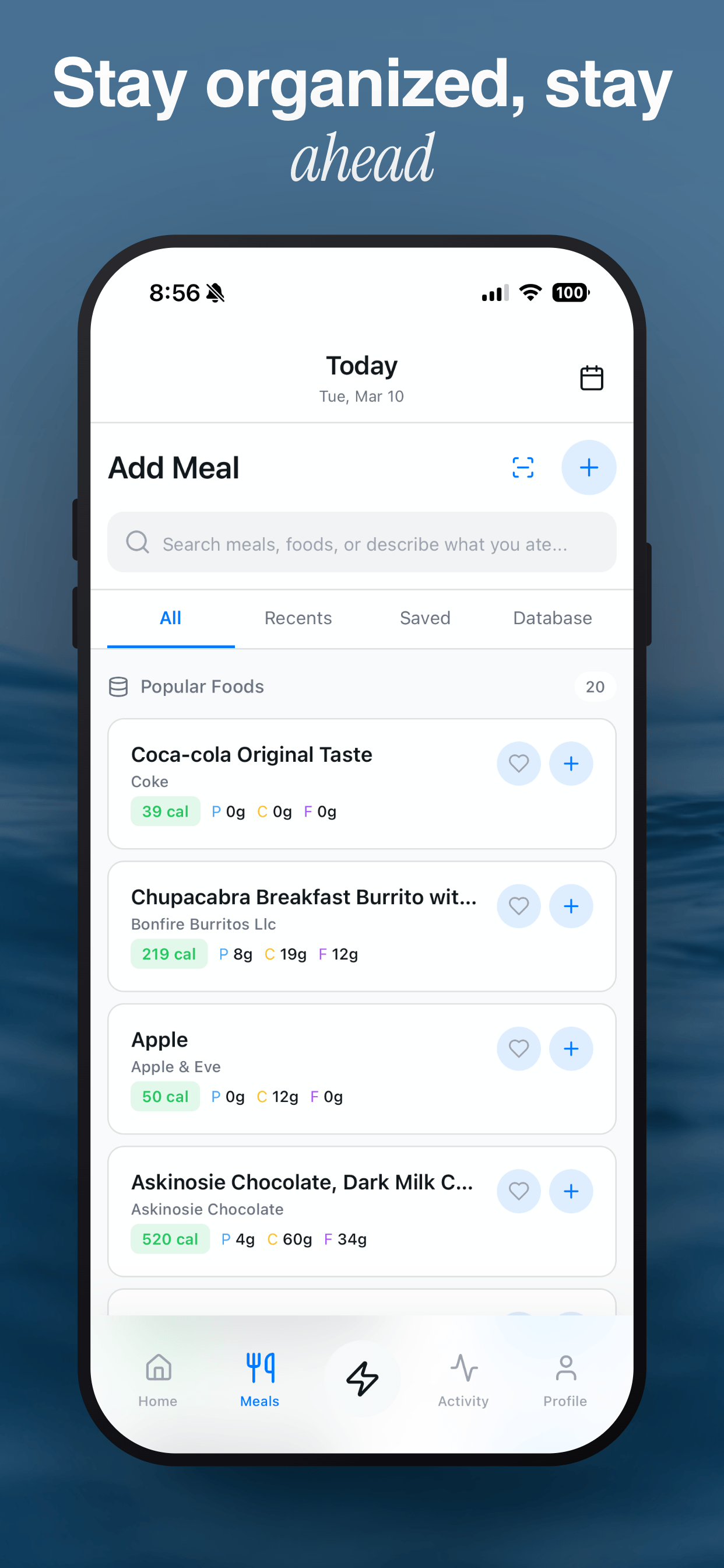
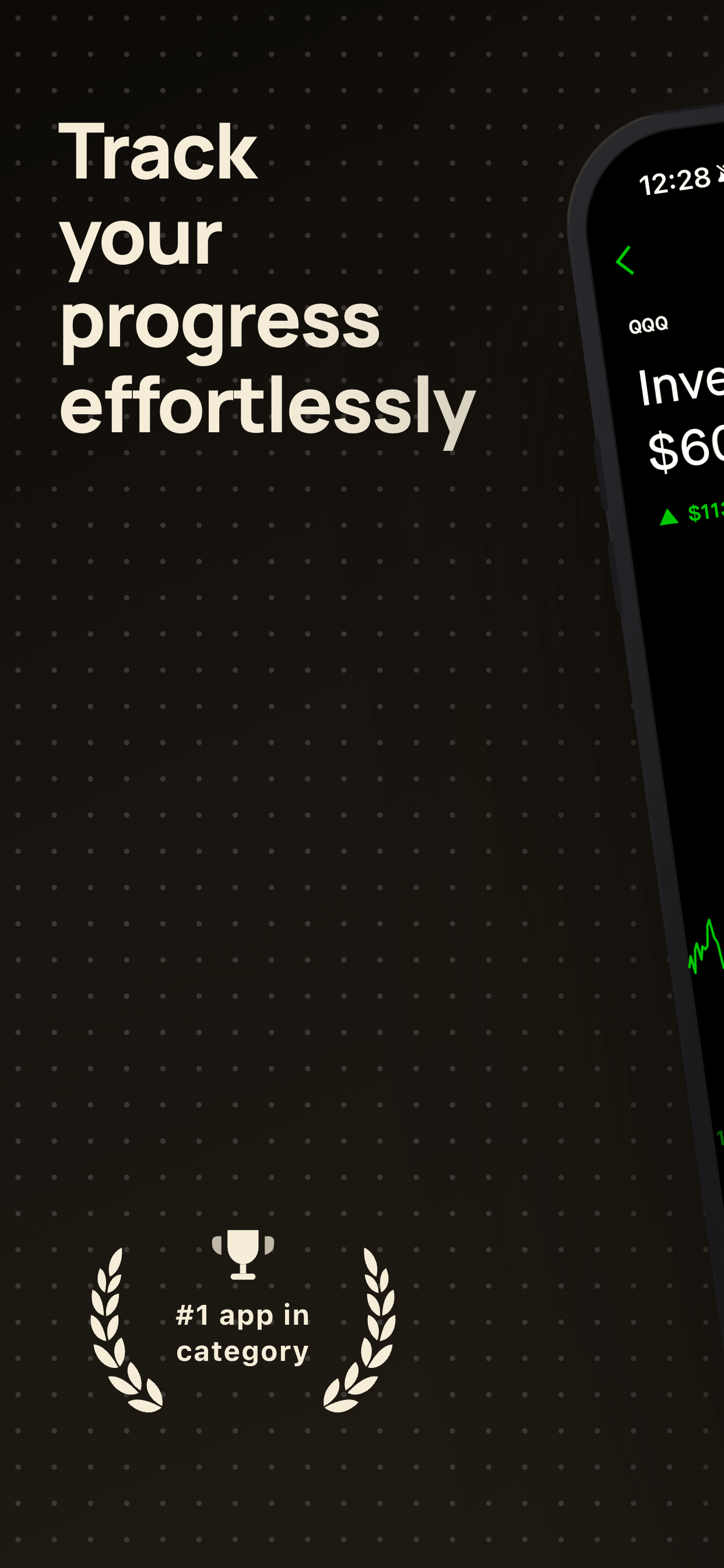
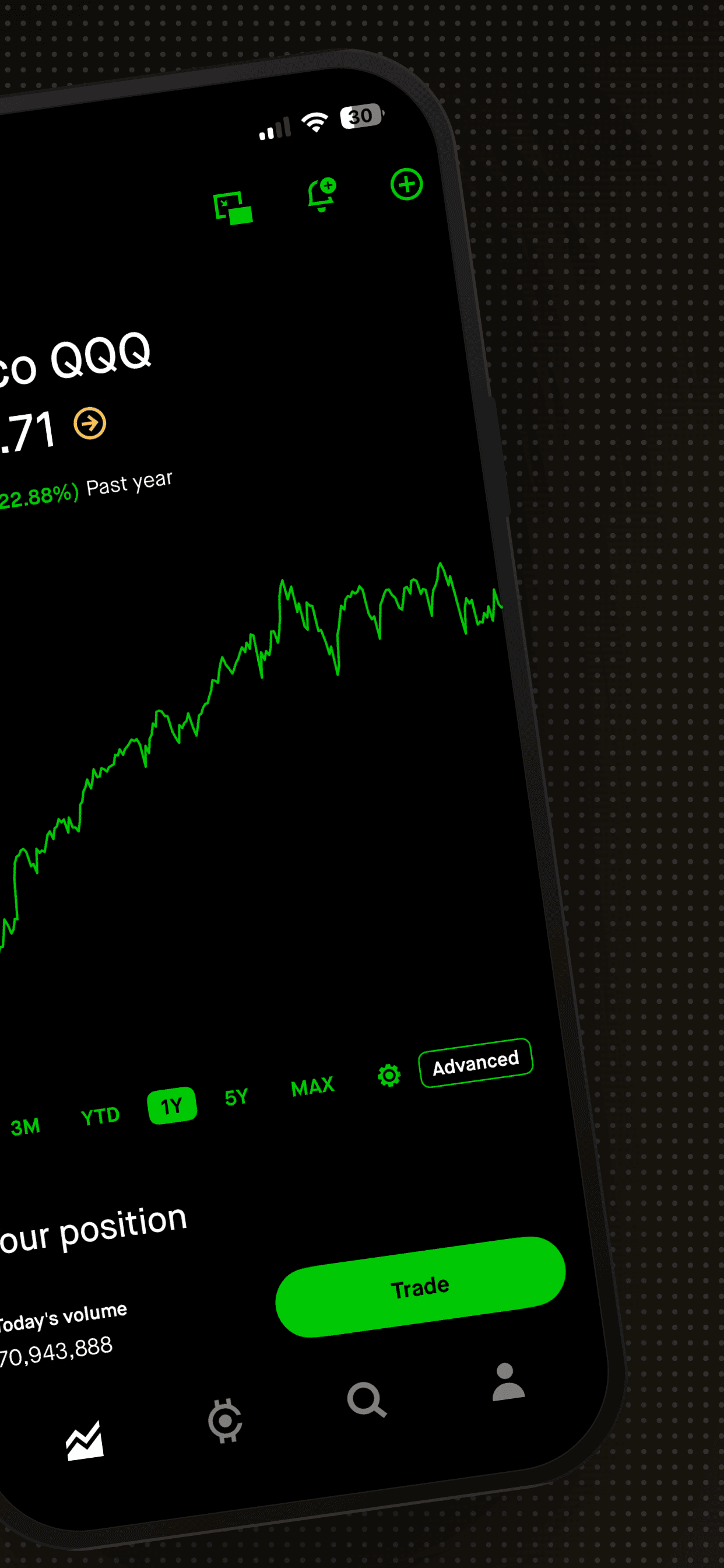
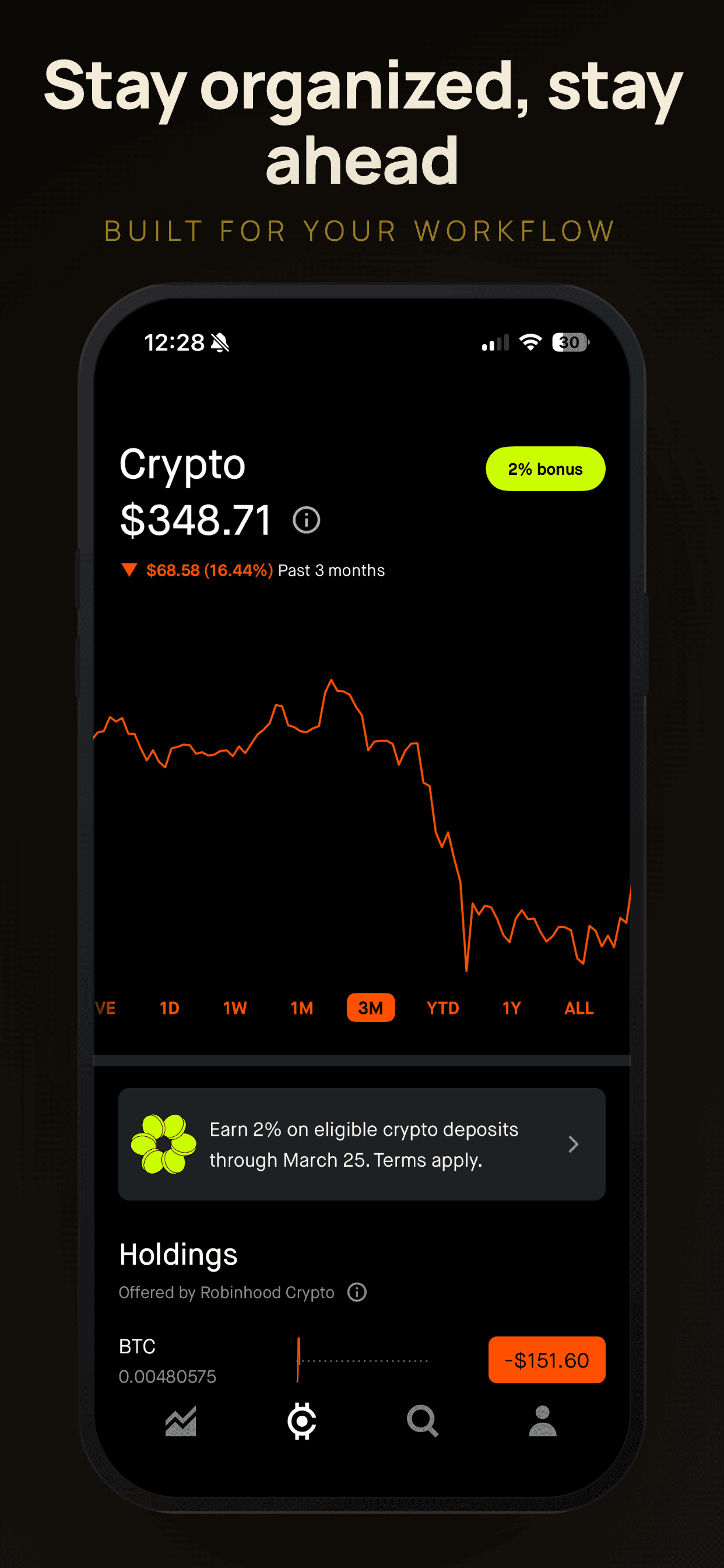
Dark backgrounds (deep navy, charcoal, near-black) create a premium, immersive feel. They make bright app screenshots pop with strong contrast, which is why so many fintech, productivity, and entertainment apps gravitate toward dark palettes. Dark backgrounds also pair well with bold, light-colored headline text, making captions easy to read at small sizes.
The trade-off: dark backgrounds can feel heavy or serious. If your app is playful, casual, or wellness-oriented, a dark background might send the wrong signal. Dark screenshots also need to compete with iOS Dark Mode, where the App Store interface itself is dark. Your screenshots can blend into the surrounding UI if the contrast between your background and the App Store chrome is too low.
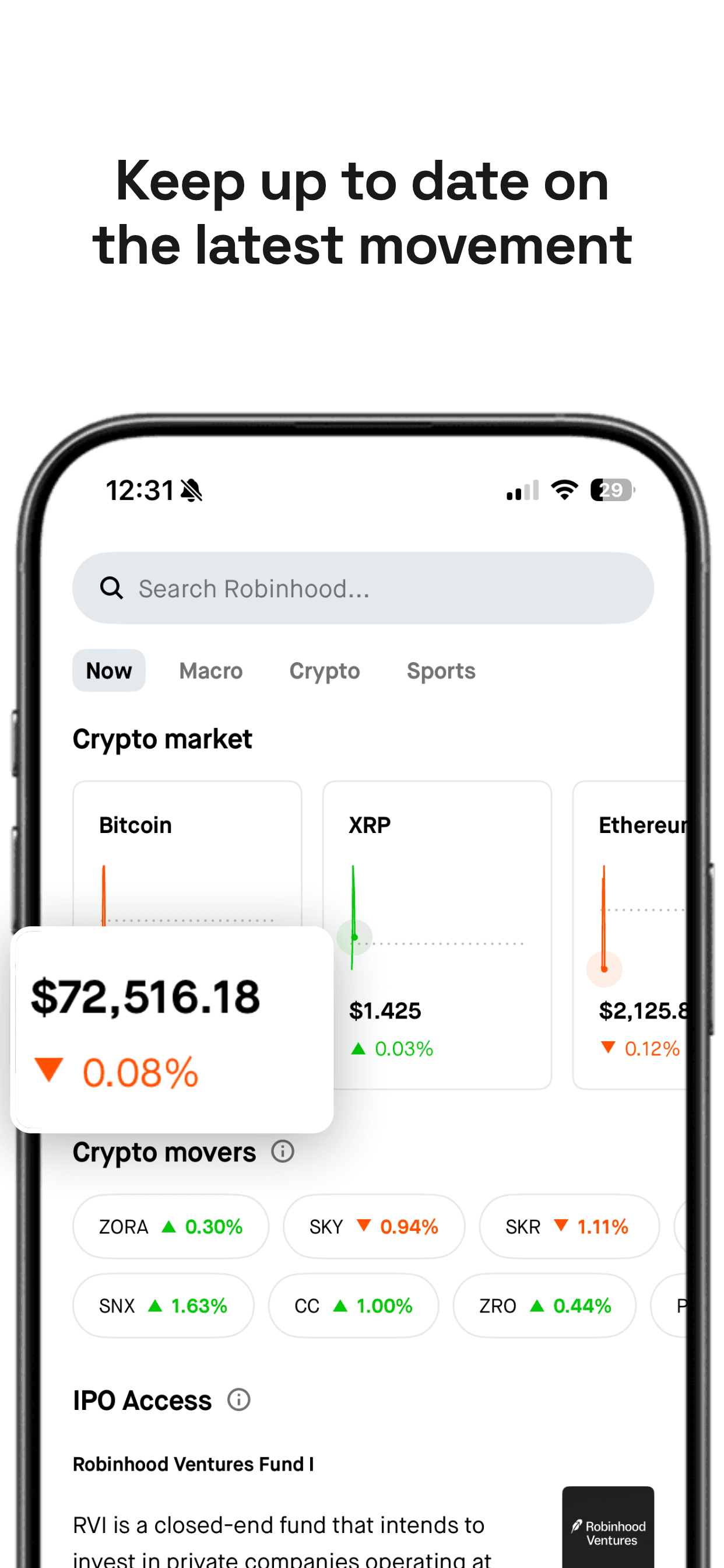
Light backgrounds (white, soft gray, warm cream) project cleanliness, simplicity, and approachability. They work well for health, education, lifestyle, and utility apps. Light backgrounds also tend to feel more “airy” and spacious, giving the device frame room to breathe.
The trade-off: light backgrounds are extremely common. In many App Store categories, the majority of top results use white or near-white backgrounds. Standing out requires something extra: a distinctive accent color, an unusual typographic treatment, or a carefully chosen off-white tone (warm ivory, cool blue-gray) that separates you from the default.
Founder's take
“I used to default to dark backgrounds for everything because they look great in mockups. Then I started A/B testing and realized that for certain categories, a clean light background outperformed dark by 20%. The lesson: your background is not about what looks good on Dribbble. It is about what converts in the context of search results.”
Scott Stewart, founder of Screenshot Otter
Color psychology for App Store screenshots
Color is not just aesthetic. It carries emotional associations that influence how users perceive your app before they try it. Here is a practical breakdown of the most common background colors and what they communicate.
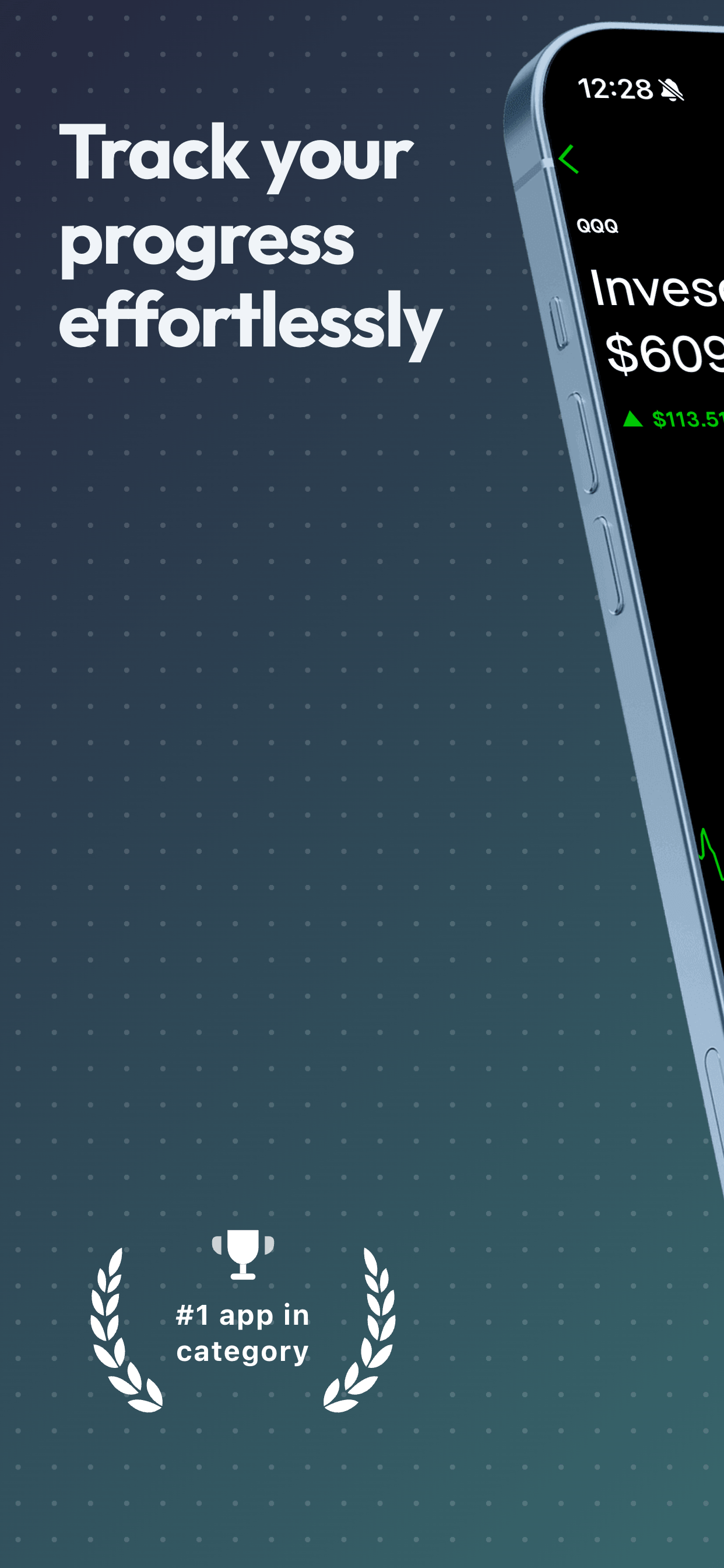
Deep navy or dark blue communicates trust, professionalism, and stability. This is the most popular choice for finance, banking, and enterprise apps. It pairs well with white or light blue text.
Rich purple or violet signals creativity, premium quality, and innovation. Popular with design tools, music apps, and apps targeting a younger audience. Purple can feel bold without being aggressive.
Charcoal or near-black projects sophistication and luxury. It is the background of choice for premium subscriptions and pro-tier apps. The risk is that it can feel generic if not paired with a distinctive accent color or type treatment.
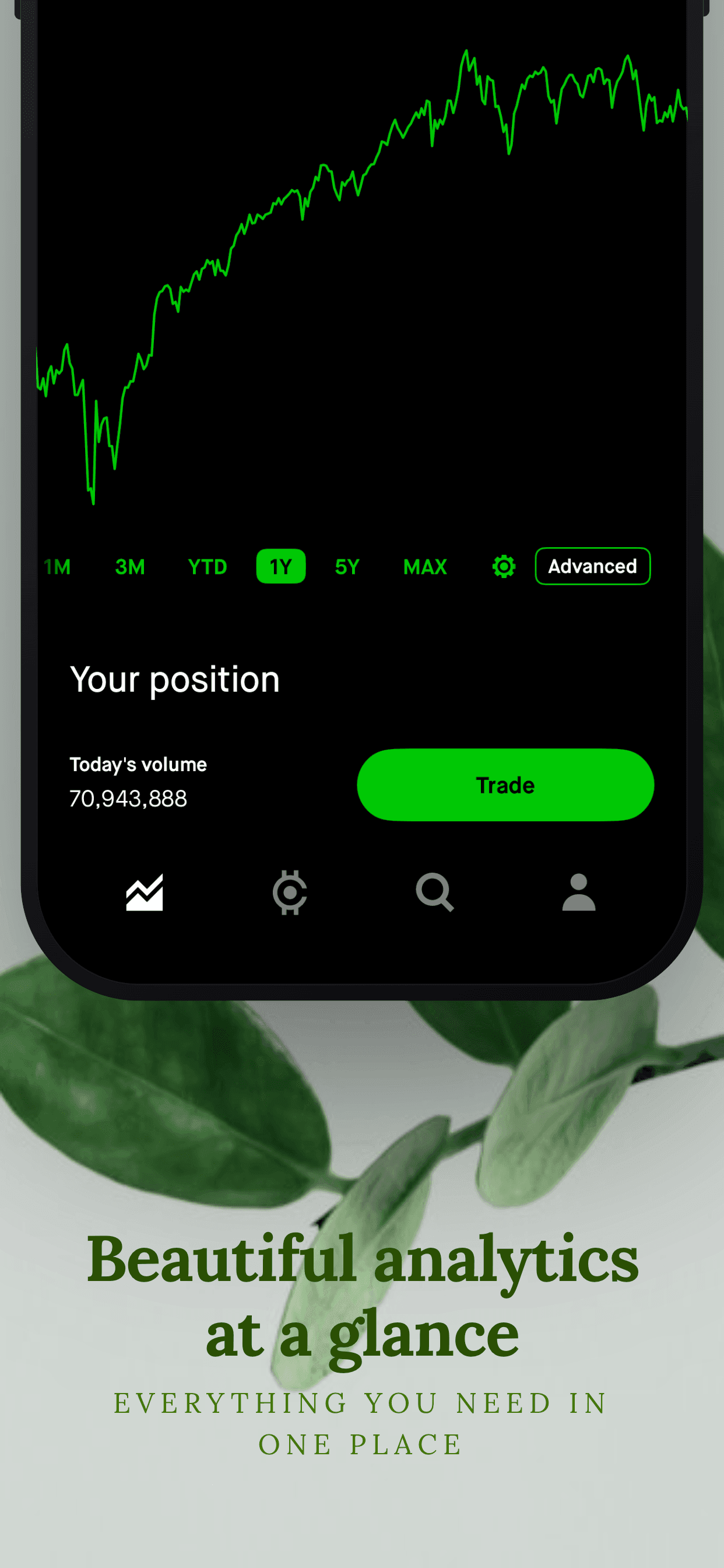
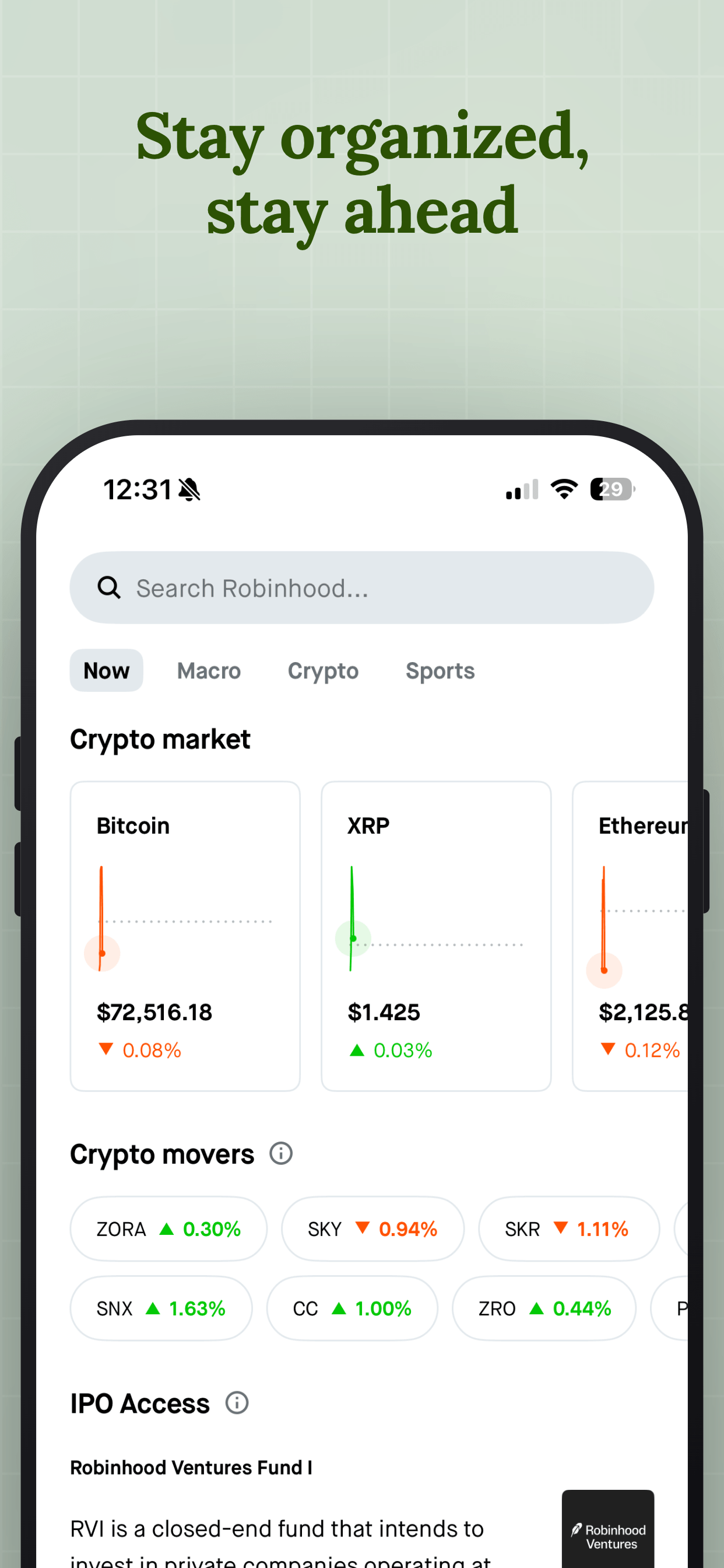
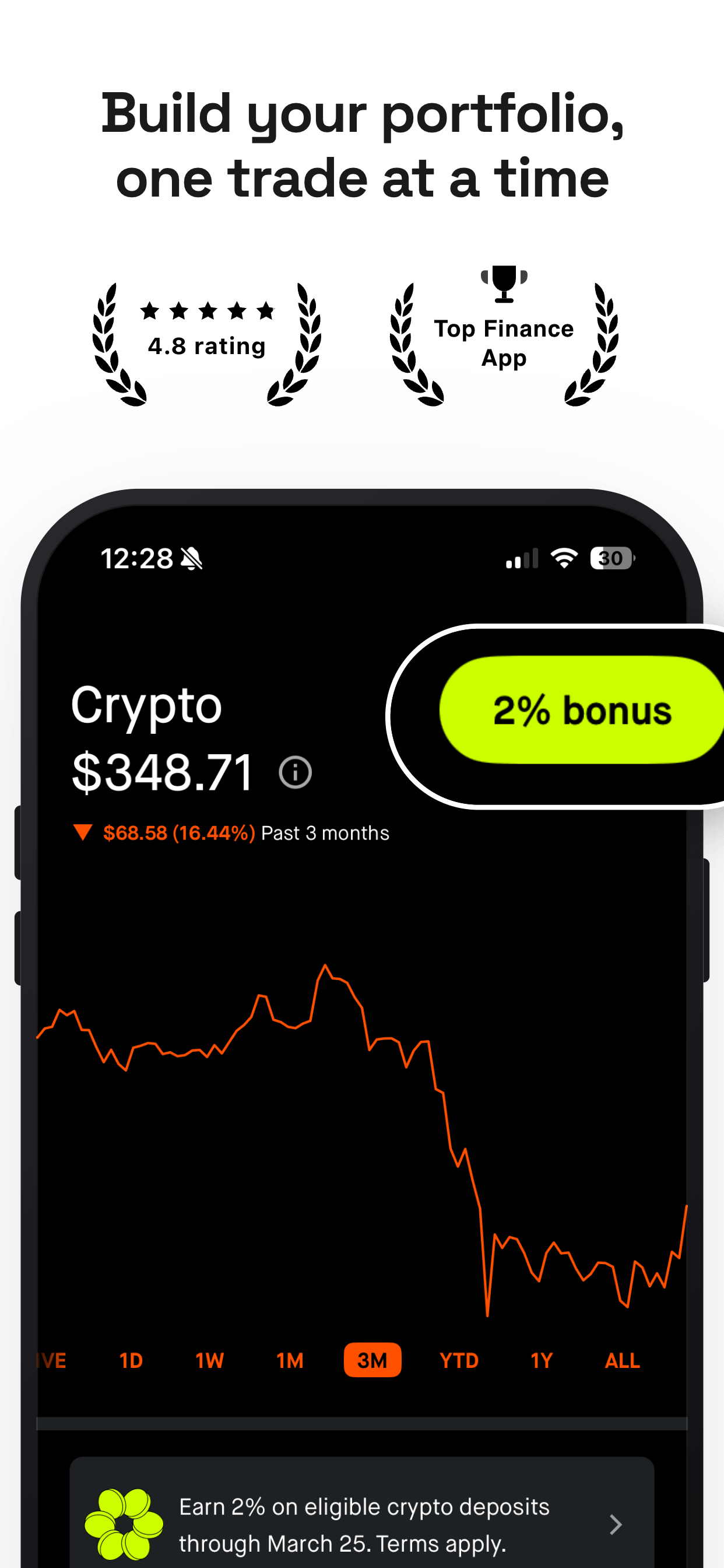
Bright white or cool gray conveys simplicity, transparency, and ease of use. Common in health, fitness, and productivity apps. Works well when your app UI itself is colorful and you want the background to stay out of the way.
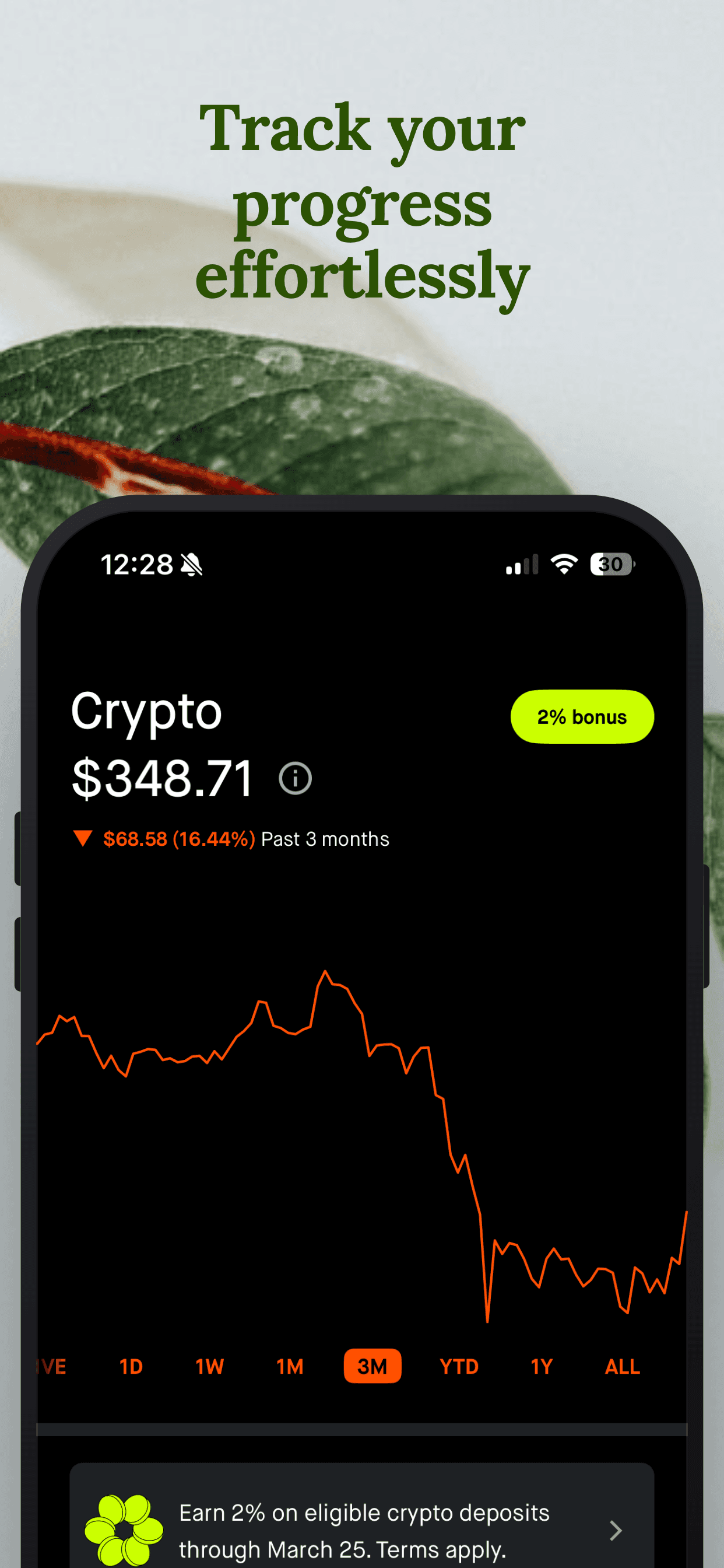
Warm tones (coral, peach, amber) create energy and approachability. These work well for social apps, food and recipe apps, and anything targeting a lifestyle-focused audience. Warm backgrounds stand out in categories dominated by blue and white.
Vivid colors (electric blue, hot pink, lime green) demand attention and signal boldness. They can be very effective in crowded categories because they break the visual pattern. But they need to match your brand. A vivid background that clashes with your app icon will feel disjointed.
Solid colors vs. gradients
Solid backgrounds are the simplest choice and often the most effective. A single, confident color with good contrast against your device frame and caption is hard to beat. It is clean, it scales well across device sizes, and it keeps the focus on your app UI.
Gradients add visual depth and can make your screenshots feel more dynamic. The key is subtlety. A gradient that shifts between two closely related shades (dark navy to slightly lighter navy, warm charcoal to dark gray) adds dimension without competing with your content. A gradient that jumps between two unrelated colors (red to blue, green to orange) almost always looks amateurish.
Linear gradients (top to bottom or diagonal) are the most common and the easiest to get right. They create a natural sense of depth and can subtly guide the eye toward your caption or device frame.
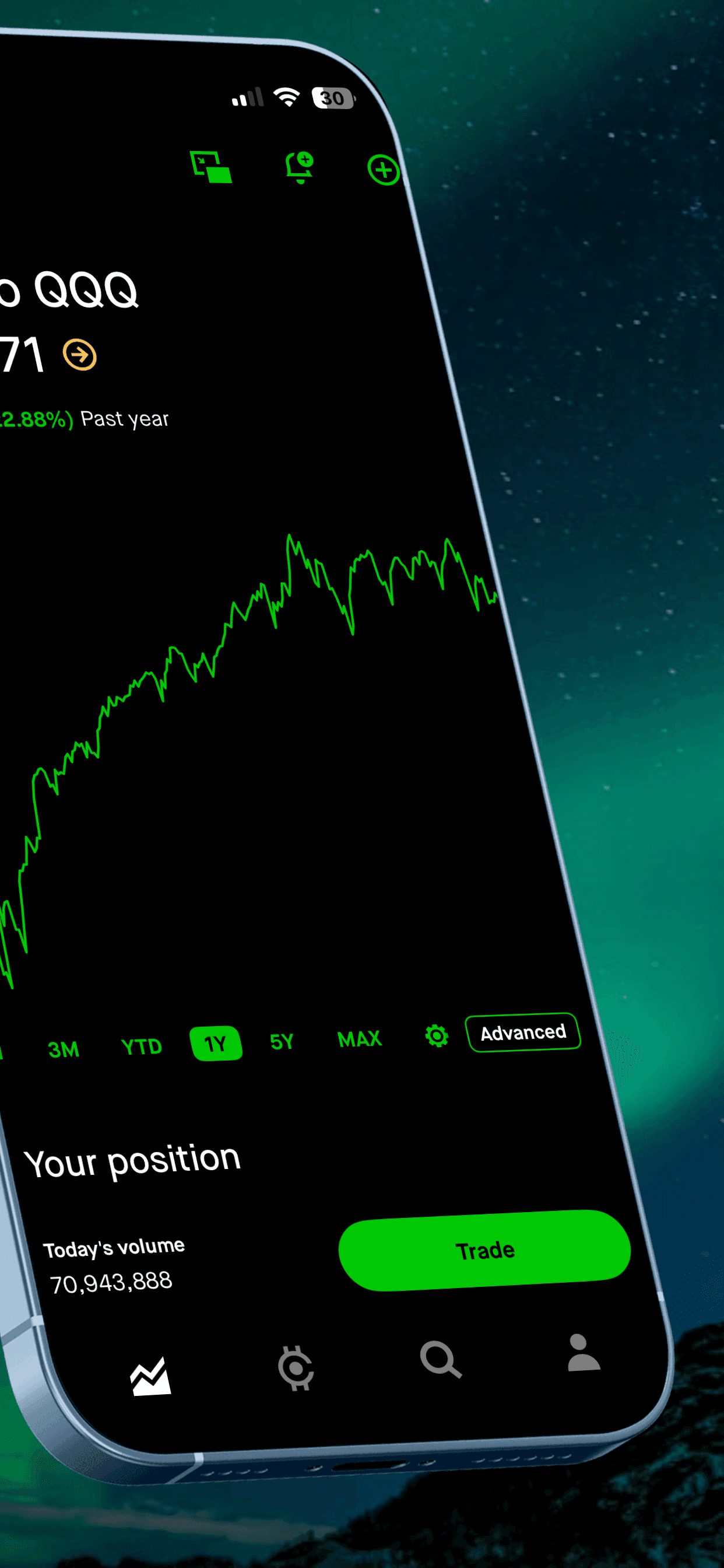
Radial gradients (a lighter center fading to darker edges, or vice versa) can create a spotlight effect that draws attention to the device in the center of your screenshot. This works especially well with dark backgrounds.
One practical tip: if you use a gradient that shifts across multiple slides, make sure the transition looks intentional when the screenshots appear side by side in the App Store. Panoramic layouts (where two screenshots form a continuous scene) are a natural fit for flowing gradients.
Should your background change between slides?
Some templates use a single background color across all slides. Others shift the color on every slide or introduce a contrast flip on the final screenshot. Both approaches can work, but they serve different purposes.
Consistent backgrounds create a cohesive, branded feel. When a user scrolls through your screenshot set, the consistent color reinforces your identity and keeps the focus on the changing content (captions and UI screens). This is the safer choice and works well for most apps.
Per-slide color shifts add visual variety and can help differentiate each feature you are showcasing. The risk is that your screenshot set can look fragmented or unfocused if the color changes are too dramatic. If you go this route, keep the shifts within a controlled palette (different shades of the same hue, or a curated set of 2-3 complementary colors).
The contrast flip is a specific technique where your last screenshot (or second-to-last) inverts the color scheme. If your set is dark, the final slide goes light. This creates a visual “beat” that signals closure and can draw attention to a closing CTA or social proof element. Many premium templates, including several in Screenshot Otter’s template gallery, use this technique.
How to audit your competitors’ backgrounds
Before you settle on a background, do a quick competitive audit. Open the App Store, search for your primary keyword, and screenshot the results page. Look at the top 10-15 results and note the dominant color patterns.
In many categories, you will see a cluster of similar backgrounds. Fitness apps tend to lean dark. Meditation apps tend to lean light or pastel. Finance apps cluster around navy and white. Once you see the pattern, you have two strategic options.
Option 1: Contrast. Choose a background that is visually distinct from the majority. If everyone in your category uses dark blue, a warm coral or clean white will stand out. This is the more aggressive strategy and works best when your app is genuinely differentiated.
Option 2: Fit in, but better. Stay within the expected color family but execute at a higher level. If competitors use flat dark blue, try a rich gradient from deep navy to midnight purple with a subtle glow effect. You are matching expectations while signaling higher quality.
Either approach is valid. The only wrong choice is picking a background without looking at what surrounds you in search results.
Dark Mode and context considerations
A significant percentage of iOS users browse the App Store in Dark Mode. This means your screenshots appear against a dark background, not a light one. If your screenshot backgrounds are also dark, the edges of your screenshots can visually merge with the App Store interface, reducing their impact.
To handle this, consider adding a very subtle border or slight color offset at the edges of your screenshots. A dark navy background (#1A2332) against the App Store’s near-black dark mode (#000000) still maintains some visual separation. Pure black (#000000) backgrounds lose that separation entirely.
Light backgrounds do not have this problem in Dark Mode. They naturally stand out against the dark interface. In Light Mode, however, very light backgrounds (pure white, #FFFFFF) can similarly blend into the App Store’s white chrome. A slight warmth (like #FAFAF8) or coolness (like #F1F5F9) helps.
A practical workflow for choosing your background
Step 1: Start with your brand color. Look at your app icon and your in-app color scheme. Your screenshot background should feel like it belongs in the same family. If your icon is primarily blue, your background can be a deeper or lighter shade of blue, or a complementary neutral.
Step 2: Check the competition. Search the App Store for your main keywords. Screenshot the results page and identify the dominant background colors in the top 10 results. Decide whether you want to contrast or refine.
Step 3: Test two options. Do not agonize over the perfect color. Pick a dark option and a light option, generate both sets using a tool like Screenshot Otter, and run an A/B test using Apple’s Product Page Optimization or Google Play’s store listing experiments. Let real data settle the debate.
Step 4: Revisit quarterly. Seasonal changes, competitor redesigns, and App Store algorithm updates all affect how your screenshots perform. Re-audit your competitive landscape every few months and test a fresh background if the results suggest room for improvement.
Background mistakes to avoid
Low contrast between background and device frame. If your background is the same shade as the phone bezel, the device disappears. Always check that there is clear visual separation between the background, the device frame, and the screenshot content inside the device.
Busy patterns or textures. Textured backgrounds (marble, wood grain, abstract patterns) almost always compete with the UI content in the device frame. They looked trendy in 2019 but feel dated now. Keep backgrounds clean and let your app speak for itself.
Mismatched icon and background. Your app icon appears right next to your screenshots in search results. If your icon is warm orange and your background is cool blue, the combination feels disjointed. They do not need to match exactly, but they should look intentional together.
Picking a color you like instead of one that works. Personal preference is not a strategy. What looks beautiful in a design tool may not convert in a 150px-wide thumbnail. Always evaluate your backgrounds at the size they will actually appear in search results, not full-screen on your monitor.
Frequently Asked Questions
- Should App Store screenshots have a dark or light background?
- It depends on your app and audience. Dark backgrounds feel premium and make bright UI screens pop, which works well for productivity, finance, and entertainment apps. Light backgrounds feel clean and approachable, which suits health, education, and lifestyle apps. The best approach is to A/B test both and let your real users decide.
- What background color converts best for App Store screenshots?
- There is no single best color. What matters most is contrast between the background and your device screenshot, and alignment between the color and your app's brand. Dark navy, deep purple, and charcoal are popular for premium apps. Bright white and soft gray work well for minimal, clean apps. Vivid colors like coral or electric blue can stand out in search results but need careful execution.
- Should I use gradients or solid colors for screenshot backgrounds?
- Gradients add visual depth and can make screenshots feel more dynamic. Subtle gradients (shifting between two close shades) tend to look more polished than dramatic color shifts. Solid colors are simpler and can feel more confident if your app UI is already visually rich. Start with a solid color, then test a gradient version.
- How do I make my App Store screenshots stand out from competitors?
- Search for your main keyword in the App Store and look at the top 10 results. Note which colors and styles dominate. Then choose a background that contrasts with the competition. If every competitor uses dark blue, try a warm color or a clean white. Differentiation in the search results grid is one of the fastest ways to improve tap-through rates.
Related
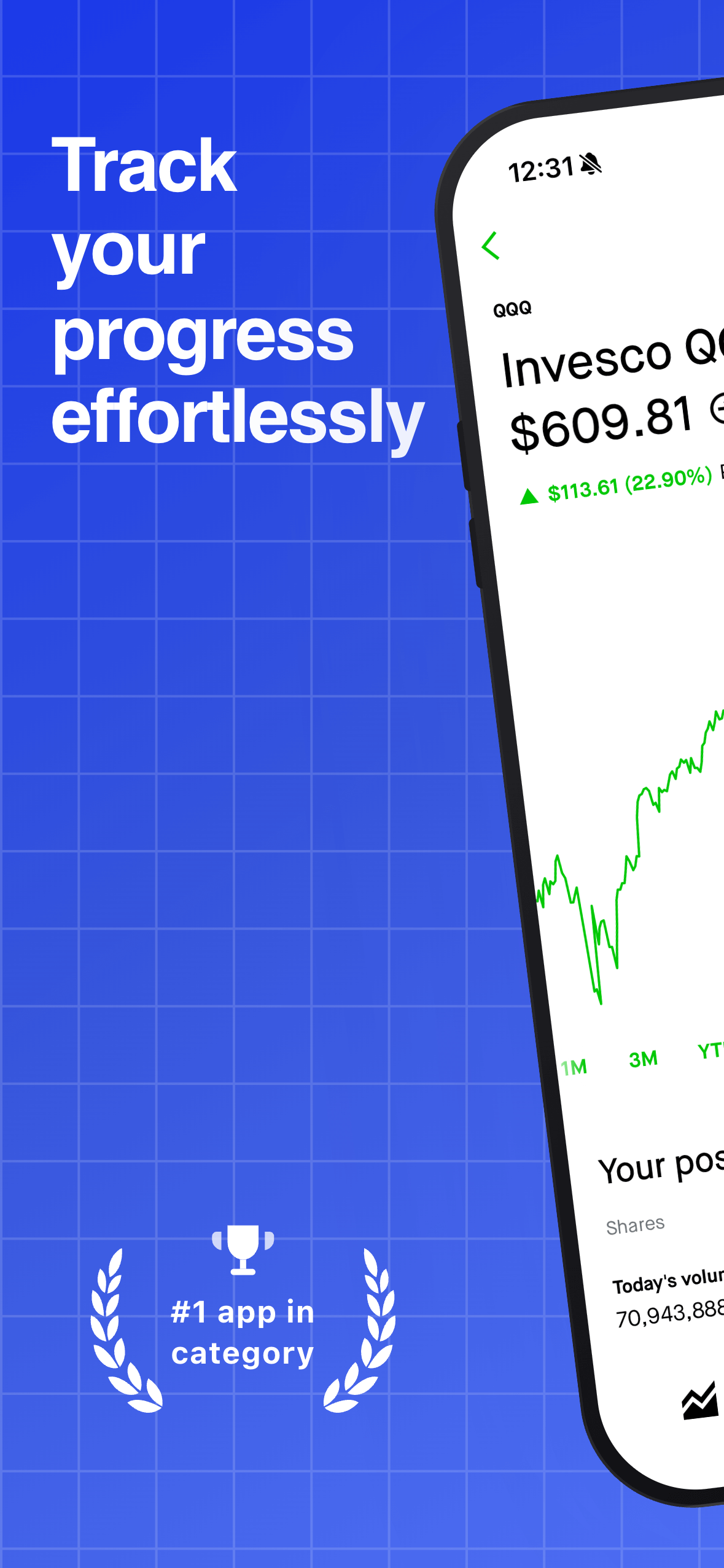
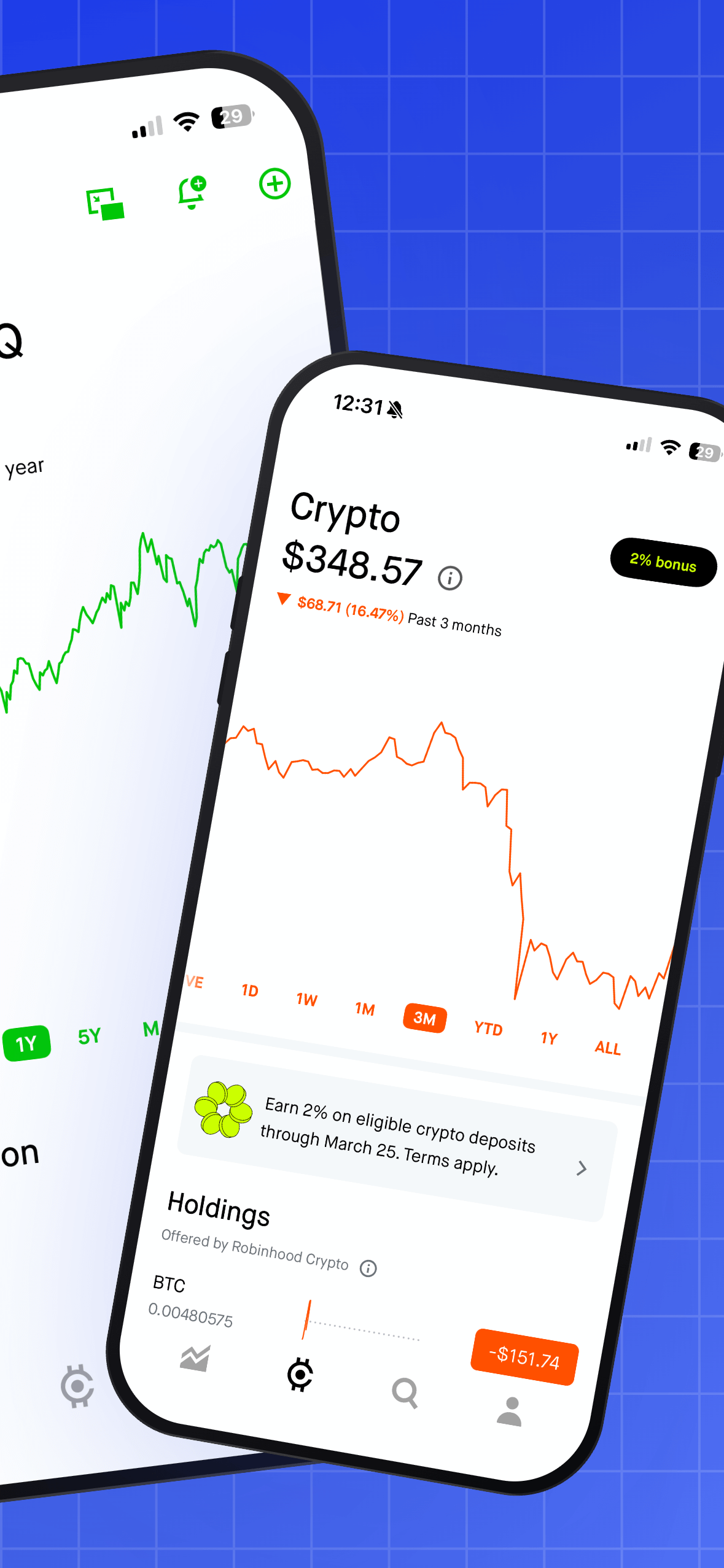
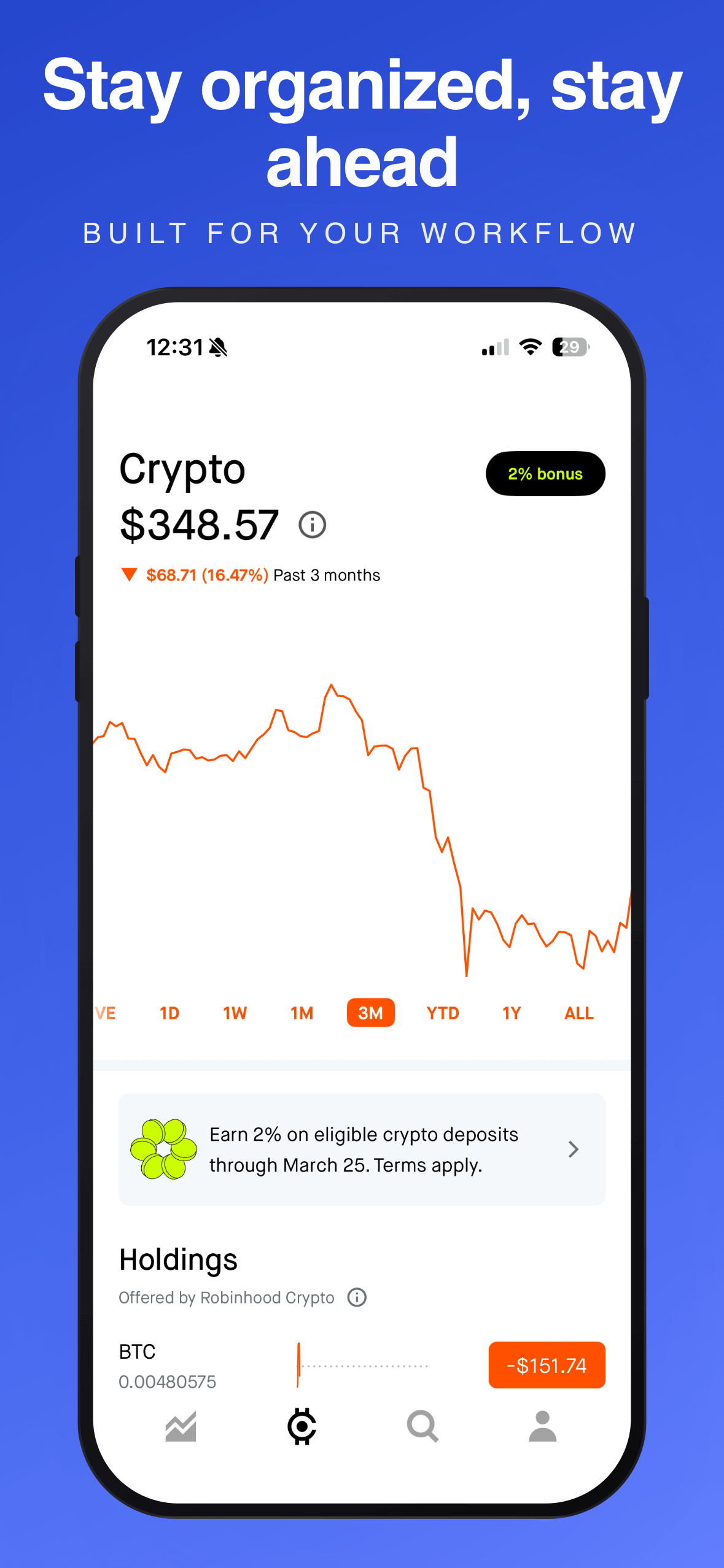
Try different backgrounds in seconds
Swap templates, preview your screenshots on dark and light backgrounds, and export a complete set. Free, no signup required.
Try Screenshot Otter free →