Guide
How to Make App Store Screenshots Without a Designer
You built the app yourself. You can build the screenshots yourself too. Here is the practical workflow for creating professional App Store and Google Play screenshots when you have zero design experience and no budget for a freelancer.

Scott Stewart · Mar 12, 2026
Quick answer
You do not need a designer to make professional App Store screenshots. Use a screenshot generator tool like Screenshot Otter to upload your raw captures, pick a template, customize captions, and export production-ready images for every device size. The whole process takes about 15 minutes.
Why screenshots matter more than you think
Your App Store listing has roughly seven seconds to convince someone to tap "Get." In that window, the user scans your icon, your first screenshot, maybe your second, and decides. The app description? Almost nobody reads it before downloading. Your screenshots are your entire sales pitch.
The numbers back this up. ASO research consistently shows that improving screenshots alone can lift install conversion rates by 20-30%. For an app getting 10,000 impressions a week, that is the difference between 500 and 650 installs, week after week, without spending a cent on ads.
The problem is that most indie developers are not designers. Opening Figma or Photoshop for the first time and trying to produce something that looks premium is demoralizing. You end up with screenshots that scream "I made this at 2 AM the night before launch" and your conversion rate suffers for it.
The good news: you do not need design skills. You need the right workflow.
Step 1: Capture the right screens
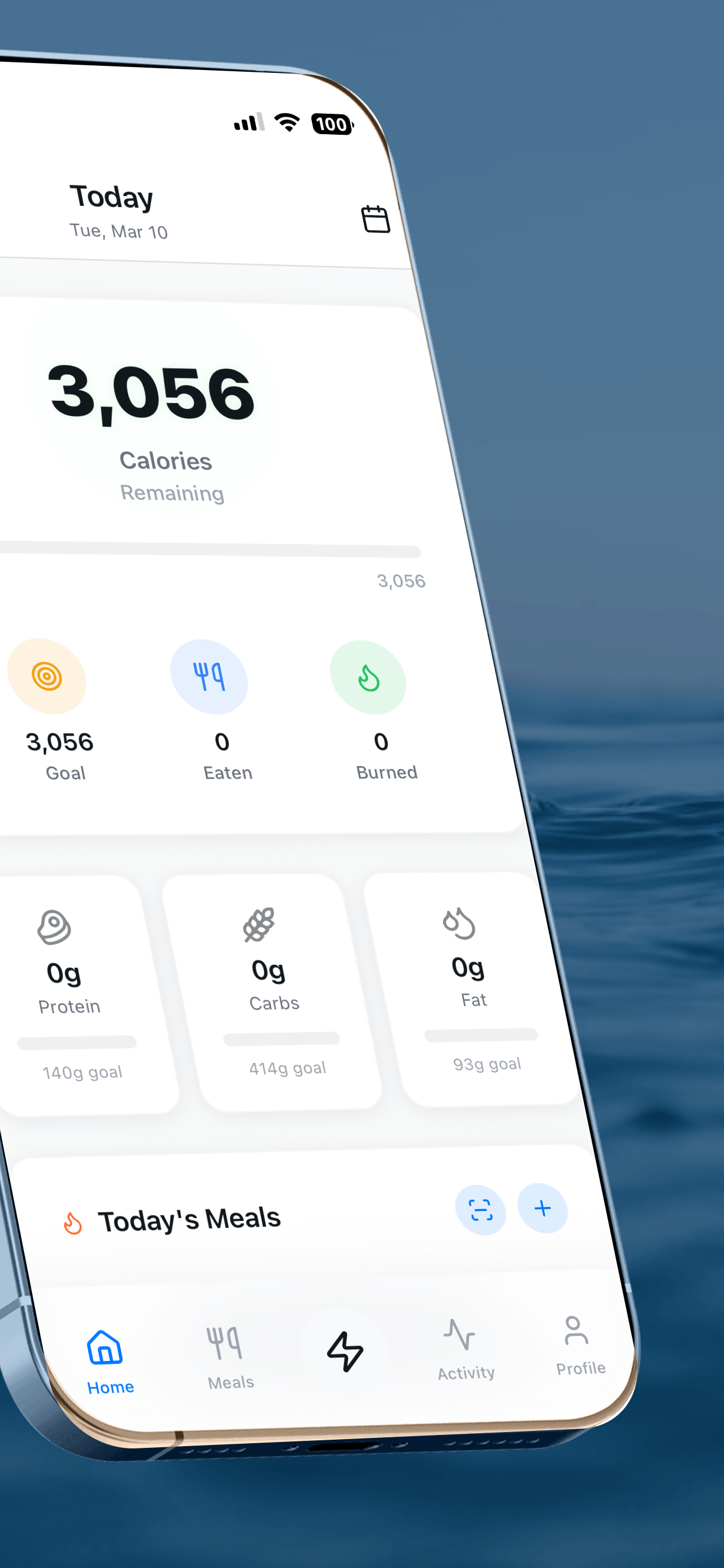
Before you touch any tool, you need the raw material. Take screenshots of your app in its best state: populated with realistic data, showing the core features a new user would care about. A half-empty to-do list or a blank dashboard does not sell your app.
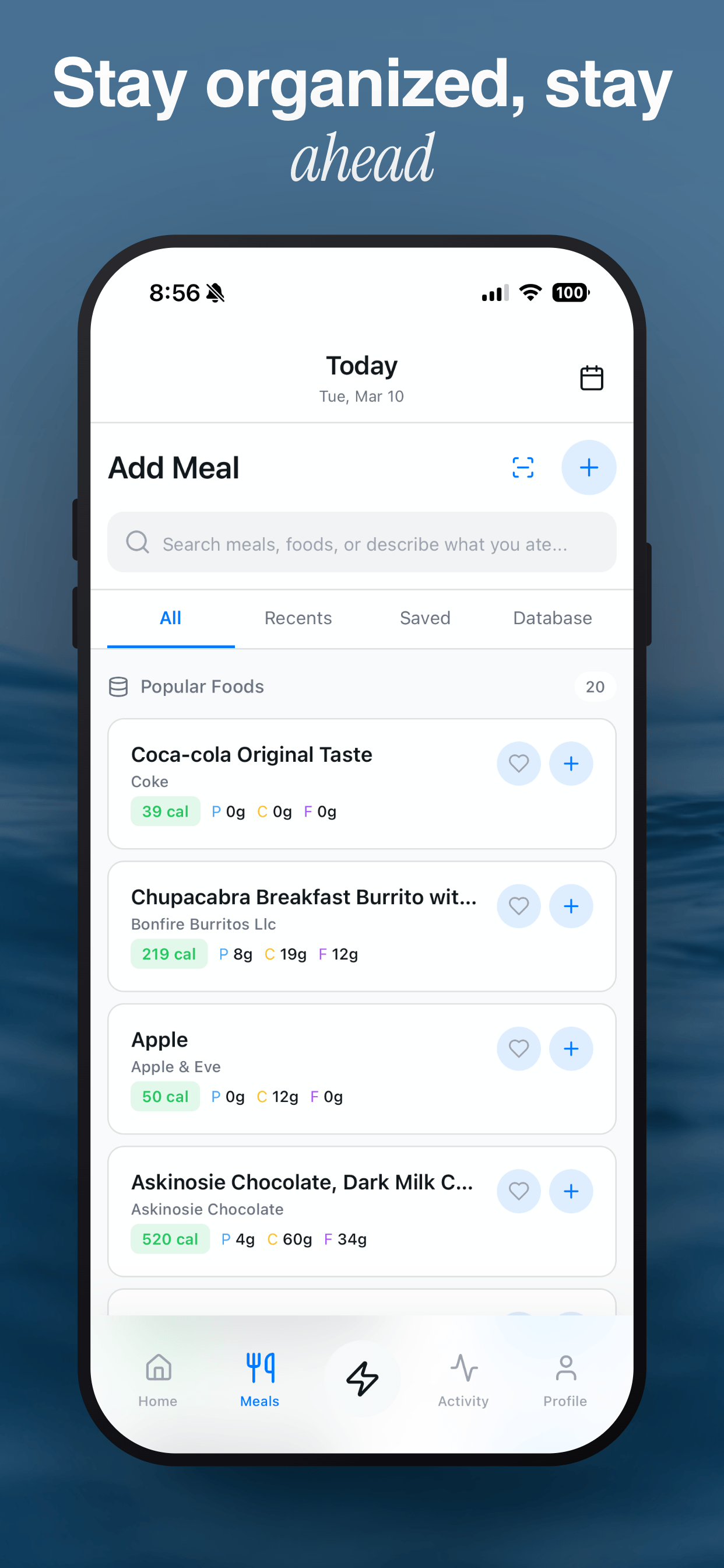
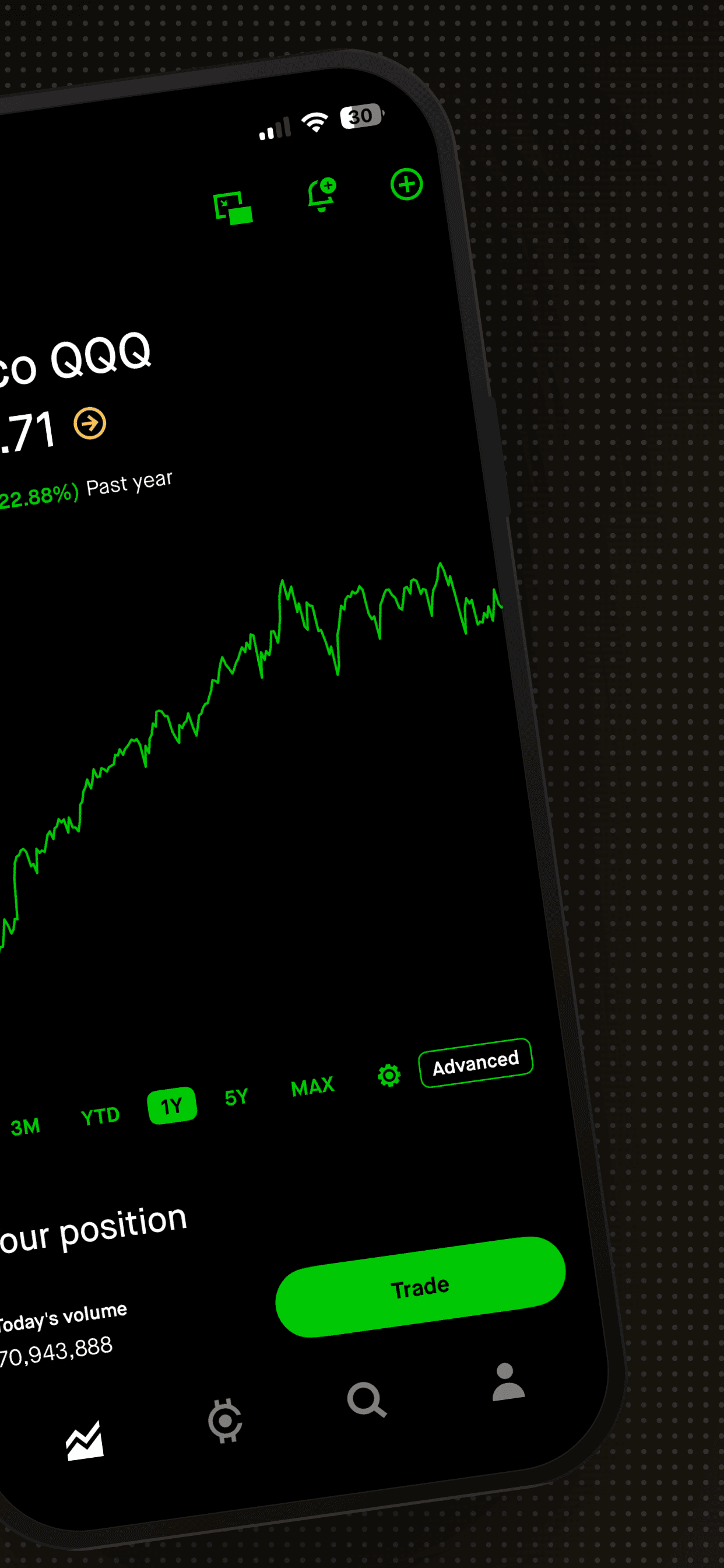
Choose 5 to 8 screens that tell a story. The first screenshot should communicate your main value proposition in a single glance. Screenshot two through five should each highlight one distinct feature or benefit. If you have a dark mode, consider showing it in your later screenshots as a visual contrast point.
Capture at the highest resolution your device supports. On iOS, use the Simulator in Xcode to grab pixel-perfect screenshots at the exact device dimensions Apple requires (1320 x 2868 for the 6.9-inch iPhone). On Android, a Pixel 8 Pro or emulator at 1080 x 2400 works well. If you are capturing from a real device, make sure your status bar is clean: full battery, strong signal, no embarrassing notifications.
Step 2: Choose a tool (and skip Figma)
You have three realistic options for producing App Store screenshots without hiring a designer.
Option A: Figma with a free template. Plenty of free Figma templates exist for App Store screenshots. They give you a starting point with device frames and text placeholders. The downside: you still need to understand Figma. Auto-layout, frame resizing, and export settings all have a learning curve. If you change your caption text and it overflows the frame, you need to know how to fix it. For developers who already use Figma daily, this works fine. For everyone else, it adds hours to what should be a 30-minute task.
Option B: Canva or a generic design tool. Canva is great for social media posts. It is less great for App Store screenshots because it has no concept of App Store dimensions, device frames, or multi-device export. You will spend time manually setting up the correct canvas sizes, finding device mockup images, and aligning everything by hand. It works, but it is slow and error-prone.
Option C: A dedicated screenshot generator. Tools built specifically for App Store screenshots handle dimensions, device frames, and export sizes automatically. Screenshot Otter is one example. You upload your raw screenshots, choose a template, write your captions, and export. The tool already knows that an iPhone 16 Pro Max needs 1320 x 2868 pixels. You never think about it. This is the fastest path if you want professional results without learning a design tool.
Step 3: Pick a template that matches your app
Template selection is where most non-designers go wrong. The instinct is to pick the flashiest template with the most effects. Resist that. Your template should complement your app, not compete with it.
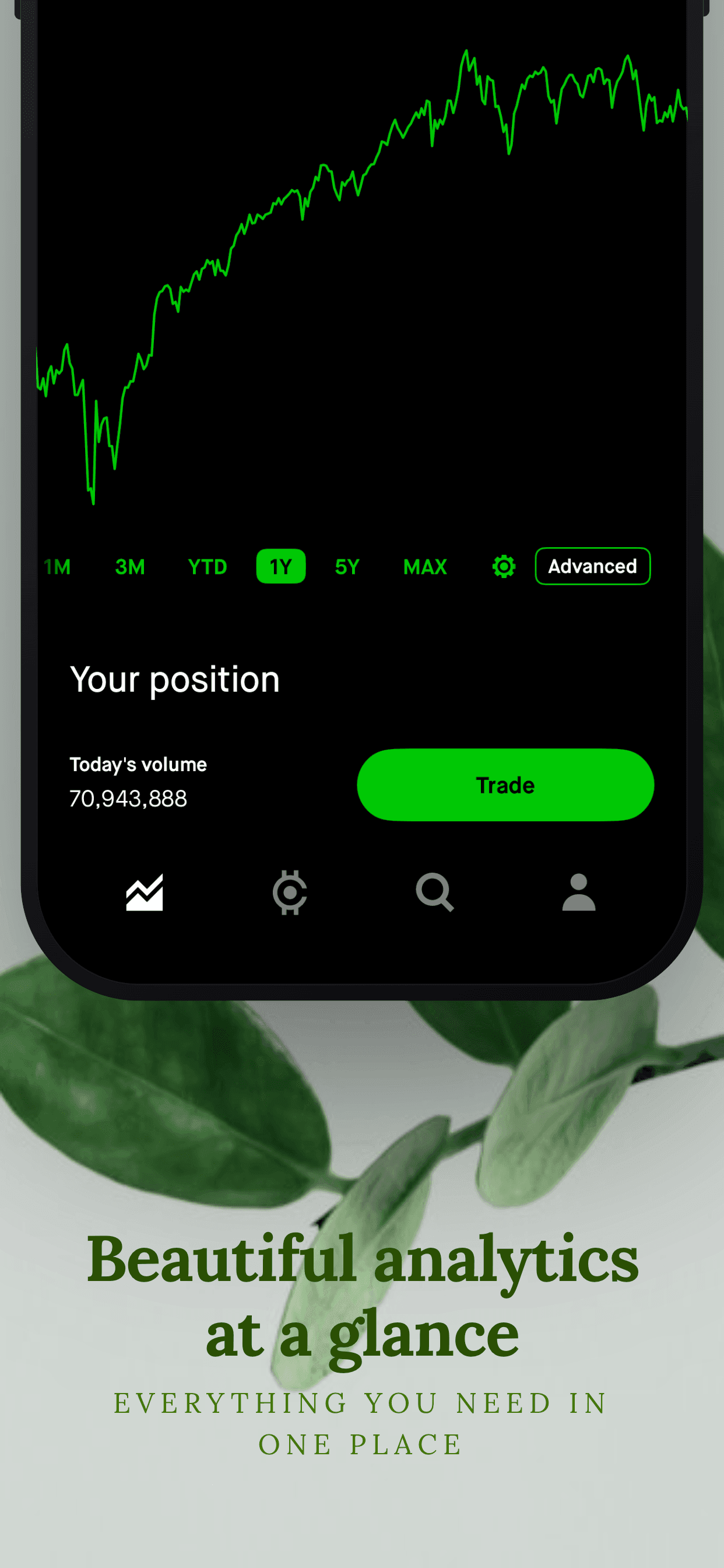
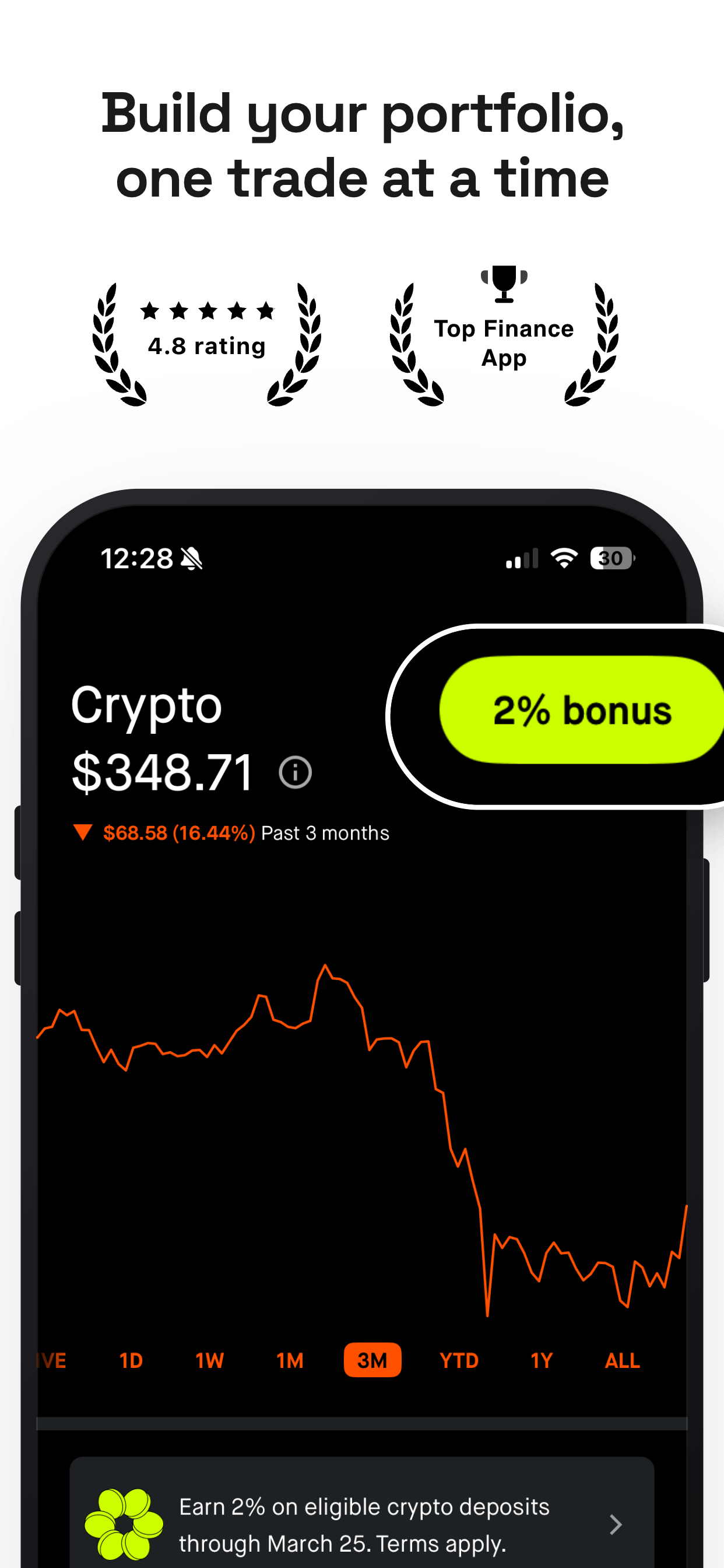
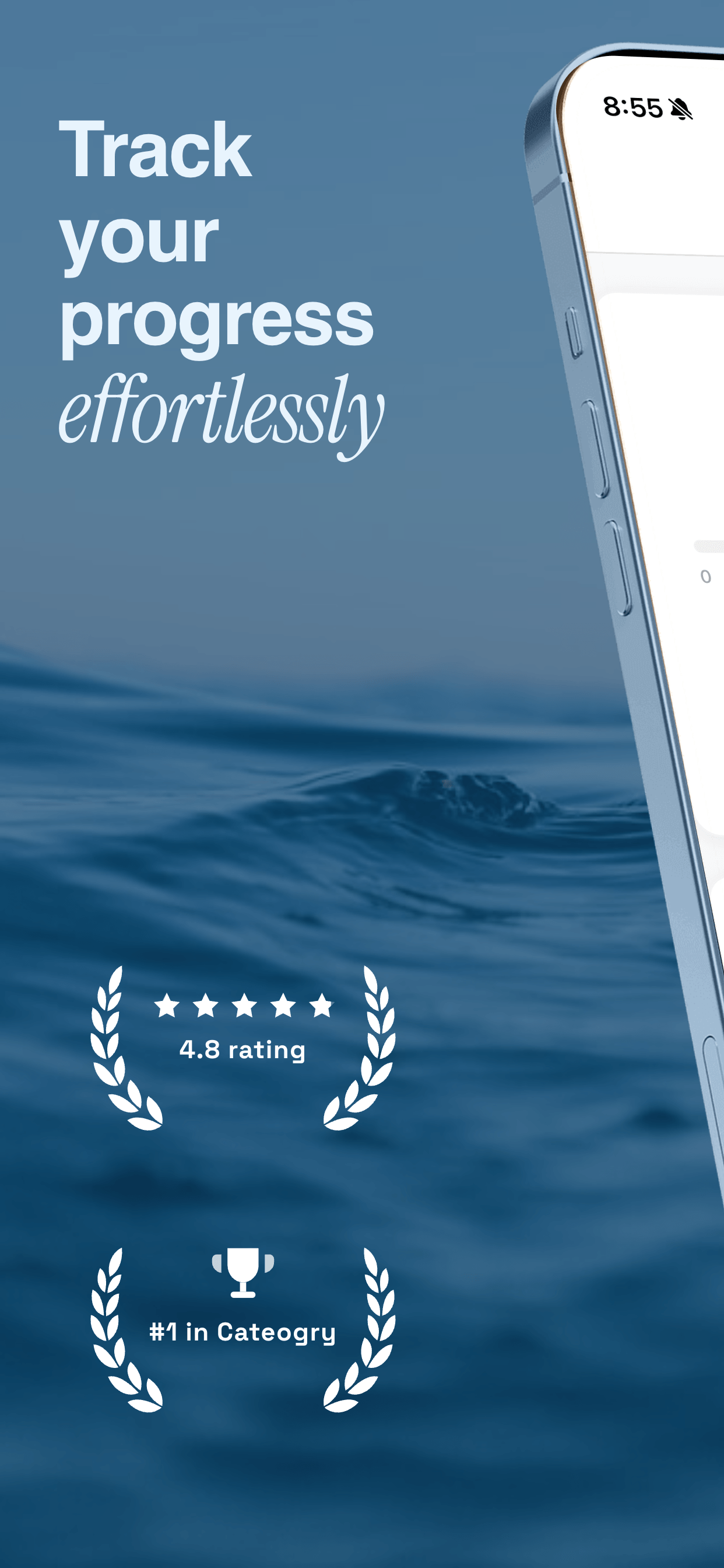
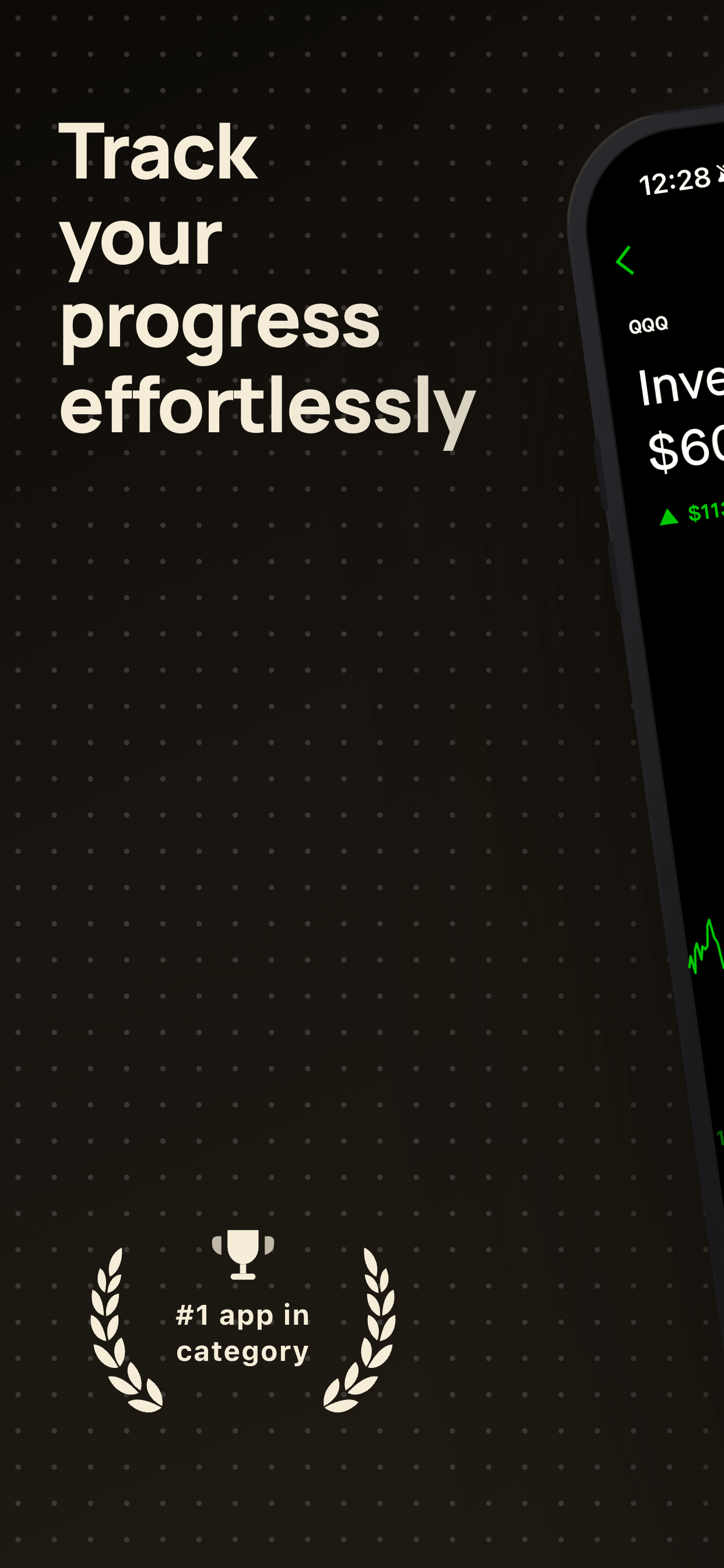
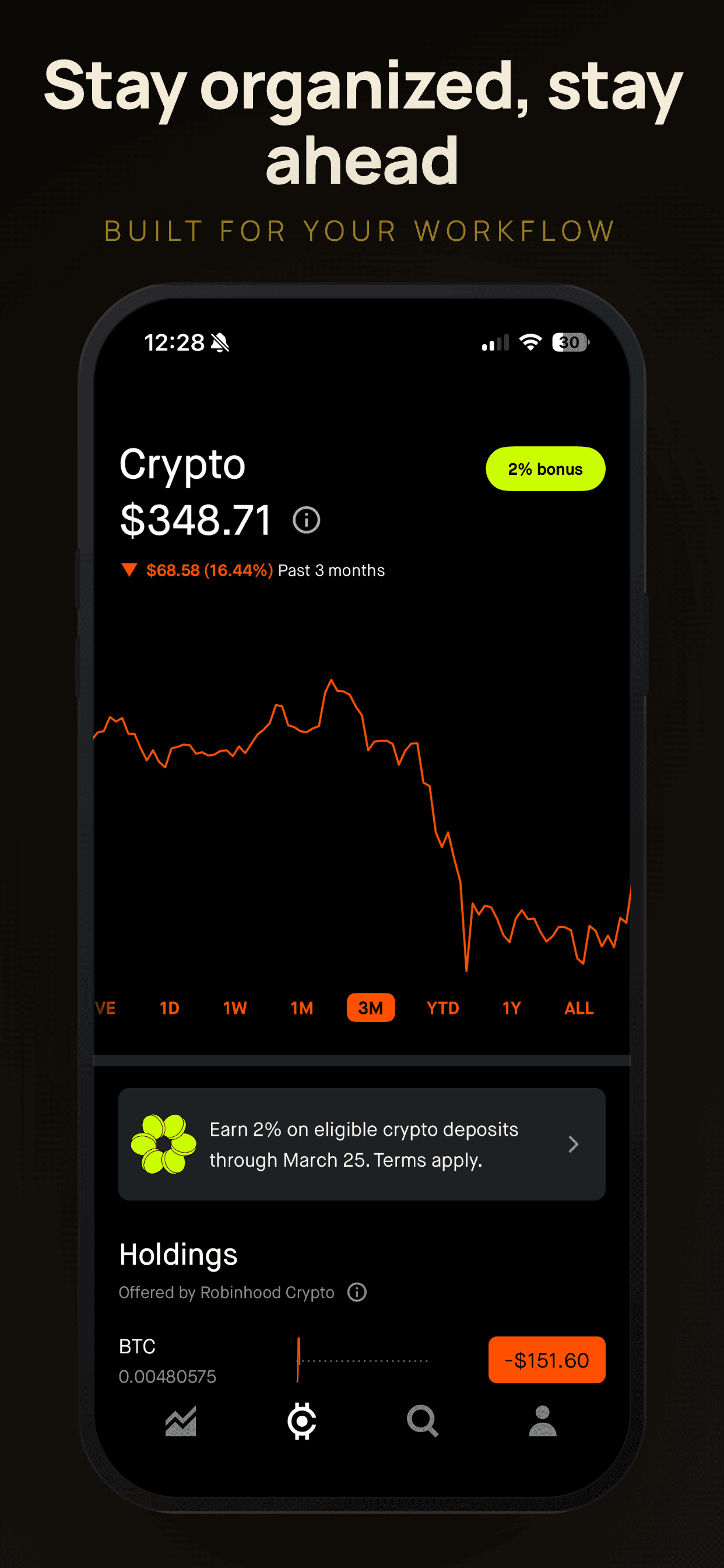
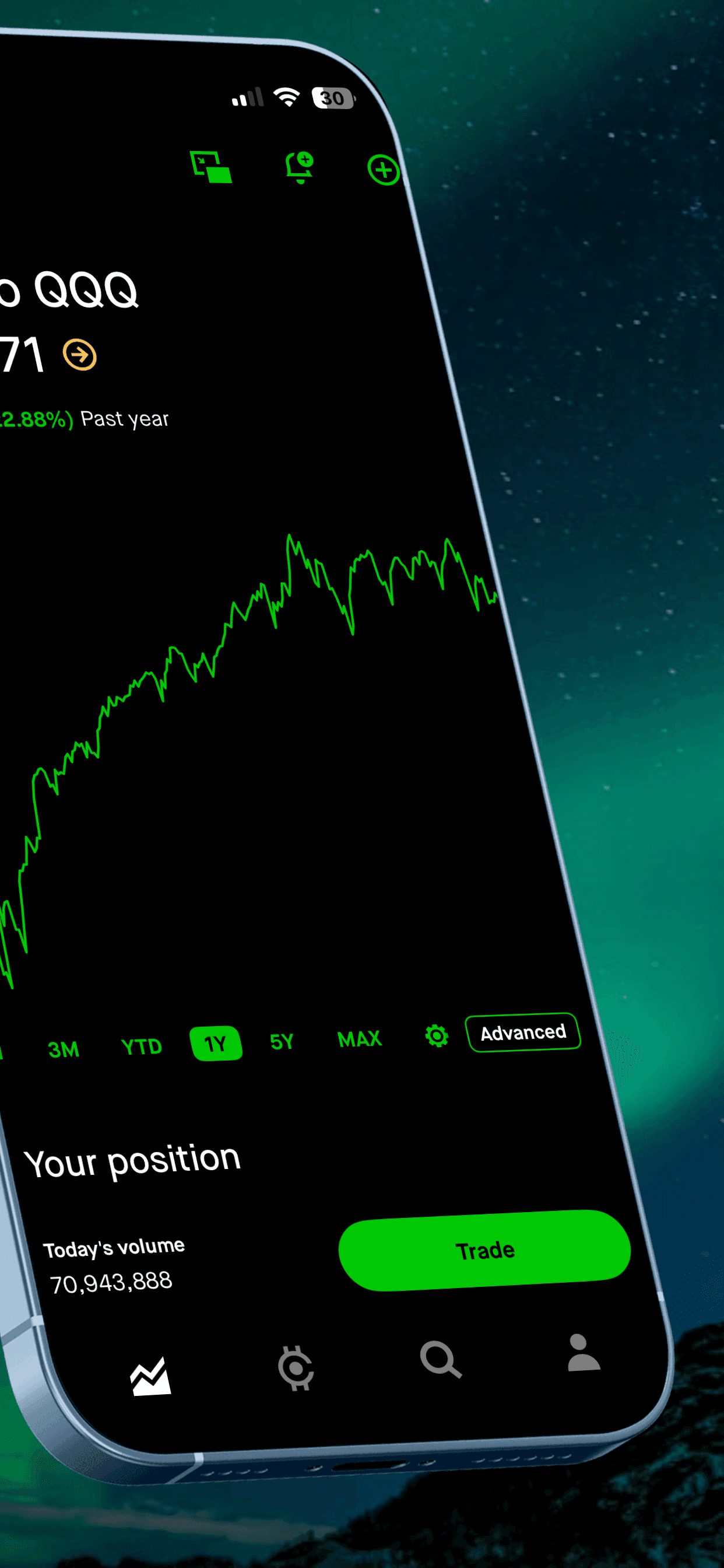
Here are the rules of thumb. If your app has a dark UI, pick a dark template. A bright neon background behind a dark-mode app creates visual friction. If your app is minimal and clean, pick a minimal template. If your app is bold and colorful, pick something with energy. Look at the top 5 apps in your App Store category. What do their screenshots look like? You do not need to copy them, but you should be in the same visual neighborhood.
One common mistake: picking a template with a lot of decorative elements (gradients, shapes, overlays) when your app UI is already visually busy. The screenshot ends up feeling cluttered, and the user cannot tell what the app actually does. When in doubt, go simpler.
Step 4: Write captions that sell, not describe
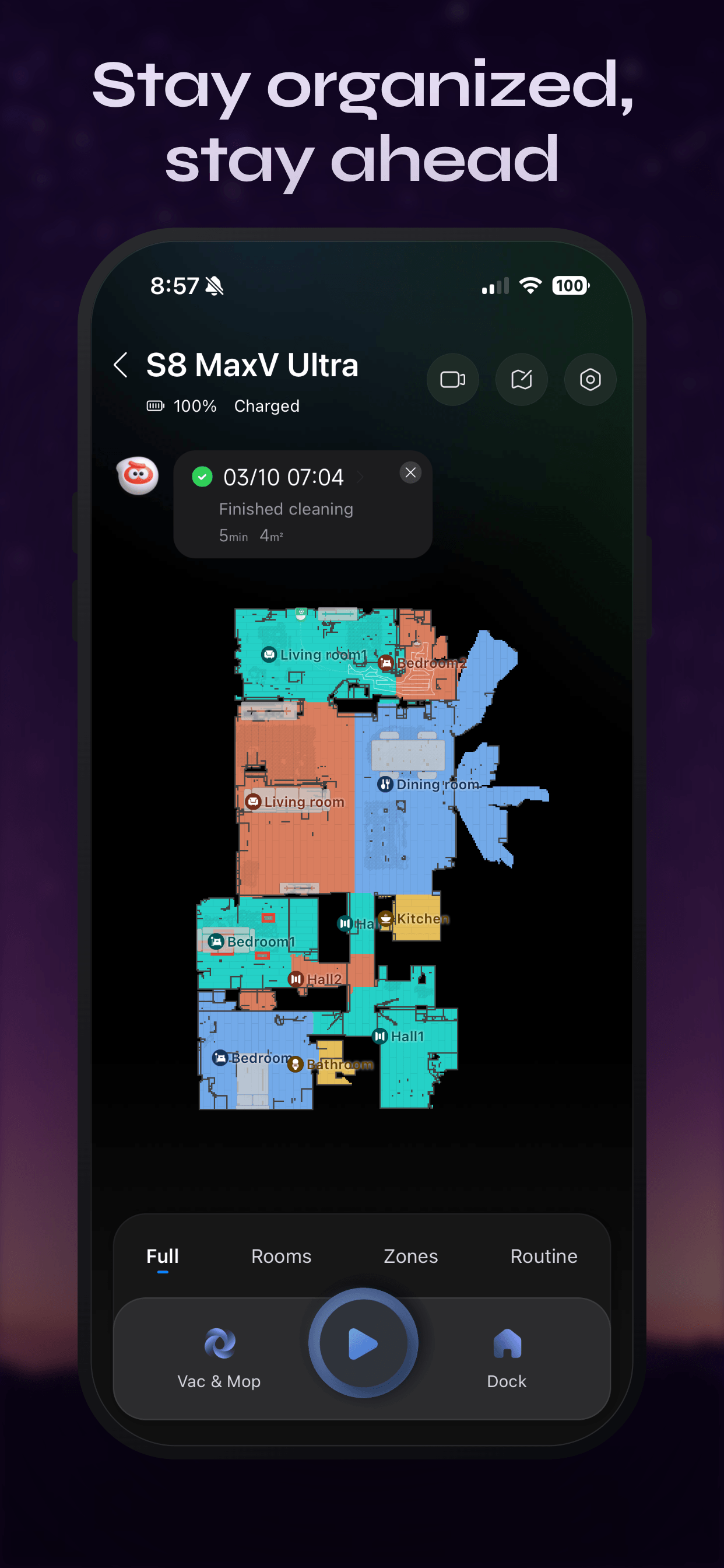
This is the part most developers struggle with, because developers think in features and users think in outcomes. "Advanced Task Filtering" is a feature. "Find anything instantly" is a benefit. Your captions should speak to outcomes.
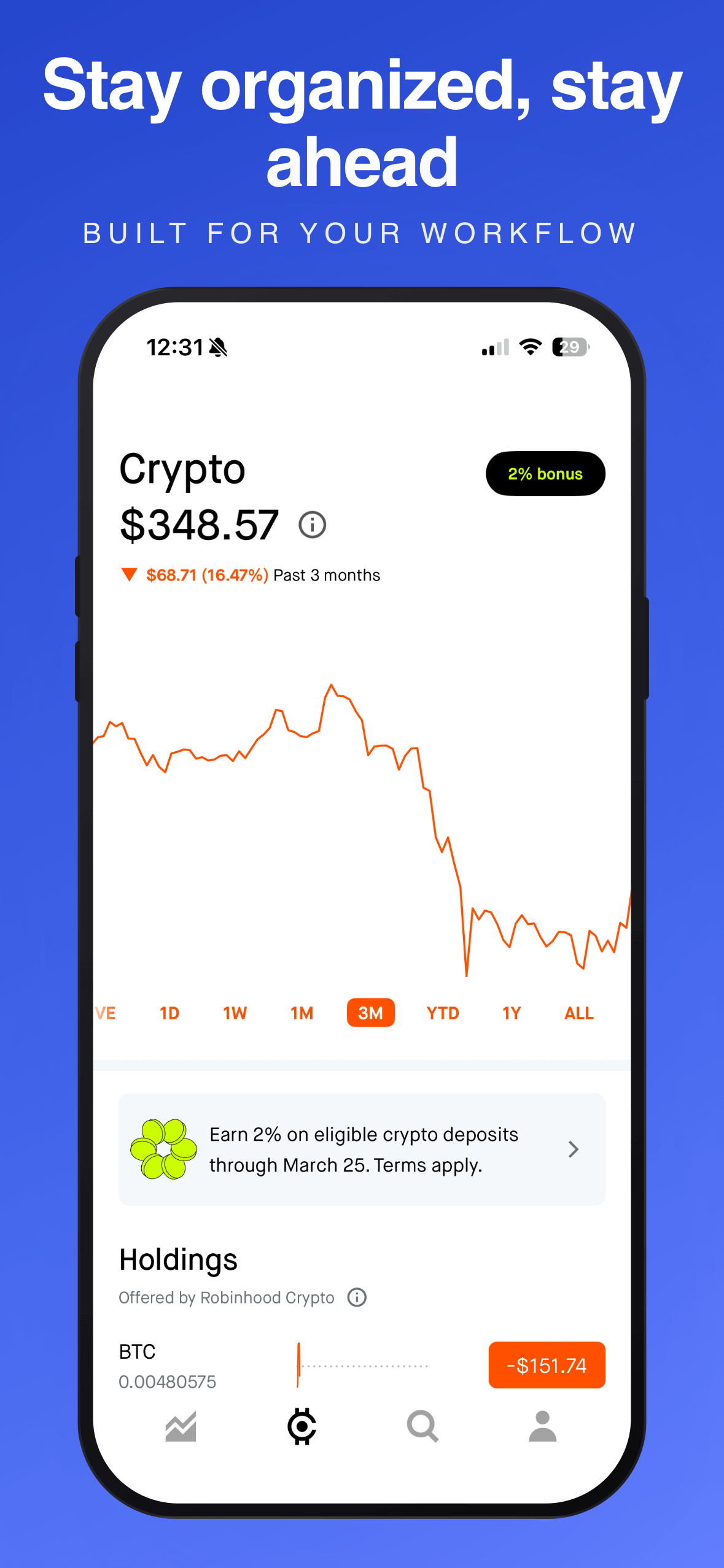
Keep each caption to 3-6 words. Anything longer becomes unreadable at the thumbnail size users see in search results. If you cannot read your caption when you shrink the screenshot to 25% of its full size, the text is too long or too small.
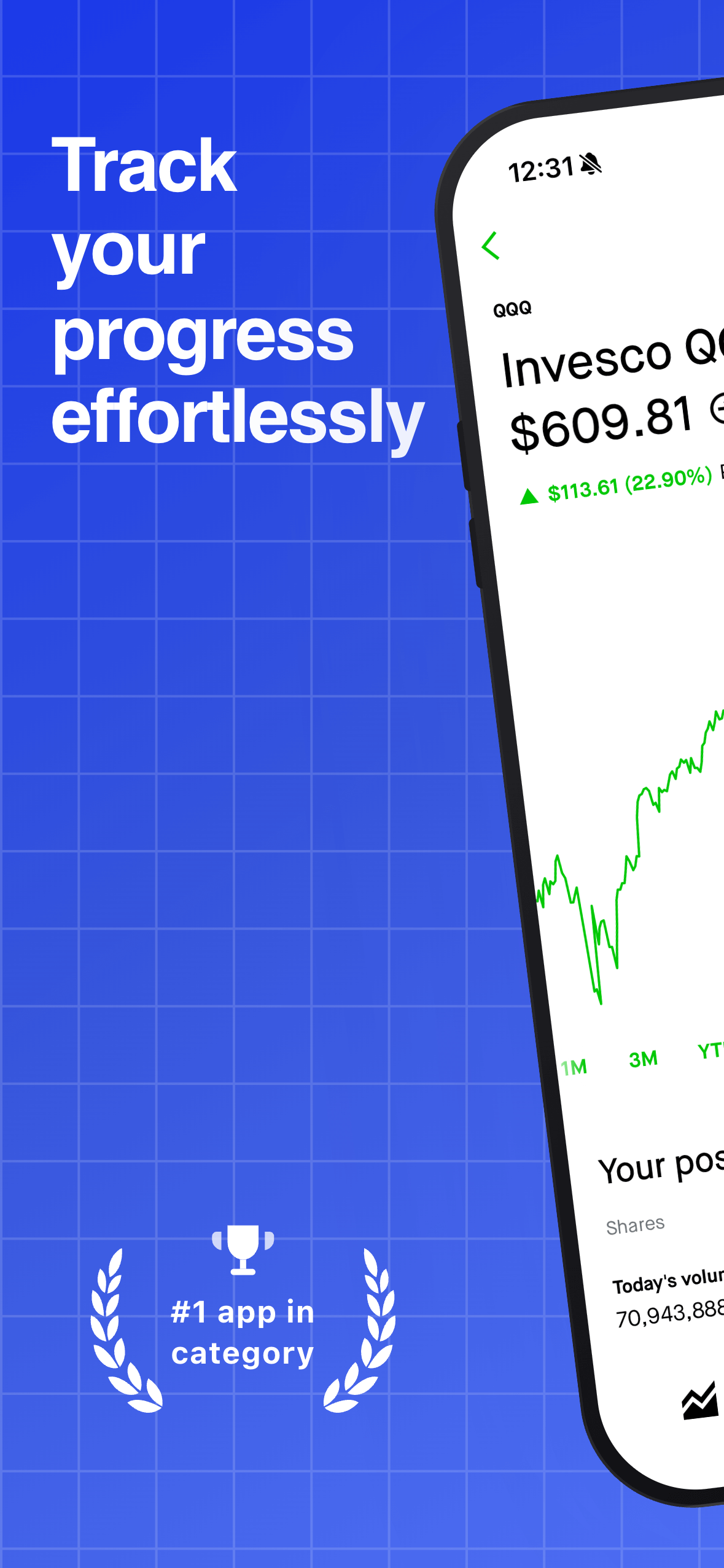
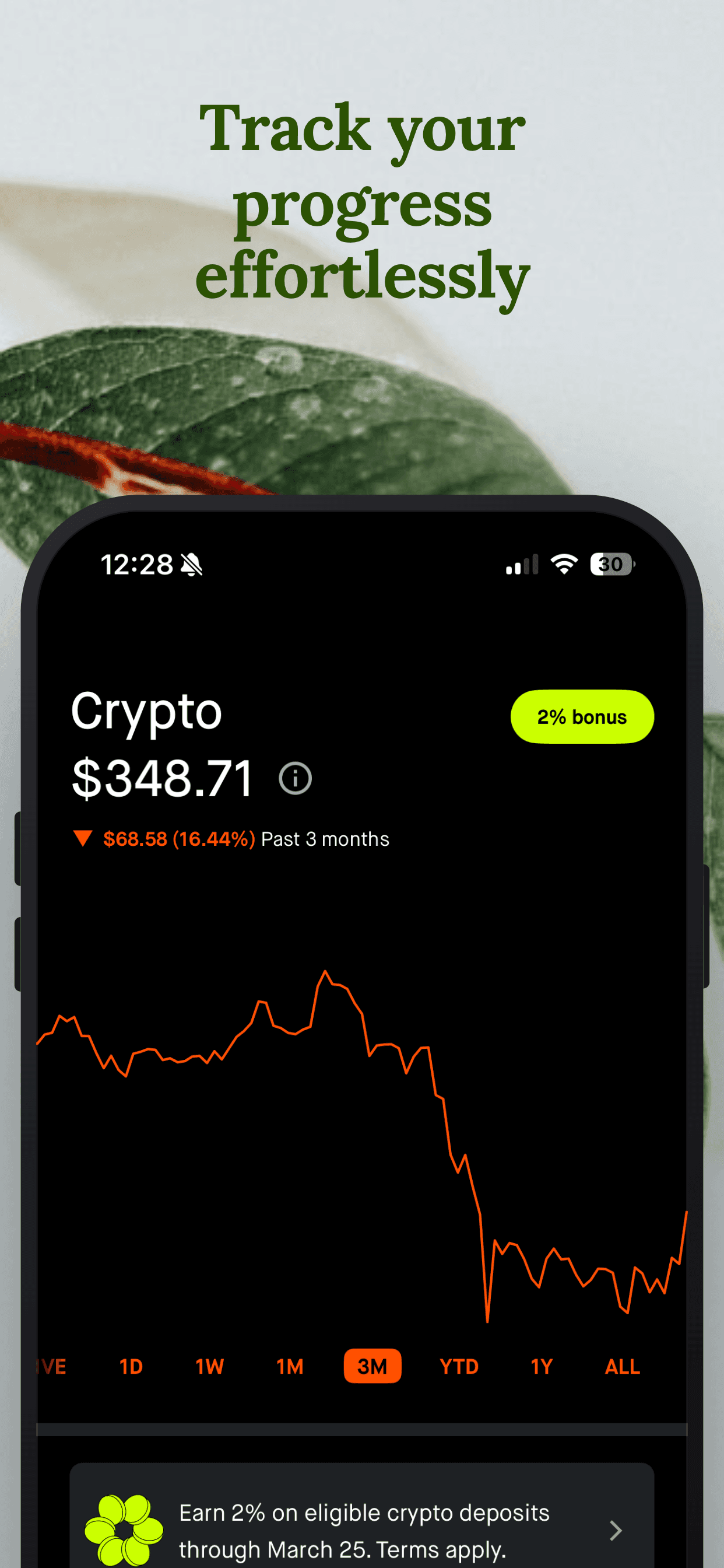
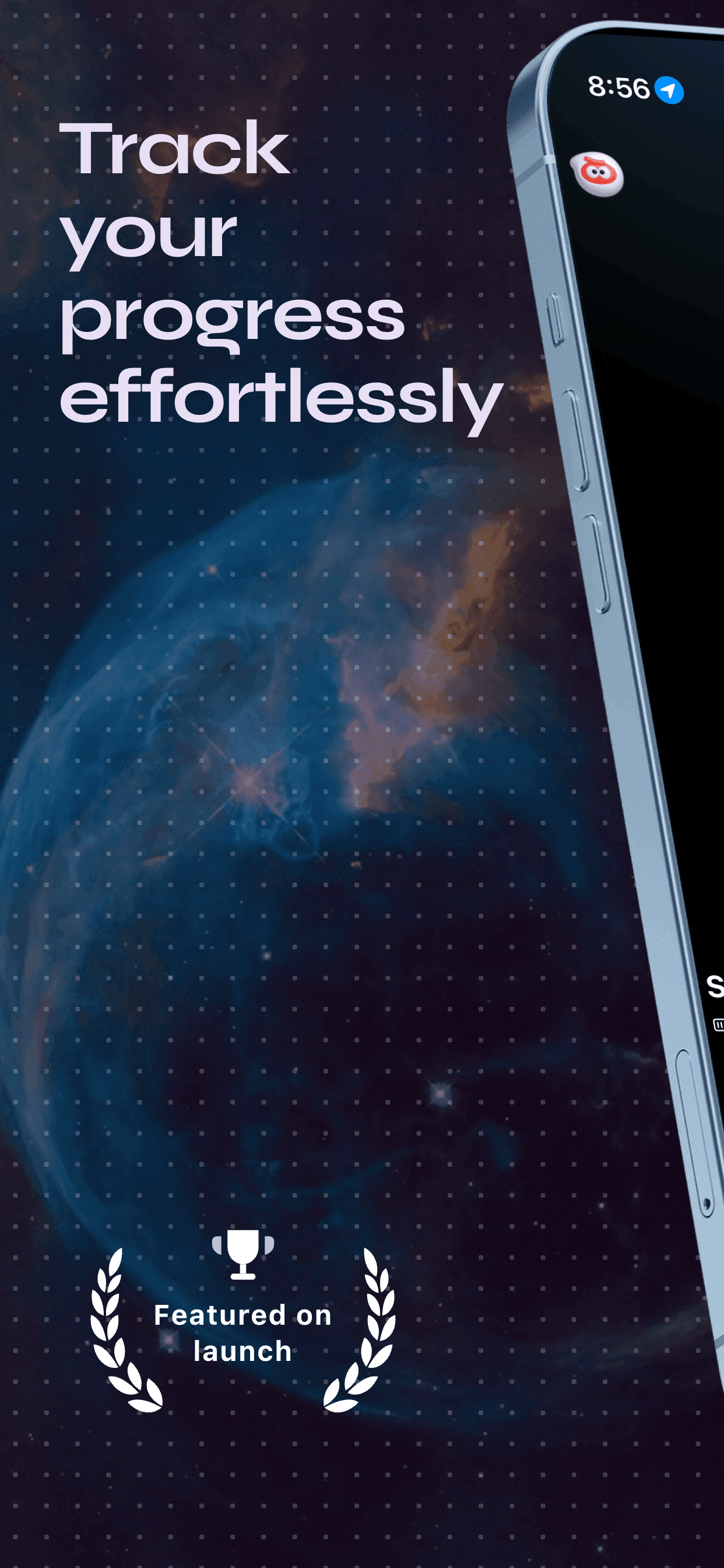
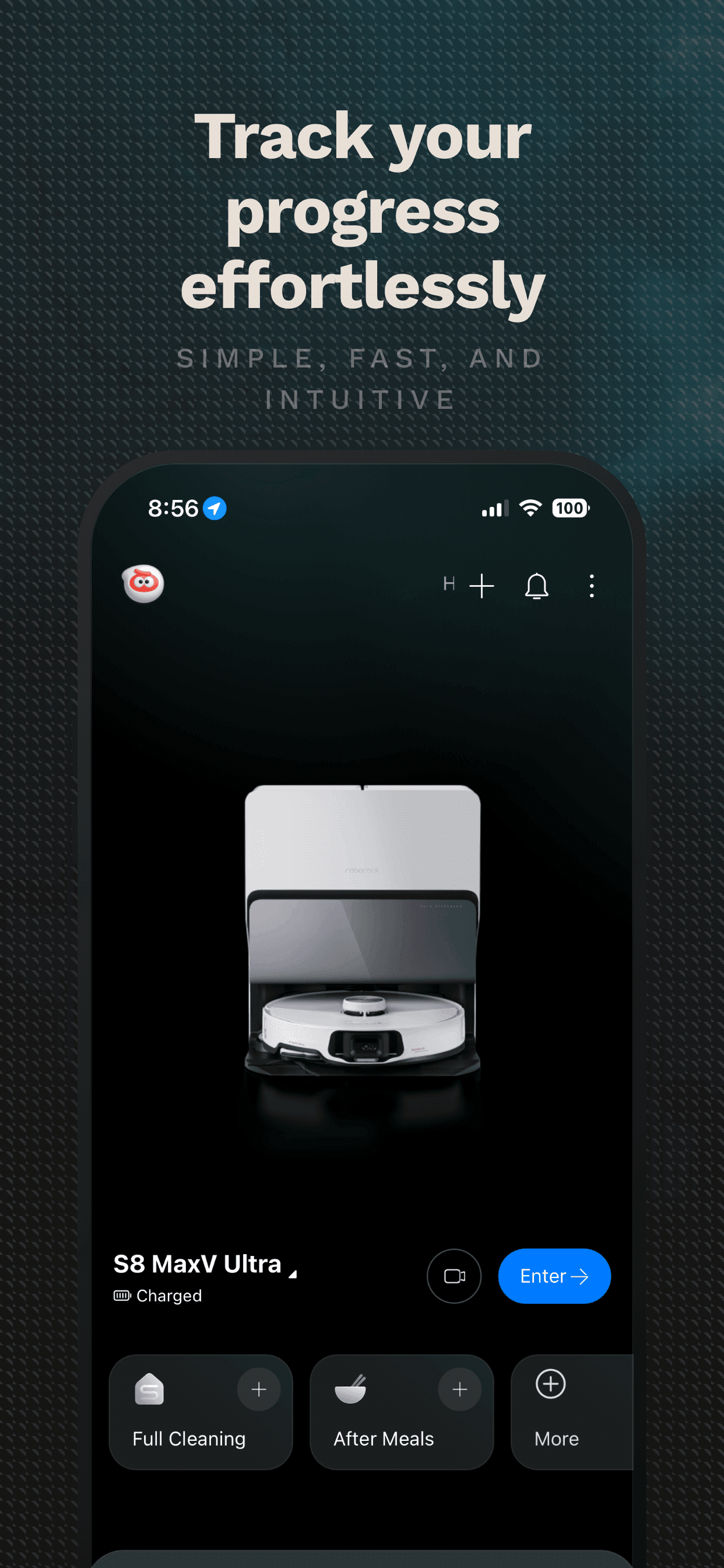
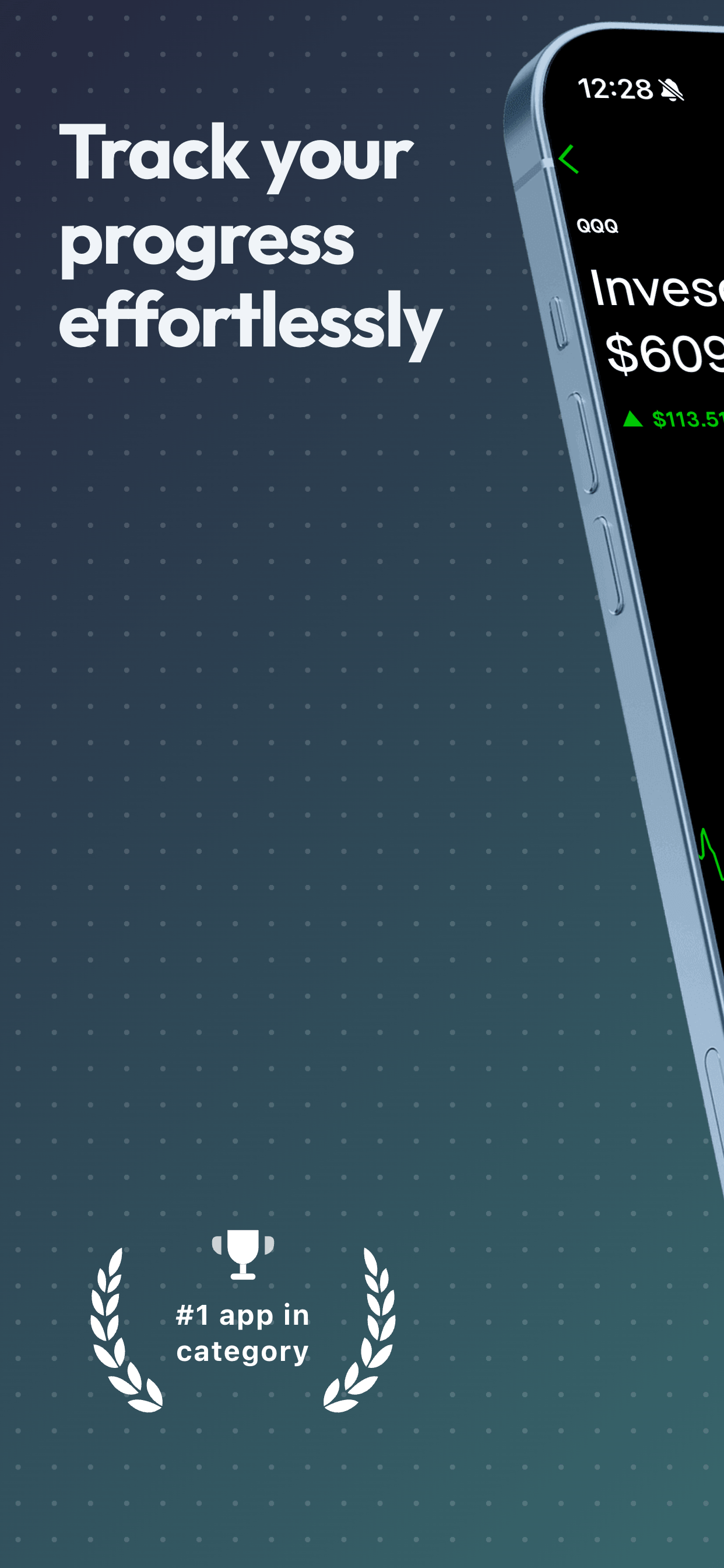
A good pattern is: verb + benefit. "Track your progress." "Share with your team." "Focus on what matters." Avoid jargon, avoid technical terms, and avoid trying to be clever. Clarity beats creativity in App Store captions every time.
Your first caption matters the most. It appears in search results and determines whether someone taps into your listing. Make it your strongest, clearest value statement. If your app helps people sleep better, your first caption should say exactly that, not "Intelligent Sleep Algorithm" or "Powered by ML."
One more thing: Apple now indexes text in your screenshots for search. Clear, keyword-relevant captions can give you a small ranking boost on top of the conversion benefit.
Founder's take
“I built Screenshot Otter because I was tired of spending hours in Figma every time I pushed an update. As a developer, your time is better spent on the product. A good screenshot generator pays for itself in the first use.”
Scott Stewart, founder of Screenshot Otter
The five mistakes non-designers always make
After seeing thousands of indie app screenshots, the same mistakes come up over and over.
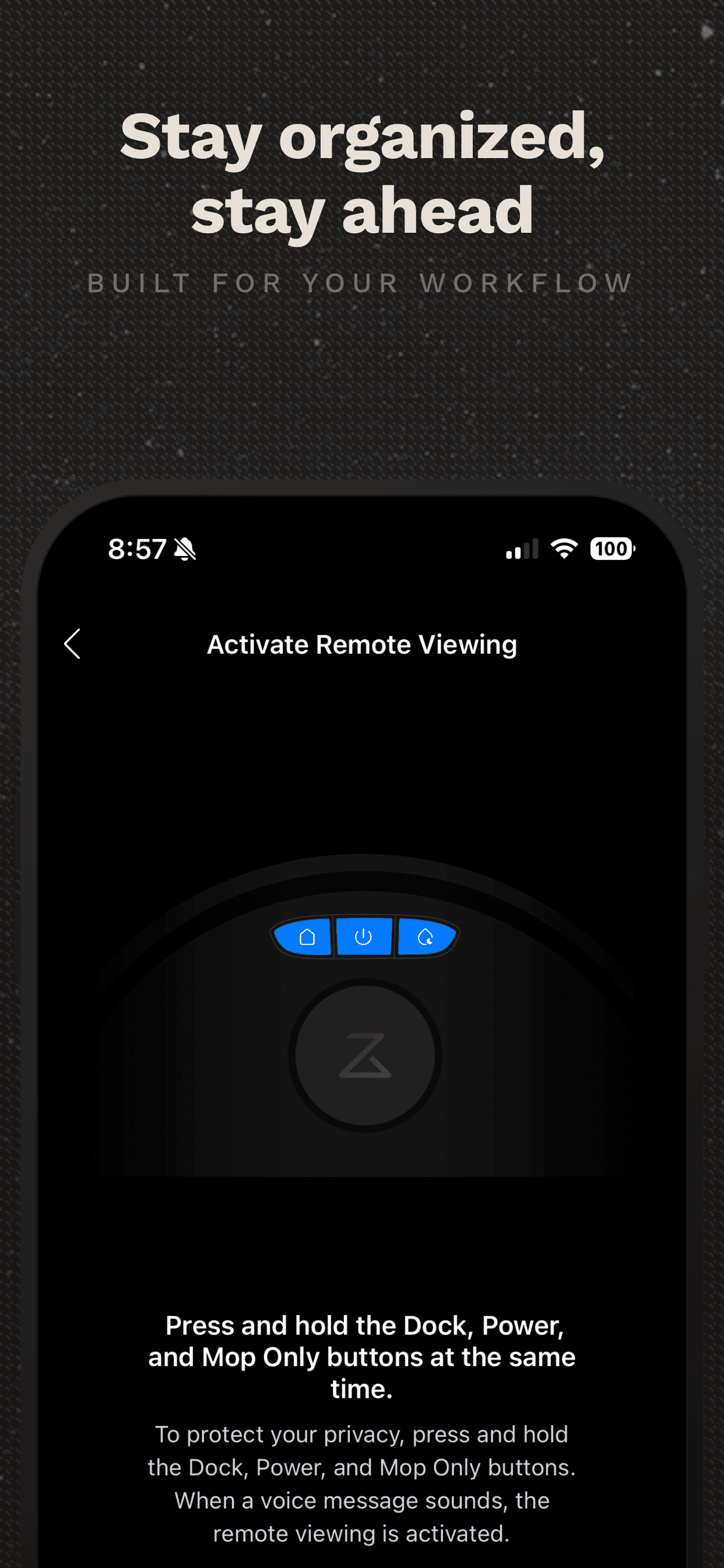
1. Using the splash screen as screenshot one. Your launch screen or onboarding screen is not a screenshot. Users want to see what the app does, not what it looks like before it loads. Show a populated, active screen.
2. Tiny text on busy backgrounds. If your caption is 14px on a gradient background with no contrast, nobody can read it on a phone. Use large, bold text (20px minimum at full resolution) with strong contrast against the background. White text on dark backgrounds or dark text on light backgrounds. Do not get fancy with low-contrast color combinations.
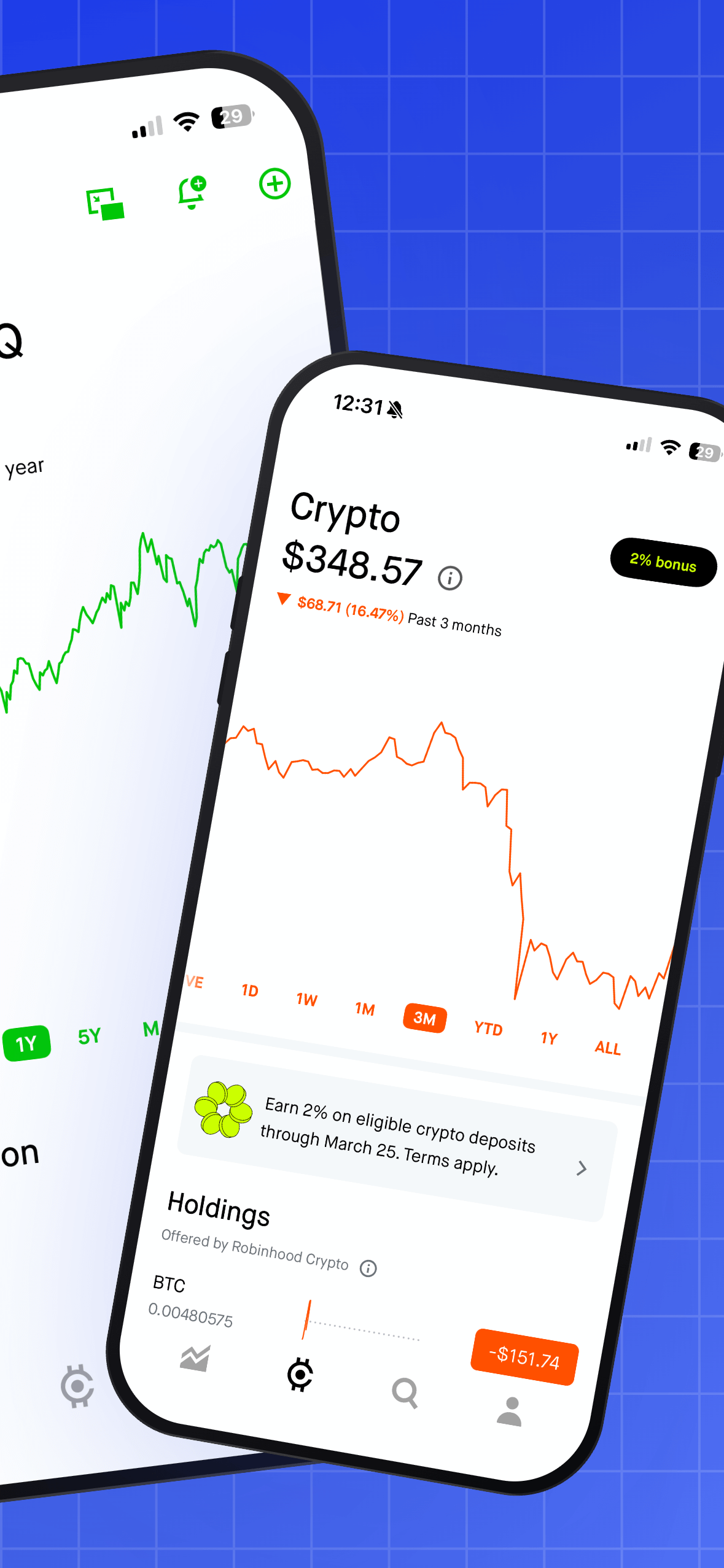
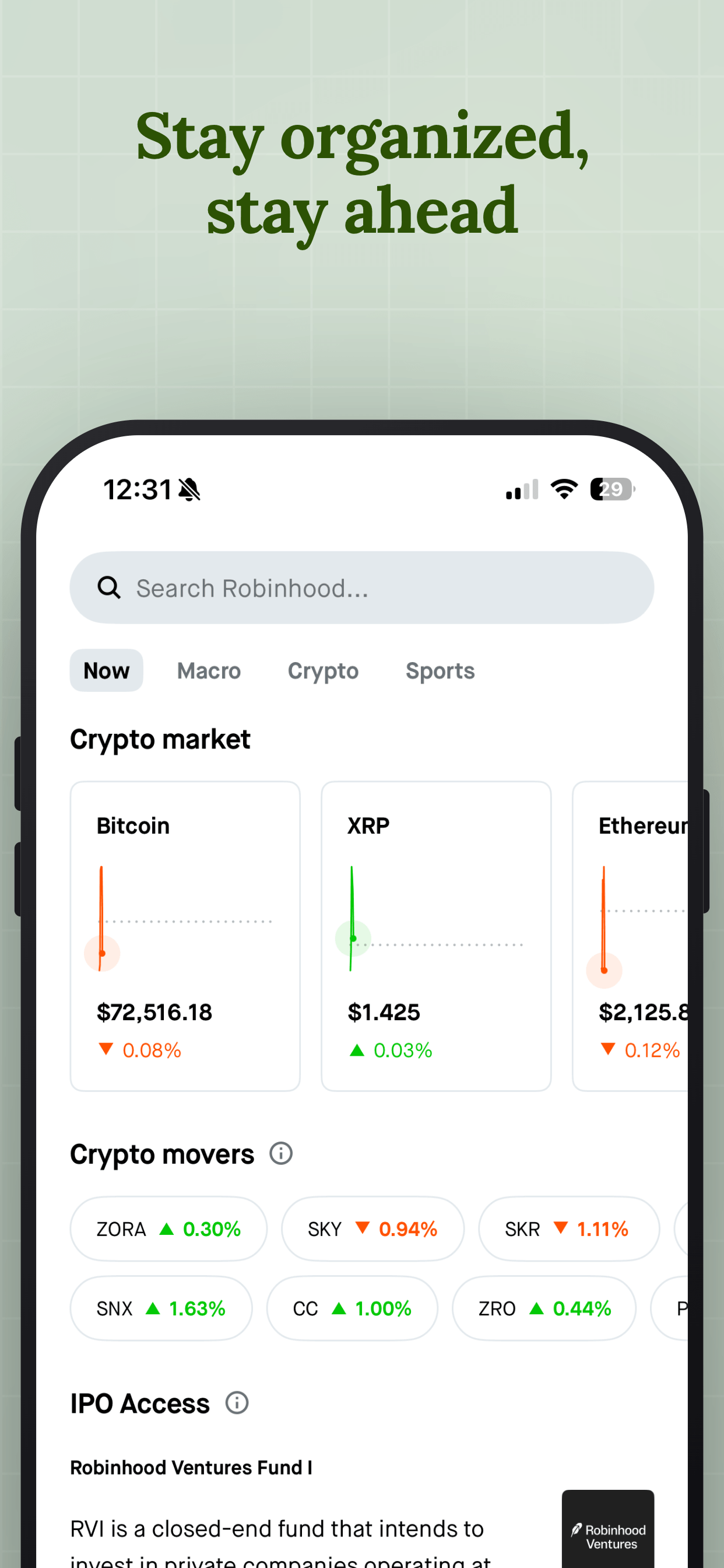
3. Inconsistent styling across screenshots. Each screenshot should look like it belongs to the same set. Same font, same colors, same frame style, same caption placement. If screenshot one has a dark background and screenshot three has a bright gradient, it looks disjointed. Templates solve this problem automatically.
4. Too many screenshots saying the same thing. Five screenshots of slightly different list views do not help. Each screenshot should show a distinct feature or screen. Before capturing, write out a one-line description of what each screenshot will communicate. If two descriptions sound the same, cut one.
5. Forgetting iPad. If your app runs on iPad, Apple requires iPad screenshots. Many developers submit iPhone screenshots stretched to iPad dimensions, and it looks terrible. Take actual iPad screenshots (or use the iPad Simulator) and create a separate set. The effort is small, and iPad users notice when you have not bothered.
Bonus: localize your captions (it takes 10 minutes)
If your app earns revenue from non-English markets, localizing your screenshot captions is one of the highest-ROI moves you can make. A localized screenshot set in the user's native language significantly outperforms English-only screenshots in markets like Japan, Germany, Korea, and Brazil.
The reason most developers skip this is that recreating an entire screenshot set per language in Figma is painful. You have to duplicate frames, swap text, re-export, and repeat for every language. With a dedicated tool that supports localization, you translate the captions once and the tool regenerates every screenshot in every language automatically. What used to take a full day becomes a 10-minute task.
The complete 30-minute workflow
Here is the end-to-end process, start to finish. This assumes you already have your app in a good state with realistic data.
Minutes 1-5: Capture 5-8 raw screenshots from the Simulator or a real device. Focus on the screens that show your core features with real data.
Minutes 5-10: Upload your screenshots to a generator tool. Select a template that matches your app's visual tone. Dark app, dark template. Light app, light template.
Minutes 10-20: Write your captions. First screenshot: main value proposition (3-5 words). Remaining screenshots: one feature or benefit each. Read them out loud. If they sound like marketing jargon, simplify.
Minutes 20-25: Review the full set at thumbnail size. Can you read every caption? Does the sequence tell a coherent story? Does the first screenshot make you want to see more?
Minutes 25-30: Export and upload. If your tool supports direct upload to App Store Connect or Google Play Console, use it. Otherwise, download the images and upload manually.
After launch: test and iterate
Your first screenshot set is a starting point, not the final answer. Apple's Product Page Optimization lets you test up to three alternate screenshot sets against your current version. Google Play has similar store listing experiments. Both are free and built into the developer console.
Start with a simple test: change your first screenshot's caption or background color and run it for two weeks. Even small changes can move conversion by 10-20%. Once you have a winner, keep iterating. The best-performing apps in any category are constantly testing their creative assets.
You should also update your screenshots every time you ship a major feature. Stale screenshots that show an old version of your UI hurt trust. If a user downloads your app and it looks different from the screenshots, they feel misled, and that leads to negative reviews and uninstalls.
Related Guides
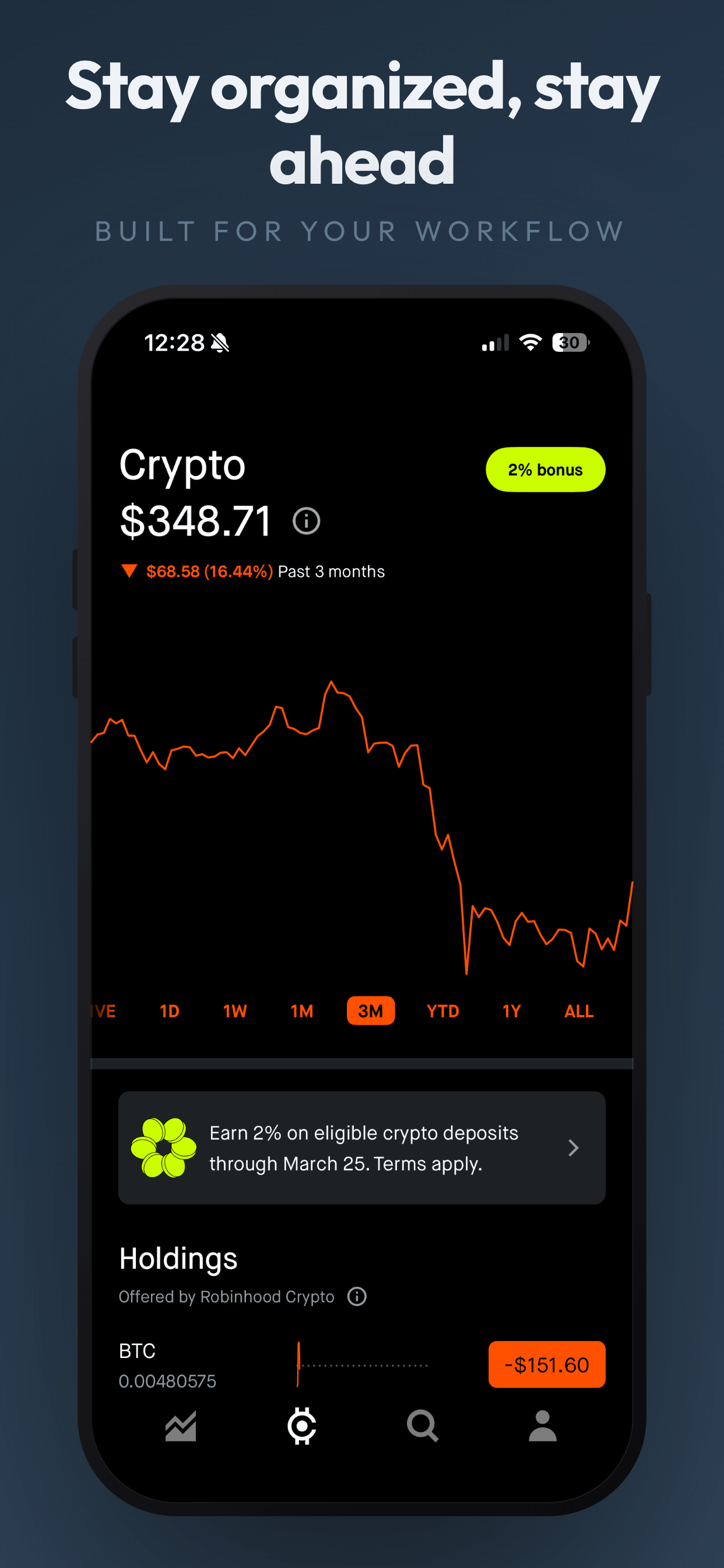
Make your screenshots in 30 minutes
Screenshot Otter gives you 40+ professionally designed templates. Upload your raw screenshots, pick a layout, write your captions, and export. Free to start, no signup required.
Try Screenshot Otter free →