Tips
10 App Store Screenshot Tips That Boost Downloads
Most users decide whether to download your app in under three seconds. These tips will make sure your screenshots do the heavy lifting.

Scott Stewart · Feb 18, 2026
Quick answer
The single most impactful thing you can do is make your first screenshot count: it is the only one visible in search results. Use benefit-driven captions (not feature descriptions), keep text to 6 words or fewer, and test variations using Apple's built-in Product Page Optimization.
Screenshots are the most influential element of an App Store listing, more than ratings, more than the app description, and in many cases more than the icon. Studies from top ASO (App Store Optimization) firms consistently show that improving screenshots can lift conversion rates by 20–30%.
These ten tips are drawn from what works across different app categories , from productivity tools to games to health apps. Not all of them will apply to your specific app, but each one is worth considering. Before you start, make sure your screenshots meet Apple's required App Store screenshot dimensions , submitting the wrong pixel size will get your build rejected.
Lead with your strongest screenshot
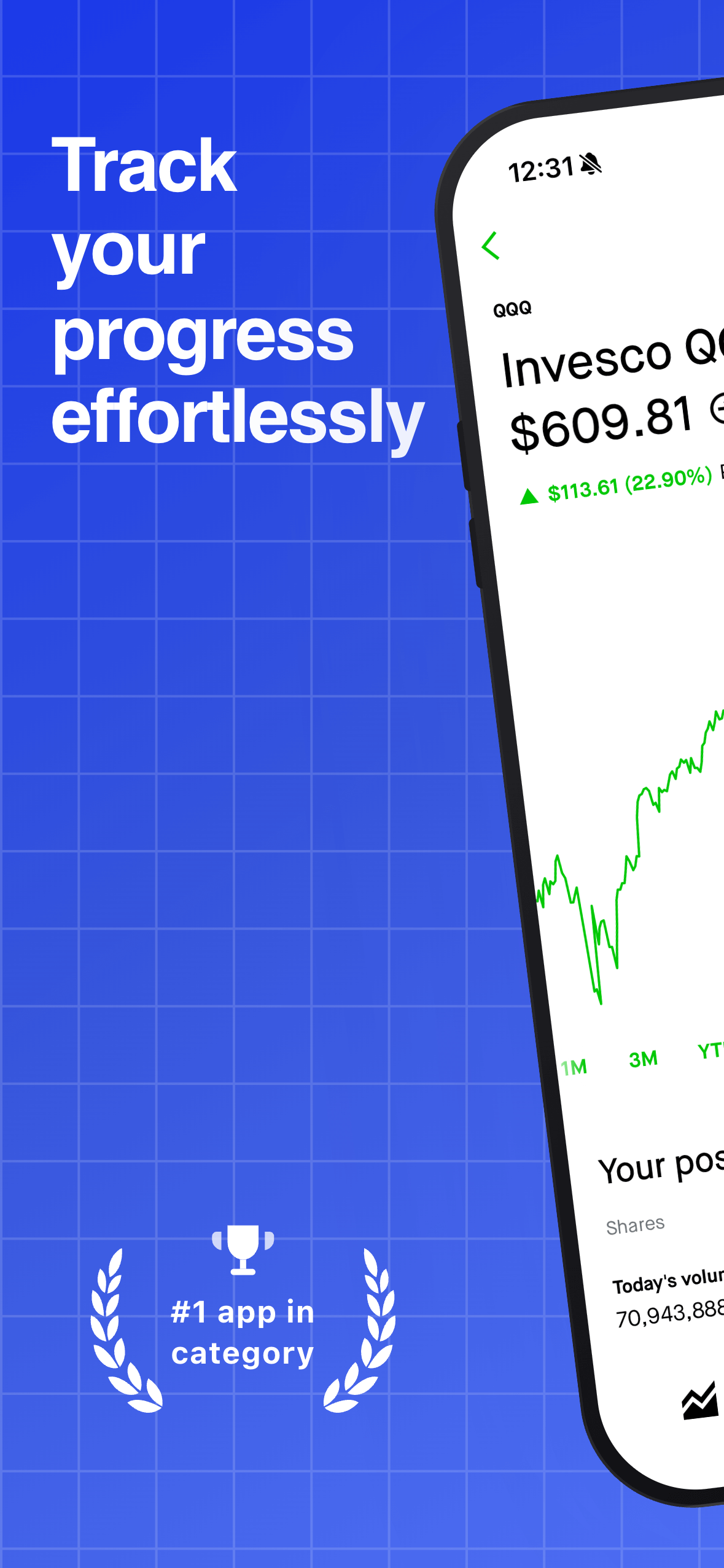
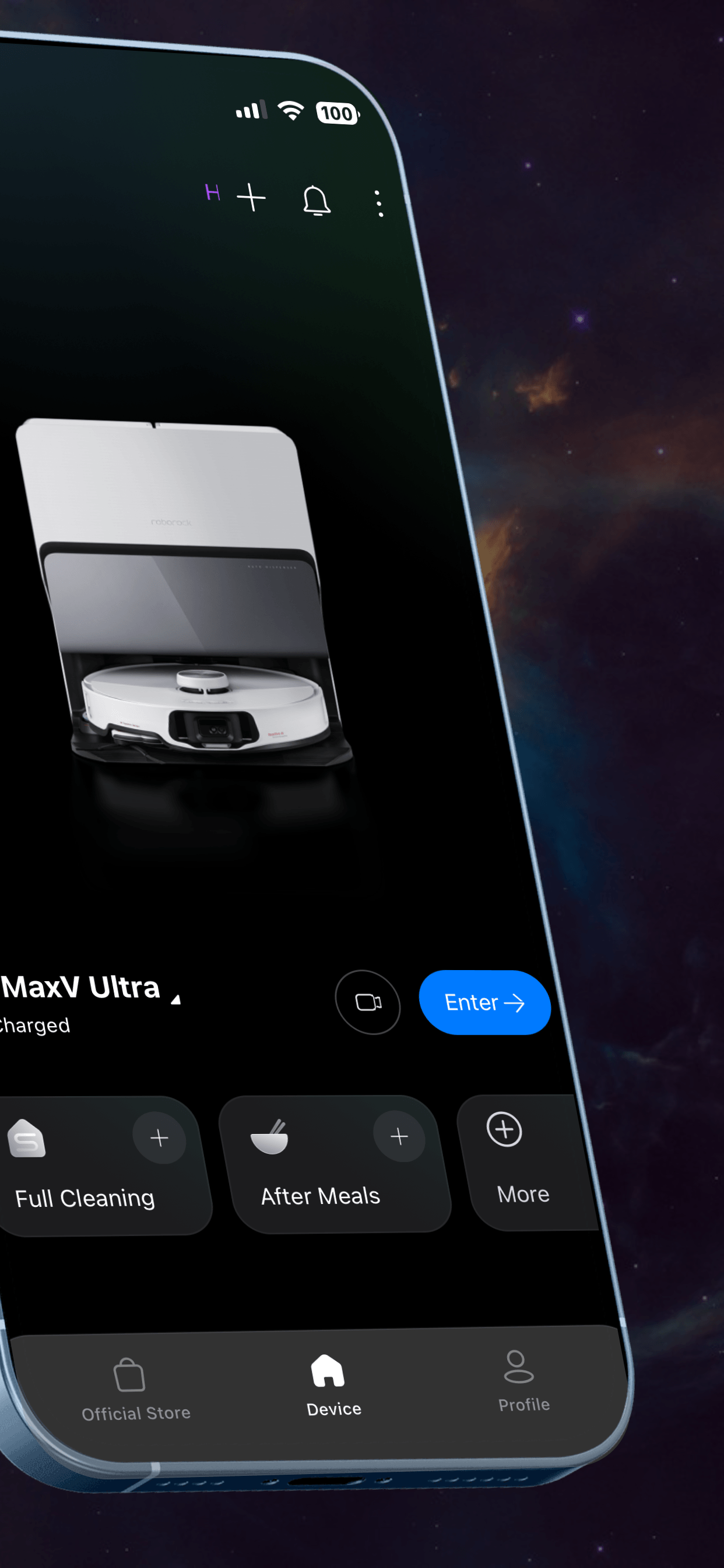
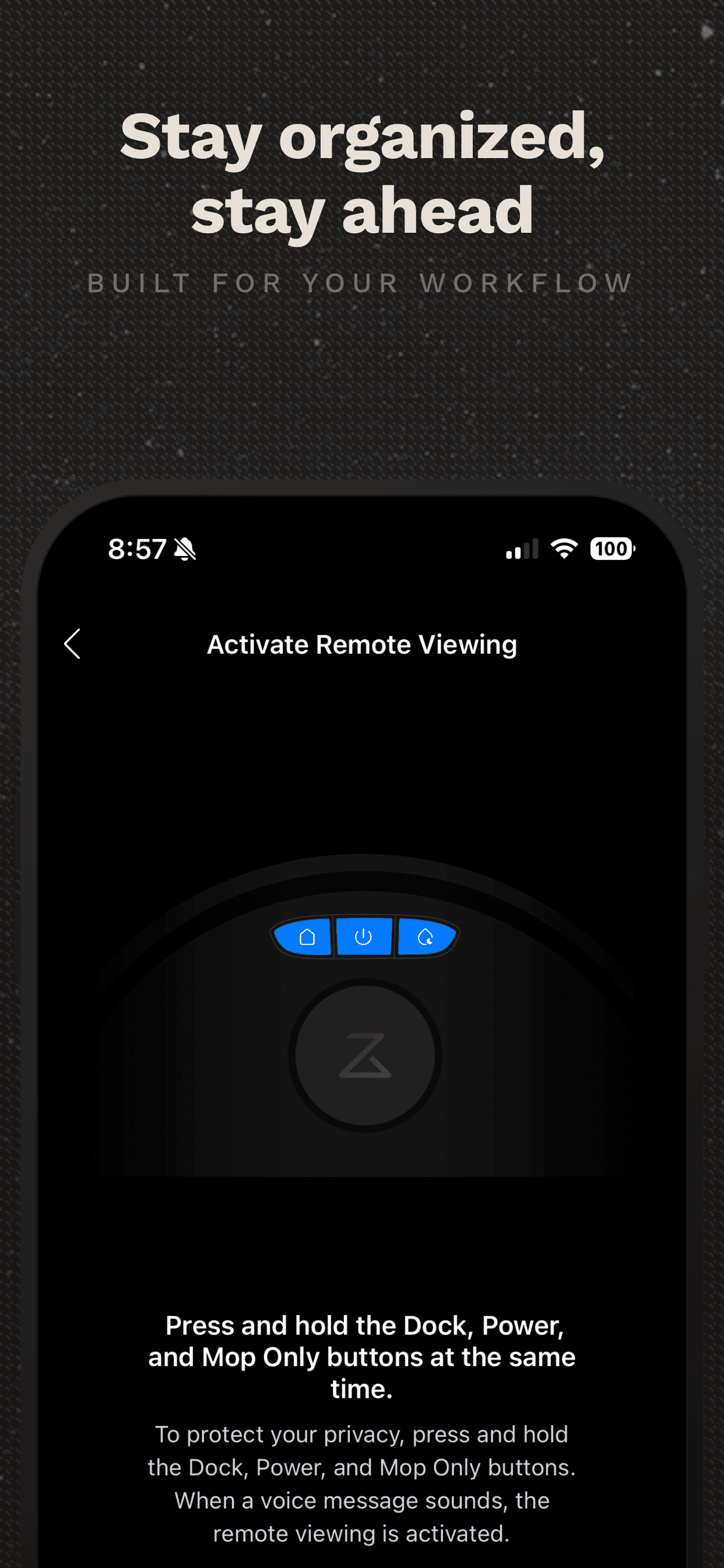
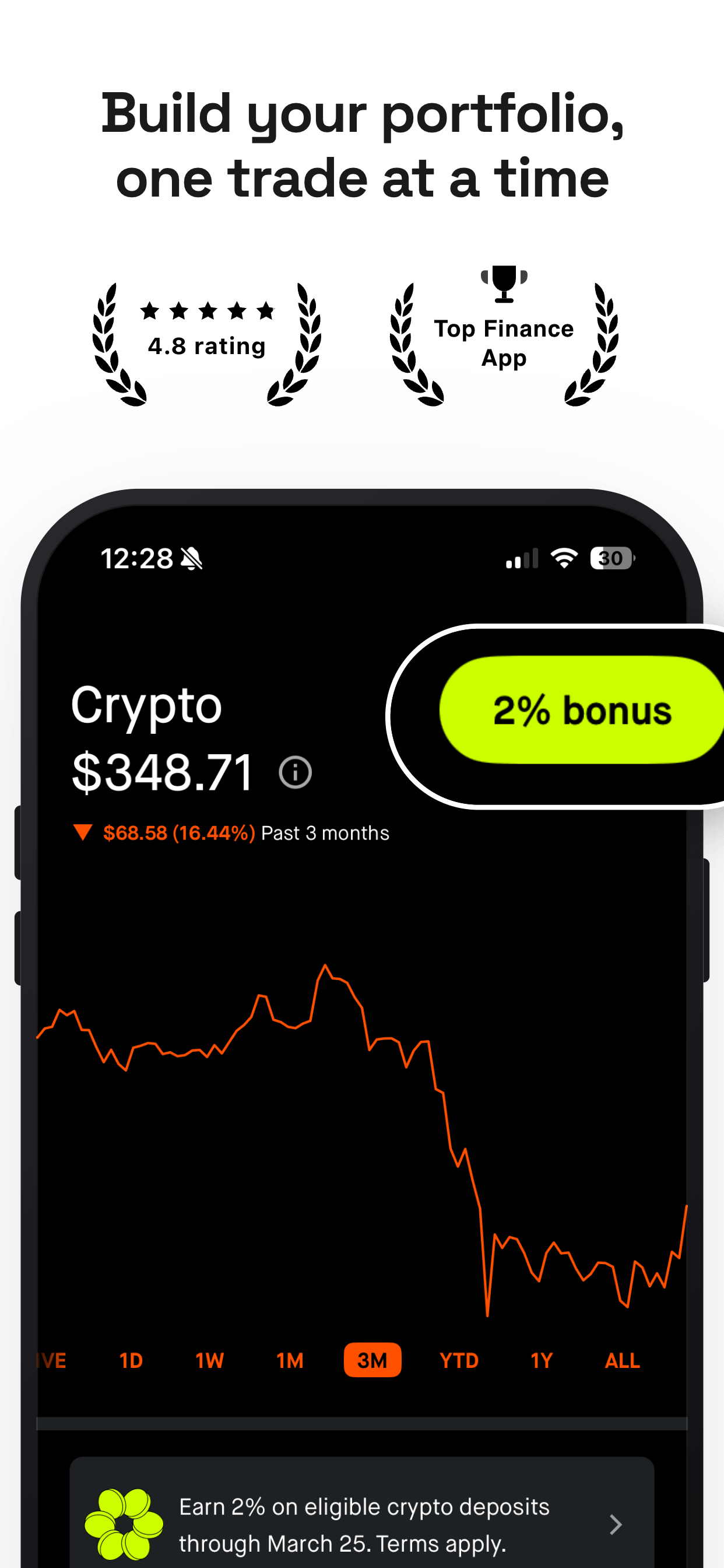
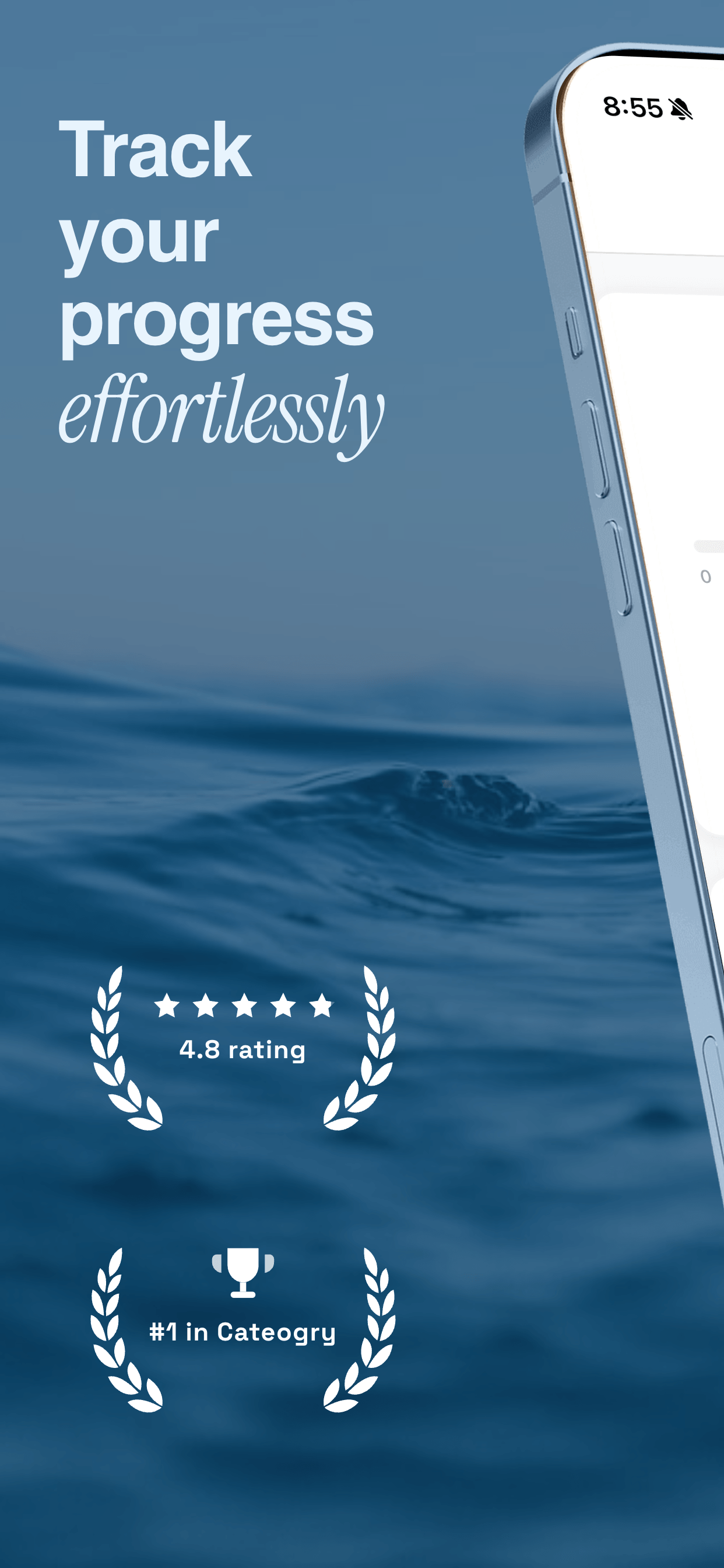
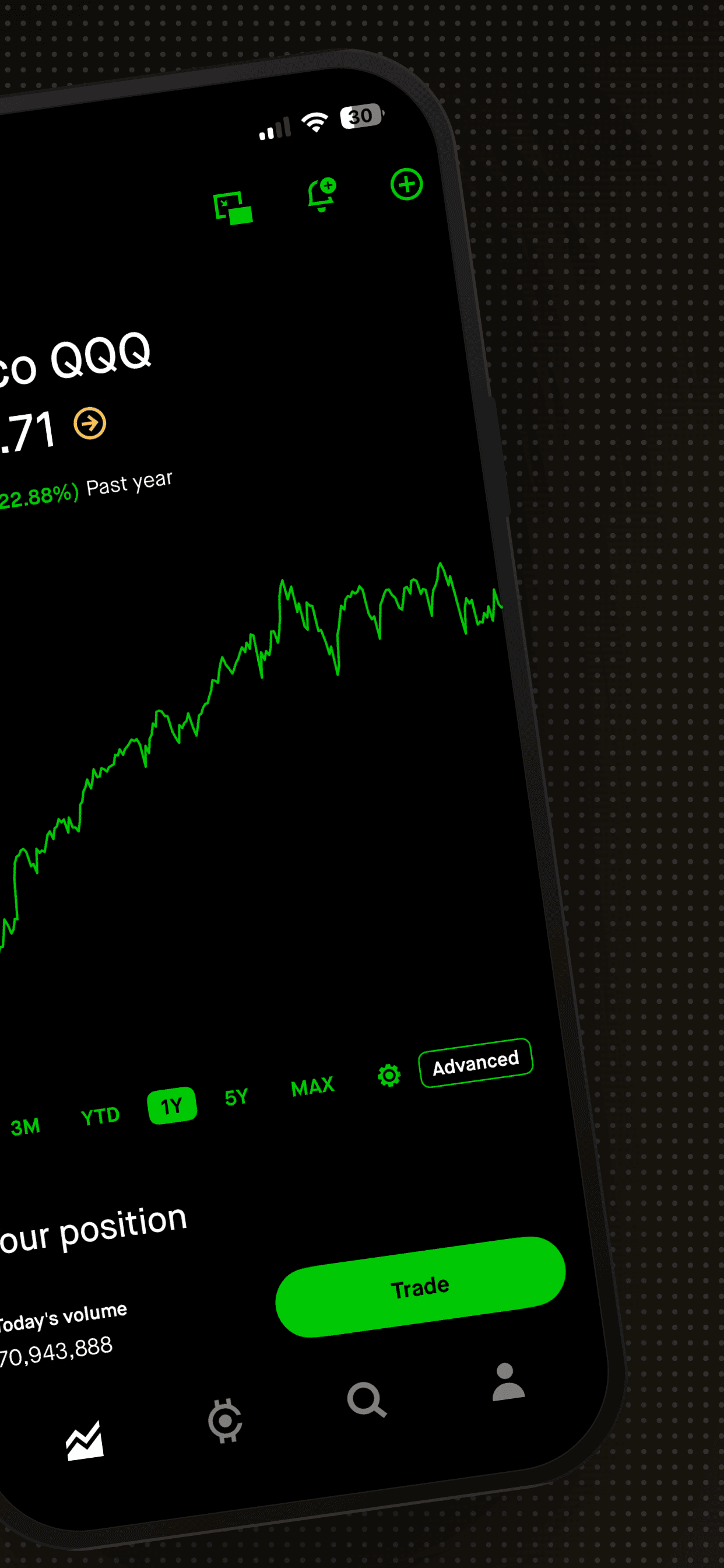
Only the first screenshot is visible in App Store search results, users have to tap to see the rest. Your first screenshot is effectively your billboard. It should communicate what your app does and why someone should want it in under two seconds. Spend 80% of your creative effort on screenshot one.
Show the app in action, not the splash screen
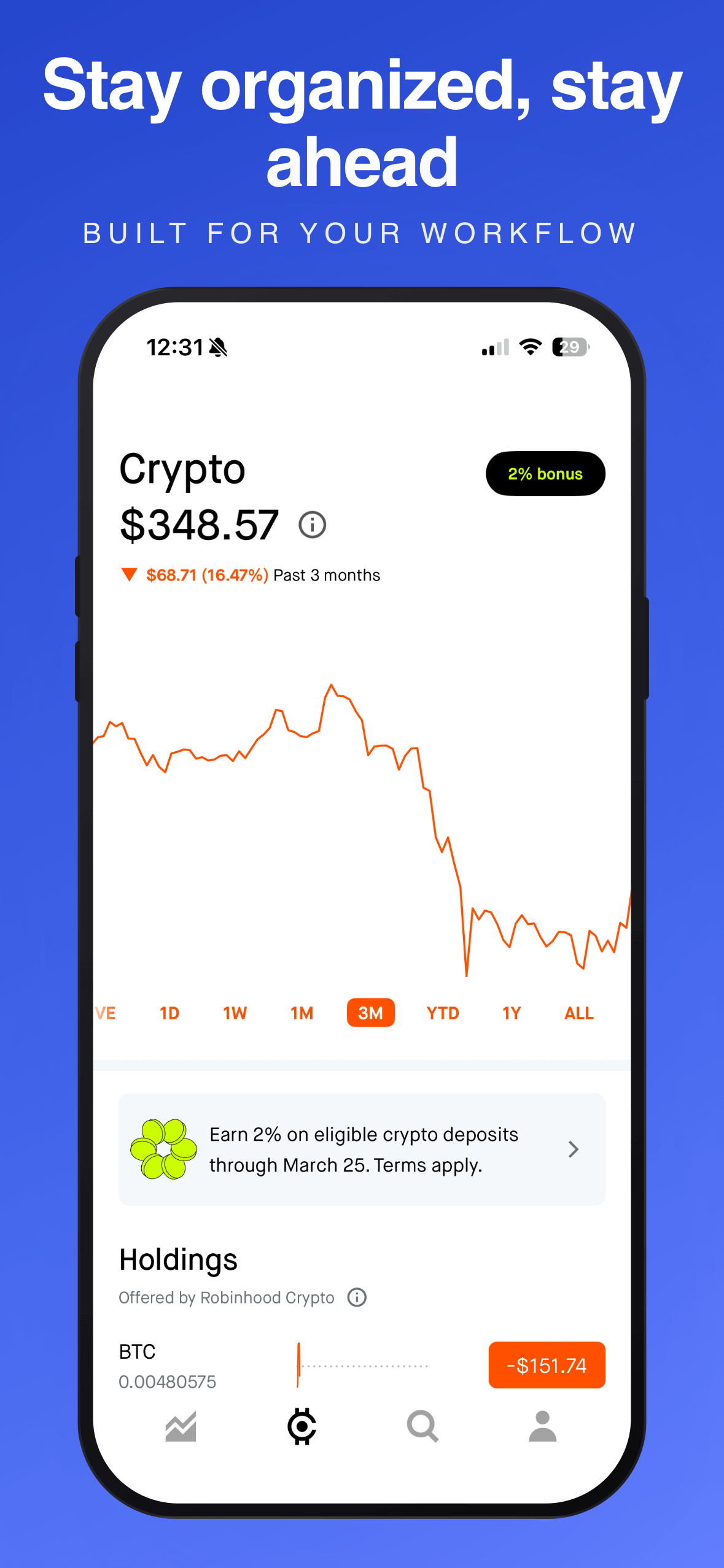
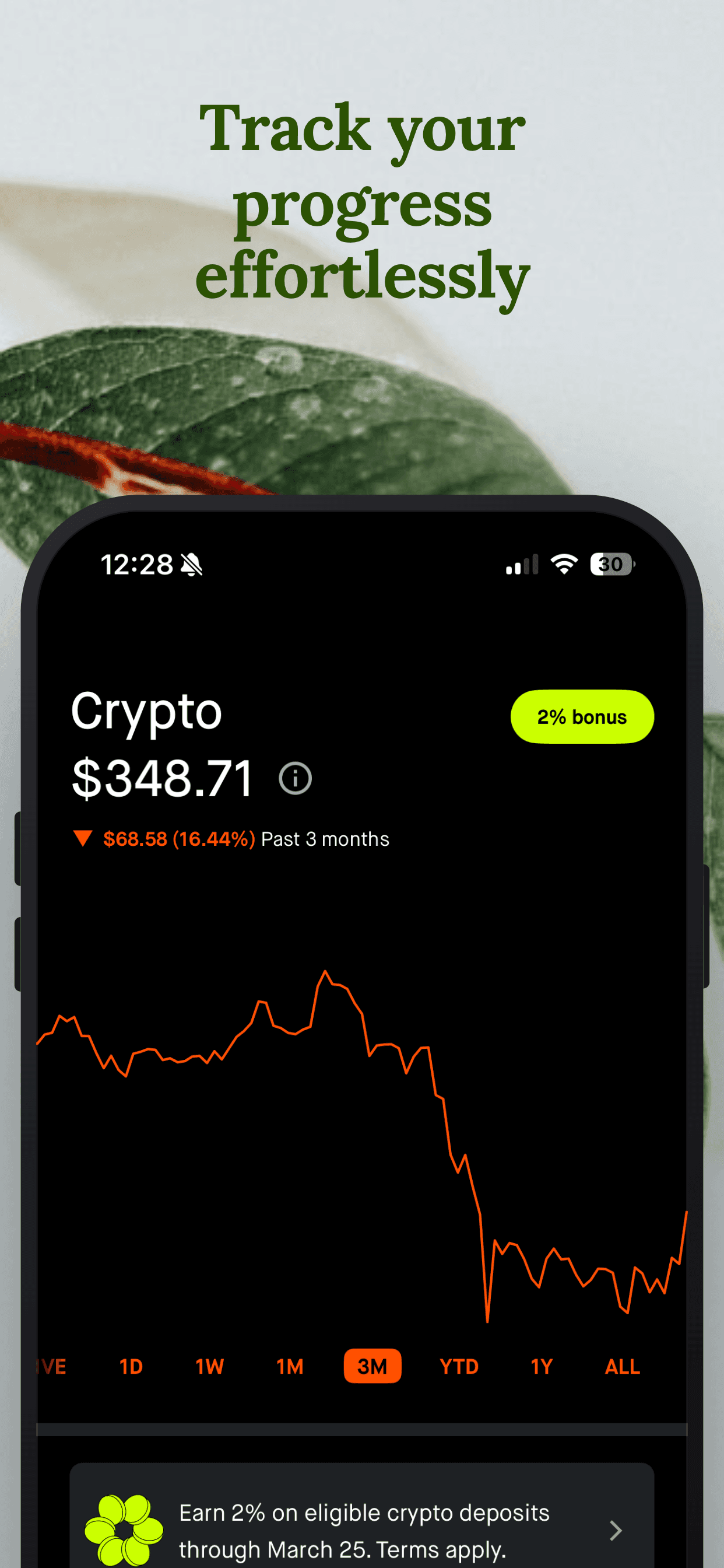
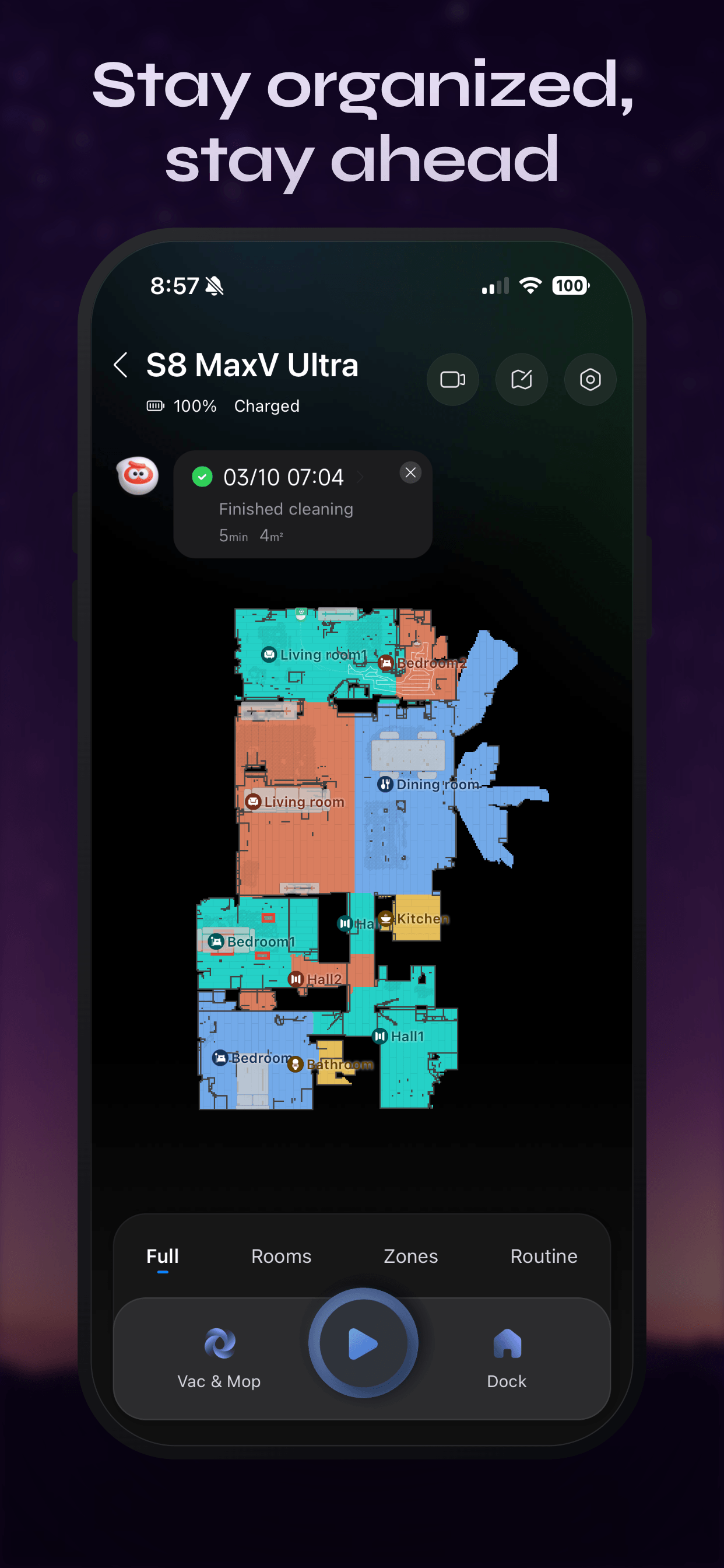
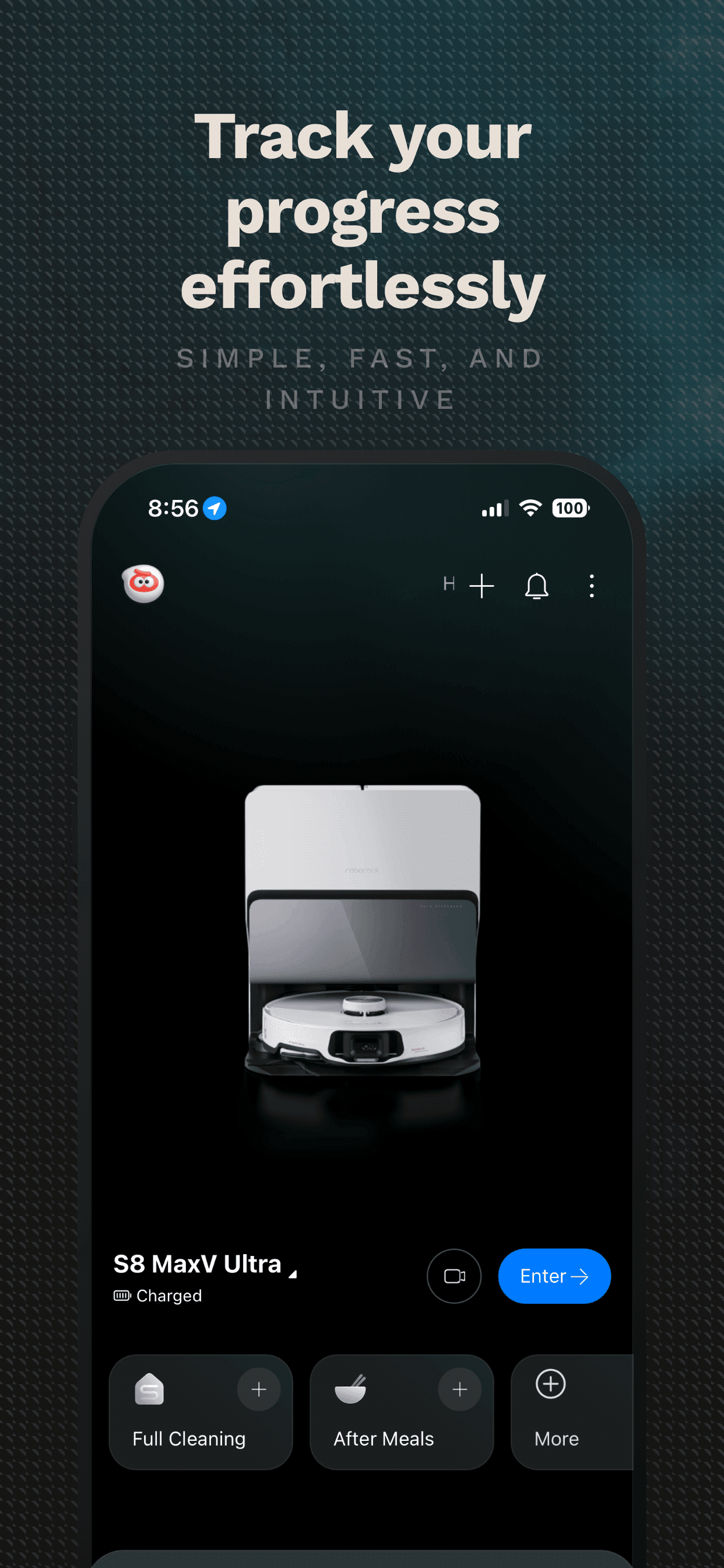
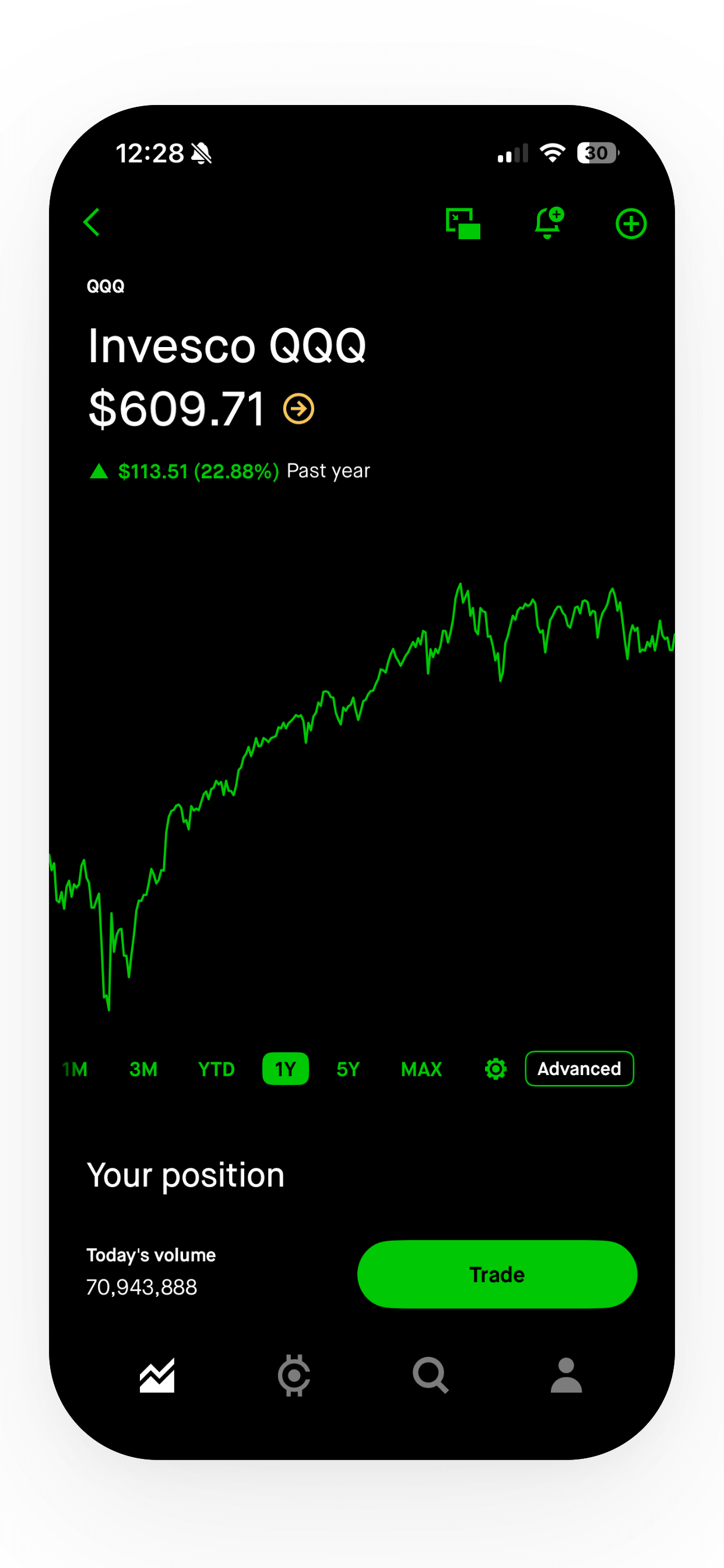
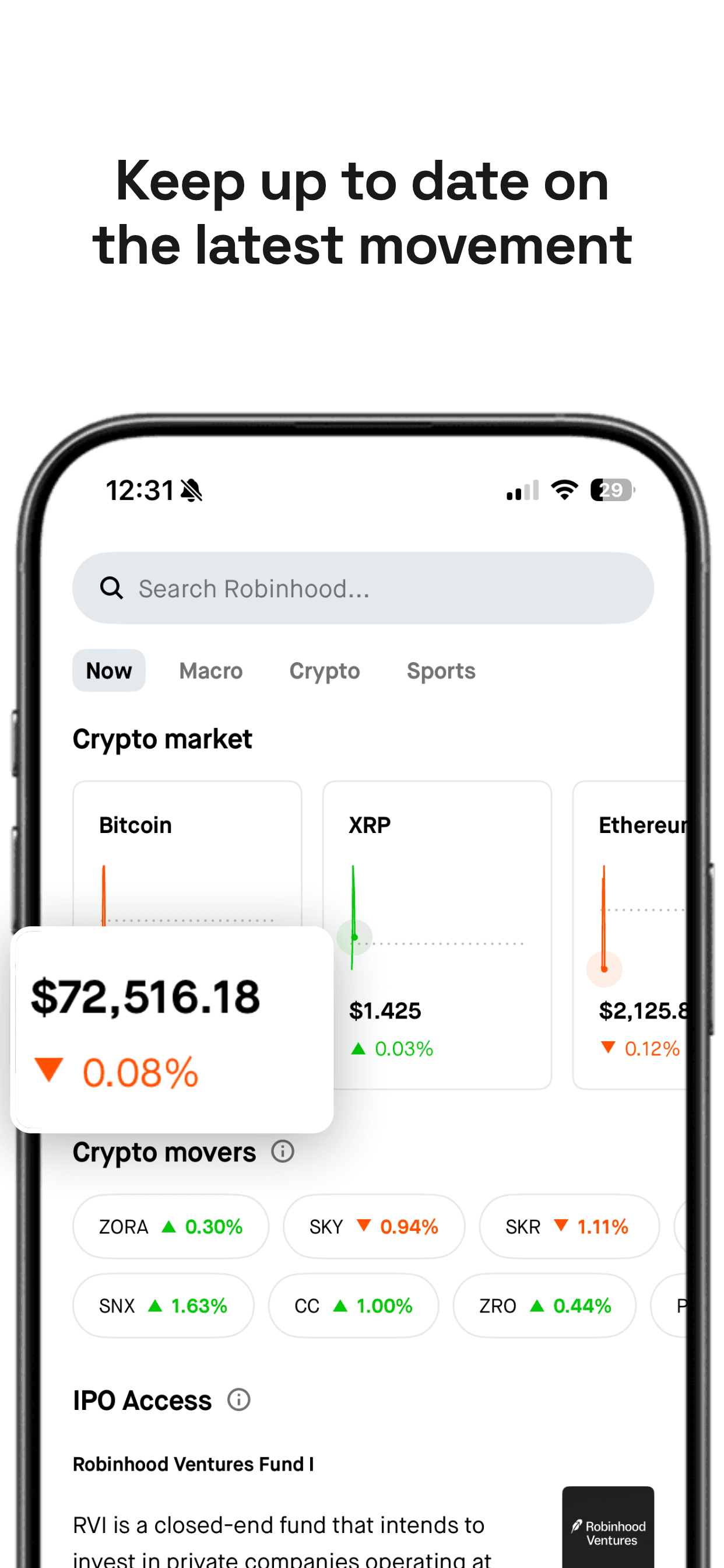
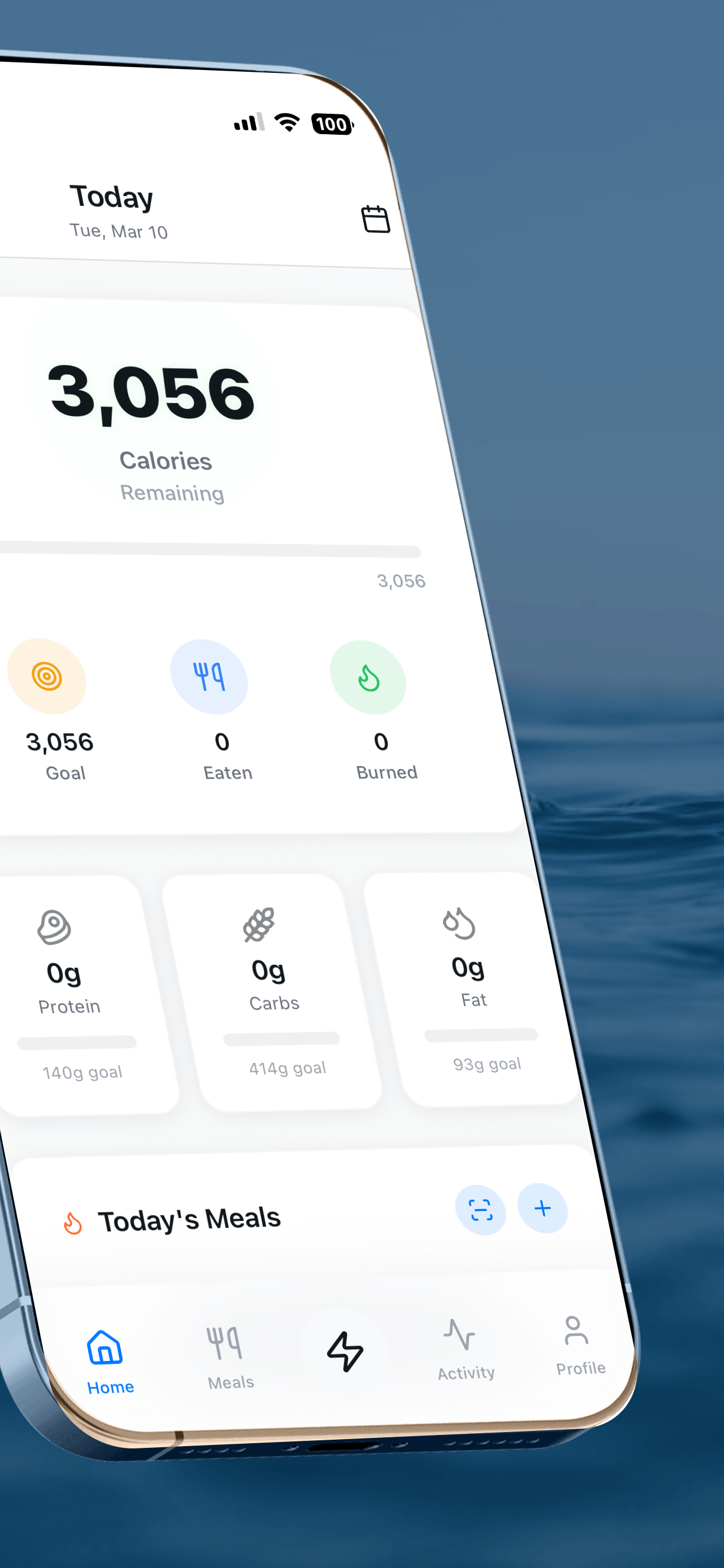
A common mistake is using the launch screen or an empty state as screenshot one. Users want to see what they'll actually do inside the app. Show a populated, active screen with real data, a full calendar, a loaded home feed, a completed workout, so they can picture themselves using it.
Write captions that explain value, not features
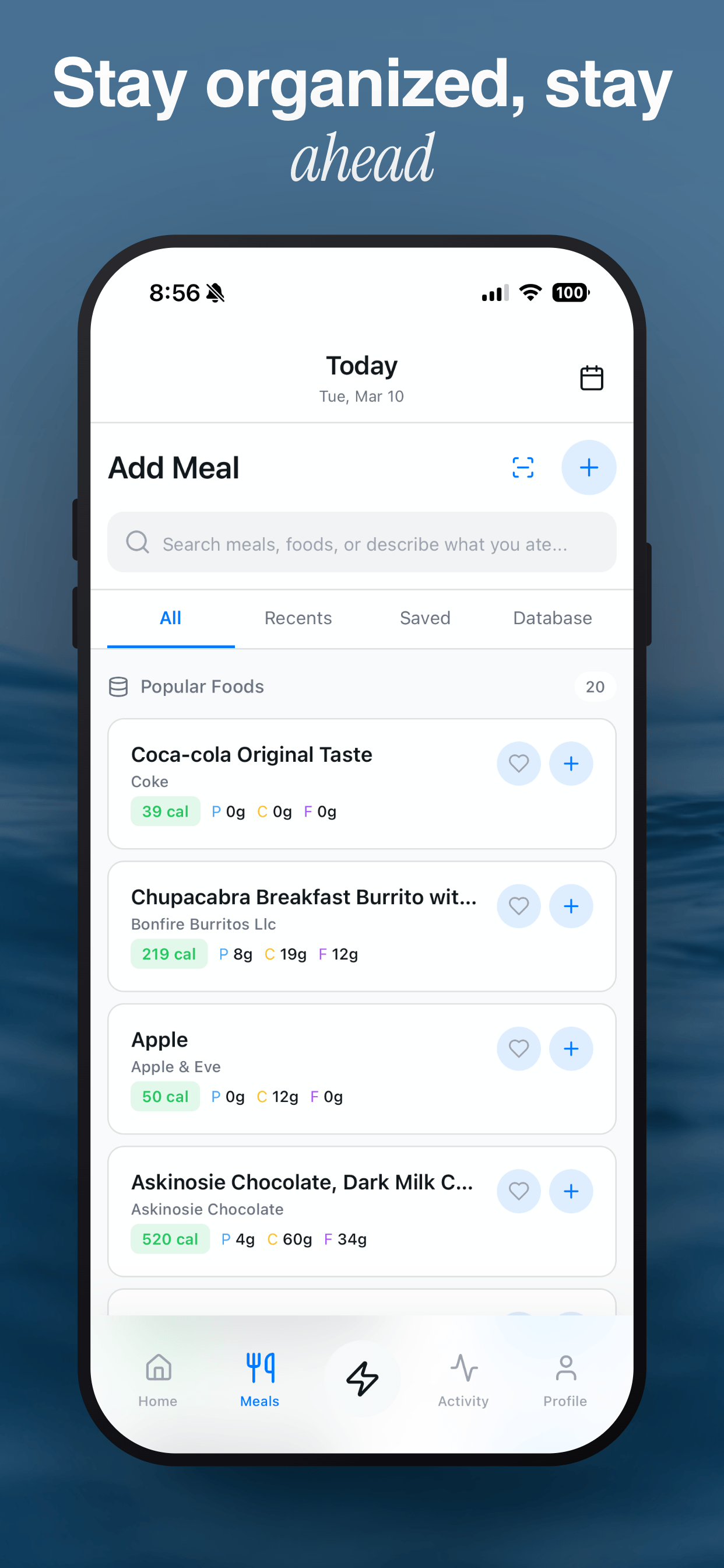
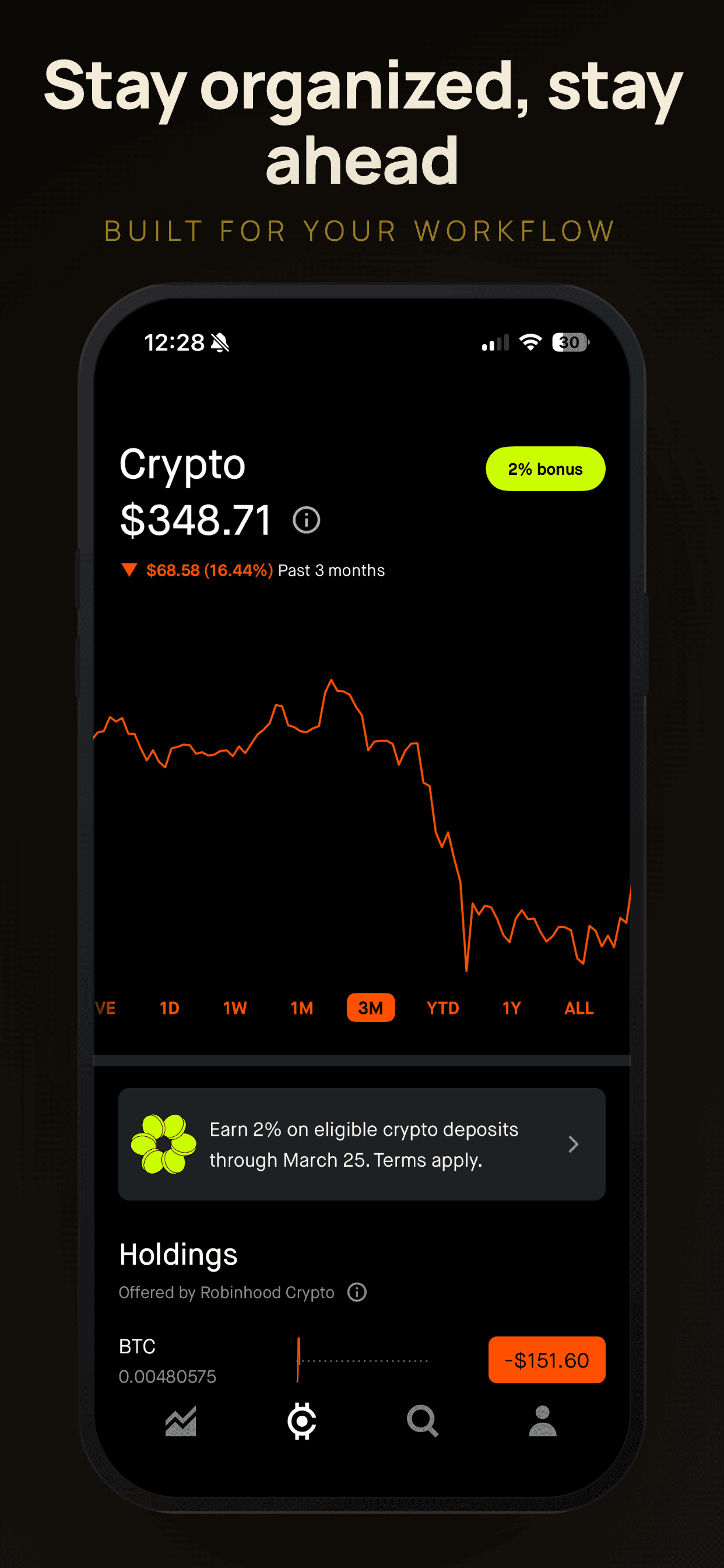
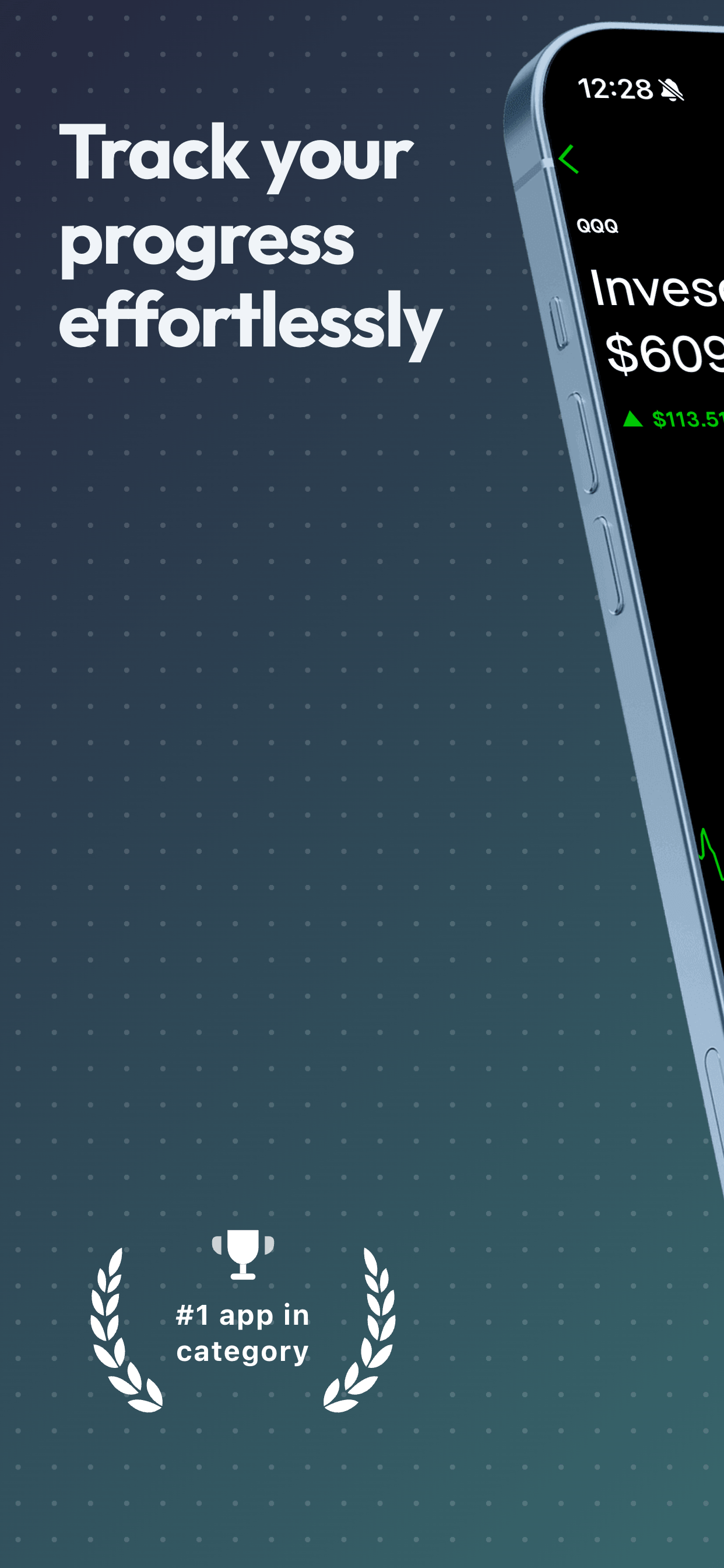
"Track your workouts" is a feature. "Finally hit your goals" is a benefit. App Store users scroll fast; they respond to copy that speaks to an outcome they want. Each caption should answer the question: what does this do for me? Keep captions under 6 words, they need to be readable at a glance.
Match your visual style to your audience
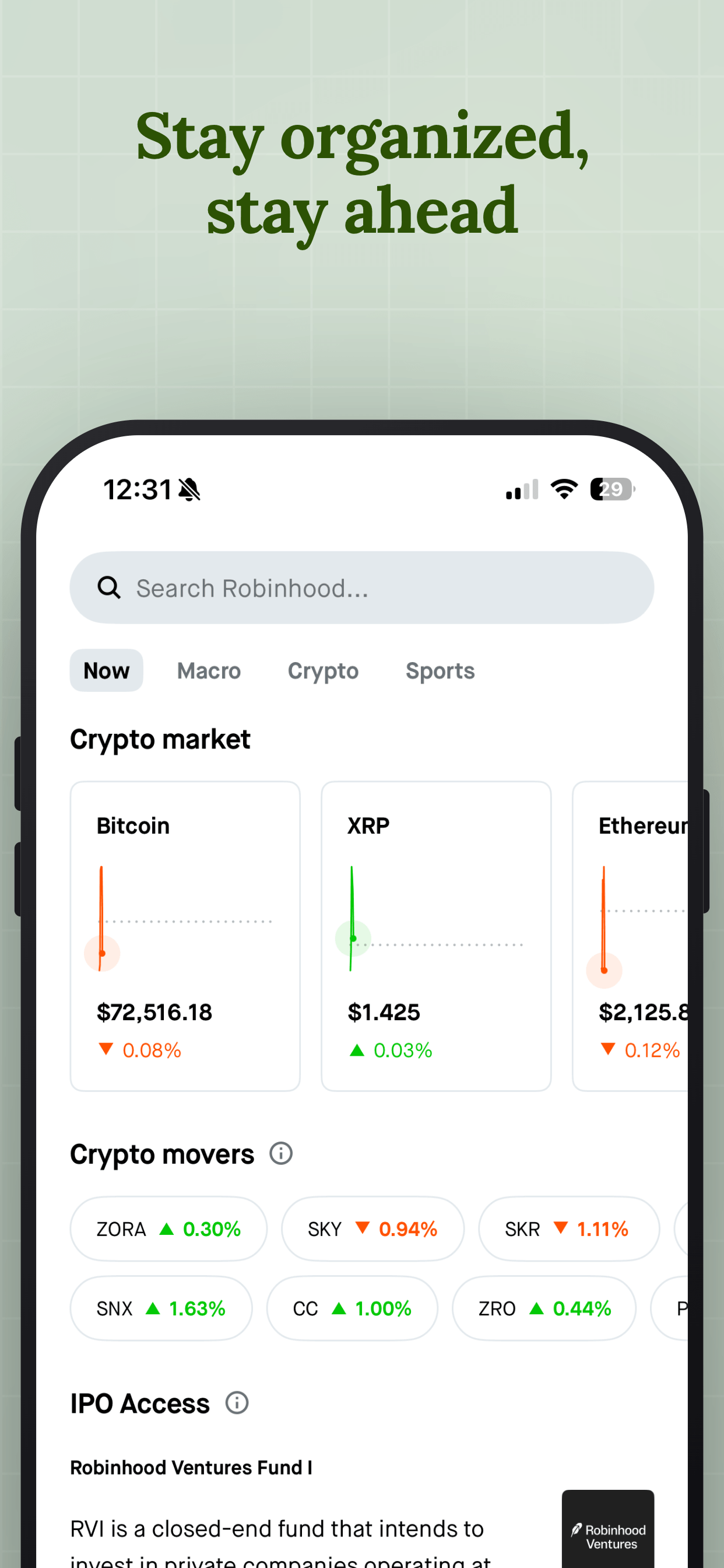
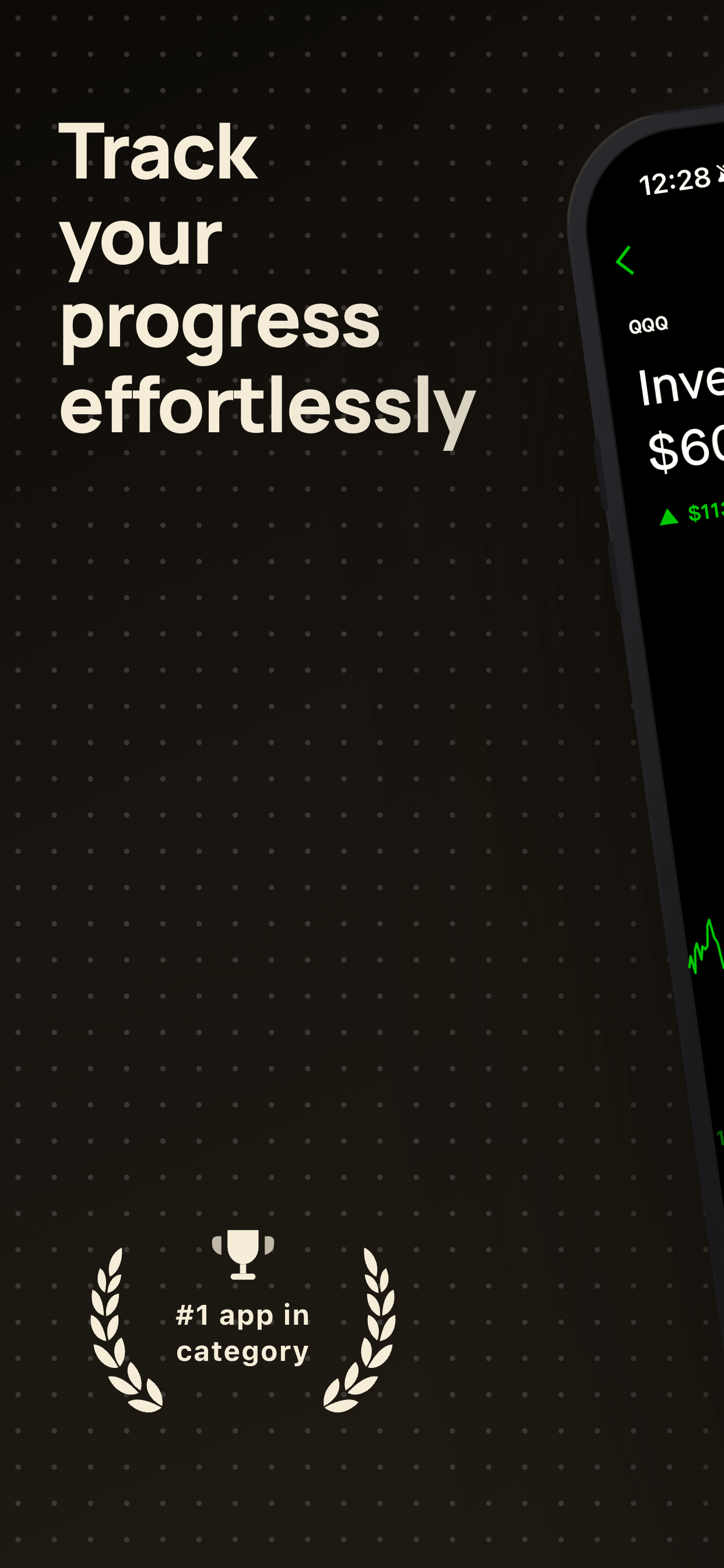
A meditation app and a fast-paced game have very different audiences. Minimalist, spacious templates work for productivity and wellness apps. Vibrant, high-energy designs work for games and social apps. Before choosing a template, look at the top 5 apps in your category, then decide whether to match the convention or deliberately stand out.
Keep text readable on small screens
Your screenshots will be viewed at thumbnail size in search results, often on a 5-inch phone. If you can't read your caption at 25% zoom, it's too small. A safe minimum is 20px font size for body text when designing at 1290 × 2796 px. Avoid thin fonts, medium or semibold weights hold up better at small sizes.
Use consistent visual branding across all screenshots
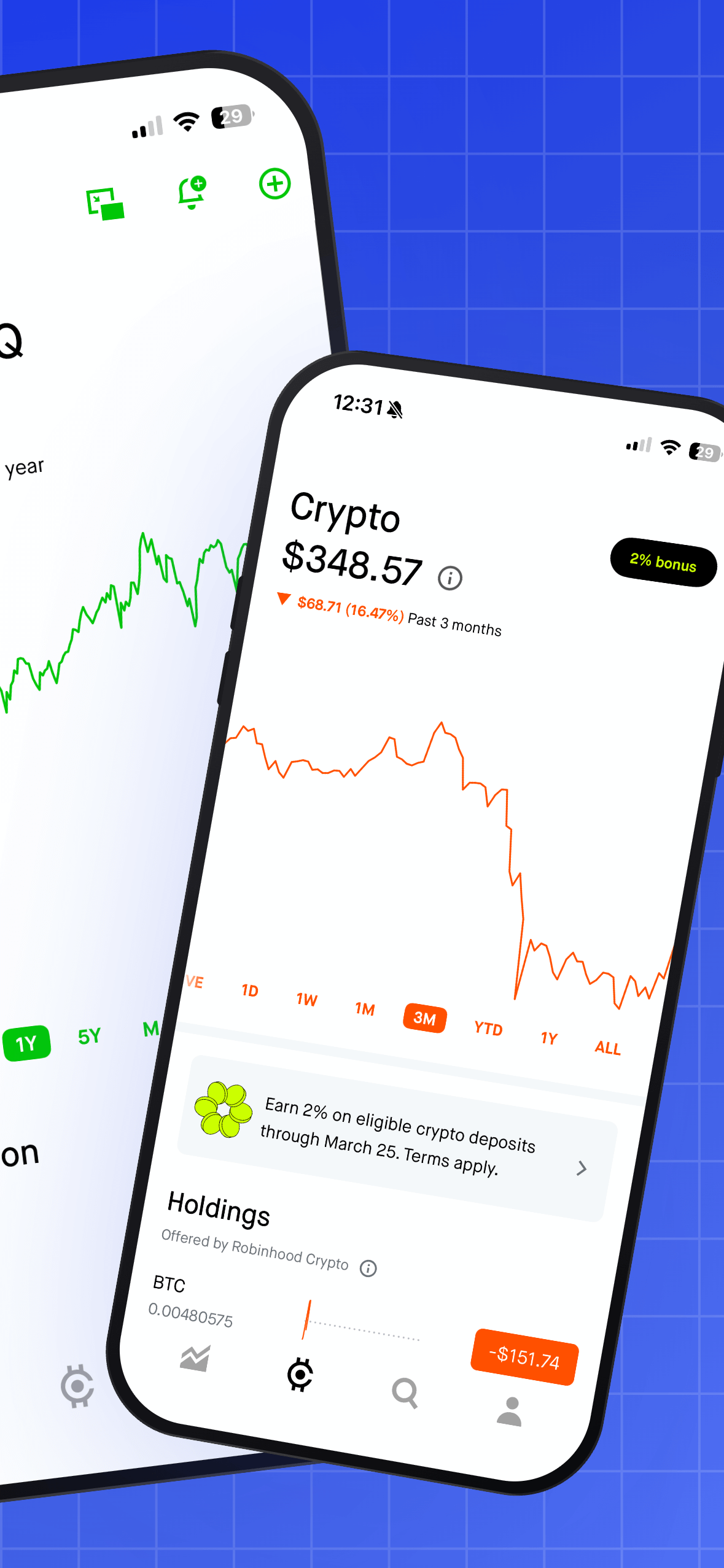
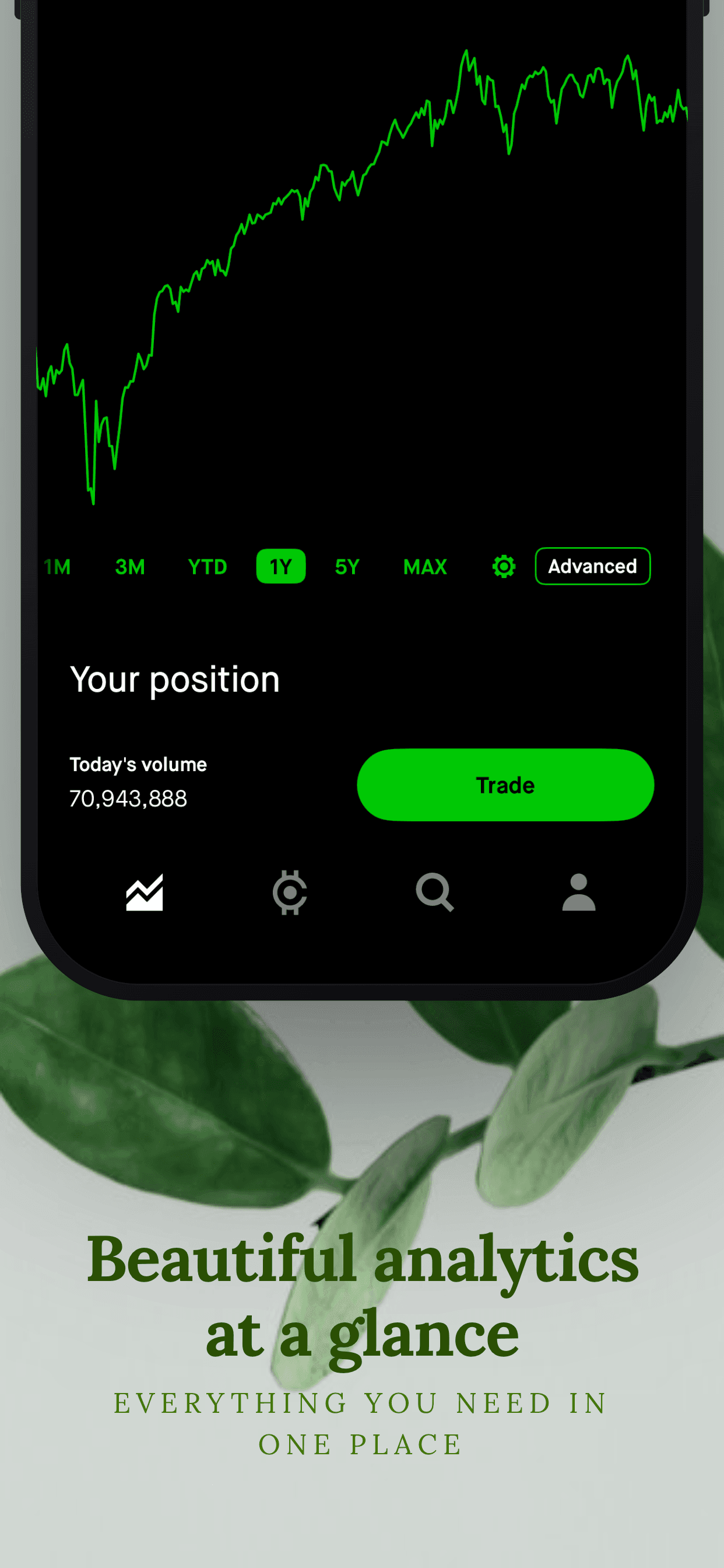
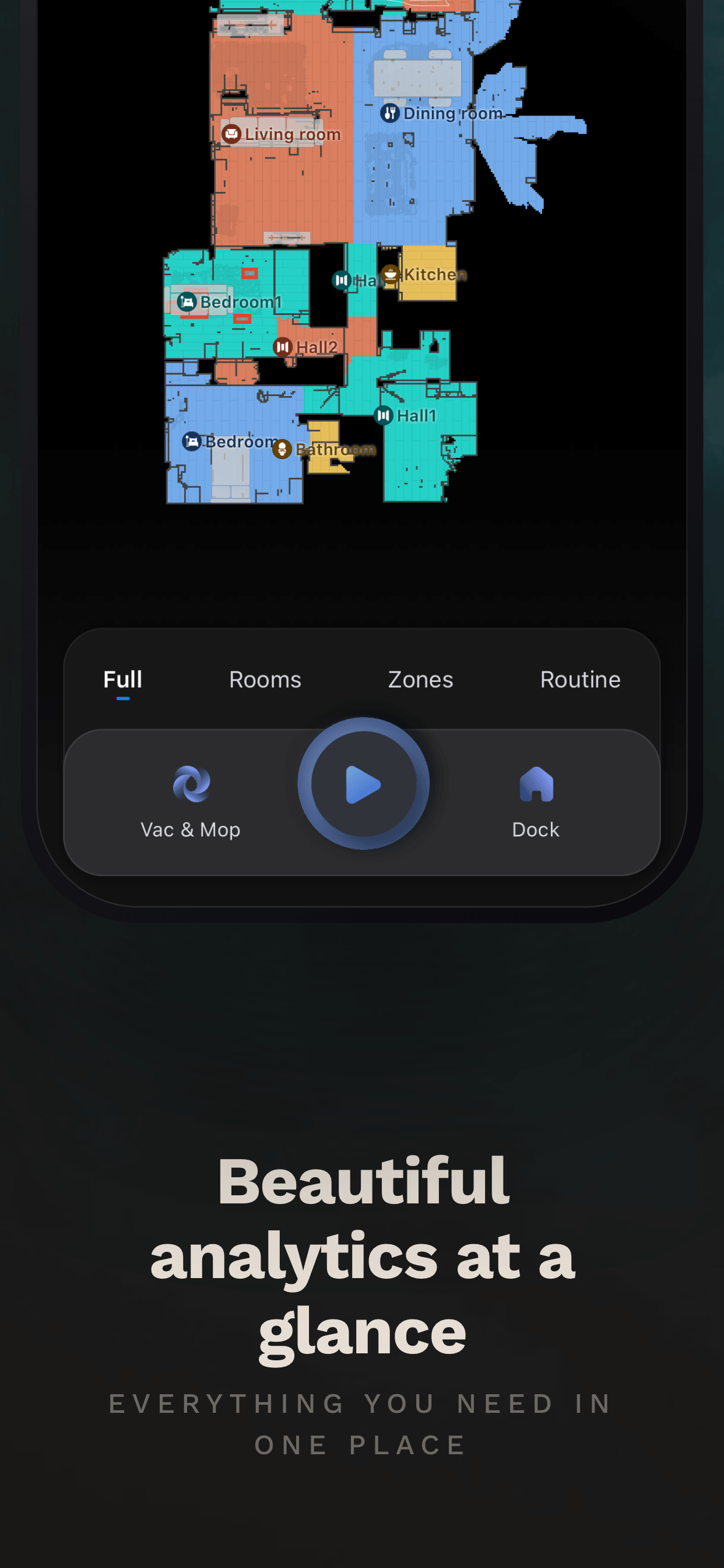
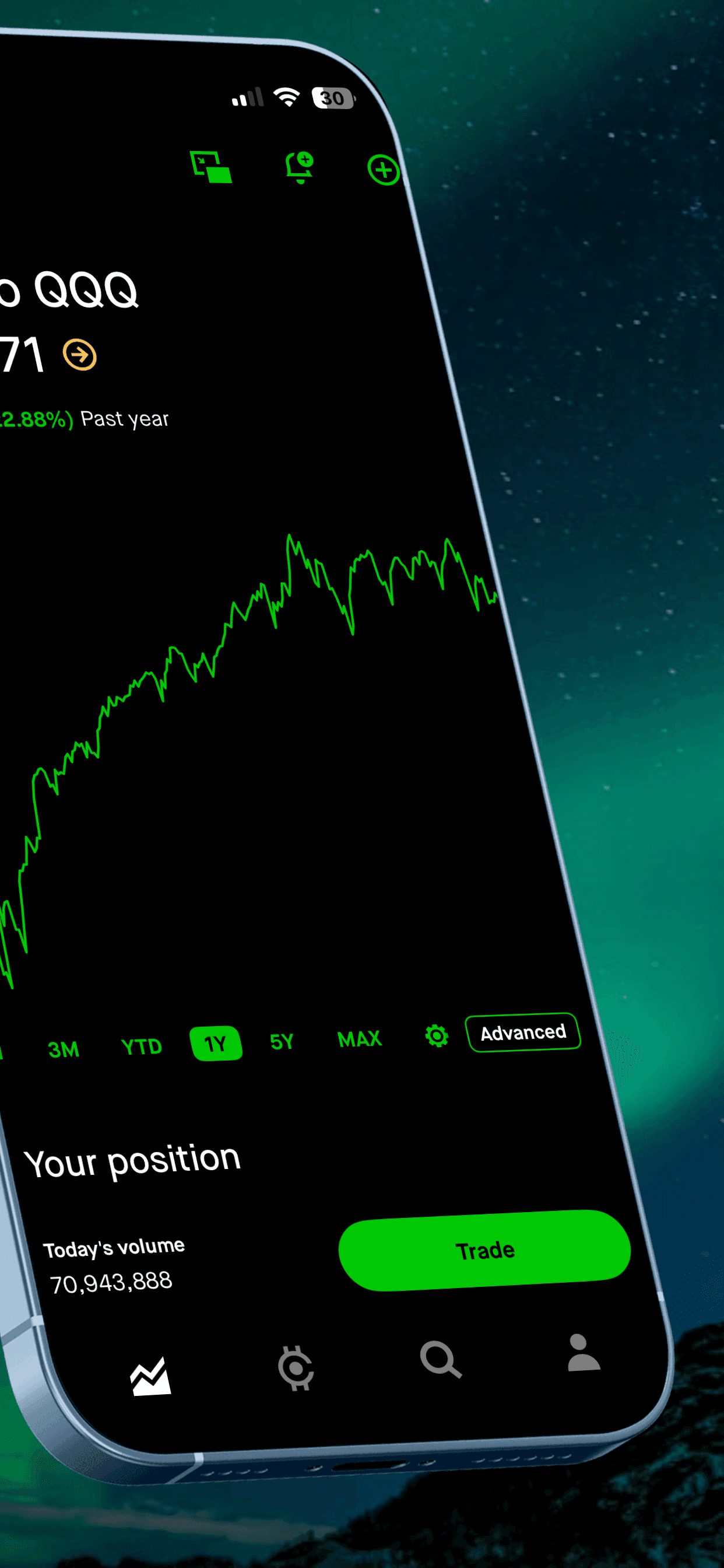
Every screenshot should feel like it belongs to the same family. This means consistent colors, fonts, caption style, and phone frame. Users scroll through all your screenshots quickly, if each one looks like a different app, it signals poor craftsmanship. Templates make this easy: pick one and apply it across your entire set.
Don't show status bars with low battery or bad signal
It sounds minor, but a screenshot showing 8% battery or 'No Service' can subconsciously make users feel the app is draining or unreliable. Either hide the status bar entirely, or replace it with a clean status bar showing full battery and a strong signal. Many screenshot tools do this automatically.
Update screenshots after major feature releases
Stale screenshots hurt conversion. If your app has launched a major new feature, your screenshots should reflect it, otherwise you're showing users a version of the app they won't get. Set a reminder to review your screenshots every time you ship a significant update.
Localize your screenshots for key markets
If your app generates meaningful revenue from Japan, Germany, or another non-English market, translate your captions. A screenshot in the user's native language outperforms an English one significantly in non-English markets. At minimum, localize for your top 3 revenue countries. Even just translating the captions (keeping the same layout) is a quick win.
A/B test your first screenshot
Apple's Product Page Optimization feature lets you test up to three alternate screenshot sets and see which performs best in terms of conversion rate. Even a minor change, a different caption, a different background color, a different first screenshot, can move conversion by 10–20%. Set up a test, let it run for two weeks, and implement the winner.
Founder's take
“The number one mistake I see is developers spending 80% of their effort on screenshots 2 through 5, when screenshot 1 is the only one visible in search results. Put your best feature, your strongest caption, and your most eye-catching design on that first slide.”
Scott Stewart, founder of Screenshot Otter
Quick reference checklist
- ☐First screenshot is your strongest, most clear value prop
- ☐Showing real app state, not empty or splash screens
- ☐Captions speak to benefits, not features, under 6 words
- ☐Template style matches your audience and category
- ☐Text is readable at thumbnail size (min ~20px at full res)
- ☐Consistent colors, fonts, and style across all screenshots
- ☐Status bars are clean (full battery, strong signal)
- ☐Screenshots reflect current app version
- ☐Captions localized for top non-English markets
- ☐A/B test running via Product Page Optimization
Related Guides
Put these tips into practice
Screenshot Otter gives you professionally designed templates. Upload, pick a layout, download. Free, no signup needed.
Try Screenshot Otter free →