Guide
How to Create App Store Screenshots: Step-by-Step Guide (2026)
App Store screenshots are your most important marketing asset. They appear in search results before users even tap your listing. Here's exactly how to create them, from the first screen capture to the final upload.

Scott Stewart · Feb 19, 2026
Quick answer
To create App Store screenshots: capture raw screenshots from your app, choose a template or design tool to add device frames and captions, write benefit-driven headlines, export at the required sizes (1290 x 2796 for iPhone 6.7-inch), and upload via App Store Connect. The whole process takes under 30 minutes with the right tools.
Studies from top App Store Optimization firms consistently show that improving screenshots lifts conversion rates by 20–30%. The process is straightforward once you know what Apple requires, the challenge is doing it well, not just doing it.
This guide covers the full workflow in seven steps. Whether you're creating screenshots for the first time or refreshing an existing set, follow each step in order and you'll have a finished, App Store-ready set by the end.
Capture your raw screenshots
Get your app into its best possible states, then capture screens. In Xcode Simulator, use Device → Screenshot (⌘S) to save a PNG at the exact simulator resolution. On a real device, press Side button + Volume Up simultaneously. Capture more screens than you need, aim for 10–15 raw captures so you have options. Focus on screens that show real activity: a populated dashboard, a completed result, a live workflow. Avoid empty states, loading screens, or the app splash screen.
Know the required dimensions
Apple requires screenshots at specific pixel dimensions. At minimum, submit the 6.7-inch iPhone set at 1290 × 2796 px, Apple will scale these for smaller devices. If your app supports iPad, you also need the 12.9-inch set at 2048 × 2732 px. Screenshots must be PNG or JPEG, with no transparency (no alpha channel), at 72 DPI, and under 500 MB each. See the full App Store screenshot sizes guide for every supported device.
Choose a visual style
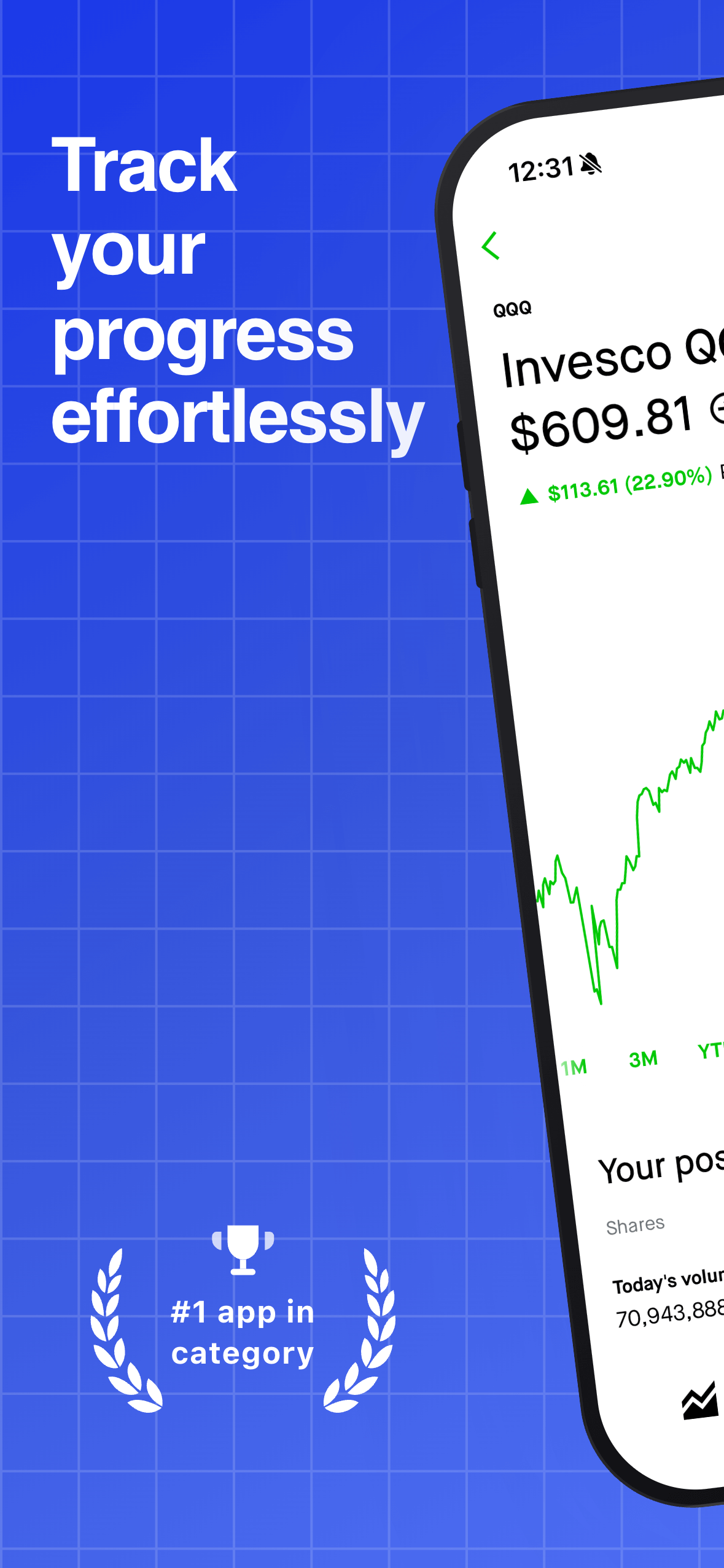
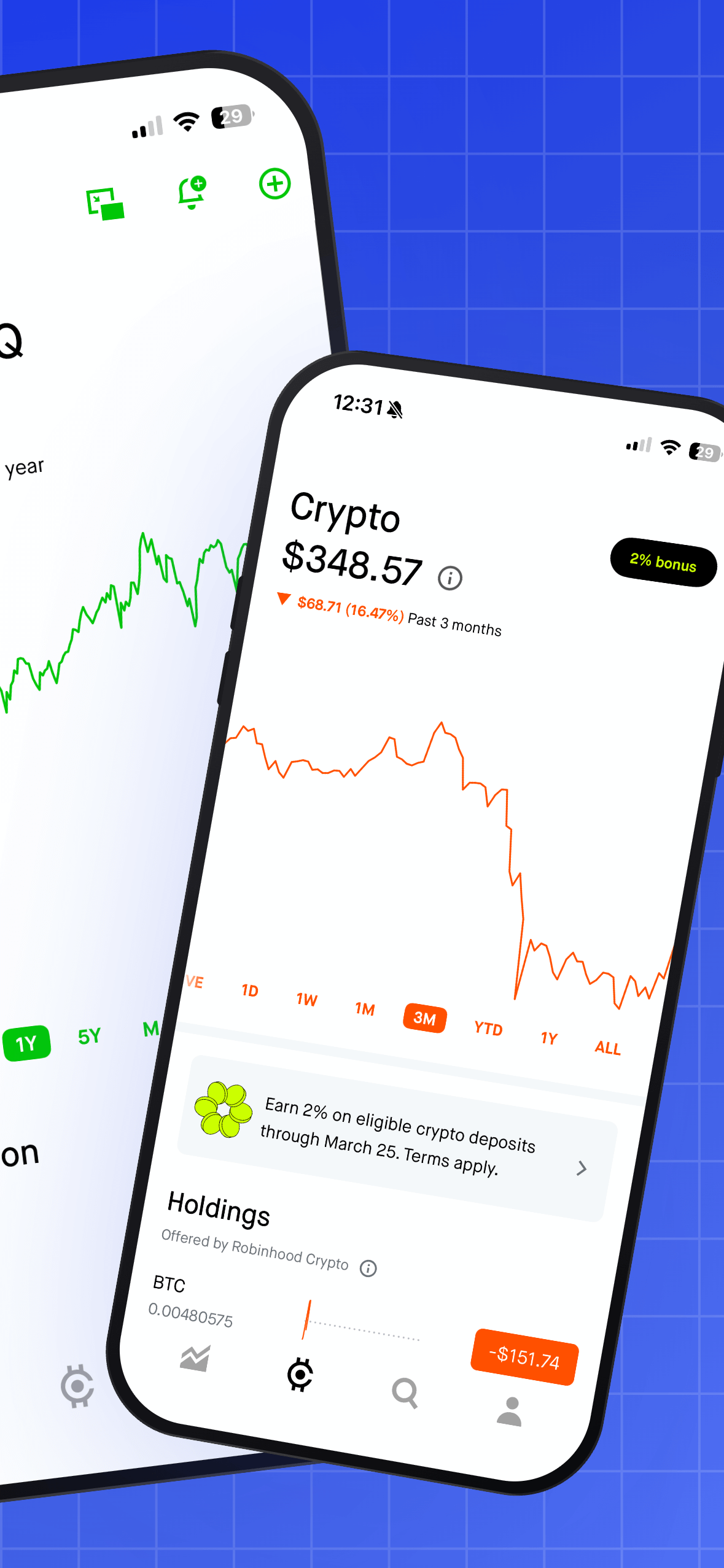
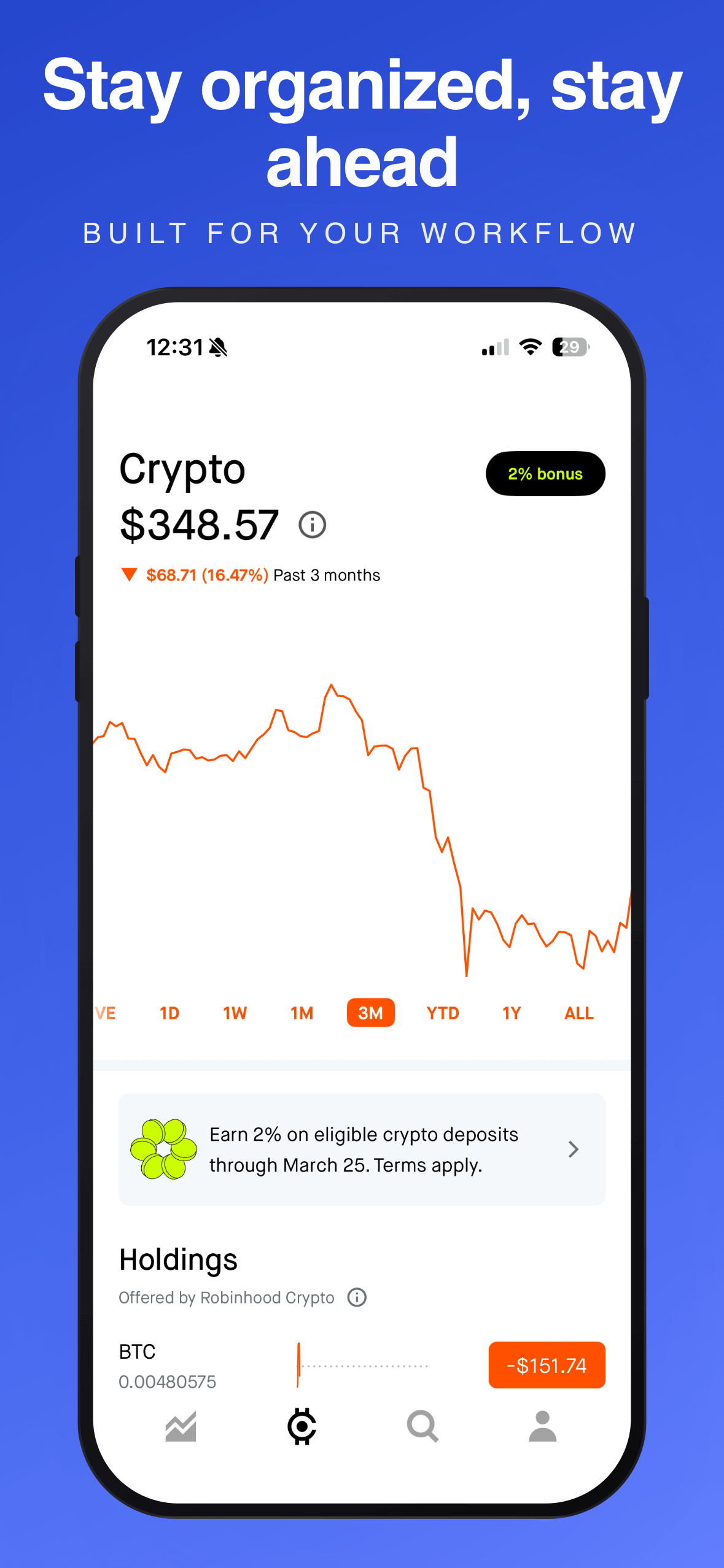
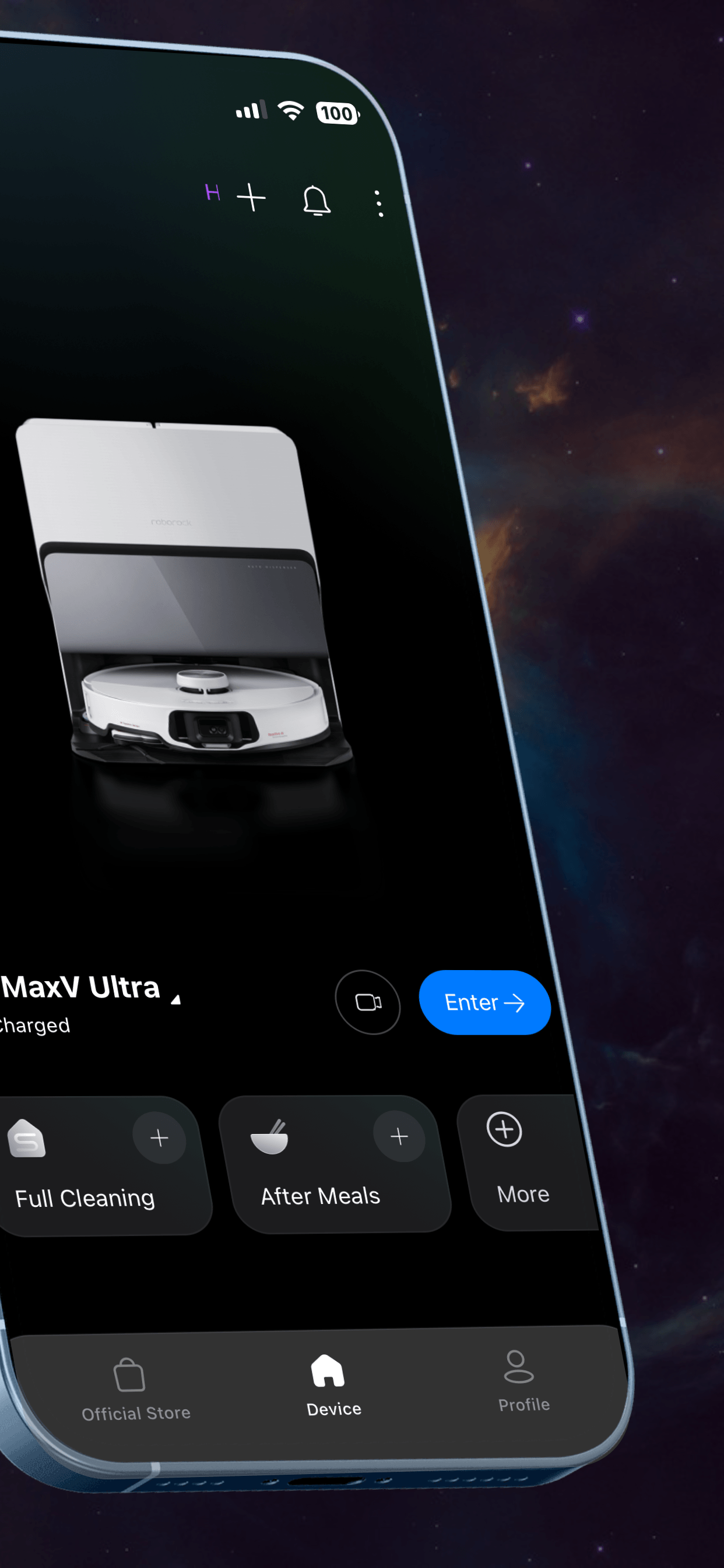
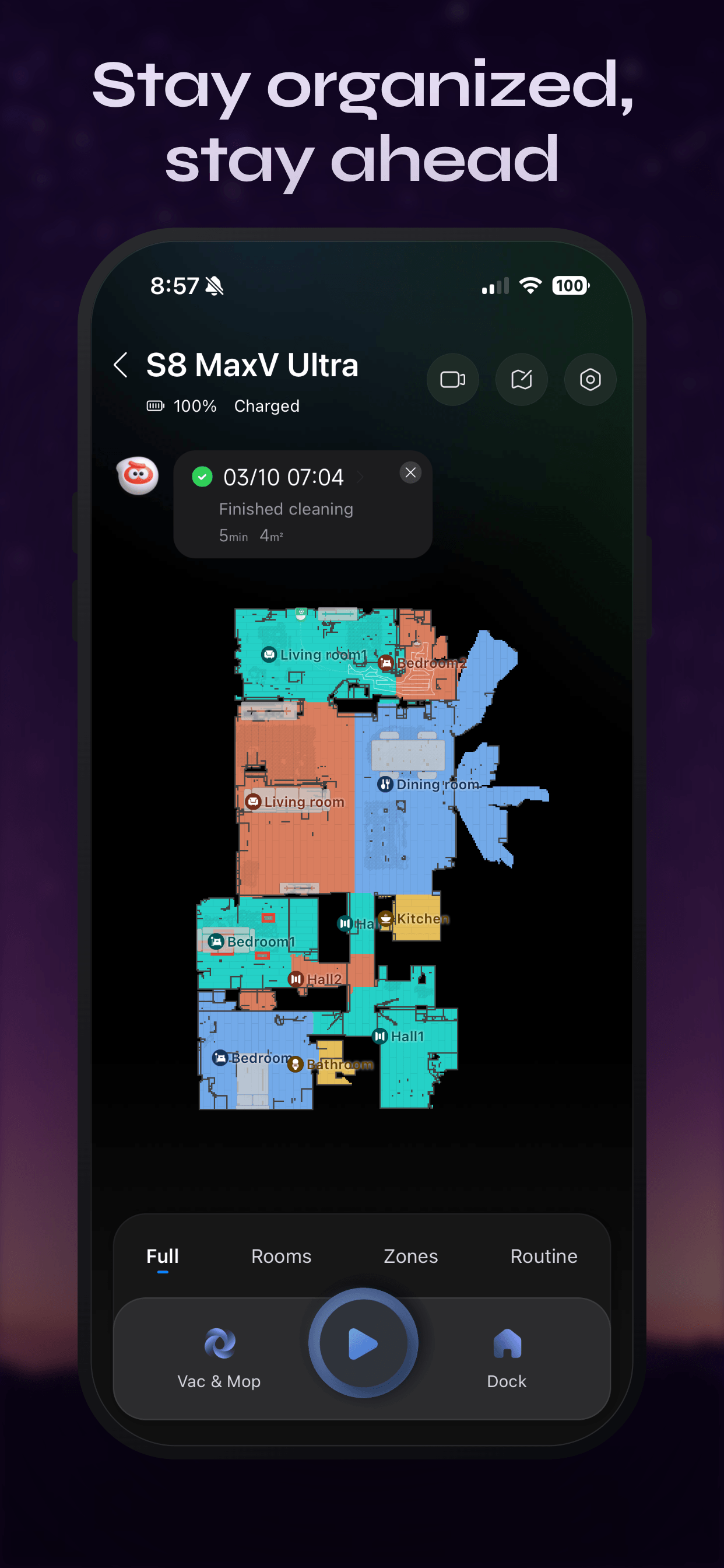
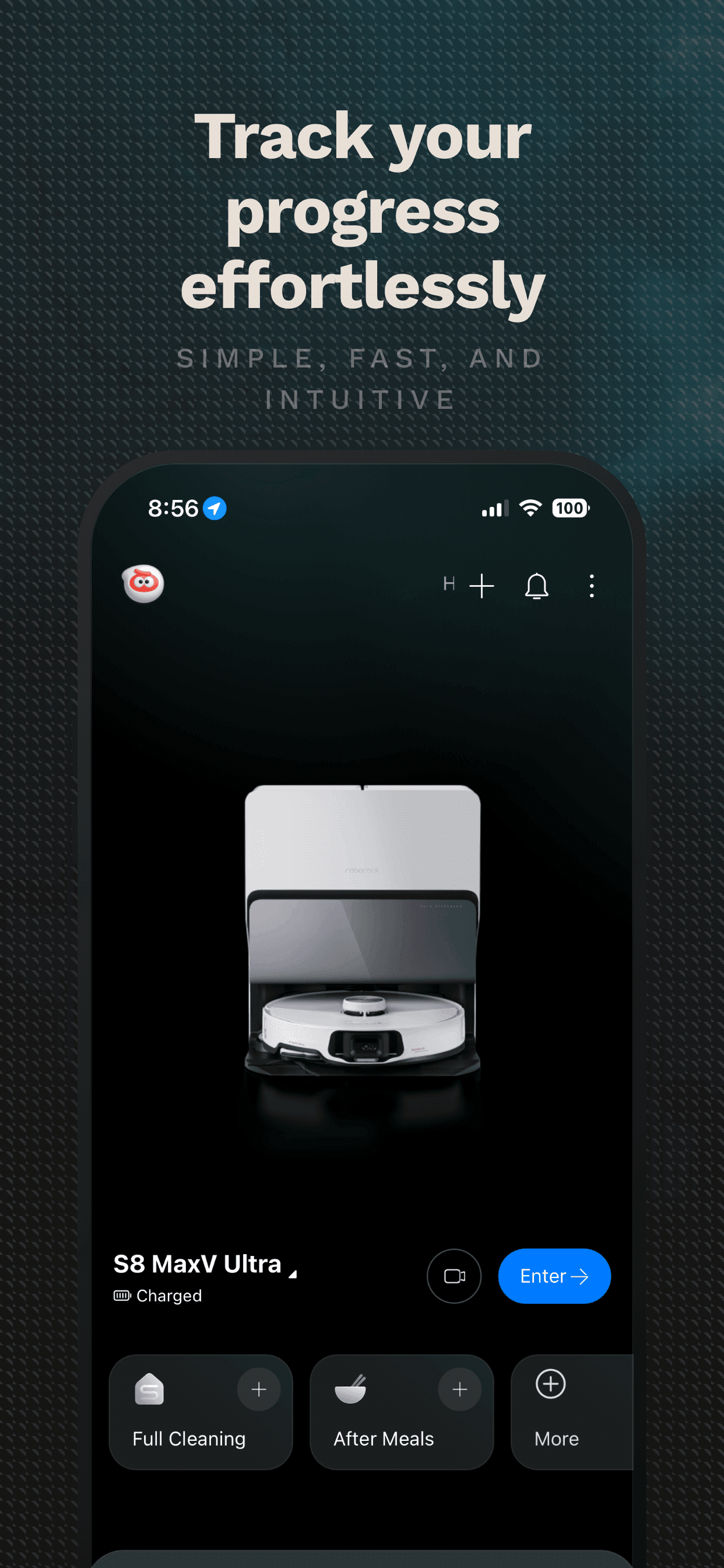
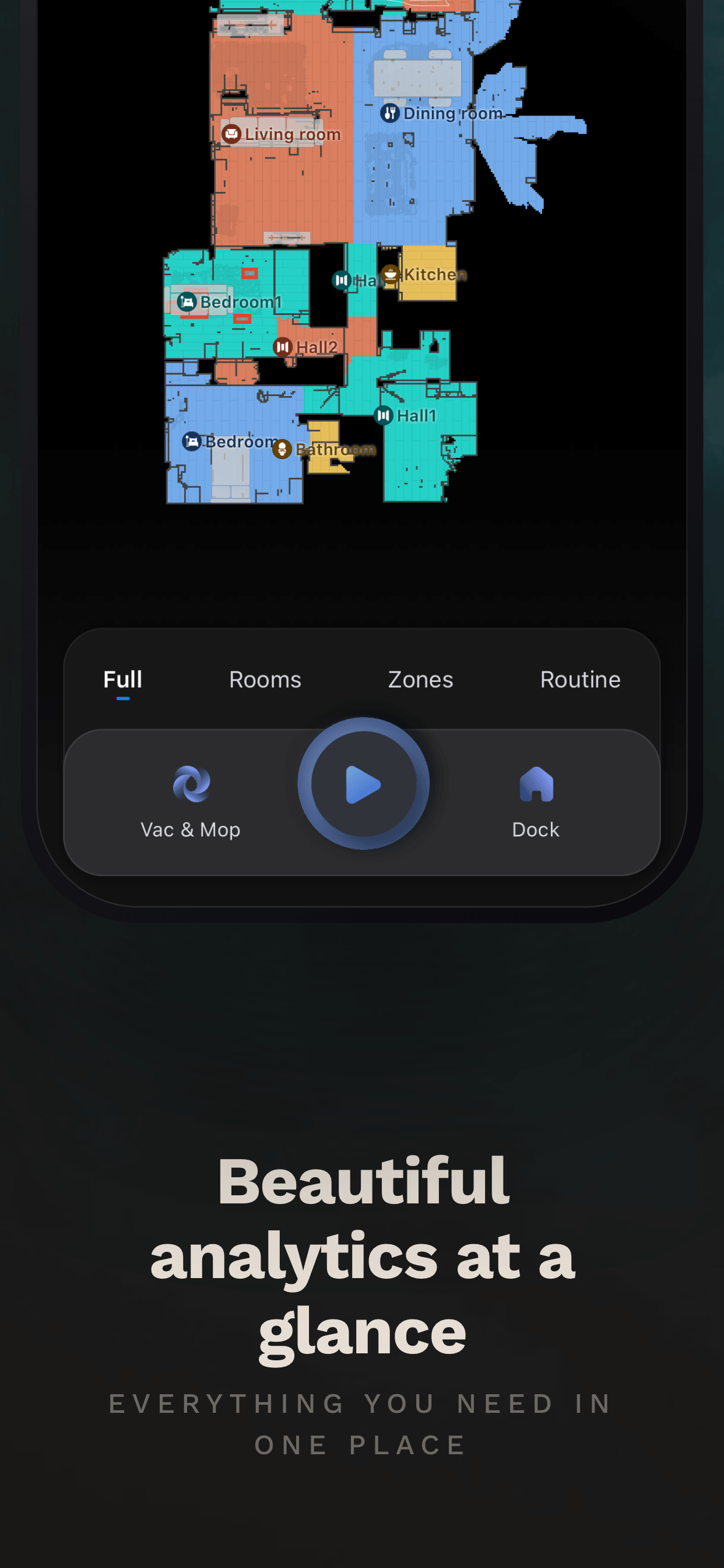
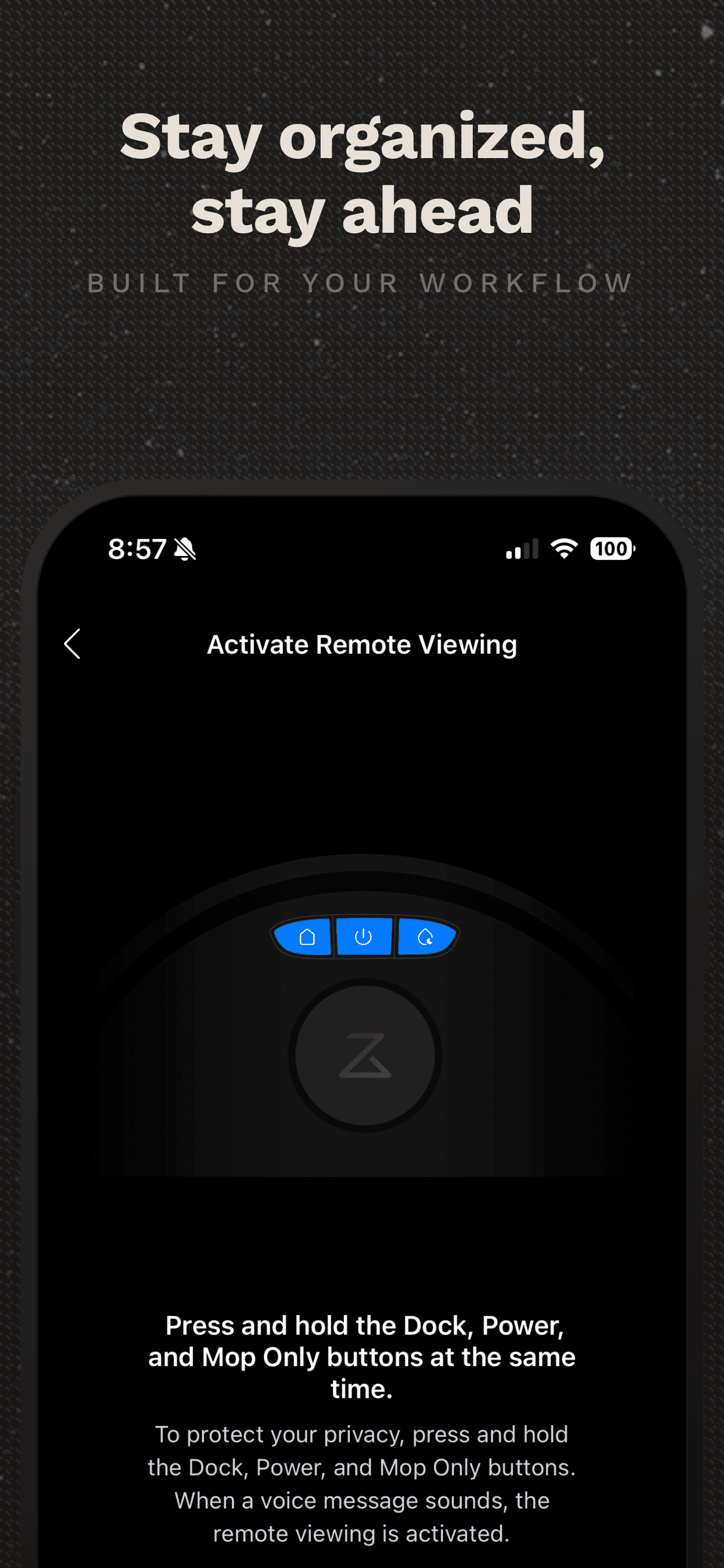
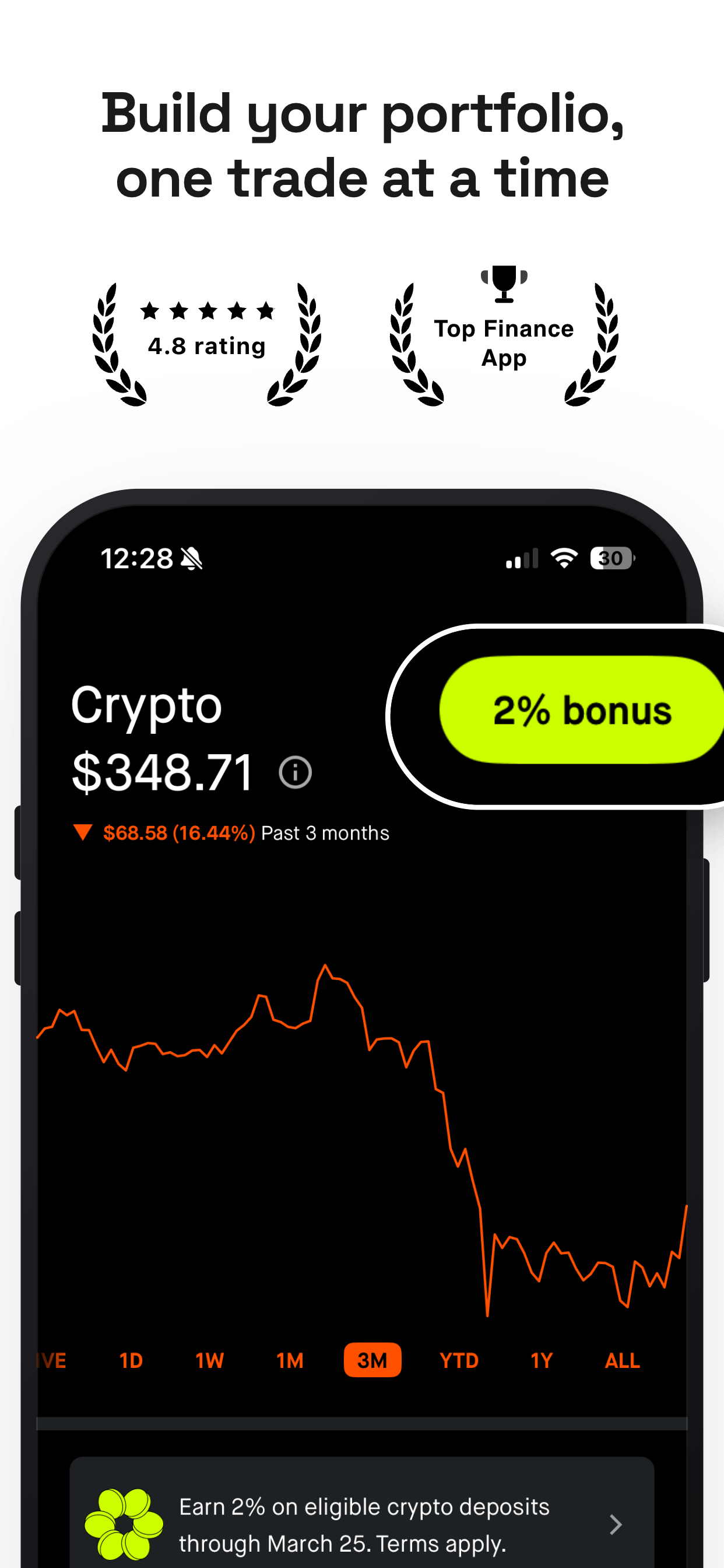
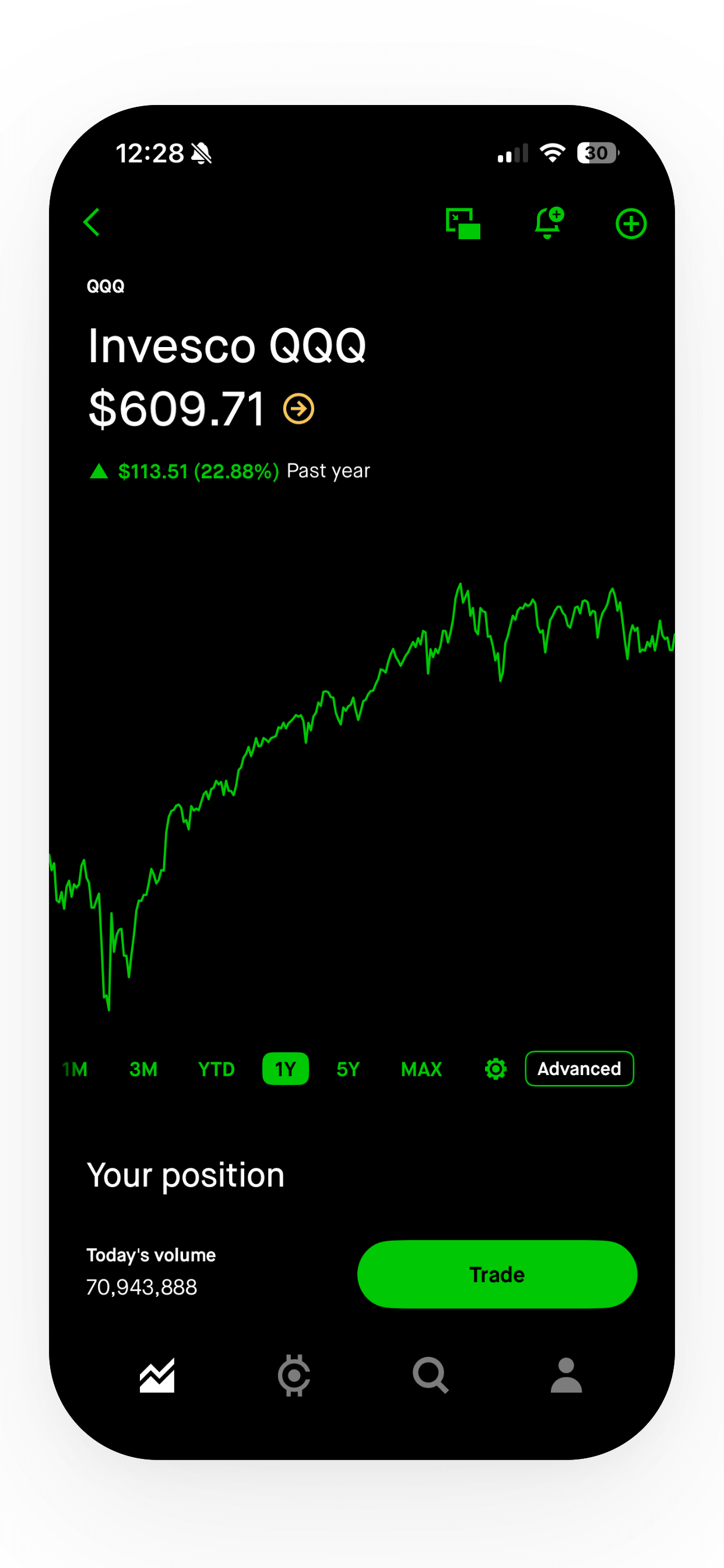
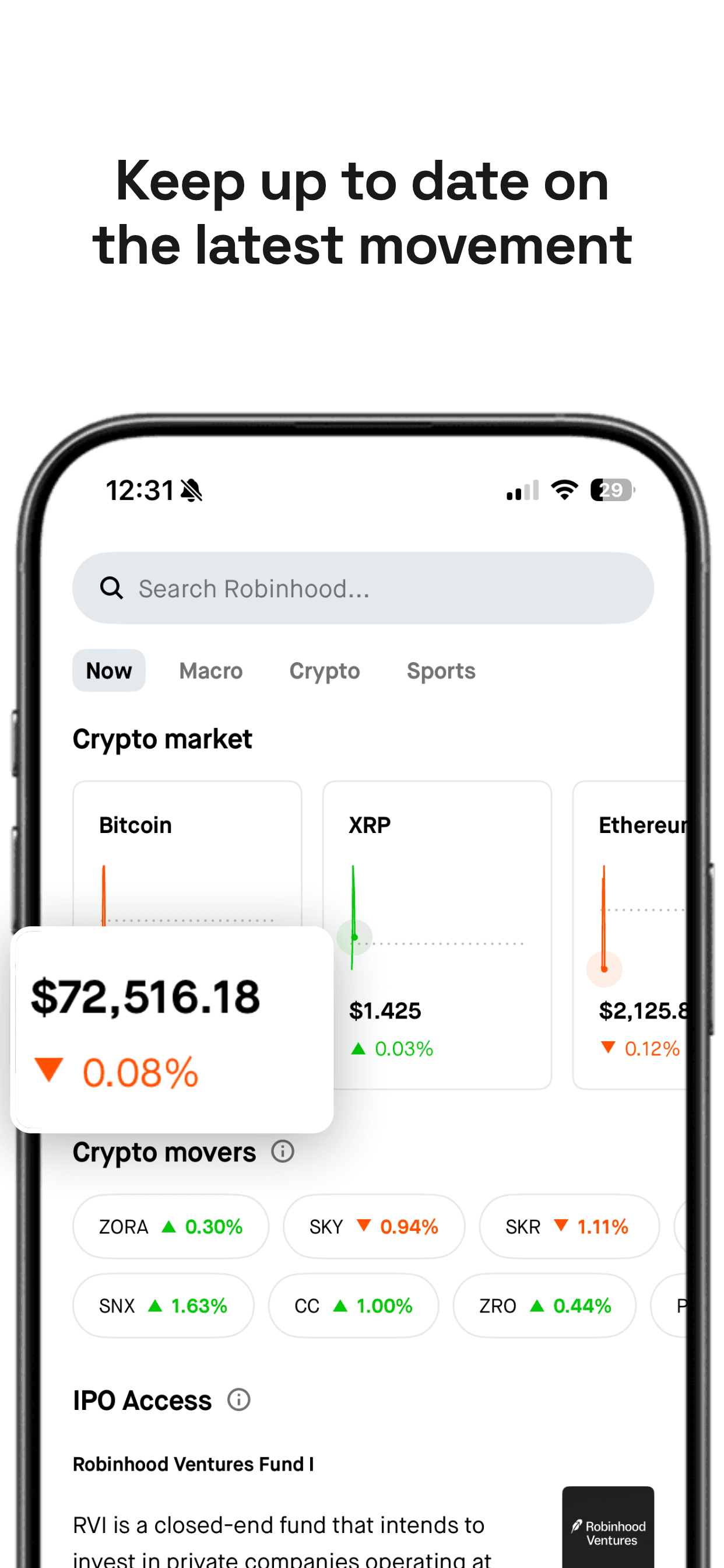
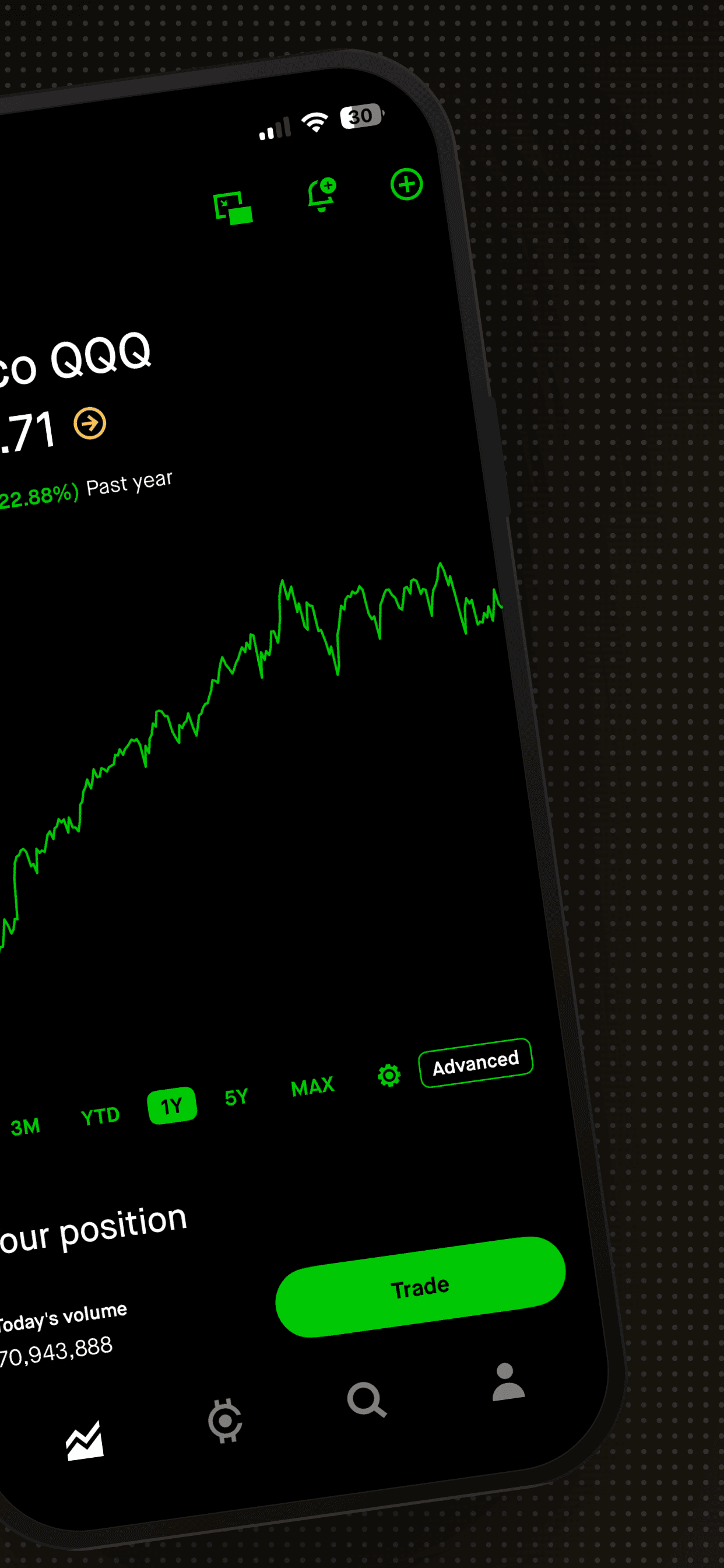
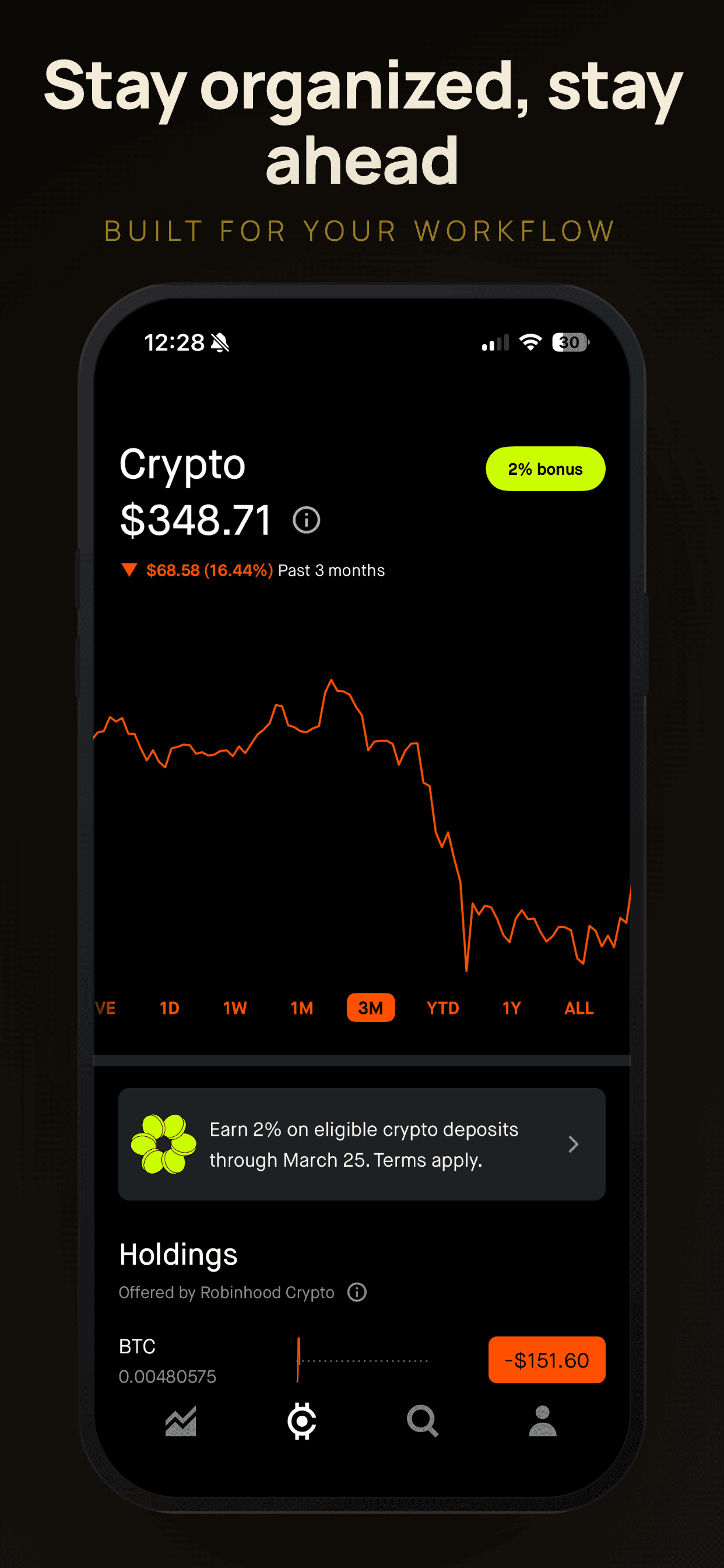
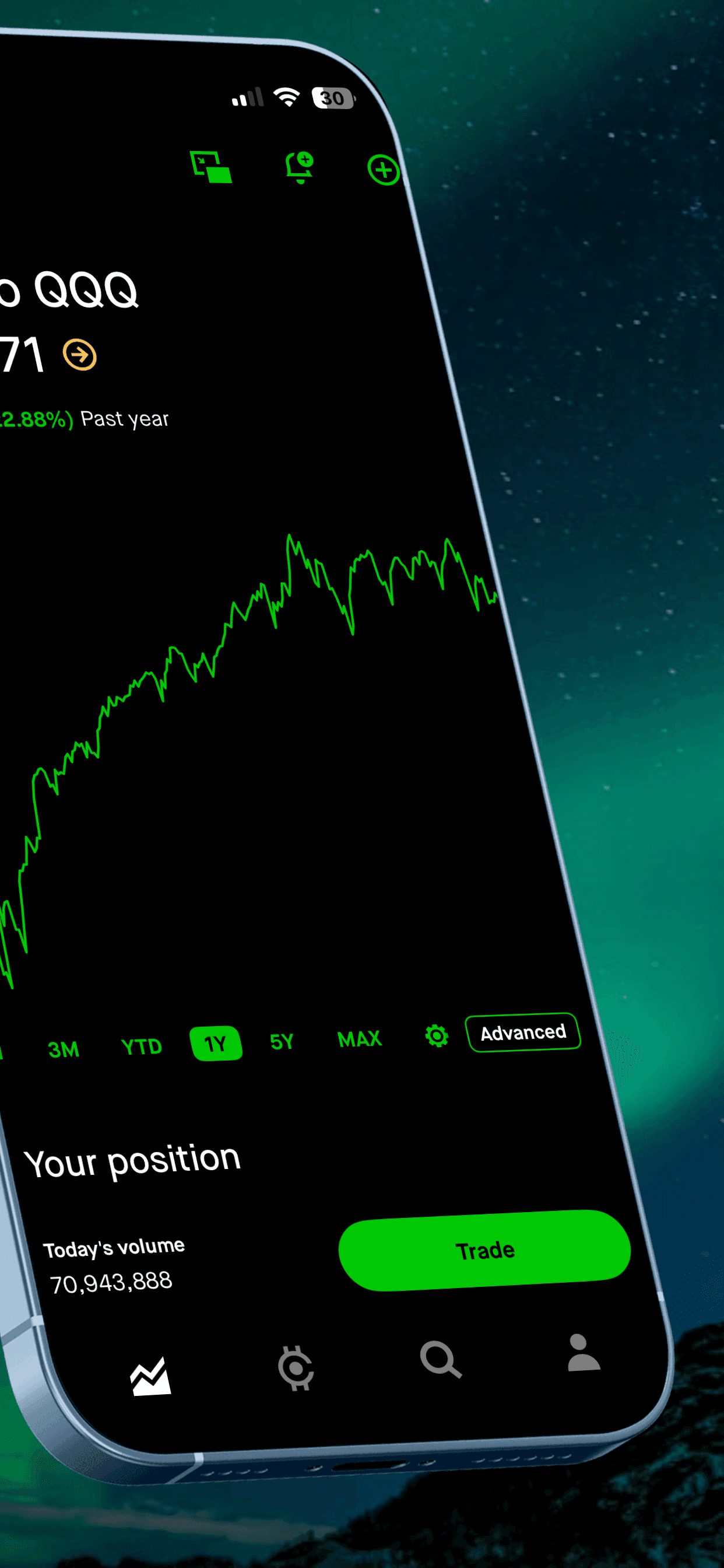
Raw screenshots submitted without any styling will look plain compared to competitors. The most effective App Store screenshots add a background, device frame, and caption to each screen. You have two options: use a screenshot generator (fastest, upload your screens, pick a template, get styled exports in minutes) or build your screenshots from scratch in Figma using Apple's device frames. Either approach works; the generator is faster, Figma gives more control.
Write captions that convert
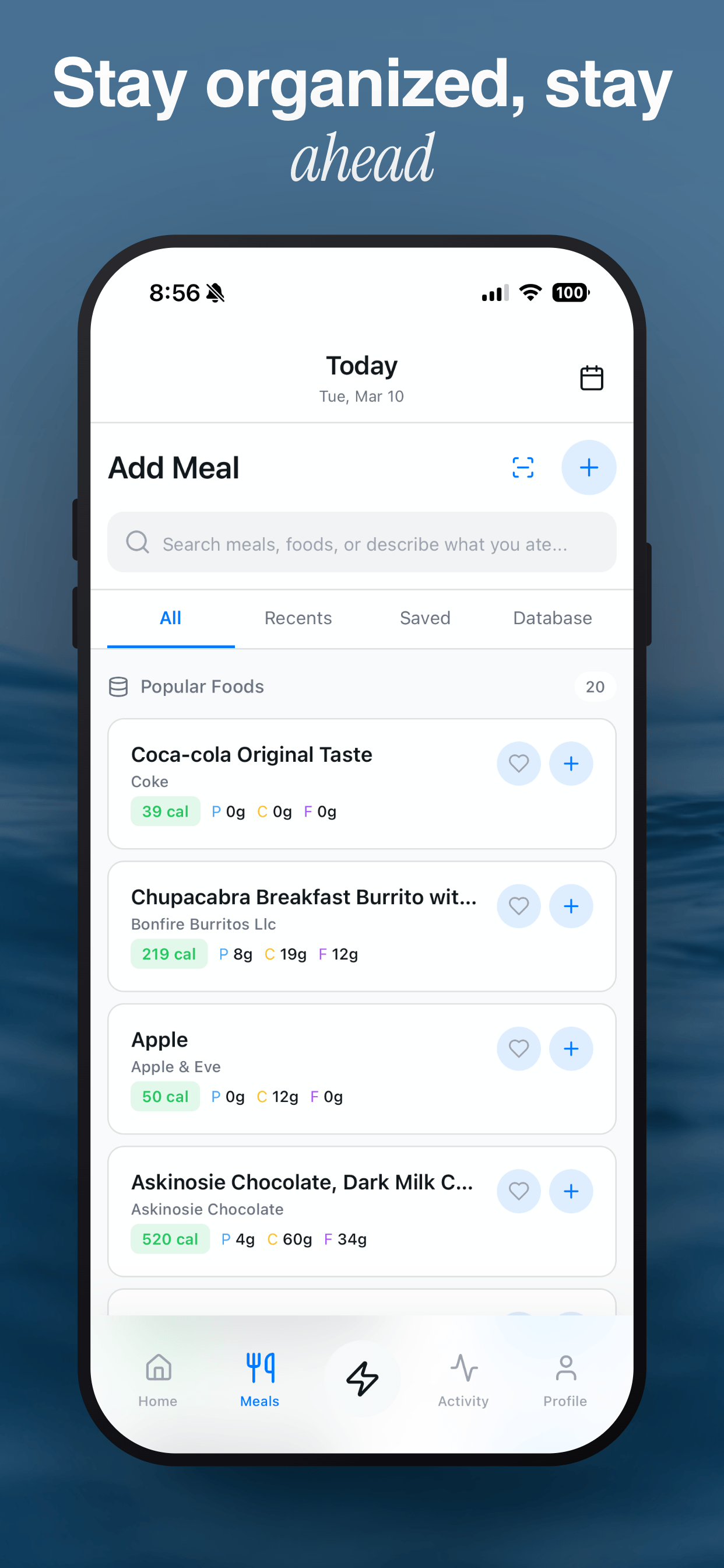
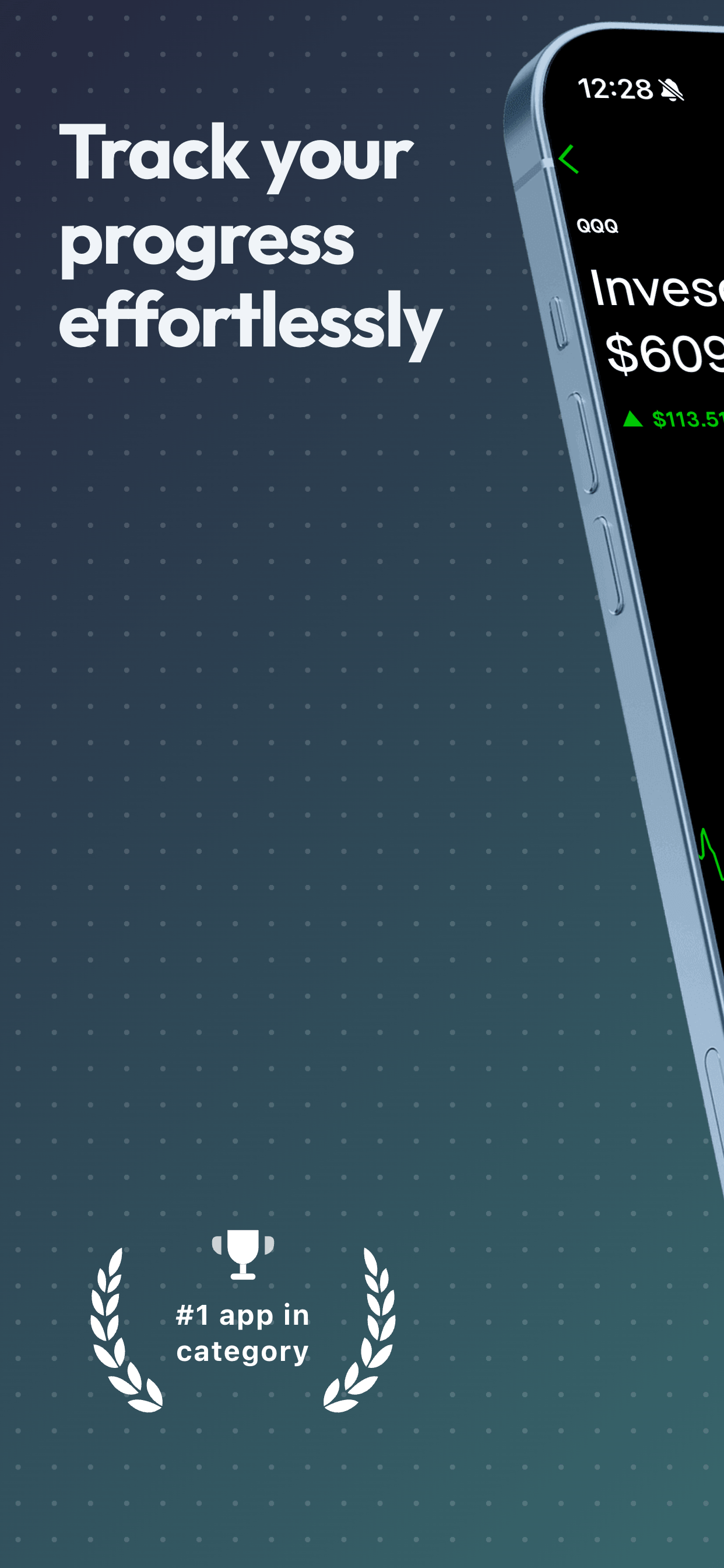
Each screenshot should have a short caption that answers 'what does this do for me?', not 'what feature is this?' Write to the outcome the user wants, not the mechanics of the feature. 'Finally hit your goals' beats 'Track your workouts'. Keep captions under 6 words, they need to be readable at thumbnail size in search results. Use a consistent voice and font weight across all screenshots.App Store screenshot tips
Design your screenshot set
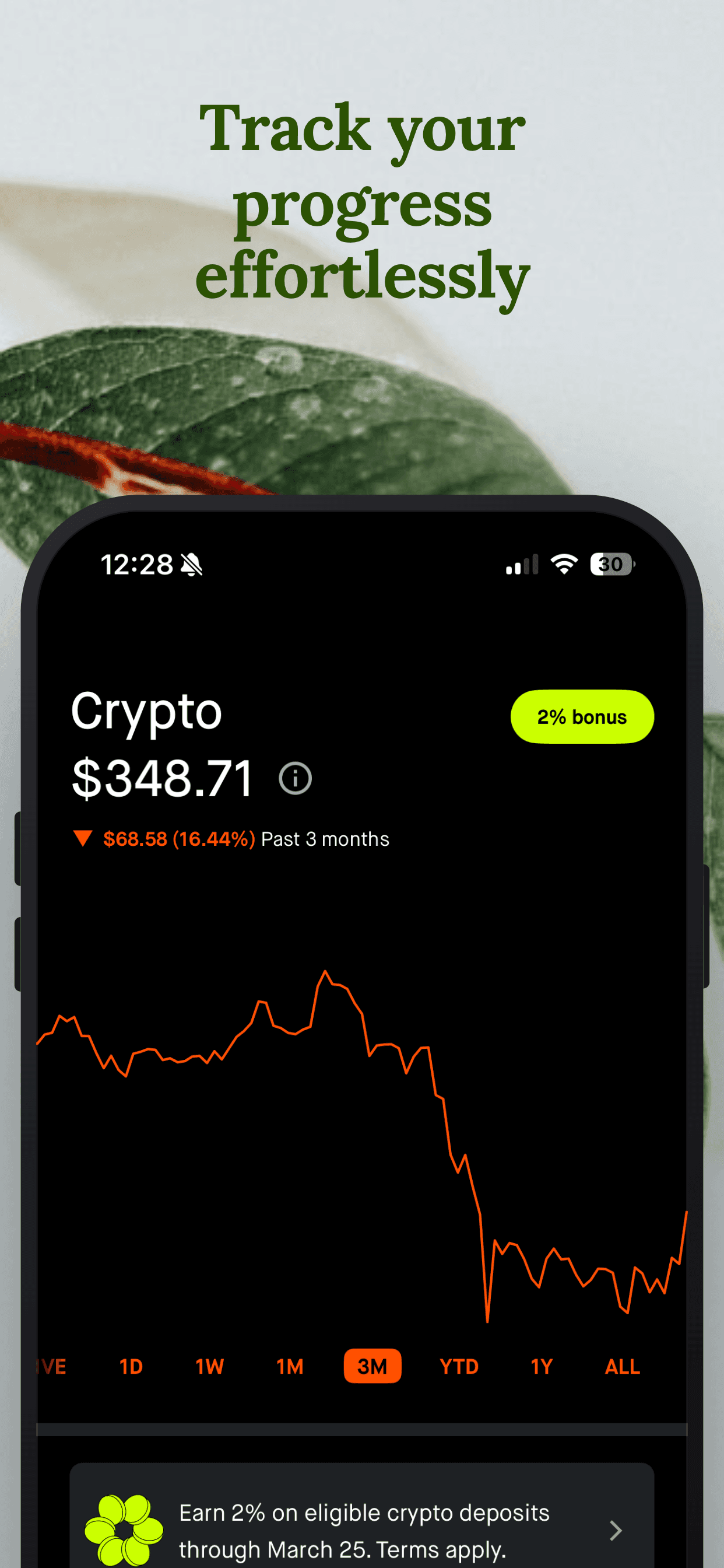
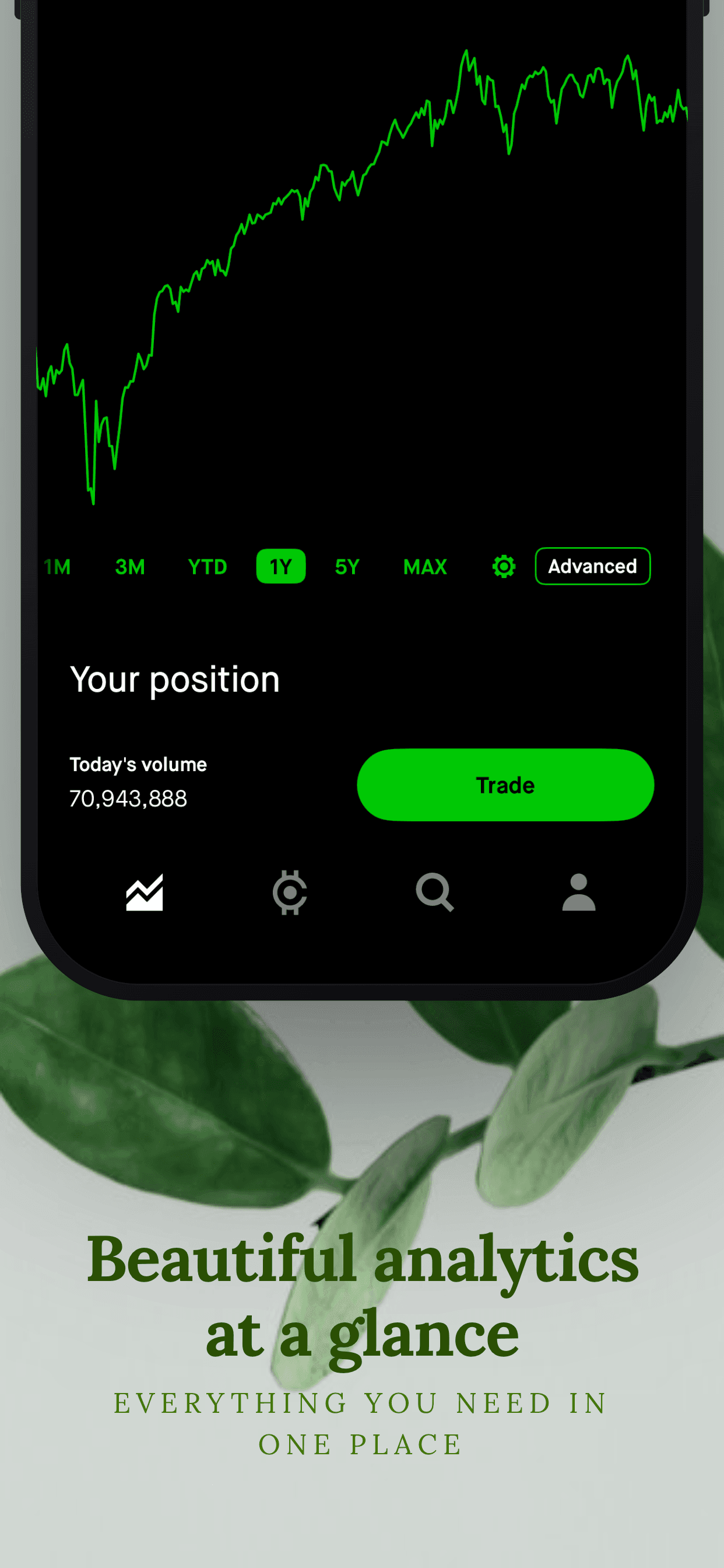
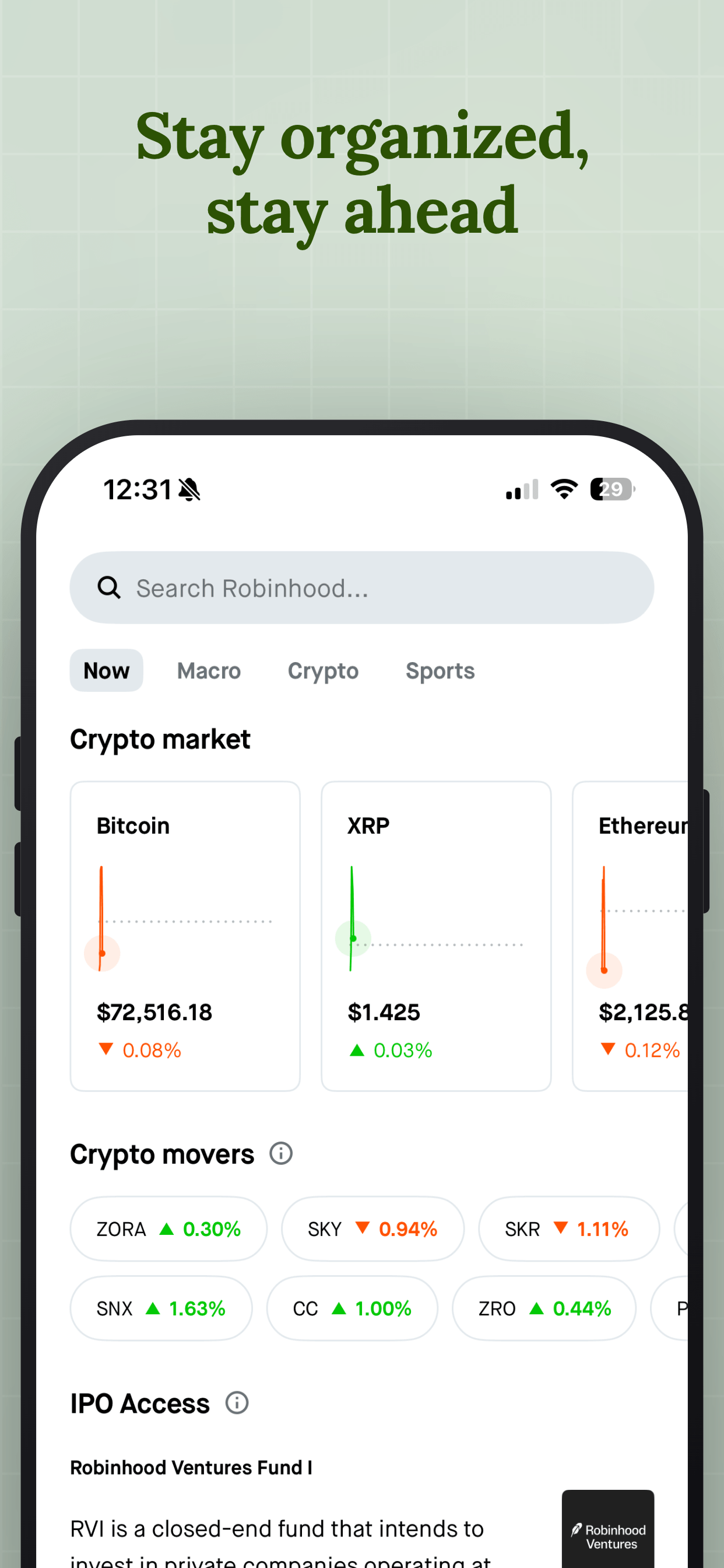
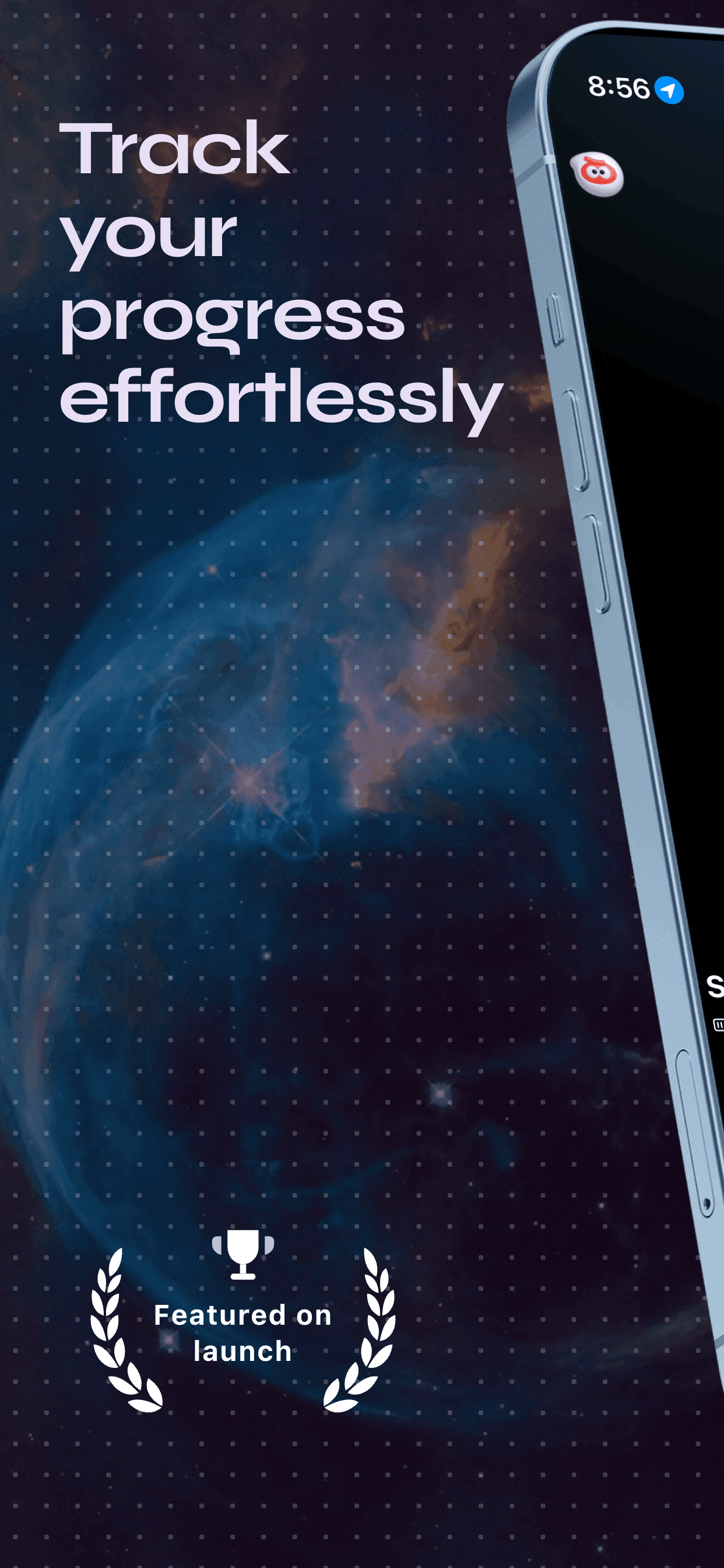
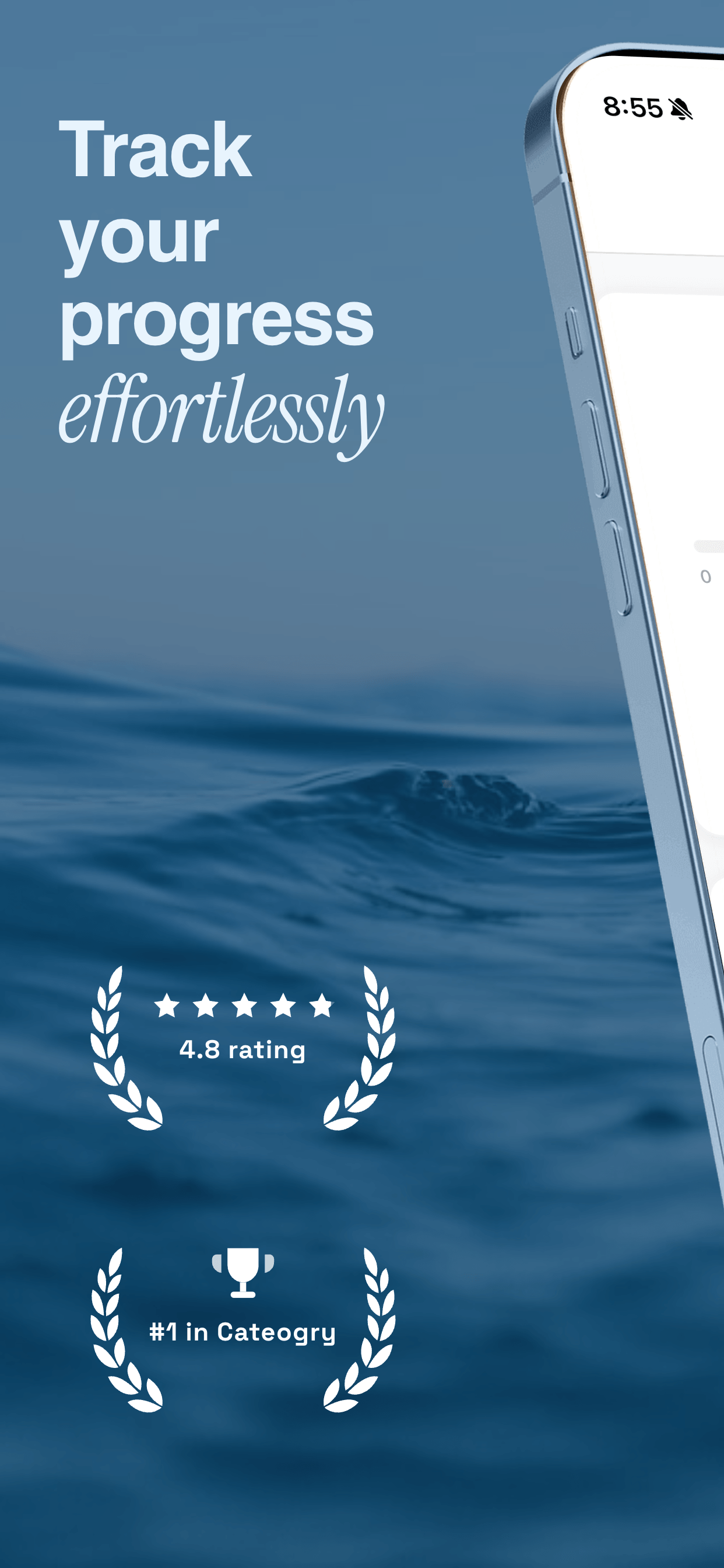
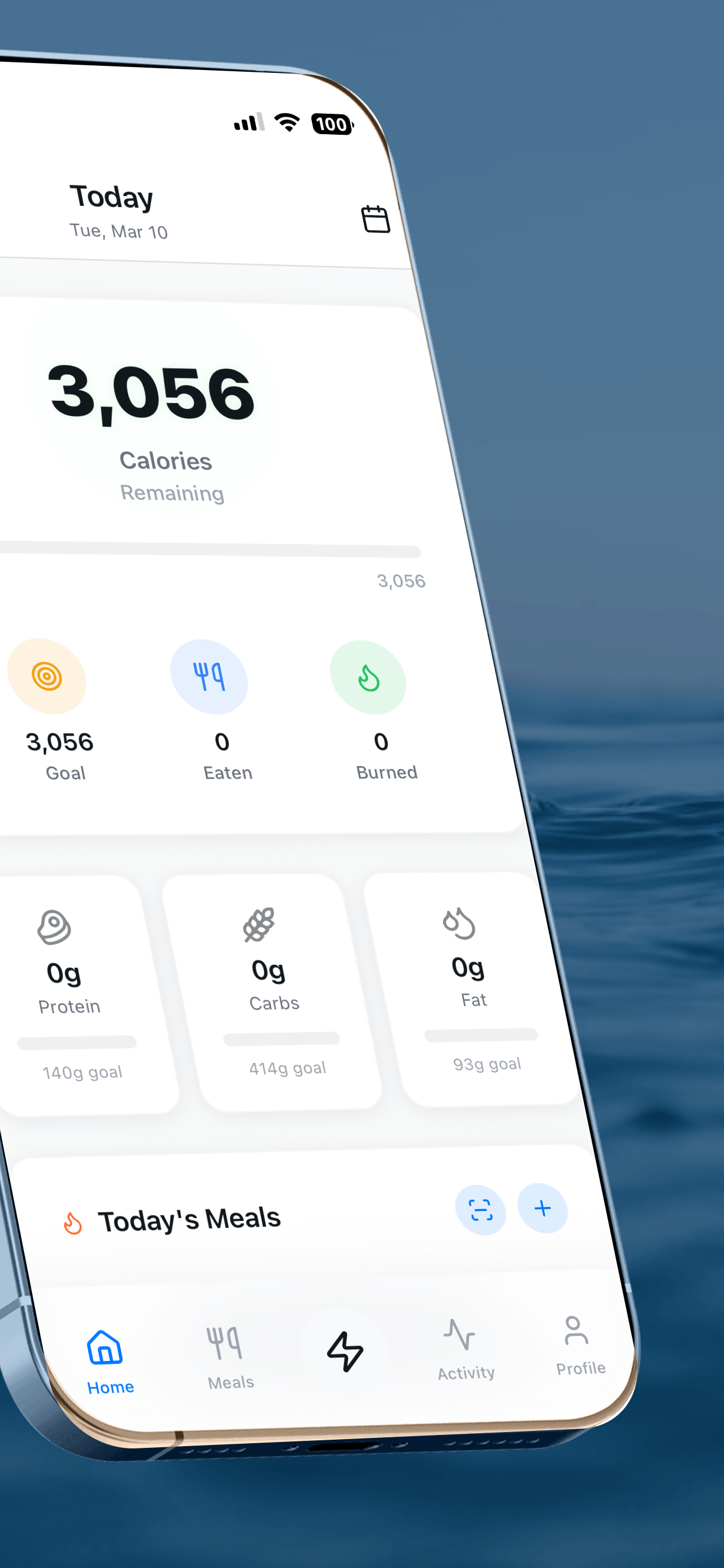
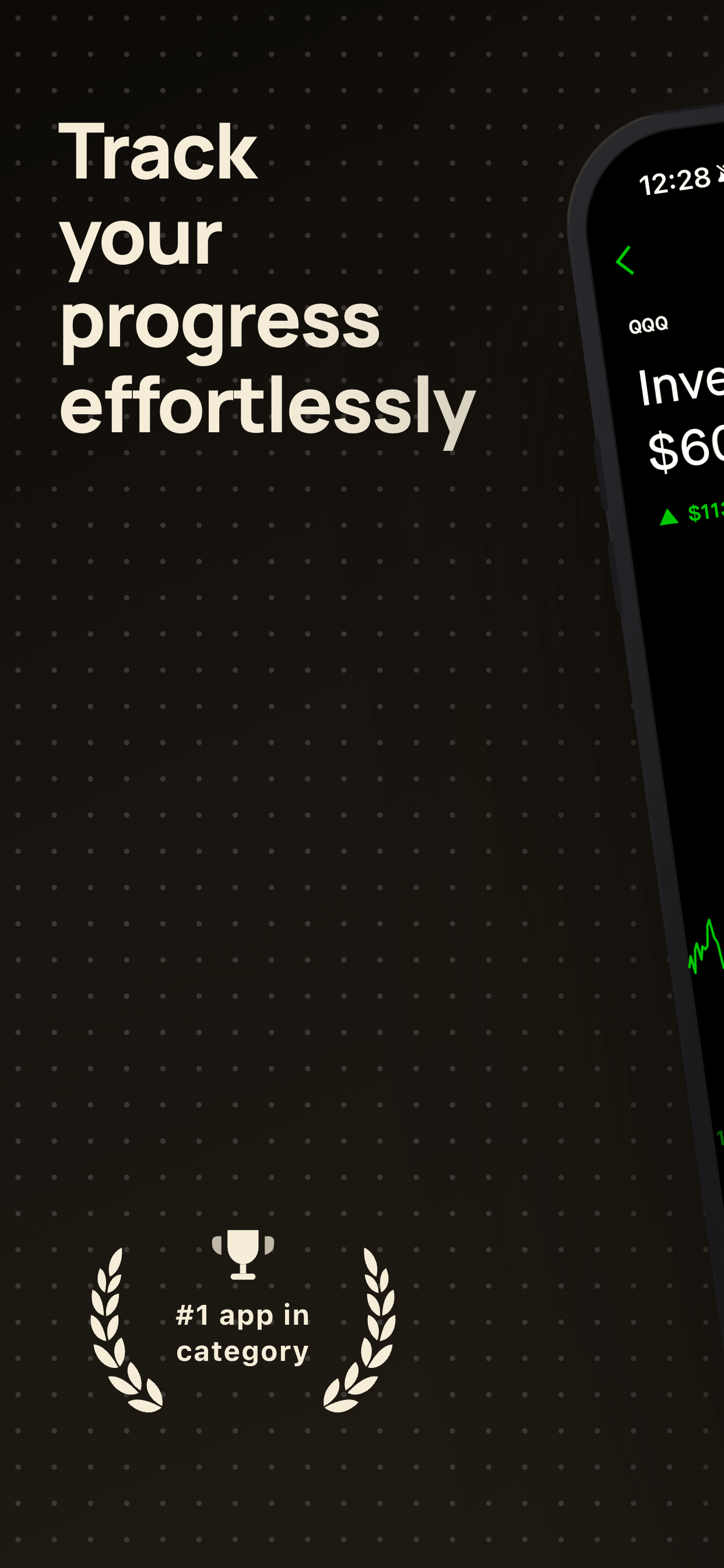
Apply your chosen style consistently across all 5–8 screenshots. Use the same background, font, caption placement, and color palette on every slide. The set should feel like a single coherent story about your app, not a collection of unrelated screens. Your first screenshot is your billboard, spend the most time on it. Screenshots 2–4 should deepen the story. Screenshot 5+ can handle objections or highlight secondary value.
Export at the correct dimensions
Export each screenshot as PNG or JPEG at the required resolution. If you used a screenshot generator, it handles dimensions automatically. If you designed in Figma, set up artboards at the exact pixel sizes for each device and export at 1× (the artboard is already at full resolution). Do not scale up from a smaller size, pixel dimensions must be exact, not close.
Upload in App Store Connect
Go to App Store Connect, select your app, and open the App Store tab. Scroll to the Screenshots section under your app's version. Drag in your files for each device size. Reorder them by dragging, your strongest screenshot should be first. Once uploaded, save your changes and submit the new version with your next build. You can update screenshots independently of a new binary by using the 'Submit for Review' option under Screenshots Only.
Founder's take
“Most developers overthink this process. Your screenshots do not need to show every feature. Pick the 3 to 4 things your app does best, write a clear benefit for each, and put them on a clean template. Done in 20 minutes.”
Scott Stewart, founder of Screenshot Otter
Tools to create App Store screenshots
You have two main approaches: use a screenshot generator (faster, no design experience needed) or design from scratch in Figma (more control, requires design skills).
Screenshot generators: Upload your raw screenshots, pick a template, and generate production-ready images in minutes. Tools like Screenshot Otter, Appfigures, and Shotscraft handle device frames, backgrounds, captions, and export at the correct dimensions automatically. This is the fastest path for most indie developers, especially if you need localized versions in multiple languages. Free tier tools exist, though pro versions ($15-25/month) offer more templates and features.
Figma approach: If you have design experience or want maximum control, you can build your screenshots from scratch in Figma using Apple's device frames. This gives you pixel-level control but takes longer (1-3 hours for a full set). Use Figma's built-in iPhone and iPad frames, set your artboards to the exact required dimensions, and export at 1x scale (no upscaling). This approach works well if you want completely custom design that reflects your app's visual identity.
Hybrid approach: Capture your raw screenshots, import them into a generator, customize the template (colors, text, layout), and export. This balances speed with customization. Most developers end up here.
Common mistakes to avoid
Submitting the wrong dimensions
Apple rejects builds with incorrect screenshot sizes. Double-check that your exports match the exact required pixel dimensions before uploading.
Showing empty or loading states
Screenshots should show your app at its best, fully populated, actively in use. Never use a splash screen, onboarding flow, or an empty state as your first screenshot.
Text too close to edges
Leave at least 5% margin on all sides. Text near the edges may be cropped differently on various device sizes.
Using all 10 slots with weak screenshots
Five strong screenshots beat ten weak ones. Users rarely scroll past the fifth screenshot. Cut anything that doesn't add a new reason to download.
Never updating after major launches
Stale screenshots showing old UI or missing major features cost you conversions. Review your screenshots every time you ship a significant update.
Testing and iterating your screenshots
Creating App Store screenshots is not a one-time task. After you upload your first set, monitor your conversion metrics and plan to iterate every few months or whenever you release a major feature.
Measure conversion: Track your screenshot conversion rate in App Store Connect. Look at your product page conversion metric (percentage of people who viewed your listing and installed). If it is below 30%, your screenshots likely need work. Benchmark against competitors in your category, aim for at least 30-40% for apps in competitive categories.
Run A/B tests: Use Apple's Product Page Optimization to test new screenshots against your current set. Change one variable at a time: try a different first screenshot caption, a different background color, or a different feature highlighted on slide one. Let tests run for 2-4 weeks to gather enough data. Even a 5-10% improvement in conversion compounds to hundreds or thousands of additional installs per month.
Keep screenshots fresh: Update your screenshots whenever you ship a significant feature or refresh your UI. Stale screenshots that no longer match your app's current state send a signal that your app is unmaintained, which hurts both conversion and rankings. Plan a screenshot refresh every 6-9 months minimum.
Watch competitor changes: Periodically check your competitor's screenshots to stay current on design trends and messaging. If several top competitors start using a new visual style or highlight a particular benefit, test similar approaches on your own screenshots.
Before you submit: checklist
- ☐Raw screenshots captured from Simulator or device
- ☐At least one set at 1290 × 2796 px (iPhone 6.7")
- ☐iPad screenshots included if app supports iPad
- ☐Each screenshot has a benefit-focused caption
- ☐Consistent template and style across all slides
- ☐First screenshot is your strongest value prop
- ☐Exported as PNG or JPEG with no alpha channel
- ☐Uploaded in App Store Connect and ordered correctly
Frequently Asked Questions
- How many App Store screenshots should I upload?
- You can upload between 1 and 10 screenshots. Most developers use 5–8. Five strong screenshots that tell a clear story will outperform ten weak ones. The first screenshot is the most important, it appears in search results before users tap your listing.
- Can I use the same screenshots for Google Play and the App Store?
- Not directly. The App Store requires a minimum of 1290 × 2796 px for iPhone, while Google Play's recommended phone size is 1080 × 1920 px. You need to export separate sets, though the same visual design can be adapted for both stores.
- Do I need separate screenshots for iPhone and iPad?
- Yes, if your app supports iPad. You must submit the 12.9-inch iPad set (2048 × 2732 px) separately. For iPhone, you only need the 6.7-inch set, Apple scales it for smaller devices, but you can optionally submit sets for 6.5-inch and 5.5-inch devices too.
- What happens if I only submit one screenshot size?
- Apple will use your 6.7-inch screenshots and scale them for all other iPhone sizes. You won't be rejected for only submitting one size, but the scaled versions may appear slightly letterboxed or cropped on older devices.
- Can I use landscape screenshots on the App Store?
- Yes. The App Store accepts landscape screenshots. For iPhone, landscape dimensions are 2796 × 1290 px for the 6.7-inch size. Landscape is common for games. If you mix portrait and landscape in the same set, all screenshots must be the same orientation.
Related Guides
Create your App Store screenshots free
Upload your raw screenshots, pick a template, and download App Store-ready images at the right dimensions. No signup needed.
Try Screenshot Otter free →