Guide
How to A/B Test App Store Screenshots (Step-by-Step, 2026)
Both Apple and Google give you free, built-in tools to test your screenshots against real traffic. Most developers never use them. Here’s exactly how to set up a test on each platform, what to test first, and how to read the results.

Scott Stewart · Mar 9, 2026
Quick answer
Both Apple and Google offer free, built-in A/B testing for screenshots. On iOS, use Product Page Optimization in App Store Connect to test up to 3 treatments. On Android, use Store Listing Experiments in Google Play Console. Test one variable at a time and run each test for at least 7 days.
Why screenshot testing matters
Your screenshots are the single biggest lever on your App Store conversion rate. A visitor who sees your listing will glance at the screenshots, maybe read the first line of your description, and decide whether to install. Everything else (ratings, reviews, app size) is secondary to that first visual impression.
The problem is that most developers design their screenshots based on intuition, publish them, and never revisit them. A/B testing replaces guesswork with data. Even small changes to your first screenshot, a different caption, a different background color, a different feature highlighted, can move your conversion rate by 10-20%. Over thousands of impressions, that compounds into a meaningful difference in downloads.
Apple: Product Page Optimization (PPO)
Apple calls their A/B testing feature Product Page Optimization. It lets you test up to three “treatments” (variant pages) against your original product page, using real App Store traffic. Here is how to set one up.
Step 1: Prepare your variant screenshots. Before you touch App Store Connect, decide what you want to test and create the alternate screenshot set. For your first test, keep it simple: change one thing about your first screenshot. A different caption, a different background color, or showing a different screen. Tools like Screenshot Otter make it easy to produce multiple variations quickly since you can duplicate your project, swap the caption or template, and export a complete new set in minutes.
Step 2: Create a test in App Store Connect. Go to your app in App Store Connect, select “Product Page Optimization” from the sidebar, and click “Create Test.” Give it a descriptive reference name (like “Blue bg vs dark bg - March 2026”). You can run one test at a time, and each test can include up to three treatments.
Step 3: Configure your treatment. Each treatment starts as a copy of your current product page. You can replace screenshots, the app icon, or preview videos. For a screenshot-only test, upload your variant screenshots for each device size. If you leave a device size unchanged, Apple will use your original screenshots for that size.
Step 4: Set traffic allocation. Choose what percentage of traffic sees each treatment. For a simple two-way test (original vs. one variant), a 50/50 split gives you the fastest results. You can also run a more conservative 70/30 split if you want to limit risk.
Step 5: Submit for App Review. Any new creative assets in your treatments need to pass App Review before the test can go live. This usually takes 24-48 hours. You do not need to submit a new app build; the review is just for the creative assets.
Step 6: Monitor and apply. Once approved, your test goes live. Apple will show you conversion data for each treatment along with a confidence indicator. Let the test run until it reaches at least 90% confidence. When you have a winner, apply the winning treatment to your product page directly from the test results screen.
Founder's take
“The biggest mistake with A/B testing screenshots is changing too many things at once. Change one variable per test: the caption, the background color, or the screenshot order. If you change three things and see a lift, you have no idea which one worked.”
Scott Stewart, founder of Screenshot Otter
Google Play: Store Listing Experiments
Google Play’s equivalent is called store listing experiments, and it works slightly differently from Apple’s PPO. The process is simpler in some ways and more flexible in others.
Step 1: Go to Store Listing Experiments. In Google Play Console, navigate to your app, then select “Grow” and “Store listing experiments.” Click “Create experiment.”
Step 2: Choose your experiment type. Select “Default graphics” to test screenshots (you can also test your icon, feature graphic, or description). Name your experiment something descriptive.
Step 3: Upload variant screenshots. Add your variant screenshot set. Google lets you preview how the variants will look on the store listing. Unlike Apple, there is no review process for experiment assets, so your test can start immediately.
Step 4: Choose your target metric. Google offers two options: “first-time installers” (raw installs) or “retained first-time installers” (users who keep your app for at least one day). The retained metric is more meaningful because it filters out users who install and immediately uninstall, giving you a better signal of actual quality.
Step 5: Run for at least 7 days. Google recommends a minimum of seven days even if you reach statistical significance earlier, because install patterns vary by day of the week. For apps with lower traffic, plan on two to four weeks.
Step 6: Apply the winner. When the experiment is complete and you have a clear winner, apply the winning variant to your store listing. Google makes this a one-click action from the experiment results page.
What to test (and in what order)
Not all screenshot changes are equally impactful. Here is a prioritized list of what to test, starting with the changes most likely to move your conversion rate.
First screenshot, different caption. Your first screenshot gets 5-10x more views than your last one. Test a different headline: benefit-focused vs. feature-focused, shorter vs. longer, different value proposition entirely.
First screenshot, different feature. Show a different screen or feature in screenshot one. If you currently lead with your home screen, try leading with your most compelling feature instead.
Background color or template. A dark background vs. a light one, or a completely different template style, can have a surprising impact. This is an easy test to run because you can generate a whole new set from the same screenshots just by switching templates in Screenshot Otter.
Screenshot order. Sometimes reordering your existing screenshots (without creating new ones) can improve conversion. If your third screenshot showcases a feature users love, try moving it to position one.
Number of screenshots. Apple allows up to ten screenshots. Most developers upload five or six. Test whether adding more screenshots (or reducing to fewer, higher-impact ones) changes your conversion rate.
Common mistakes to avoid
Testing too many things at once. If you change the caption, the background color, and the screenshot order all at the same time, you will not know which change caused the result. Change one variable per test.
Ending tests too early. A test that shows a 15% improvement after two days might reverse after a week. Wait for statistical significance. On Apple, that means 90%+ confidence. On Google, that means at least seven full days of data.
Ignoring seasonality. If you run a test during a holiday weekend or a major sale event, your results may not reflect normal user behavior. Try to run tests during typical traffic periods.
Never testing again after the first win. A/B testing is not a one-time project. Your best-performing screenshots today may not be your best-performing screenshots six months from now. Build a habit of running one test every quarter.
A practical testing workflow
Here is a simple workflow you can repeat quarterly:
Week 1: Review your current conversion data in App Store Connect and Google Play Console. Identify your lowest-performing territories or the biggest drop-off point in your screenshot set. Decide what to test.
Week 1-2: Create your variant screenshots. If you use Screenshot Otter, you can duplicate your project, make your change, and export a new set in a few minutes. Upload to both stores and start your tests.
Weeks 2-4: Let the tests run. Check in once a week to see if significance has been reached, but resist the urge to end early.
Week 4-5: Review results. Apply winners. Document what you learned. Plan your next test.
Over a year, four testing cycles can compound into a significantly higher conversion rate. Each 10-15% improvement builds on the last.
Frequently Asked Questions
- Can I A/B test App Store screenshots for free?
- Yes. Apple Product Page Optimization (PPO) and Google Play store listing experiments are both free and built into their respective developer consoles. You do not need any third-party tools to run screenshot A/B tests on either platform.
- How long should an App Store screenshot A/B test run?
- Apple recommends letting PPO tests run until they reach 90% confidence, which typically takes 1-4 weeks depending on your traffic. Google Play experiments need at least 7 days of data. In both cases, more traffic means faster results. Apps with fewer than 1,000 weekly impressions may need to run tests for several weeks.
- What should I test first in my App Store screenshots?
- Start with your first screenshot. It is the only one visible in search results and has the biggest impact on conversion. Test a different caption, a different background color, or a different feature highlight. Change one element at a time so you can attribute any improvement to that specific change.
- Does Apple Product Page Optimization require App Review?
- Yes. Any new screenshot assets you include in a PPO test treatment must be approved by App Review before the test can go live. This typically takes 24-48 hours. Plan your test setup accordingly.
- Can I run A/B tests on both App Store and Google Play at the same time?
- Yes. Apple PPO and Google Play store listing experiments are completely independent. You can run a screenshot test on both platforms simultaneously. Just make sure you are testing the same concept on both so you can compare results across platforms.
Related
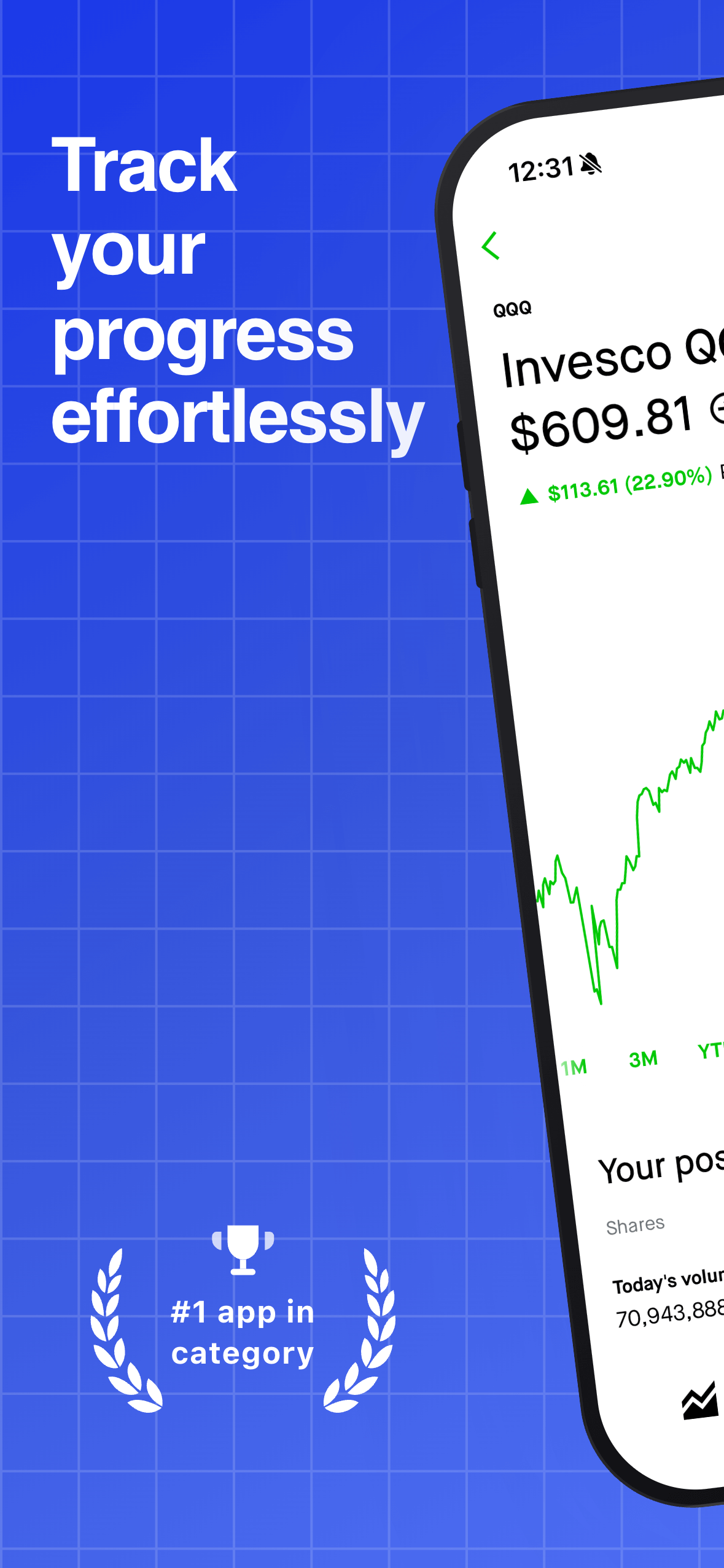
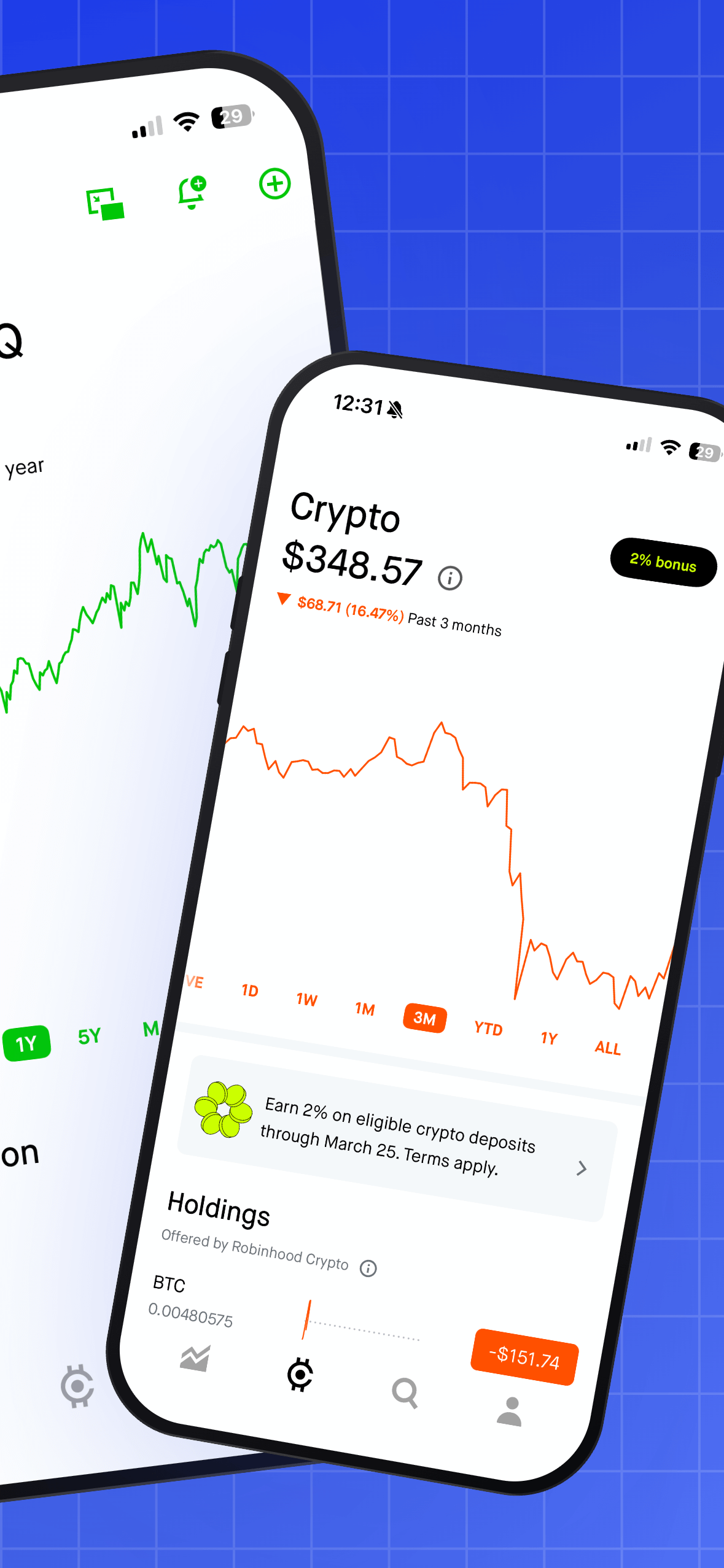
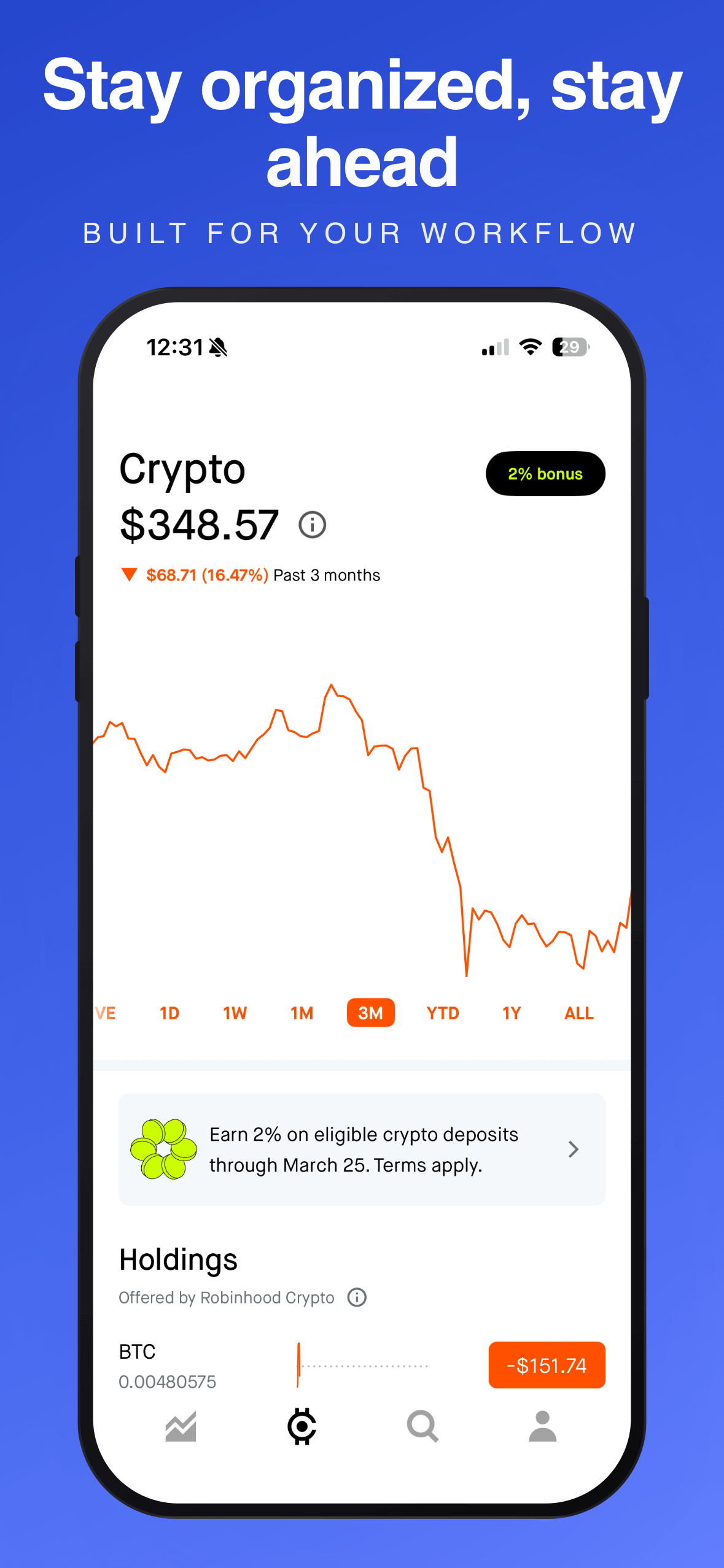
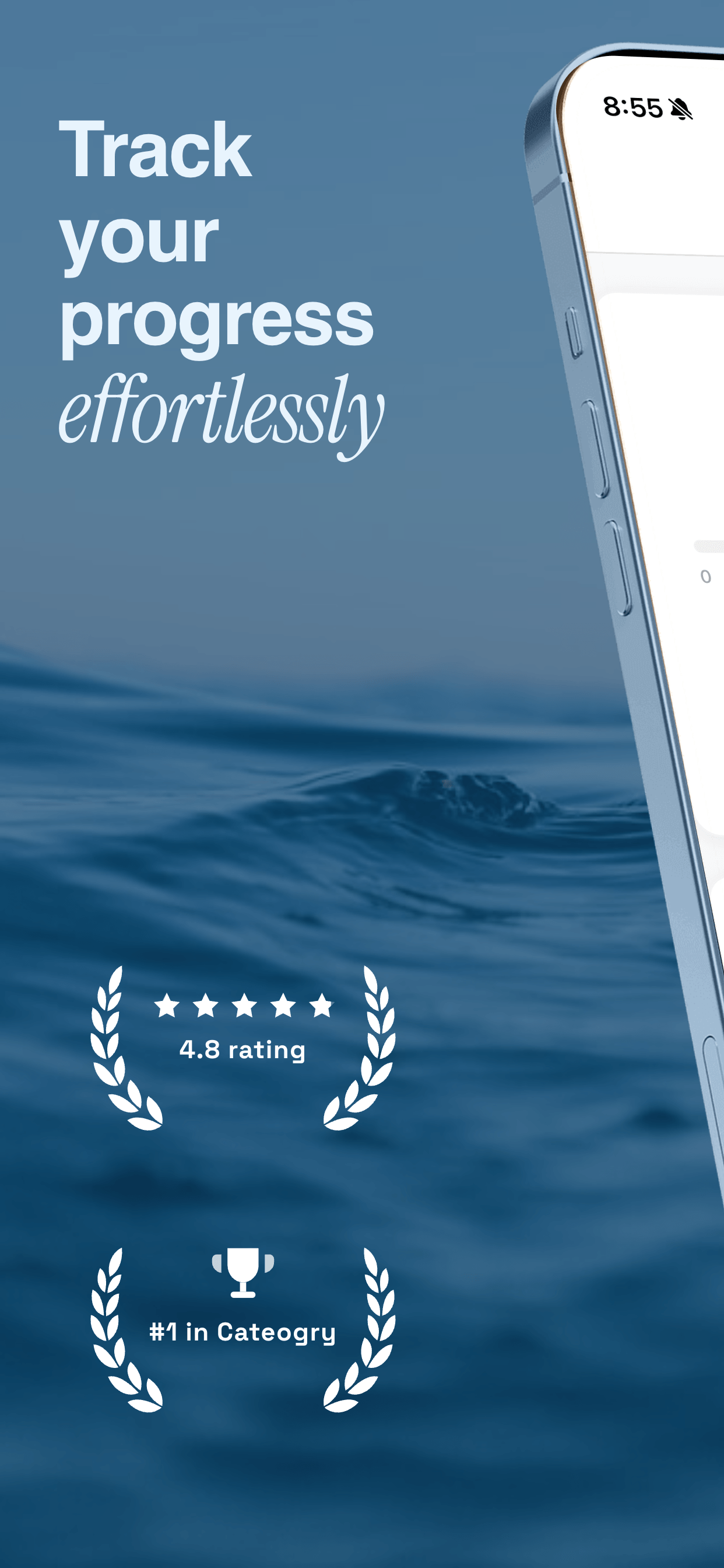
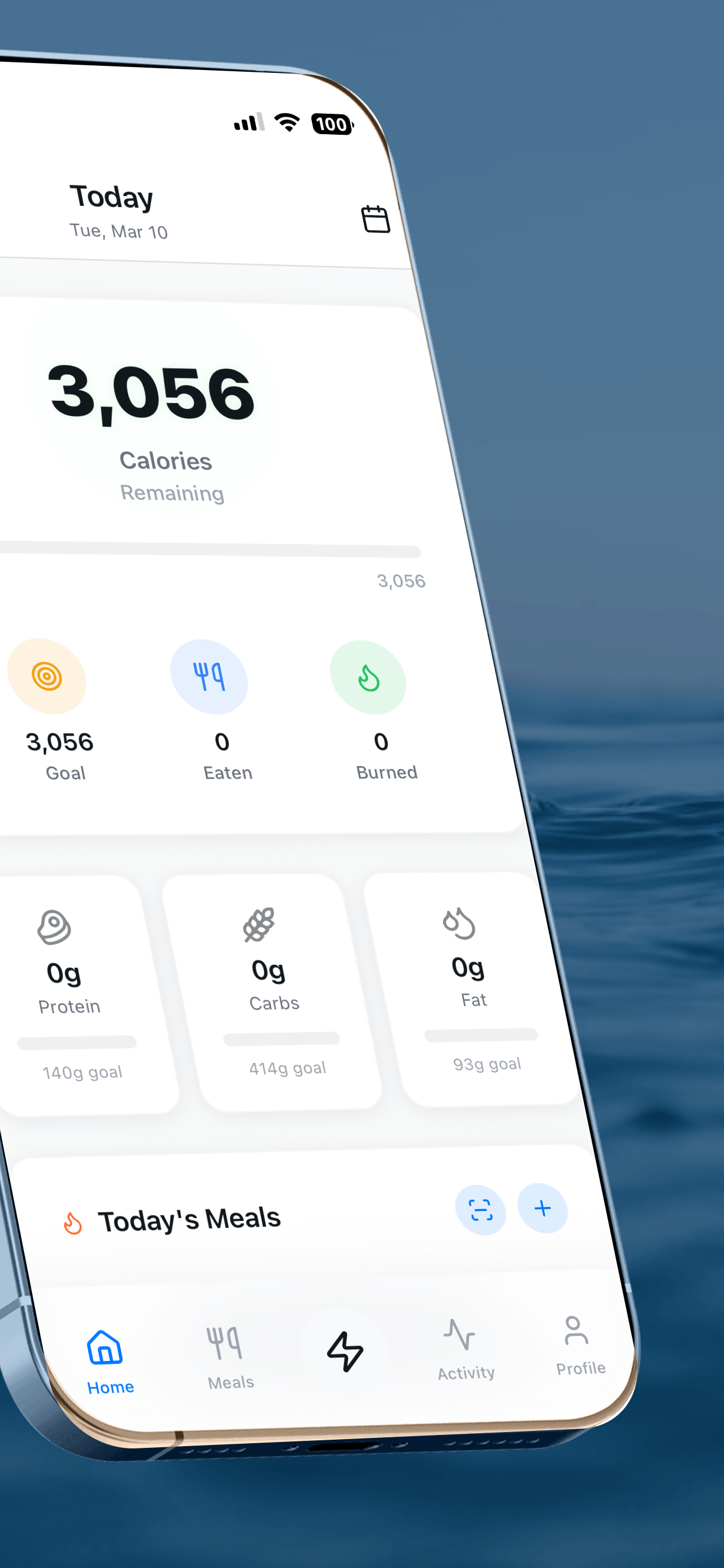
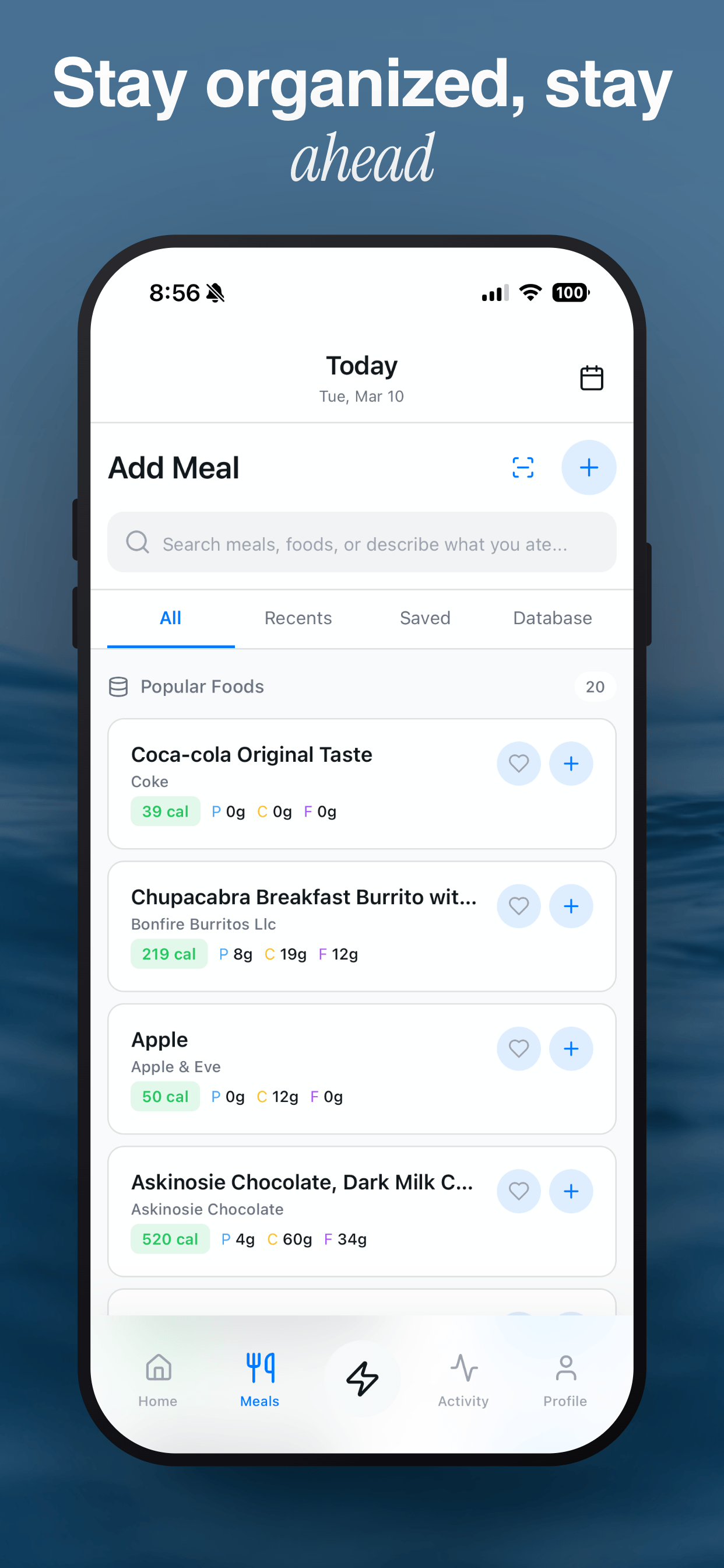
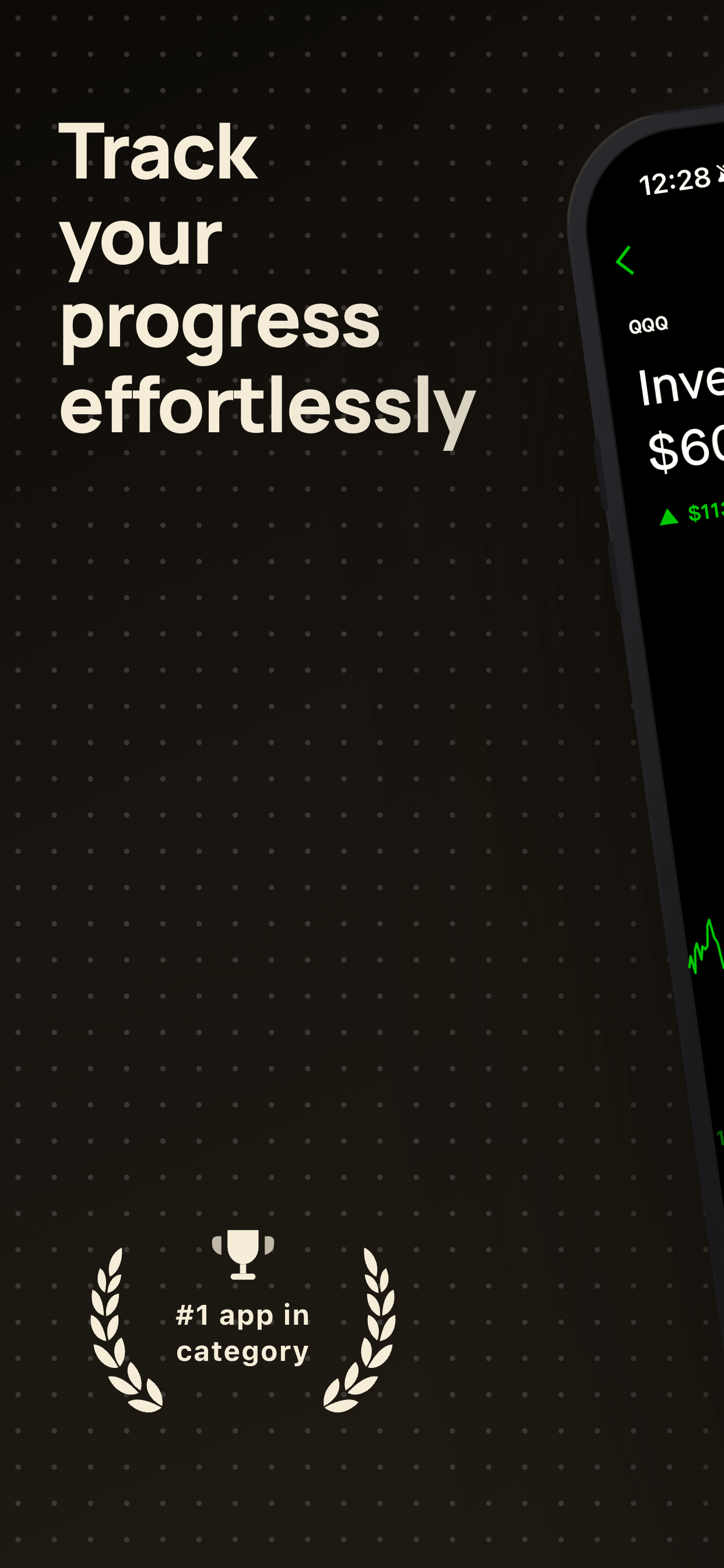
Create screenshot variants in minutes
Duplicate your project, swap the template or caption, export a complete new set. Perfect for A/B testing. Free, no signup.
Try Screenshot Otter free →