Guide
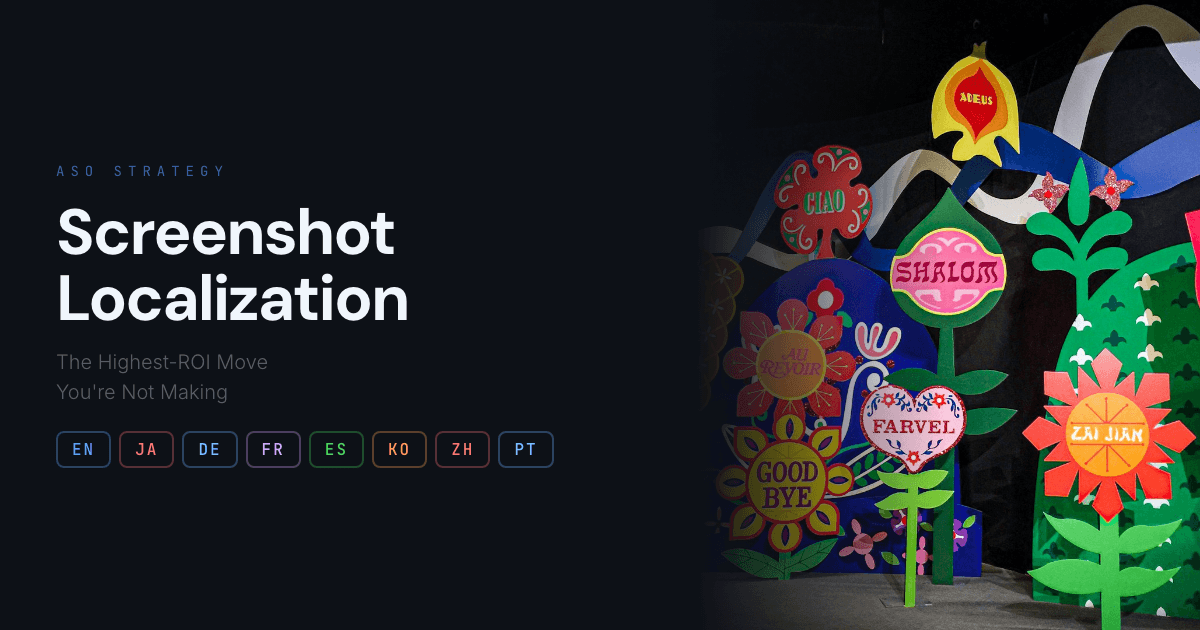
ASO Screenshot Localization: The Highest-ROI Move You’re Not Making
Most app developers ship English-only screenshots to every market in the world. That single oversight is costing them downloads in every non-English locale. Here’s why localization matters, how to prioritize it, and how to do it without losing your mind.

Scott Stewart · Mar 9, 2026
Quick answer
Localizing your App Store screenshots into the native language of each market is one of the highest-ROI ASO moves. Apps that localize screenshots see 20 to 30 percent higher conversion in non-English markets. Start with your top 5 markets by revenue and prioritize captions over UI translation.
The problem: English screenshots in non-English markets
The App Store is available in 175 countries. Google Play reaches 190. Most developers localize their app UI (or at least parts of it), but when it comes to App Store screenshots, they ship the same English captions everywhere.
This matters more than you might think. Your screenshots are the first thing users see on your listing. They make a split-second decision based on the visual and the text. If that text is in a language they don’t speak natively, the friction is real, even for users who technically understand English.
The data is consistent: localized listings convert better than English-only listings in non-English markets. Both Apple and Google treat localization as a quality signal that can affect search ranking. Incomplete localizations are flagged as missed opportunities in the Play Console.
Why most developers skip screenshot localization
The reason is simple: it’s tedious. The traditional workflow looks like this:
Design your screenshots in English. Open Figma or Photoshop. Duplicate the file for each language. Replace every text layer manually. Export each set. Navigate to App Store Connect or Google Play Console. Upload screenshots one locale at a time. Repeat for every device size. For 10 languages and 2 stores, that’s easily 100+ manual upload actions.
Nobody does this willingly. The result is that most apps ship English-only screenshots globally, leaving real conversion gains on the table.
The efficient way to localize screenshots
The key insight is that you should only need to design your screenshots once. The localization and distribution should be automated. Here’s what an efficient workflow looks like:
Step 1: Design once in your primary language. Focus all your creative energy on making one great set of screenshots. Get the layout, captions, and visual hierarchy right for your primary market.
Step 2: Auto-localize captions. Use a tool that can translate your caption text into multiple languages at once. Screenshot Otter does this for 40+ languages in a single action, including right-to-left support for Arabic and Hebrew. The visual design stays identical; only the text changes.
Step 3: Upload directly to both stores. Skip the export-download-upload cycle entirely. Push your localized screenshot sets directly to App Store Connect and Google Play Console from the same tool. This is where the real time savings happen, especially at scale.
Founder's take
“When we added Japanese and Korean captions to our own App Store listing, downloads in those markets jumped 35% within two weeks. The screenshots were identical except for the text. That is the power of localization.”
Scott Stewart, founder of Screenshot Otter
Which languages to prioritize
If you’re starting from zero, prioritize based on where your app already has users and where your category is popular. The following languages cover a large share of global App Store and Google Play revenue:
High priority: Spanish, French, German, Japanese, Korean, Portuguese (Brazil), Chinese (Simplified).
Strong secondary markets: Italian, Dutch, Russian, Turkish, Arabic, Hindi, Thai, Indonesian.
Long tail: Polish, Swedish, Norwegian, Danish, Finnish, Czech, Hungarian, Vietnamese, Malay, and more.
When the marginal cost of adding a language is near zero (as it is with auto-localization), there’s little reason not to cover all of them. But if you want to measure impact, start with your top 5-10 markets and track conversion rate changes.
Caption localization vs. full UI localization
There are two levels of screenshot localization: localizing the captions (the text overlays around your screenshots) and localizing the app UI shown in the screenshots themselves.
Caption localization is high-impact and easy to automate. The screenshots show your English UI, but the headlines and descriptions are in the local language. This is the 80/20 move: most of the conversion benefit for a fraction of the effort.
Full UI localization means capturing your app screens in each language, then wrapping them with localized captions. This is more convincing but requires your app to actually be translated and requires separate screen captures for each language. Consider doing this for your top 3-5 markets where the revenue justifies the effort.
Measuring the impact
Both App Store Connect and Google Play Console show conversion rates (impressions to installs) broken down by territory. To measure localization impact:
Record your conversion rates in target markets before localization. Push localized screenshots for a specific set of markets. Wait 2-4 weeks for data to stabilize. Compare conversion rates in localized markets vs. your control (markets you left in English).
Common results range from a 10-30% improvement in conversion rate for localized markets, though this varies significantly by app category and market. The point is: it’s measurable, and for most apps, the lift is real.
Frequently Asked Questions
- Does localizing App Store screenshots actually increase downloads?
- Yes. App stores in non-English markets consistently show higher conversion rates when screenshots display text in the local language. Users are more likely to download an app that communicates in their native language, even if they understand English. The App Store and Google Play both use localization signals for ranking, so localized listings can also improve search visibility.
- How many languages should I localize my App Store screenshots into?
- Start with the languages where you already have users or where your app category is popular. Common high-value targets include Spanish, French, German, Japanese, Korean, Portuguese (Brazil), and Chinese (Simplified). Even localizing into 5-10 languages can meaningfully increase your global conversion rate. Tools like Screenshot Otter let you auto-localize into 40+ languages at once, so the incremental cost of adding more languages is near zero.
- What is the fastest way to localize App Store screenshots?
- The fastest workflow is: design your screenshots once in English, then use an auto-localization tool to translate your captions into every target language and upload directly to App Store Connect and Google Play Console. Screenshot Otter does this in a single session for 40+ languages, including right-to-left support for Arabic and Hebrew.
- Should I localize the entire screenshot or just the captions?
- Localizing captions (the text overlays on your screenshots) is the highest-ROI move and the easiest to automate. Localizing the app UI shown in the screenshot is more impactful but requires you to actually capture screens in each language, which is significantly more work. Start with caption localization, then consider full UI localization for your top 3-5 markets.
- Does Google Play use screenshot localization for ranking?
- Google Play considers localization as a quality signal. Fully localized listings (including screenshots, descriptions, and titles) tend to rank better in local search results. The Play Console also flags incomplete localizations as opportunities in its optimization suggestions.
Related
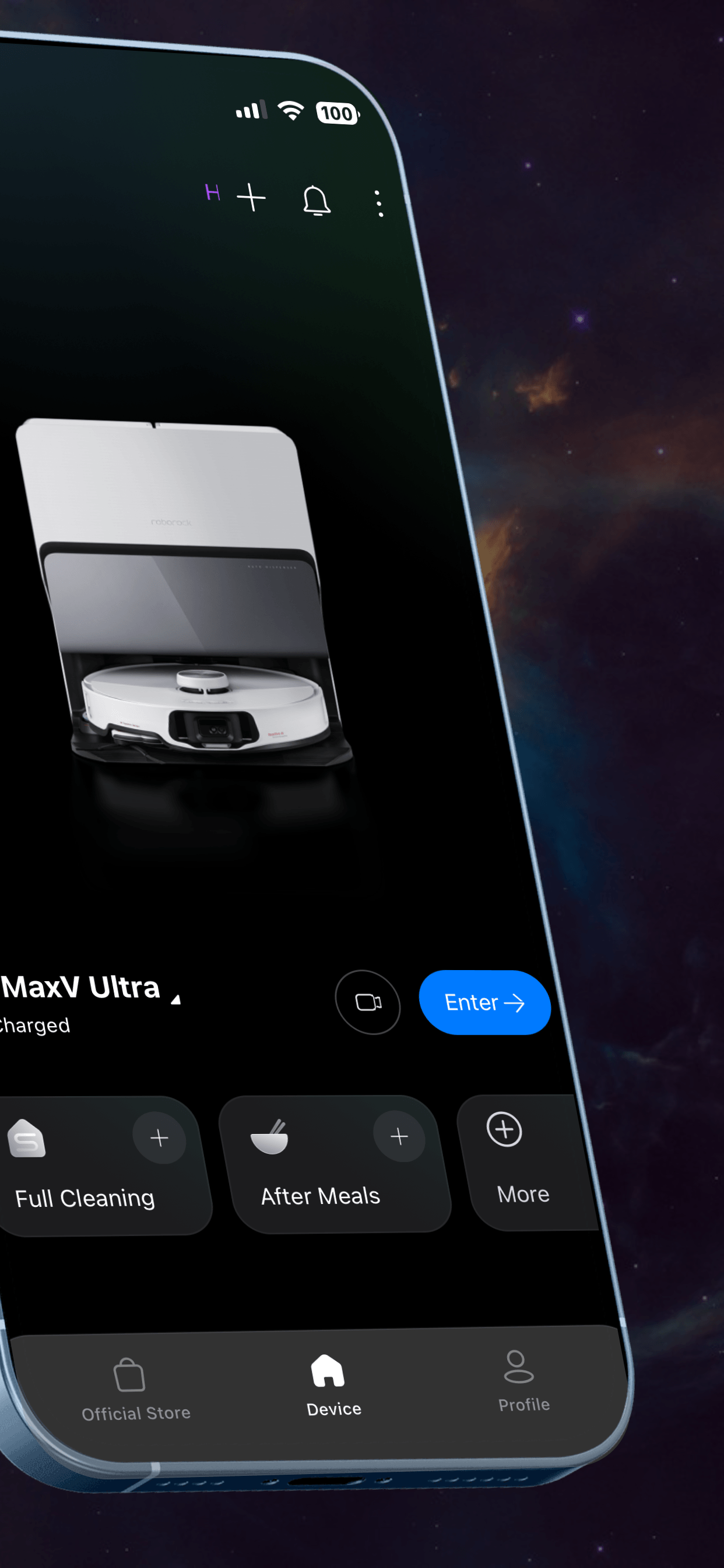
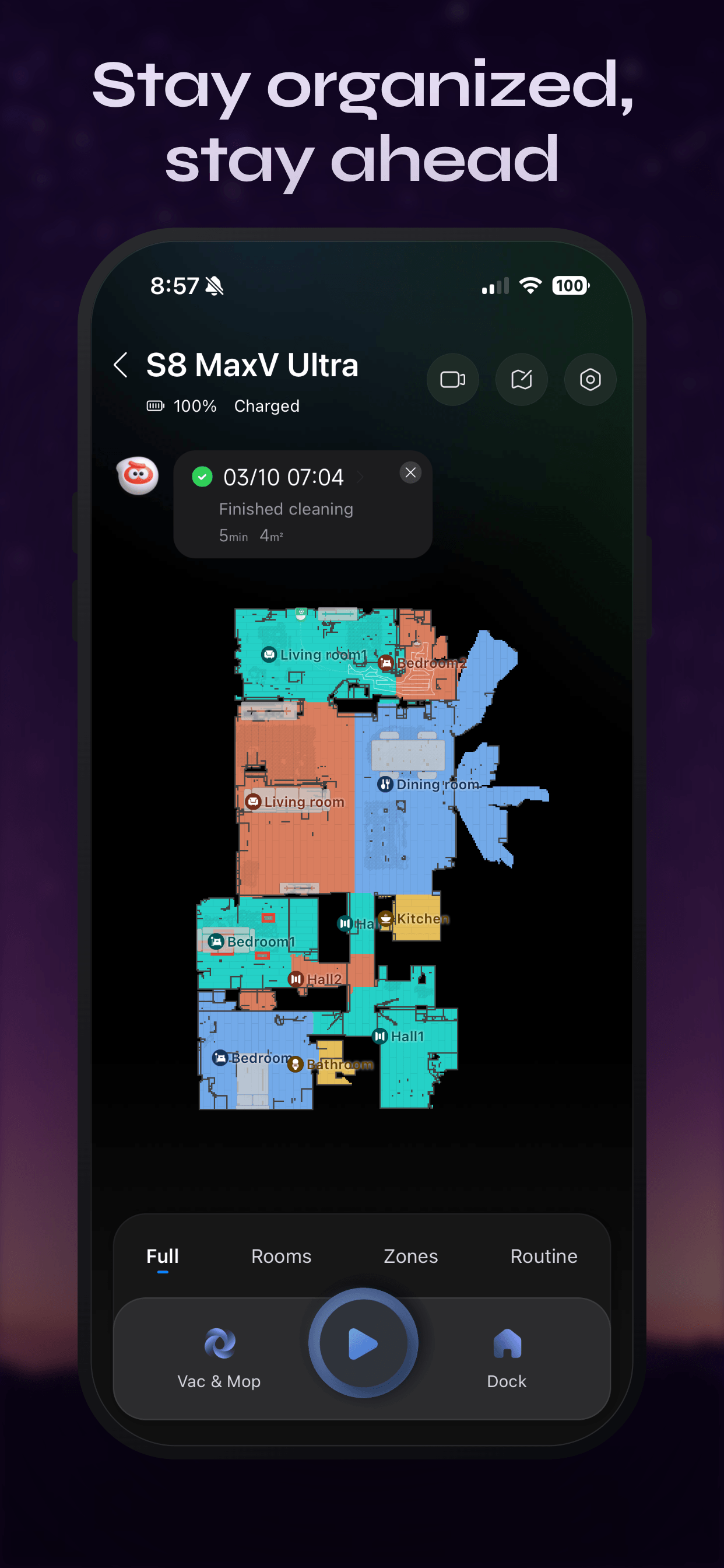
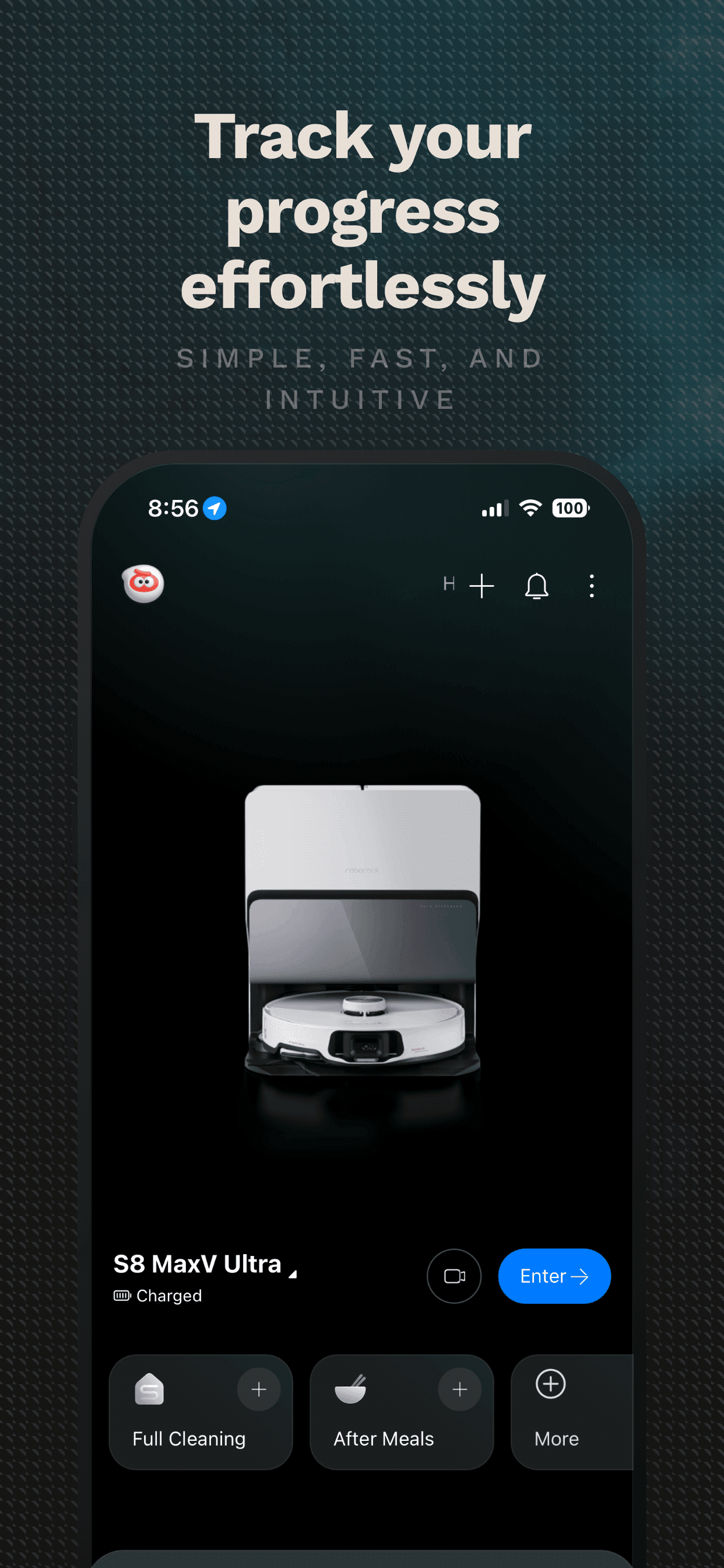
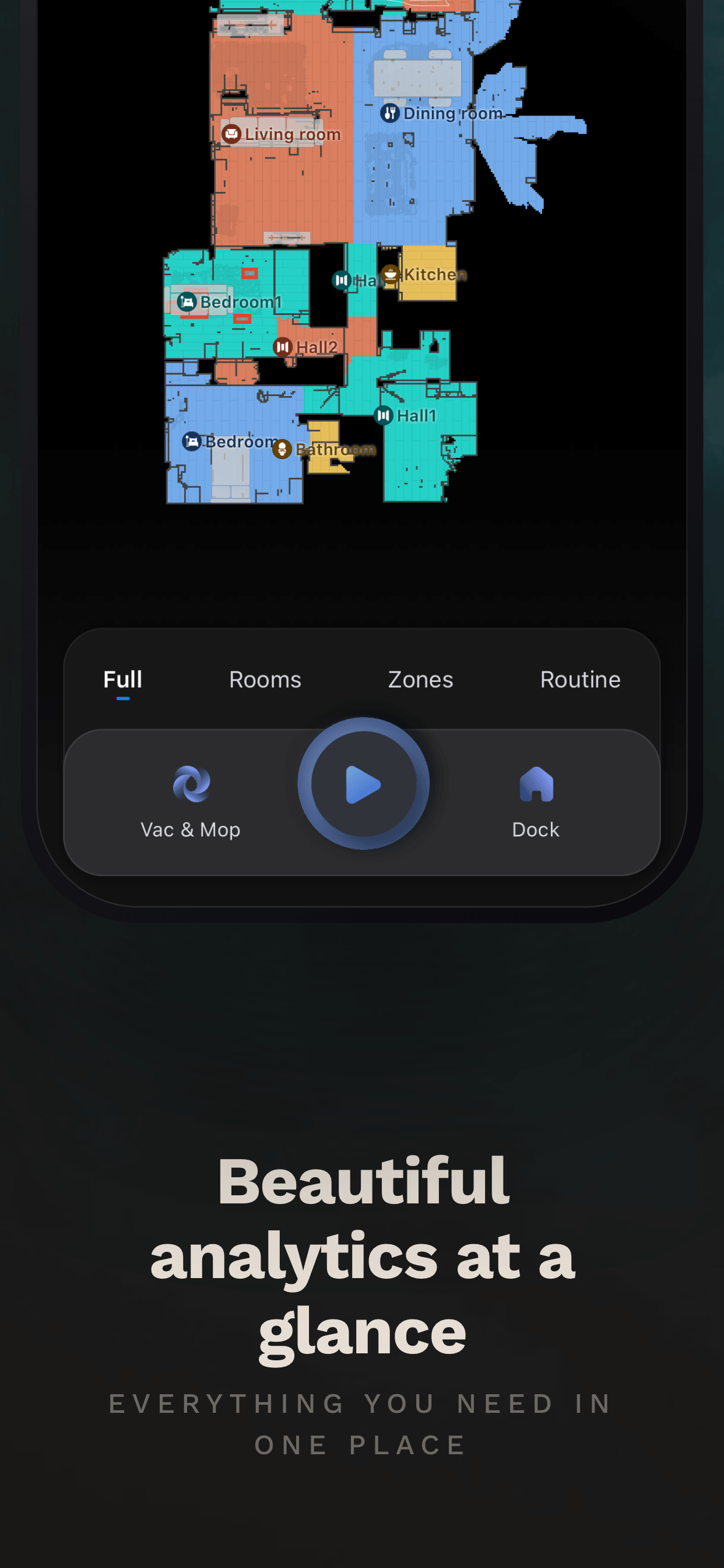
Localize and publish in minutes
Design once, auto-localize into 40+ languages, upload directly to App Store Connect and Google Play. No signup to start.
Try Screenshot Otter free →