Guide
How to Write App Store Screenshot Captions That Convert
Your screenshots do most of the selling on the App Store. The captions on those screenshots are the single highest-leverage piece of copy you will write for your app.

Scott Stewart · Mar 16, 2026
Quick answer
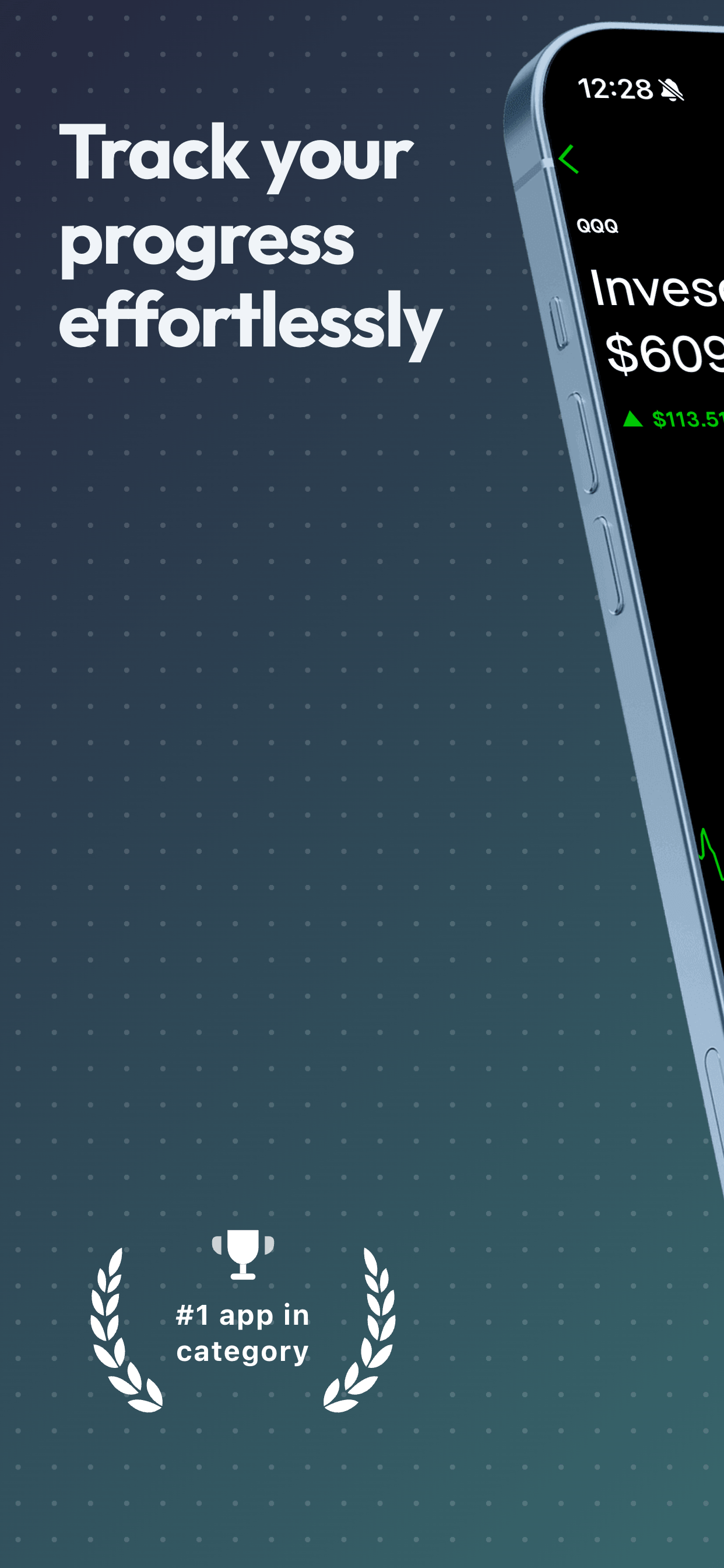
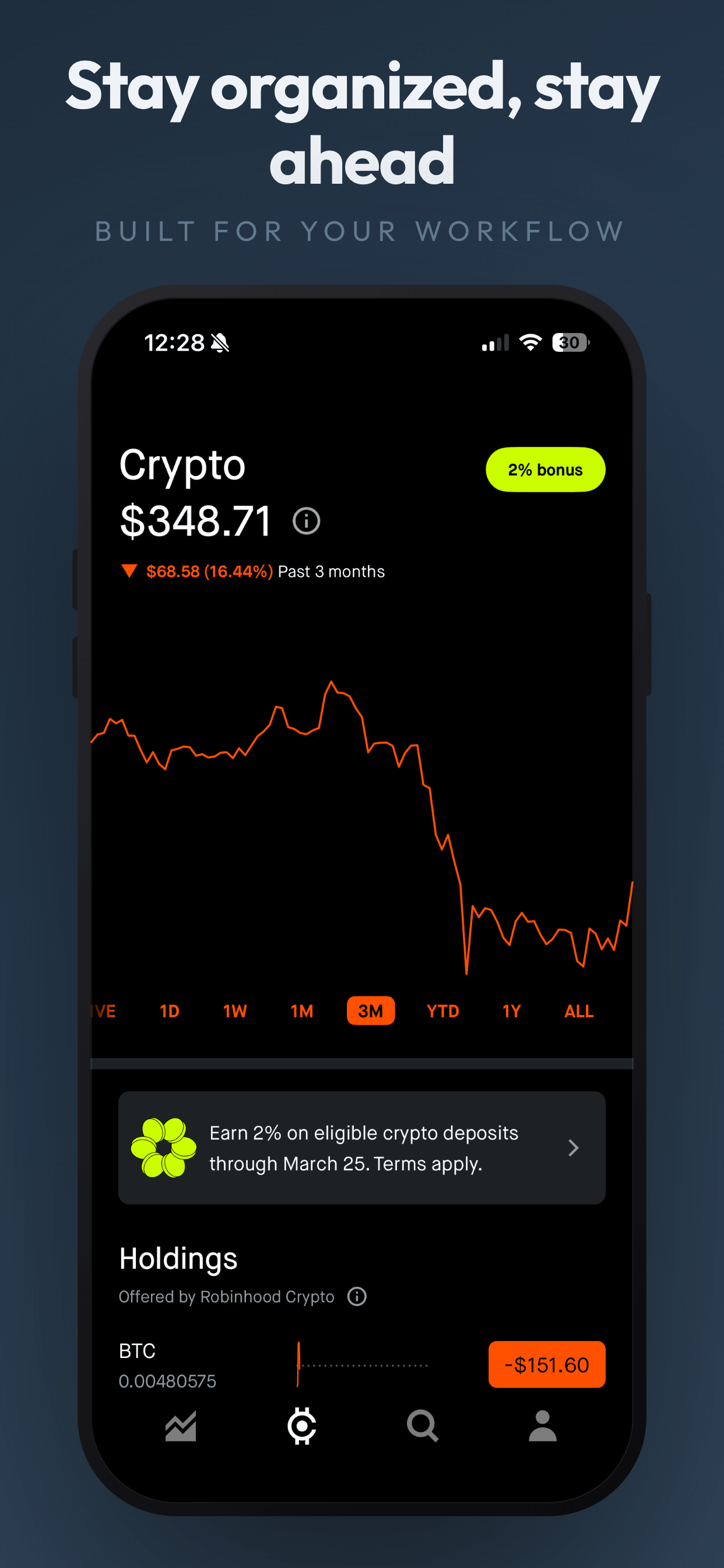
Effective App Store screenshot captions focus on benefits rather than features, use 3 to 6 words per headline, and lead with your strongest value proposition on screenshot 1. The pattern is: what will the user's life look like after they download your app?
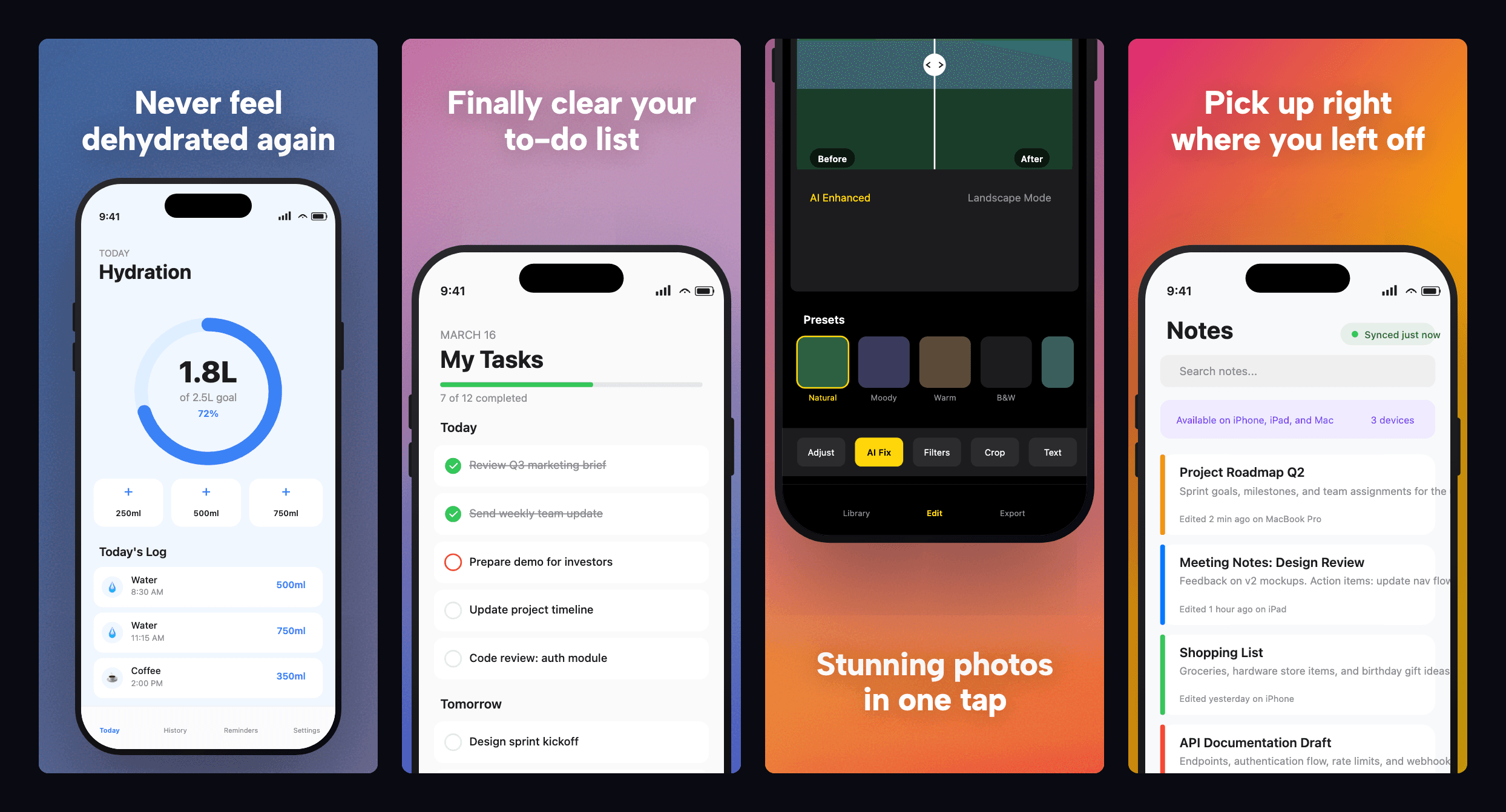
The average App Store visitor spends about seven seconds on your product page before deciding to download or move on. In those seconds, they are not reading your description. They are scanning your screenshots. More specifically, they are reading the short text overlays on those screenshots: the captions.
Bad captions waste your best real estate. Good captions can lift your conversion rate by 20% or more. The difference between the two is not talent or a big marketing budget. It is knowing a handful of specific techniques and applying them consistently.
This guide covers everything: how to frame benefits instead of features, how many words to use, how to sequence your captions across a screenshot set, and the mistakes that quietly kill conversions. If you have not yet built your screenshots, start with our step-by-step guide to creating App Store screenshots, then come back here to write the words that go on them.
Why captions matter more than you think
On the App Store, your first three screenshots show up directly in search results. Users see them before they ever tap into your full listing. Those thumbnails are small, roughly the size of a postage stamp on a phone screen. Your app UI becomes a blur of color at that size. The caption is the only thing they can actually read.
That means your captions are not supplementary. They are the primary communication channel. If your caption says "Settings Screen" while your competitor's says "Your morning routine, simplified," you have already lost the comparison.
There is an additional benefit worth knowing: Apple's search algorithm now reads the text in your screenshots and uses it as a signal for keyword relevance. Well-written captions can help your app surface for terms you have not explicitly targeted in your title or keyword field. This is not a replacement for proper keyword optimization, but it is a meaningful bonus.
Write benefits, not features
This is the single most important rule. A feature describes what your app does. A benefit describes what the user gets. Features are about your app. Benefits are about the person reading your caption.
Here is a quick test: read your caption aloud and ask, "So what?" If you can answer "so what" with something more compelling, you have written a feature and need to go one level deeper.
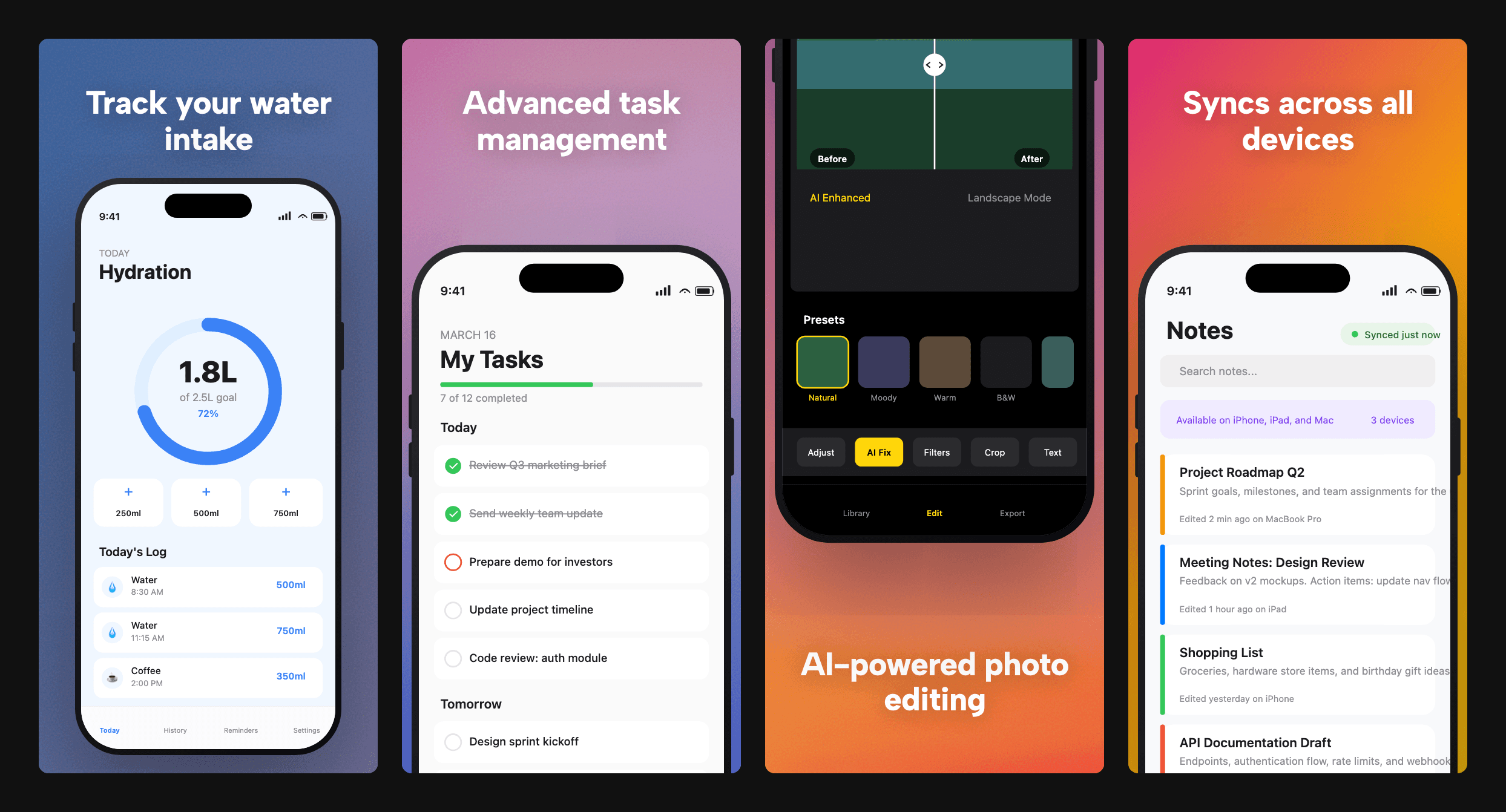
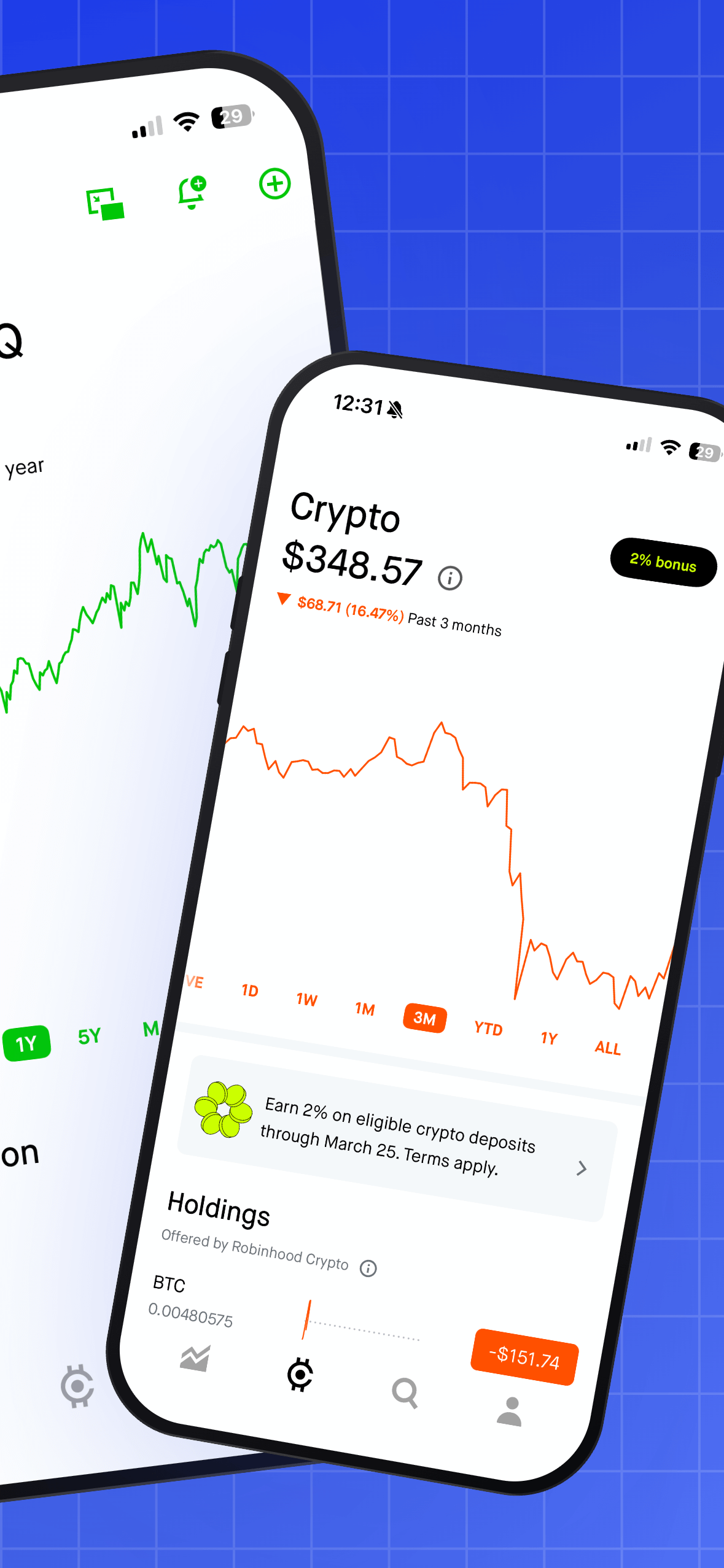
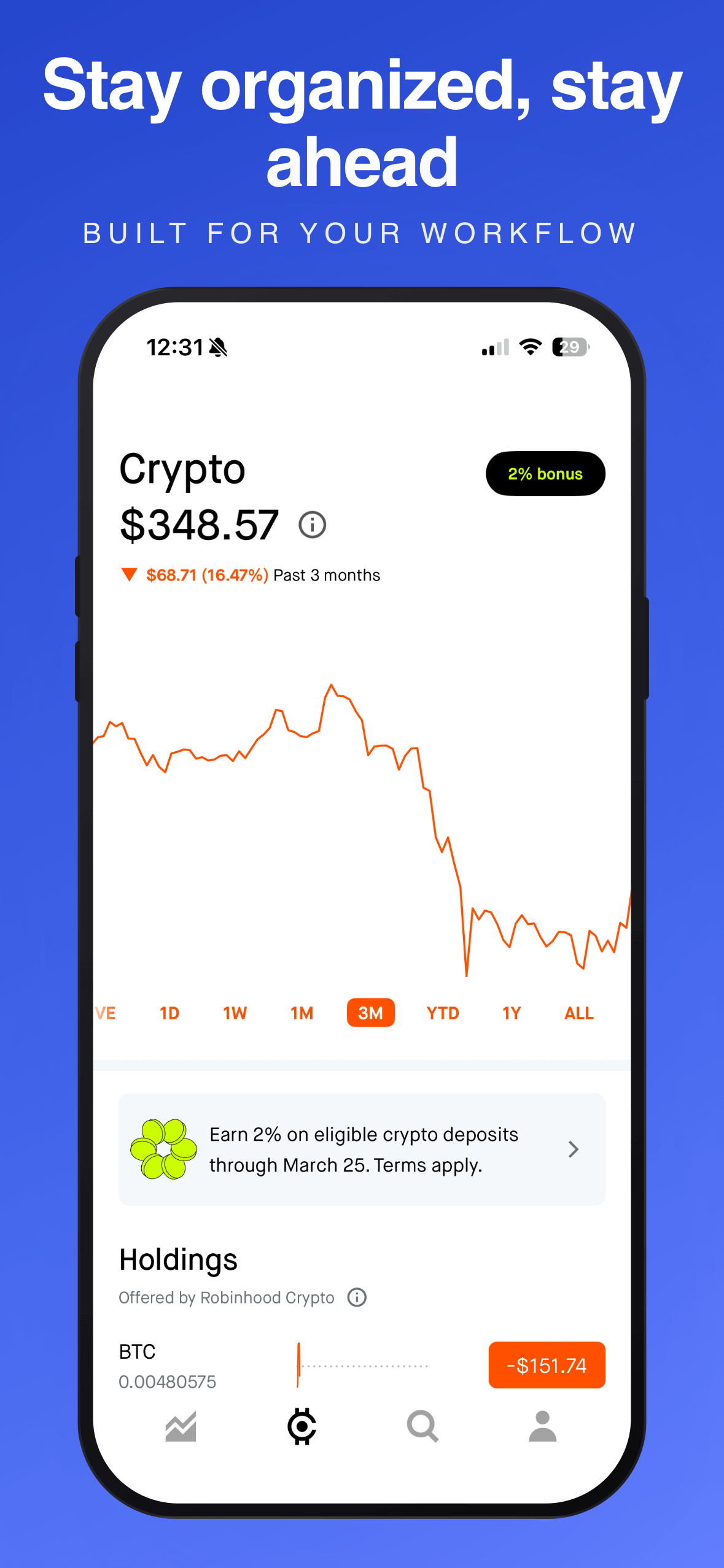
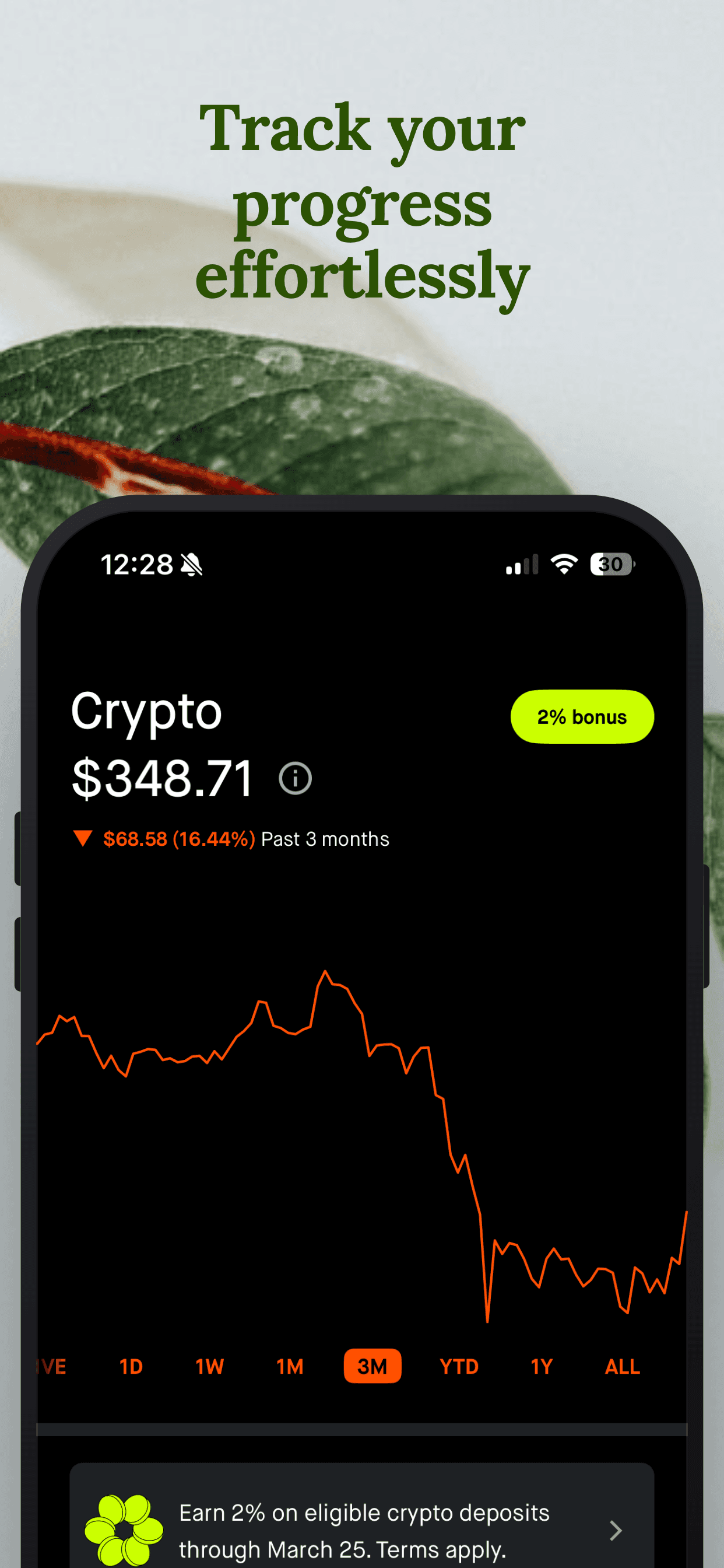
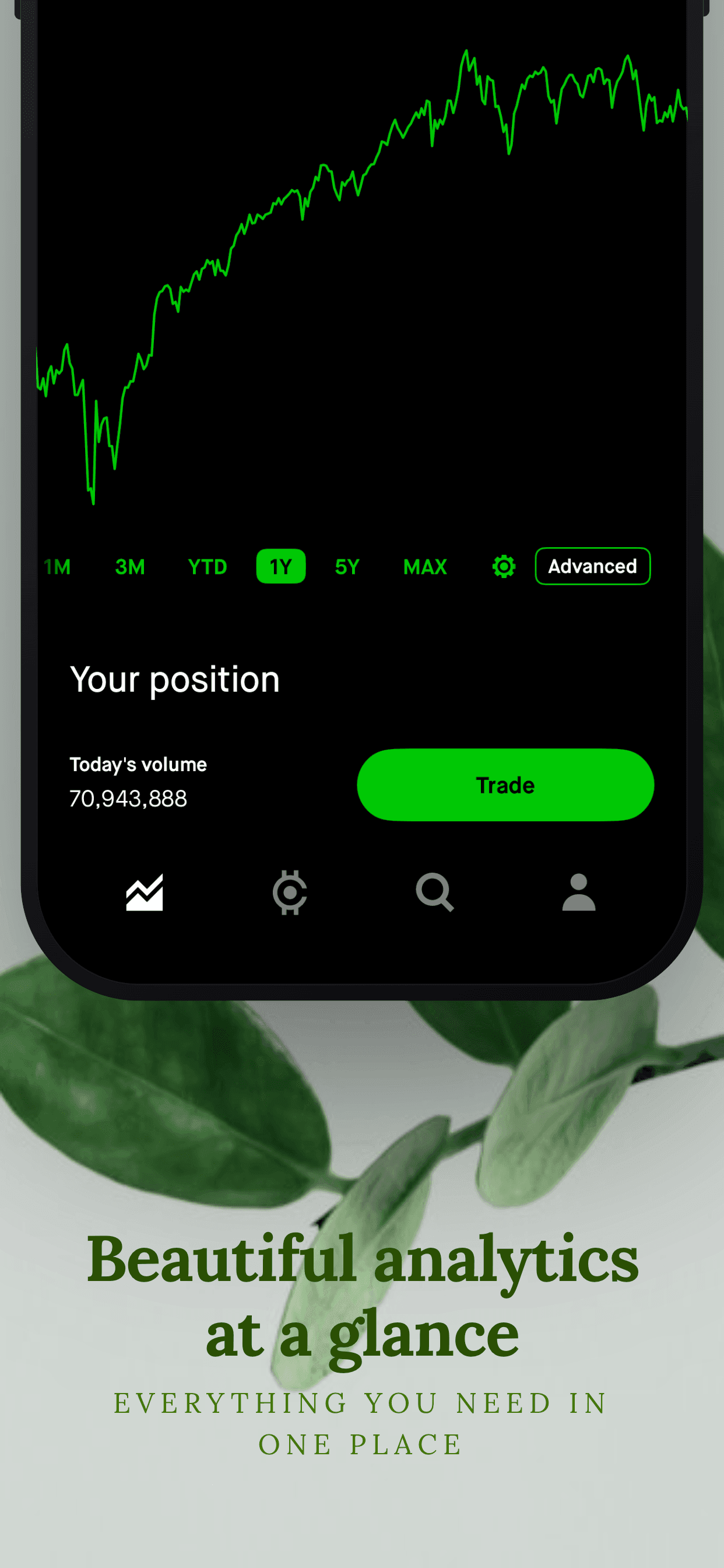
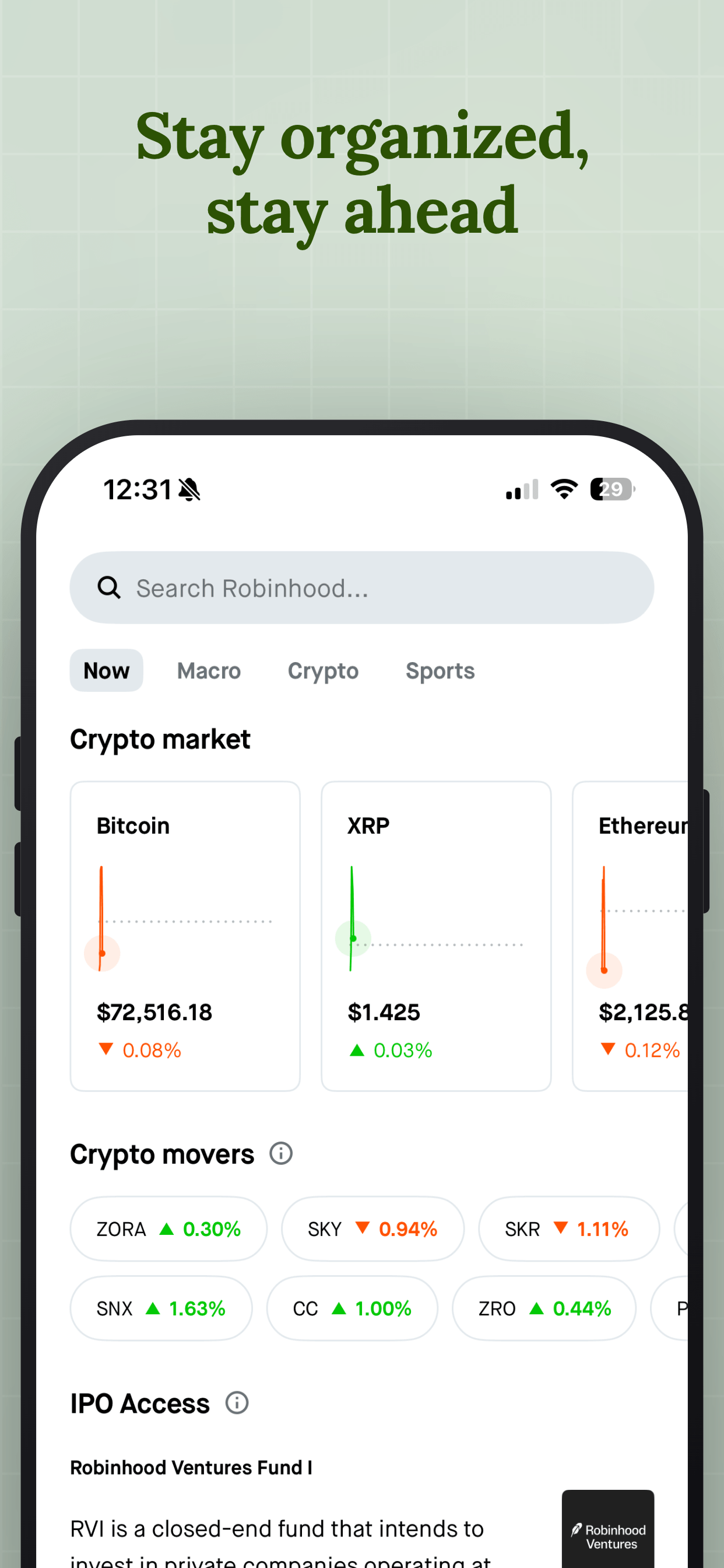
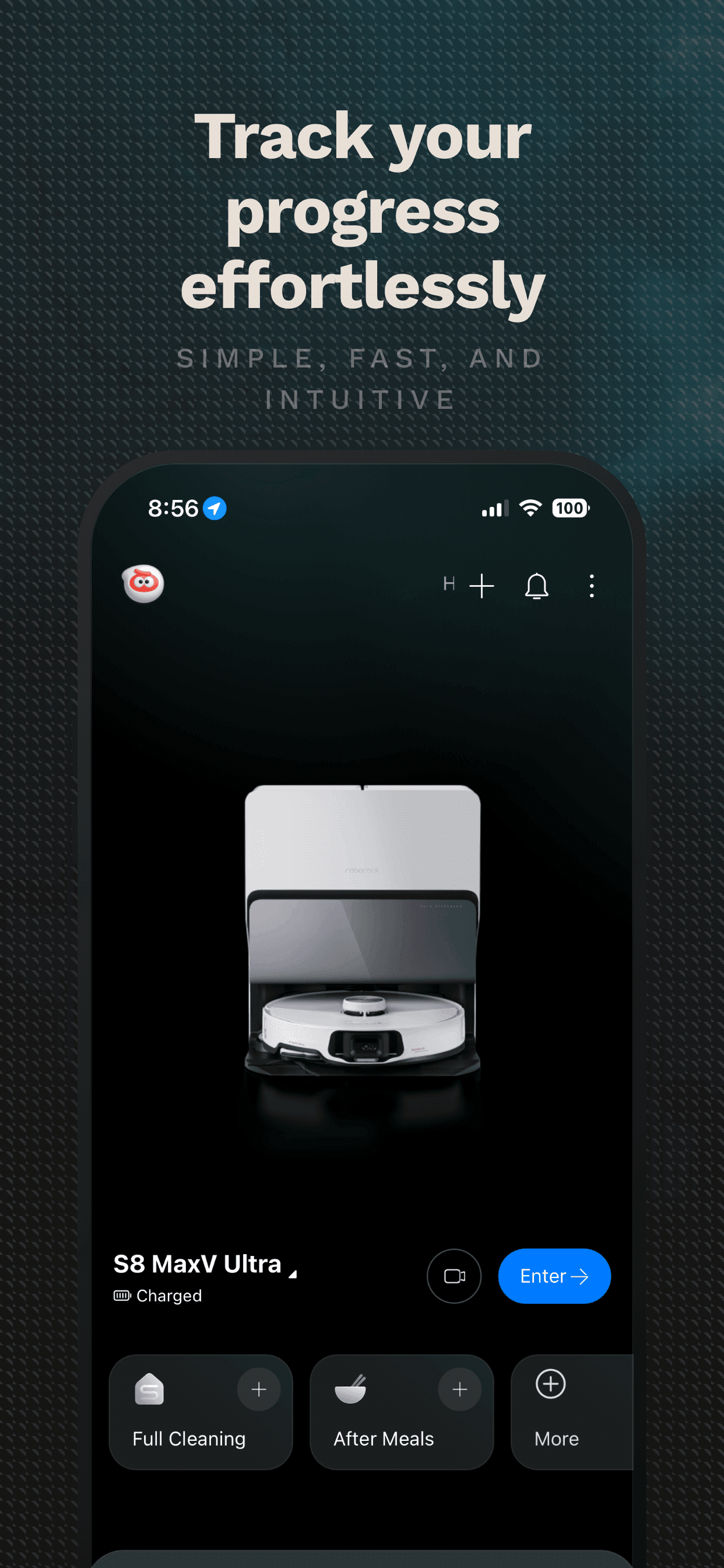
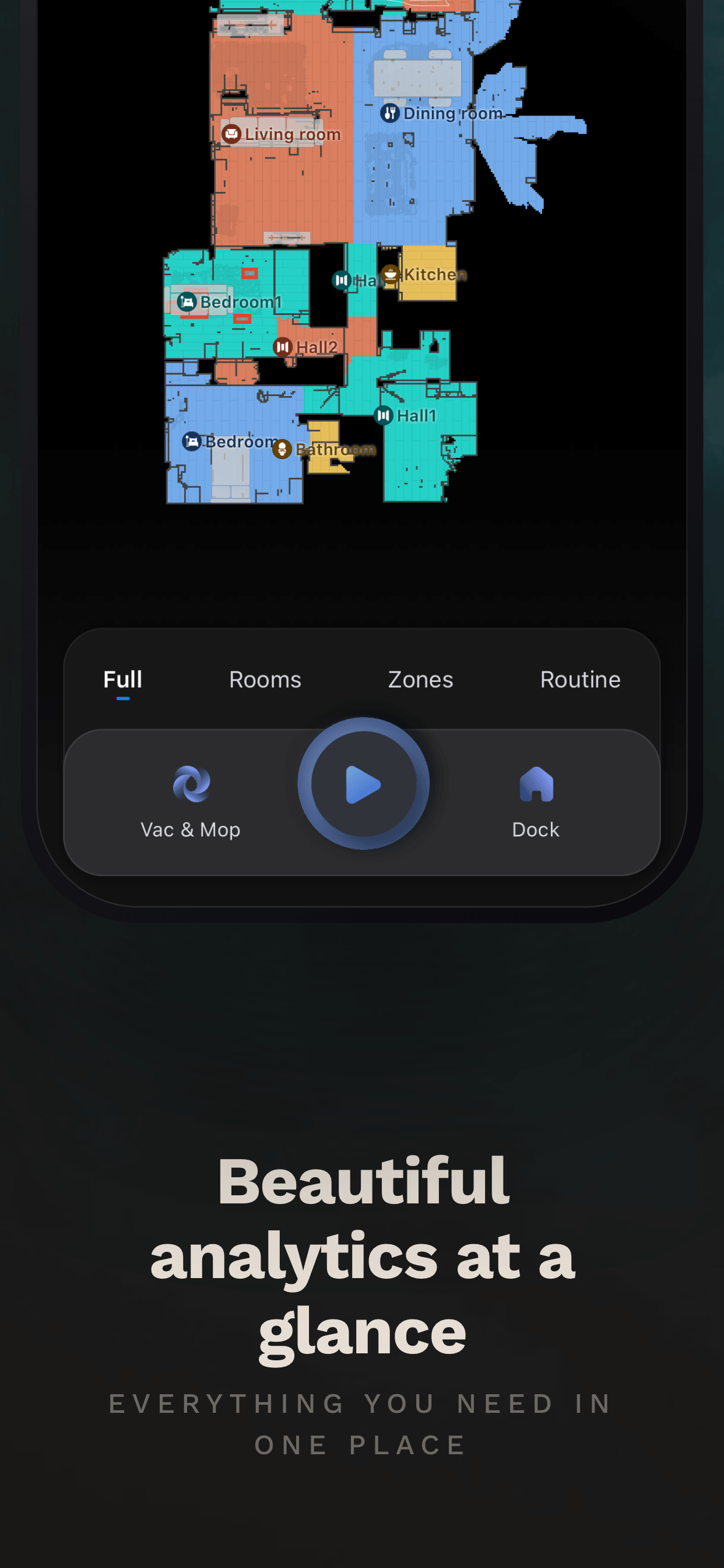
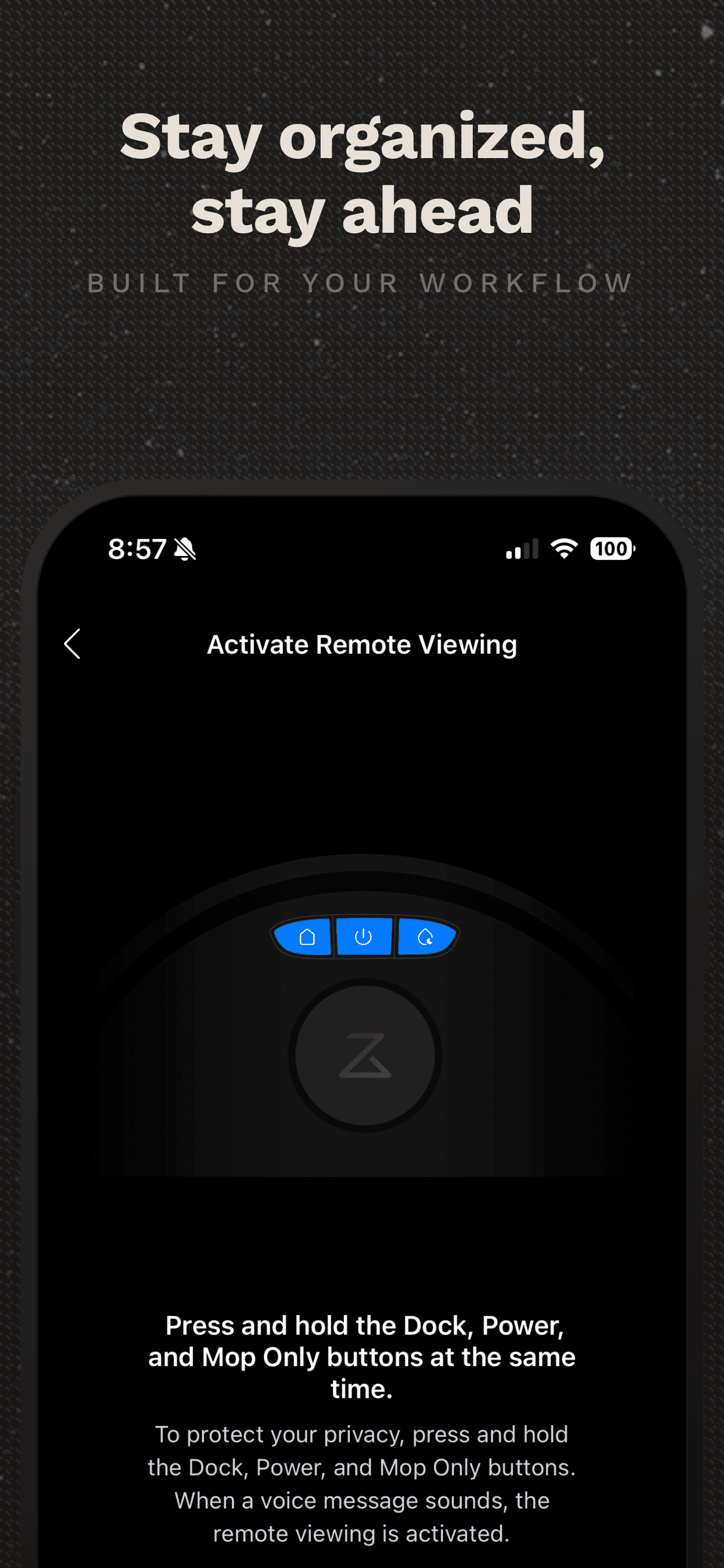
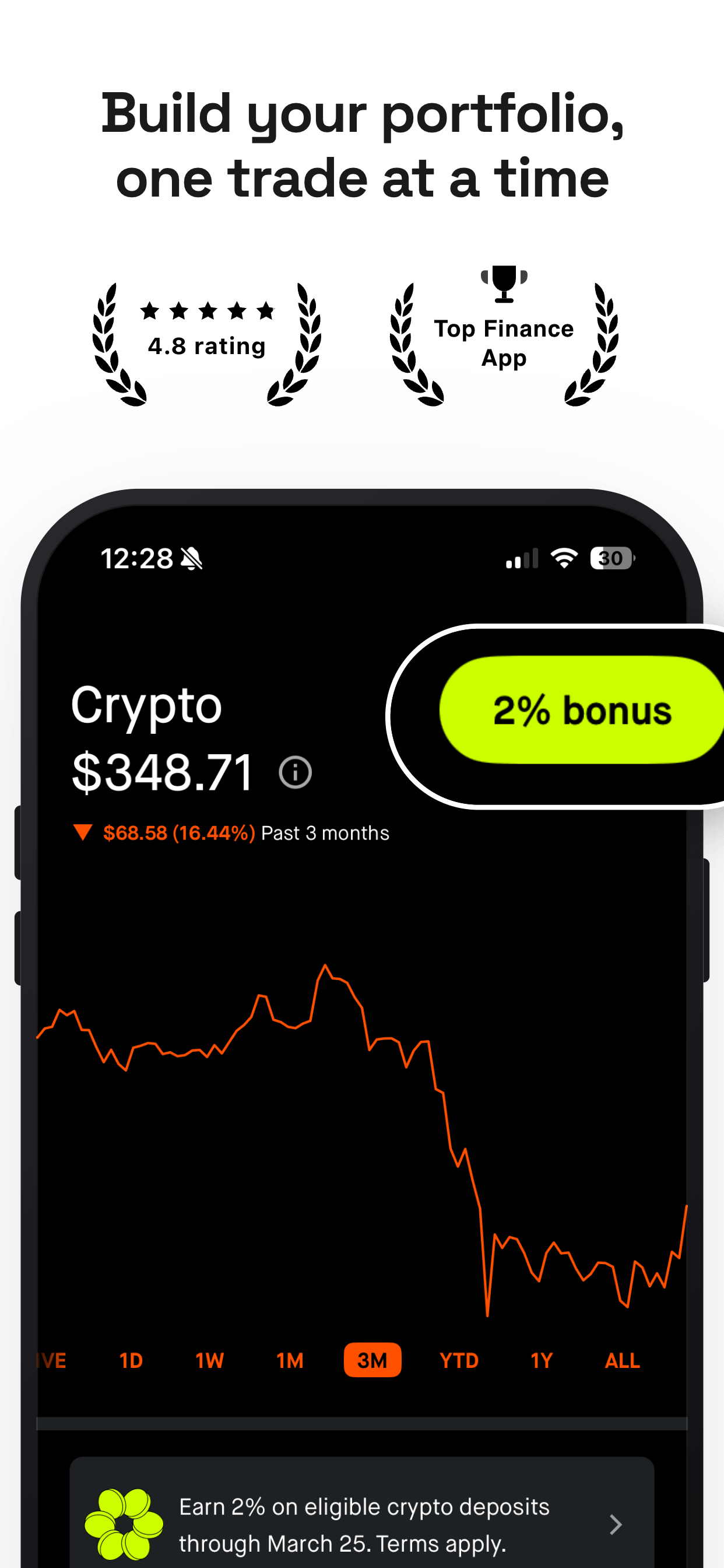
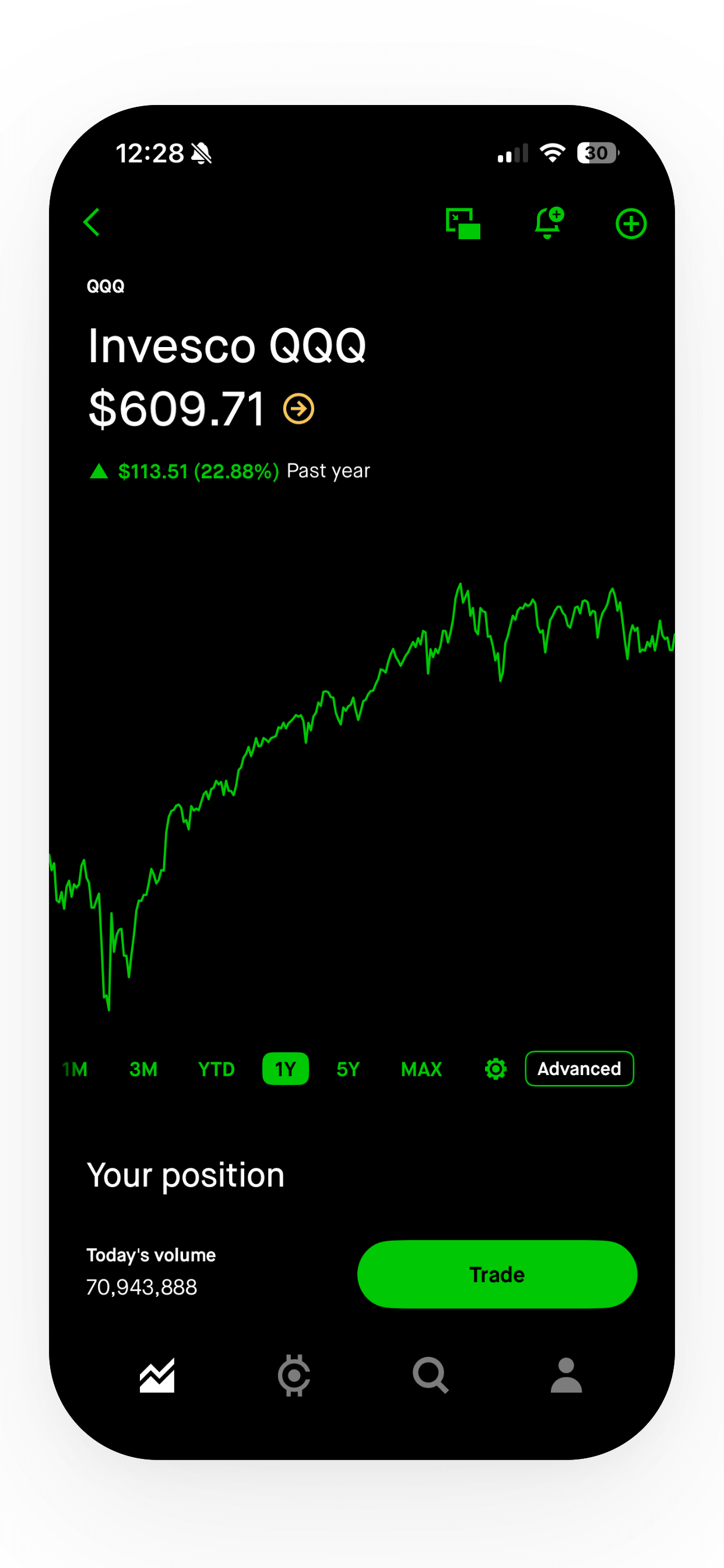
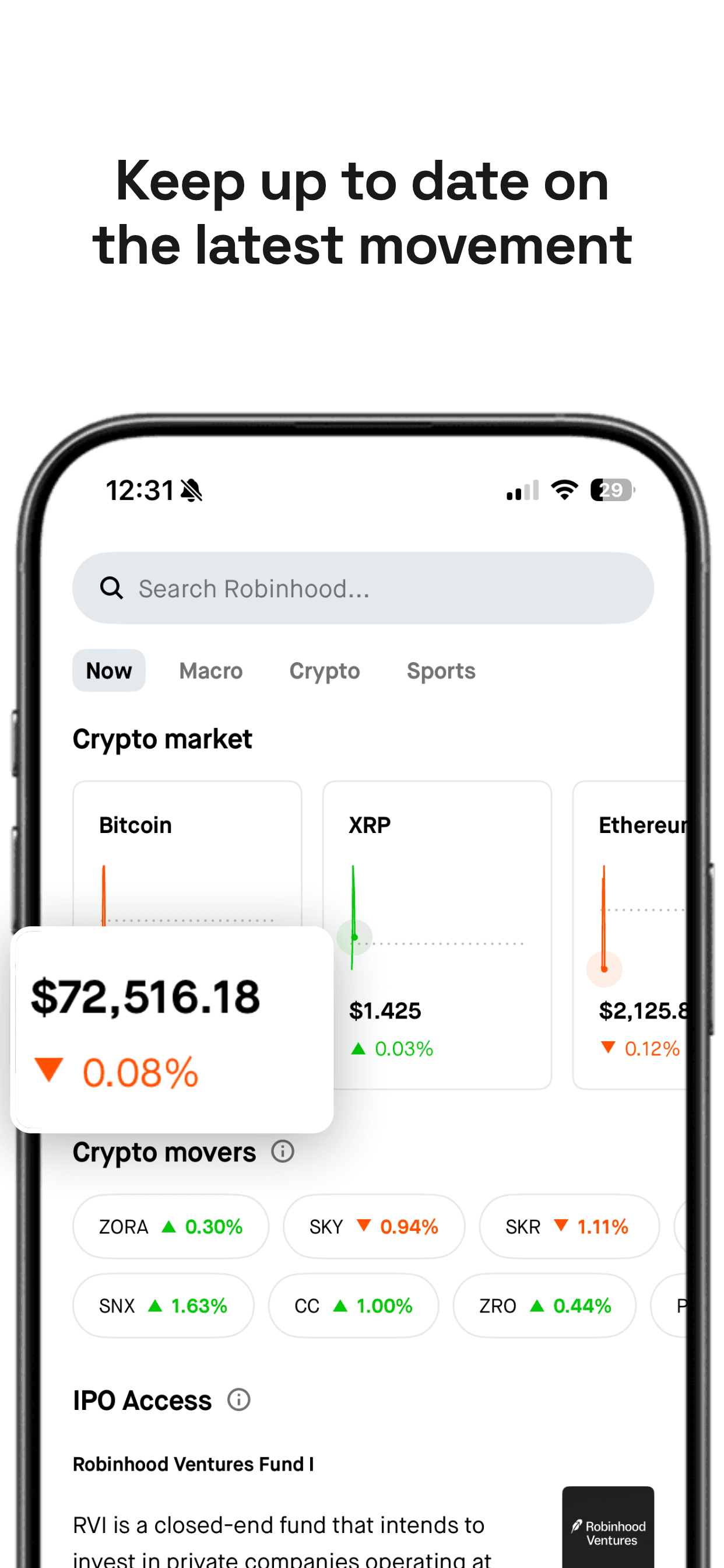
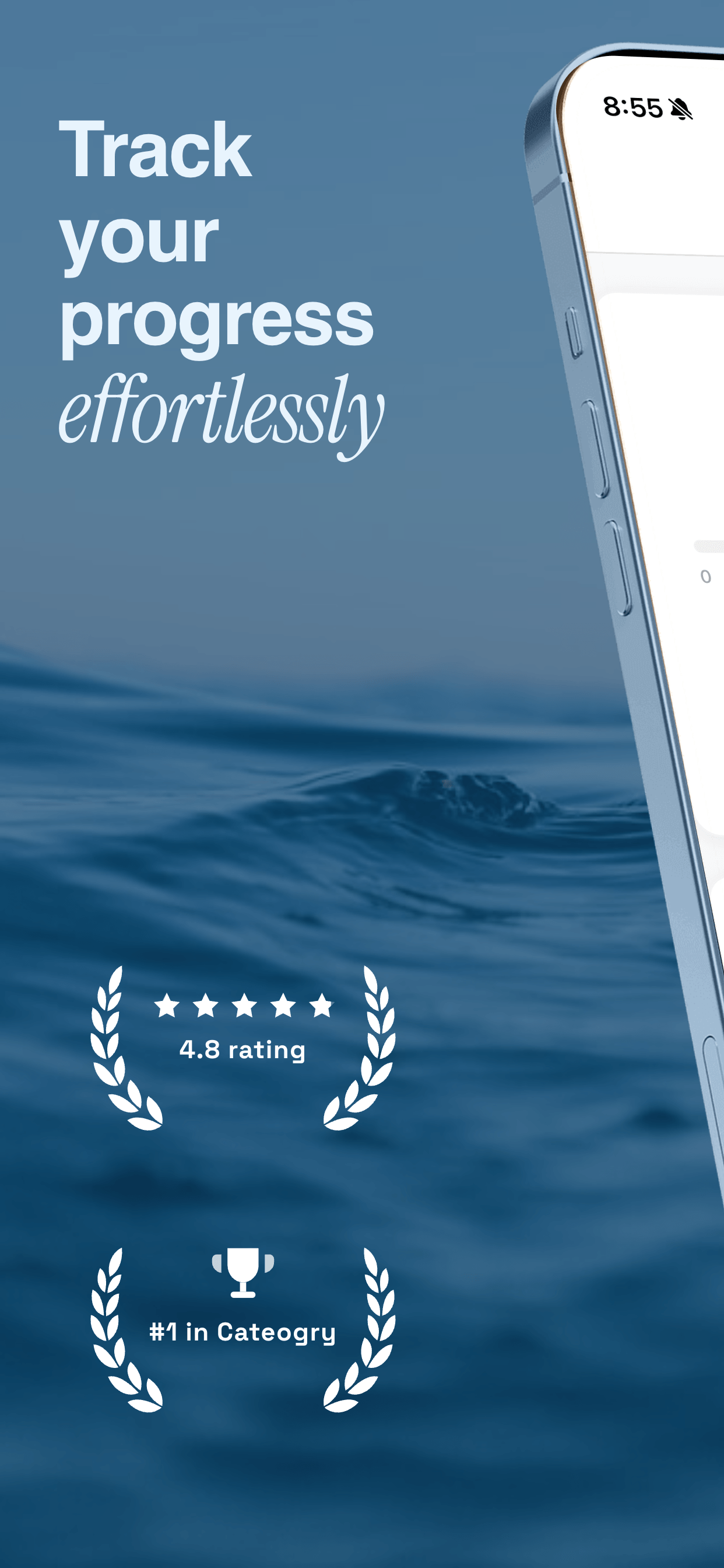
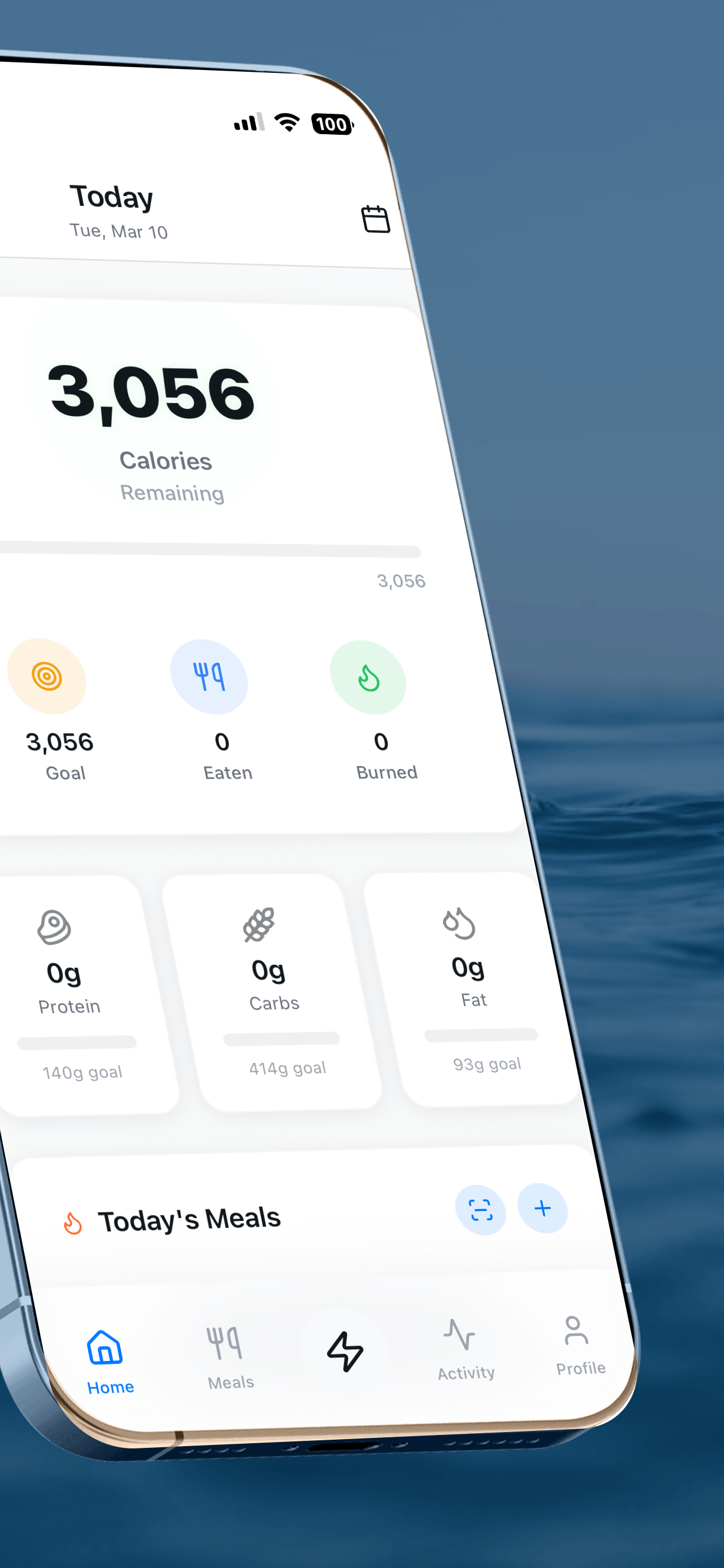
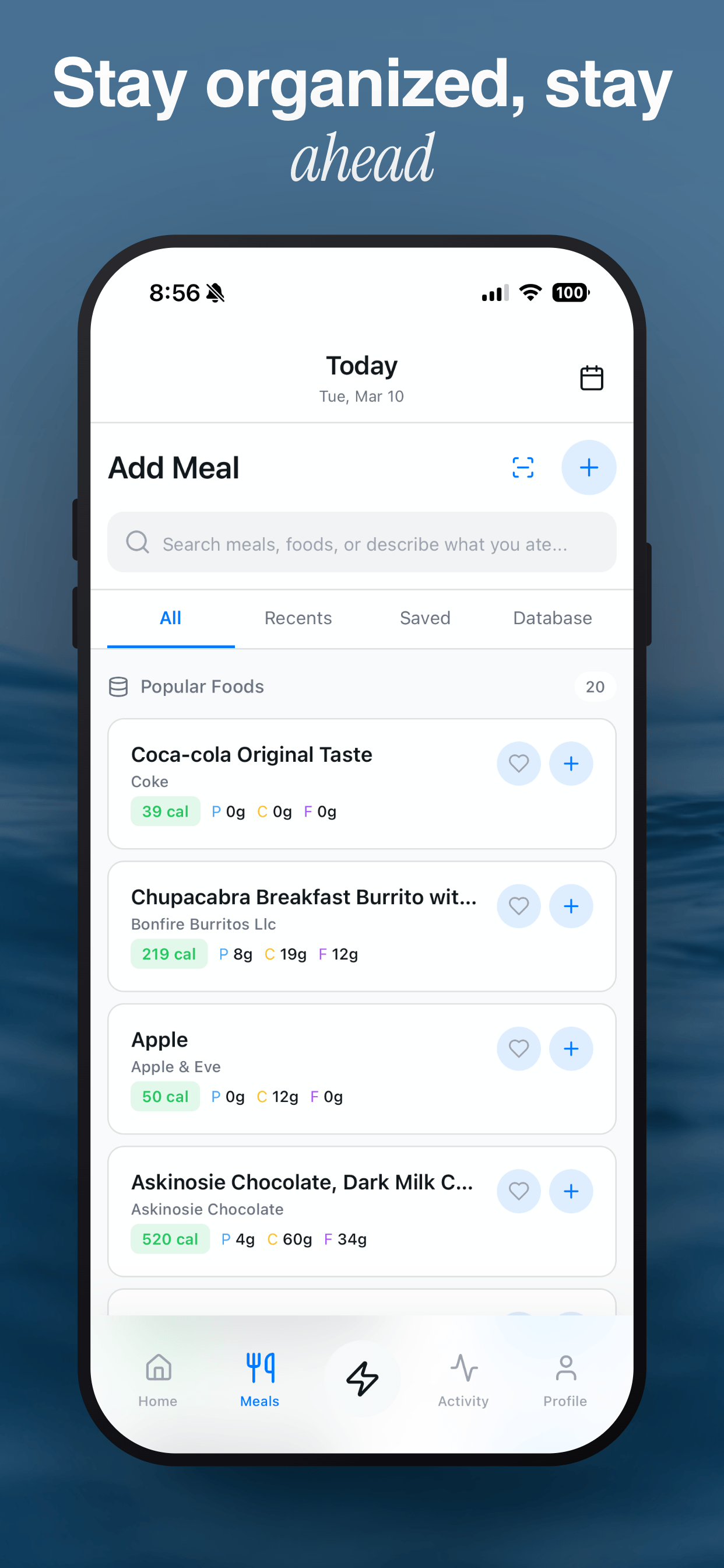
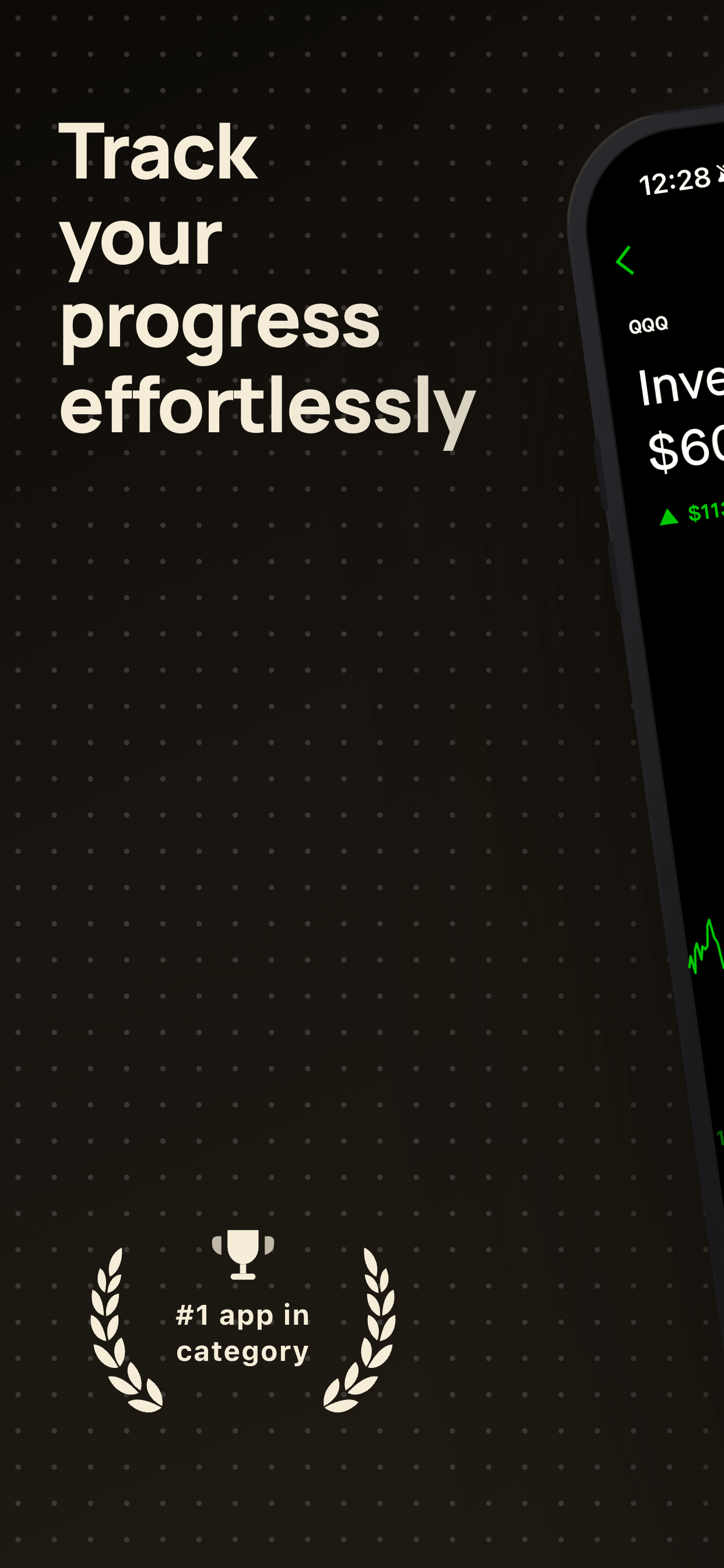
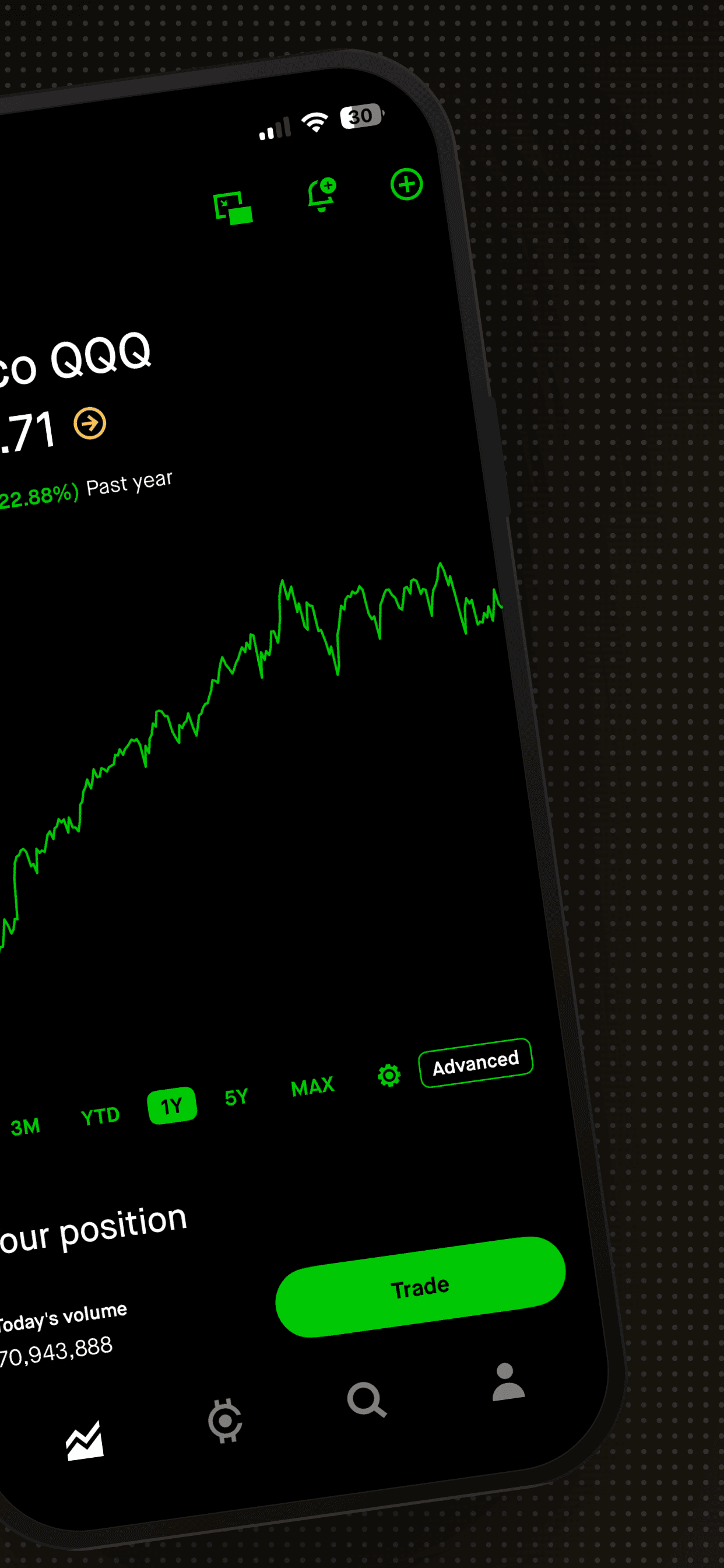
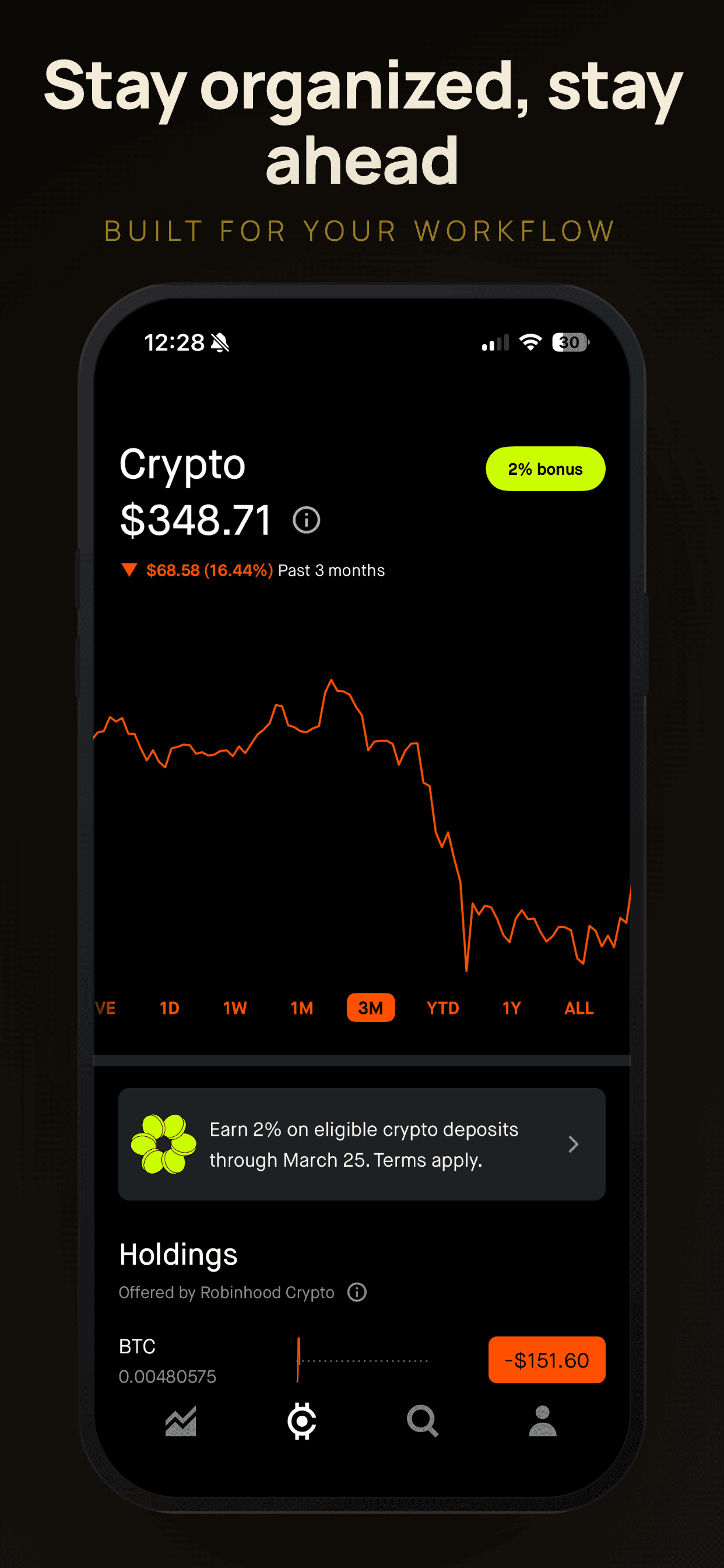
Here is the difference in action. The same four screenshots, the same template, the same app UI. Only the captions change:
Feature-focused (weak)
Benefit-focused (strong)
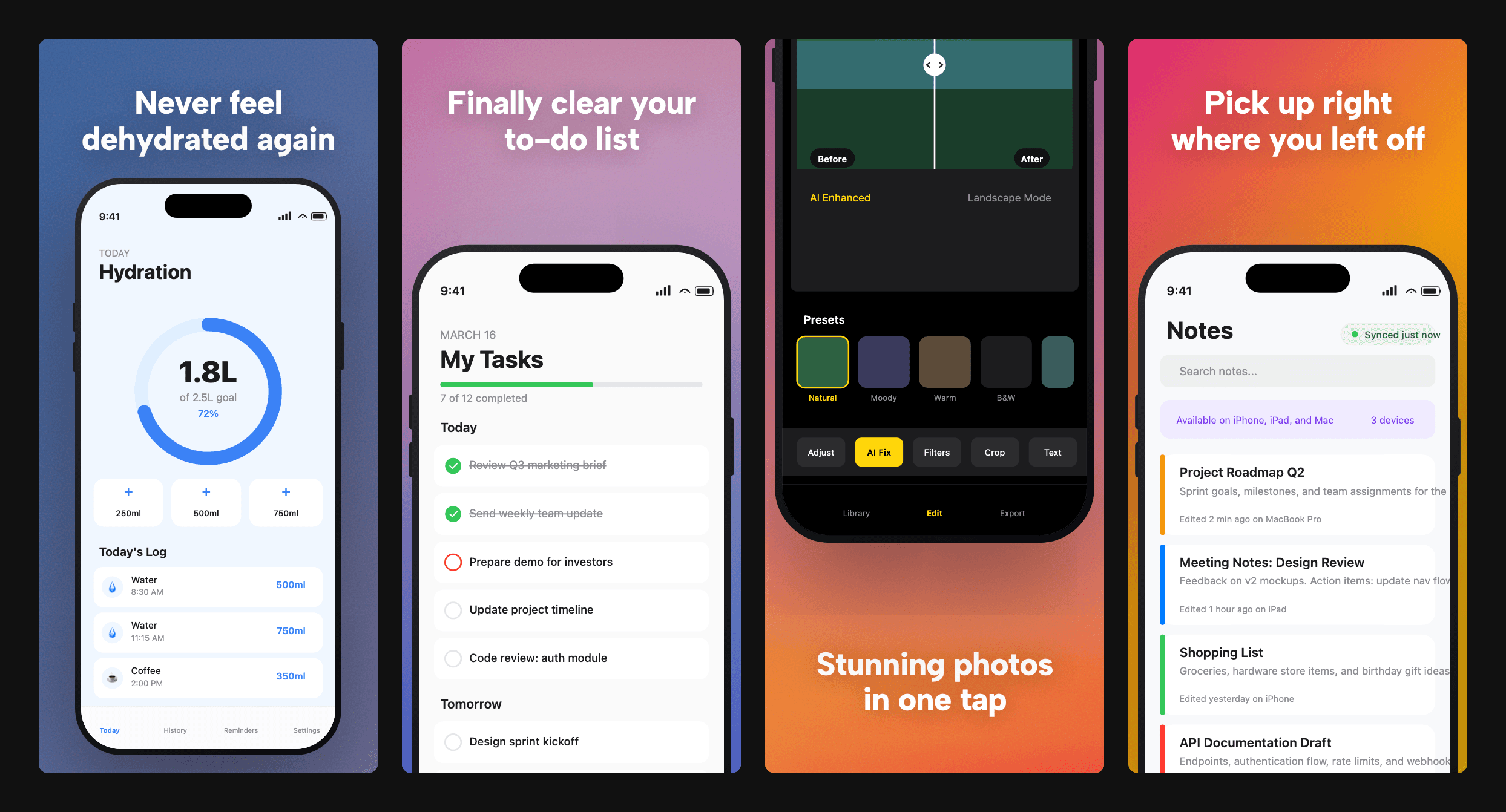
Same screenshots. Completely different impression. The top row describes what the app does. The bottom row tells you what changes in your life. Here is the breakdown:
Feature (weak)
"Track your water intake"
Benefit (strong)
"Never feel dehydrated again"
Feature (weak)
"Advanced task management"
Benefit (strong)
"Finally clear your to-do list"
Feature (weak)
"AI-powered photo editing"
Benefit (strong)
"Stunning photos in one tap"
Feature (weak)
"Syncs across all devices"
Benefit (strong)
"Pick up right where you left off"
Notice the pattern: every strong caption is about the user, not the app. The word "you" or "your" appears often. The weak versions talk about what the app does. The strong versions talk about what changes in the user's life.
Founder's take
“I have reviewed thousands of App Store listings and the pattern is clear: the apps that convert best use captions that describe what changes for the user, not what the app does. Instead of 'Advanced Task Management,' try 'Never forget a deadline again.'”
Scott Stewart, founder of Screenshot Otter
Keep it short: the word count sweet spot
Your main headline should be 2 to 6 words. That is not a rough guideline. It is a hard constraint imposed by physics: your caption will be viewed at thumbnail size on a 6-inch phone screen. Anything longer becomes a block of gray that no one reads.
If you need to say more, use a subtitle line below the headline. Subtitles can go up to about 8 to 12 words. They work well for adding a concrete detail: a number, a timeframe, or a specific use case. The hierarchy should be clear at a glance: big, bold headline on top and smaller, lighter subtitle below.
A good way to test readability is the "25% zoom test." Open your screenshot design at full resolution (1290 x 2796 px for iPhone), then zoom out to 25%. If you cannot read the headline instantly, increase the font size or cut words. At the standard resolution, a headline font of 56 to 72px and a subtitle font of 28 to 36px are safe starting points. Use medium or semibold weight. Thin fonts disappear at small sizes.
Sequence your captions like a story
Your screenshot set is not five disconnected slides. It is a narrative. Users swipe through them in order, and each caption should build on the last. Think of it as a pitch: you have about five sentences to convince someone your app is worth a download.
A proven sequence that works across most app categories:
Screenshot 1 (the hook): Your single biggest value proposition. This is the one that shows in search results. Make it count. "Your morning routine, simplified" or "Budgeting that actually works."
Screenshot 2 (the proof): Show the core experience. The caption should reinforce the promise. "See your whole week at a glance" or "Every expense, auto-categorized."
Screenshot 3 (the differentiator): What makes you different from the other ten apps that do something similar? "No account required" or "Works offline, everywhere."
Screenshot 4 (the depth): Show a secondary feature that adds value. "Share with your team in one tap" or "Custom reminders, your way."
Screenshot 5 (the close): Social proof, an award, or a final call to action. "Loved by 50,000 runners" or "Start free today."
Write all five (or more) captions in a list before you design anything. Read them out loud in sequence. If they sound like a coherent pitch for your app, you are on the right track. If any caption feels redundant or disconnected, cut it or rewrite it.
Five headline formulas that work
If you are staring at a blank text field, these templates can get you started. They are not magic, but they are patterns that consistently perform well in App Store screenshot captions.
1. The outcome promise
"[Desired result], effortlessly" or "[Desired result] in [timeframe]"
Examples: "Inbox zero, every day" / "Fluent in 3 months"
2. The "never again" negative
"Never [pain point] again"
Examples: "Never miss a deadline" / "Never lose a receipt again"
3. The "finally" resolution
"Finally, [thing that was hard is now easy]"
Examples: "Finally, meal planning that works" / "Finally, sleep through the night"
4. The specific number
"[Number] [things] in [timeframe or action]"
Examples: "500+ workouts, one app" / "30 languages, one tap"
5. The identity statement
"Built for [specific audience]"
Examples: "Built for busy parents" / "Designed for freelancers"
These formulas work because they are specific and outcome-oriented. Avoid vague adjectives like "powerful," "amazing," or "best." If every app in your category claims to be "the best," none of them are saying anything.
Using subtitles to add detail without clutter
A subtitle is the smaller line of text below your main headline. Not every template uses one, and not every screenshot needs one. But when used well, a subtitle can add specificity that the headline alone cannot carry.
Good subtitle use cases: adding a concrete number ("Over 10,000 recipes"), naming the mechanism ("Powered by Apple Health"), or specifying the context ("For teams of 1 to 100"). Bad subtitle use cases: restating the headline in different words, adding a second benefit that competes with the first, or cramming in a marketing tagline.
Keep subtitles to one line. If it wraps to a second line at thumbnail size, it will not be read. Use a lighter font weight or a muted color to create clear visual hierarchy between the headline and subtitle. The headline should grab attention. The subtitle should reward a closer look.
Localizing captions for international markets
If your app earns meaningful downloads from non-English markets, translating your captions is one of the highest-return moves you can make. A screenshot with native language text outperforms an English-only screenshot by a wide margin in markets like Japan, Germany, South Korea, and Brazil.
The good news: you do not need to redesign your entire screenshot set for each language. Keep the same layout, phone frames, and visual design. Just translate the text overlays. If you use a tool like Screenshot Otter, you can write captions with the AI Caption Assistant, auto-translate into 40+ languages, and export new screenshot sets without starting from scratch.
One important note: direct translation is not always enough. Some headlines that work well in English ("Never miss a beat") rely on idioms that do not translate cleanly. For your top three to five markets, have a native speaker review the translated captions to make sure they sound natural and carry the same intent. For more detail on this, see our full guide to ASO screenshot localization.
Seven caption mistakes that kill conversions
1. Writing a full sentence. Captions are headlines, not paragraphs. "Our app helps you organize your tasks and boost productivity" is too long. "Clear your to-do list" says the same thing in four words.
2. Using technical jargon. "Real-time WebSocket sync" means nothing to most users. "Always up to date" does. Write for the person downloading, not the person who built it.
3. Labeling the screen. "Dashboard," "Settings," and "Profile" are navigation labels, not captions. They tell the user what they are looking at but not why they should care.
4. Using the same caption structure on every slide. If all five of your captions start with a verb ("Track your..." / "Manage your..." / "Share your..."), the set feels repetitive and users tune out after slide two. Vary the structure.
5. Cramming two ideas into one caption. "Track expenses and plan budgets" is two value propositions fighting for space. Give each idea its own screenshot. One idea per slide is the rule.
6. Using light or thin fonts. What looks elegant on your 27-inch monitor becomes invisible on a phone. Use medium, semibold, or bold weights. Your caption needs to pop even at thumbnail size.
7. Forgetting to test on a real device. Always preview your finished screenshots on an actual phone. Open the App Store listing or simply view the images in your Photos app. If any caption is hard to read, go back and fix it before submission.
Testing your captions with Product Page Optimization
Apple offers a built-in A/B testing tool called Product Page Optimization (PPO). You can create up to three alternate screenshot sets and run them against your original. Apple splits your organic traffic between the variants and shows you which version converts better.
The most effective caption tests are simple: change the headline on screenshot one and keep everything else the same. This isolates the variable and gives you a clear signal. Running a test where you change captions, backgrounds, and phone frames all at once tells you that one version won, but not which change caused it.
Let your test run for at least seven days to account for day-of-week variation in traffic patterns. Apple recommends collecting a few thousand impressions per variant before drawing conclusions. When you have a winner, implement it and start your next test. Even a 10% improvement in conversion rate compounds over time. For a full walkthrough, see our guide to A/B testing App Store screenshots.
Putting it all together: a caption writing workflow
Here is the process that works well for most indie developers and small teams:
Step 1: Write down your app's three biggest benefits. Not features. Benefits. What changes in the user's life?
Step 2: Pick your strongest benefit for screenshot one. Try at least three different headline phrasings for it.
Step 3: Write captions for screenshots two through five using the sequencing framework (proof, differentiator, depth, close).
Step 4: Read all captions aloud in order. Do they form a coherent pitch? Cut or rewrite anything redundant.
Step 5: Apply the 25% zoom test. Open your finished screenshots at full resolution, zoom to 25%, and confirm every headline is readable.
Step 6: Preview on a real phone. Open the images in your Photos app and check readability at actual device size.
Step 7: Ship it, then set up a PPO test within a week. Your first guess is rarely your best version.
Related Guides
Write your captions with AI, then make them look great
Screenshot Otter's AI Caption Assistant generates conversion-focused captions. Choose from 40+ professionally designed templates, auto-translate to 40+ languages, export store-ready images. Free to start.
Try Screenshot Otter free →