
Guide
Best Fonts for App Store Screenshots: 12 Typefaces That Convert (2026)
Typography carries more weight in App Store screenshots than in almost any other marketing surface. The headline lives at thumbnail size, competes with a dozen other apps in search results, and has to communicate a benefit before someone scrolls past. The font you choose, and how you set it, decides whether your screenshot lands or disappears.

Scott Stewart · Apr 27, 2026
Quick answer
For most indie apps, pick a clean geometric sans like Inter, Manrope, or DM Sans for headlines, set at 60 to 90 pixels with weight 700 to 900 and tight letter-spacing. Pair with the same family at a lighter weight for subtitles. If you need more personality, swap the headline for a display serif like Playfair Display, Fraunces, or DM Serif Display. Avoid system fonts at their default weights, decorative scripts, and any font that cannot be read at thumbnail size.
Why Font Choice Matters More on the App Store
A typical website headline gets seen at 200 to 600 pixels wide on a desktop monitor. An App Store screenshot caption gets seen at three different sizes simultaneously: roughly 200 pixels wide as a thumbnail in search results, around 300 pixels wide in the gallery on a product page, and full size only when someone taps to expand. The font has to work at every size, and the smallest size carries the most weight, since most users never tap.
That changes the rules. Fonts with delicate strokes, narrow counters, or low x-height fall apart at thumbnail size. Fonts that look bold and confident at full size can look cramped and noisy when shrunk. The best App Store screenshot fonts share a set of traits: high x-height, open counters, sturdy stems, and clear letterforms that hold up under aggressive downscaling.
Beyond legibility, font choice signals category. A finance app using a display serif feels editorial and trustworthy. A fitness app using a condensed grotesque feels energetic. A productivity app using a clean geometric sans feels modern and neutral. The user reads the font before they read the words, and a mismatched typeface costs you trust before they have processed a single sentence.
12 Fonts That Work for App Store Screenshots
These twelve typefaces cover roughly 90 percent of the use cases you will encounter. All of them are free under the SIL Open Font License (or distributed through Google Fonts), so there is no licensing friction.
1. Inter
The default neutral sans for product marketing. Inter has excellent legibility at every size, a wide weight range, and optical sizing built in. Use weight 700 to 900 for headlines, 400 to 500 for subtitles. Best for SaaS, productivity, and finance apps where neutrality is a feature.
2. Manrope
A geometric sans with slightly more warmth and personality than Inter. The lowercase shapes feel rounded and friendly without losing rigor. Pairs well with darker, more premium template aesthetics. Use 700 to 800 for headlines.
3. DM Sans
A low-contrast geometric sans with a slightly tall x-height, optimized for both display and UI sizes. DM Sans feels modern but not trendy, which is exactly what most indie apps want. Use 700 for headlines and 500 for any secondary text.
4. Space Grotesk
A geometric sans with a slightly more technical feel. The letterforms have small idiosyncrasies (the "a," the "g," the wide "t") that give it more personality than Inter without crossing into novelty. Strong pick for developer tools, productivity apps, and anything that wants to feel modern but distinct.
5. Outfit
A geometric sans with a softer, more rounded feel. Reads warmer than Inter or DM Sans without becoming juvenile. Works particularly well on light backgrounds and in lifestyle categories like wellness, journaling, and consumer productivity.
6. Sora
A neo-grotesque designed specifically for software interfaces and display use. Sora has a slightly compressed feel and excellent weight contrast, which makes it a strong pick for dark, premium templates. Use 700 to 800 for headlines.
7. Playfair Display
A high-contrast transitional serif that feels editorial and premium. Excellent for finance, travel, and lifestyle apps where you want to project taste rather than tech. Pair with Inter or DM Sans for any UI labels. Use 700 weight, italic for subtitles only.
8. Fraunces
A flexible variable serif with optical sizing, multiple weights, and a slightly playful range of forms. Warmer than Playfair Display, less formal than DM Serif Display. Excellent for editorial, creative, and journaling apps. Use the SOFT and WONK axes thoughtfully if your tool supports them.
9. DM Serif Display
A high-contrast display serif designed specifically for large sizes. Lower contrast and higher x-height than Playfair, so it tends to read better at thumbnail size. Strong choice when you want a serif that still works as a thumbnail headline.
10. Oswald
A condensed sans inspired by classic American gothics. High x-height, narrow proportions, strong vertical rhythm. Works for fitness, sports, and energy-driven apps. Use weight 600 to 700, and avoid running it at body sizes since the condensed forms tighten too much.
11. Archivo Black
A single-weight grotesque designed for one purpose: maximum impact at display sizes. Works beautifully for bold, single- word or two-word headlines. Pair with a clean sans for any smaller text since Archivo Black only ships in one weight.
12. JetBrains Mono
A monospaced font designed for code, but extremely effective as a small uppercase eyebrow label or chip on a screenshot. Use it for category tags, version numbers, or labels (think "NEW IN 2.0" or "EARLY ACCESS"). Set at small sizes with wide letter-spacing for that technical-precision feel.
Font Pairing Rules
The cleanest approach is to use a single font family with weight contrast. A bold headline at weight 700 paired with the same family at weight 400 for a subtitle creates clear hierarchy without visual noise. This works for any of the geometric sans options above.
If you want more contrast, pair a display font for the headline with a clean sans for everything else. The two fonts should feel different in voice but compatible in proportion. Some pairings that consistently work well:
- Playfair Display + Inter: editorial headline, neutral UI labels. Premium feel for finance and lifestyle.
- Fraunces + DM Sans: warm serif paired with a clean modern sans. Feels human and considered.
- Archivo Black + Inter: high-impact headline, neutral support text. Works for bold, punchy templates.
- Oswald + Inter: condensed energy in the headline, neutral elsewhere. Strong for fitness and sports.
- DM Serif Display + JetBrains Mono: serif headline with a tiny mono label. Editorial-meets- technical, popular in developer tools and reading apps.
Avoid pairing two fonts that occupy the same visual register. Inter and DM Sans look almost identical in headline contexts, so using both adds complexity without contrast. The rule of thumb: each font in a pair should have a distinct job, and the two jobs should look meaningfully different.
Sizing, Weight, and Letter-Spacing
Screenshot caption sizing depends on the device dimensions you are exporting. For a 1290 x 2796 iPhone screenshot, here are the targets that work consistently:
Headline (primary caption)
60 to 90 pixels, weight 700 to 900, letter-spacing minus 1 to minus 3 pixels. Use the heaviest weight that does not feel cramped. Tight letter-spacing reads as confident at large sizes; do not apply this to body copy.
Subtitle (secondary line)
20 to 30 pixels, weight 300 to 500, letter-spacing 0 to plus 1 pixel. Lighter weight creates contrast against the headline. Keep subtitles to one short line, two lines max.
Eyebrow / chip / label
10 to 14 pixels, weight 500 to 600, letter-spacing plus 2 to plus 6 pixels, ALL CAPS. Wide letter-spacing on small all- caps text reads as polished and editorial. Use sparingly; one chip per screenshot is plenty.
Body (rare in screenshots)
16 to 22 pixels, weight 400, default letter-spacing. Most screenshots should not contain body copy; if you find yourself writing a paragraph, you have already lost the thumbnail battle.
Adjusting for Light vs Dark Backgrounds
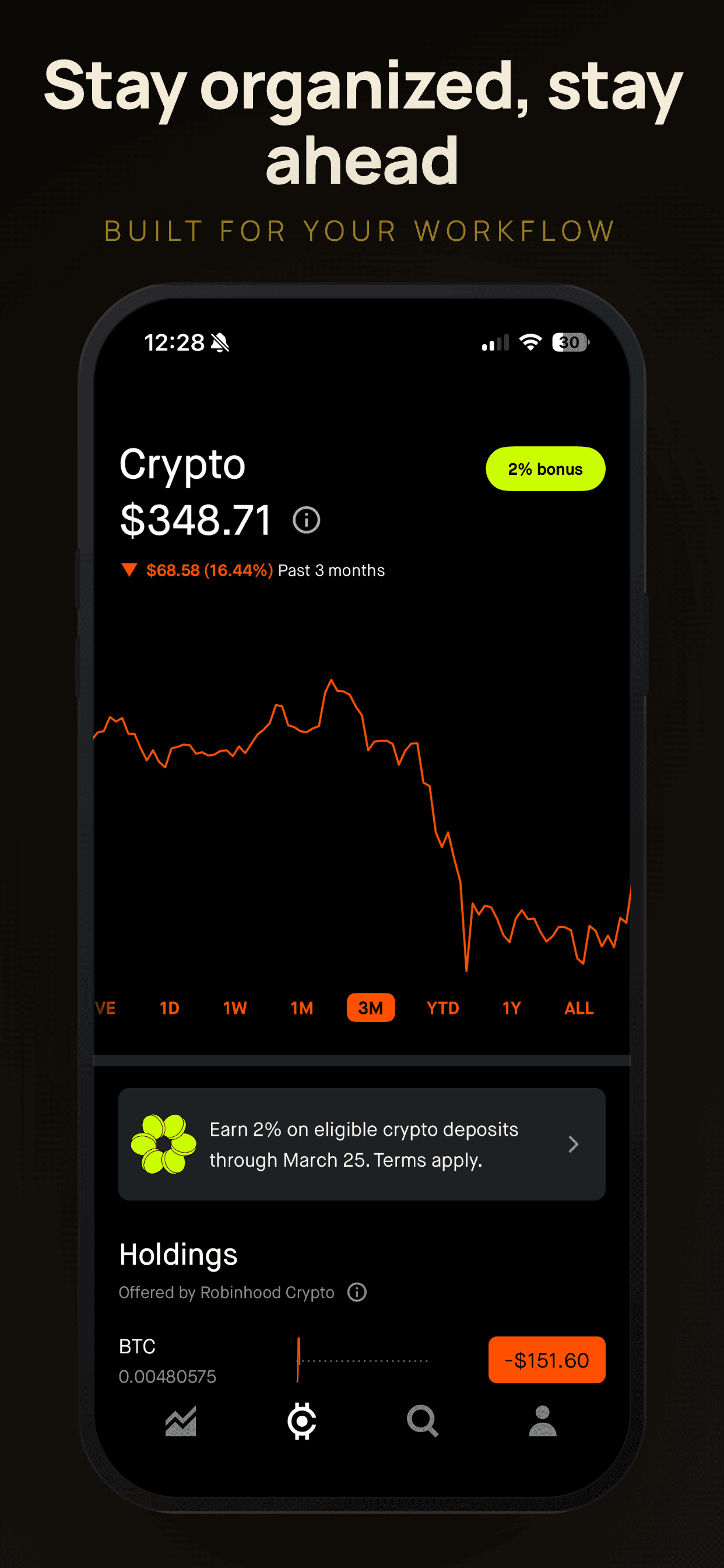
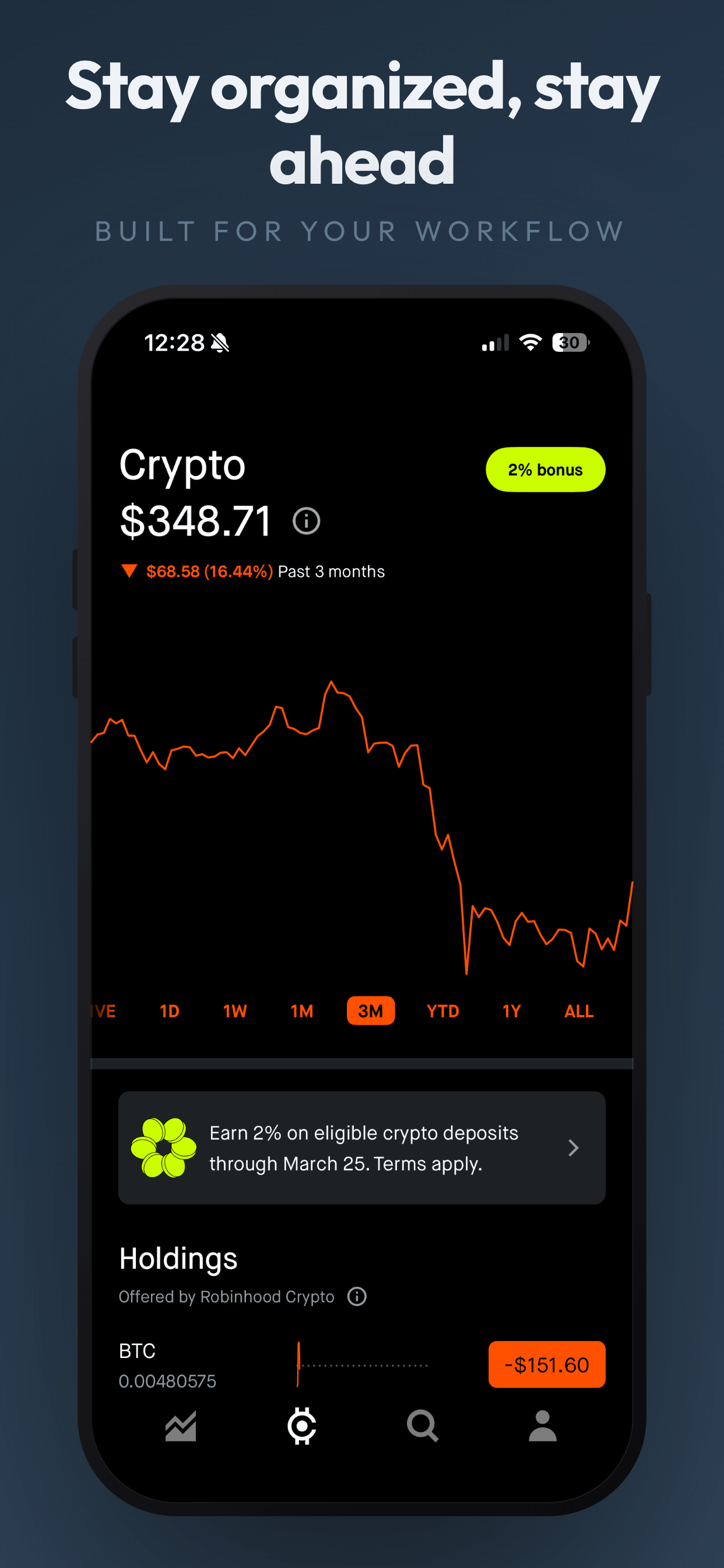
On dark backgrounds, type appears slightly bolder than it actually is. A weight 700 headline on a dark gradient often reads as if it were 800. The fix: drop one weight step on dark templates. Use 700 instead of 800, or 600 instead of 700. This is the same optical correction Apple applies in SF Pro and that variable fonts like Inter handle automatically.
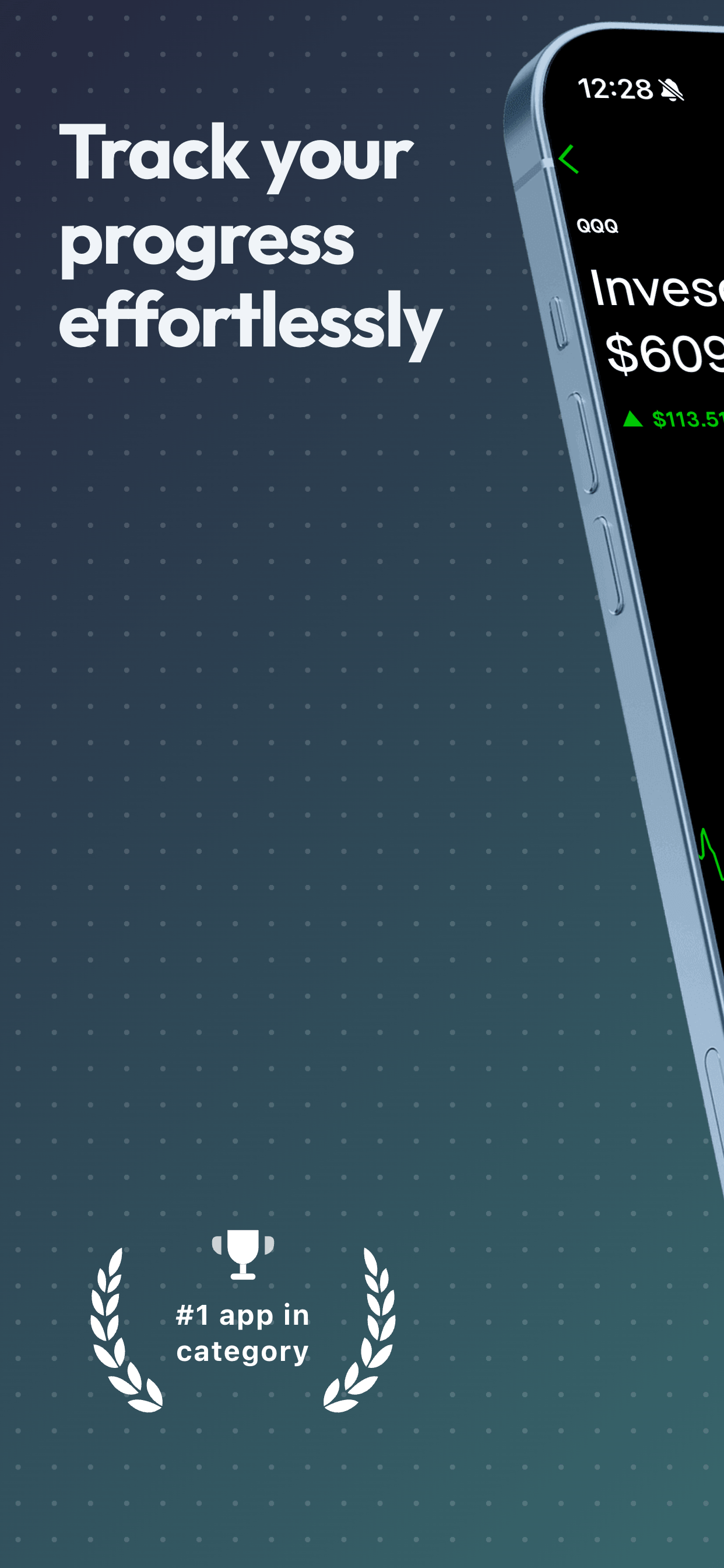
On light backgrounds, the opposite is true. A weight 700 headline can look thin and undercooked on cream or off-white. Bump up to 800 or 900 for confident impact. Display fonts like Archivo Black are designed for this exact use case and need no adjustment.
Color also matters. Pure black on pure white feels harsh in screenshots; soften to a deep gray (around #1a1a1a) for warmth. Pure white on pure black is fine for high-contrast premium templates, but a slightly off-white (#f5f5f5) reads as more refined on most dark backgrounds.
Common Typography Mistakes
Using your in-product UI font as a headline
SF Pro Display, Roboto, and other system UI fonts are optimized for legibility at 13 to 17 pixels, not for impact at 80 pixels. They look weak at headline sizes because they were never designed for that job. Switch to a display sans or a serif for marketing surfaces.
Setting headlines too small
When in doubt, go bigger. The most common typography mistake on App Store screenshots is a headline that feels fine at full size but disappears at thumbnail. If you can comfortably fit two lines of headline plus a subtitle plus body copy, your headline is too small.
Mixing three or more fonts
Three fonts in a single screenshot almost always looks amateurish. The exception is intentional: a chip in JetBrains Mono, a headline in DM Serif Display, and labels in Inter can work if each font has a clearly different job. Otherwise, stick to one or two.
Decorative or script fonts
Handwriting fonts, brush scripts, and decorative display faces almost never work in App Store screenshots. They look homemade at thumbnail size and undermine trust. Save them for greeting cards.
Long lines of headline text
Screenshot headlines work best at 4 to 8 words, broken into two short lines. Anything longer becomes hard to scan and loses its punch. If the headline does not fit, the headline is too long, not the type too big.
Inconsistent font sizes across slides
Screenshots in a sequence should feel like a unified set. If slide 1 uses a 90-pixel headline and slide 2 uses a 60- pixel headline, the gallery feels uneven and unprofessional. Lock your sizes per role (headline, subtitle, chip) and apply them across every slide unless you have a deliberate reason to break the rule.
Font Choices by App Category
The same font can read very differently depending on category context. Here is how the twelve fonts above tend to map onto common app types.
Productivity and developer tools
Inter, DM Sans, Space Grotesk, or Manrope. Optionally pair with JetBrains Mono for a chip or version label. The aesthetic is modern, technical, and confident without being flashy.
Finance and investing
Playfair Display or DM Serif Display for headlines, paired with Inter for everything else. The serif signals taste and trust. Avoid condensed or novelty fonts here; finance users read typography as a trust signal.
Health and fitness
Oswald for an energetic, condensed feel, or DM Sans for a cleaner approach. Archivo Black works well for bold, punchy headlines. The aesthetic is high-energy and confident.
Creative and editorial
Fraunces, Playfair Display, or DM Serif Display. The serif is the point. Pair with Inter or DM Sans for any UI labels. Works for journaling, reading, photo editing, and any app with a craft sensibility.
Lifestyle and consumer
Outfit, Manrope, or Fraunces. The aesthetic is warm, approachable, slightly editorial without being cold. Avoid the neutral grotesques like Inter here; they tend to read too corporate.
Games
Games are the rare category where genre-specific display fonts are appropriate. The twelve fonts above still work as defaults, but a horror game may use a custom slab serif, a retro arcade title may use a pixel font, and a casual puzzle game may use a rounded display sans. Match the font to the genre, not to App Store conventions.
Quick Typography Audit
Before you export your final screenshots, run through these five checks.
Thumbnail test: Shrink your screenshot to 200 pixels wide. Can you still read the headline? If not, increase the font size or shorten the copy.
Weight test: Compare your headline weight against three competing apps in your category. Is your headline at least as bold as theirs, or is it getting visually outweighed?
Pairing test: How many fonts are on the slide? If three or more, remove one. If two, confirm they have clearly different jobs.
Consistency test: Compare your headlines across all six to ten slides. Are the font sizes, weights, and letter-spacing values identical? If not, lock them in.
Voice test: Does the font match your category? A finance app in Oswald feels off; a fitness app in Playfair Display feels off. Trust the gut check.
Frequently Asked Questions
- What font size should I use for App Store screenshot captions?
- Aim for 60 to 90 pixels at a typical iPhone screenshot resolution of around 1290x2796. Headlines need to be readable at thumbnail size in App Store search results, where your screenshot might display at roughly 200 pixels wide. If you can read the caption when you shrink the screenshot to thumbnail in your design tool, the size is right.
- Are Google Fonts free to use in App Store screenshots?
- Yes. All fonts on Google Fonts are licensed for commercial use, including marketing assets like App Store screenshots, websites, and print. You can use them without attribution or payment. The same applies to fonts marked as open source on services like Fontshare and the SIL Open Font License catalog.
- Should I match my app's in-product font in my screenshots?
- Not necessarily. Your in-product font is optimized for UI legibility at small sizes. Screenshot captions are display type, optimized for impact at large sizes. Many apps use a different display font for marketing while keeping their UI font in the product itself. Both approaches are valid, but the wrong move is forcing a UI font into a giant headline where it looks weak.
- How many fonts should I use in one screenshot?
- One or two. A single font with weight contrast (a bold headline plus a lighter subtitle) is the cleanest approach. If you mix two fonts, pair a display font for the headline with a clean sans for any subtitle or label. Three or more fonts in a single screenshot almost always looks chaotic.
- Do I need to license a font for App Store screenshots?
- Only if the font's license requires it. Many premium foundries sell desktop licenses that cover marketing assets. Open source fonts (most Google Fonts and Fontshare fonts) require no license. System fonts like SF Pro from Apple have specific use restrictions: SF Pro is licensed for designs intended for Apple platforms, which includes App Store screenshots, but read Apple's font usage agreement before using it elsewhere.
Related Guides
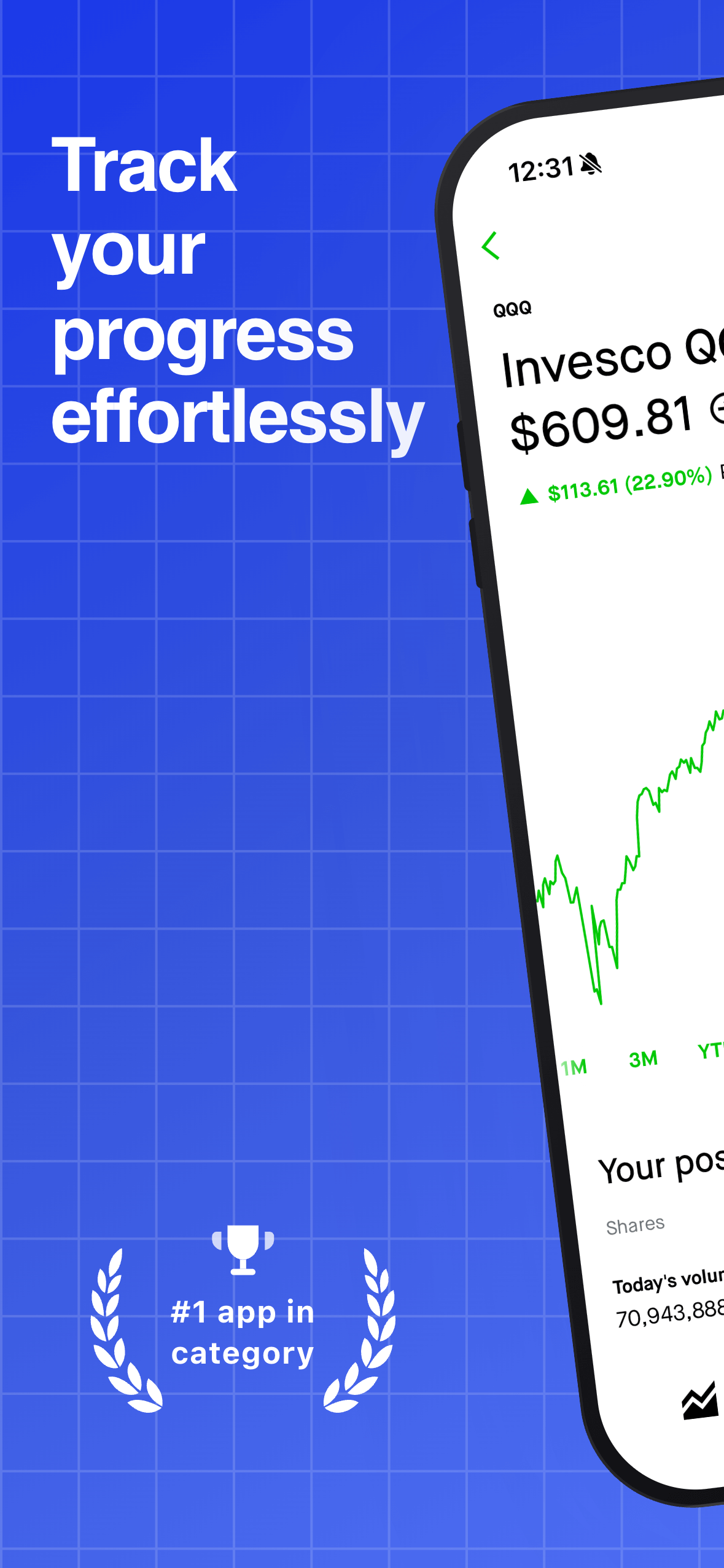
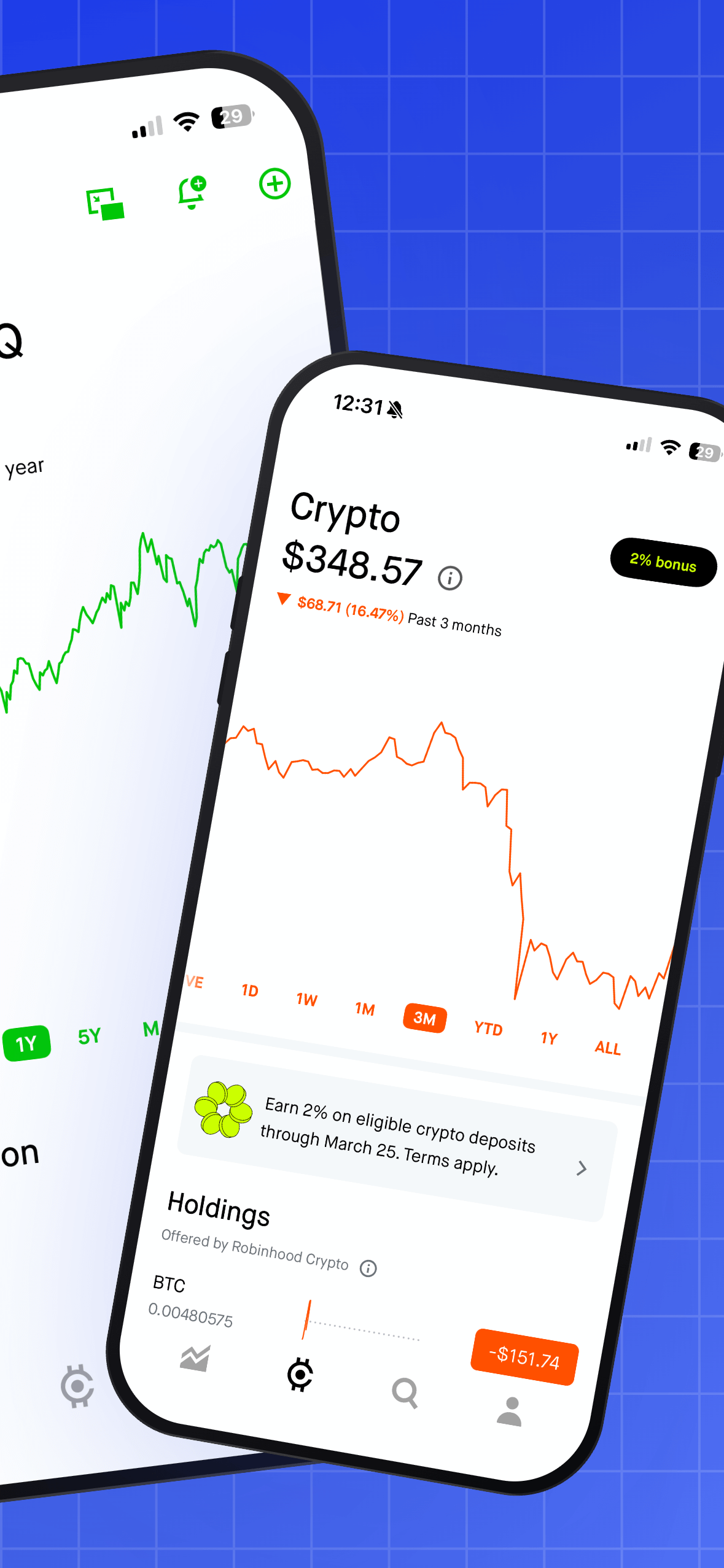
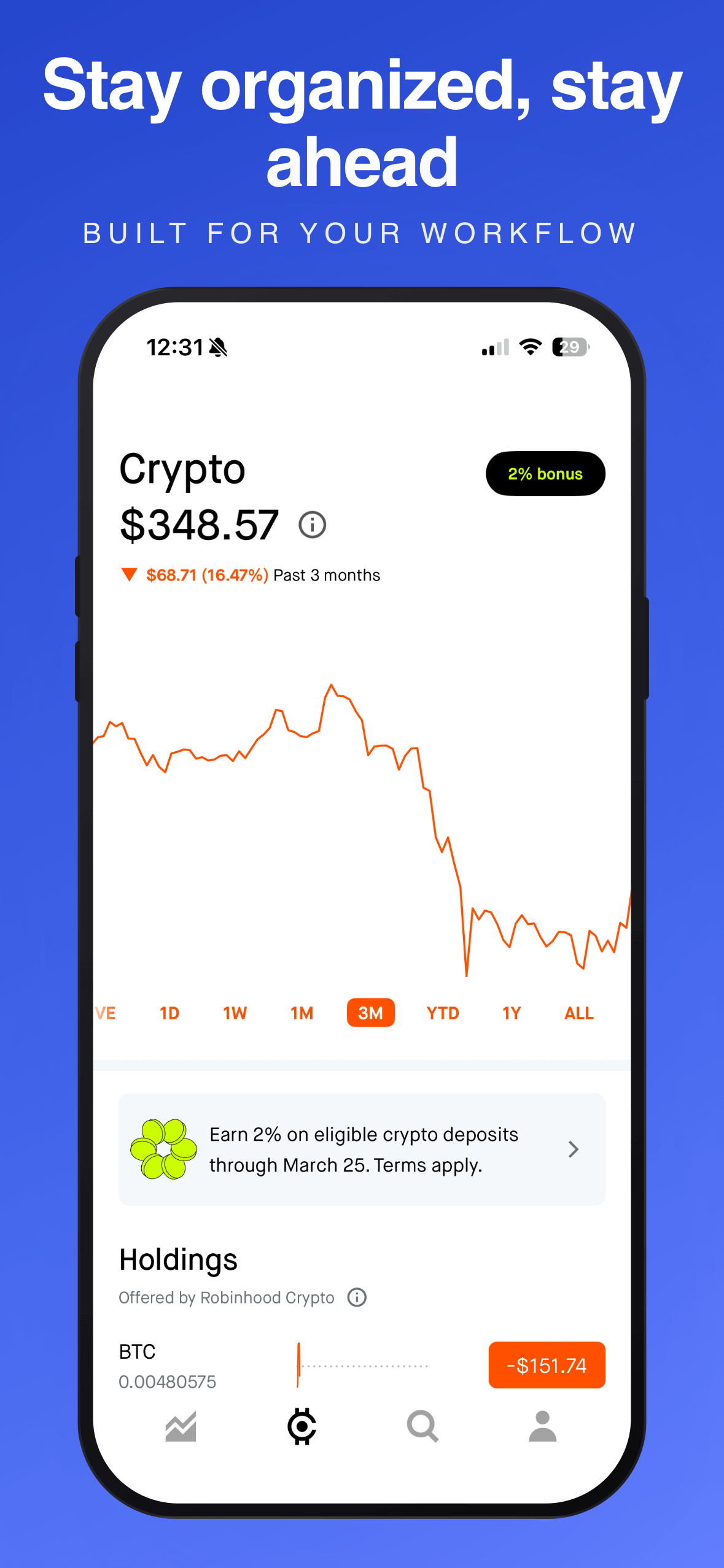
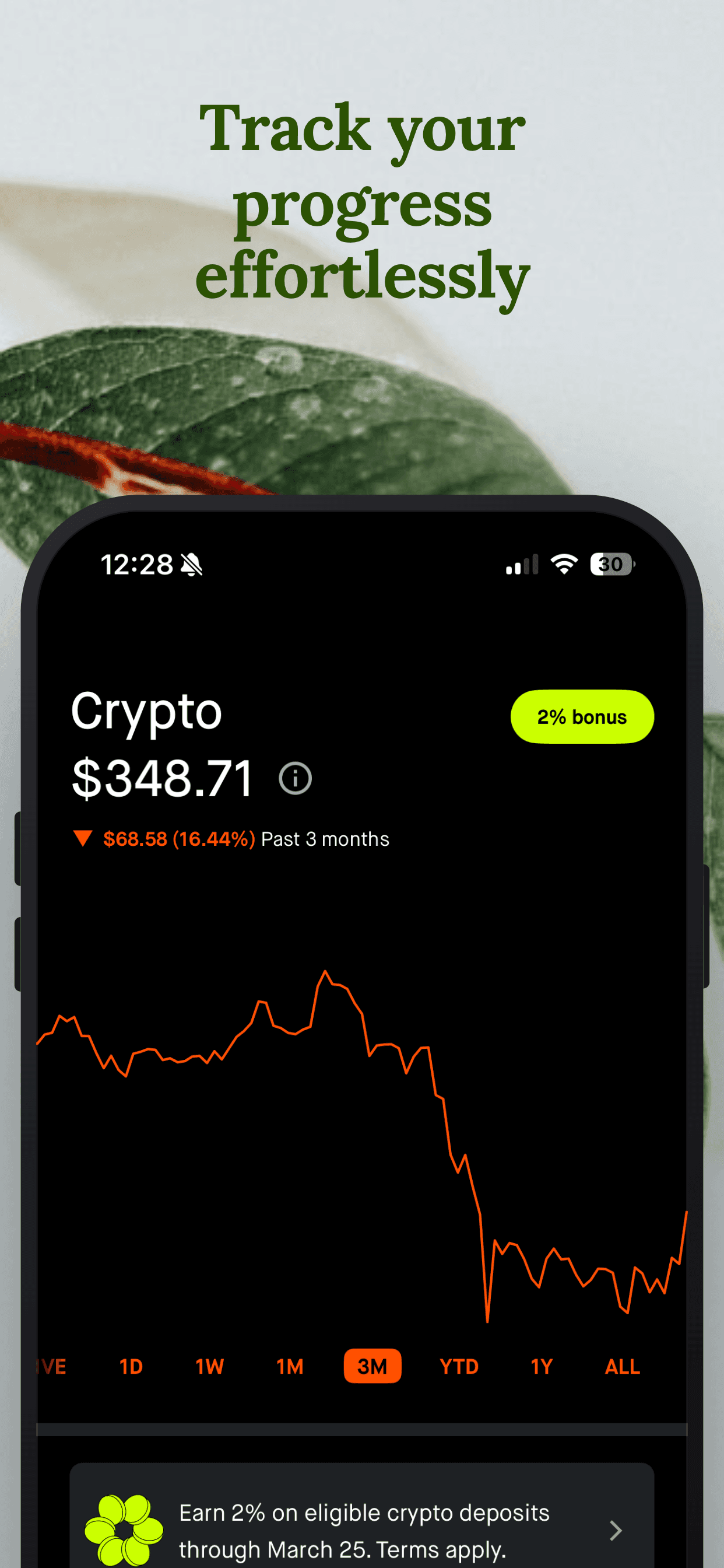
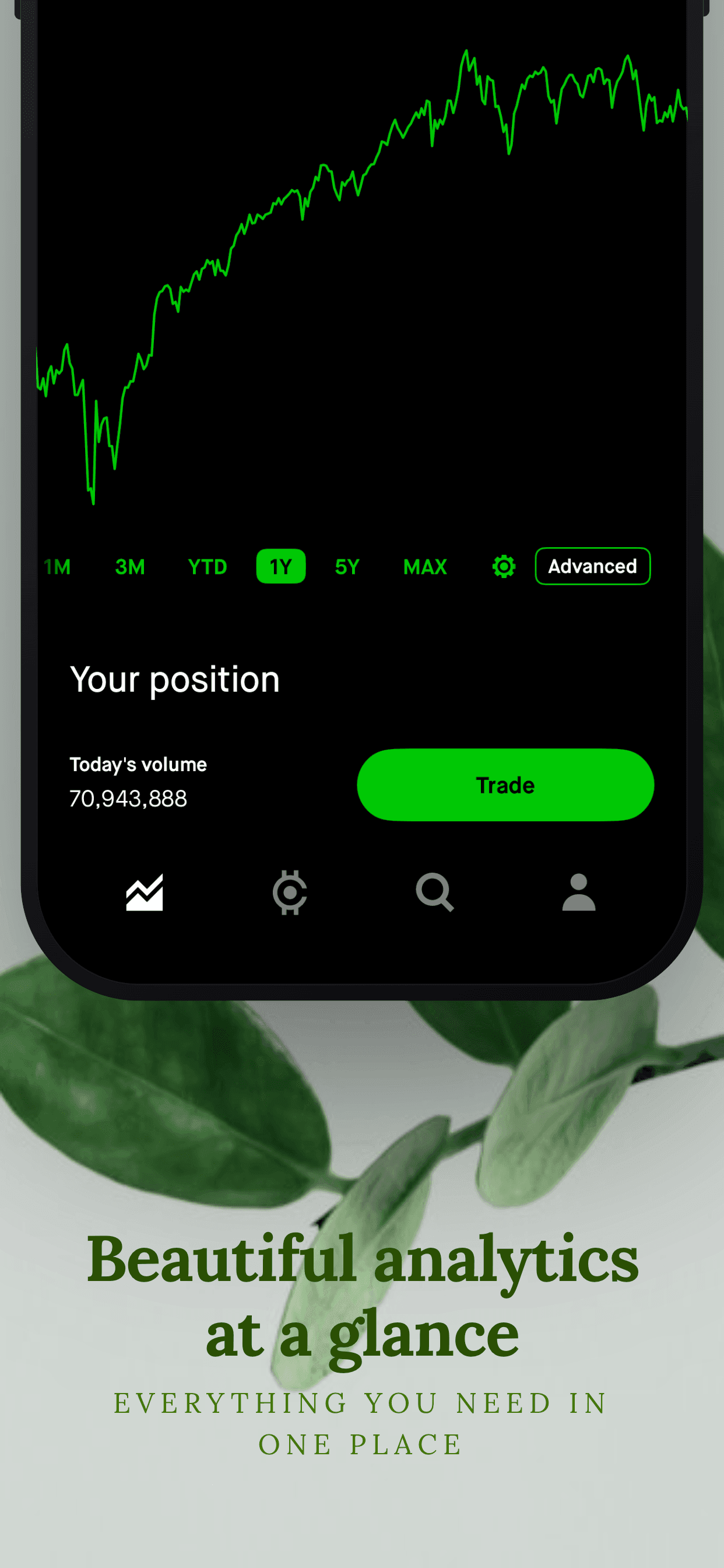
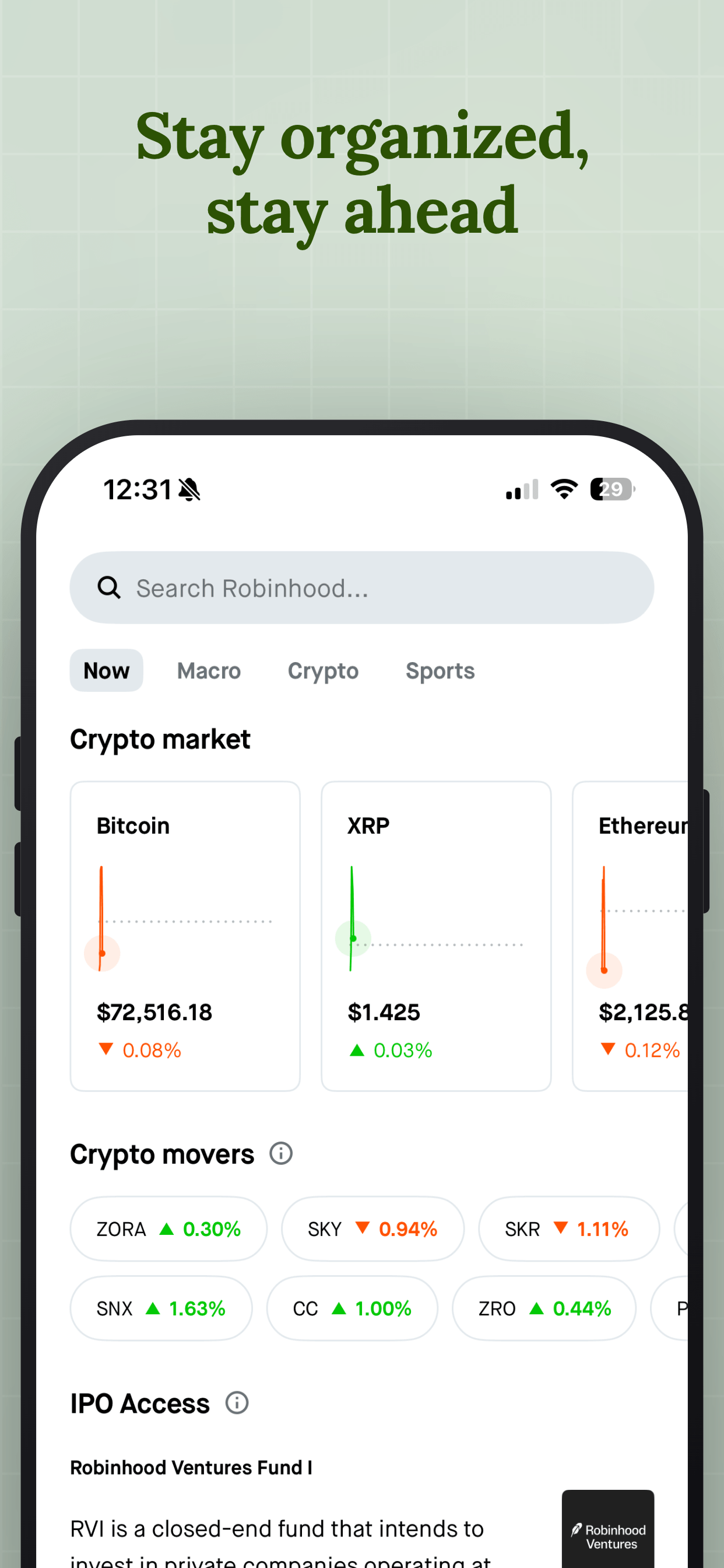
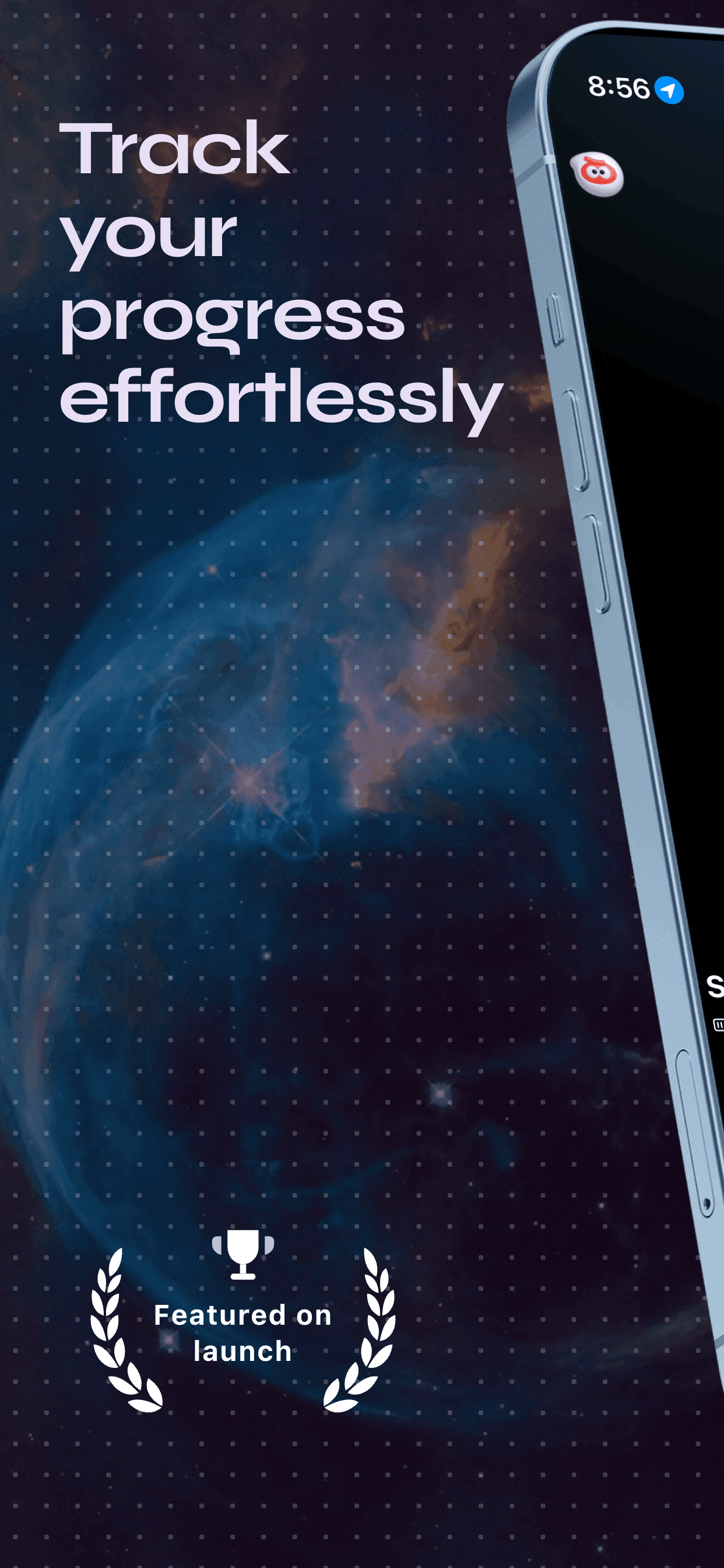
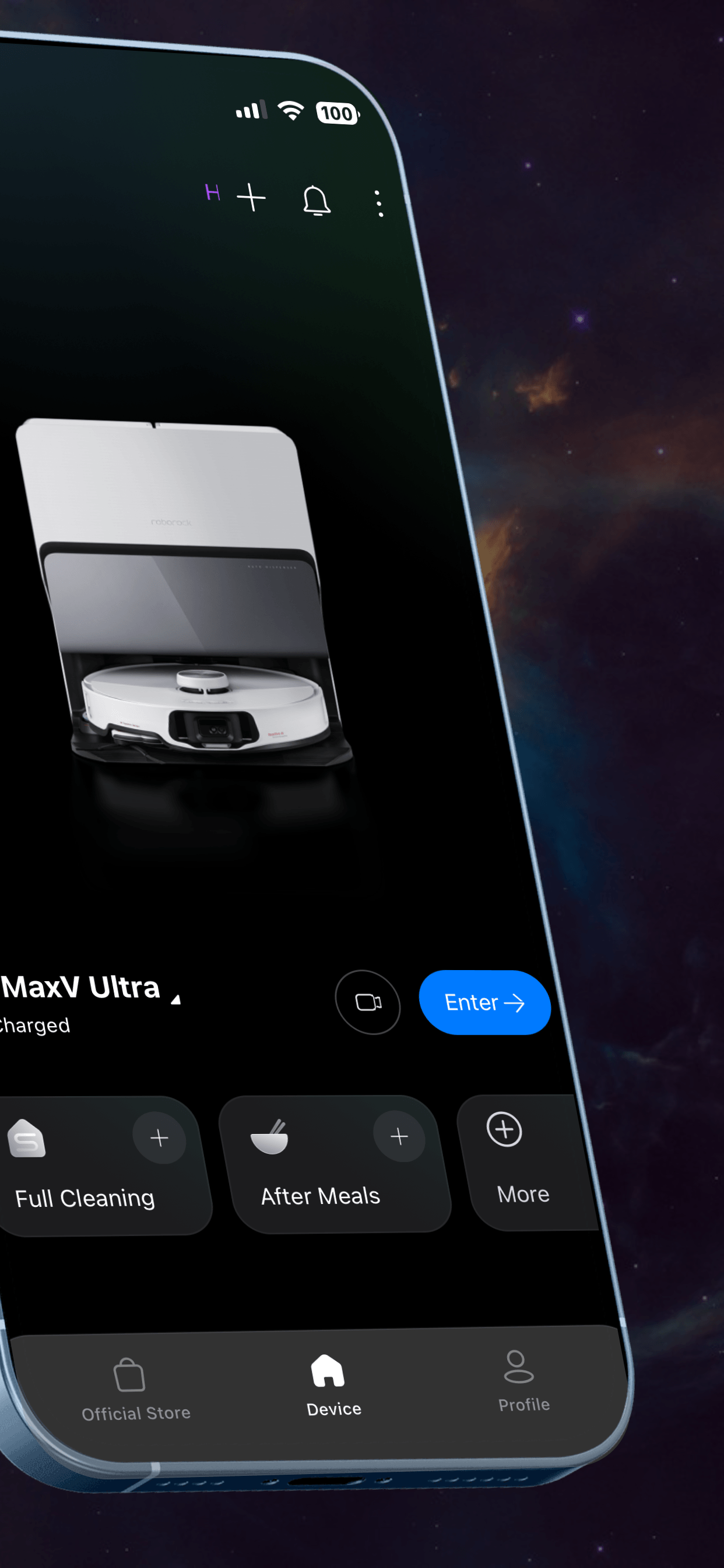
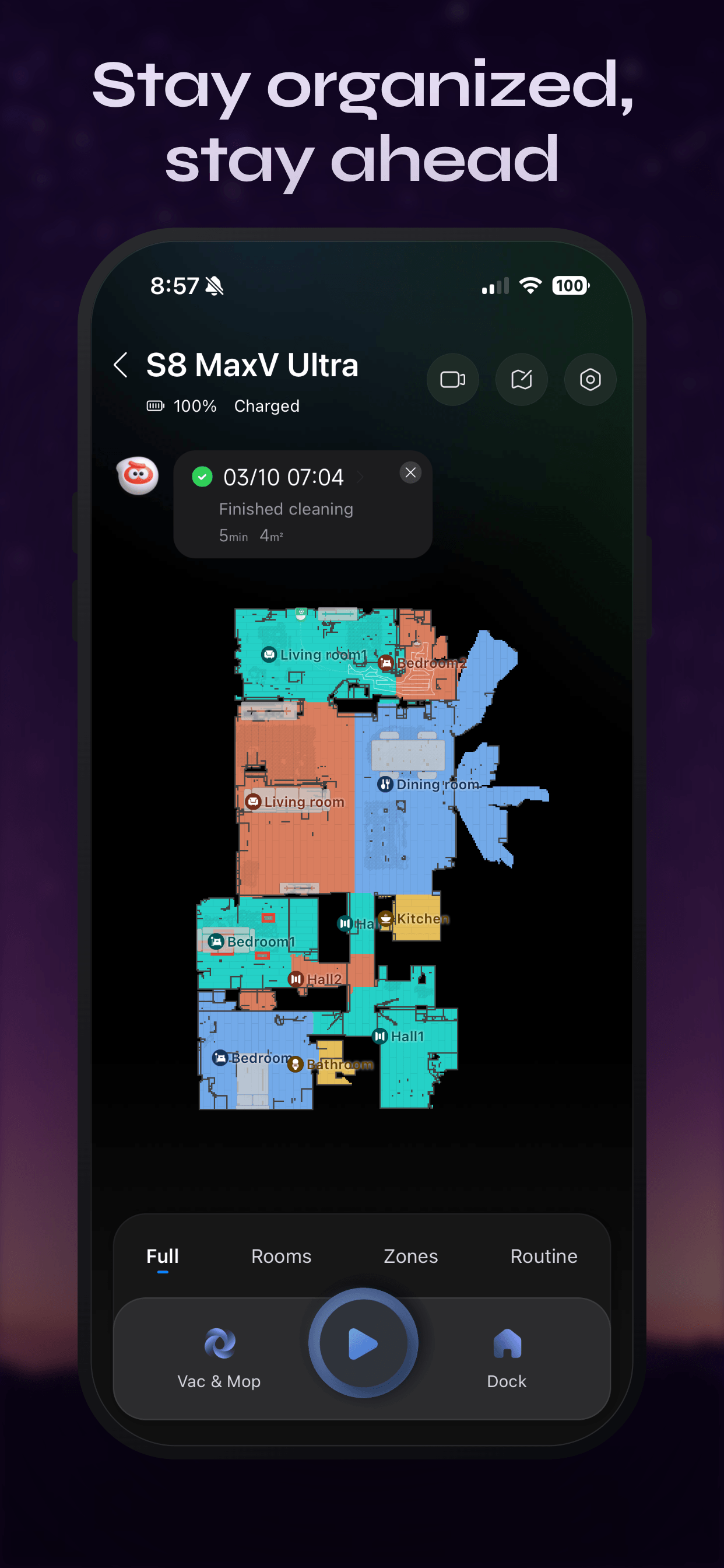
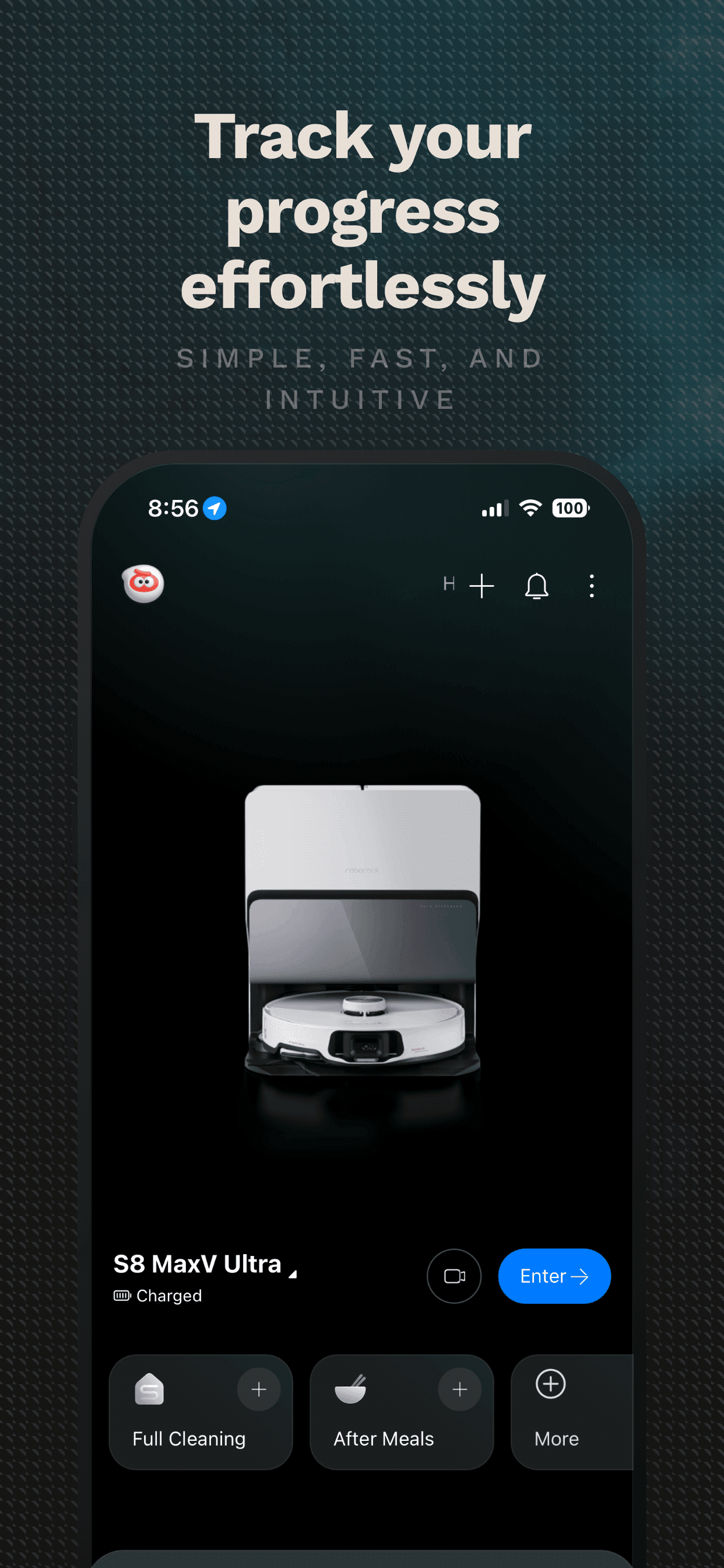
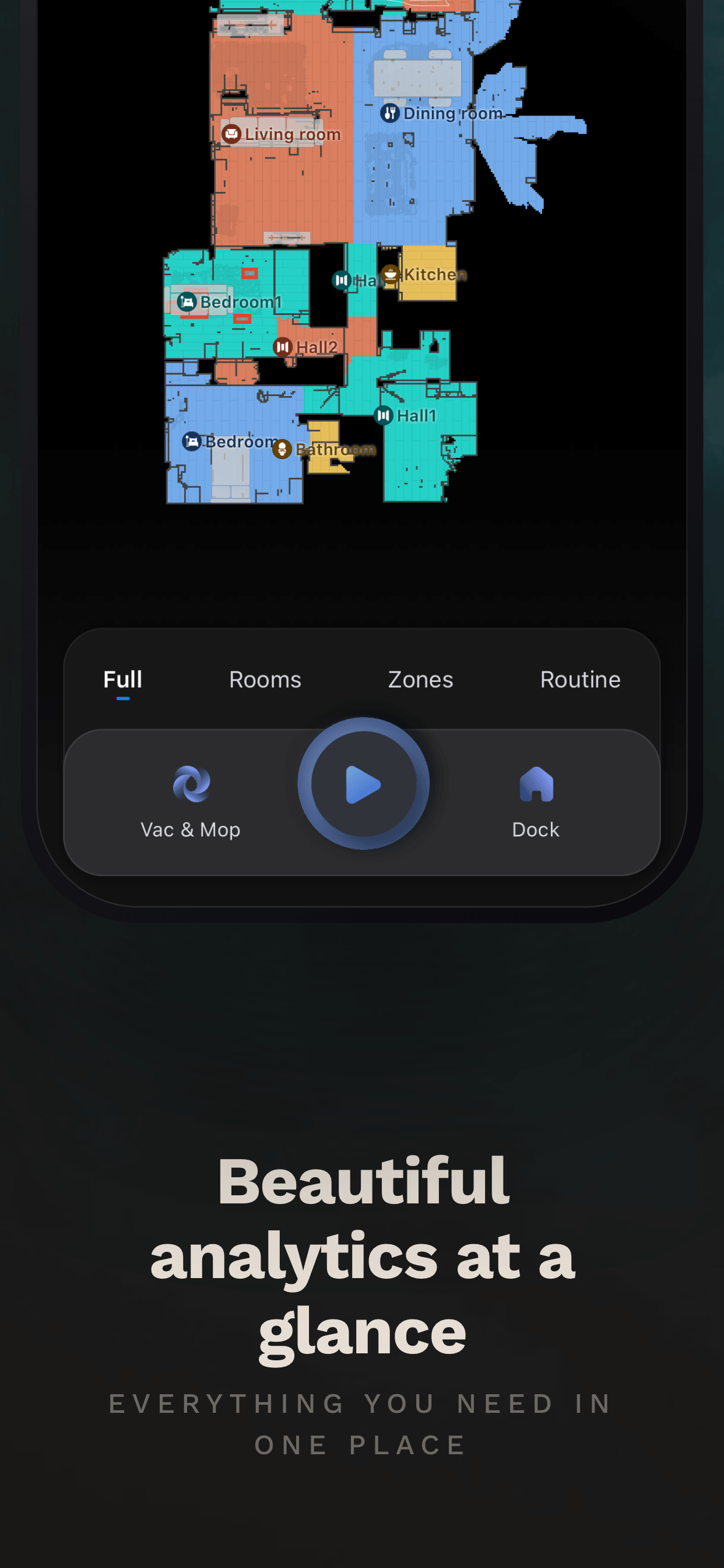
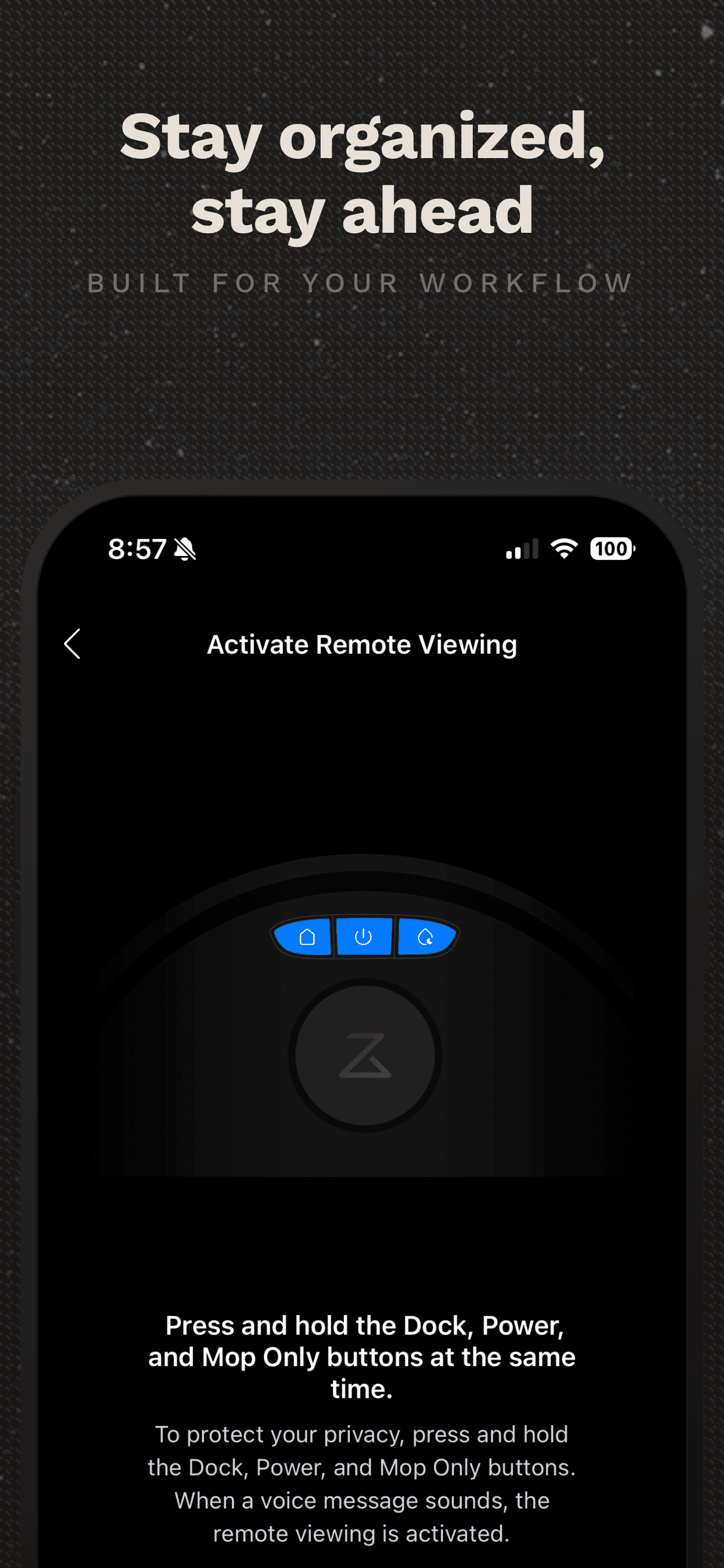
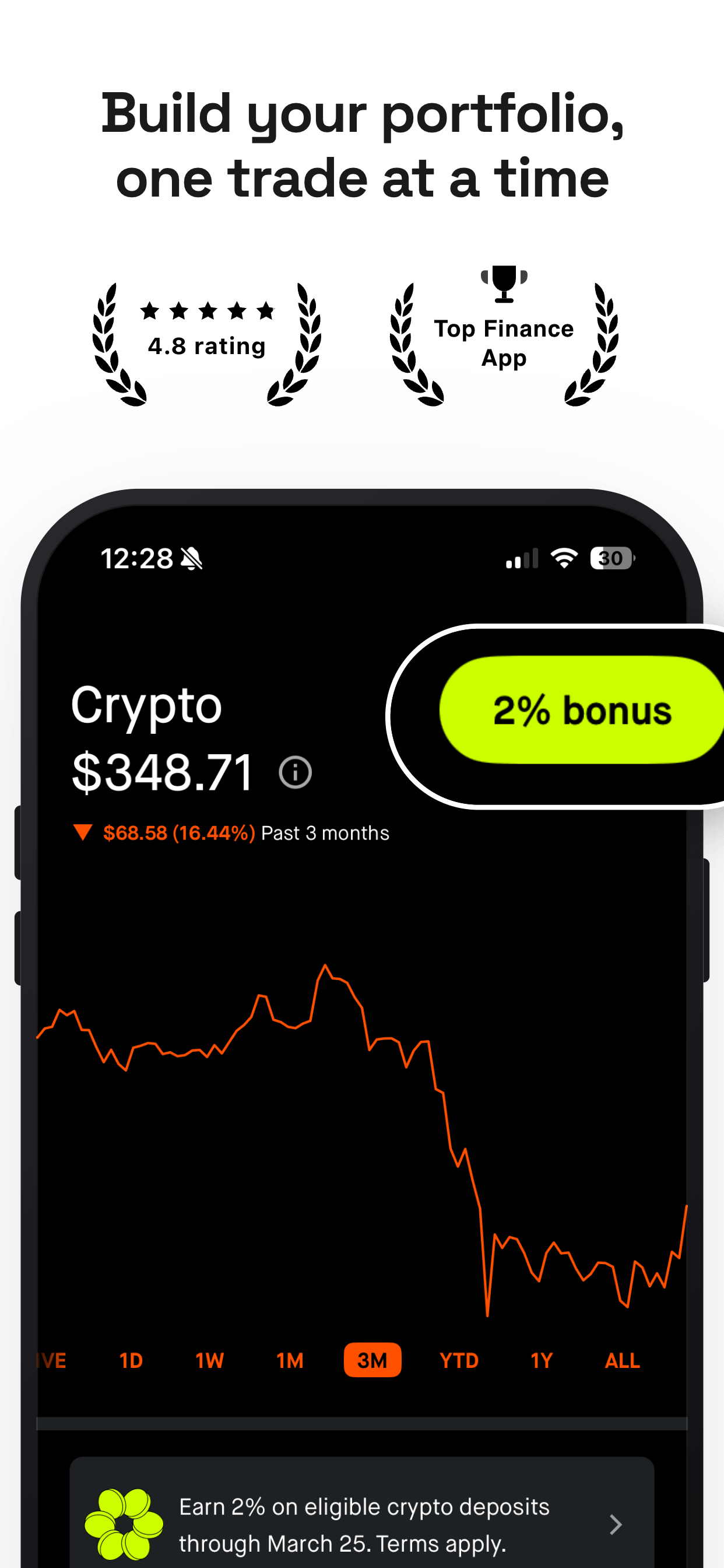
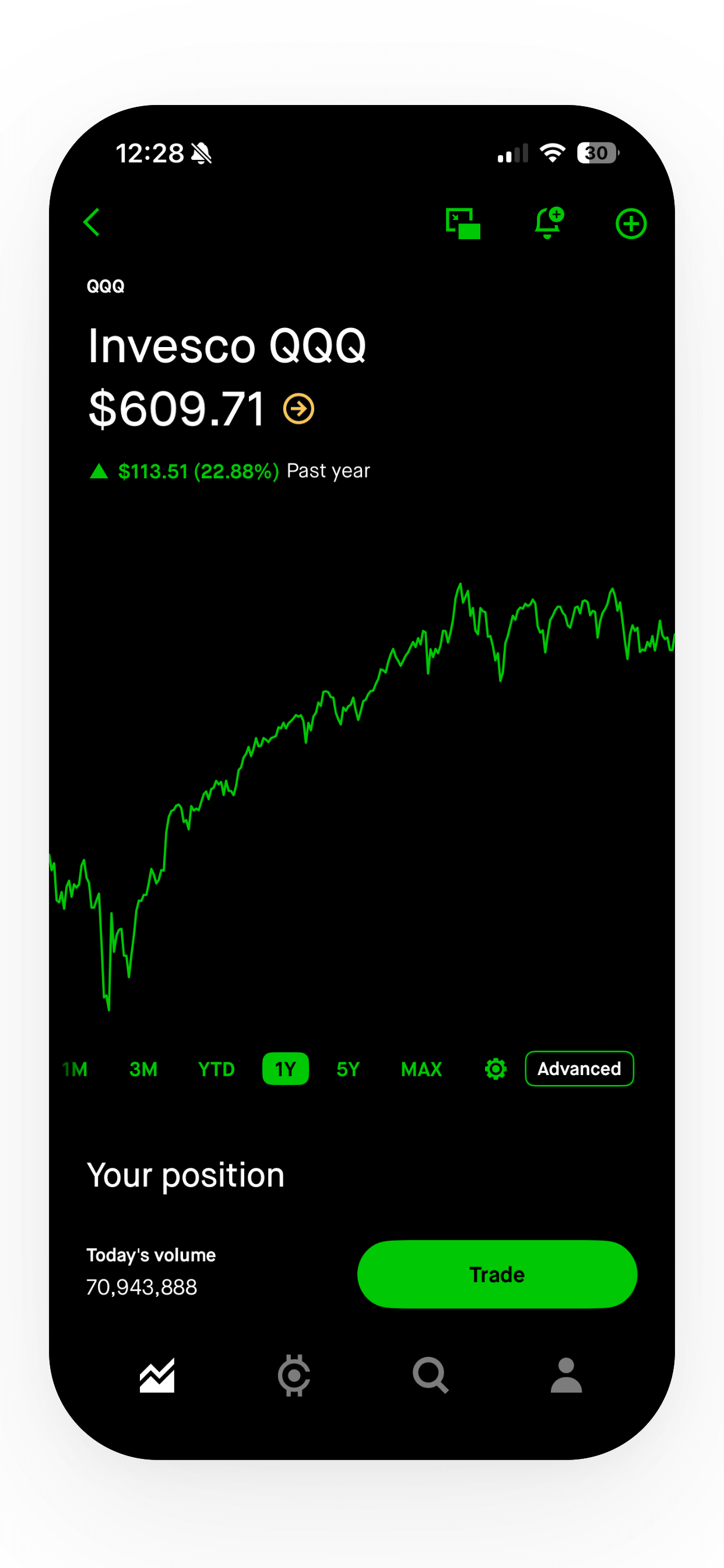
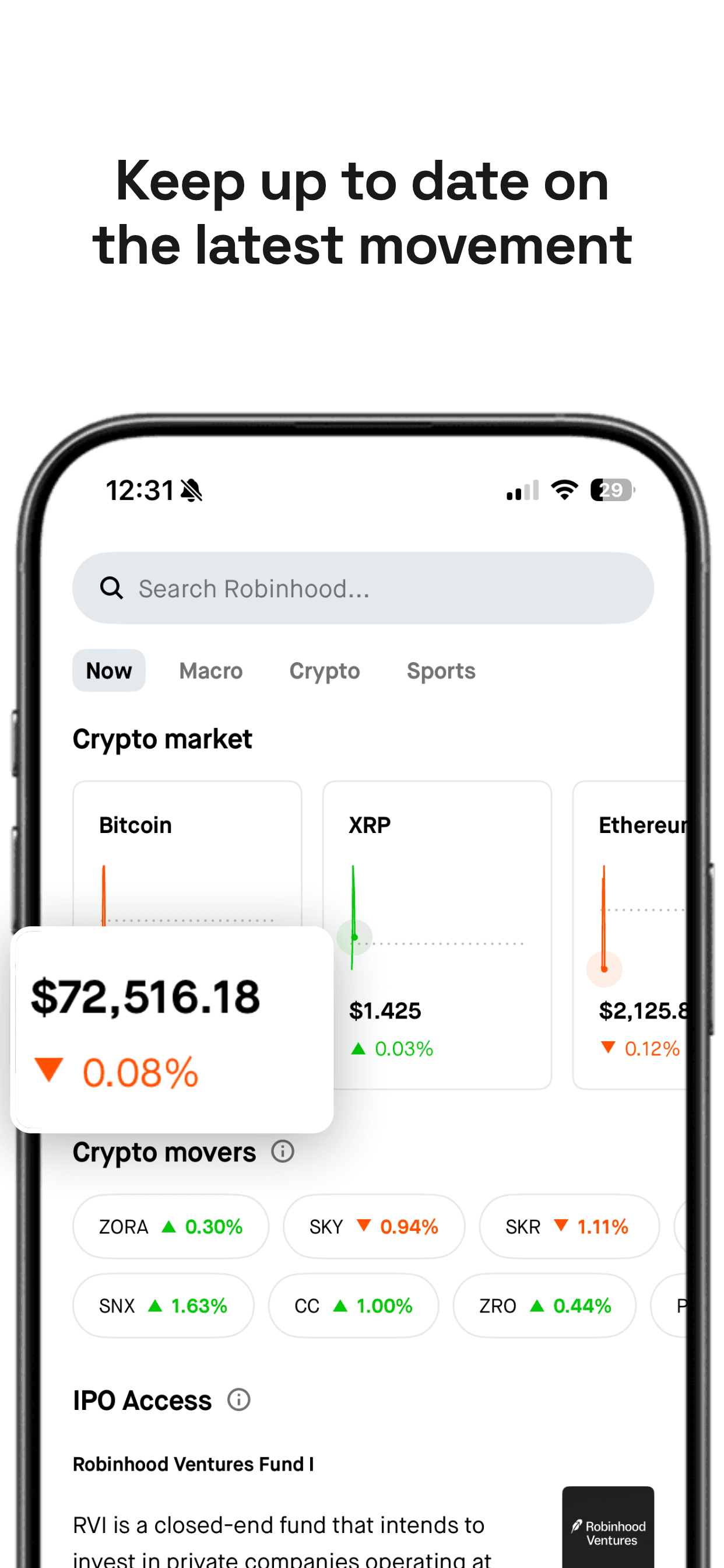
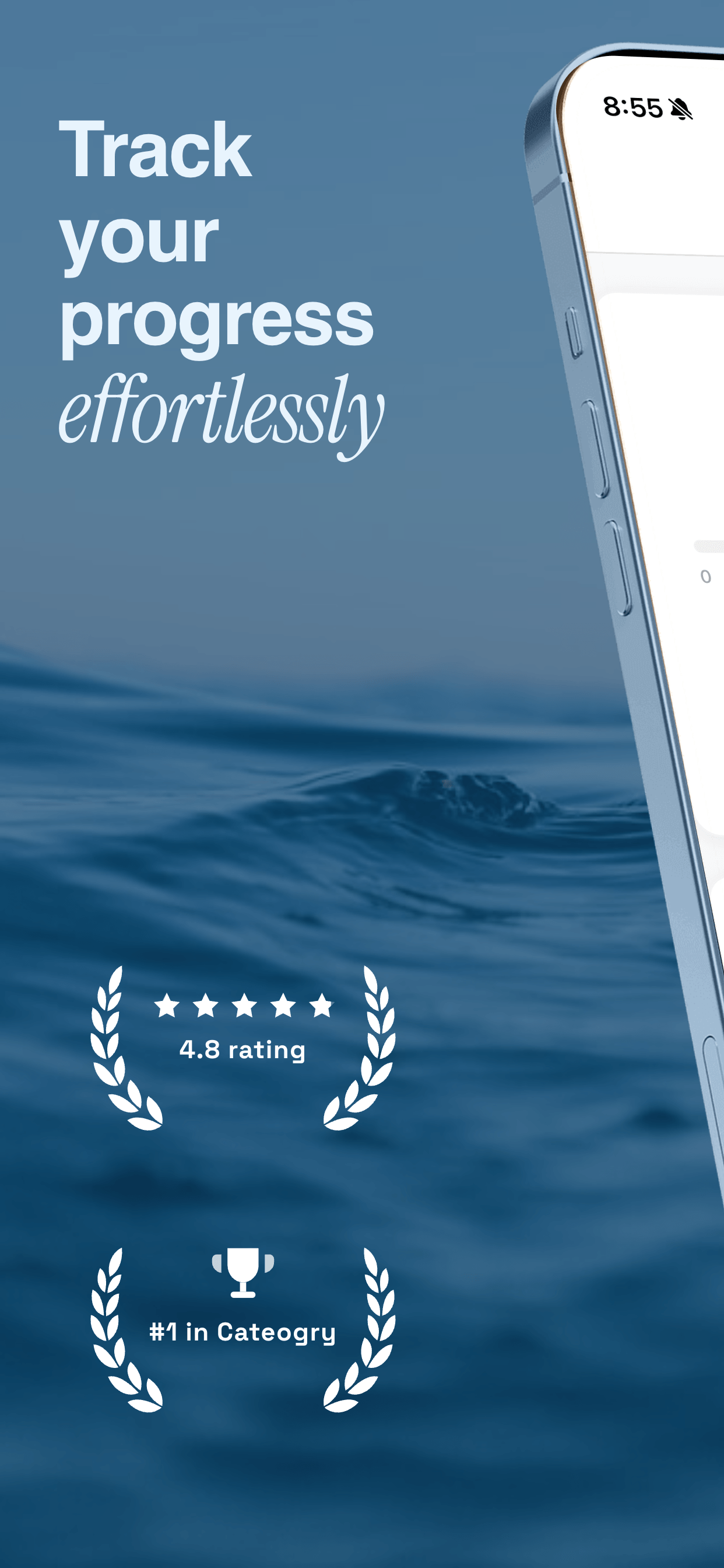
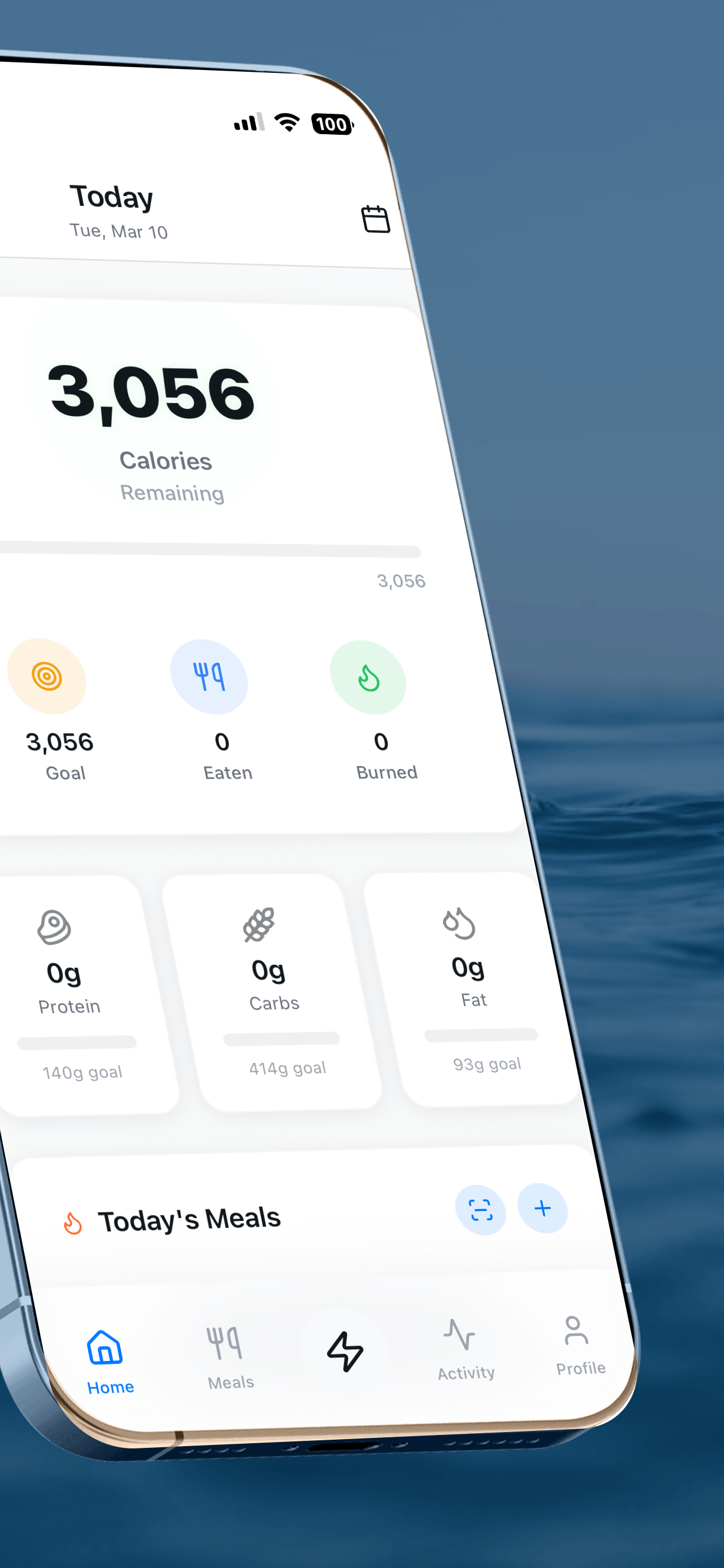
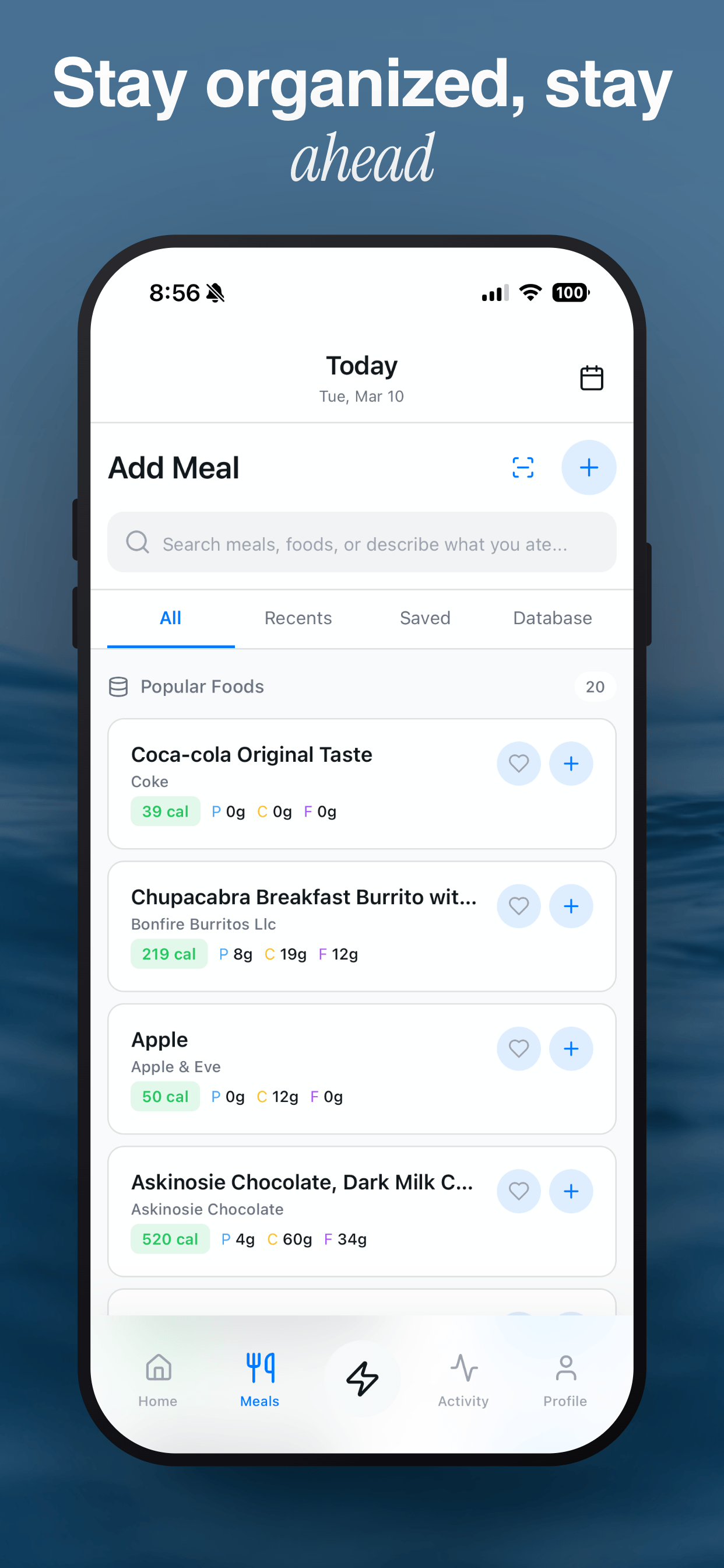
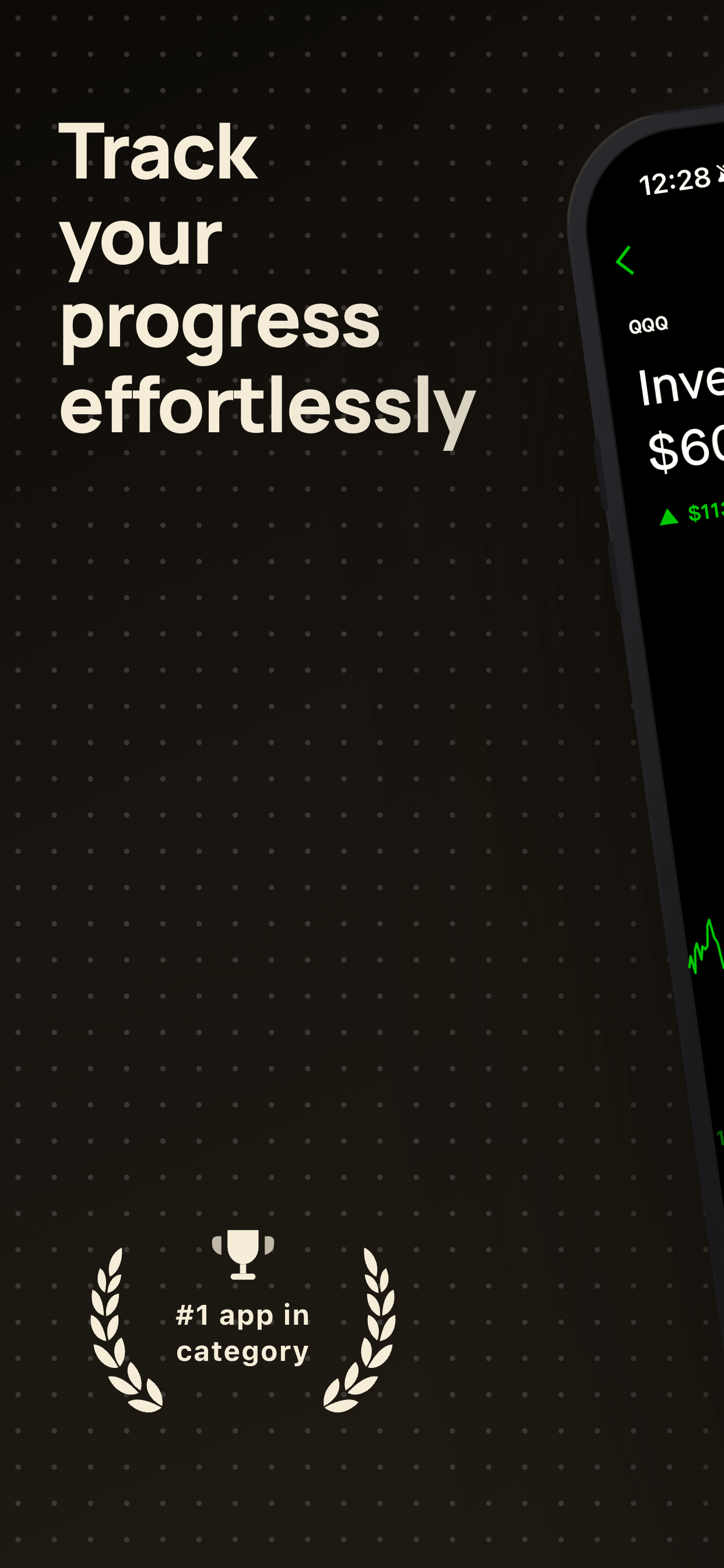
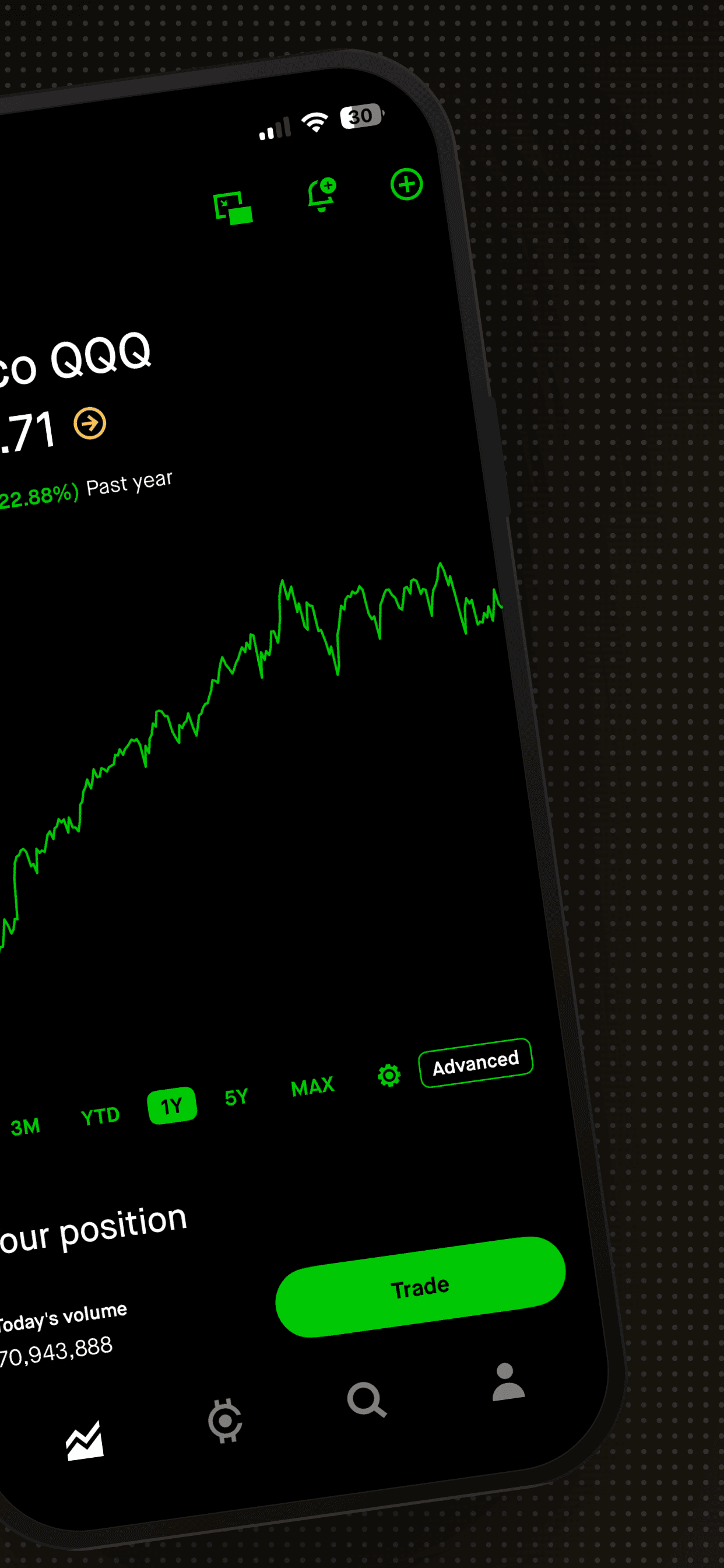
Pick a template with the typography already dialed in
Every Screenshot Otter template ships with a tested font, weight, and letter-spacing system. Upload your screenshots, pick a template, and the typography just works.
Try Screenshot Otter free →