
Guide
App Store Screenshot Sequence: How to Order Your Screenshots for Maximum Downloads (2026)
Your screenshots are a sales pitch with a reading order. The sequence you choose determines whether someone scrolls, gets curious, and taps "Get" or bounces in under two seconds. This guide covers how to order your App Store screenshots for maximum conversion.

Scott Stewart · Apr 20, 2026
Quick answer
Lead with your single strongest benefit. Follow it with your second-best feature, then build a narrative arc through social proof, secondary features, and a closing trust signal. Around 60% of users never scroll past the first three screenshots, so those three need to carry the weight of your entire pitch.
Why Screenshot Order Matters More Than You Think
When someone finds your app in App Store search results, they see your icon, title, subtitle, and the first two to three screenshots. That is your entire first impression. The user has not read your description. They have not scrolled to your ratings. They are making a snap judgment based on a handful of visual thumbnails.
Apple's own data confirms this: the majority of App Store visitors decide whether to download (or keep scrolling) within seconds. Your screenshot sequence is not just a gallery. It is a funnel. The first screenshot is the hook, the middle screenshots build interest, and the final screenshot closes the deal with a trust signal or a summary of what the user gets.
The order you drag screenshots into App Store Connect is the exact order they display to users. There is no algorithm that rearranges them for you. If your best feature is buried in position seven, most people will never see it. Getting the sequence right is one of the few changes you can make without writing a single line of code, and the conversion impact is measurable.
The First Screenshot Rule
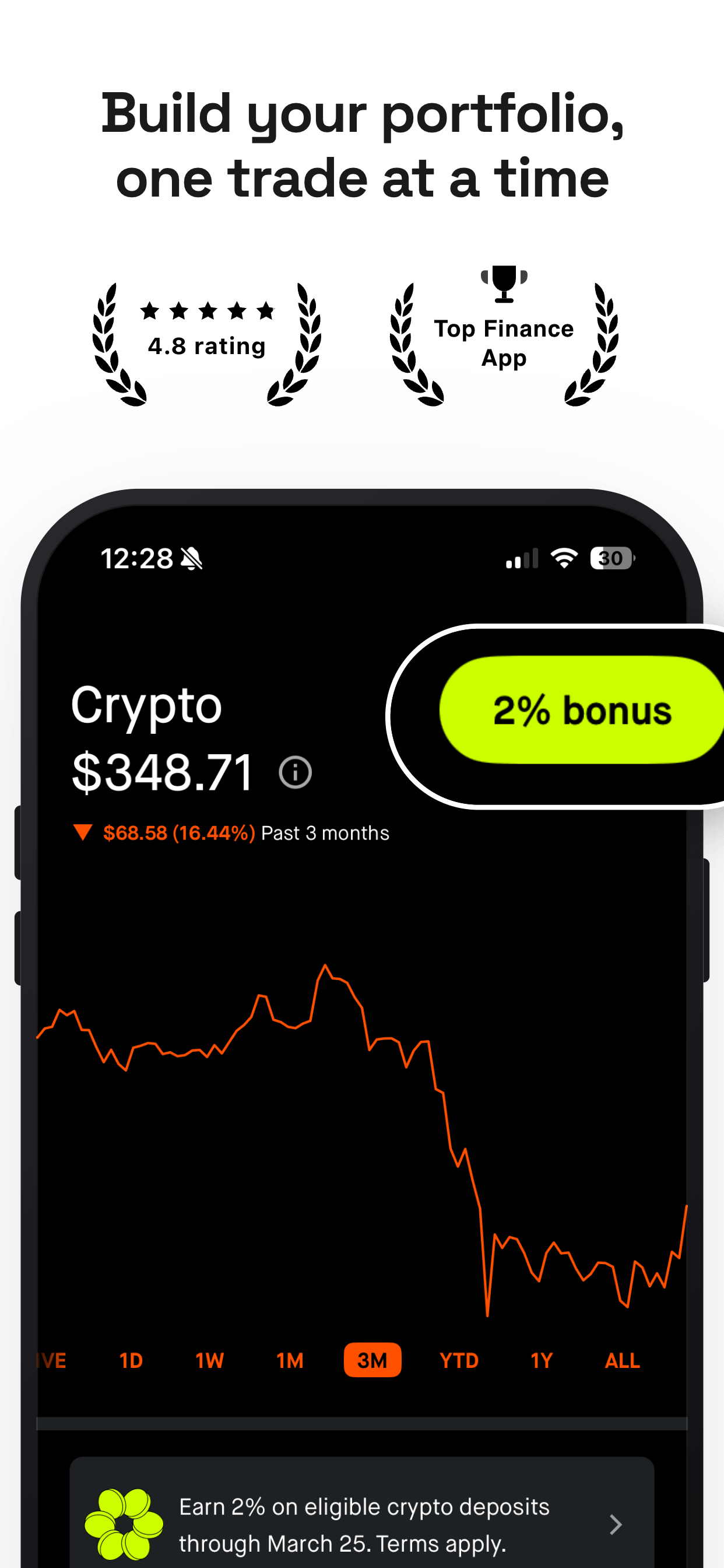
Your first screenshot is your headline. It needs to answer one question: "What does this app do for me?" Not "what features does it have" or "how does the UI look." The answer should be a clear benefit that makes someone want to learn more.
The most common mistake here is leading with a dashboard, a settings screen, or a feature list. Nobody cares about your dashboard yet. They care about the outcome: "Track your runs and hit your goals," "See your finances in one place," or "Edit photos in seconds." The first screenshot is about the promise, not the proof. The proof comes later.
If you have an app preview video, it takes the first slot automatically. In that case, your first static screenshot should complement the video, not repeat it. Use the screenshot to reinforce the main benefit with a different angle or a supporting feature.
Think of the first screenshot as a billboard on a highway. Drivers have about three seconds to read it. One clear message, large text, and a single screen showing the core experience. That is the standard.
The 6-Screenshot Story Arc
While Apple allows up to 10 screenshots, most high-converting apps use 6 to 8. Here is a proven six-screenshot framework that works across nearly every app category.
Screenshot 1: The Hook
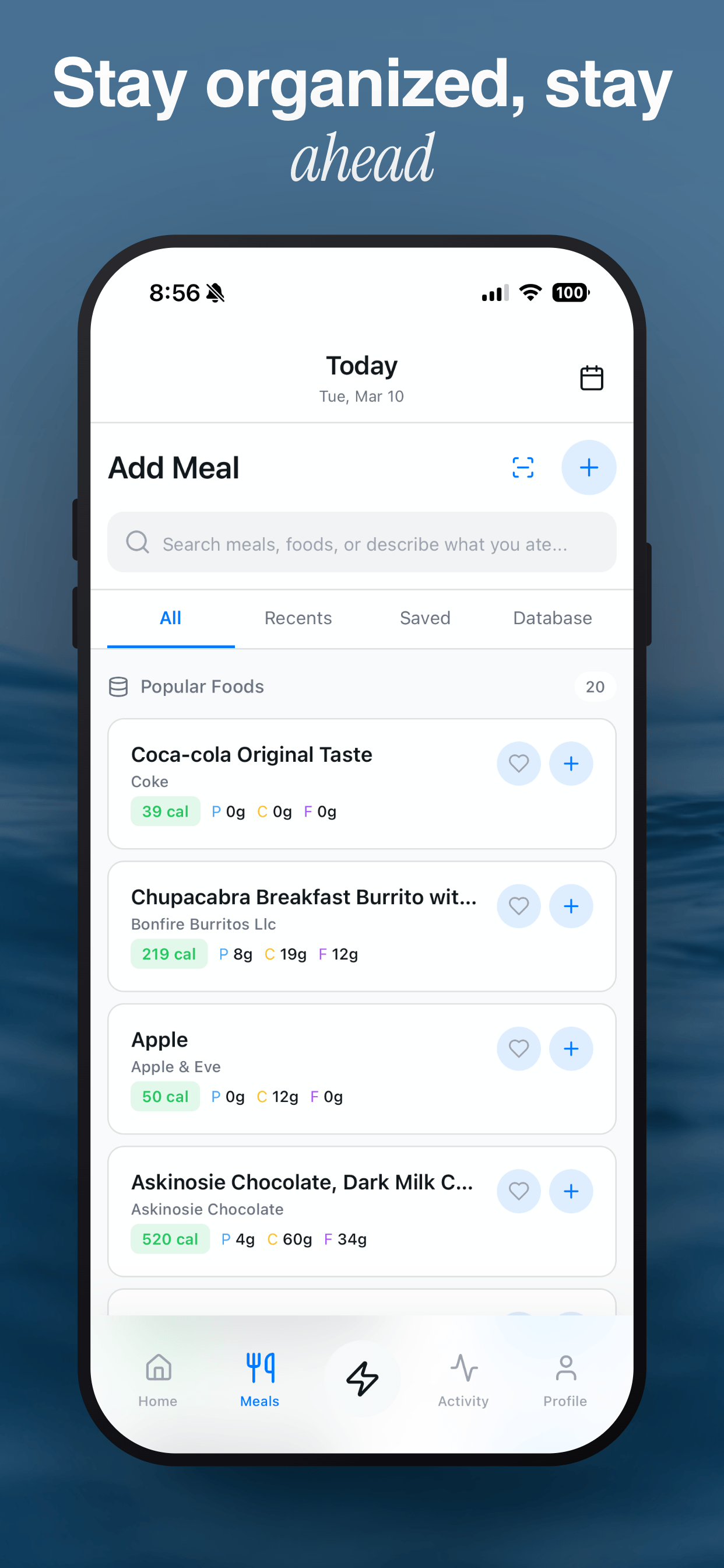
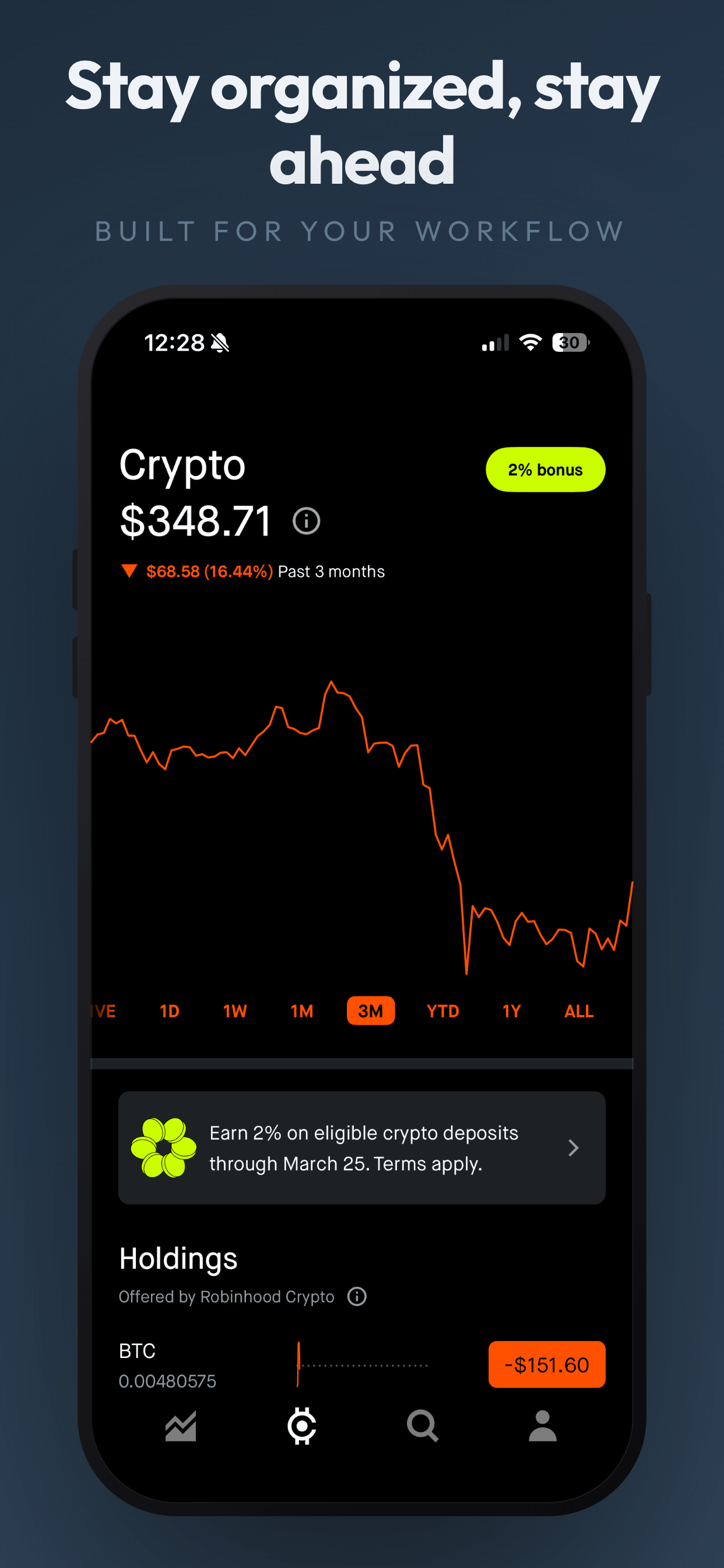
Your primary benefit, stated as an outcome. Show the single screen that best represents what your app does, paired with a short, bold caption. This screenshot needs to work at thumbnail size in search results. Example: "Your finances, finally clear."
Screenshot 2: The Second Punch
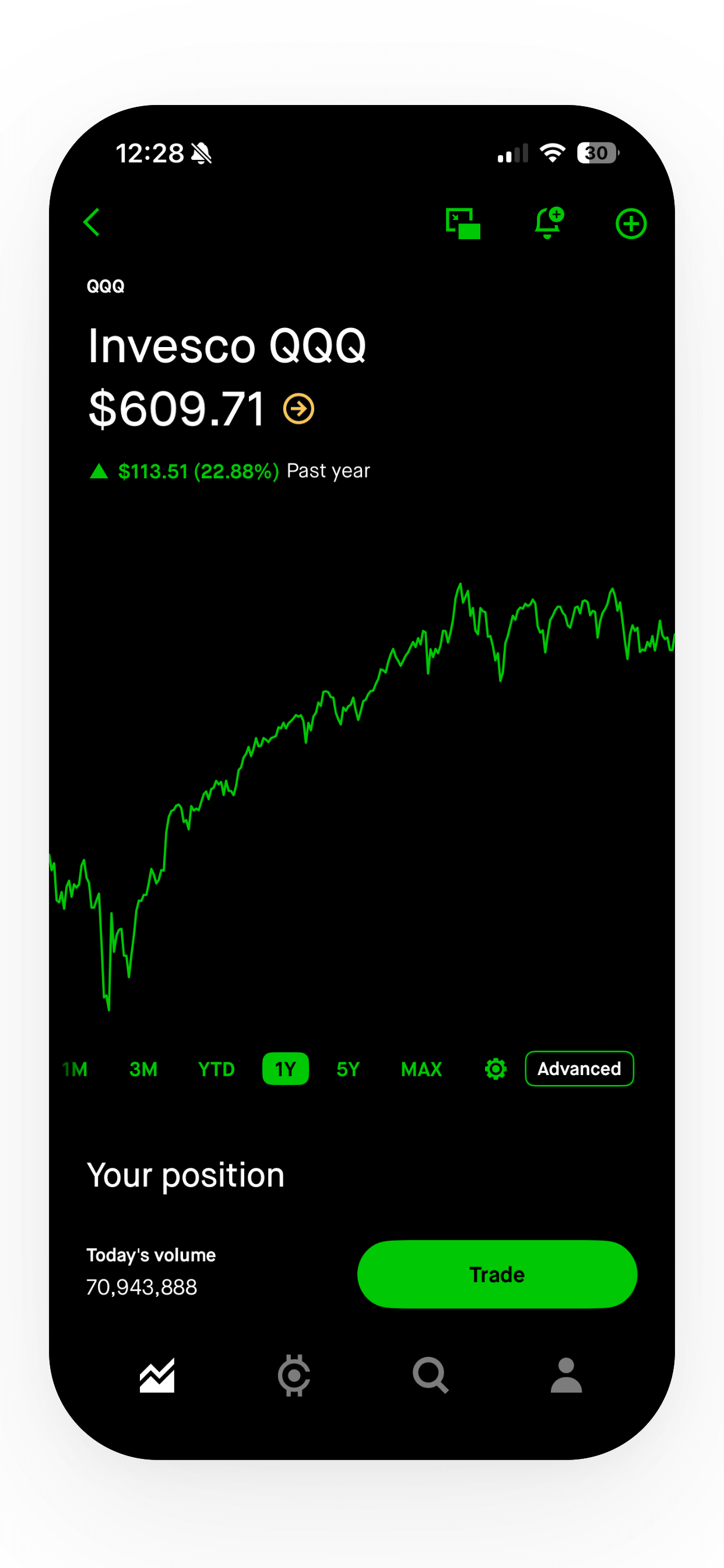
Your second-best feature or a different angle on the core benefit. This screenshot is often the last one visible without scrolling, so it must be strong enough to either convert on its own or make the user want to scroll. Avoid anything generic here. Example: "Smart budgets that adapt to you."
Screenshot 3: The Differentiator
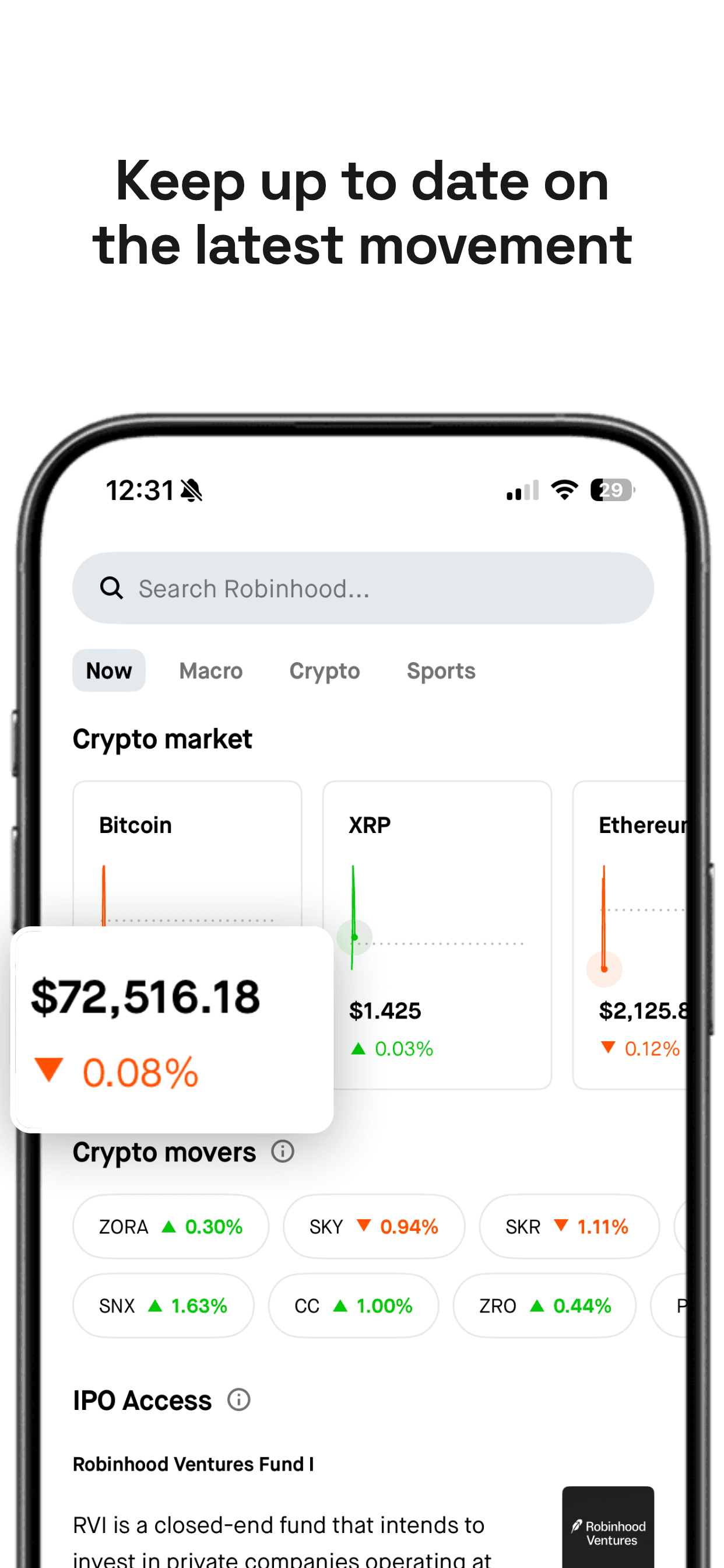
Something that sets you apart from competitors. This could be a unique feature, an integration, or a design detail that competing apps lack. If your app has a "wow" moment (a beautiful chart, a satisfying animation, a clever interaction), this is where it goes. Example: "Syncs with every bank, automatically."
Screenshot 4: Social Proof or Breadth
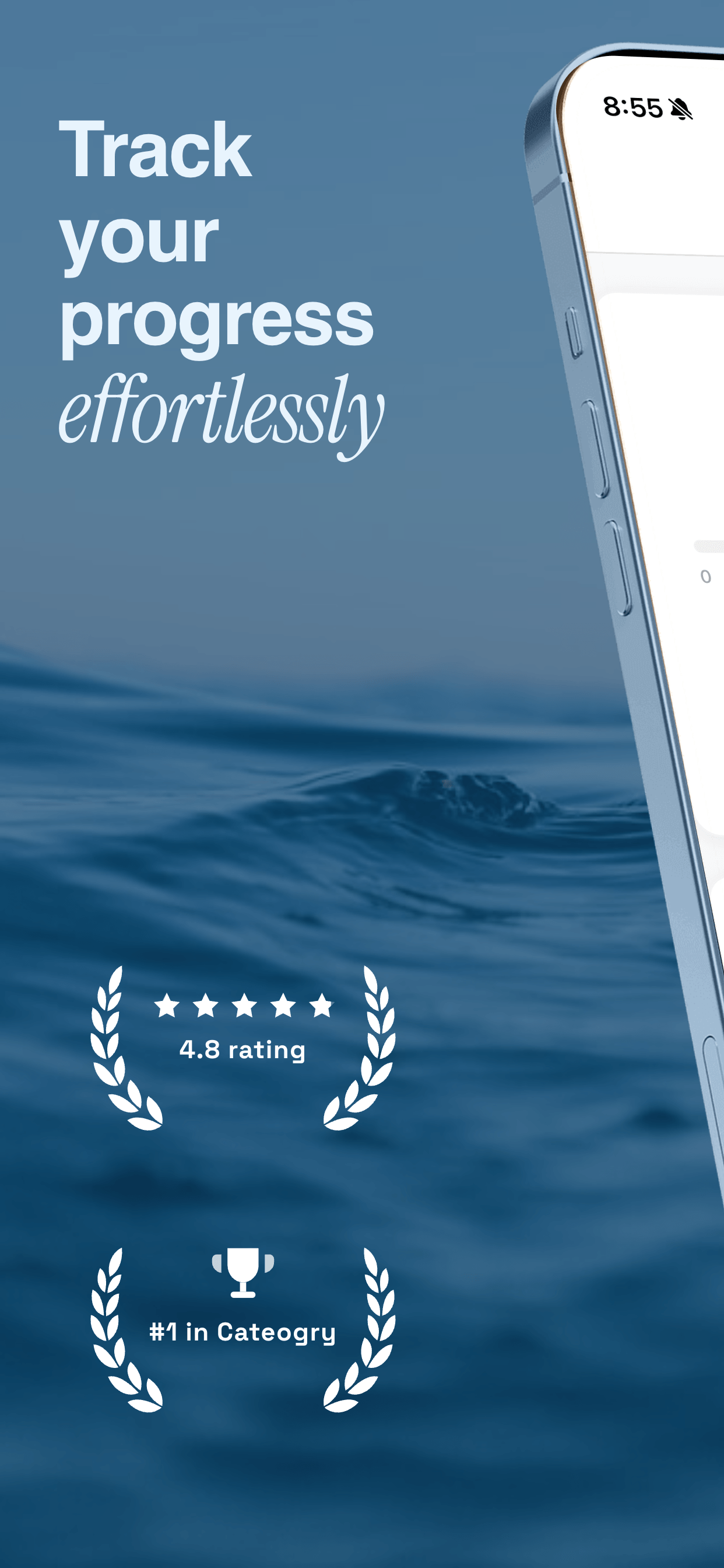
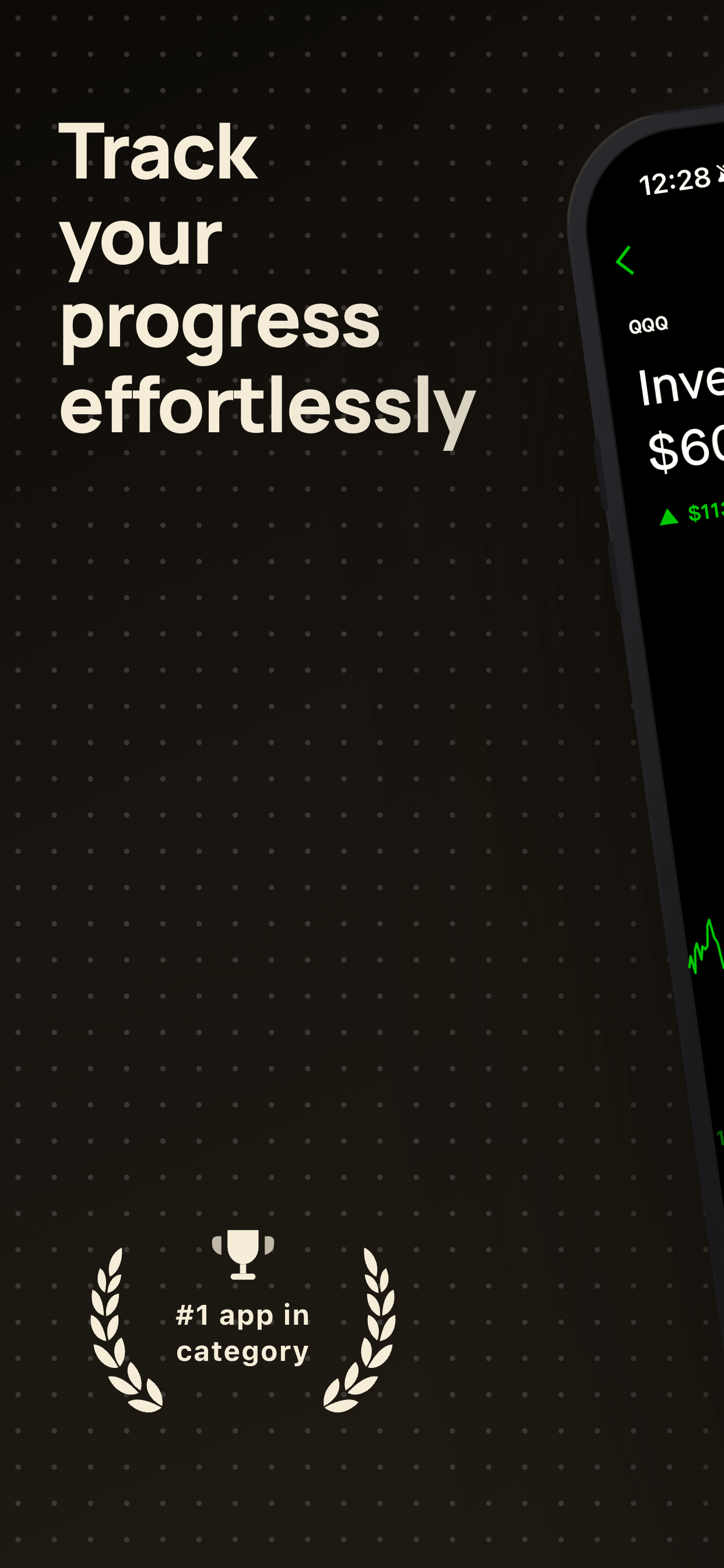
Show breadth of functionality or social validation. If you have an award, a press mention, or a strong rating, this is a good position for it. Alternatively, show a secondary use case that expands the perceived value of the app. Example: " Trusted by 500,000 users" or "Works for freelancers and families."
Screenshot 5: The Support Feature
A feature that removes friction or addresses a common objection. Think: widgets, Apple Watch support, notifications, offline mode, or privacy features. These are not the reason someone downloads your app, but they are the reason someone chooses your app over a competitor at the final decision moment. Example: "Widgets that keep you on track."
Screenshot 6: The Closer
A summary, a call to action, or a trust signal. Some apps end with a "Get started free" message. Others summarize the top three benefits in a single frame. The goal is to leave the user with a clear, positive final impression. If they scrolled this far, they are seriously considering a download. Do not waste this slot on a minor feature.
Sequences by App Category
The story arc framework above works as a starting point, but different app categories have different user expectations. Here is how to adapt the sequence for common categories.
Productivity and Utilities
Lead with the core workflow. Productivity users want to see the main screen they will interact with daily. Show the primary interface first, then demonstrate power features like automation, shortcuts, or integrations. Close with cross-platform availability or widget support, since productivity users value ecosystem fit.
Health and Fitness
Lead with a result or progress screen, not a workout list. Fitness users are motivated by outcomes. Show progress tracking, personal records, or achievement badges first. Then follow with the workout experience itself, community features, and Apple Watch or HealthKit integration.
Photo and Video
Lead with a before-and-after or a stunning output. Creative app users want to see what they can make, not how the editing interface looks. Show your best output first, then the editing tools, then export options. If you support specific formats or social media presets, mention those in the later screenshots.
Finance
Lead with clarity and simplicity. Finance users are often overwhelmed by complexity in other apps, so your first screenshot should show a clean, understandable overview. Then walk through specific features: budgeting, transaction tracking, bill reminders. End with security and privacy signals, which matter more in finance than in most other categories.
Games
Lead with gameplay, not menus. Show the most visually impressive moment in your game. Action games should show action. Puzzle games should show a satisfying puzzle state. Follow with variety (different levels, characters, or environments) and end with social features if you have them. Games benefit from using all 10 screenshot slots more than most categories.
Social and Communication
Lead with what the experience feels like, not how it works. Show a conversation or feed that looks active and appealing. Then demonstrate unique features that differentiate you from larger platforms. End with privacy or safety features, which are increasingly important to social app users in 2026.
Using Panoramic Screenshots in Your Sequence
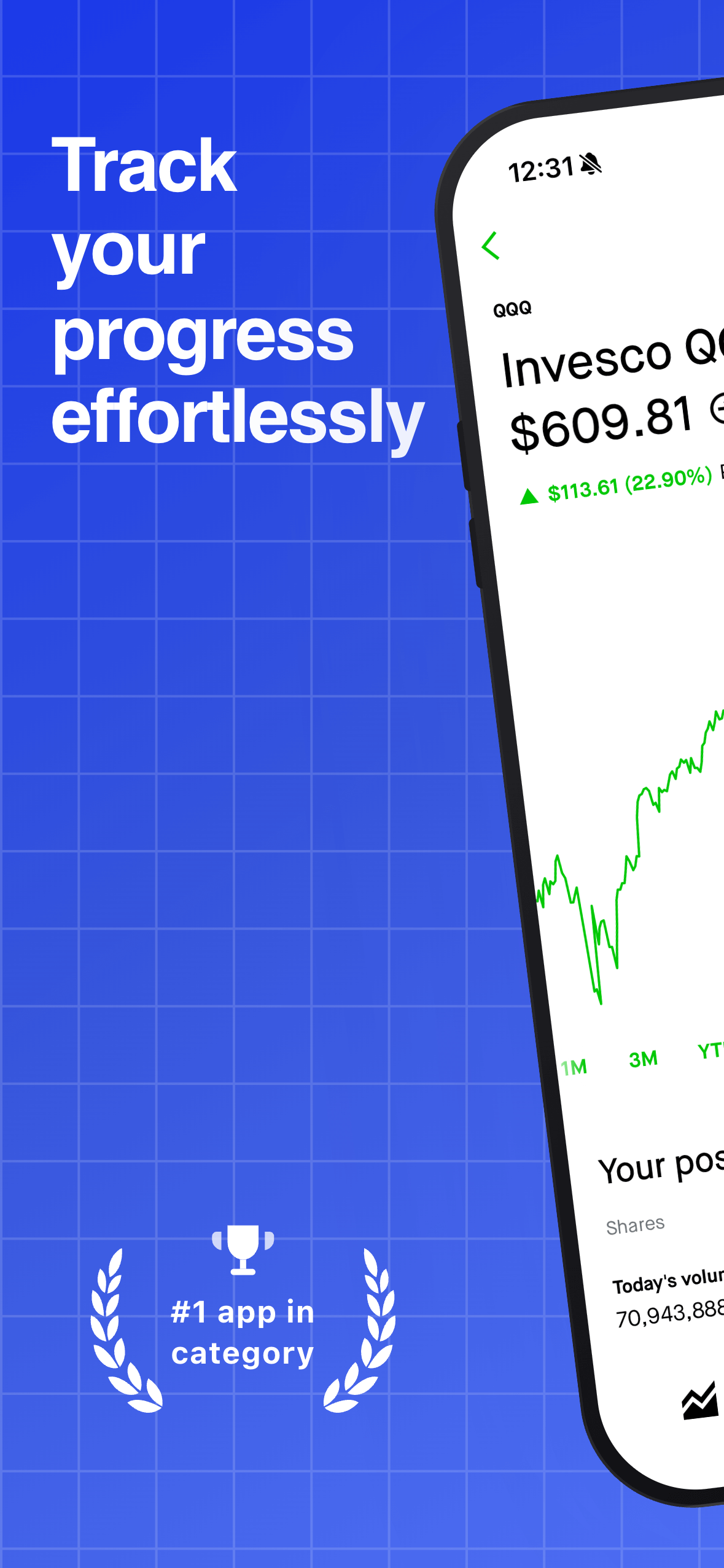
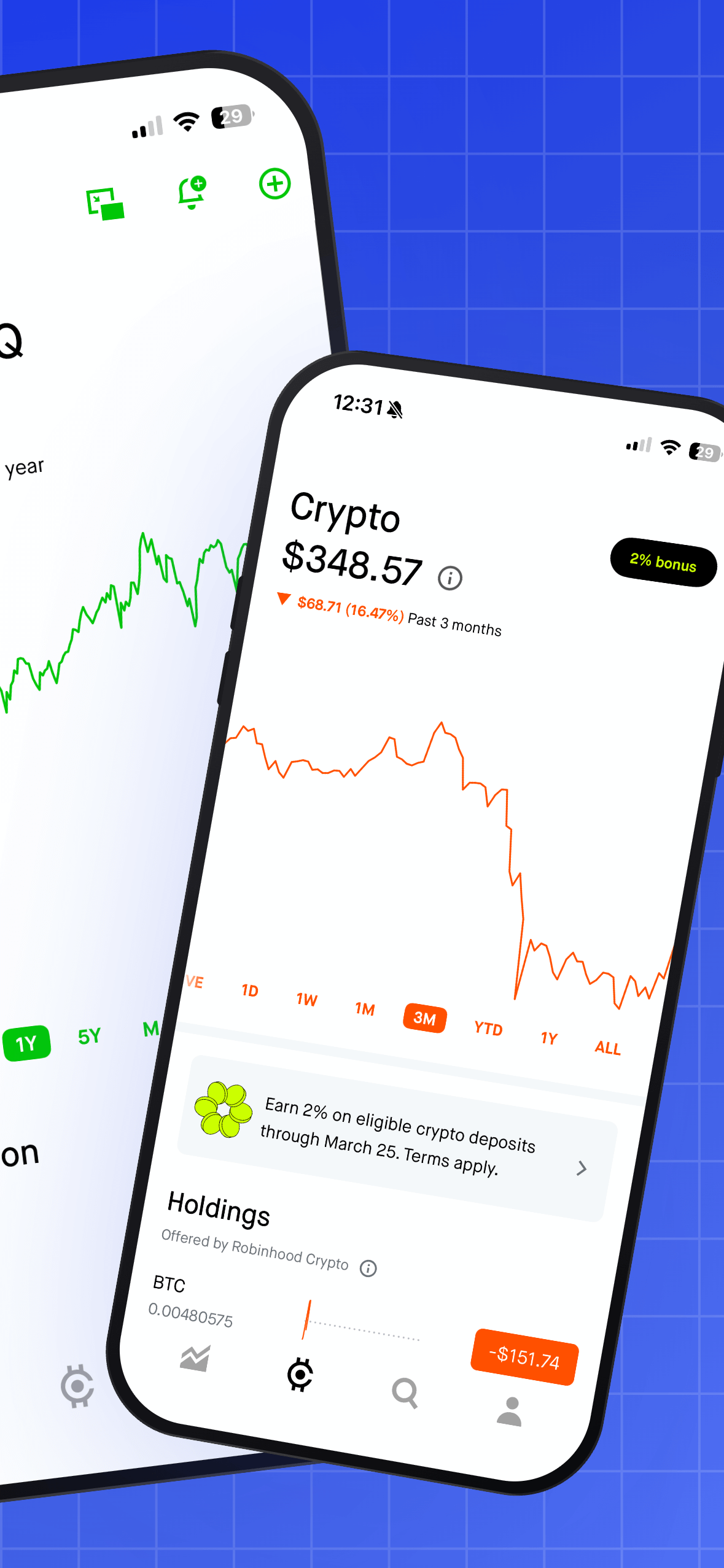
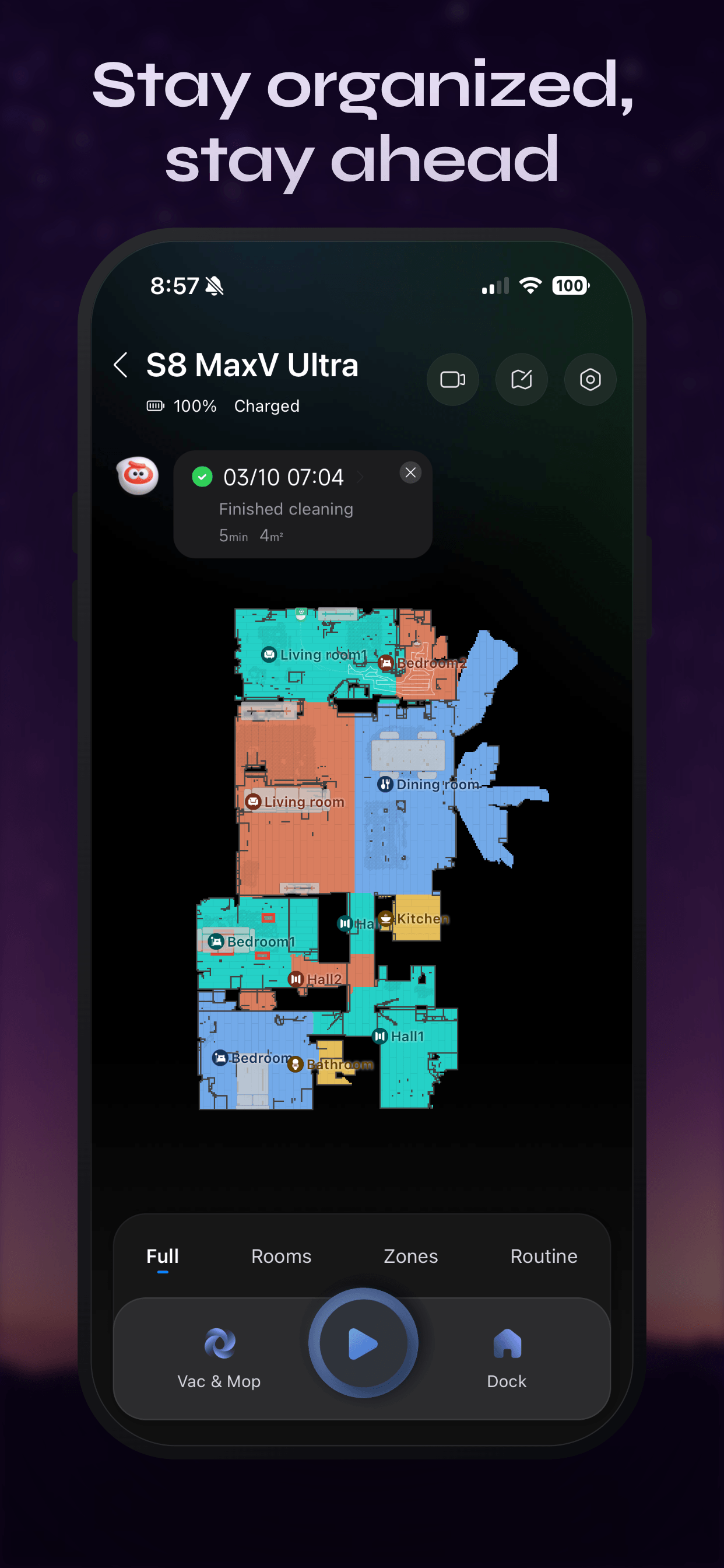
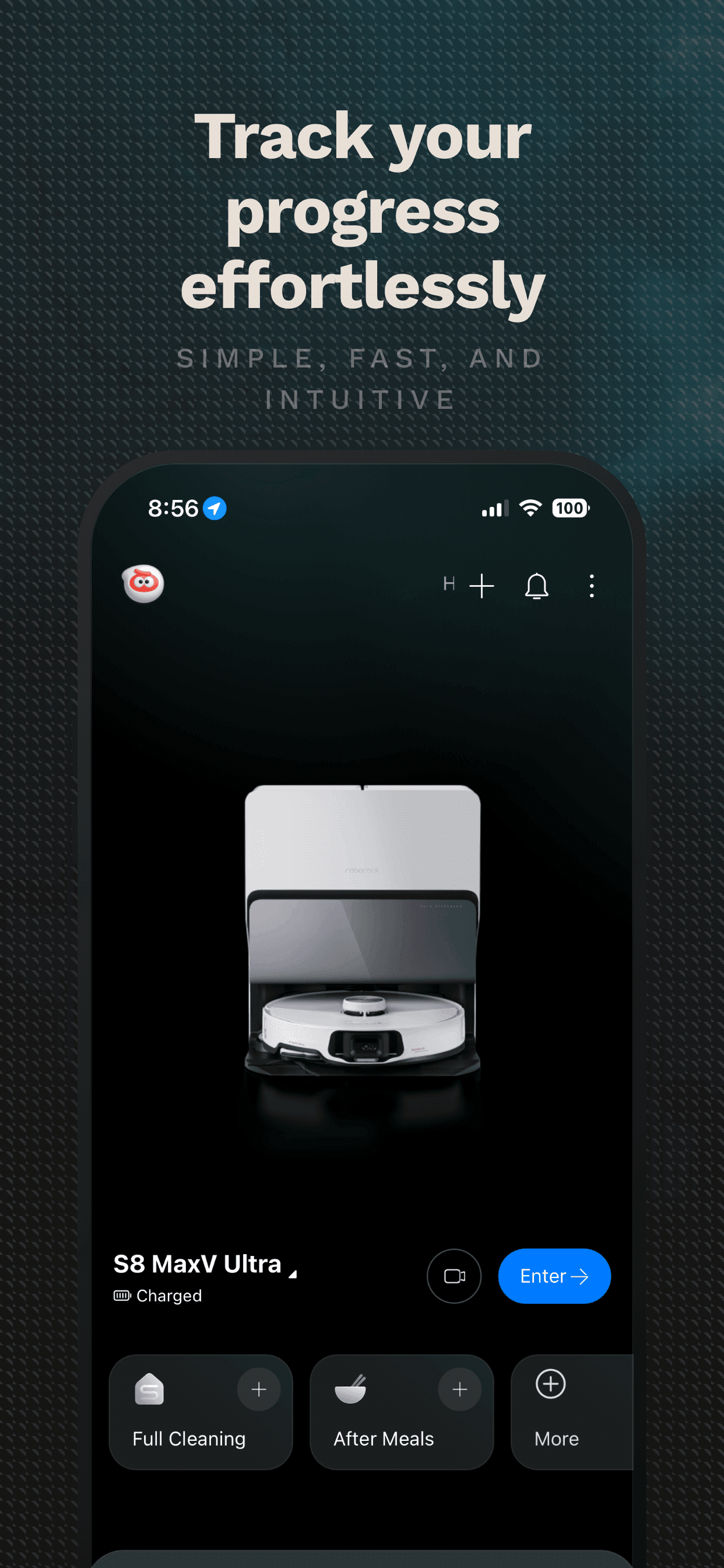
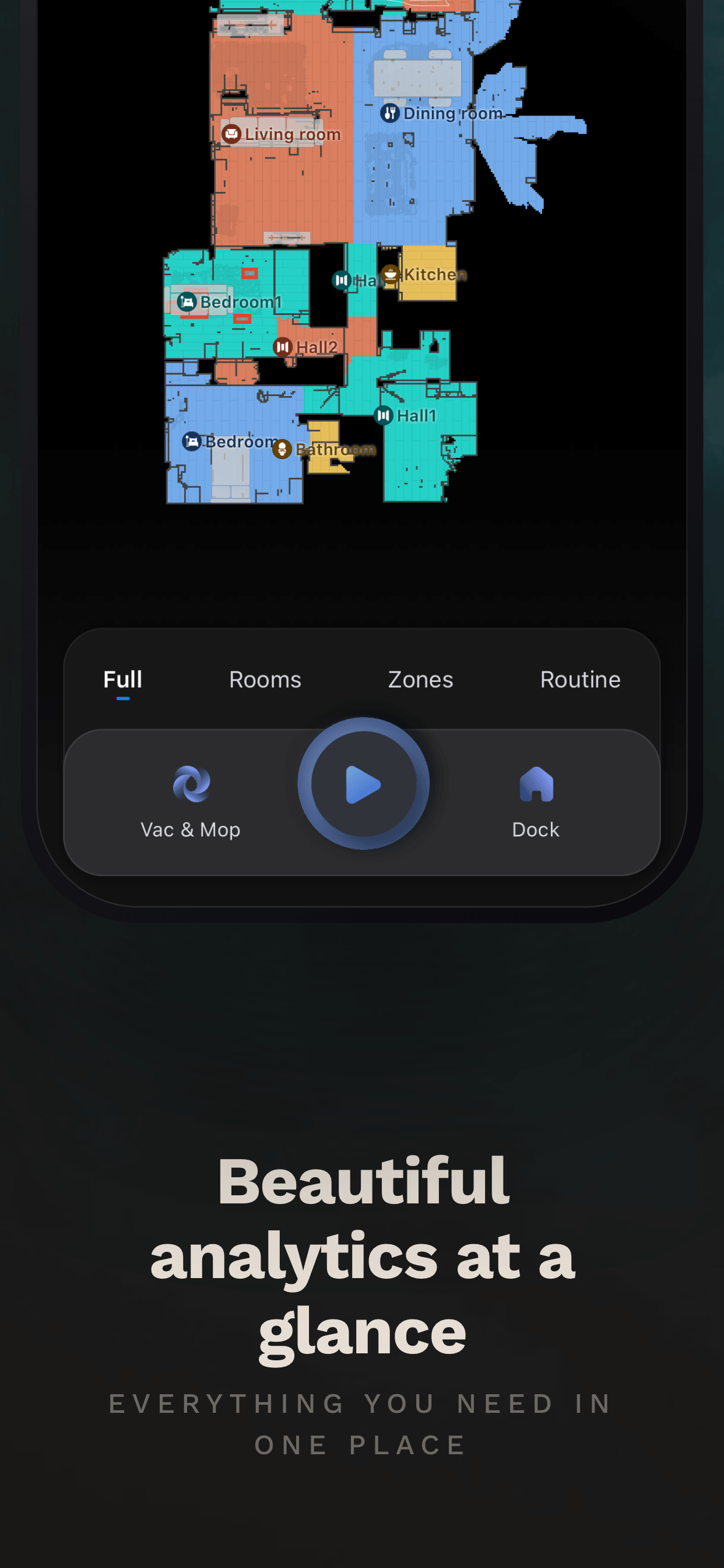
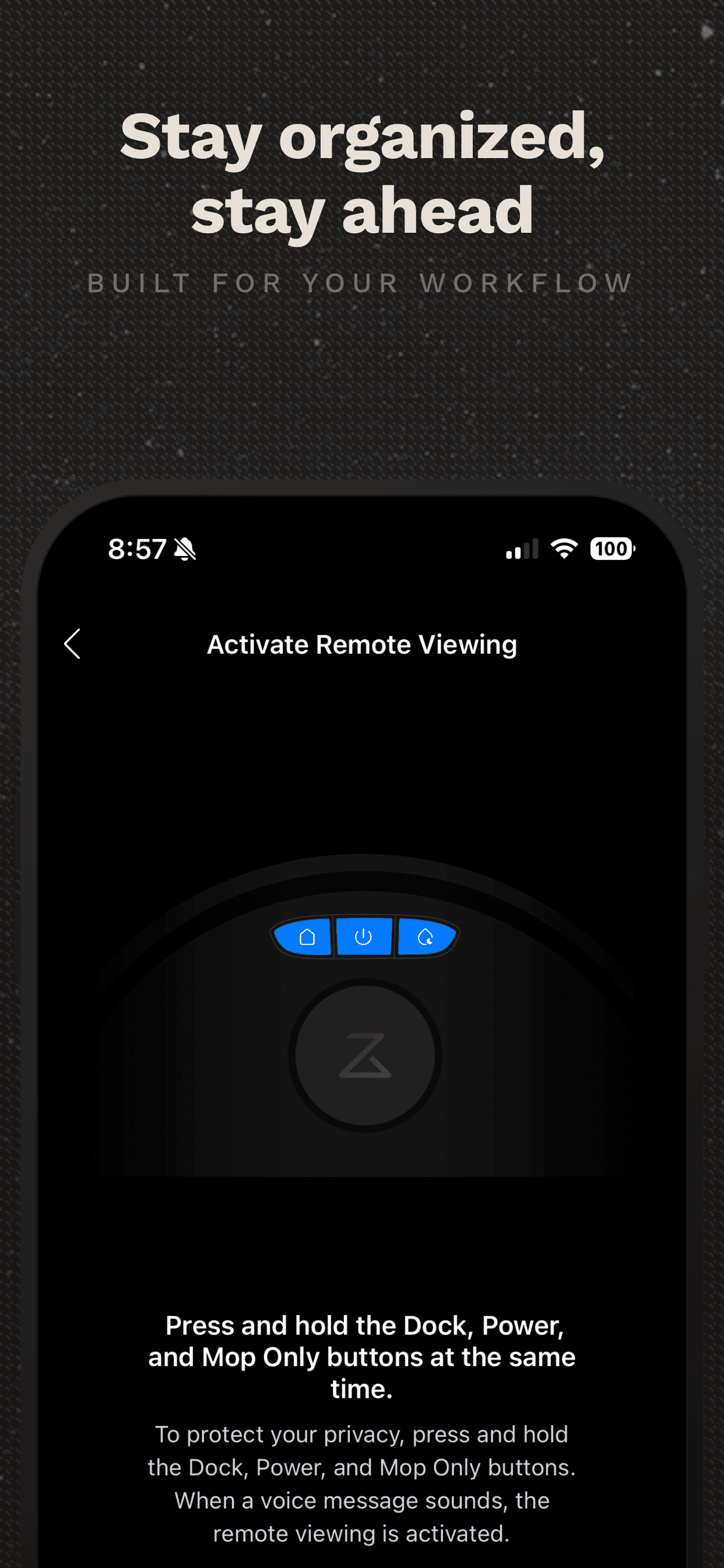
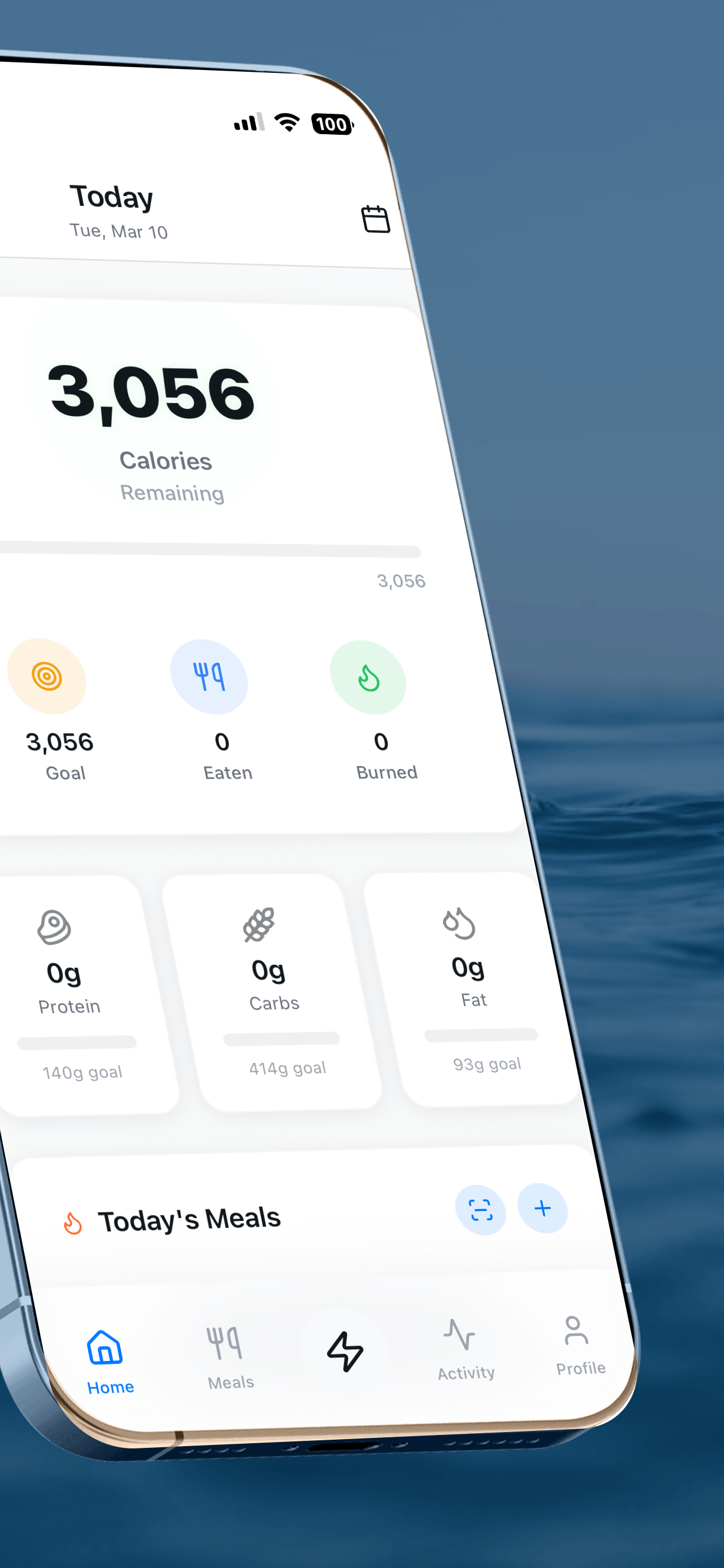
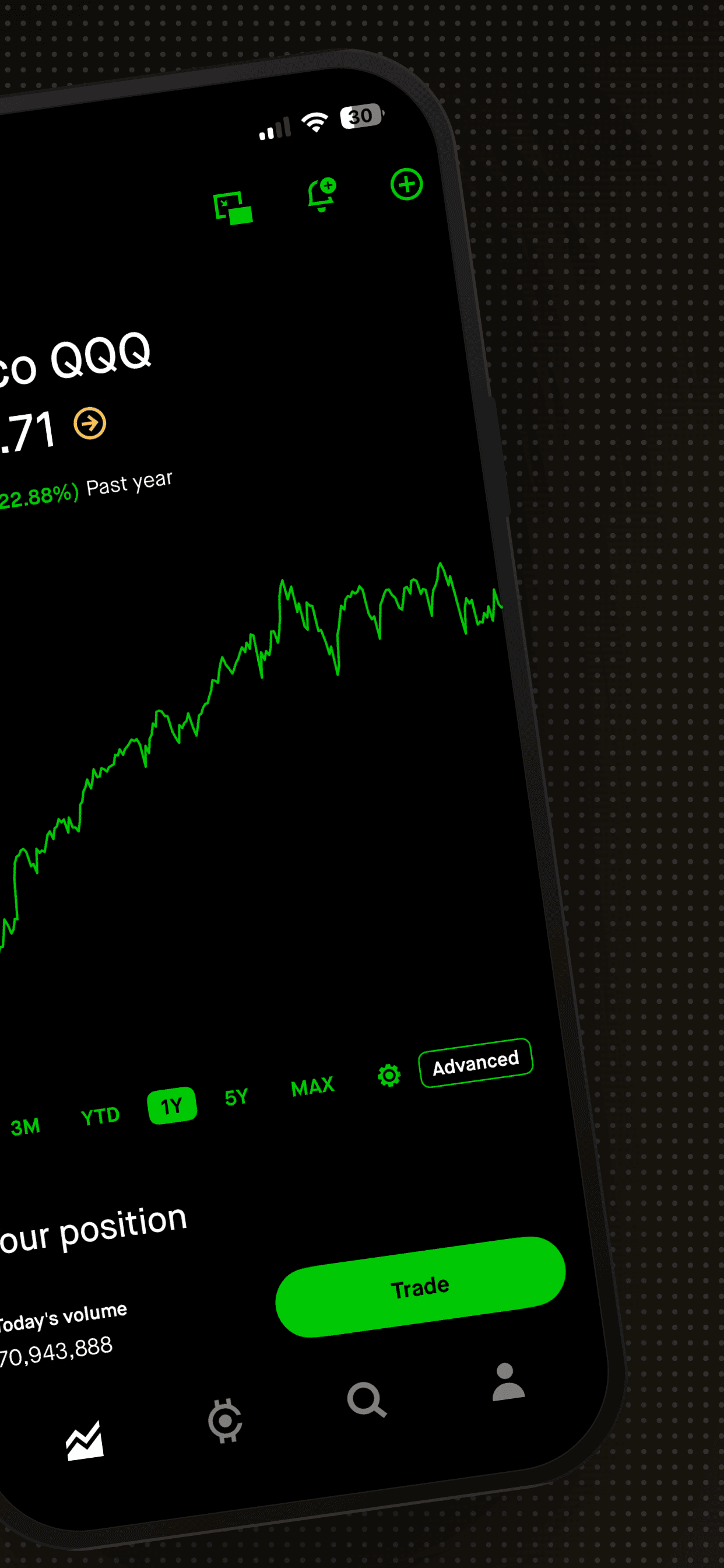
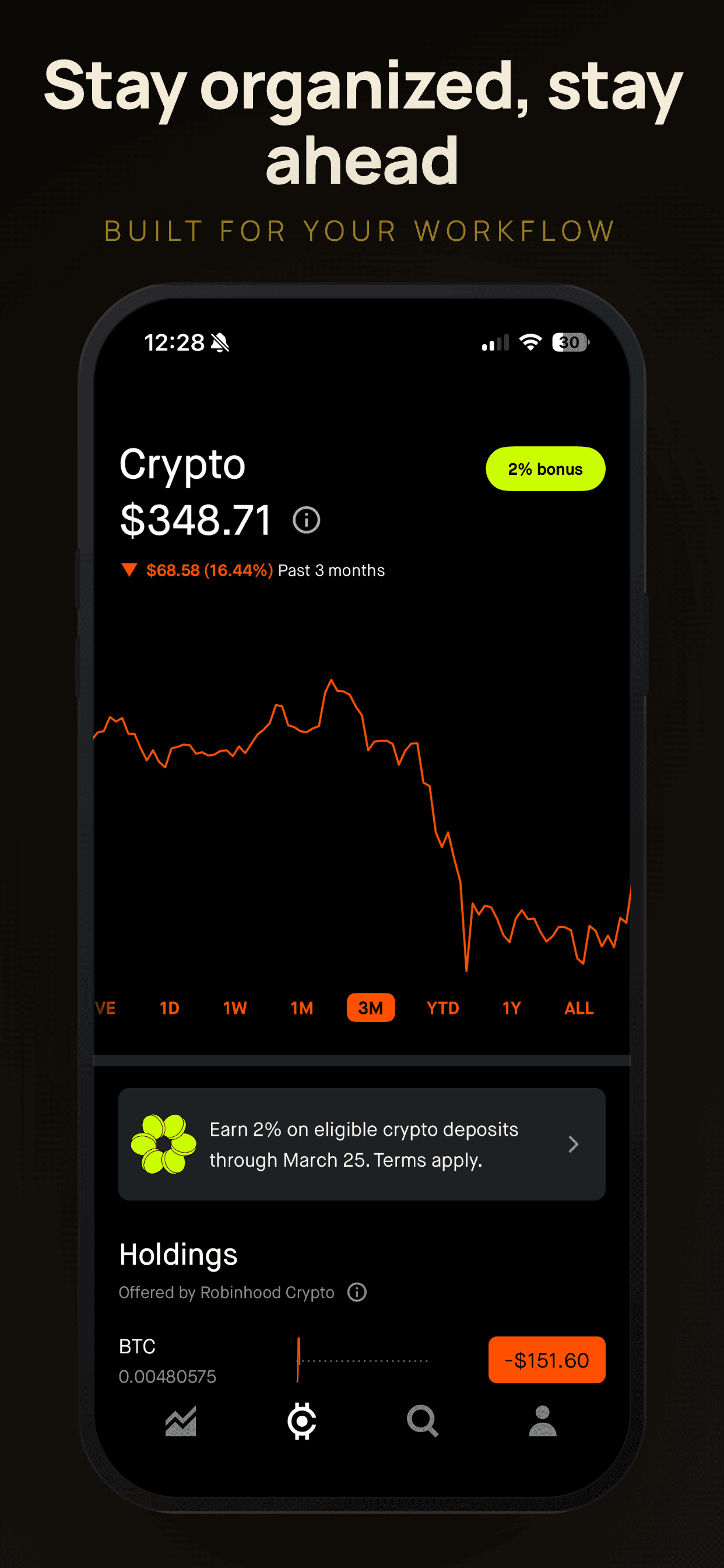
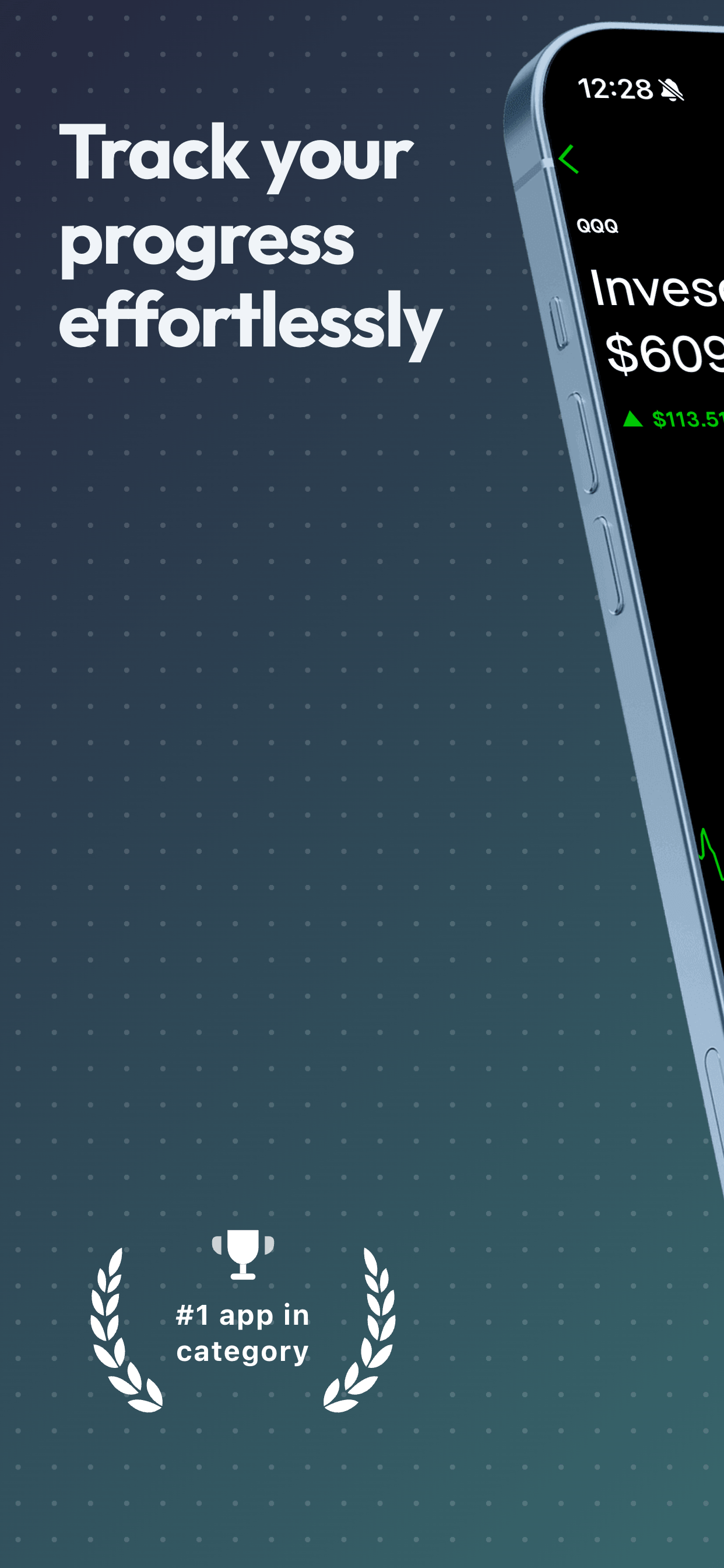
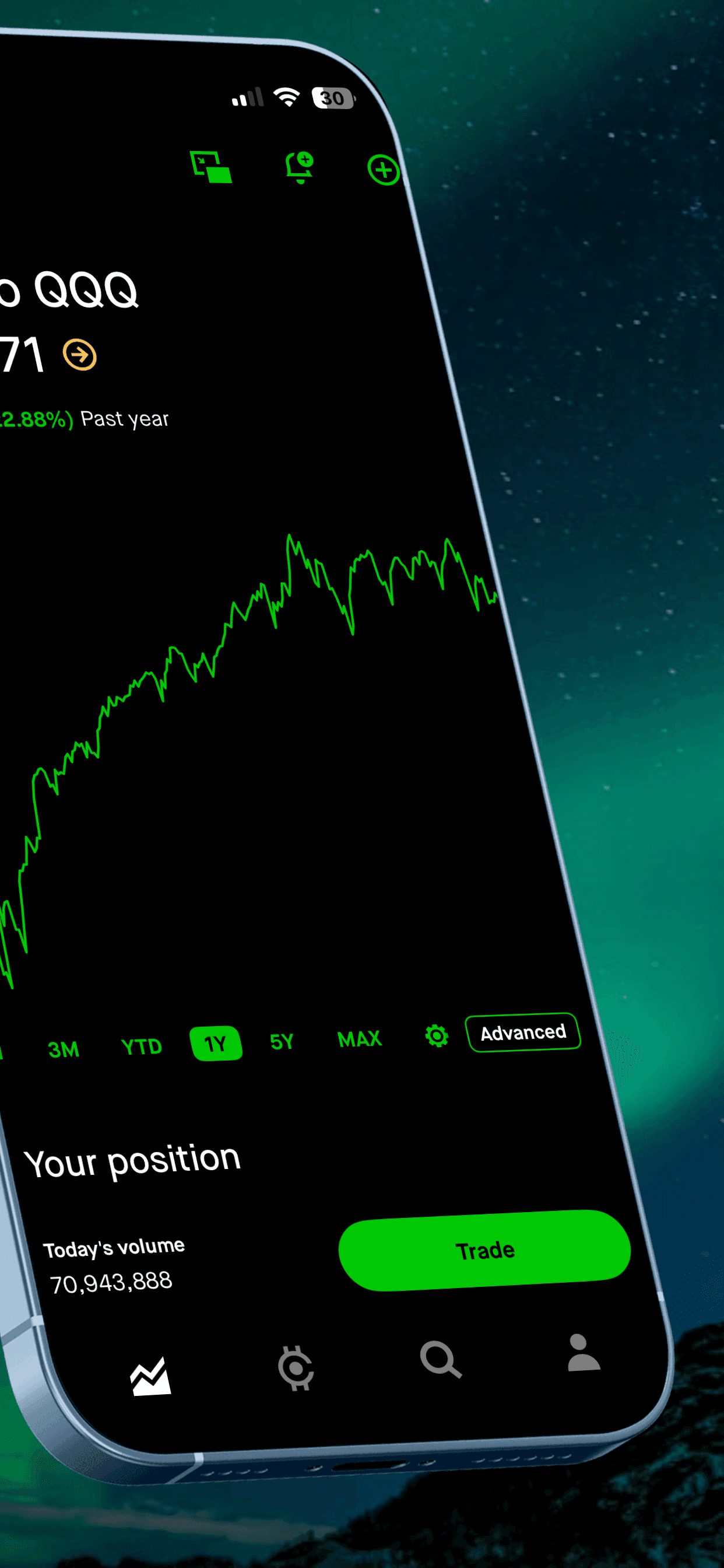
Panoramic (or continuous) screenshots span two consecutive frames, creating a widescreen effect when users scroll through your gallery. This is a powerful sequencing tool when used intentionally.
The best position for a panoramic pair is slots 1 and 2. Since these are the most visible screenshots, the panoramic effect creates a striking first impression that feels more polished than a standard single frame. The widescreen layout also gives you room for a bold headline on one side and a large phone mockup on the other, which is difficult to achieve in a single narrow screenshot.
A second option is to use a panoramic pair in slots 3 and 4. This works well when your first two screenshots are strong standalone frames and you want the panoramic effect to serve as a "reveal" moment that rewards users who scroll past the initial view.
Avoid placing panoramic pairs at the very end of your sequence. Few users scroll that far, and the panoramic effect loses its impact when there is no audience to appreciate it.
Common Sequencing Mistakes
Leading with a splash screen or login
Your onboarding flow might be beautiful, but nobody browsing the App Store cares about your login screen. They have not decided to use your app yet. Save onboarding for after the download.
Putting your best feature in the last slot
If most users only see the first three screenshots, your best content needs to live there. Burying a standout feature in position 8 or 9 means almost nobody will see it. Move it up.
Using the same caption style for every screenshot
When every caption looks identical (same size, same placement, same tone), users stop reading them after the second one. Vary your approach: use a bold headline on one, a short question on another, and a data point on a third. Keep the visual design consistent, but make the content distinct.
Treating screenshots as a feature checklist
A common pattern is to list every feature, one per screenshot, in no particular order. This creates a flat experience with no narrative. Instead, think about which features matter most to someone who has never used your app before, and prioritize accordingly. Features that matter to power users (export formats, keyboard shortcuts, API access) belong later in the sequence or not in screenshots at all.
Forgetting the Google Play sequence
If your app is on both iOS and Android, do not use the exact same sequence on both stores. Google Play shows screenshots differently (horizontal scroll in search results, different thumbnail sizes), and Android users may prioritize different features. Test your sequences independently.
How to Test Your Screenshot Order
Apple's Product Page Optimization (PPO) lets you A/B test up to three alternative screenshot arrangements against your current default. You can change the order, swap individual screenshots, or test entirely different sets. The test runs on live App Store traffic for up to 90 days, and Apple reports conversion rate differences with statistical confidence.
To set up a test, go to App Store Connect, select your app, navigate to "Product Page Optimization" in the sidebar, and create a new test. You can modify only the screenshots (and app preview videos) in each treatment. The icon, title, subtitle, and description stay the same across all treatments, which isolates the impact of your screenshot changes.
A good first test is simple: take your current screenshots and swap the positions of screenshot 1 and screenshot 3. If your third screenshot outperforms your first as the lead, you know your current opener is not as strong as you think. This single test often produces surprising results and costs nothing.
For Google Play, the equivalent feature is "Store Listing Experiments" in the Google Play Console. The setup is similar: create a variant with a different screenshot order and let the experiment run until you reach statistical significance. Google recommends at least 7 days per experiment.
Quick Sequence Audit
Before you publish your next set of screenshots, run through these questions.
Screenshot 1: Does it communicate a clear benefit in under 3 seconds? Would someone who has never heard of your app understand what it does?
Screenshots 1-3: If a user only saw these three frames, would they have enough information to decide to download?
Middle screenshots: Does each one introduce something new, or are some redundant? Could you remove one without losing any important information?
Final screenshot: Does it end on a strong note (trust signal, summary, or call to action), or does it trail off with a minor feature?
Overall flow: Read your captions in order, top to bottom. Do they tell a coherent story, or do they feel like a random list?
Reordering Without Creating New Screenshots
You do not always need new screenshots to improve your conversion rate. Sometimes the screenshots you already have are fine; they are just in the wrong order. Before investing time in a full redesign, try rearranging your existing screenshots using the story arc framework above.
In App Store Connect, you can drag and drop screenshots to reorder them. The change goes through a brief review (usually a few hours, sometimes up to 24) and then goes live. No new app binary is required.
A simple first move: look at your analytics in App Store Connect. If you have a screenshot that consistently draws the most taps in your gallery (Apple shows this in the impressions data), consider moving it closer to position 1. If your current first screenshot has a low tap-through rate, it might be too generic or too detailed. Swap it with a bolder, simpler frame.
Frequently Asked Questions
- How many App Store screenshots should I use?
- Apple allows up to 10 screenshots per device size. Most successful apps use 6 to 8. Using fewer than 4 leaves conversion on the table, since more screenshots give you more space to communicate your value. However, quality matters more than quantity: 5 great screenshots outperform 10 mediocre ones.
- Does the order of App Store screenshots matter?
- Yes. The order matters significantly because the first 2 to 3 screenshots are the only ones most users ever see. Around 60% of visitors never scroll past the initial visible screenshots in search results. Your first screenshot acts as your headline, so it must communicate your core value instantly.
- What should my first App Store screenshot show?
- Your first screenshot should show the single biggest reason someone would download your app. Lead with the primary benefit or outcome, not a feature list or login screen. Think of it as a billboard: one clear message that makes someone want to see more.
- Can I change the order of my screenshots without a new app update?
- Yes. You can reorder, add, or replace screenshots in App Store Connect at any time without submitting a new binary. The changes go through a brief review (usually a few hours) and then go live. This makes it easy to test different sequences.
- Should I use the same screenshot order for iPhone and iPad?
- Not necessarily. iPad users often have different priorities than iPhone users, especially for productivity and creative apps. If your app has a distinct iPad experience, consider tailoring the sequence to highlight features that benefit from the larger screen. At minimum, keep your first screenshot consistent across devices for brand coherence.
Related Guides
Build your screenshot sequence in minutes
Upload your raw screenshots, pick a template, drag to reorder, and export production-ready images for every device size. No design skills needed.
Try Screenshot Otter free →