
Guide
App Store Custom Product Pages: Screenshot Strategy Guide (2026)
How to use Apple's Custom Product Pages to show different screenshots to different audiences. A practical walkthrough covering setup, screenshot planning, keyword assignment, and performance tracking.

Scott Stewart · Apr 17, 2026
Quick answer
Custom Product Pages let you create up to 70 alternative App Store listings per app, each with unique screenshots, videos, and promotional text. You can link them to Apple Search Ads campaigns, share them via direct URLs, or assign keywords so they appear in organic search. Apps using CPPs report 6-8% higher conversion rates compared to a single default listing.
Your default App Store product page has to do everything at once: convince casual browsers, reassure power users, and speak to completely different use cases. That is a tall order for a single set of screenshots. Custom Product Pages solve this by letting you create targeted variations, each with its own screenshot gallery, preview videos, and promotional text.
The feature launched with iOS 15 and has expanded significantly since then. As of 2026, Apple supports up to 70 Custom Product Pages per app (up from 35 before October 2025), organic keyword assignment, and deep links on iOS 18. For indie developers and small teams, CPPs are one of the highest-leverage ASO tools available, and most apps still do not use them.
This guide covers what Custom Product Pages are, how to set them up, and most importantly, how to plan your screenshot strategy for each page so you actually see a conversion lift.
What Are Custom Product Pages?
A Custom Product Page is an alternative version of your App Store listing. It shares the same app icon, name, ratings, and description as your default page, but you can customize three things: screenshots, app preview videos (up to 3), and promotional text (up to 170 characters).
Each CPP gets its own unique URL that you can share anywhere. When a user taps that link on an iOS device, they see your customized page instead of the default one. You can also connect CPPs to Apple Search Ads campaigns so that specific ad groups land on a tailored page.
The key insight: different people download your app for different reasons. A fitness app might appeal to runners, weightlifters, and yoga practitioners. Showing running screenshots to someone who searched for "running tracker" converts better than showing a generic overview. CPPs make this possible without maintaining separate apps.
What Changed in 2025 and 2026
Organic keyword assignment
Starting in mid-2025, you can assign keywords from your keyword field to specific Custom Product Pages in App Store Connect. When your app ranks for those keywords in organic search, Apple may display the assigned CPP instead of your default page. This was the biggest change since the feature launched, because it means CPPs are no longer limited to paid ads and direct links.
70-page limit (up from 35)
Apple doubled the CPP limit in October 2025. For most indie apps, 35 was already more than enough, but this is useful for apps with many distinct user segments or apps running in dozens of markets with localized pages.
Deep links on iOS 18
On iOS 18 and iPadOS 18, you can assign a deep link to each CPP. When users tap "Open" on your Custom Product Page, they go directly to a specific screen in your app instead of the home screen. This creates a smoother path from discovery to engagement, especially for apps with multiple entry points.
When Custom Product Pages Make Sense
Not every app needs Custom Product Pages. If your app does one thing for one audience, your default page is probably fine. CPPs become valuable when any of these apply:
Multiple use cases. Your app serves distinct user groups who care about different features. A project management app might target freelancers, agencies, and enterprise teams, each needing to see different screenshots that reflect their workflow.
Seasonal or event-driven content. If your app has seasonal features (holiday themes, back-to-school tools, tax season features), you can create CPPs that highlight timely content and link to them from seasonal marketing campaigns.
Apple Search Ads campaigns. If you run Search Ads, CPPs let you match your landing page to your ad creative. Someone who clicks an ad for "budget tracker" should see budgeting screenshots, not a generic app overview.
Cross-promotion and partnerships. When another app or publication features your app, you can share a CPP URL with screenshots tailored to that specific audience. A tech blog review gets a different landing page than an influencer promotion.
Organic keyword targeting. With keyword assignment, you can create CPPs optimized for specific search terms. If your app ranks for both "meal planner" and "calorie counter," each term can land on a page with screenshots that match the search intent.
How to Create a Custom Product Page
Setting up a CPP takes about 15 minutes per page in App Store Connect. Here is the step-by-step process.
Screenshot Strategy for Custom Product Pages
The screenshots are the most important part of any CPP. Your promotional text is limited to 170 characters, and most users make their download decision based on what they see, not what they read. Here is how to plan your screenshot sets.
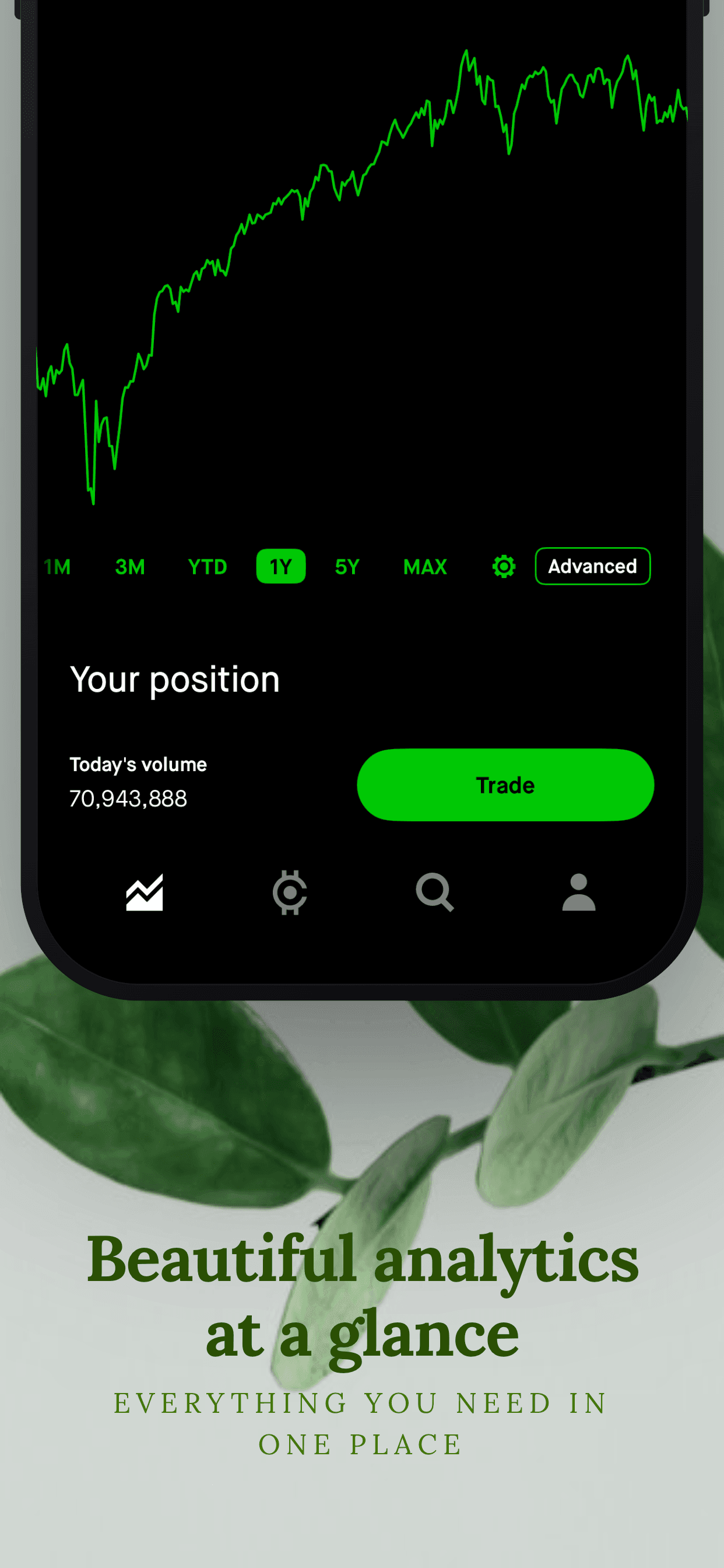
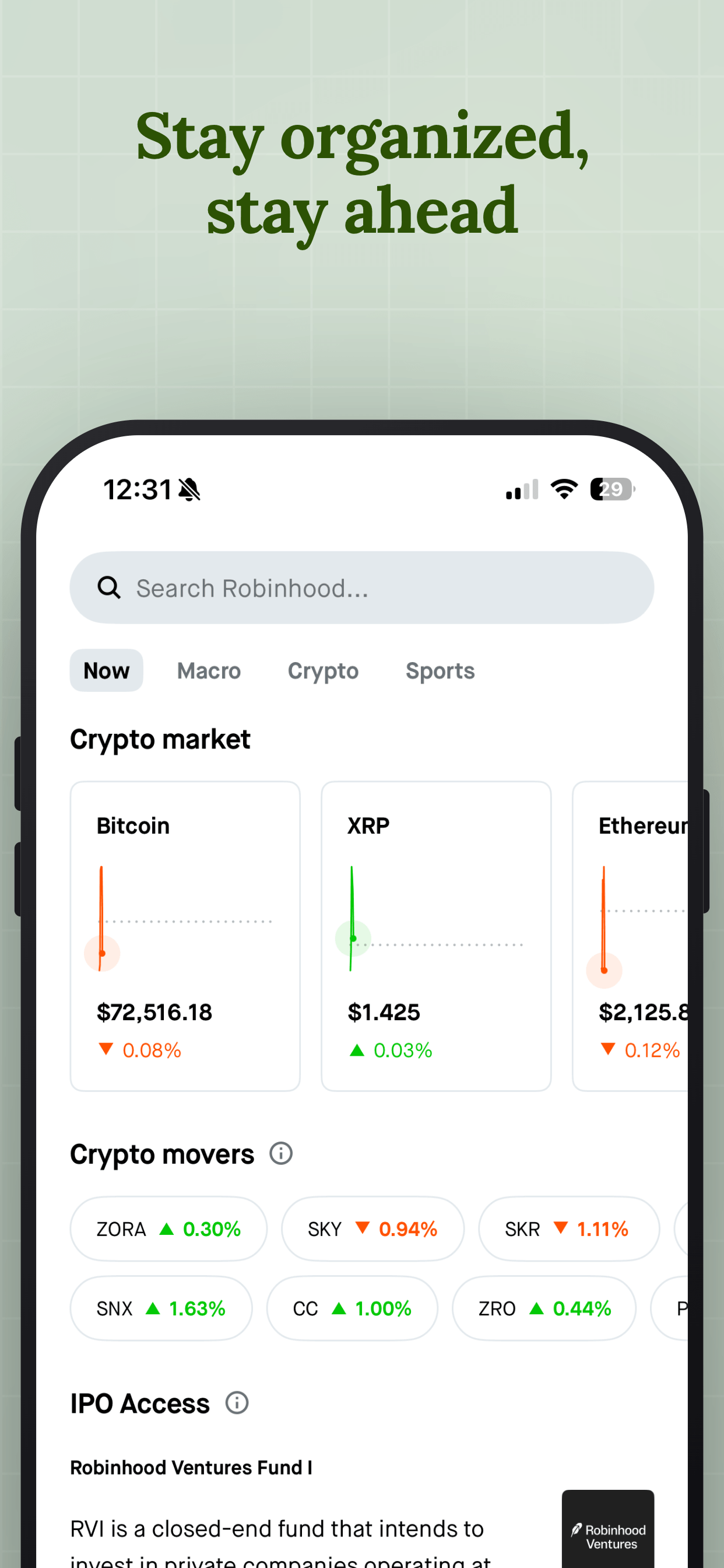
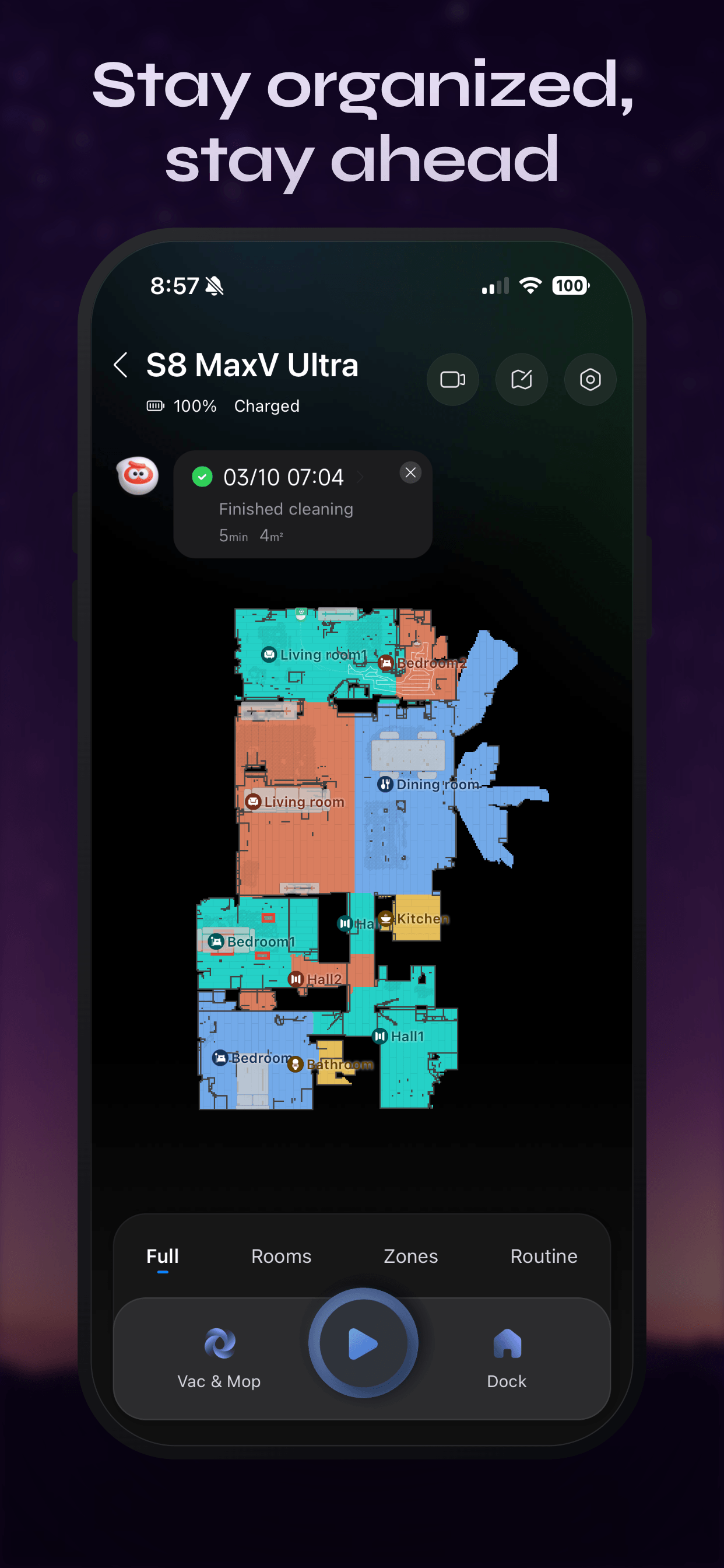
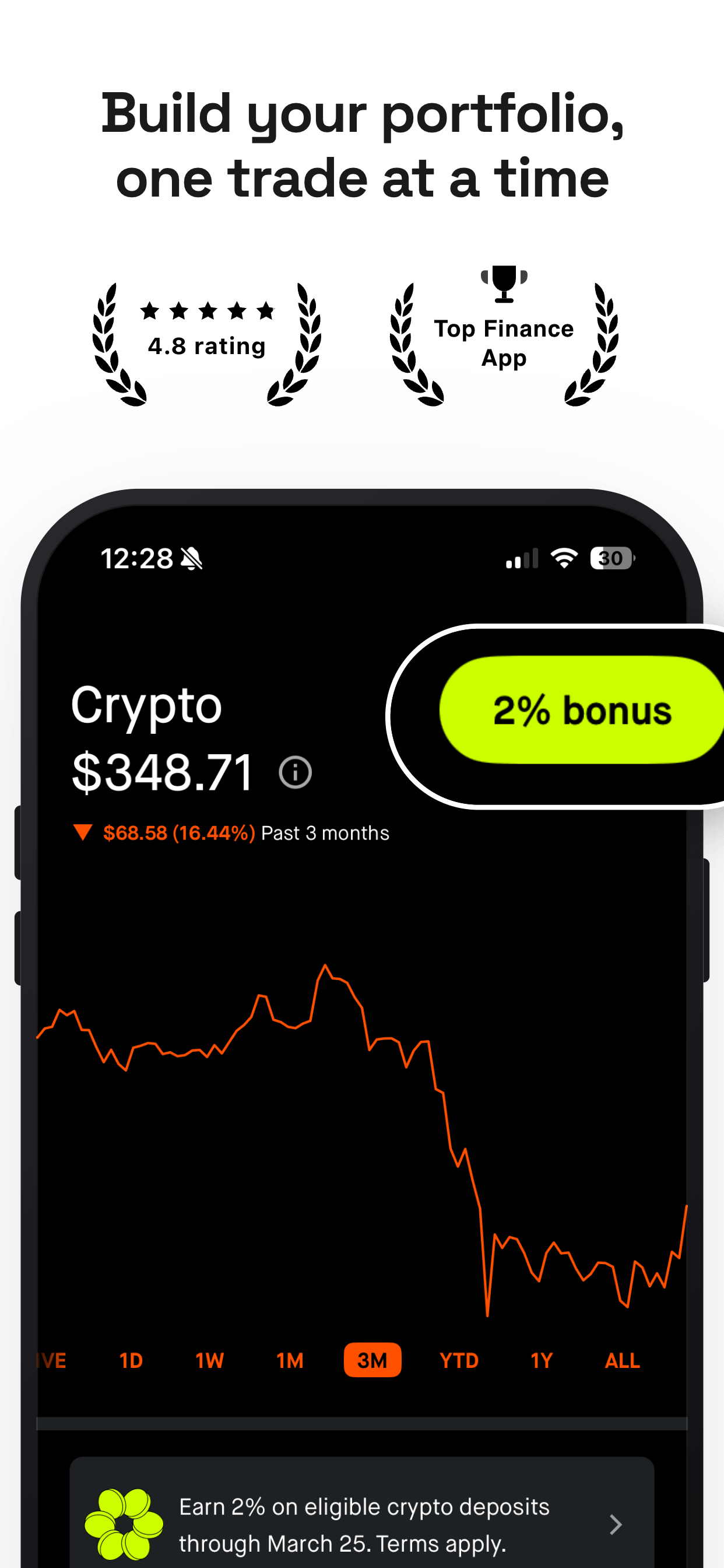
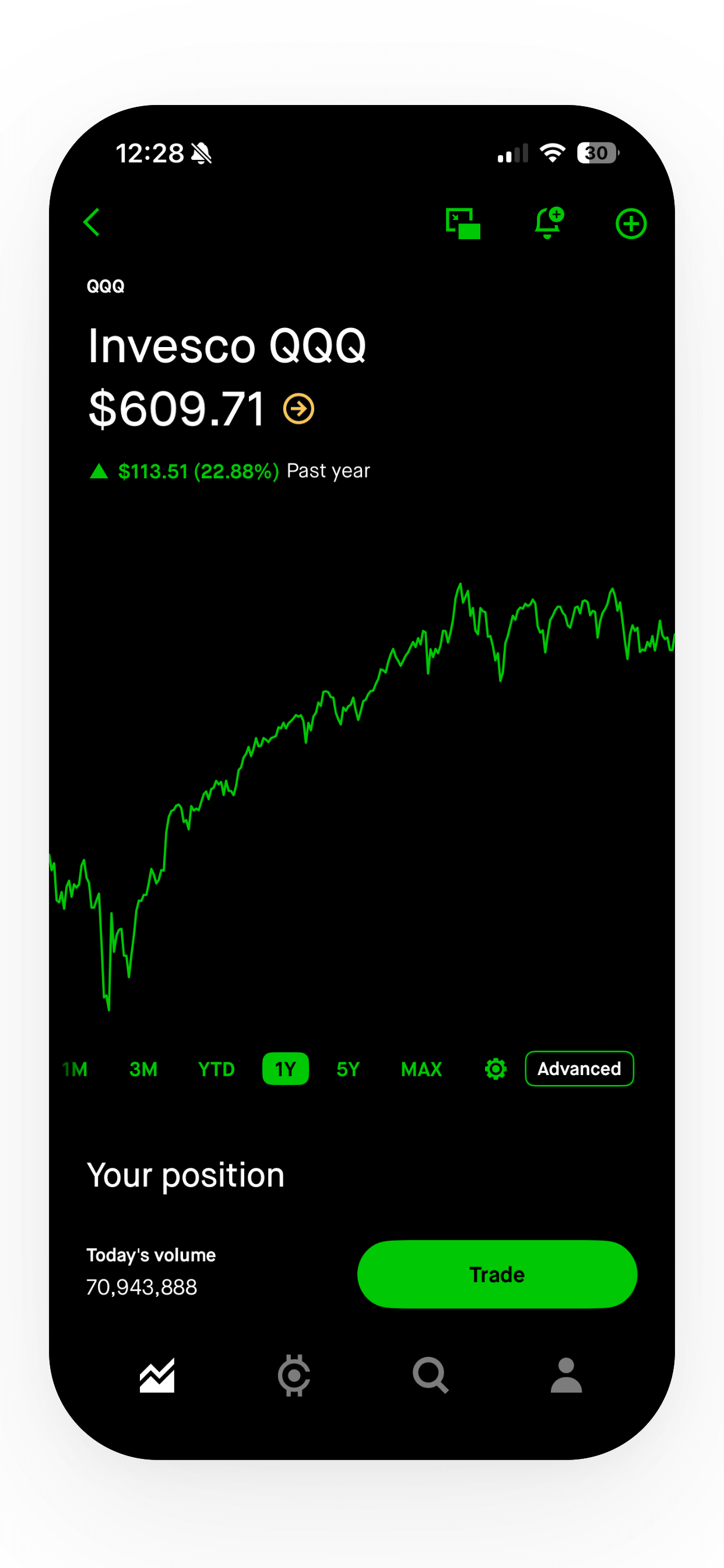
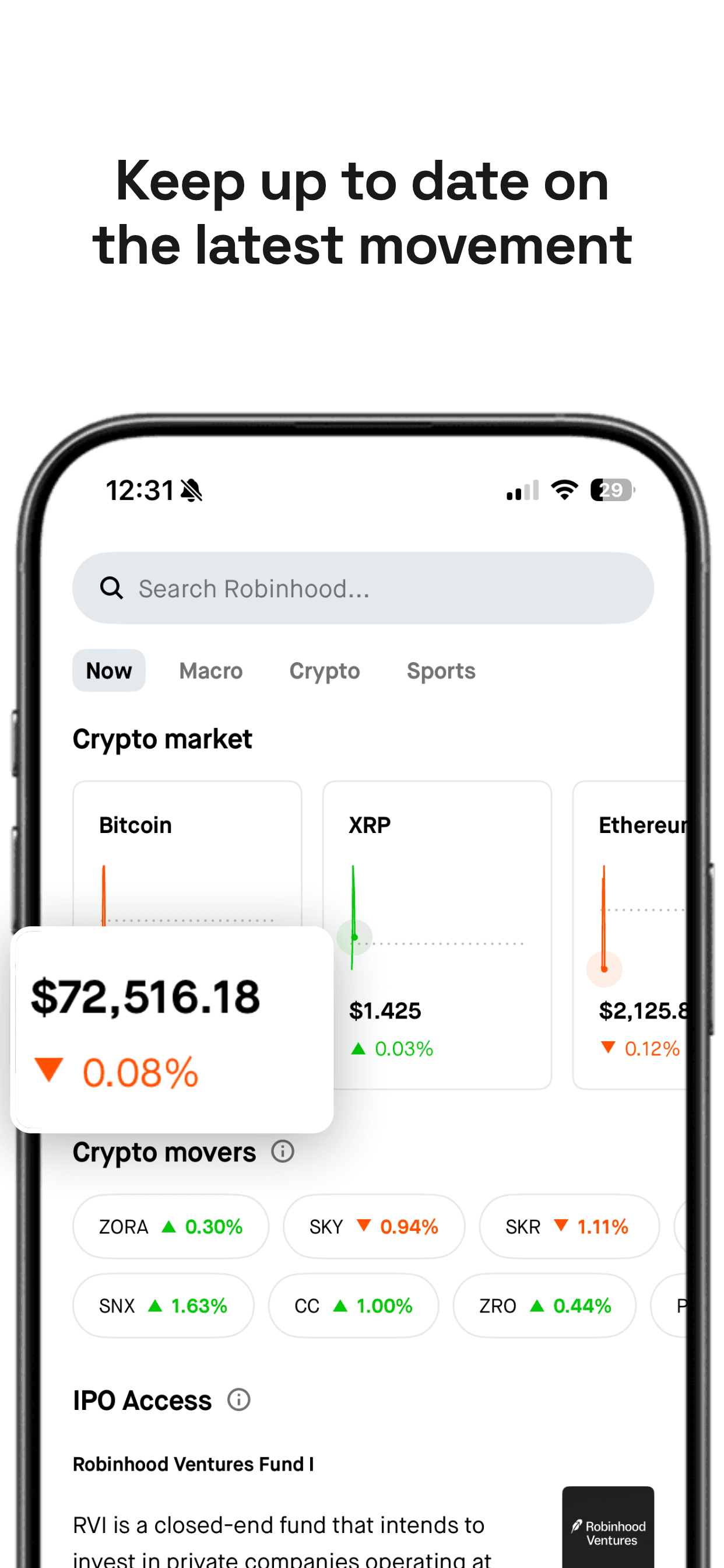
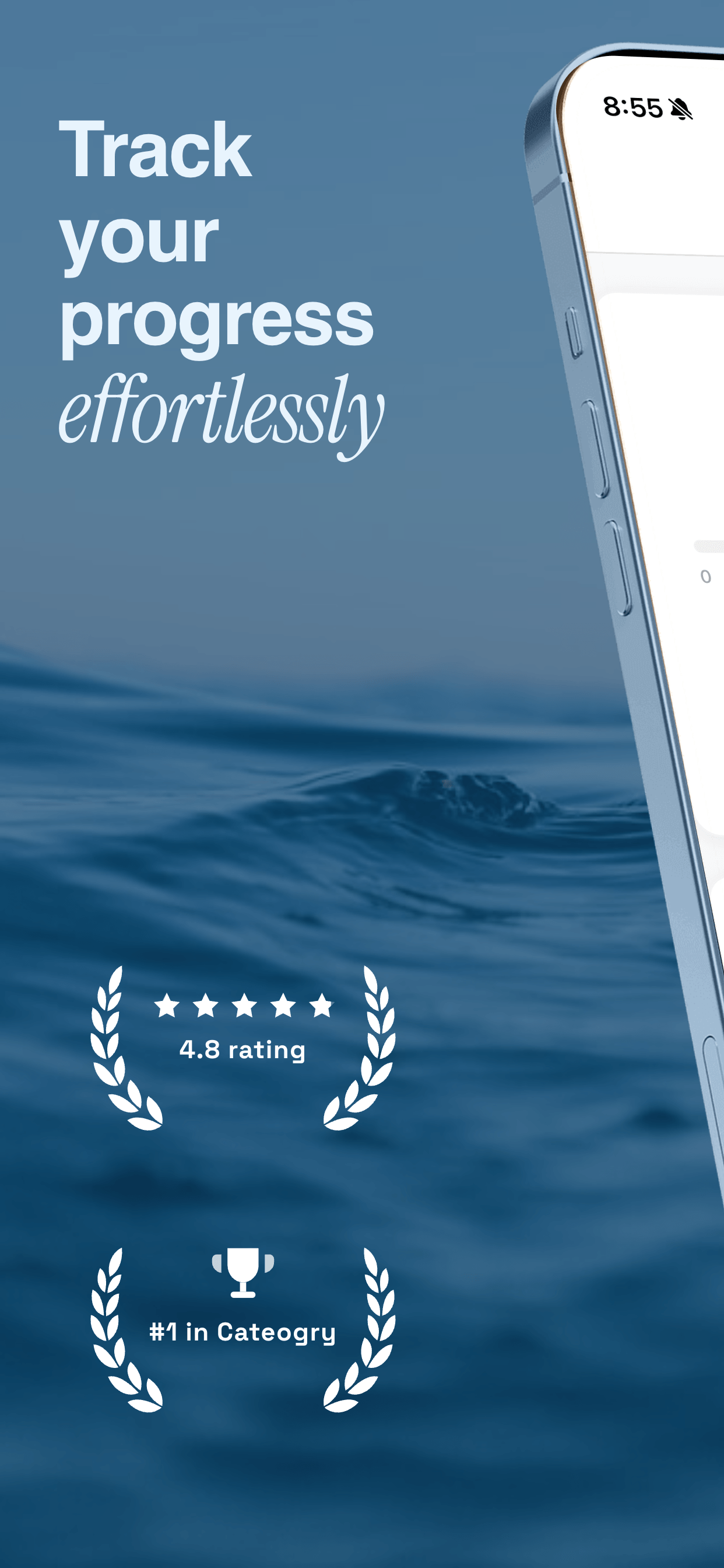
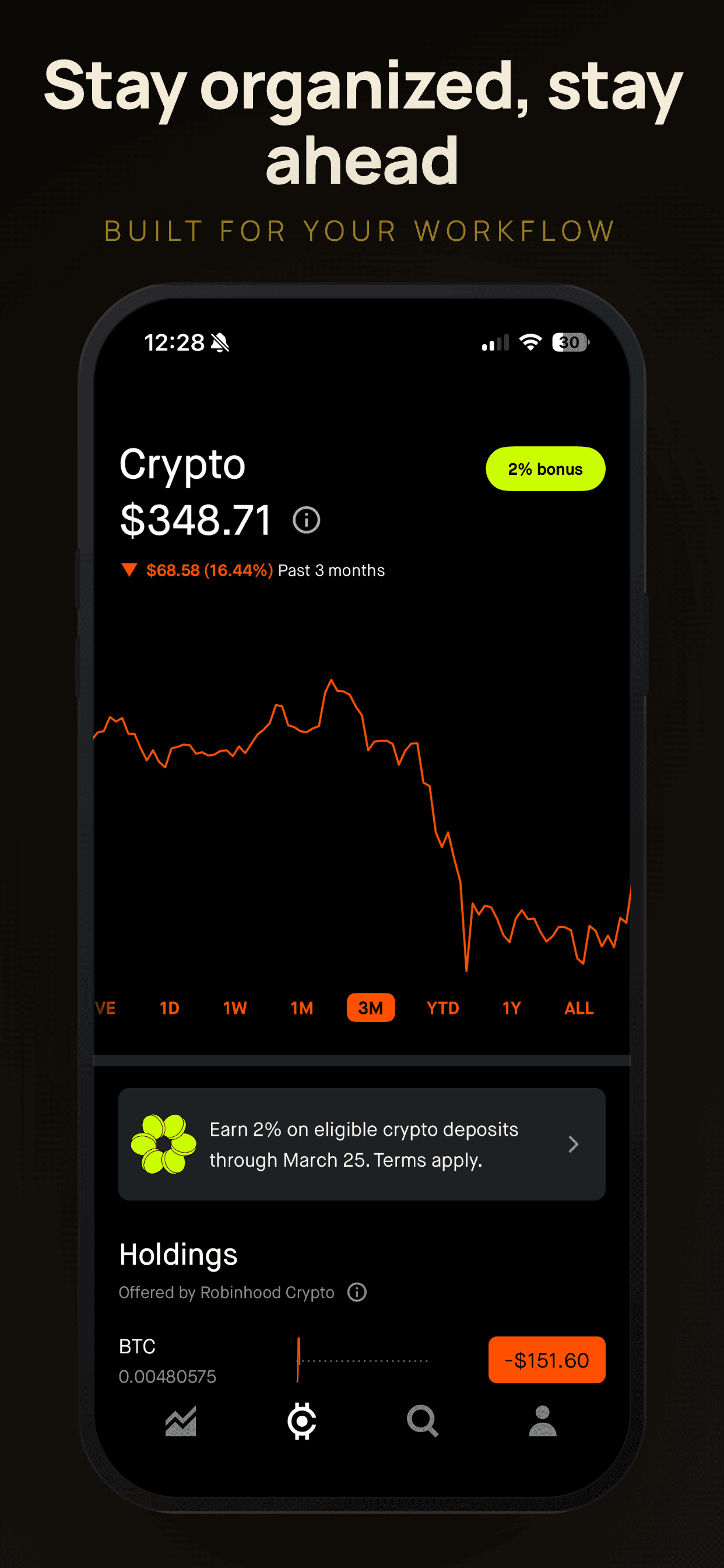
Lead with the relevant feature. Your first screenshot should immediately show the feature or use case that matches the audience for this page. If the CPP targets people who searched for "habit tracker," your first screenshot should show the habit tracking interface, not a generic welcome screen. The same caption principles apply: lead with a benefit, not a feature name.
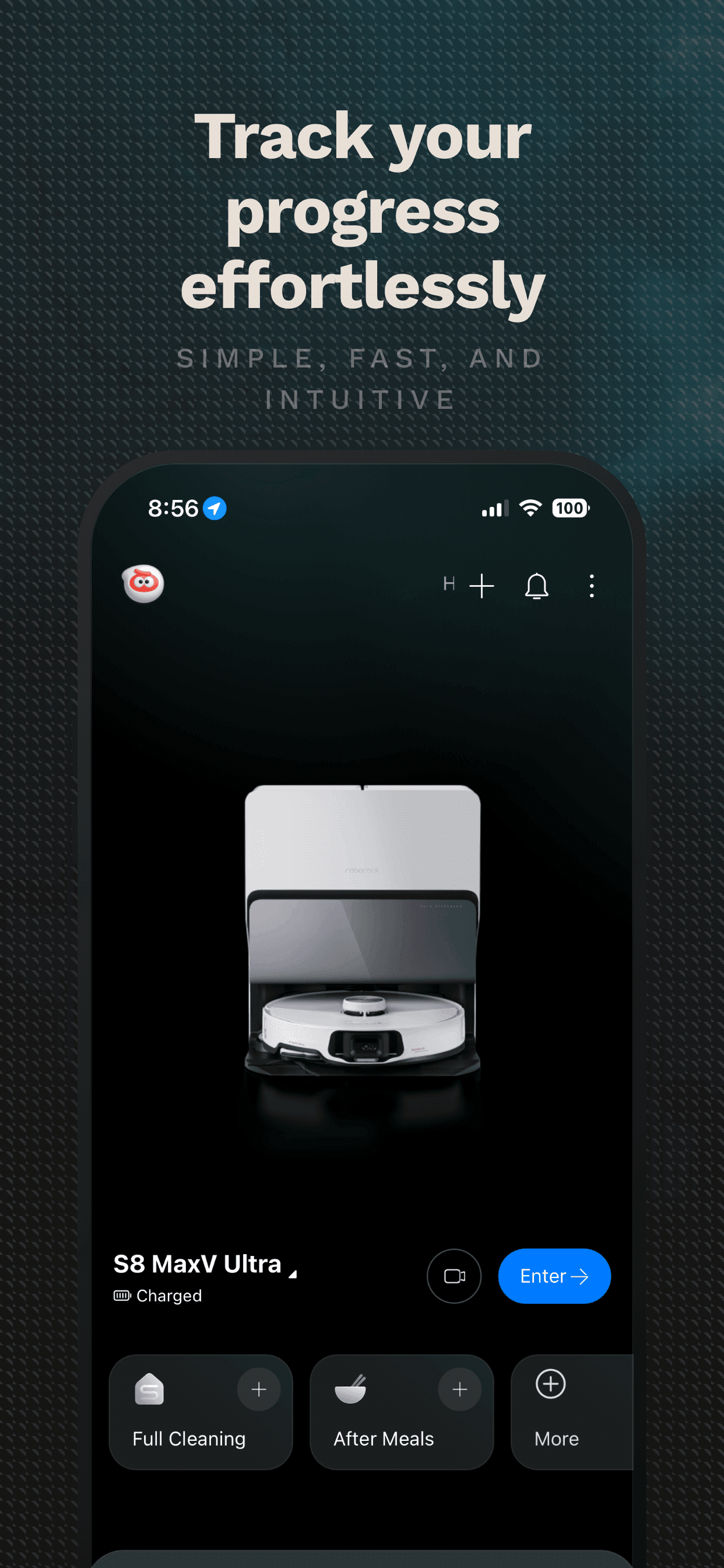
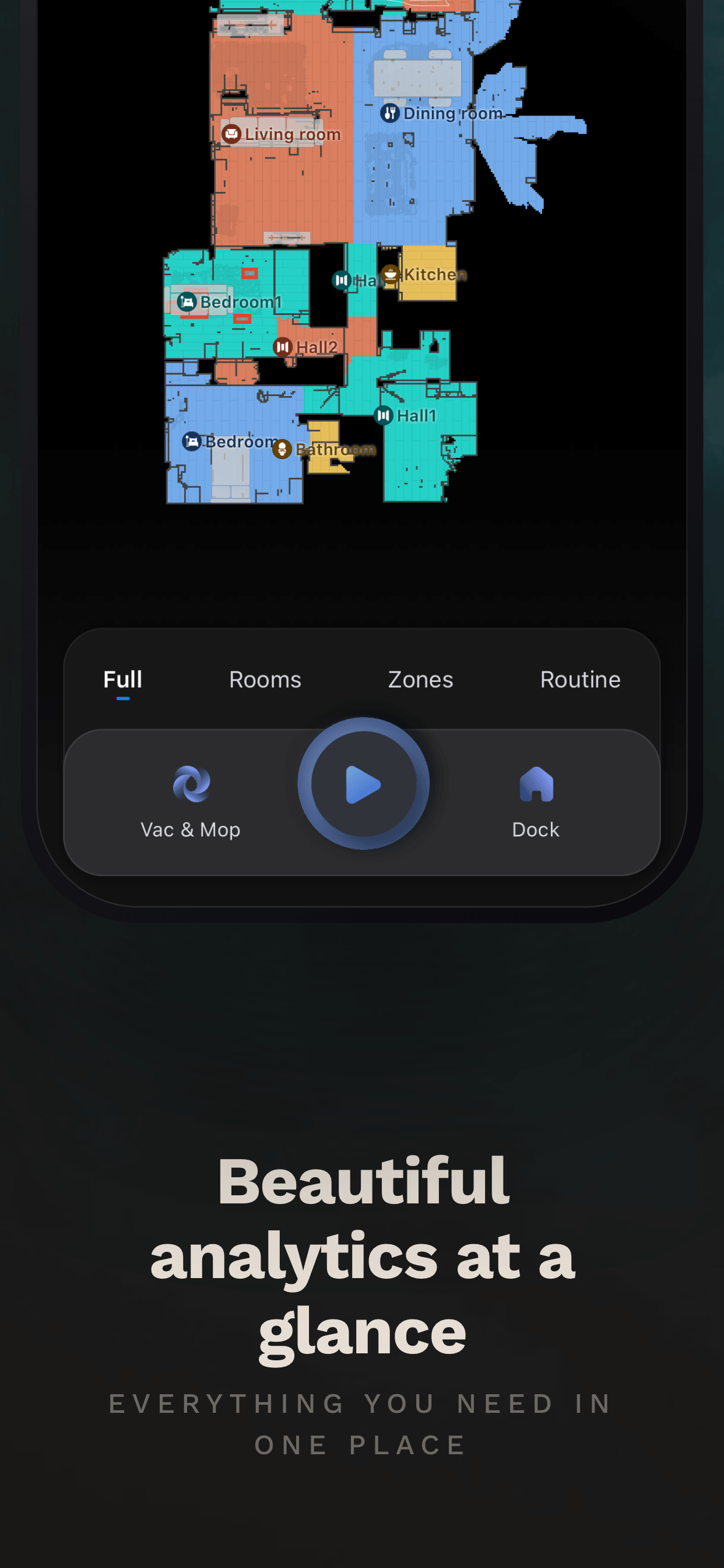
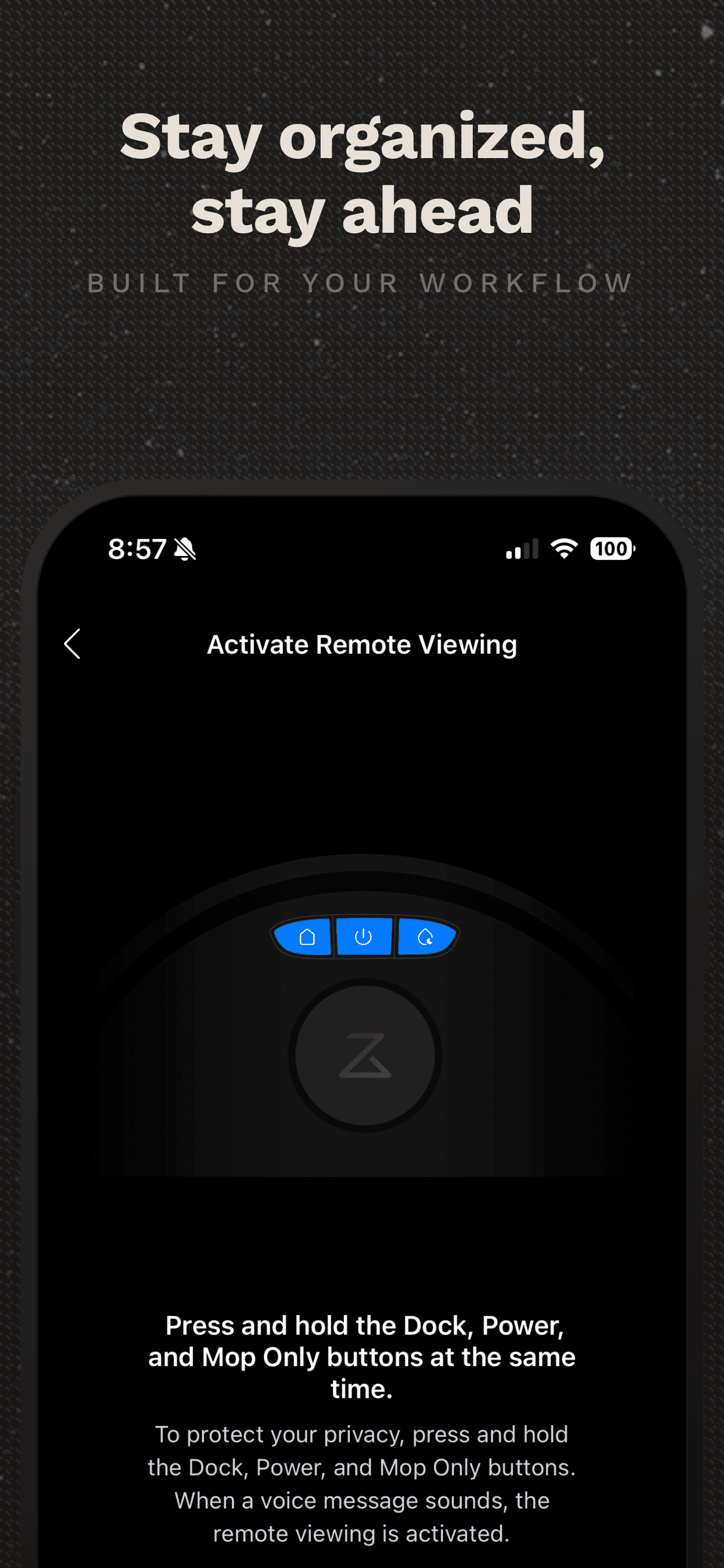
Reorder, do not just duplicate. A common mistake is copying your default screenshots and rearranging them. That is a start, but the real opportunity is creating screenshots that speak directly to the audience. Change the captions, highlight different data in the UI, and adjust the visual hierarchy so the most relevant content is front and center.
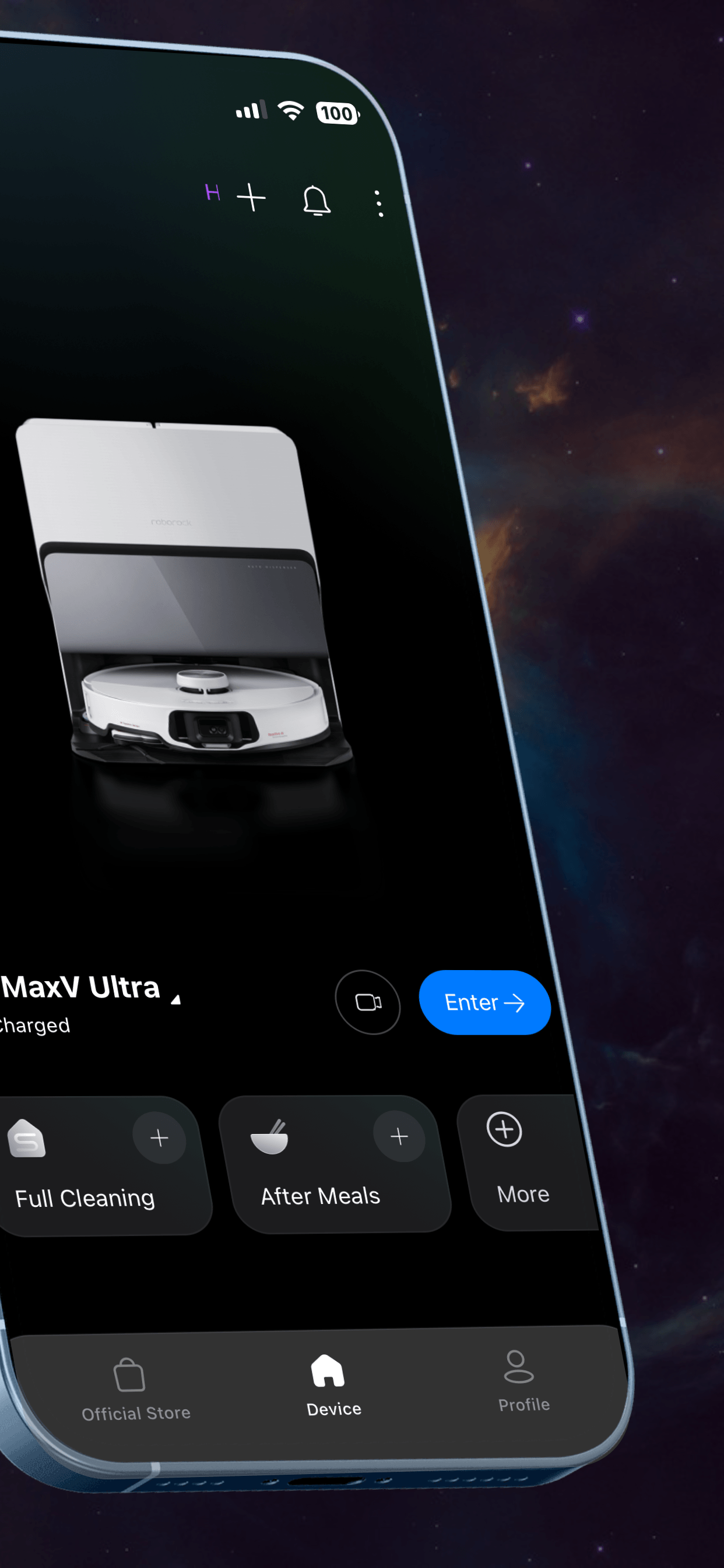
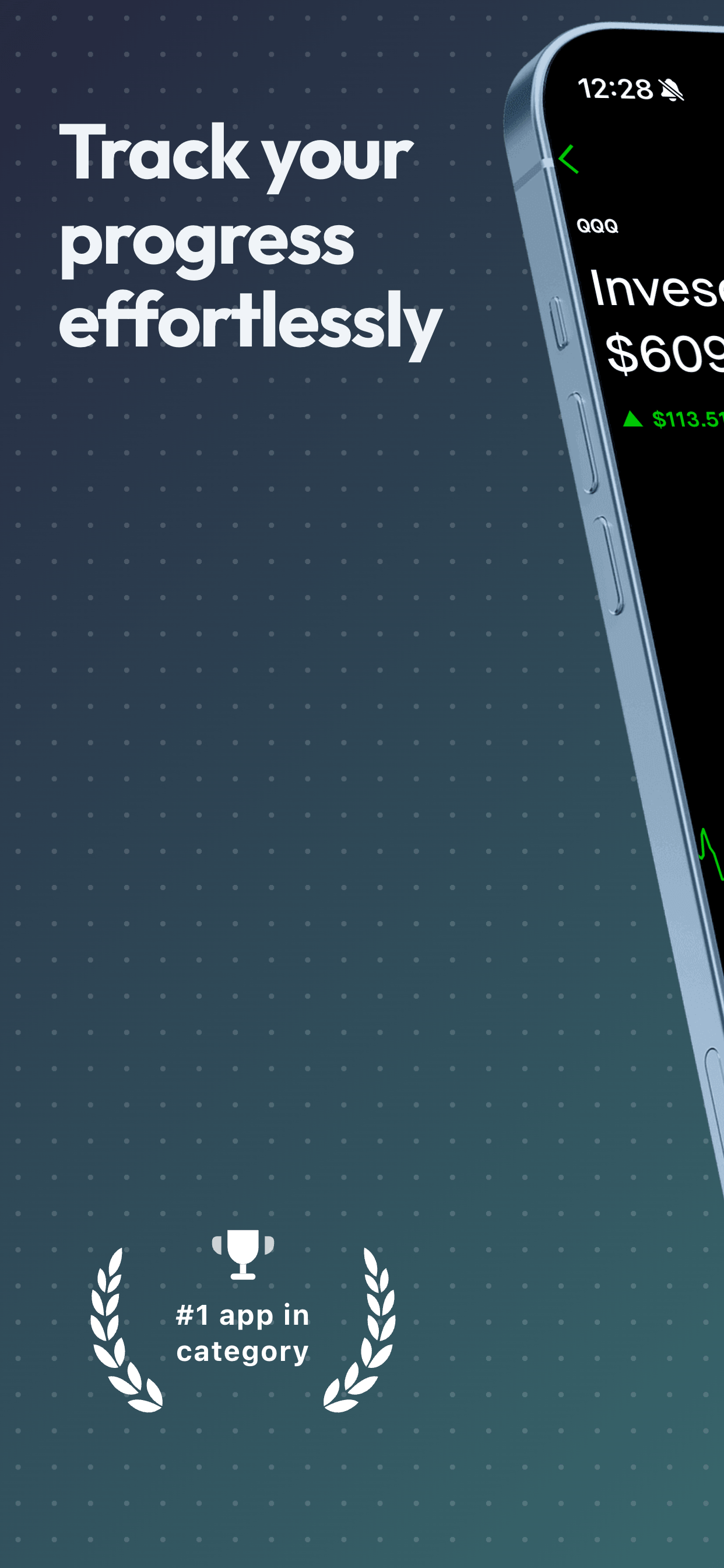
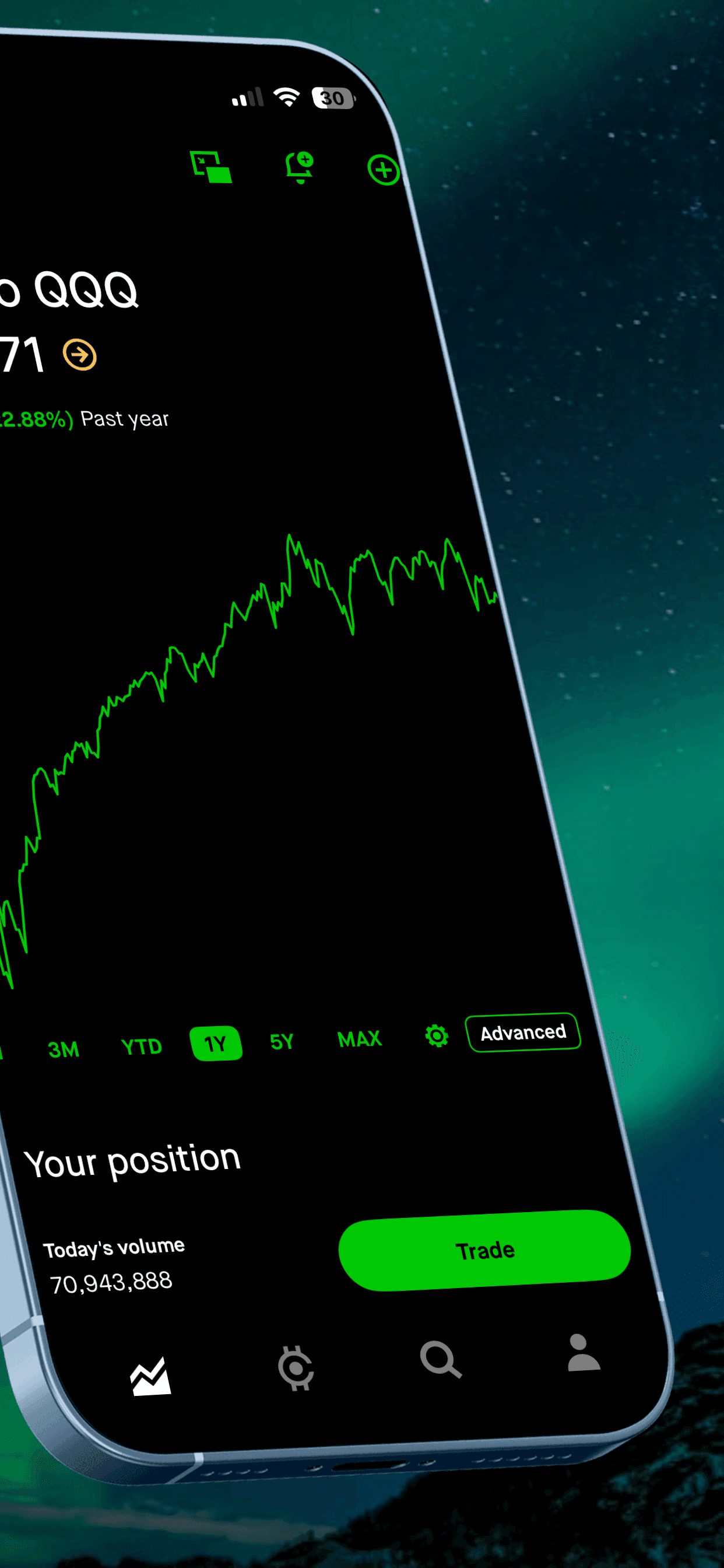
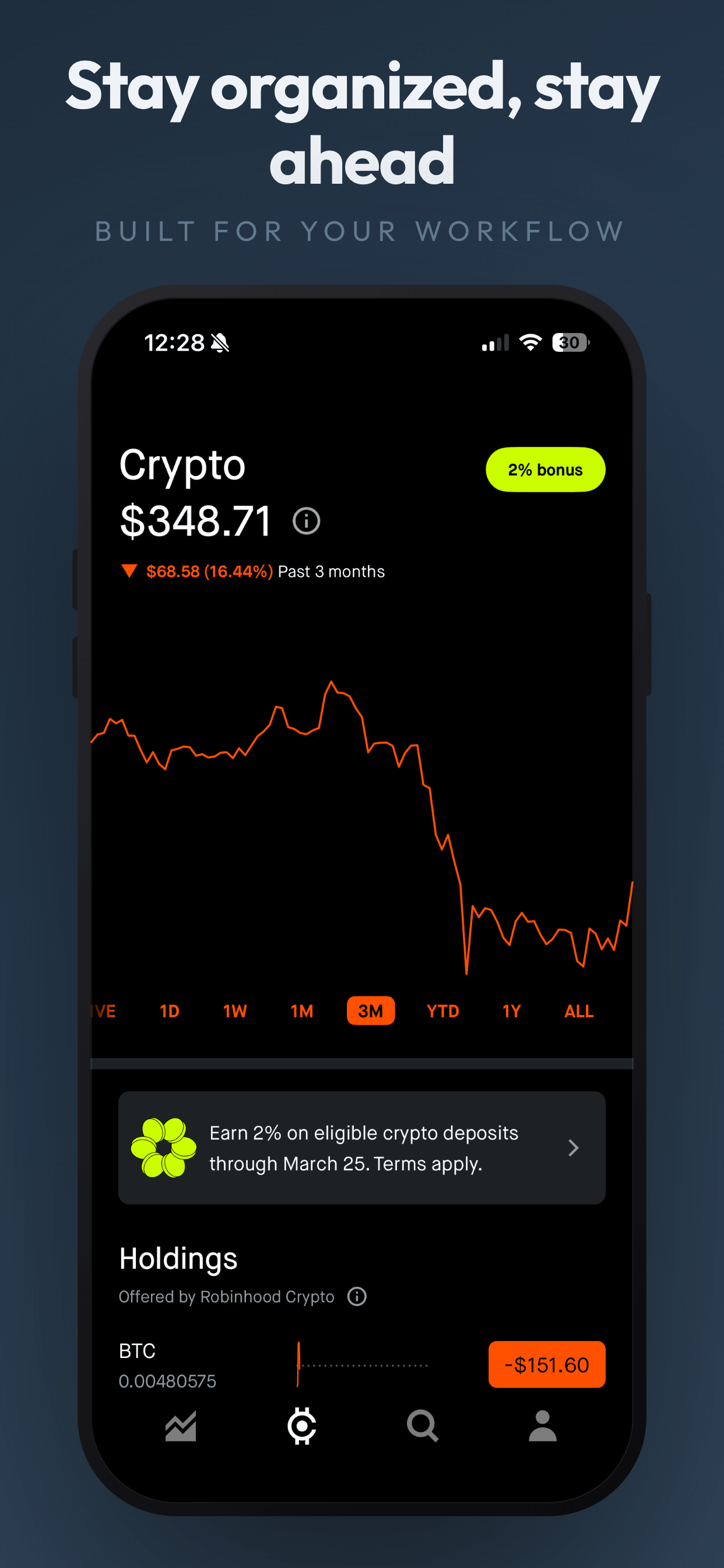
Keep the same visual identity. While the content of your screenshots should change between CPPs, the design language should stay consistent. Use the same template, color scheme, and typography across all your pages. This builds brand recognition and ensures every version of your listing looks professional. If you are using a tool like Screenshot Otter, you can quickly generate multiple screenshot sets from the same template by swapping the raw screenshots and captions.
Plan for 3-5 pages to start. Even though Apple allows up to 70, start with a small number of well-crafted pages. Each page requires a full set of screenshots across all device sizes, so the production work adds up quickly. Focus on your highest-value audience segments first and expand based on performance data.
Match captions to search intent. If you are assigning keywords to a CPP, the screenshot captions should echo the language users type when searching. Someone searching "expense tracker for freelancers" wants to see captions like "Track every expense in seconds" and "Built for freelance workflows," not "Powerful financial management platform."
Assigning Keywords to Custom Product Pages
Keyword assignment is the most powerful CPP feature for organic growth. Here is how to use it effectively.
In App Store Connect, each CPP has a keyword assignment section where you can select keywords from your existing keyword field. When your app ranks for an assigned keyword, Apple may show the CPP instead of your default page in search results. This is not guaranteed for every impression, but it happens frequently enough to move conversion numbers.
The strategy is straightforward: group your keywords by intent, then create a CPP for each intent group. If your app is a photo editor, you might have one CPP for "photo filter" keywords (showing filter screenshots), another for "photo collage" keywords (showing collage screenshots), and a third for "remove background" keywords (showing background removal screenshots). Each user sees exactly the feature they searched for.
A few practical notes: you can only assign keywords that are already in your keyword field, so your keyword strategy and CPP strategy need to work together. Each keyword can only be assigned to one CPP. And Apple still controls whether to show the CPP or the default page, so think of keyword assignment as a strong signal rather than a guarantee.
Connecting CPPs to Apple Search Ads
If you run Apple Search Ads, Custom Product Pages are essential. Without them, every ad click lands on your default page, regardless of what the user searched for or which ad creative they saw.
In your Search Ads dashboard, you can assign a CPP to any ad group. When building campaigns around specific keyword themes, create ad groups with related keywords and point each group to a CPP with matching screenshots. The alignment between search term, ad creative, and landing page is what drives conversion.
For example, a meditation app running Search Ads for "sleep sounds" keywords should land those clicks on a CPP showing the sleep sounds interface, not the meditation timer. This seems obvious, but the majority of Search Ads campaigns still send all traffic to the default page.
Track your cost per acquisition (CPA) for each ad group and CPP combination. You will often find that a well-matched CPP reduces CPA by 15-30% compared to sending the same traffic to your default page.
Measuring CPP Performance
App Store Connect provides analytics for each Custom Product Page. Navigate to your app, then go to Analytics and filter by product page. For each CPP you will see impressions, product page views, conversion rate, and total downloads.
The key metric is conversion rate: the percentage of product page views that result in a download. Compare each CPP against your default page. A well-targeted CPP should convert at a higher rate than your default page for the audience it targets. If it does not, your screenshots probably need refinement.
Give each page at least two weeks and a few hundred product page views before drawing conclusions. Small sample sizes produce unreliable conversion data. If a page is underperforming after sufficient traffic, revisit your screenshot strategy: is the first screenshot compelling enough? Do the captions match the search intent? Is the UI shown in the screenshots actually relevant to this audience?
You can also use CPP performance data to improve your default page. If a CPP targeting a specific feature consistently outperforms your default page, consider incorporating elements of that CPP into your default screenshot set.
Common CPP Mistakes to Avoid
Creating too many pages at once
Each CPP needs a full screenshot set across all supported device sizes. If you support iPhone 6.7-inch, iPhone 6.5-inch, and iPad, that is 30 screenshots for a 10-screenshot set across 3 devices, for every single CPP. Start with 3-5 pages targeting your highest-value segments and expand from there.
Duplicating your default page with minor tweaks
Swapping two screenshots and calling it a Custom Product Page is not enough to move conversion numbers. Each CPP should have a clear, distinct purpose and screenshot set that speaks to a specific audience. If the page looks almost identical to your default, it is not worth the review time.
Inconsistent visual quality
All your CPPs represent your brand. If some pages have polished screenshots and others look rushed, users who land on the lower-quality pages will bounce. Maintain the same design standards across every page.
Forgetting to update CPPs with app changes
When you update your app UI, you need to update screenshots on all your Custom Product Pages, not just the default. Outdated screenshots on a CPP create a disconnect between what users expect and what they find after downloading. Set a reminder to review all CPPs whenever you ship a major UI update.
Not assigning keywords
If you have CPPs but have not assigned keywords, you are leaving organic impressions on the table. Keyword assignment is the easiest way to get CPPs in front of users without spending money on Search Ads.
Frequently Asked Questions
- What are App Store Custom Product Pages?
- Custom Product Pages (CPPs) are alternative versions of your App Store listing. Each one can have its own screenshots, app preview videos, and promotional text. You can create up to 70 per app and link them to Apple Search Ads campaigns, web URLs, or specific keyword sets.
- How many Custom Product Pages can I create?
- Apple allows up to 70 Custom Product Pages per app. Each page can have unique screenshots, up to 3 app preview videos, and its own promotional text (up to 170 characters).
- Can Custom Product Pages appear in organic App Store search?
- Yes. Since mid-2025, you can assign keywords from your keyword field to specific Custom Product Pages in App Store Connect. When your app ranks for those keywords, Apple may show the assigned CPP instead of your default page in organic search results.
- Do Custom Product Pages need separate screenshot sets?
- Yes. Each Custom Product Page has its own screenshot gallery. You need to create and upload a full set of screenshots for each CPP. The screenshots should be tailored to the specific audience or use case that page targets.
- How do I track Custom Product Page performance?
- App Store Connect provides analytics for each Custom Product Page, including impressions, product page views, conversion rate, and downloads. You can compare CPP performance against your default page and against each other to identify which messaging resonates with each audience segment.
Related Guides
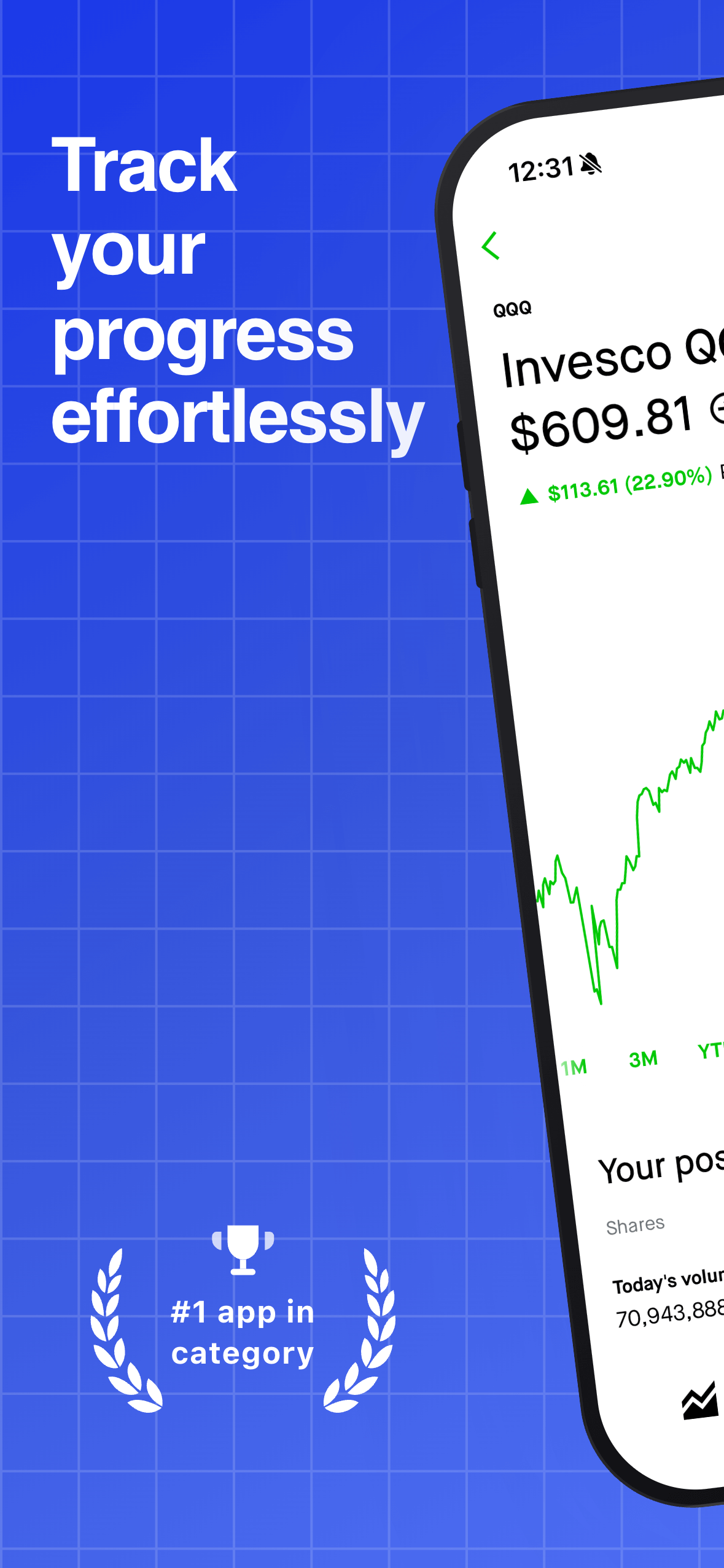
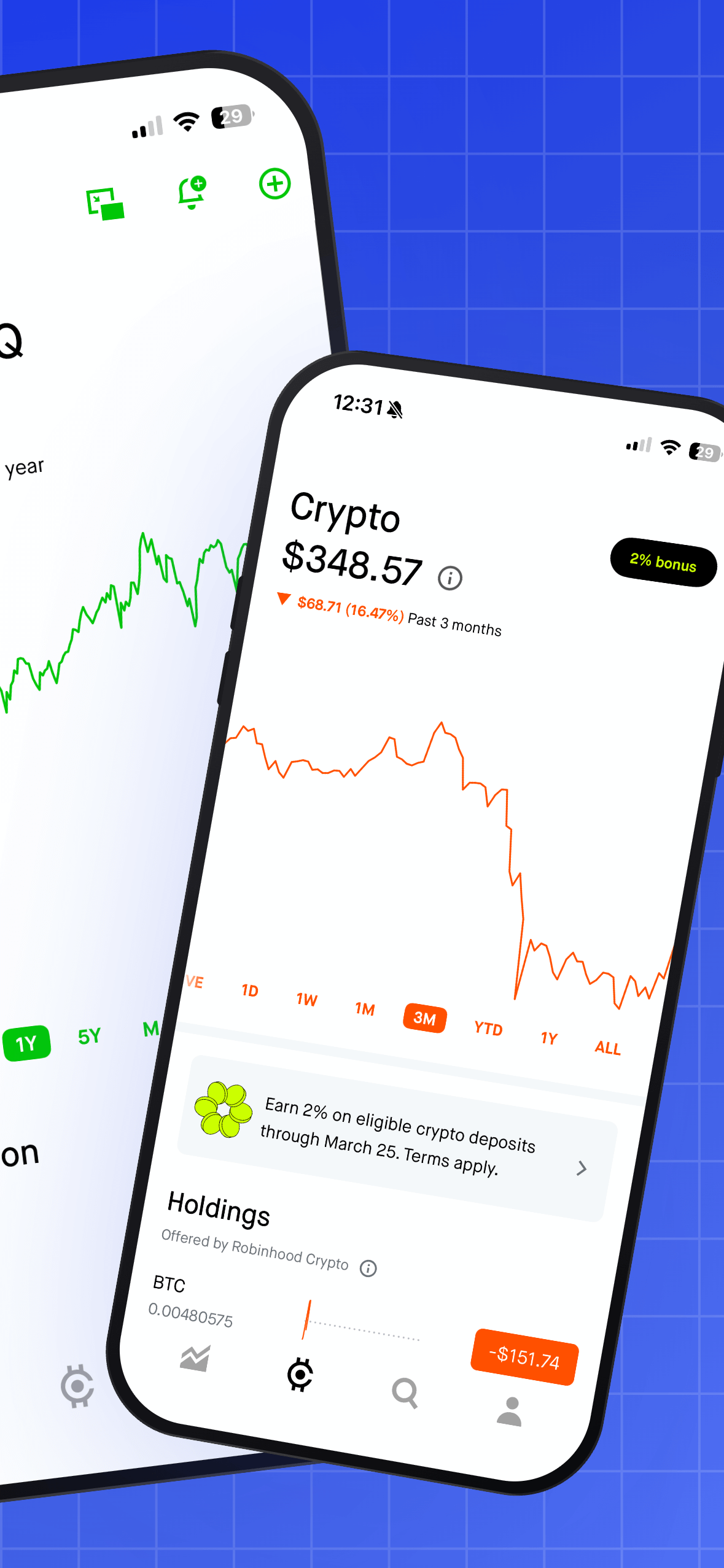
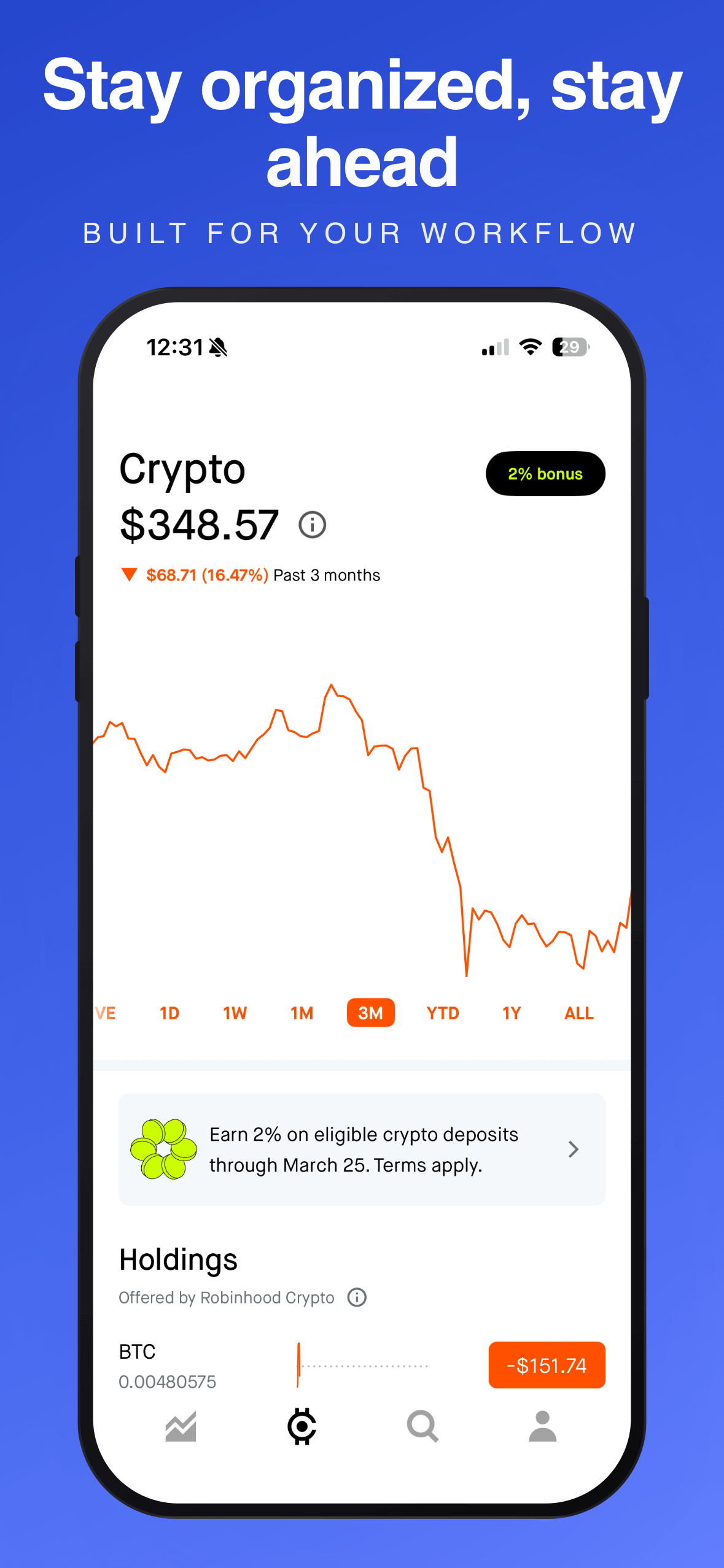
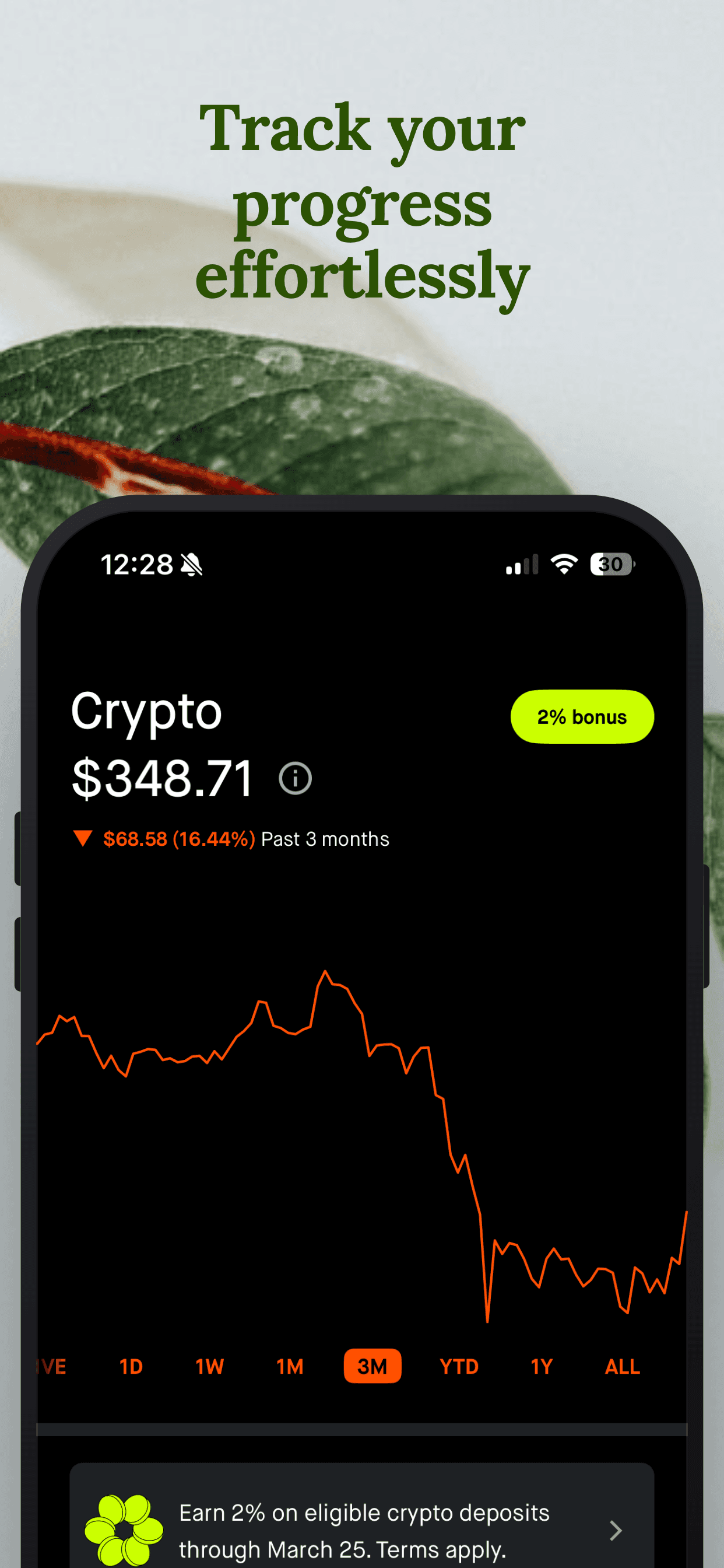
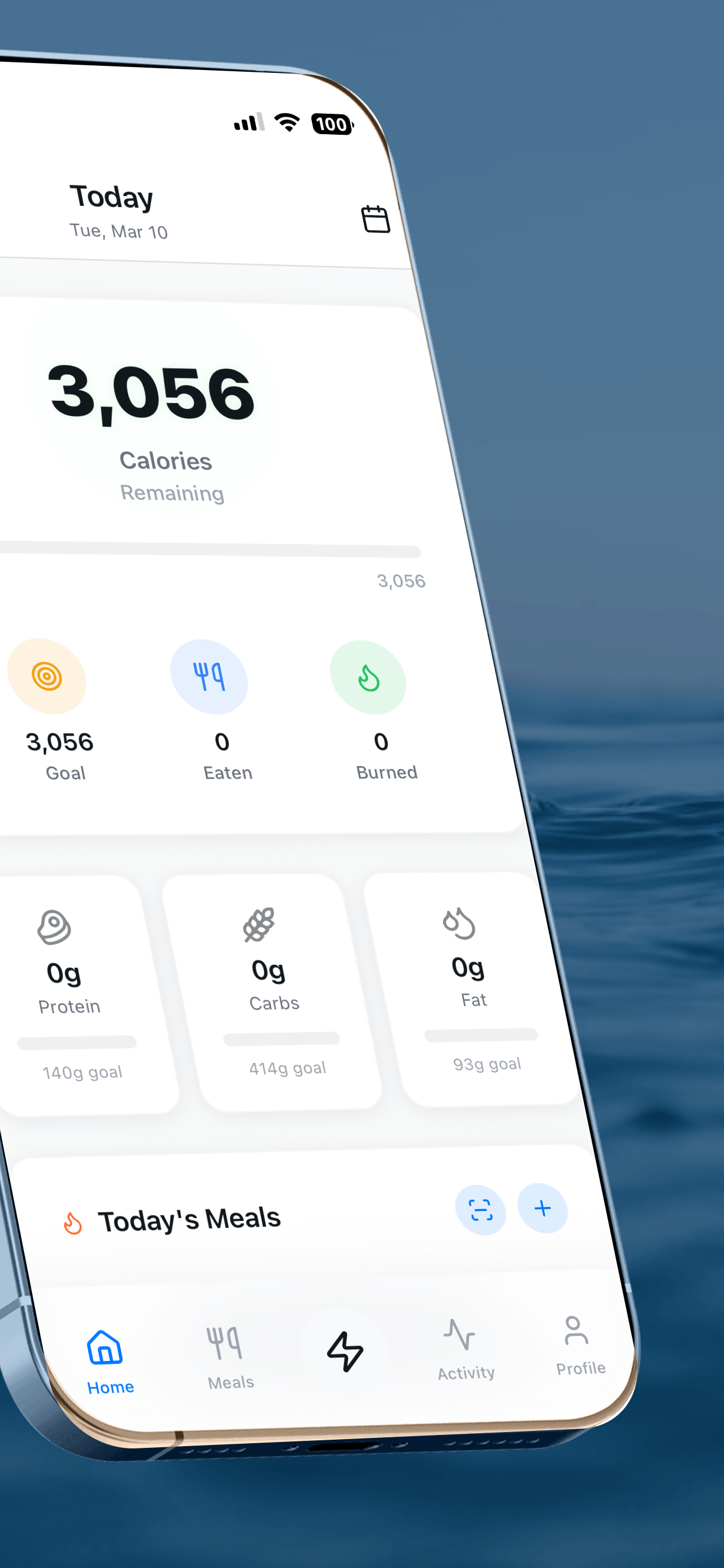
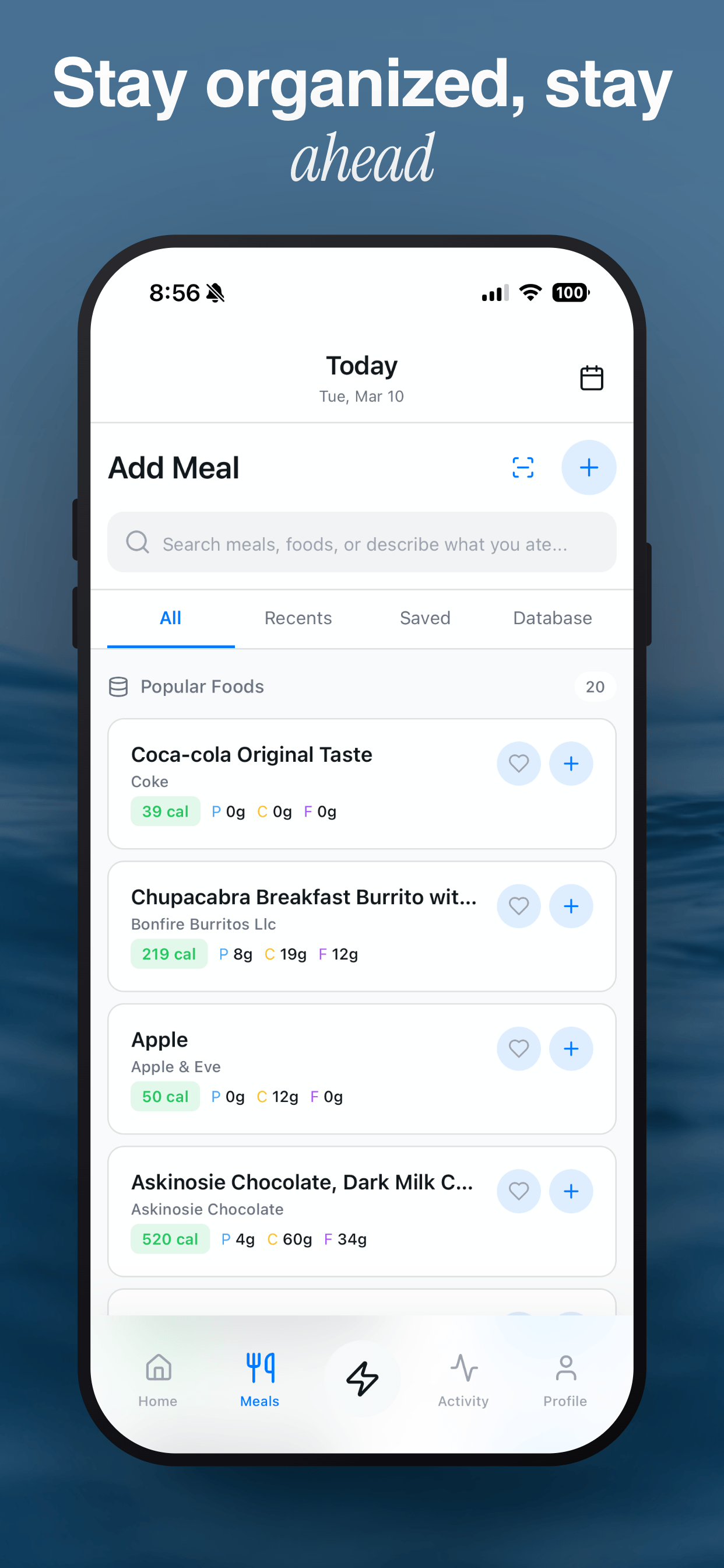
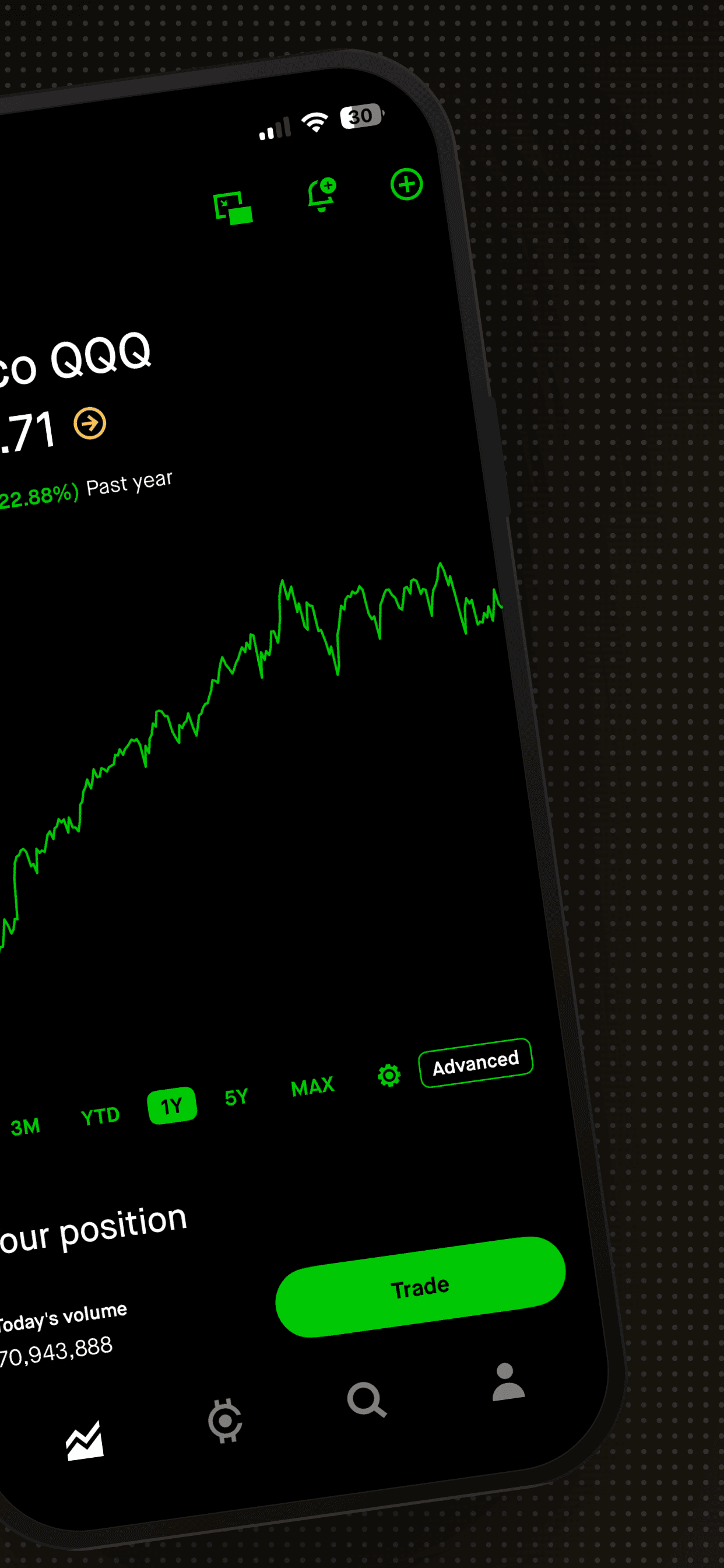
Create screenshot sets for every audience
Upload your raw screenshots, pick a template, and generate multiple screenshot sets for your Custom Product Pages. Same template, different content, all production-ready.
Try Screenshot Otter free →