
Guide
How to Choose the Right App Store Screenshot Template
Your App Store screenshots are the first thing most people see before they decide to download. The template you use to frame those screenshots shapes the entire first impression: whether your app feels premium or amateur, playful or serious, trustworthy or forgettable. This guide walks through the major template styles, explains when each one works best, and helps you make a confident choice for your app.

Scott Stewart · Apr 6, 2026
What a screenshot template actually does
A screenshot template is a pre-designed layout that wraps your raw app captures in a polished frame. At minimum, it adds a background color and a device mockup. Most templates also include a headline caption area, an optional subtitle, and styling details like shadows, gradients, or border effects.
The point is speed and consistency. Instead of opening Figma or Photoshop and building every screenshot from scratch, you drop your captures into a template system, type your captions, and export. The template handles spacing, font sizing, device alignment, and background styling across all your screenshots automatically.
That said, not every template fits every app. A bold neon theme that looks incredible for a gaming app would feel completely wrong on a meditation app. Picking the right template is less about finding the “best” one and more about finding the one that matches your product’s personality and your audience’s expectations.
The three layout types you need to know
Before thinking about colors or fonts, start with the layout. App Store screenshot templates fall into three broad categories, and each one communicates something different.
Standard (single phone per slide)
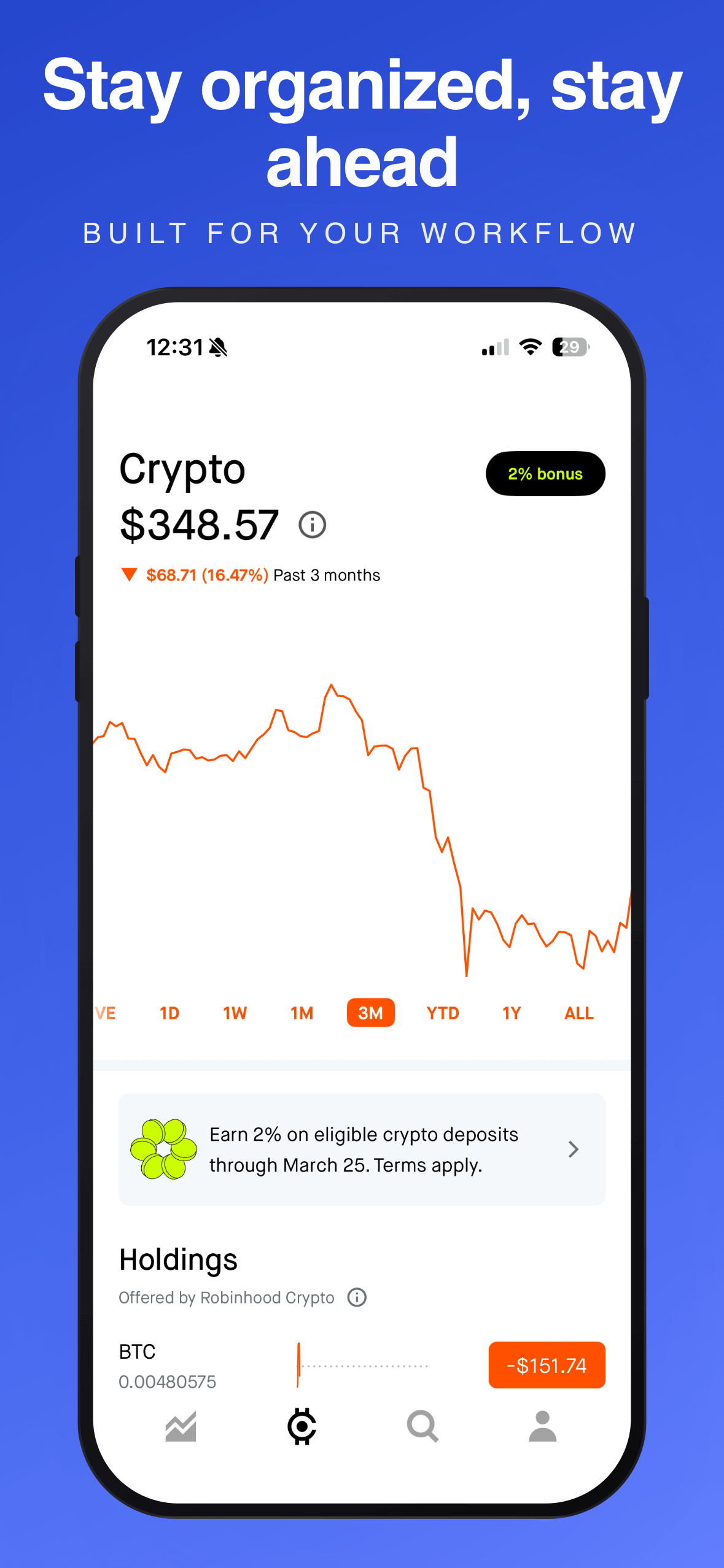
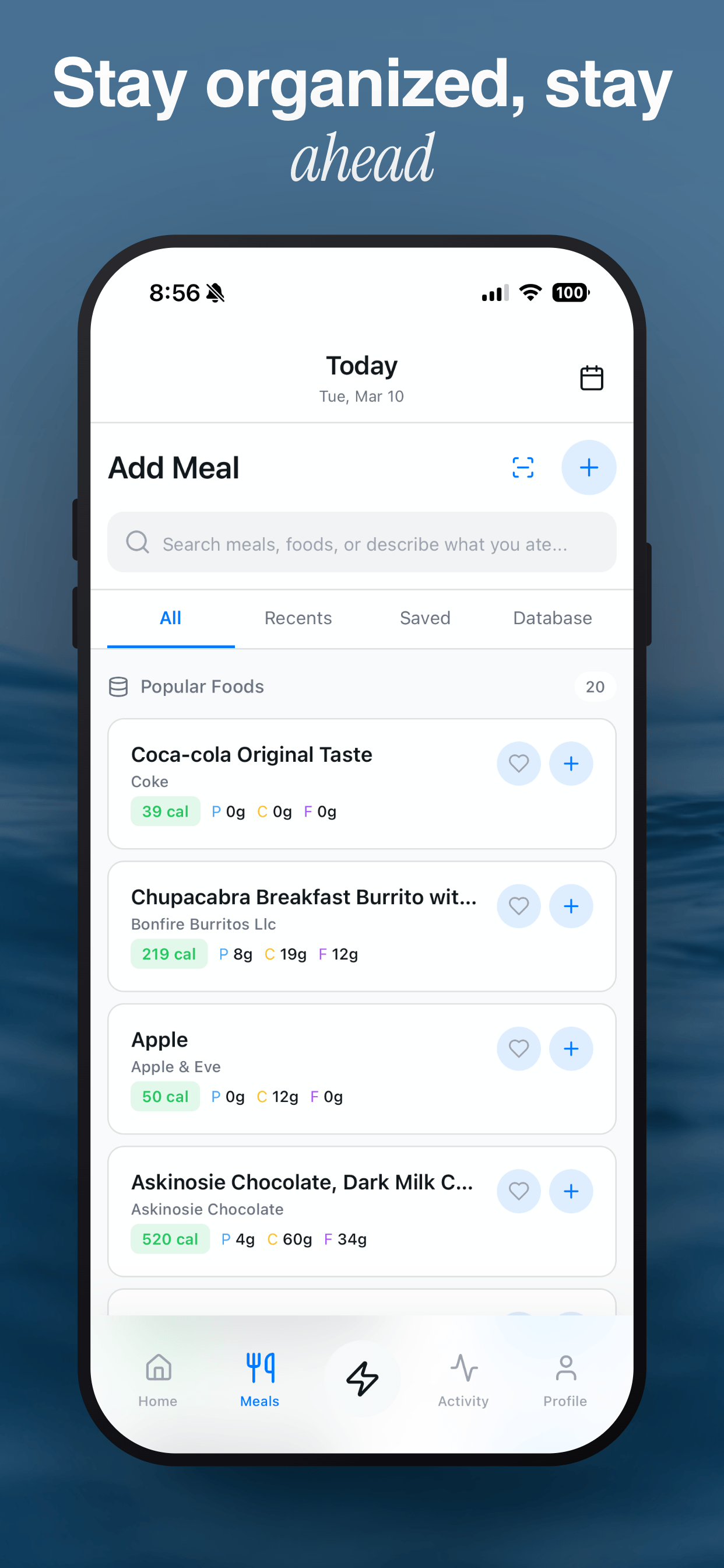
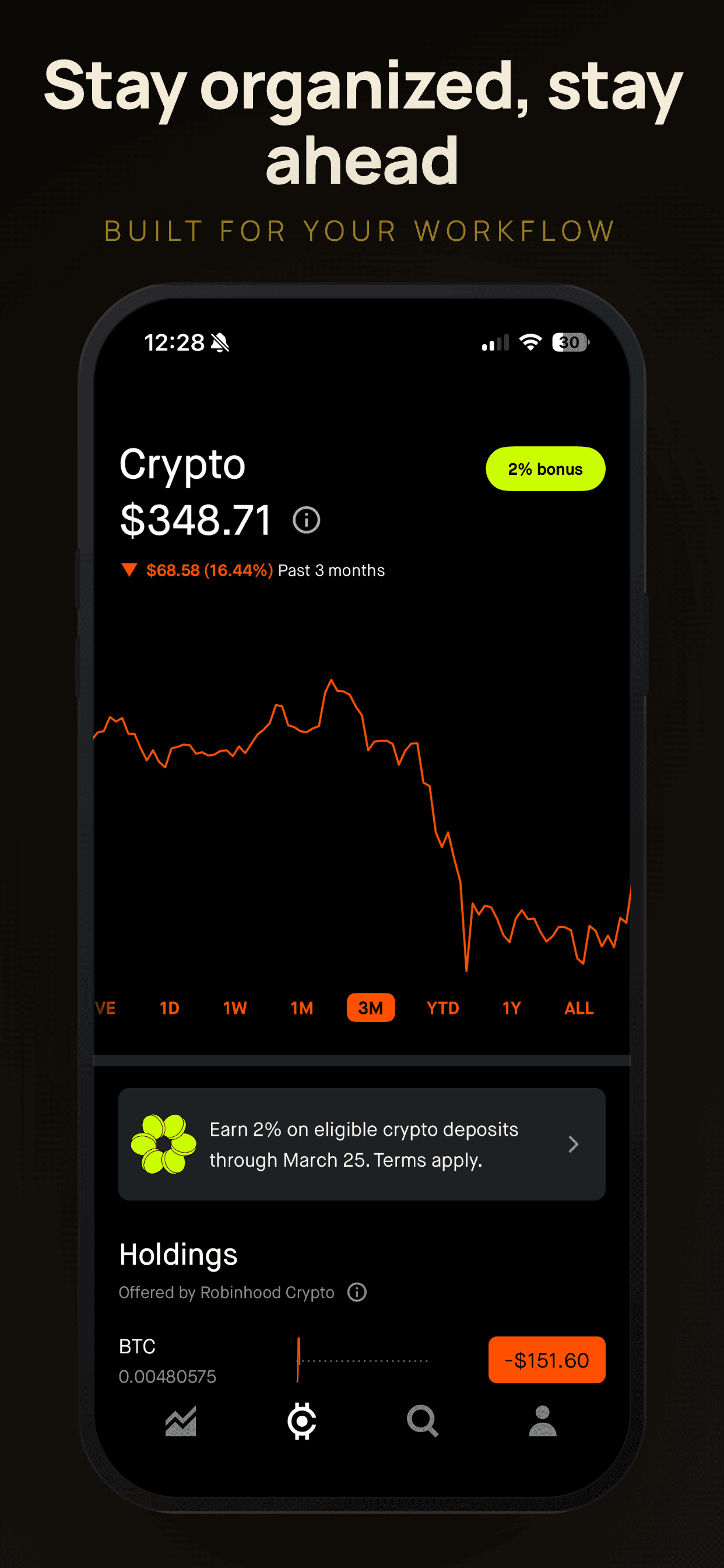
The standard layout puts one device screenshot centered on each slide, with a caption above or below it. This is the most common pattern and the safest choice for most apps. It keeps the focus on your UI, gives your caption plenty of room, and looks clean at thumbnail size in search results.
Standard layouts work well when your app’s interface tells a clear story on its own. If your screens are visually distinct from each other (a dashboard, a detail view, a settings page), the one-phone-per-slide approach lets each screen breathe.
Panoramic (spanning two slides)
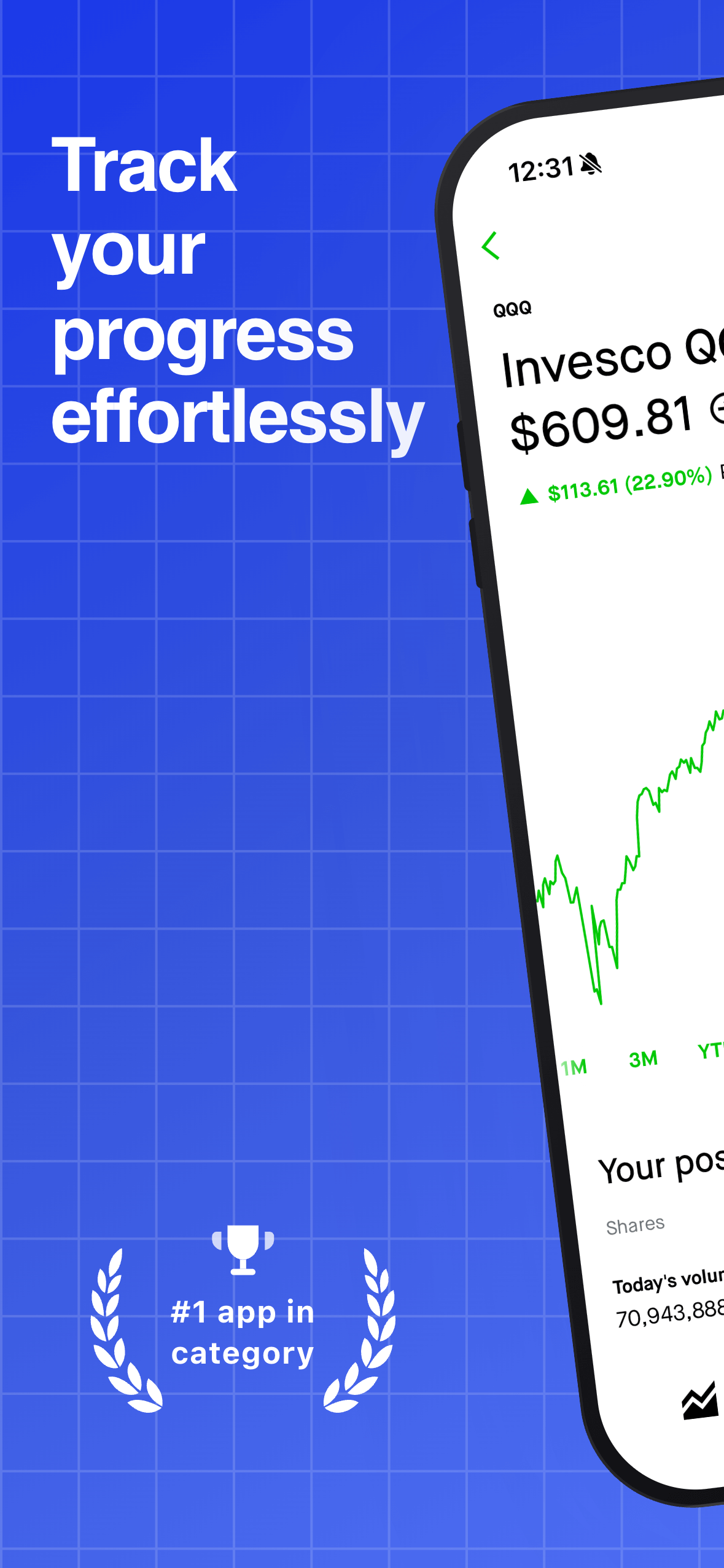
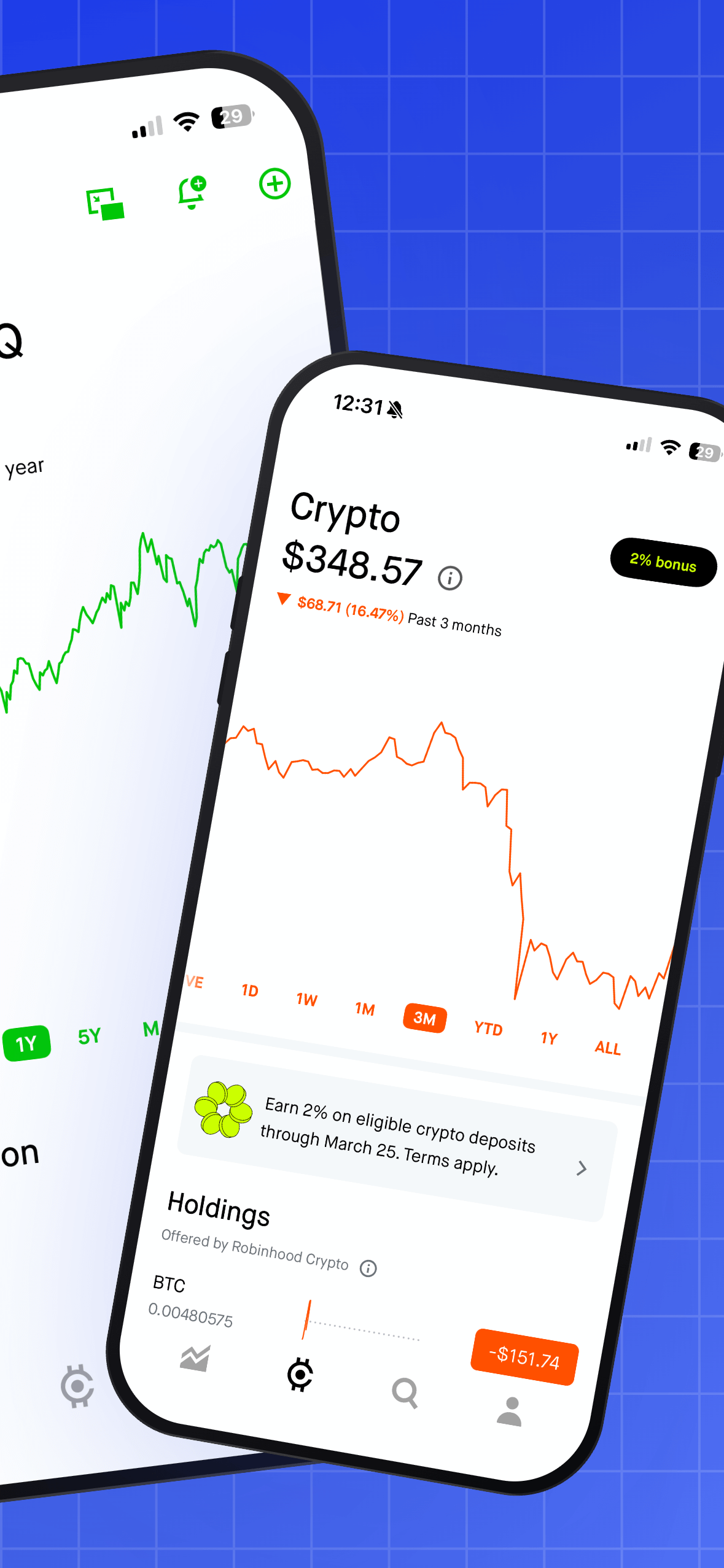
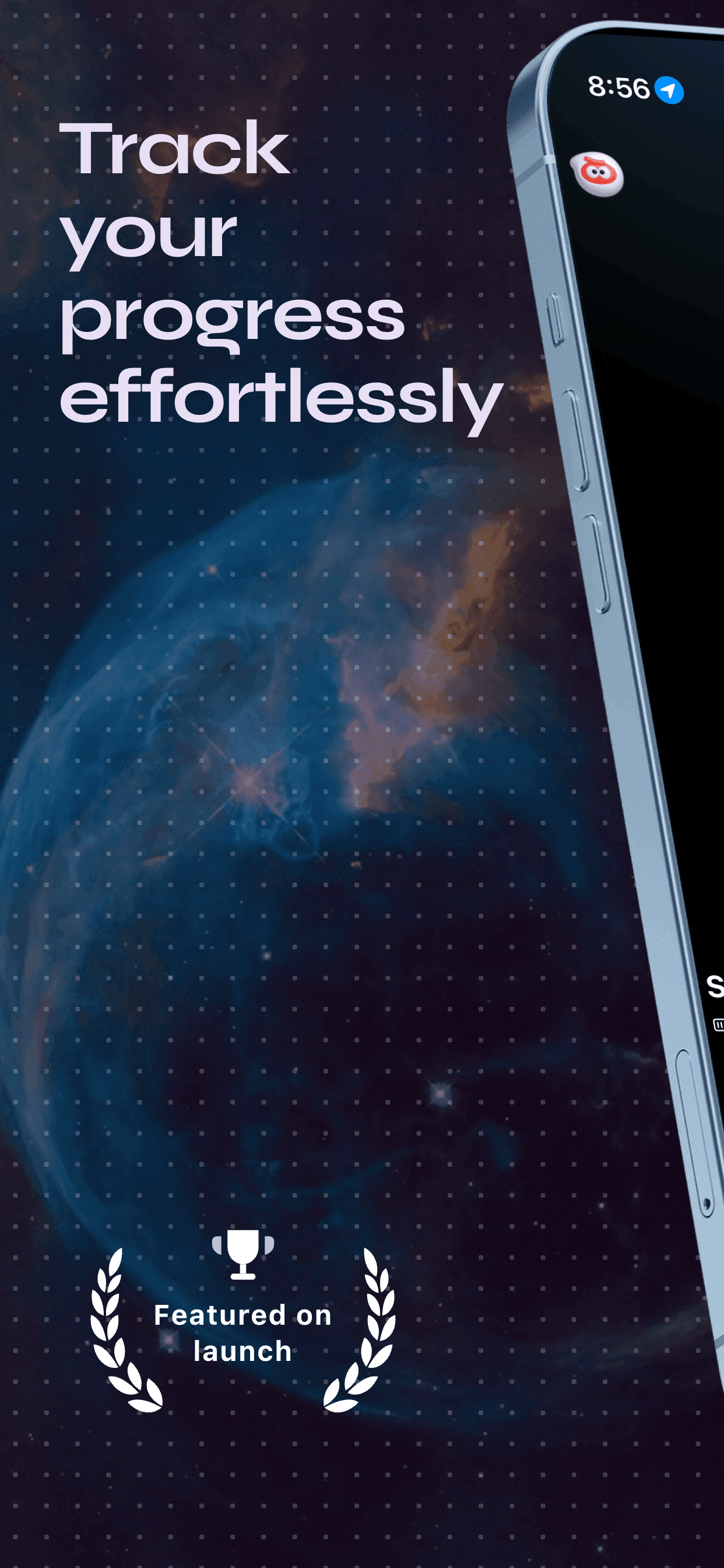
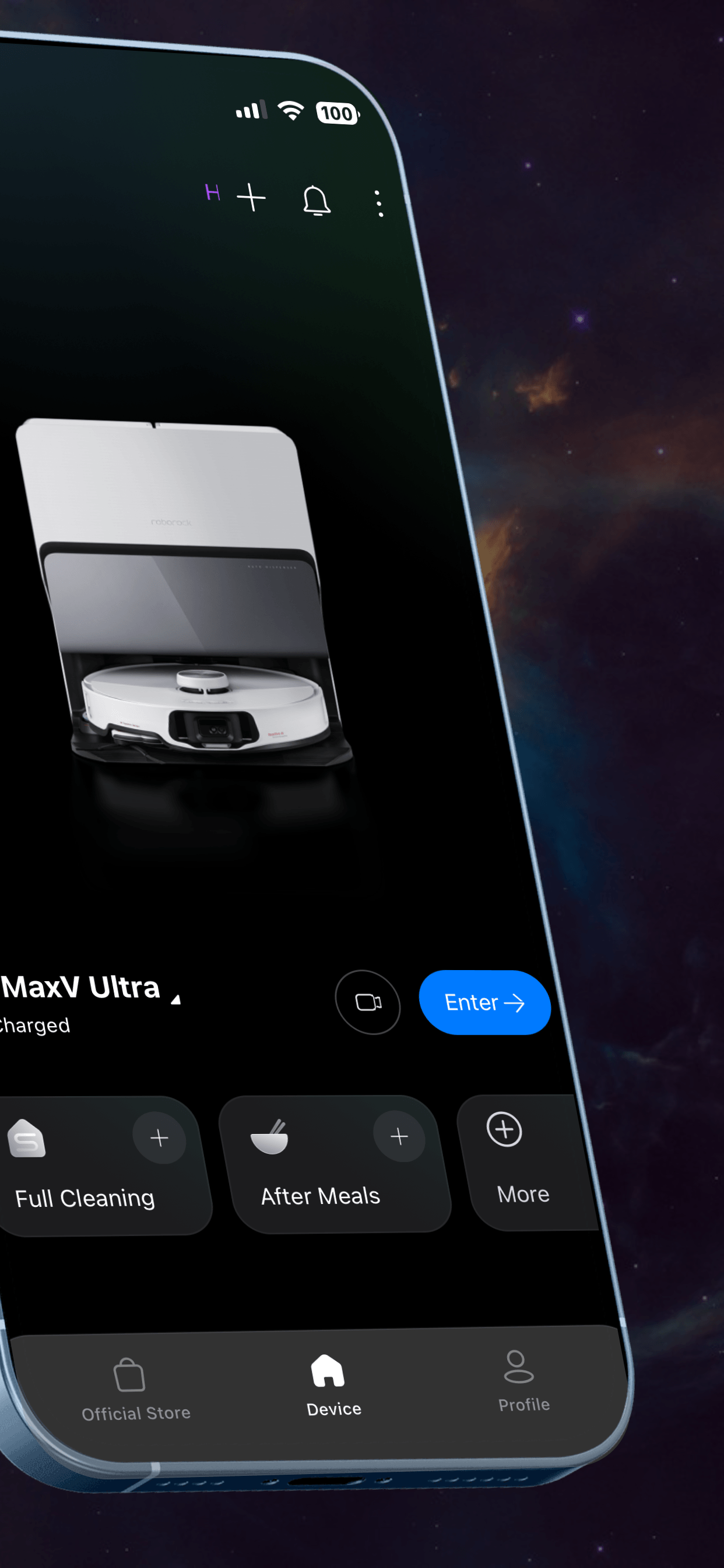
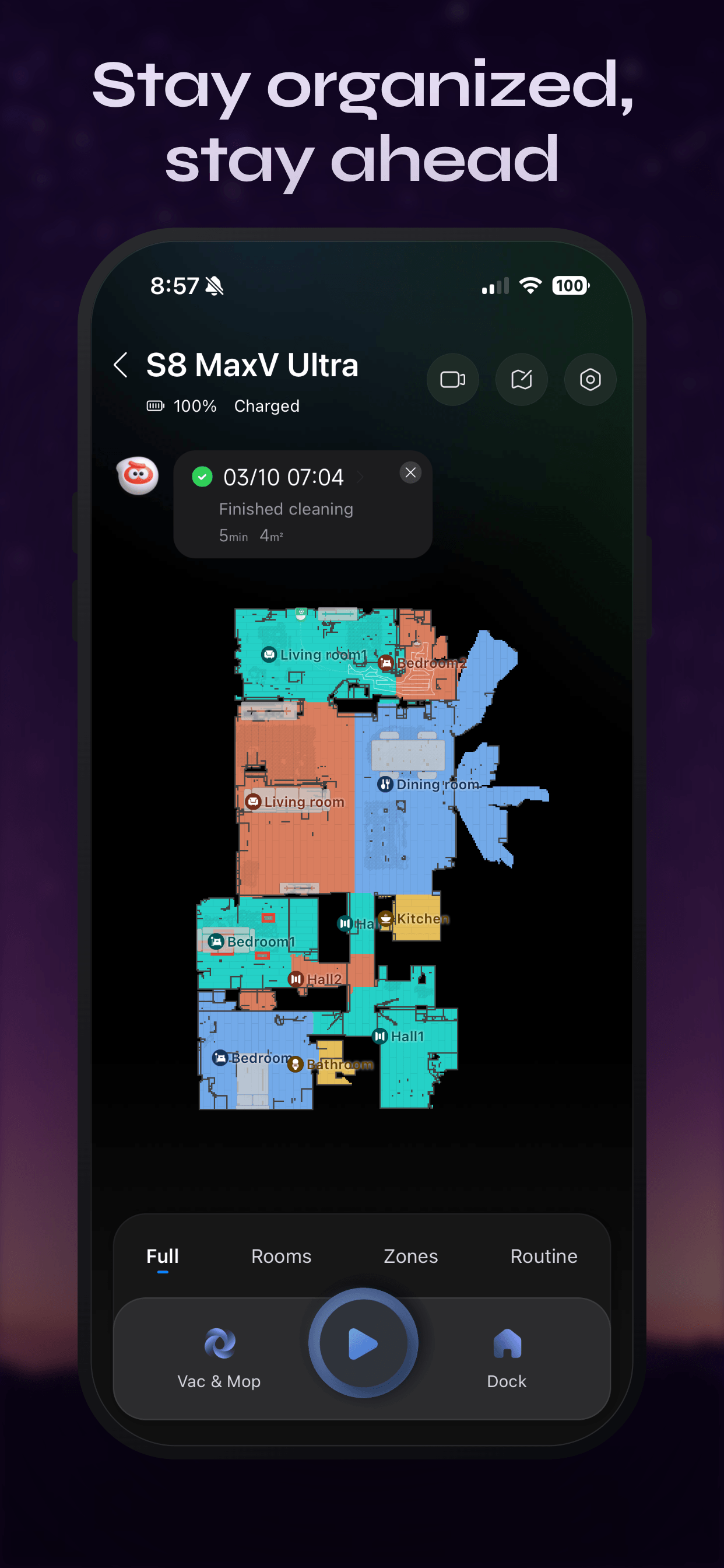
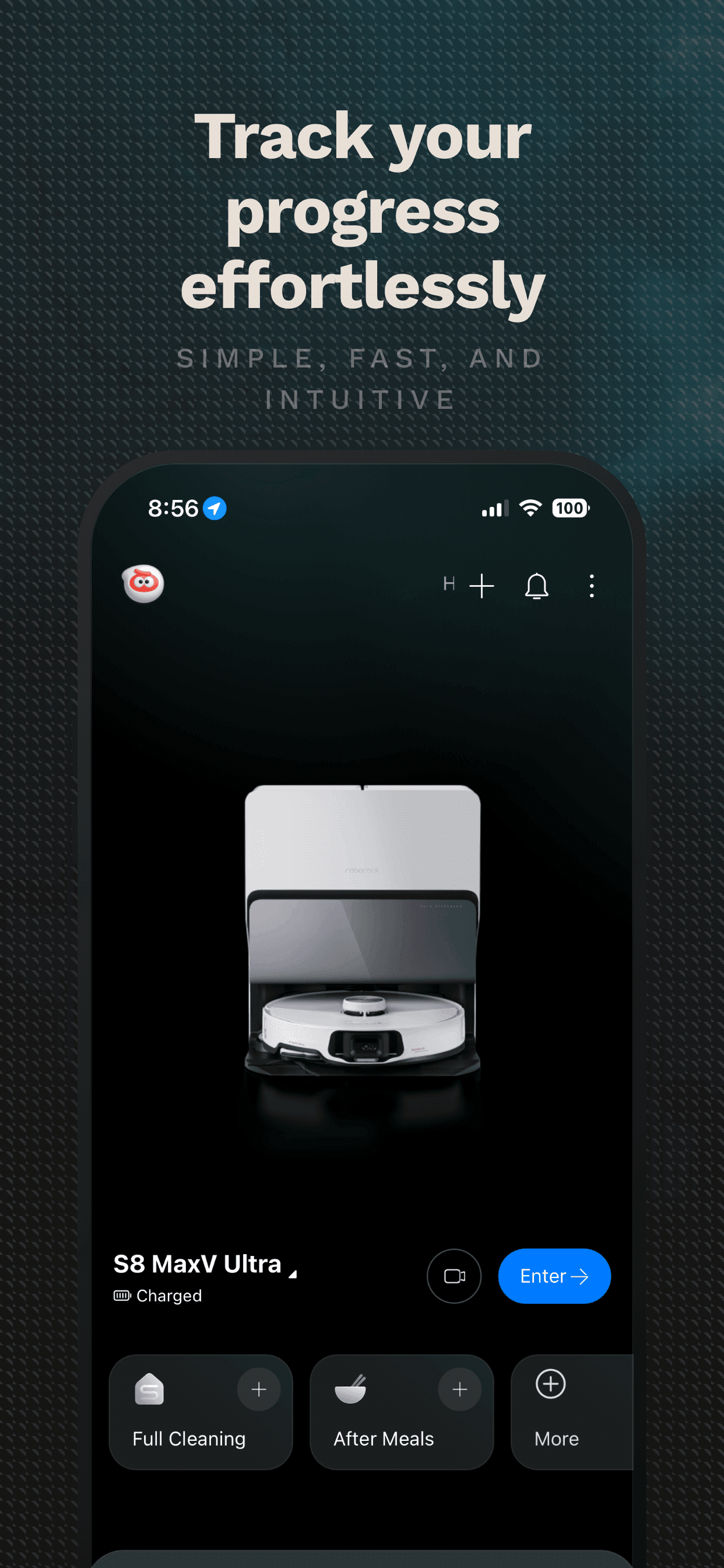
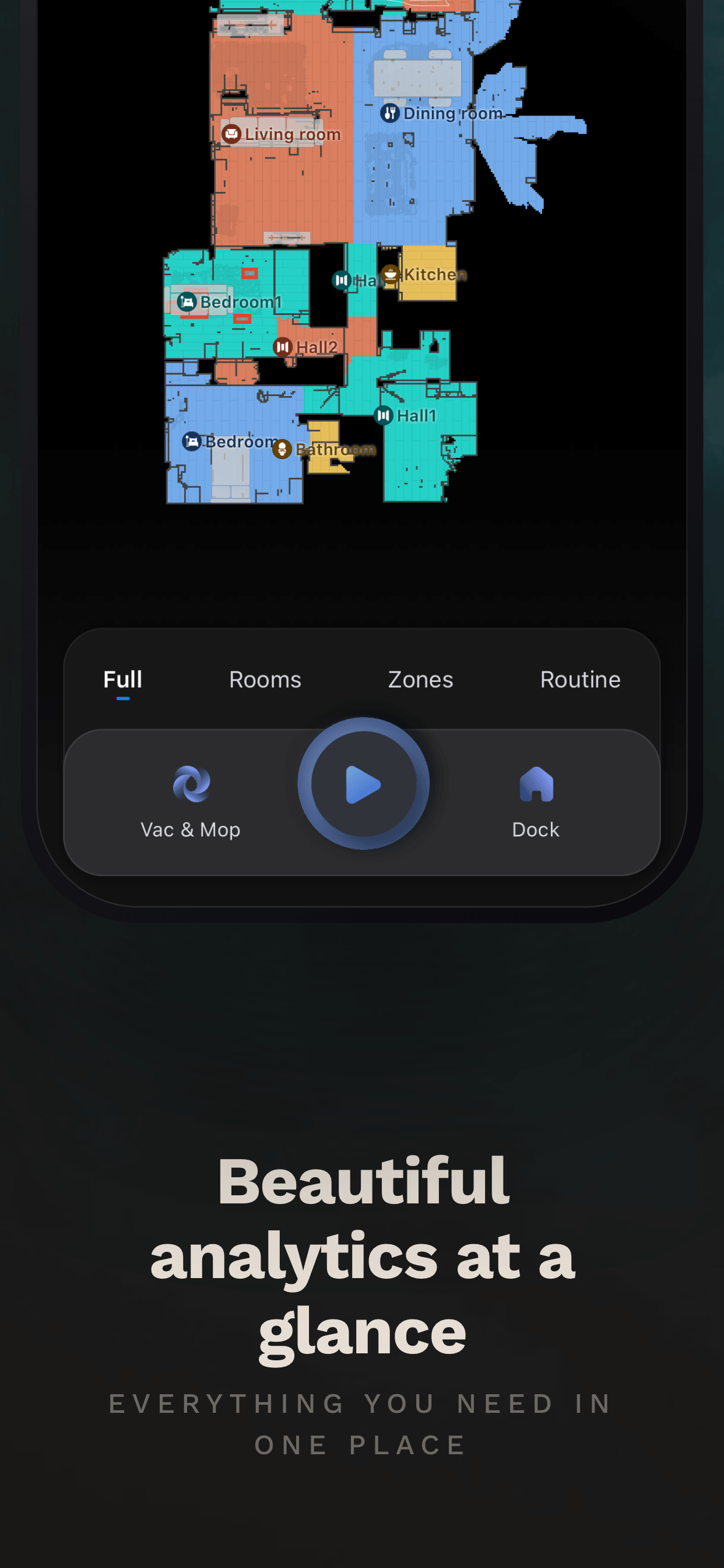
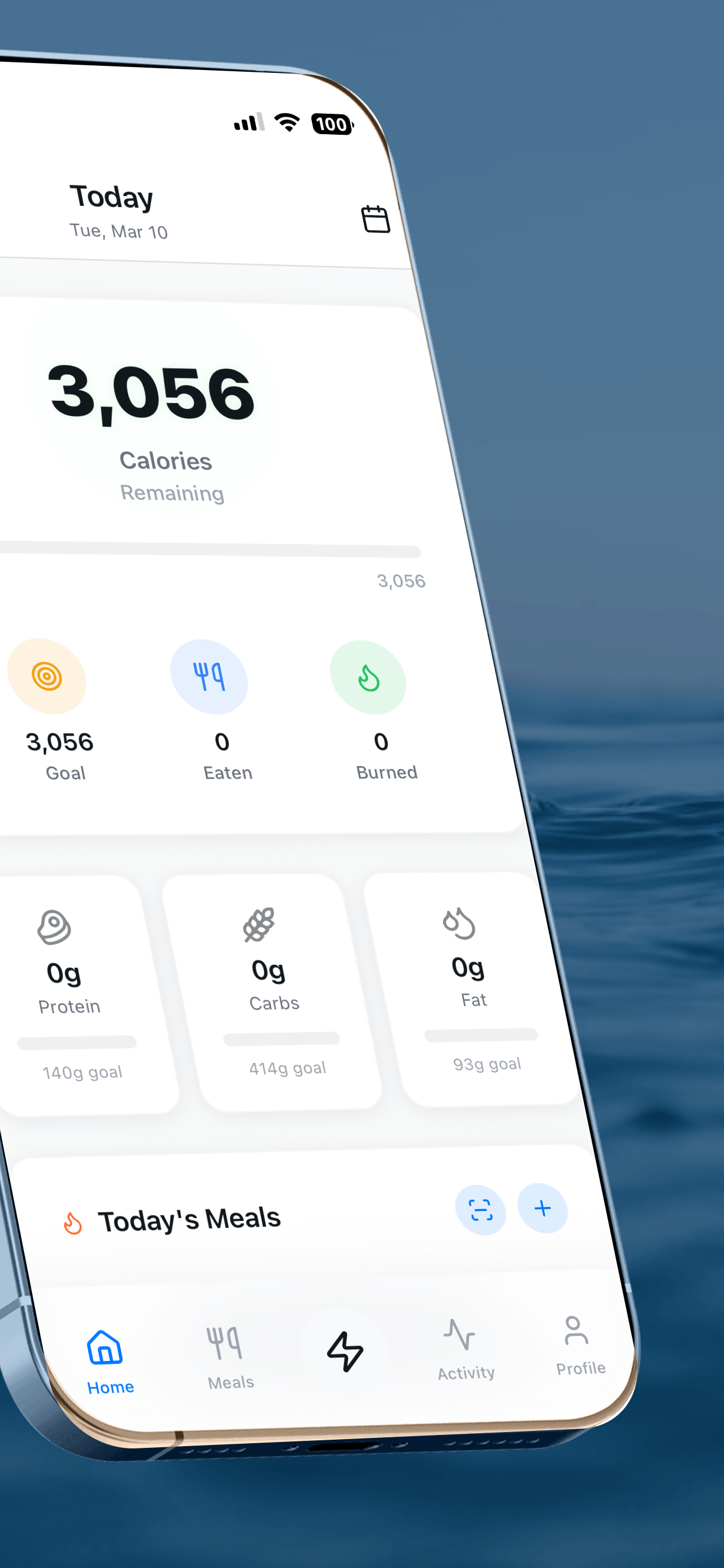
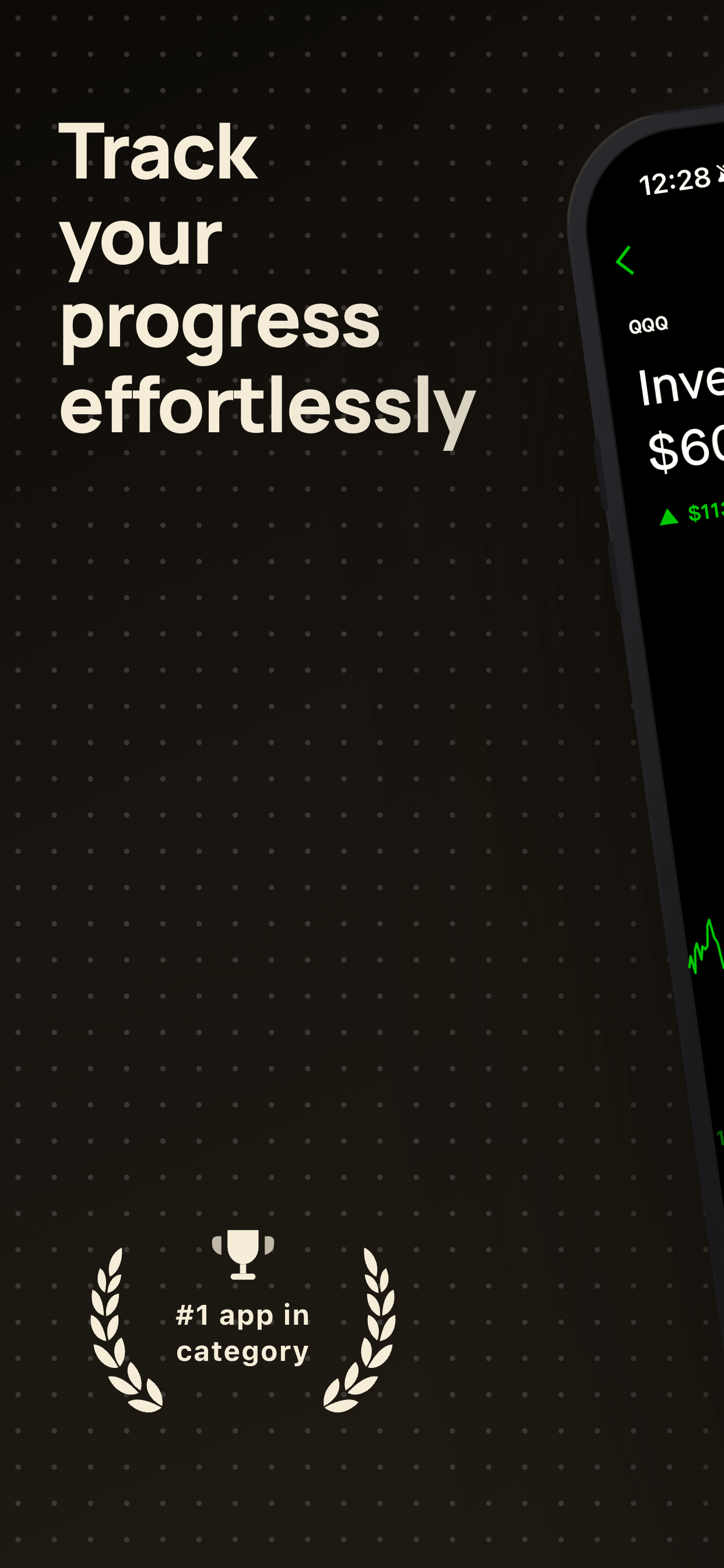
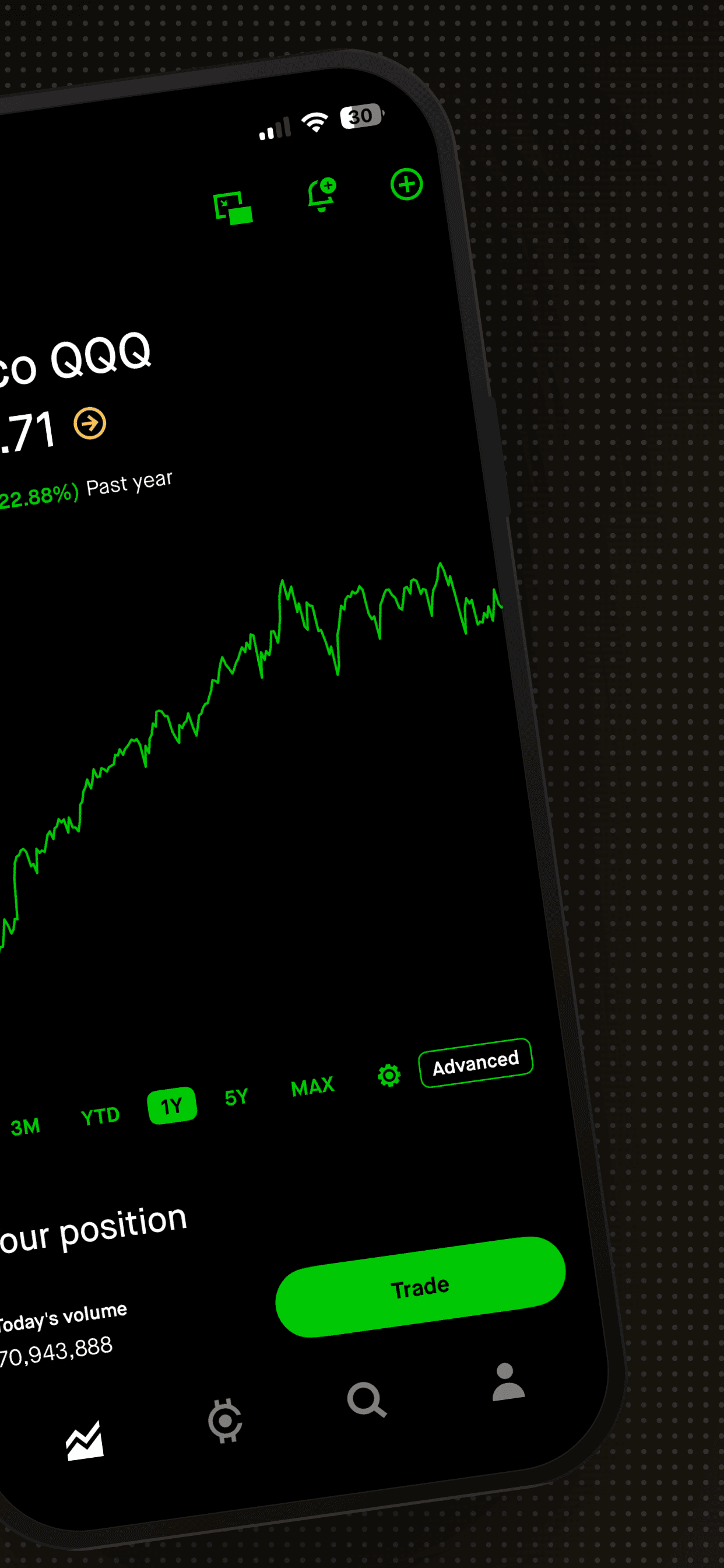
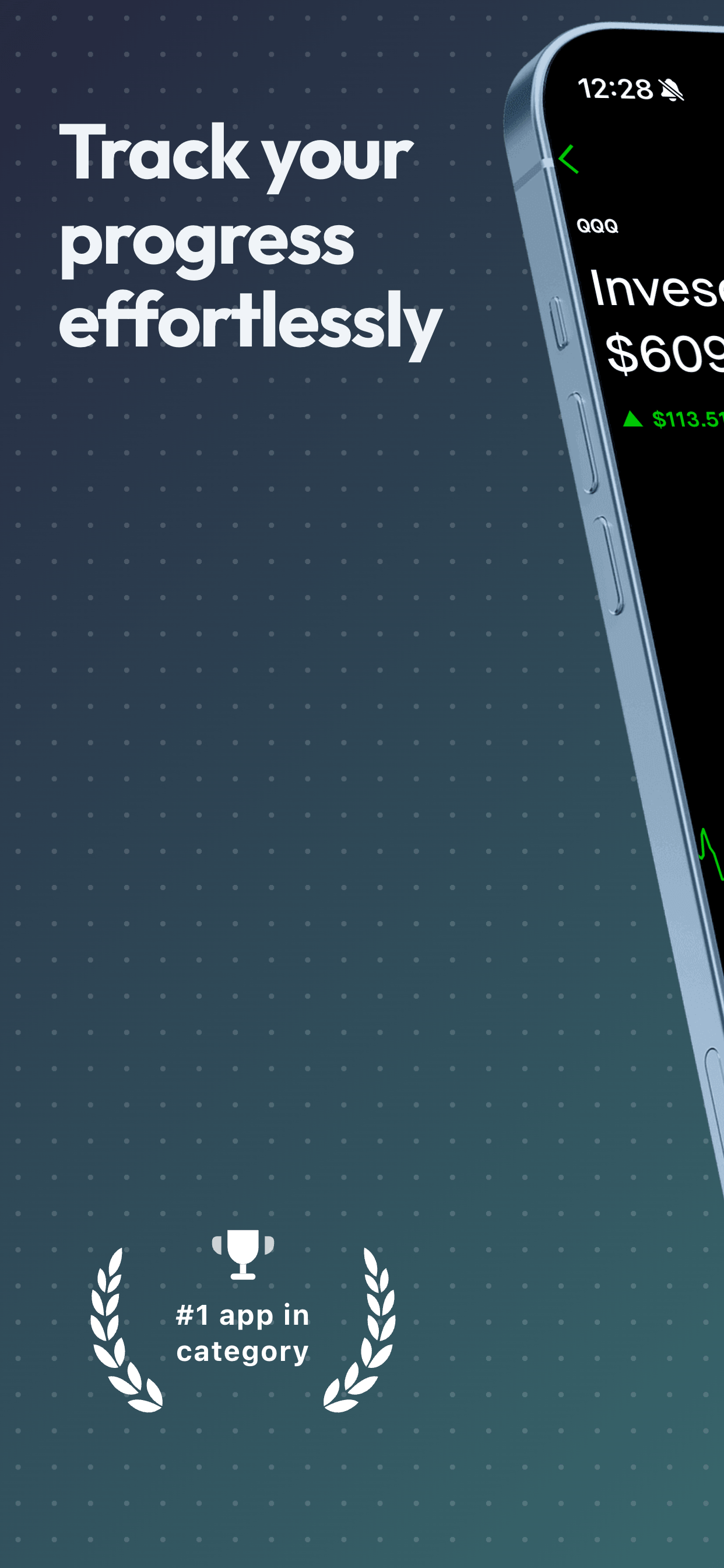
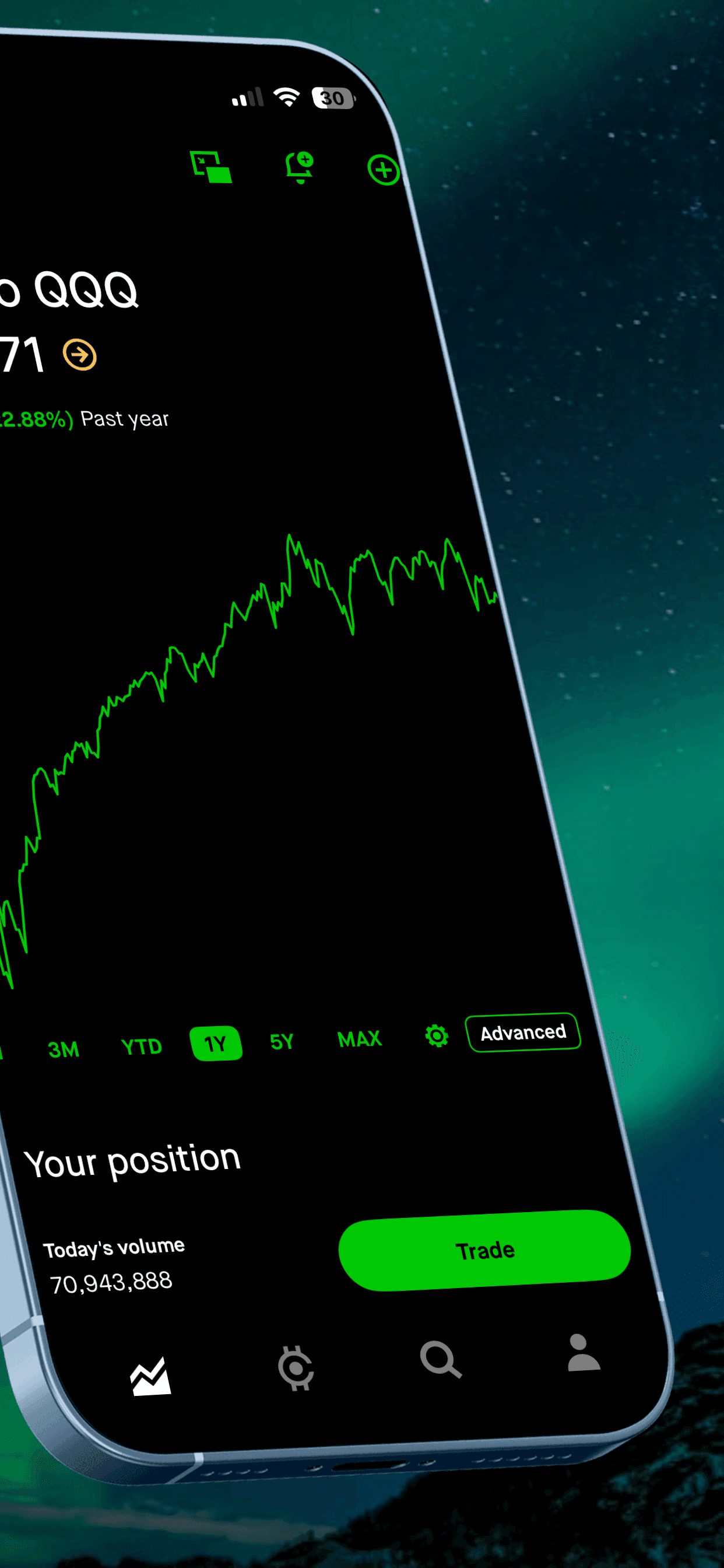
A panoramic template creates a single wide scene that stretches across two adjacent screenshots. When a user scrolls through your listing, the first two slides connect visually, forming a cinematic hero moment. The left slide usually holds the headline while the right side showcases the phone.
This layout is excellent for creating a strong first impression. It stands out in search results because the visual continuity catches the eye as users scroll. The tradeoff is that it uses two of your ten screenshot slots for a single message, so you need to make sure that message is worth the real estate.
Panoramic works best for apps with a single “hero” screen that looks impressive at large scale: a map view, a beautifully designed feed, a data visualization, or any screen that benefits from extra breathing room.
Responsive (adapting across devices)
Responsive templates automatically adjust their layout based on the target device. The same template might display the phone centered on an iPhone export but shift to a side-by-side layout for an iPad export. This matters because your screenshots need to look intentional on every device size, not like a phone screenshot stretched to fit a tablet frame.
If you ship your app on both iPhone and iPad (or across iOS and Android), responsive templates save a huge amount of manual adjustment. You design once and export for each device, and the template handles the proportional changes.
Dark vs. light: picking your background tone
Background tone is the single biggest visual decision you will make. It sets the mood for your entire listing before anyone reads a single word.
When dark backgrounds work
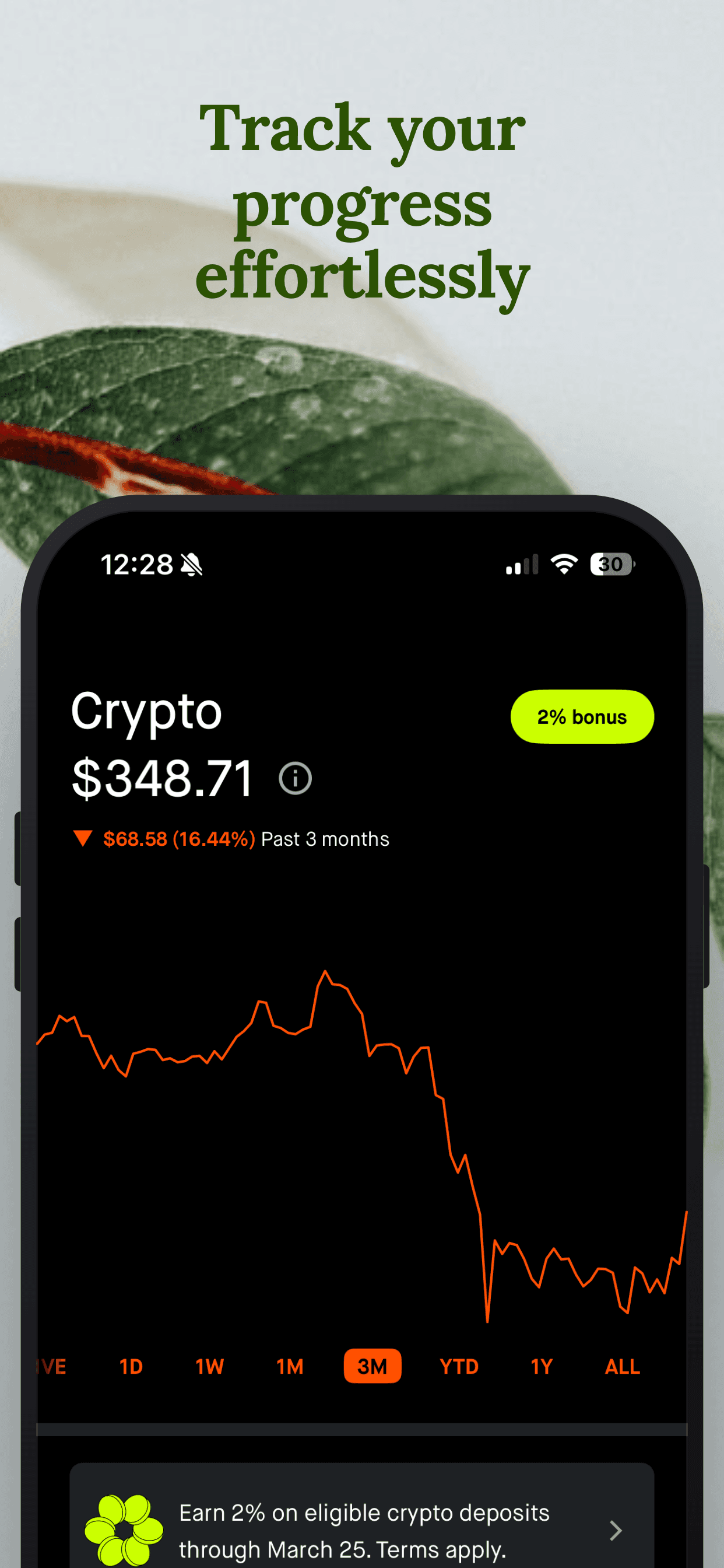
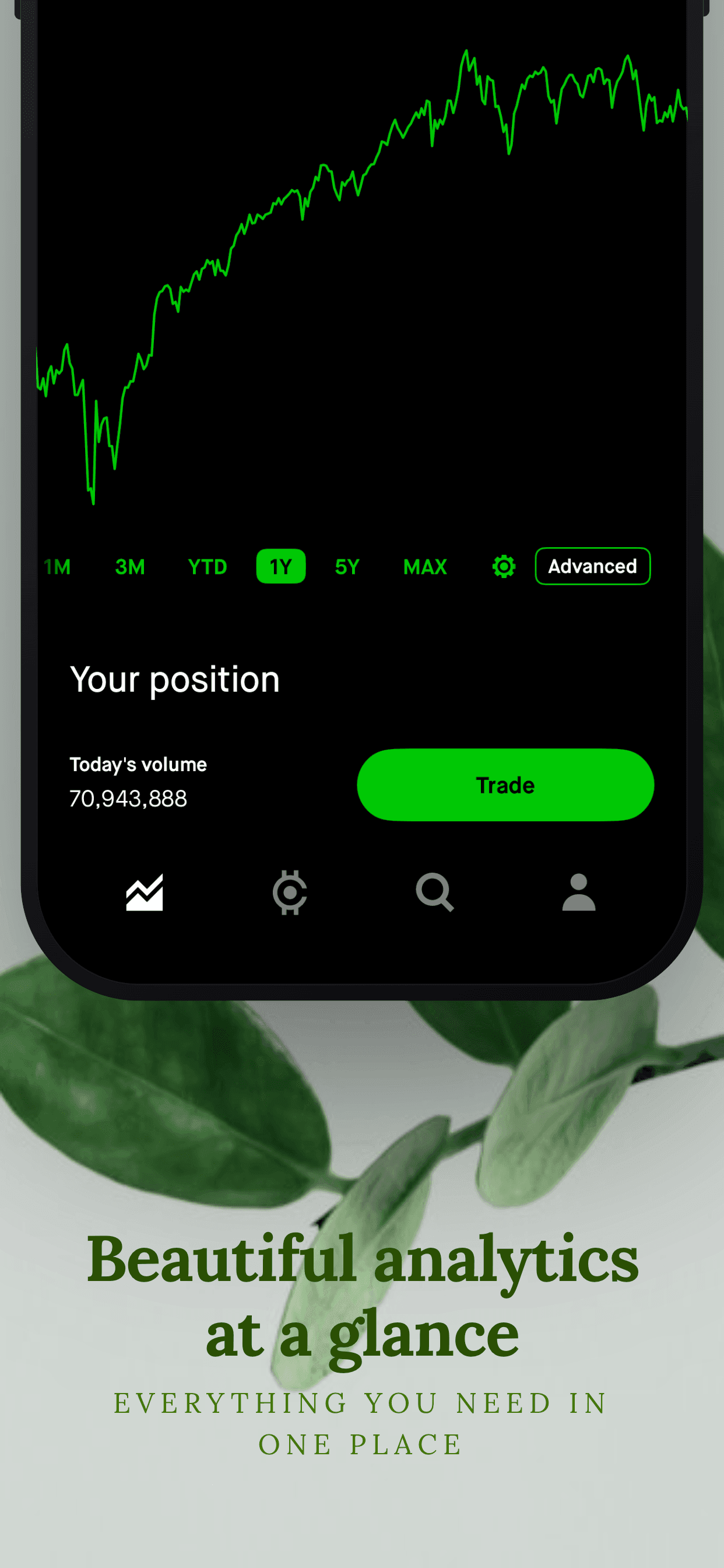
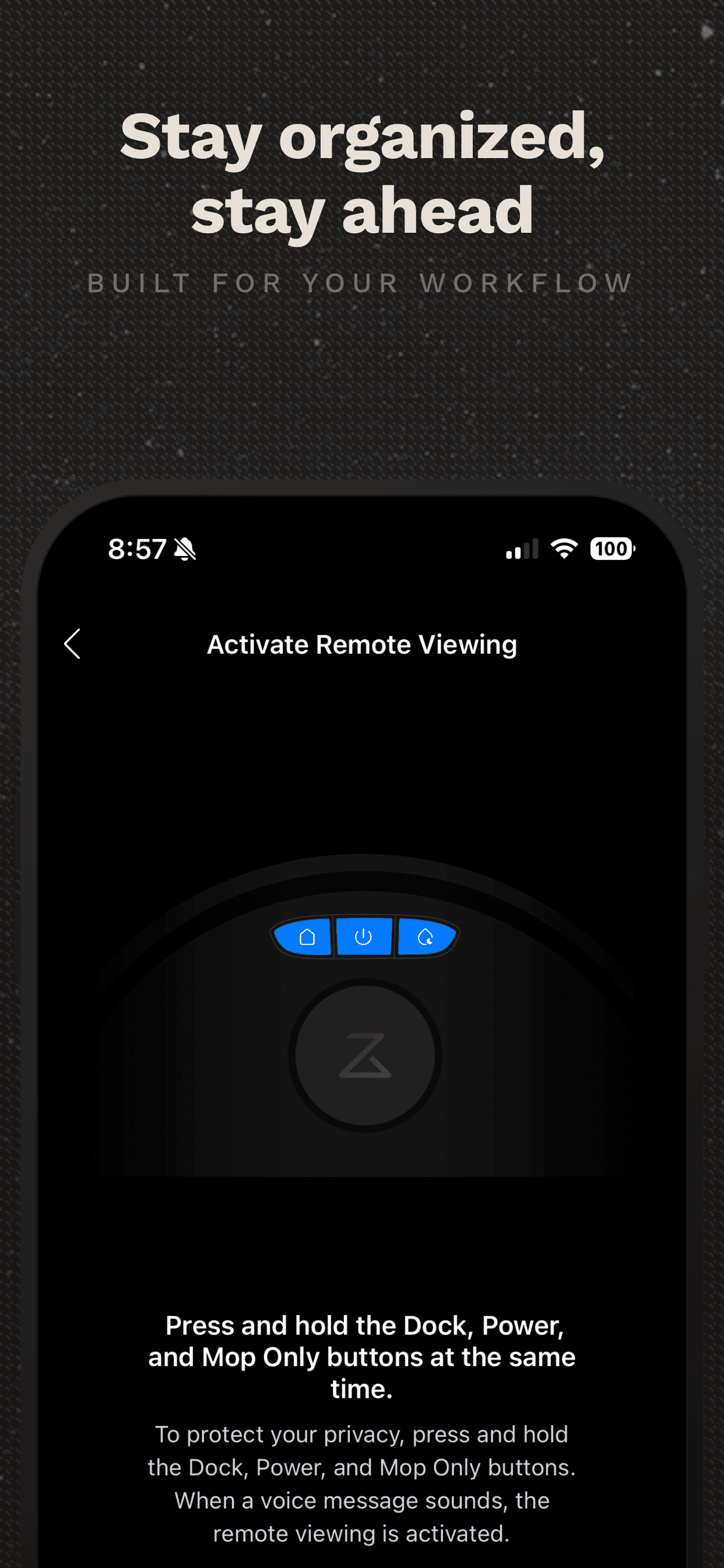
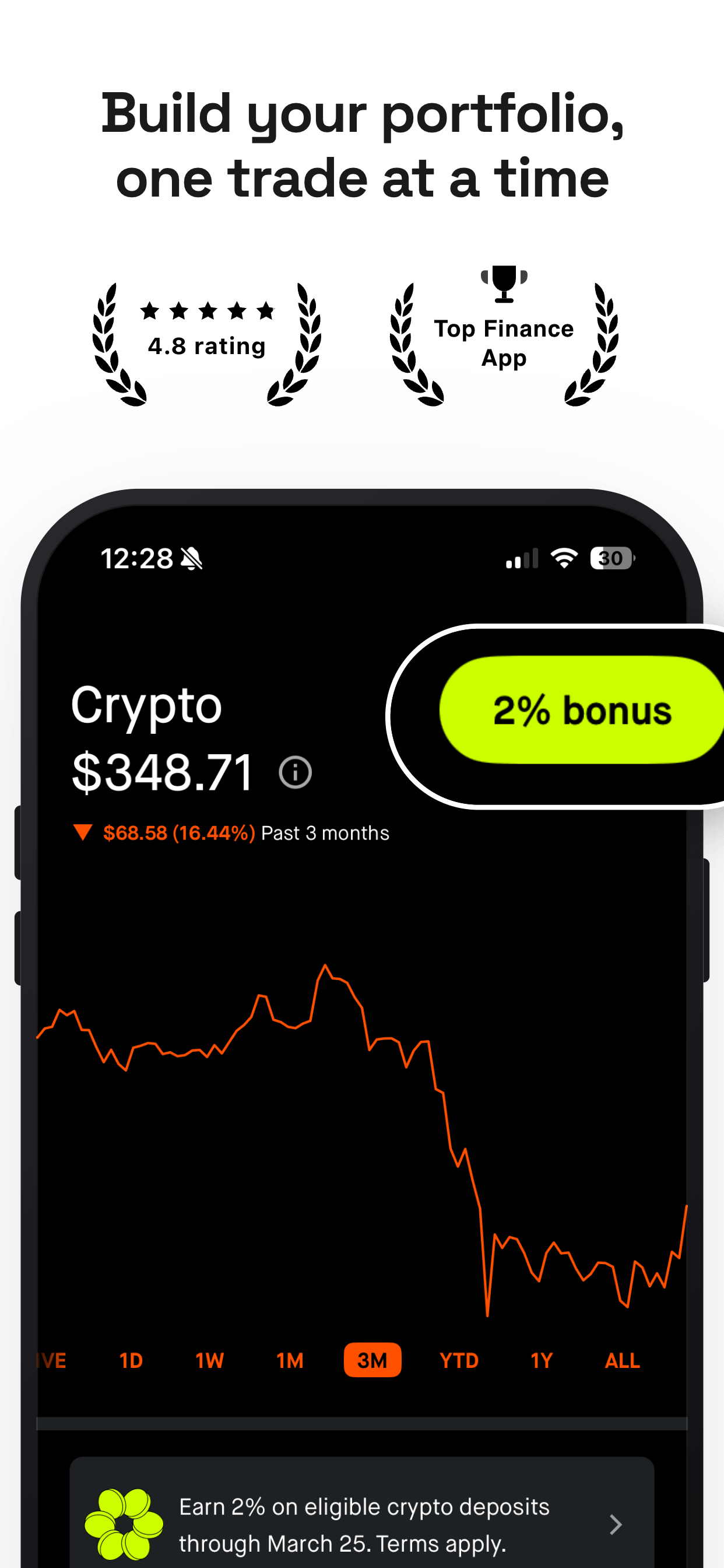
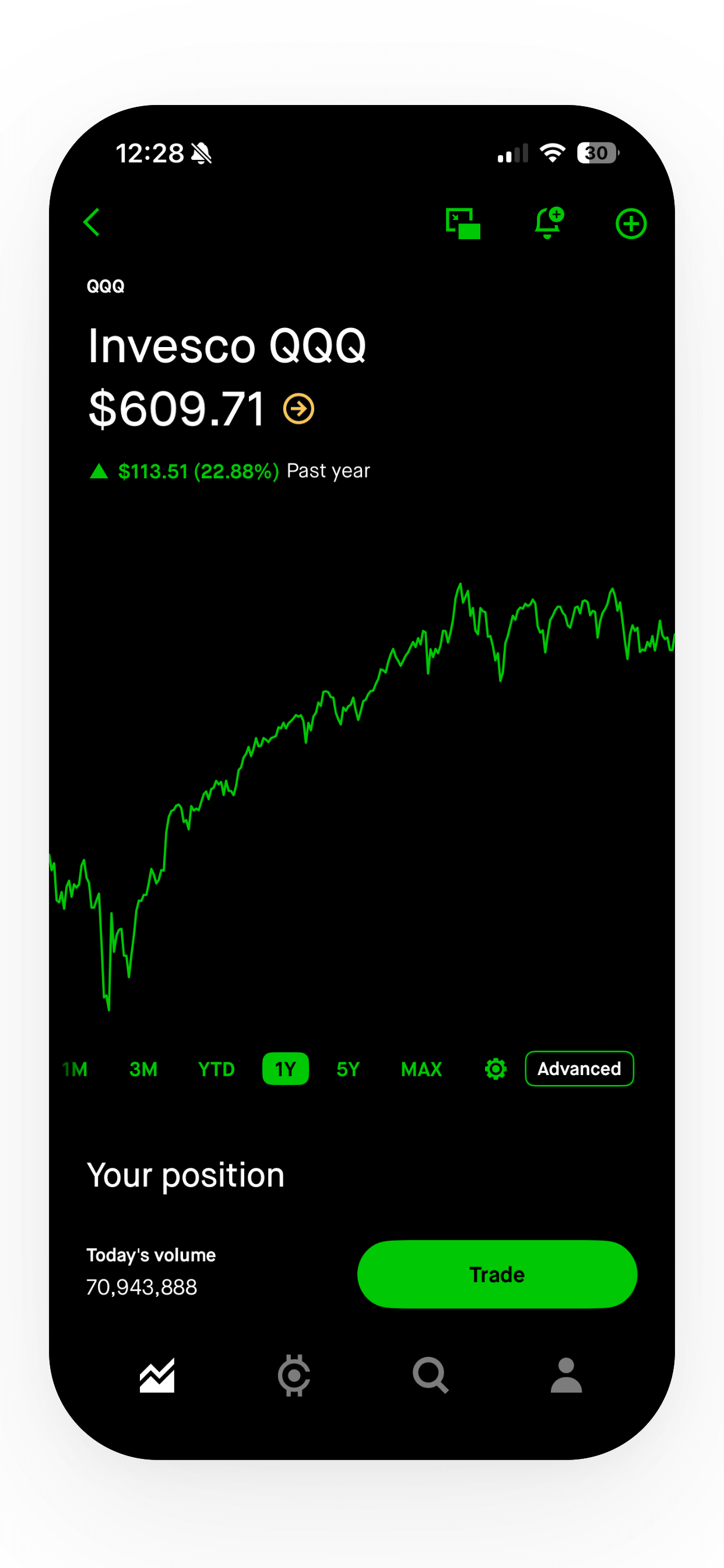
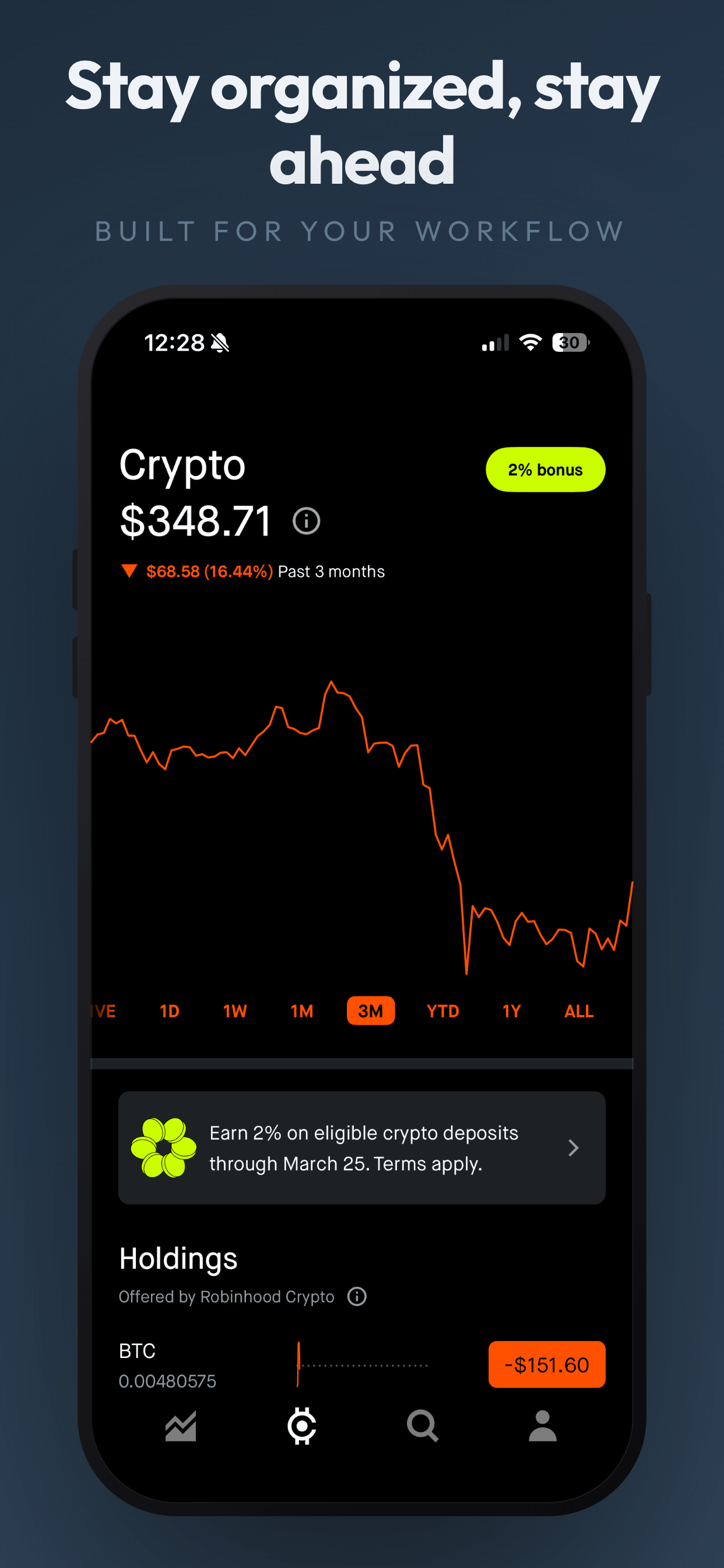
Dark templates create a sense of depth and premium quality. They work especially well for apps with colorful or high-contrast UIs because the dark background makes the phone screen pop. Finance apps, developer tools, music players, photo editors, and games tend to look great on dark backgrounds.
Dark backgrounds also photograph well in the literal sense: they minimize the visual weight of the device frame and put the spotlight on your interface. If your app’s UI uses bright accent colors, those colors will feel more vibrant against a dark backdrop.
When light backgrounds work
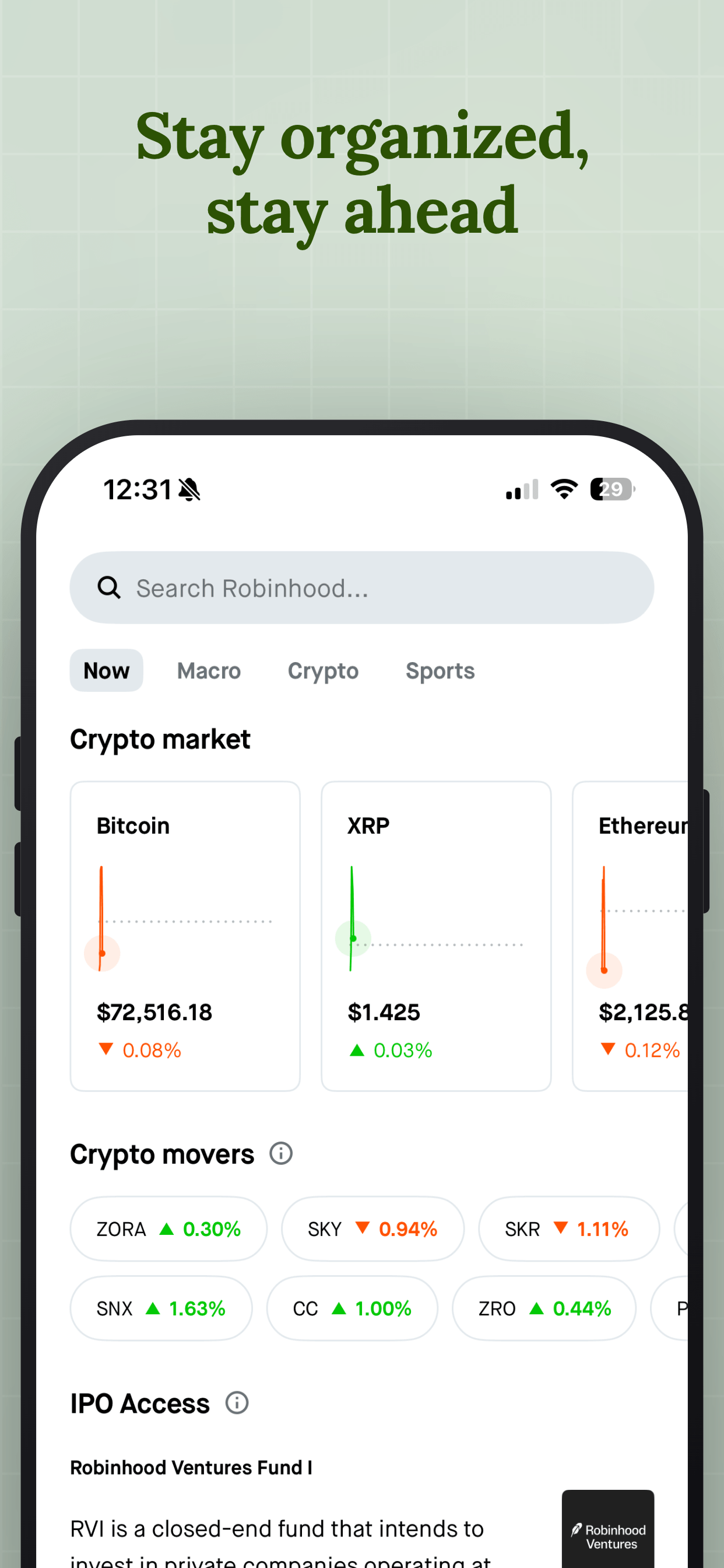
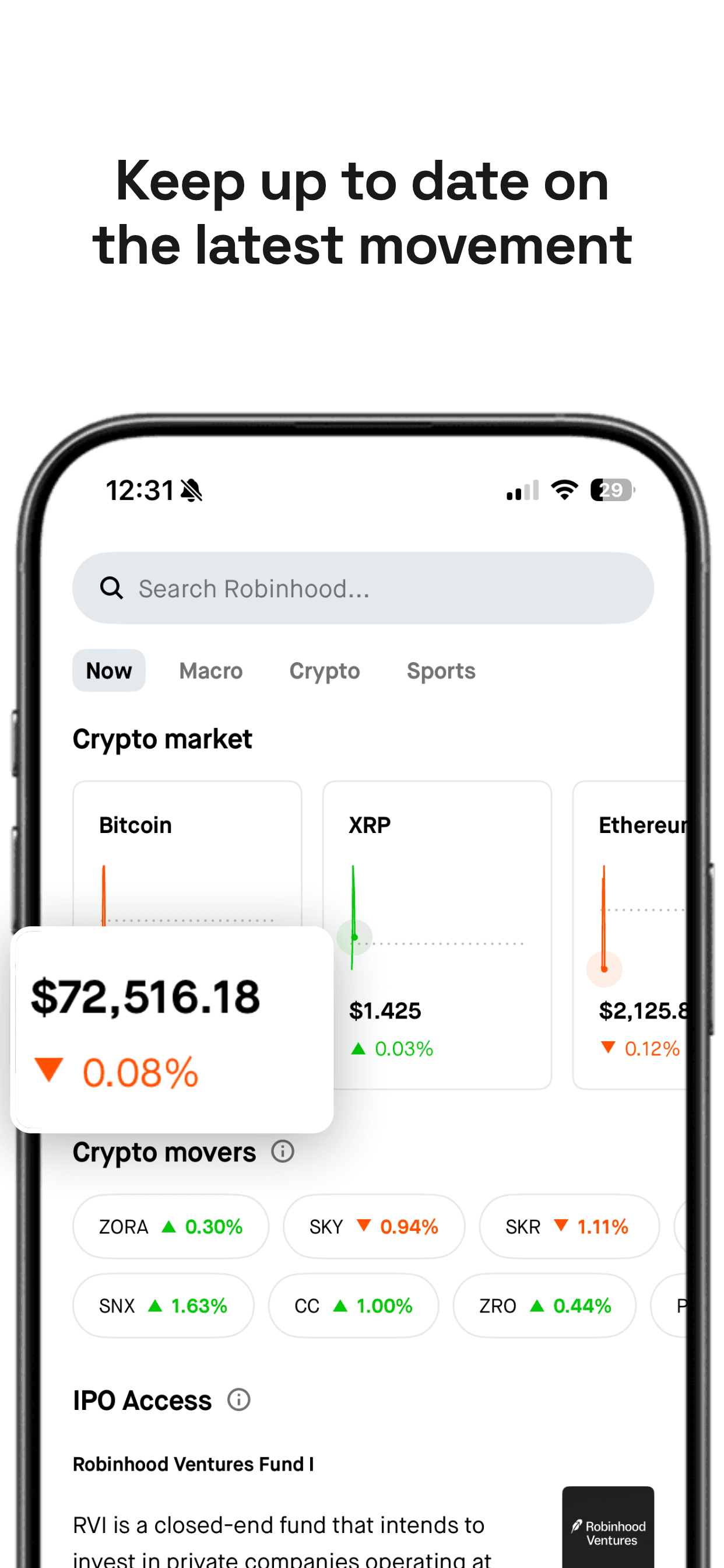
Light templates feel open, approachable, and clean. They work well for productivity apps, health and fitness trackers, note-taking tools, and anything targeting a broad consumer audience. Light backgrounds also pair naturally with apps that already use a white or neutral UI, since the background and the phone screen feel cohesive rather than jarring.
One thing to watch out for with light templates: if your app’s UI is also very light, the phone can visually disappear into the background. You need enough contrast between the background and the device frame to keep the screenshot readable at thumbnail size.
The gradient middle ground
Many modern templates use gradients that shift from dark to light (or between two complementary colors) across your screenshot sequence. This can give your listing a sense of narrative progression. Your first screenshot might start deep and moody, then the last screenshot opens up into a bright, inviting tone. When done well, it makes browsing your listing feel like a journey.
Typography: the part most people overlook
The font in your screenshot caption carries more weight than you might expect. Bold, tight-tracking headlines signal confidence and modernity. Serif fonts suggest editorial authority or elegance. Monospace type feels technical and developer-focused. The font choice should match the personality of your app, not just look good in isolation.
A few practical rules that hold up across almost every category. First, your headline should be heavy: 700 or 800 weight, with slightly negative letter-spacing. This ensures readability at thumbnail size, which is how most users first encounter your screenshots in search results. Second, if the template includes a subtitle, it should contrast sharply with the headline. A light weight (300 or 400), wider letter-spacing, and smaller font size creates the visual hierarchy. Third, avoid using more than two fonts in a single template. One for the headline and one for the subtitle is plenty. Anything more starts to look cluttered.
If a template locks you into a specific font, make sure that font works with your brand. If your app’s identity is built around a particular typeface, look for templates that let you choose your own font instead.
Matching templates to your app category
There is no universal formula here, but patterns emerge when you study the top apps in each category. Here are some starting points.
Productivity and business apps tend to do best with clean, light backgrounds, a sans-serif headline, and minimal decoration. Your audience wants to see the interface clearly and understand the value proposition quickly. Avoid flashy gradients or thick device shadows. The message should be: this tool is straightforward, reliable, and professional.
Social and lifestyle apps can afford more personality. Bright gradients, playful colors, and expressive fonts all signal that your app is fun and engaging. Panoramic layouts can work well here because the hero image creates energy and curiosity.
Finance and fintech apps lean heavily toward dark, premium backgrounds with restrained typography. Gold, silver, or subtle blue accents communicate trust and sophistication. Keep the layout clean and give the phone screen space to breathe. The subtext should be: your money is safe here.
Games and entertainment have the most creative freedom. Bold colors, dramatic shadows, oversized type, and panoramic layouts are all fair game. The key is energy: your screenshots should make users feel the excitement of the experience before they download.
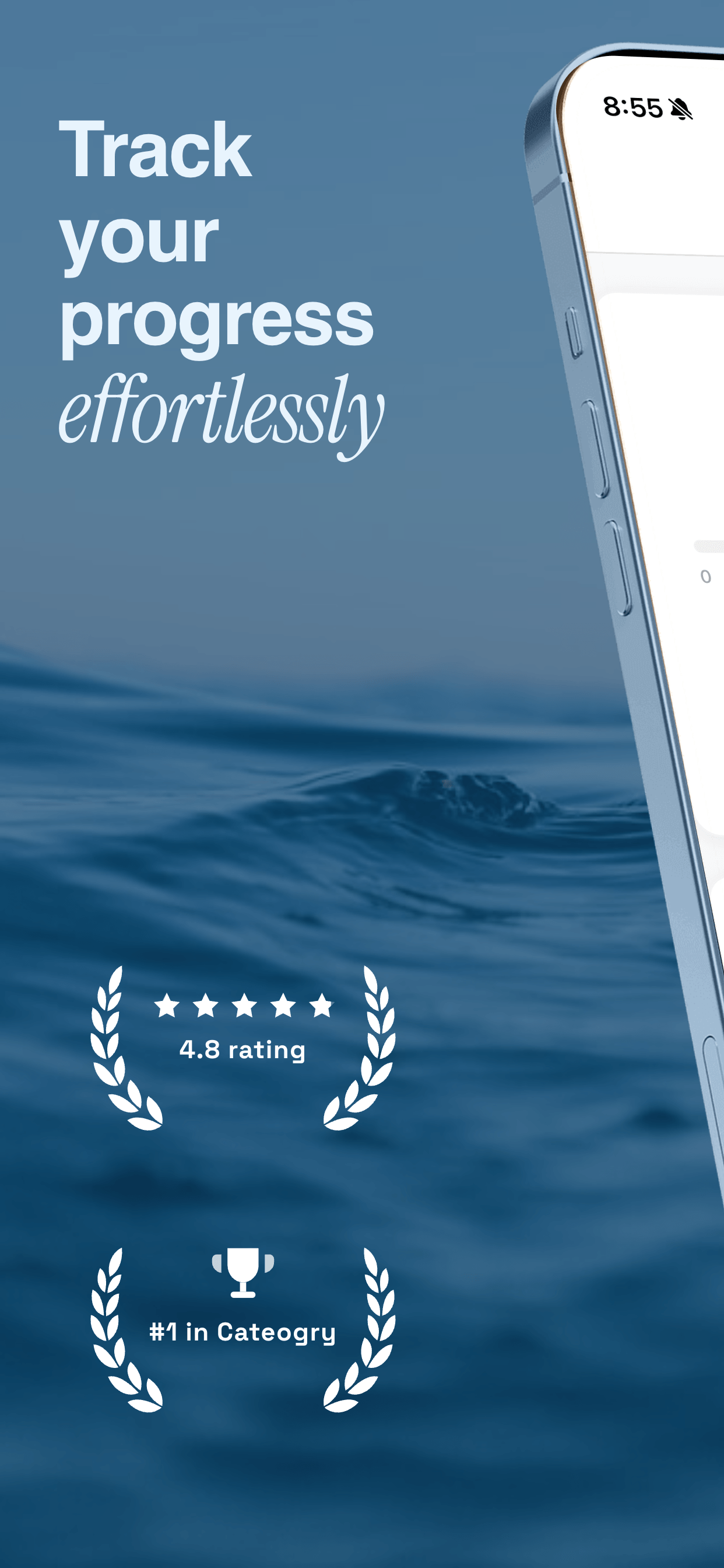
Health, fitness, and wellness apps do well with soft, warm tones: pastels, earth tones, or gentle gradients. Serif or rounded sans-serif fonts add a human touch. The vibe should be calming and inviting rather than aggressive or techy.
Developer and utility tools lean into minimal, type-forward designs. Monospace fonts, dark backgrounds, and sharp geometric layouts feel right for a technical audience. Skip the decorative flourishes and let the product speak for itself.
Five template mistakes that hurt your listing
1. Choosing a template based on the demo, not your screenshots. Every template looks good with carefully selected demo images. The real test is how it looks with your actual app captures. A template with a dark background might clash with your light-themed UI, or a panoramic layout might feel empty if your app’s key screen is visually simple. Always preview with real screenshots before committing.
2. Too much text in the caption. Your headline should be six to eight words at most. The subtitle, if you use one, should stay under fifteen words. Cramming a full feature description into a screenshot caption makes it unreadable at thumbnail size and undermines the visual impact of your template.
3. Ignoring thumbnail readability. Most users first see your screenshots as small thumbnails in search results, not as full-size images on your product page. If your headline text, device mockup, and background all blur together at 120 pixels wide, the template is not doing its job. Zoom out and squint before you finalize.
4. Using the same template as your top competitor. If every app in your category uses the same clean-white template style, your listing will blend in rather than stand out. Scan the top ten results for your primary keyword and pick a template that creates visual contrast against the competition.
5. Skipping the narrative arc. Your ten screenshot slots are not ten isolated images. They are a sequence. The best templates support a visual story: a strong opening (often panoramic), a middle section that walks through key features, and a closing slide that invites the download. Pick a template that can carry this arc, not just look good on a single slide.
Testing your template choice with real data
Gut instinct is a reasonable starting point, but the only way to know if a template actually converts is to test it. Apple’s Product Page Optimization (PPO) lets you run A/B tests on your App Store listing directly in App Store Connect. You can create up to three treatment variants with different screenshots and measure which set drives more downloads.
Google Play offers similar functionality through store listing experiments. You can test different screenshot sets against each other and see which one performs better in terms of install rate.
When running a template test, change only the template. Keep the same captions, the same screenshot sequence, and the same raw captures. That way, the only variable is the visual treatment, and you can attribute any difference in conversion rate to the template choice rather than to a wording change or a different feature ordering.
Give your test at least seven days and a few thousand impressions before drawing conclusions. Screenshot A/B tests with small sample sizes can produce misleading results, especially if your app has seasonal traffic patterns.
A practical template selection workflow
If you want a repeatable process for picking the right template, here is a five-step workflow that works for most apps.
Step 1: Audit your competition. Search for your primary keyword in the App Store and scroll through the top ten results. Note the background tones, layout types, and typography styles that dominate. Your goal is not to copy them but to understand the visual landscape you are competing in.
Step 2: Define your contrast angle. Based on the audit, decide how you want to differentiate. If everyone is using dark backgrounds, a bright template will stand out. If the category is full of minimal designs, a bold panoramic layout might catch the eye. Find the gap.
Step 3: Narrow to two or three templates. Pick templates that align with your contrast angle and your app’s brand personality. Do not spend hours browsing. Pick two or three that feel right and move to the next step.
Step 4: Preview with real screenshots. Drop your actual app captures into each template. View them at full size and at thumbnail size. Show them to someone who has never seen your app and ask what they think the app does. If the template makes your product clear and appealing at a glance, it is working.
Step 5: A/B test your top pick. Once you have a winner, publish it and run a Product Page Optimization test against your current screenshots. Let the data confirm your instinct.
How Screenshot Otter makes this easier
Screenshot Otter was built to make template selection and screenshot creation fast, even if you have zero design experience. You upload your raw captures, browse a library of professionally designed templates, and see your real screenshots inside each one instantly. No placeholder images, no guessing how it will look.
The template library includes standard single-phone layouts, panoramic hero layouts, and responsive templates that automatically adapt across iPhone, iPad, and Android devices. Each template is designed with the premium principles that matter: bold typography, thoughtful color palettes, proper device shadows, and generous negative space.
Once you pick a template, you can customize captions, swap background colors, and export every size you need in a single click. The entire process from raw screenshot to App Store-ready images takes minutes, not hours.
Frequently asked questions
What is an App Store screenshot template?
An App Store screenshot template is a pre-designed layout that frames your raw app screenshot inside a device mockup, adds a headline caption, optional subtitle, and styled background. Templates let you produce professional-looking App Store images without starting from scratch in a design tool.
Should I use a dark or light background for my App Store screenshots?
It depends on your app's UI and your target audience. Dark backgrounds tend to feel premium and make colorful app interfaces pop. Light backgrounds feel clean and approachable, and they work well for productivity or lifestyle apps. The most important thing is contrast: your app's UI needs to stand out clearly against the background.
What is a panoramic screenshot template?
A panoramic template spans two adjacent screenshots in your App Store listing, creating a single wide scene when a user scrolls through. The first screenshot might show a headline on the left while the second shows the phone on the right. This creates a cinematic first impression that stands out in search results.
How many App Store screenshot templates should I try before deciding?
Start with two or three templates that match your app's tone and category. Preview them with your actual screenshots, not placeholder images, because a template that looks great in a demo can fall flat with your real UI. Once you narrow it down, use Apple's Product Page Optimization to A/B test your top two choices with real users.