Productivity App Screenshot Examples
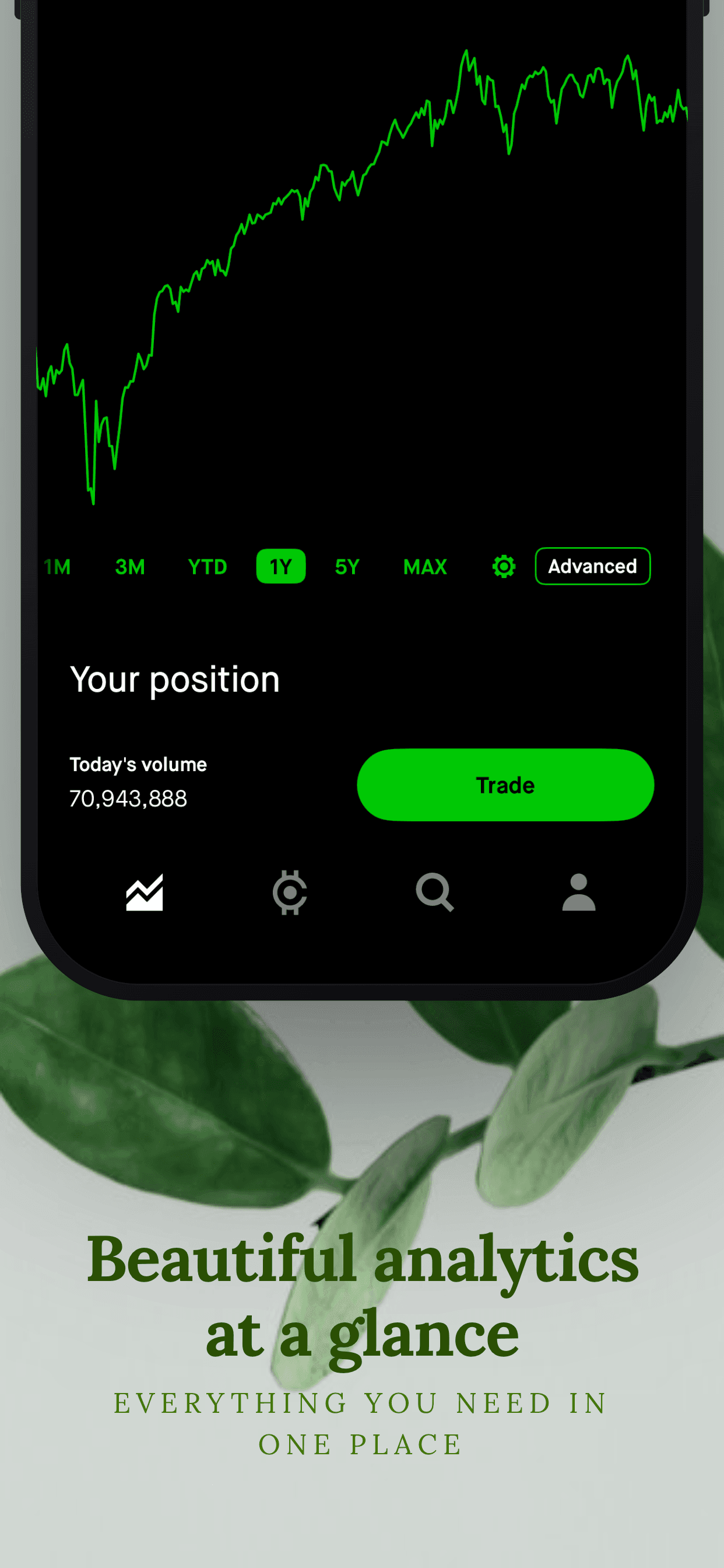
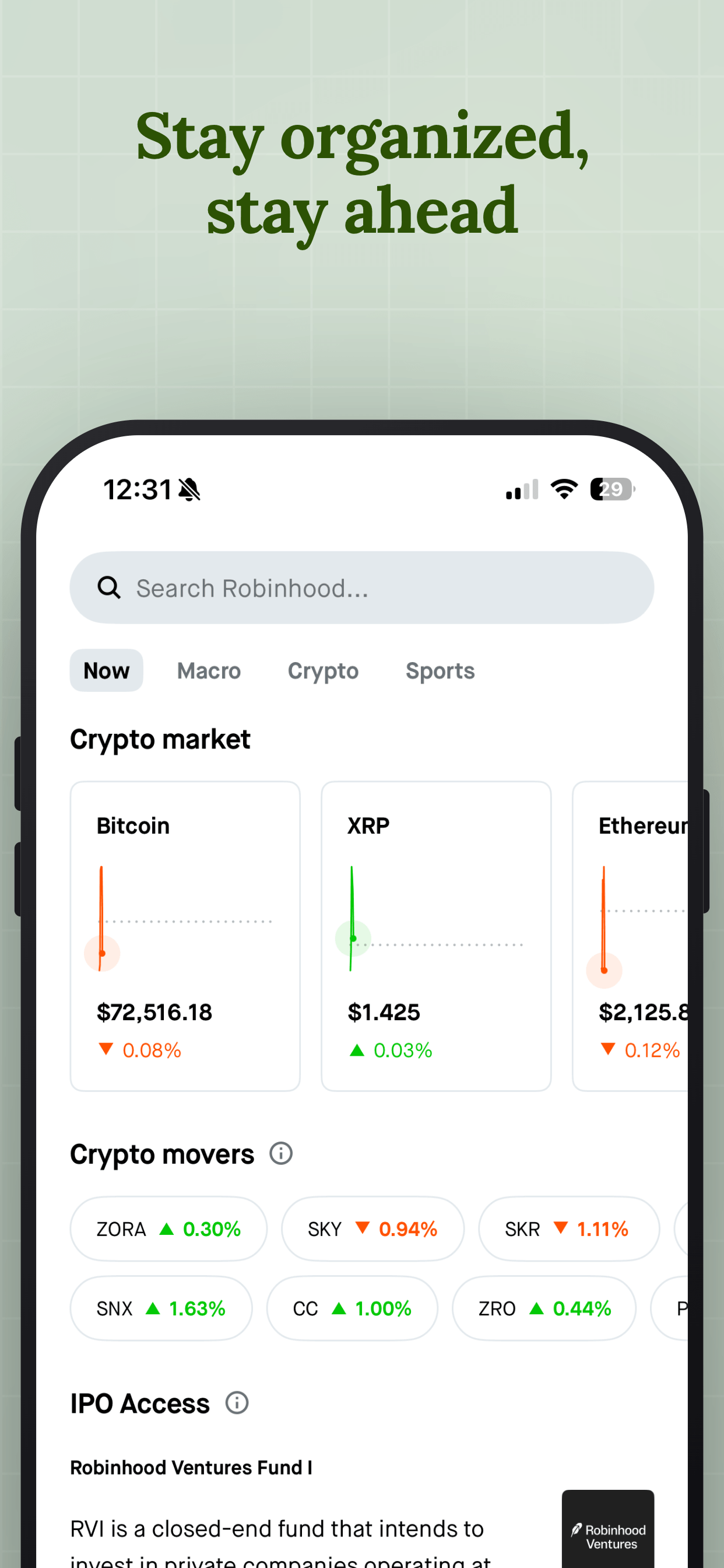
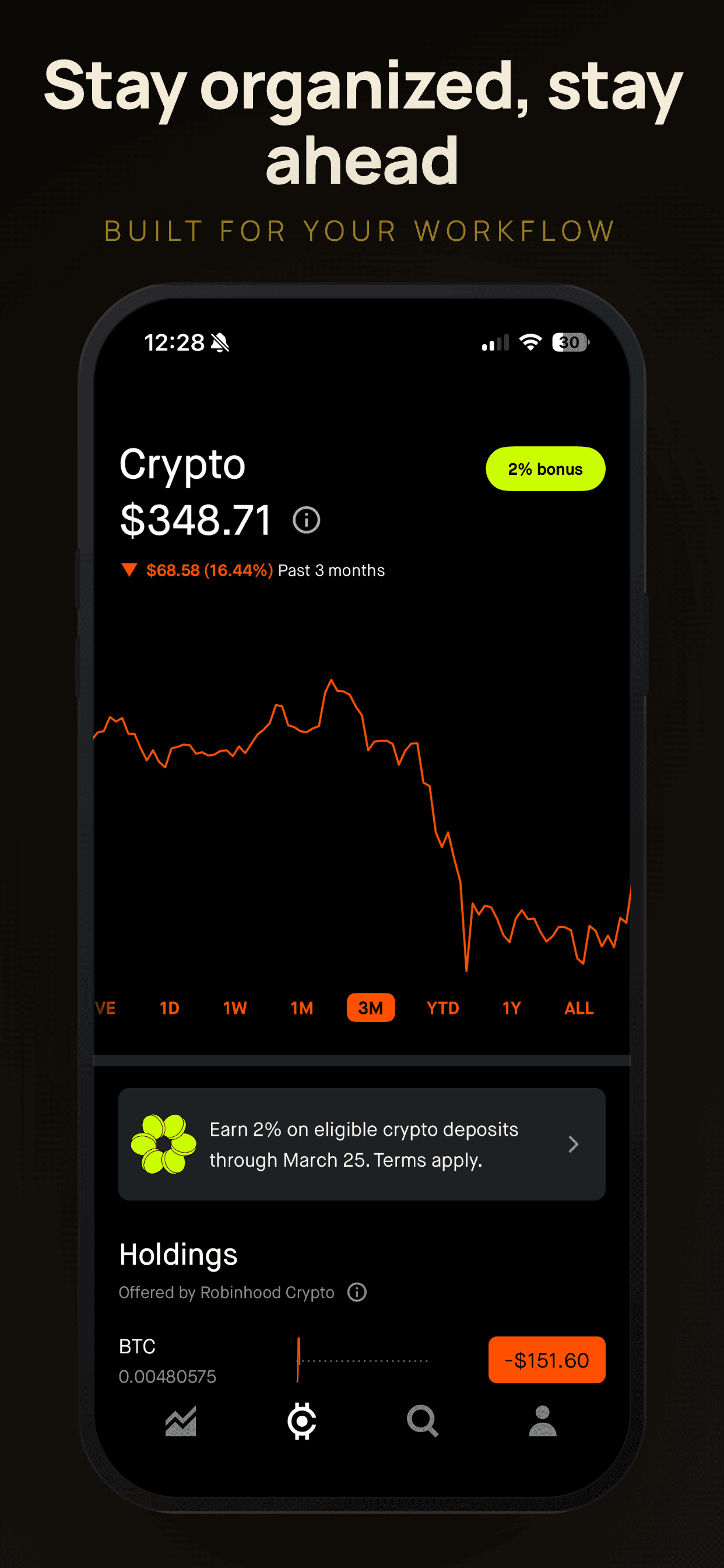
Productivity is one of the most crowded categories on both stores, and most listings look the same: a white list of tasks with a checkbox. The apps that win show a specific outcome, like an empty inbox, a planned week or a note found instantly, instead of a generic list.
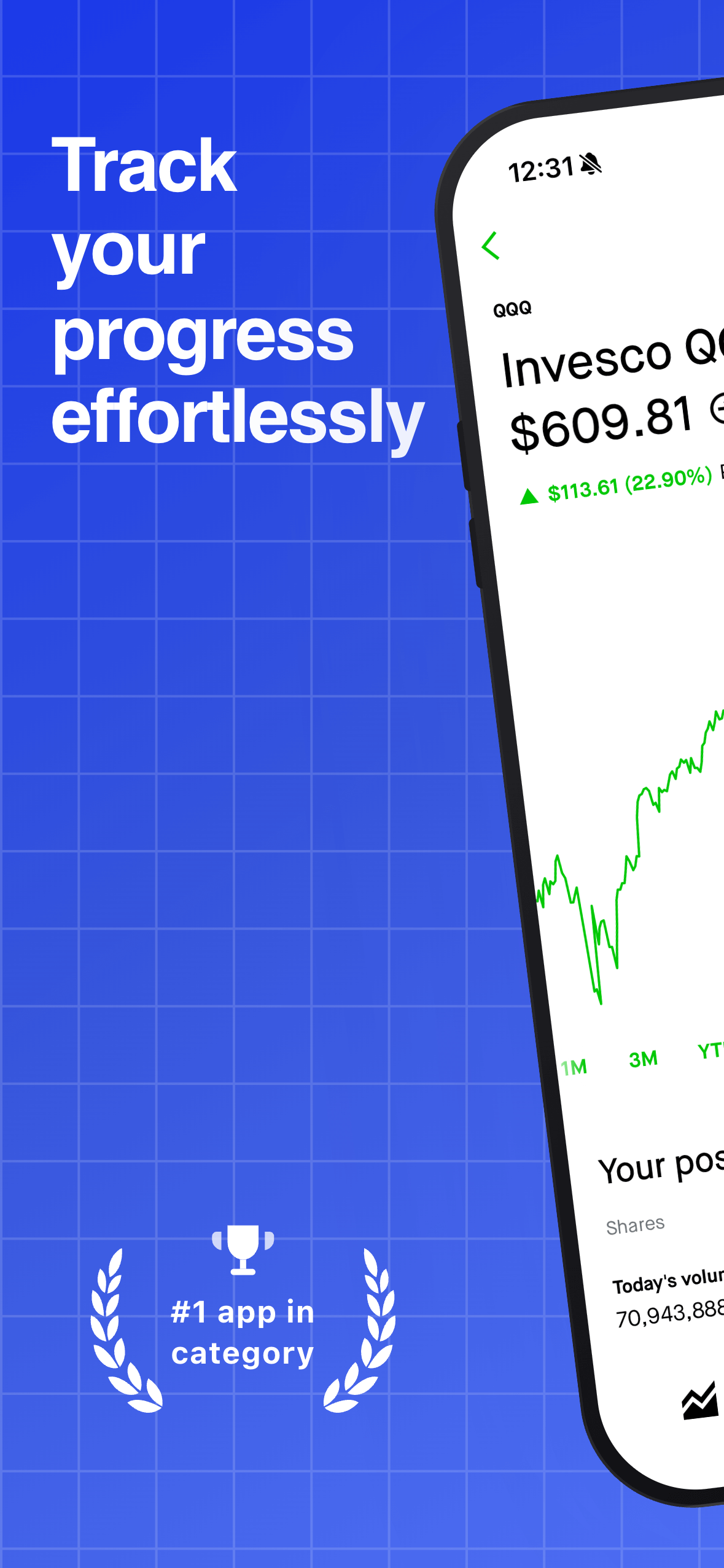
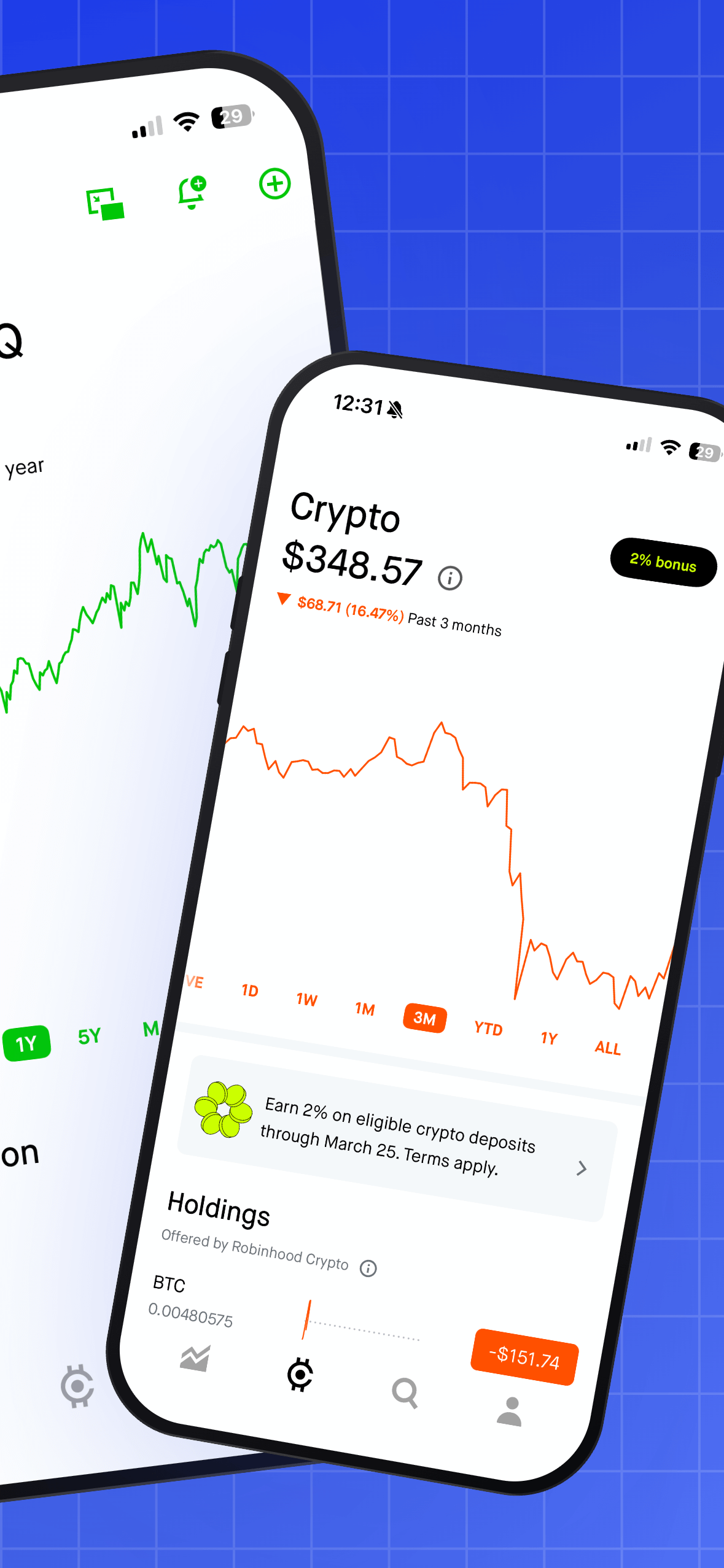
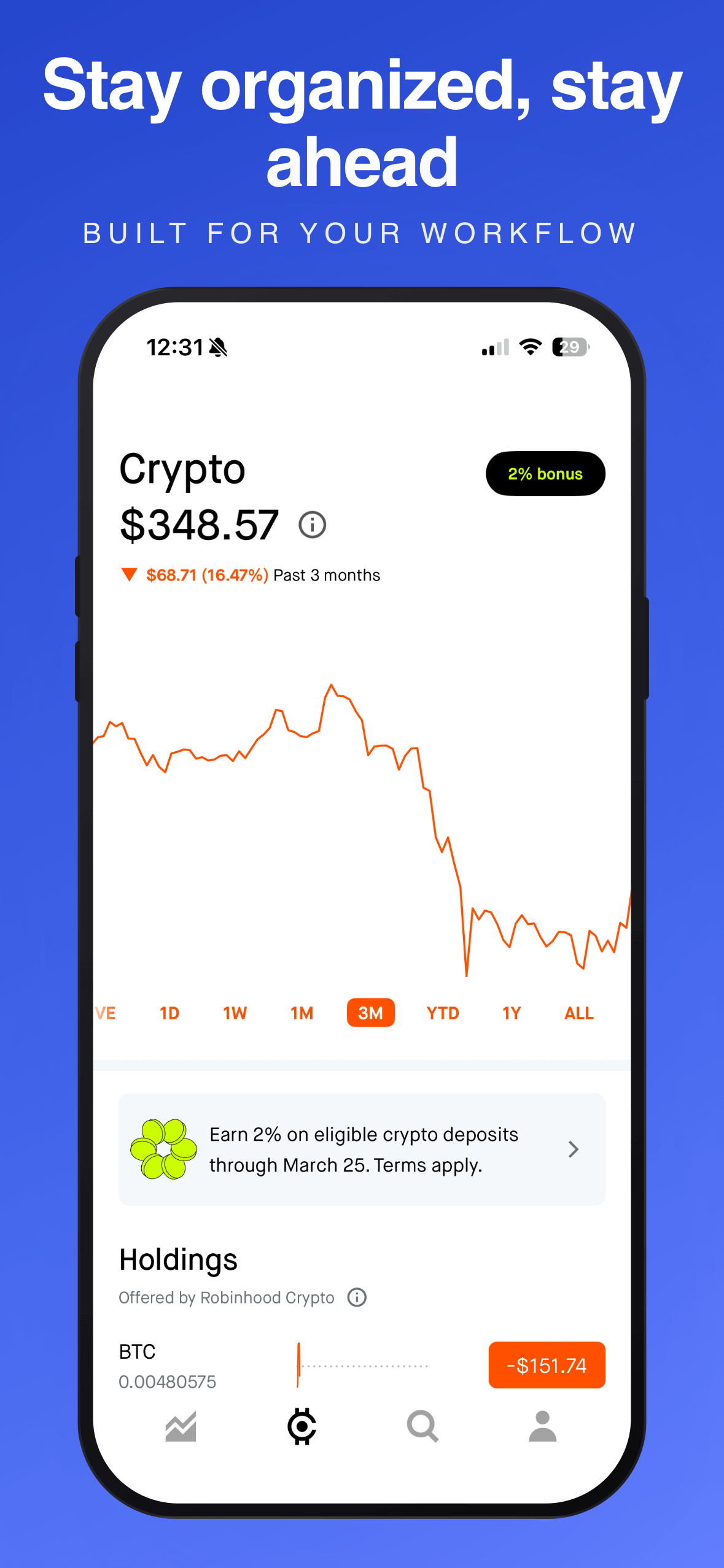
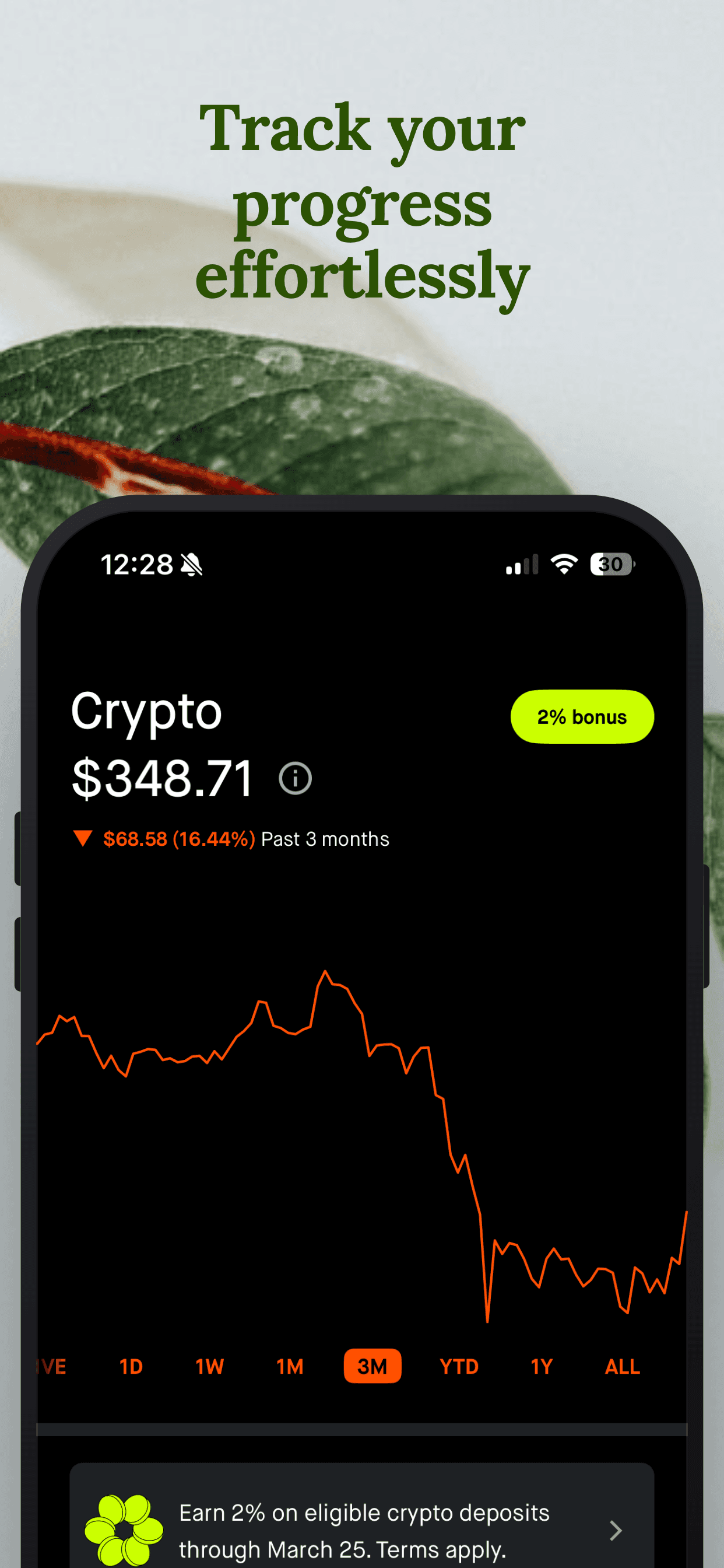
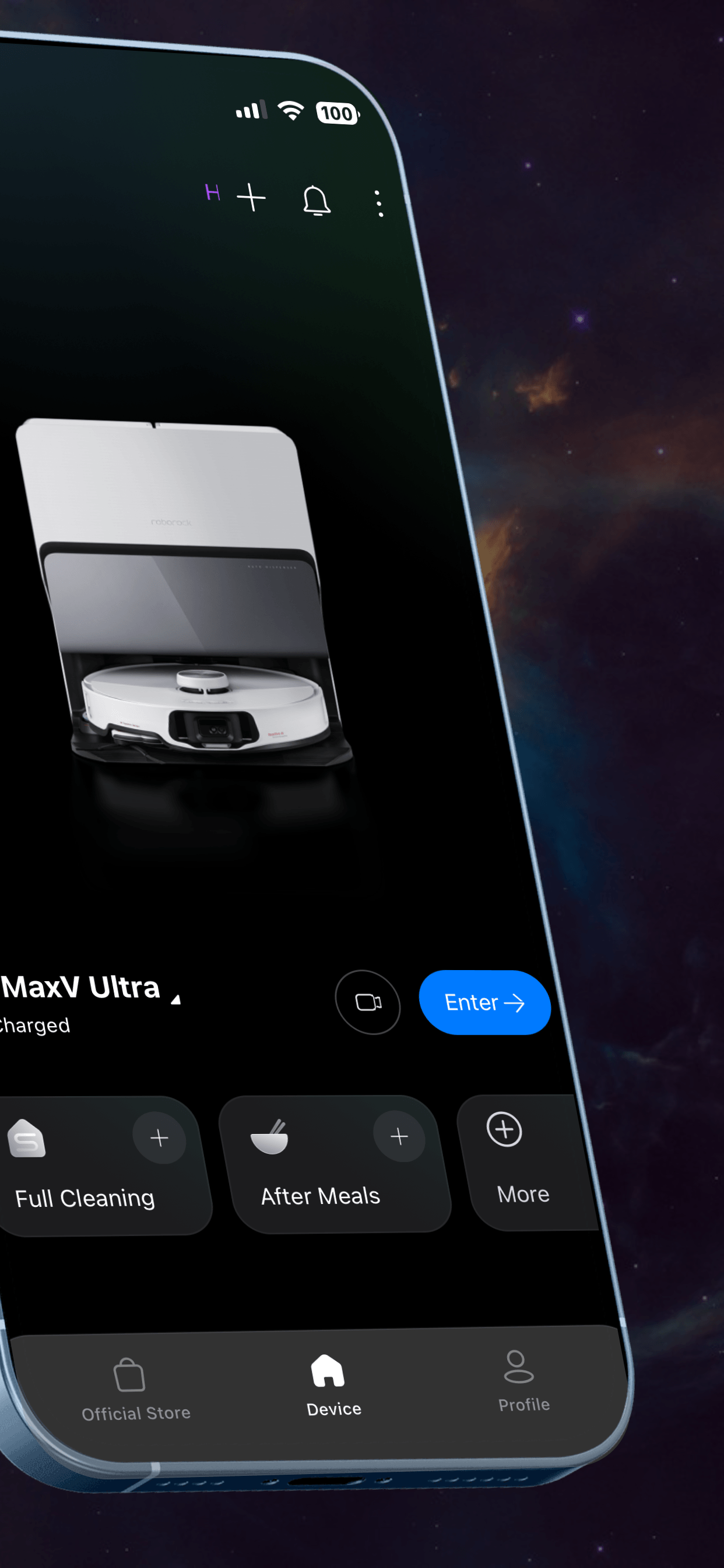
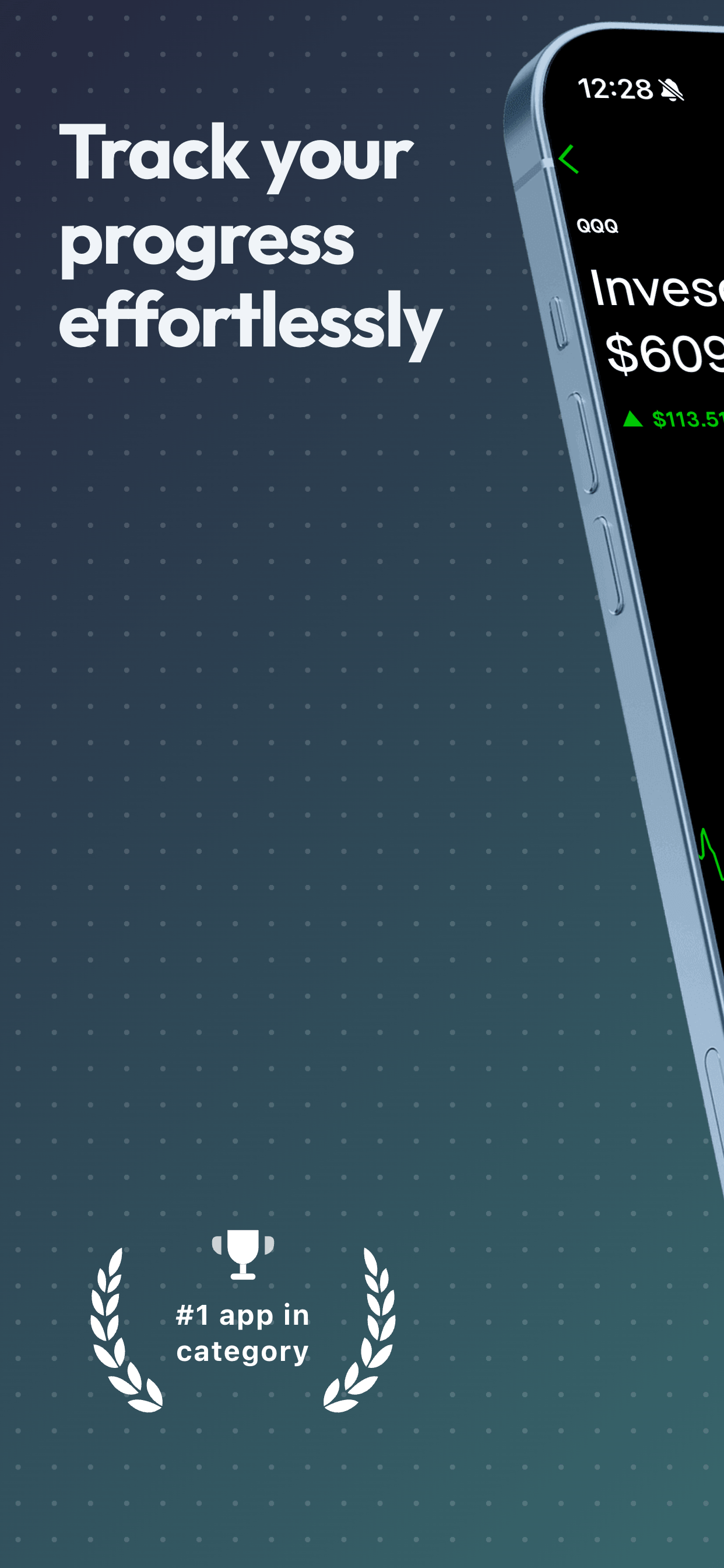
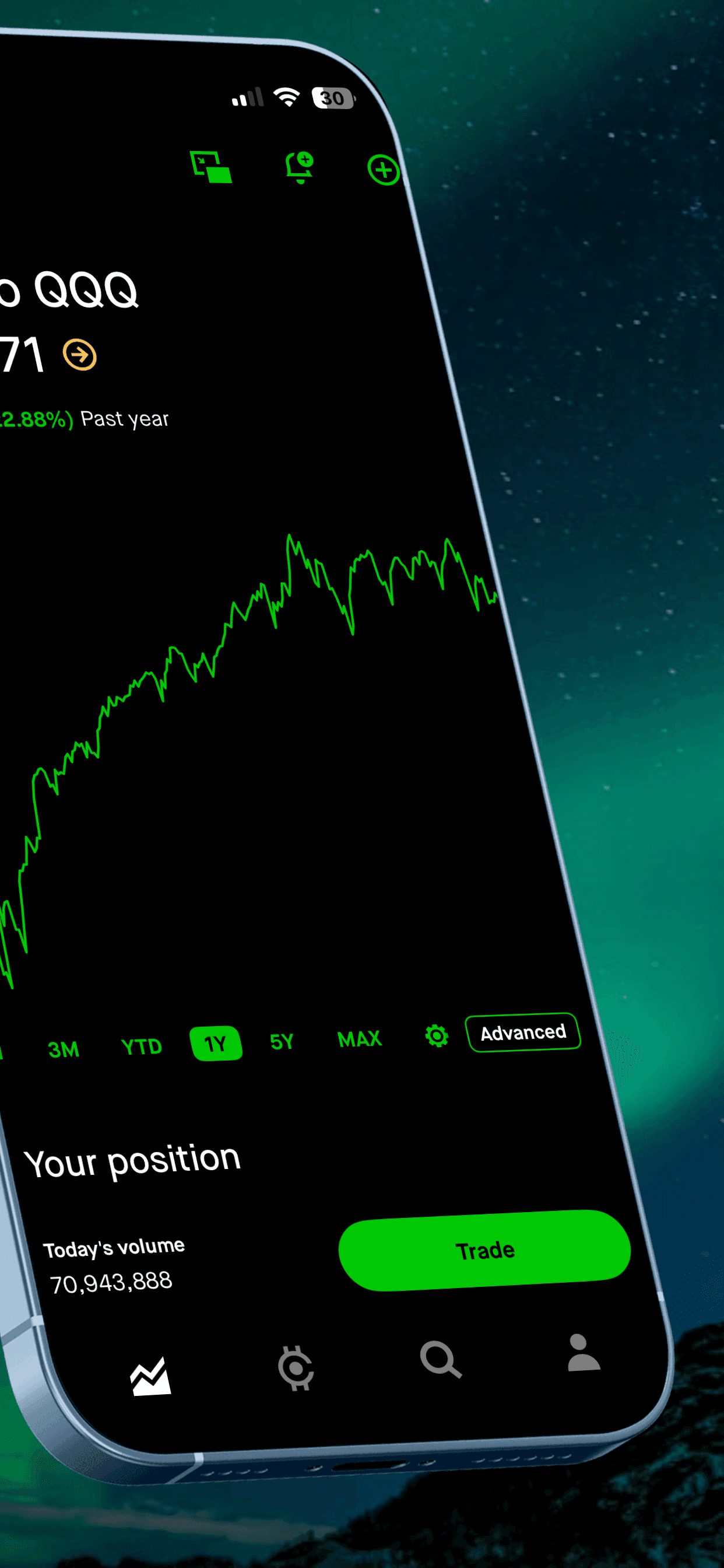
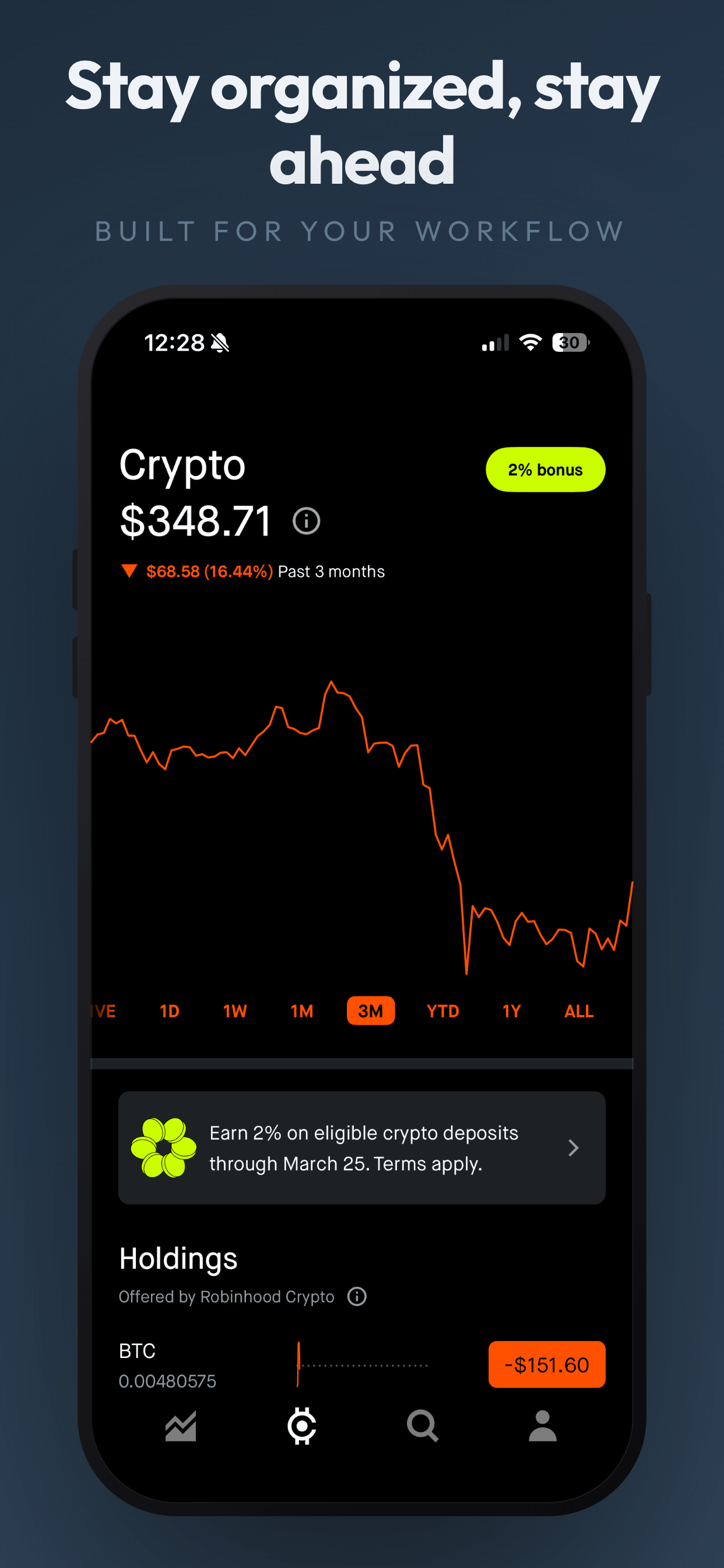
These examples pair clean, typographic templates with task, notes and dashboard screens. Use them as a starting point and replace the screens with your own.
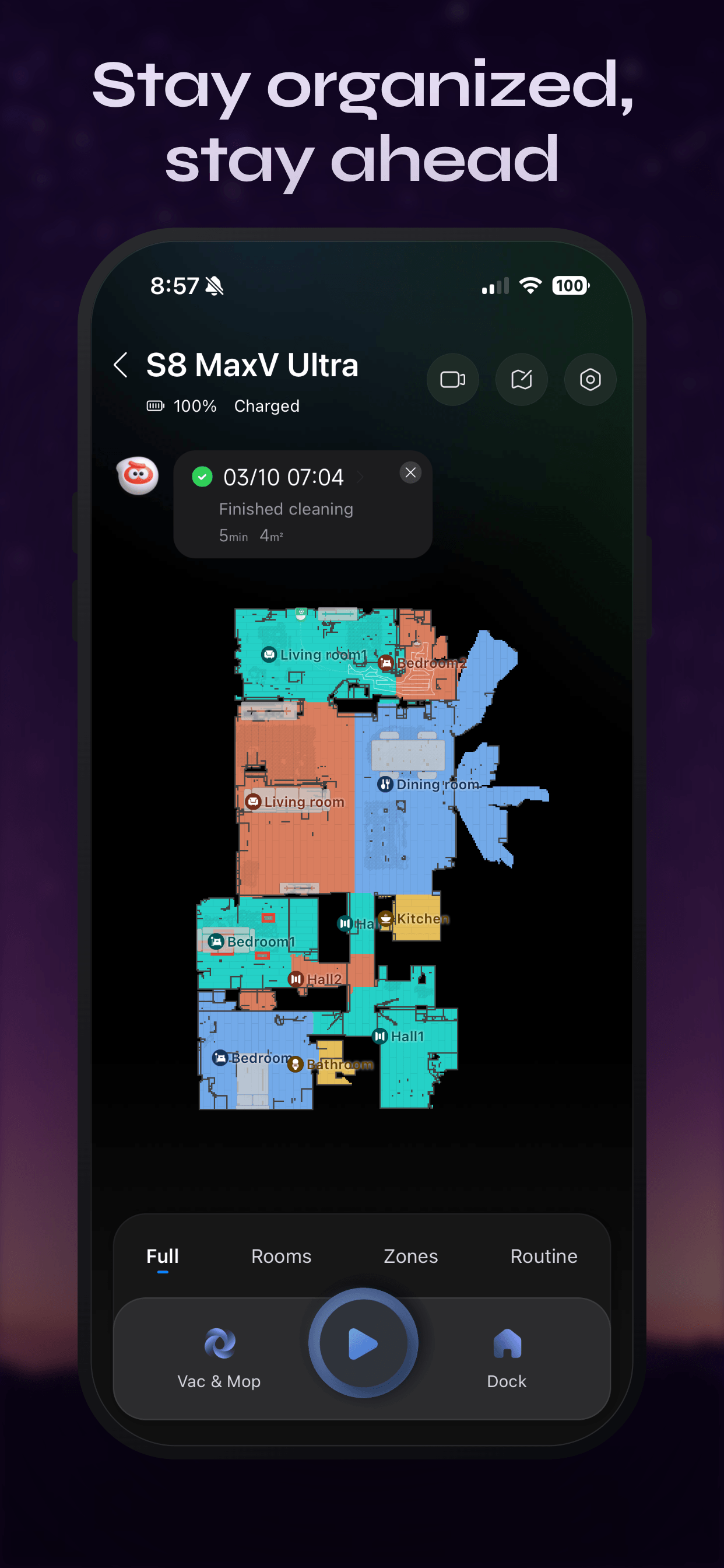
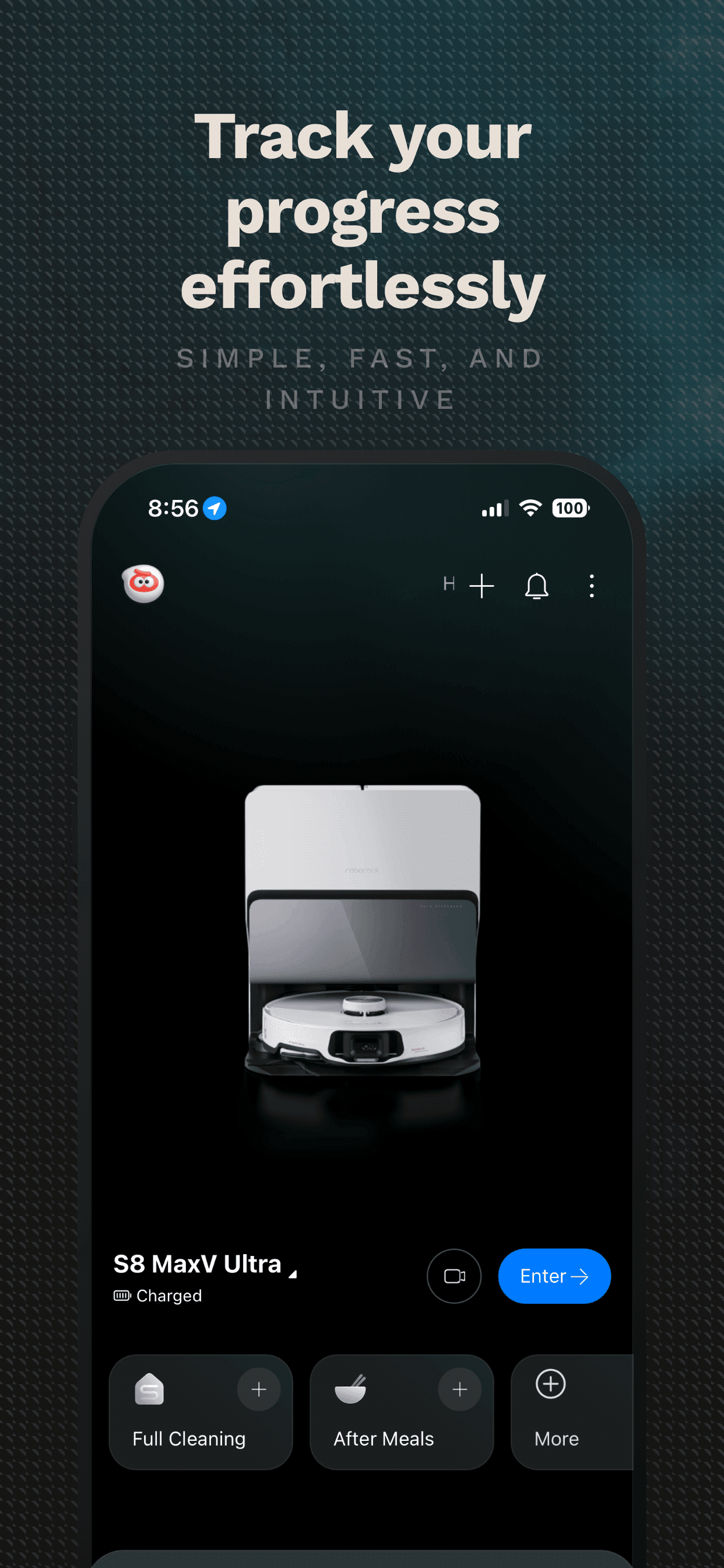
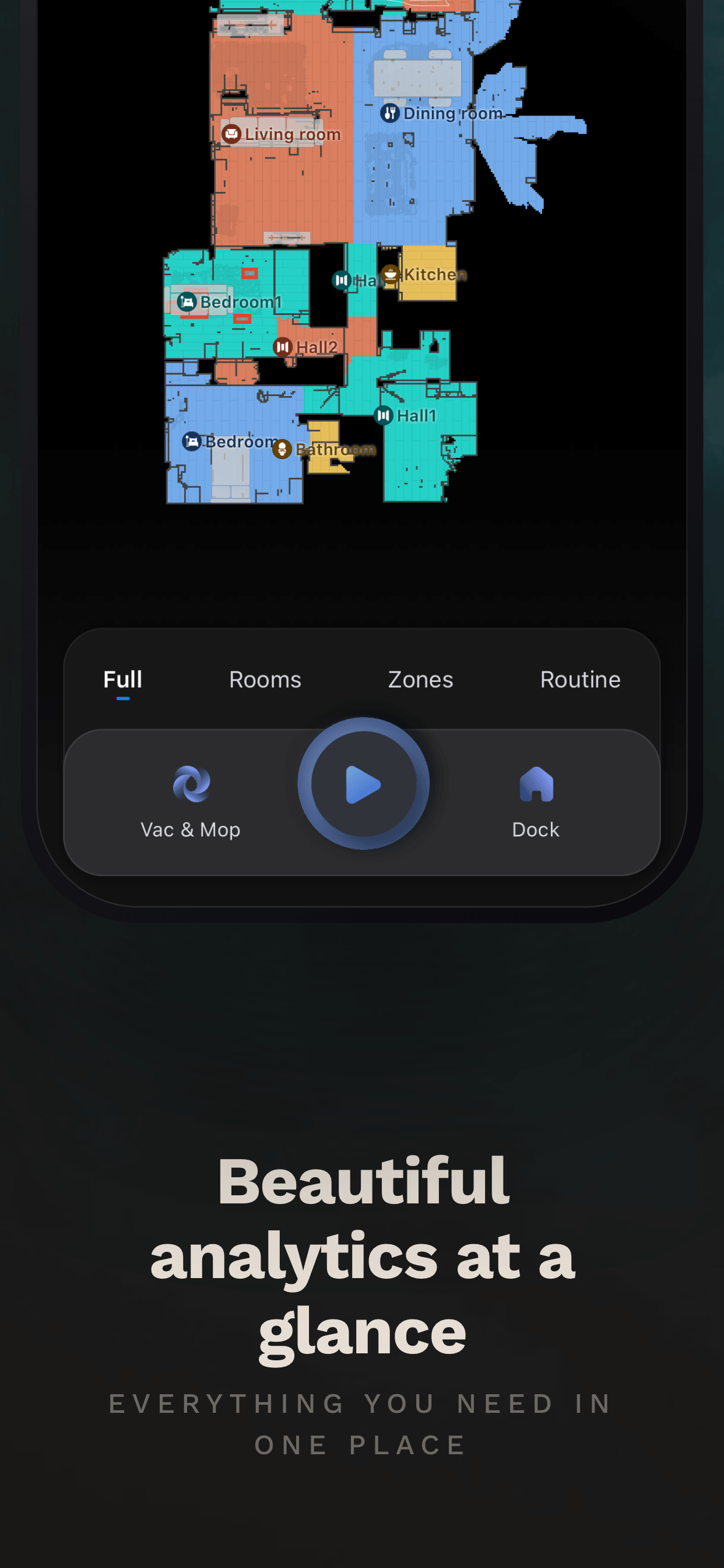
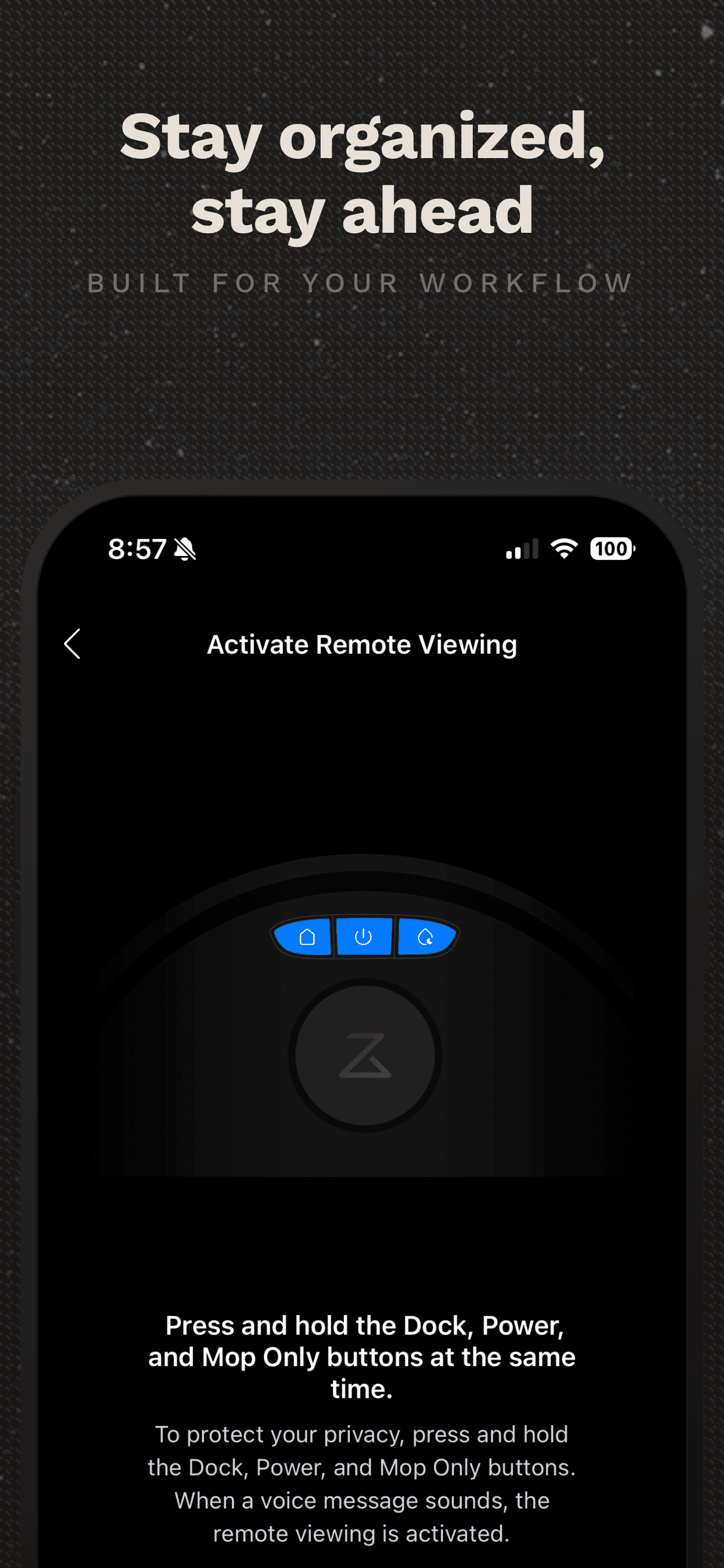
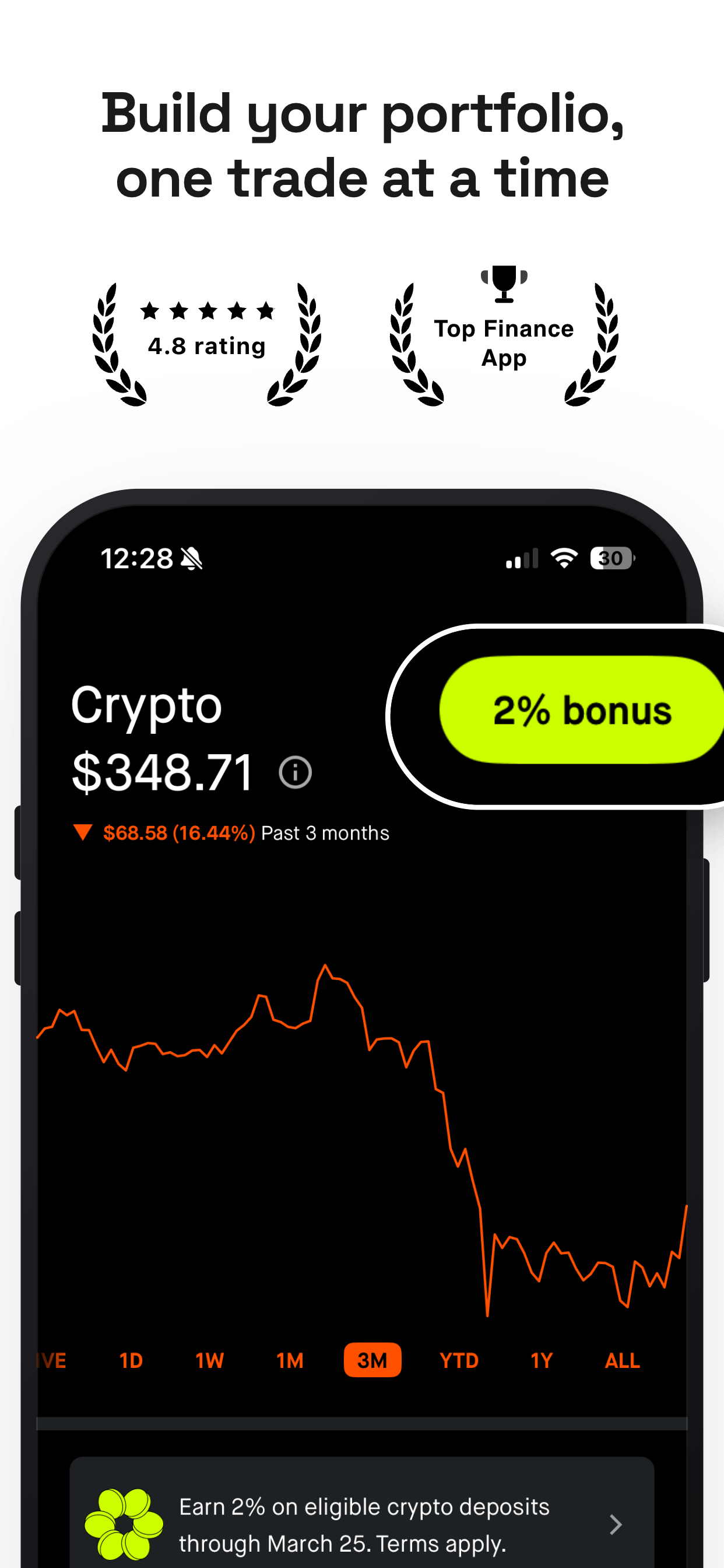
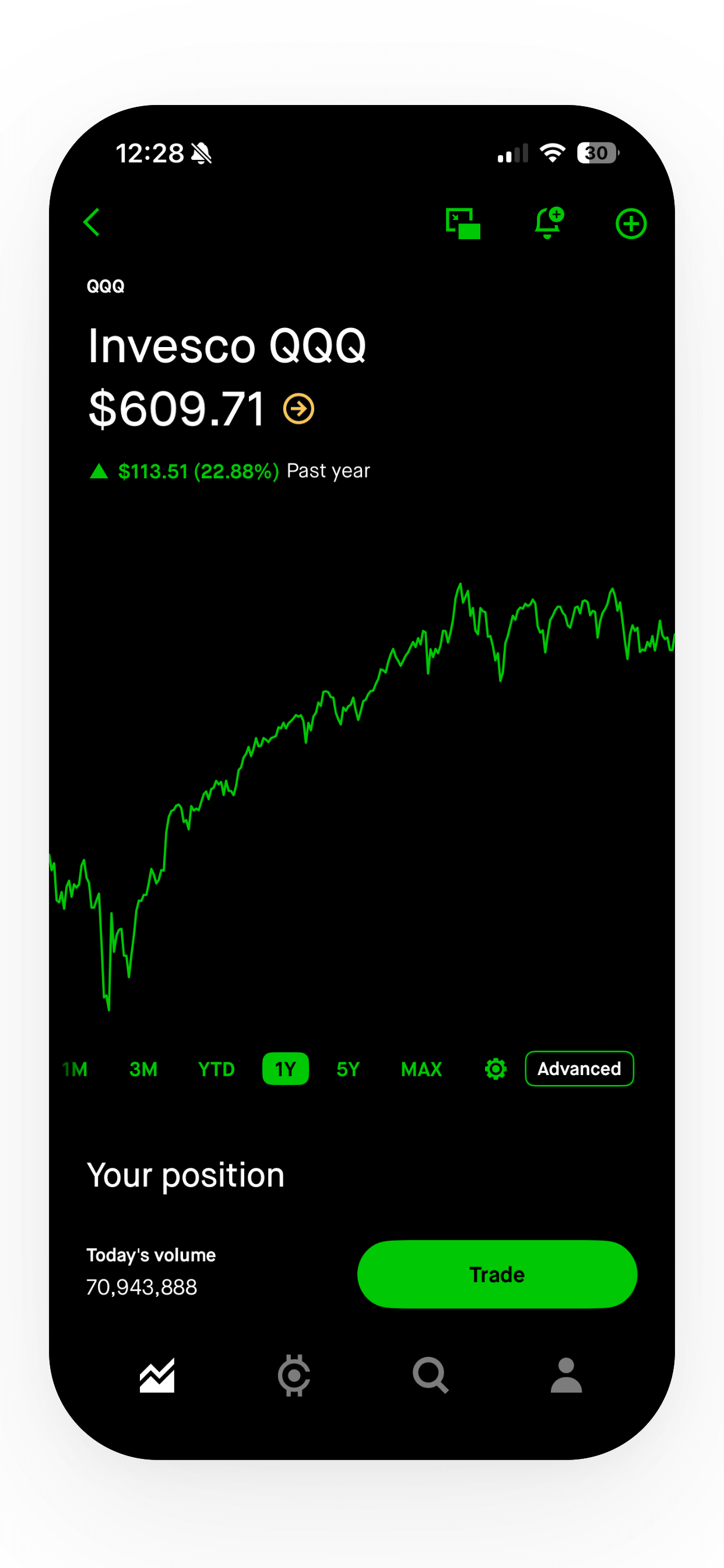
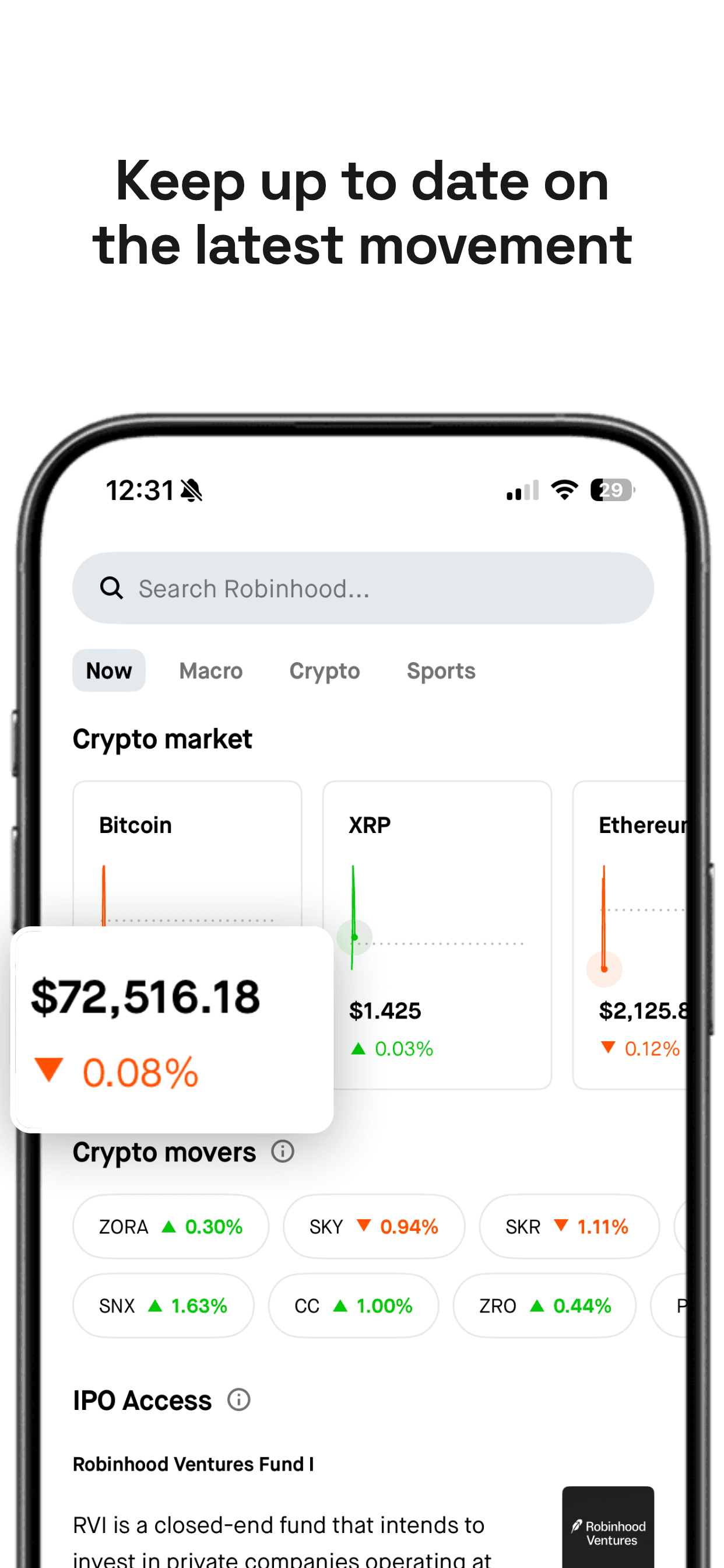
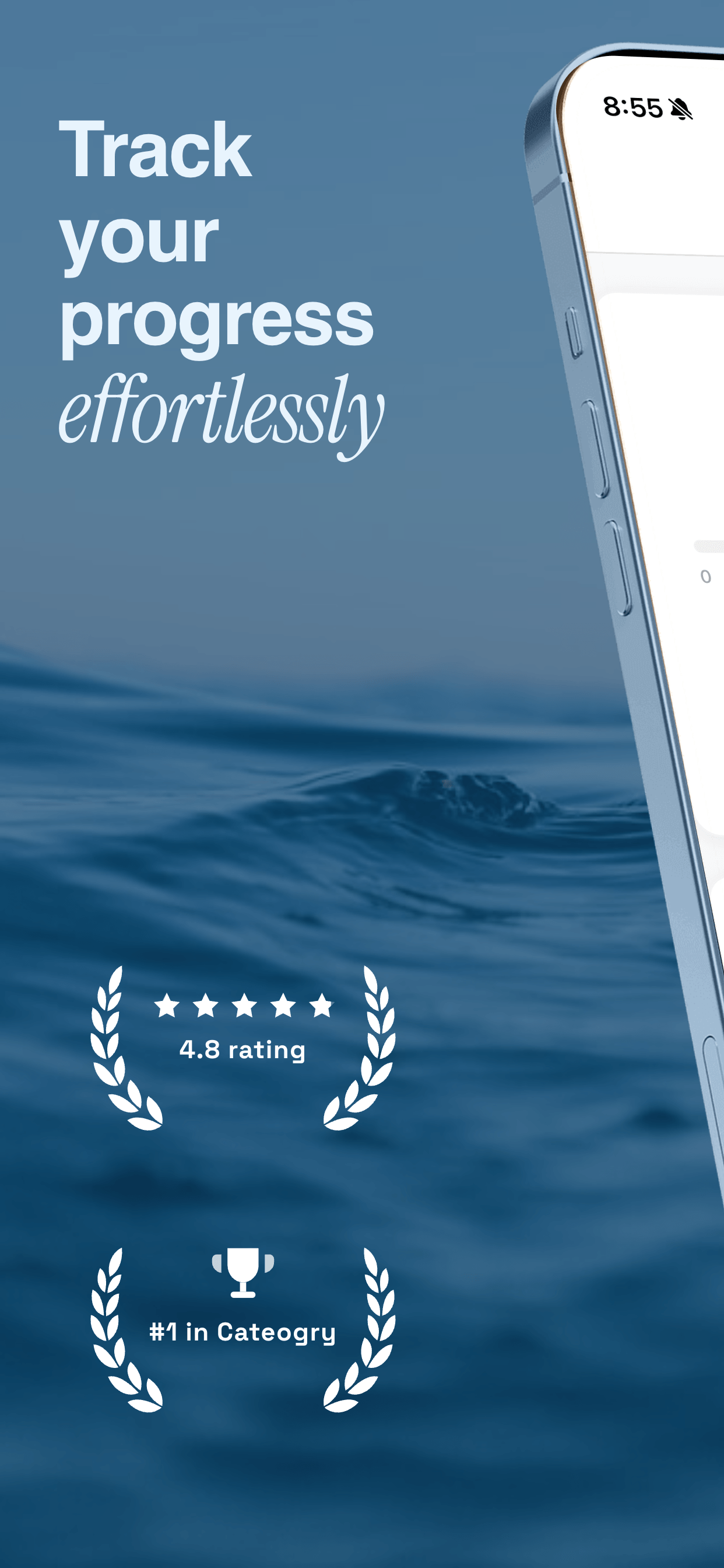
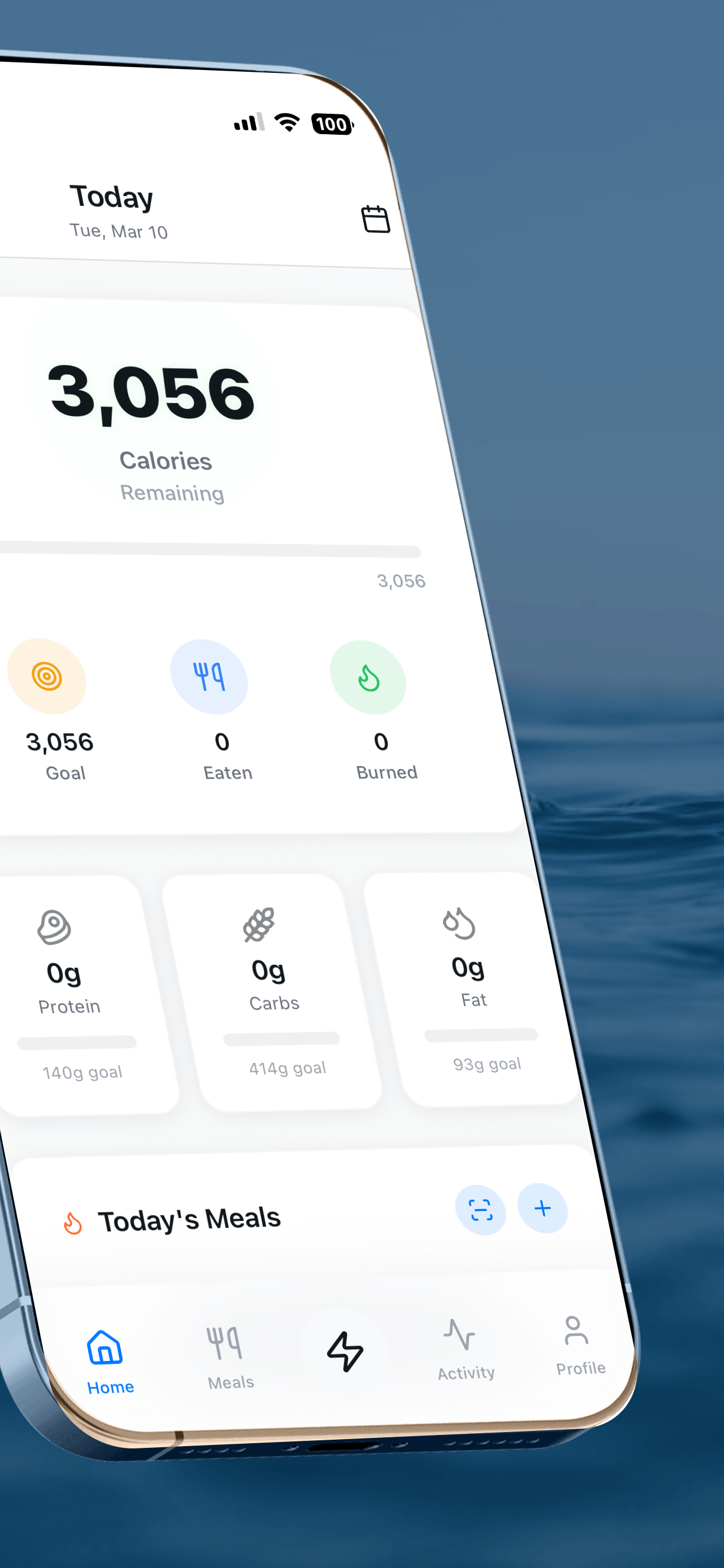
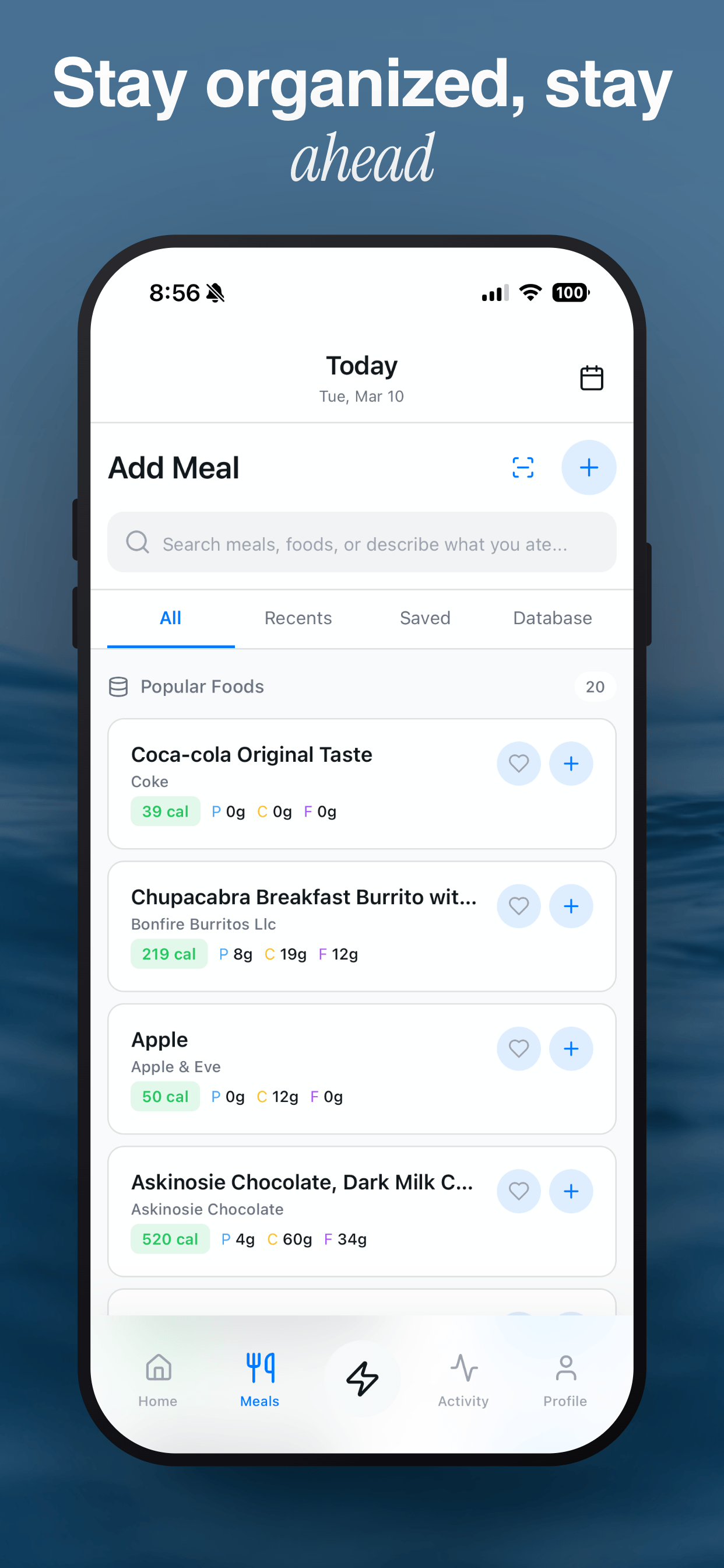
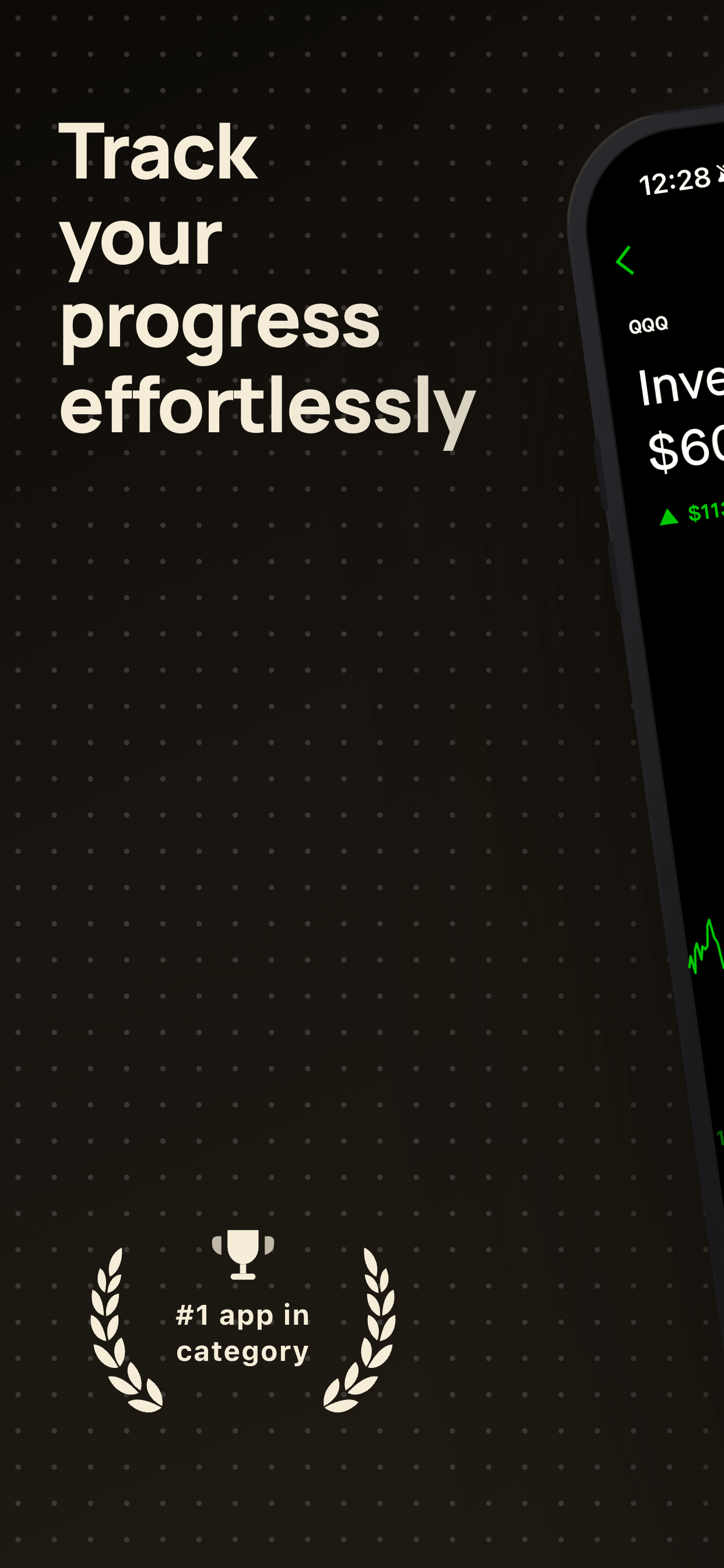
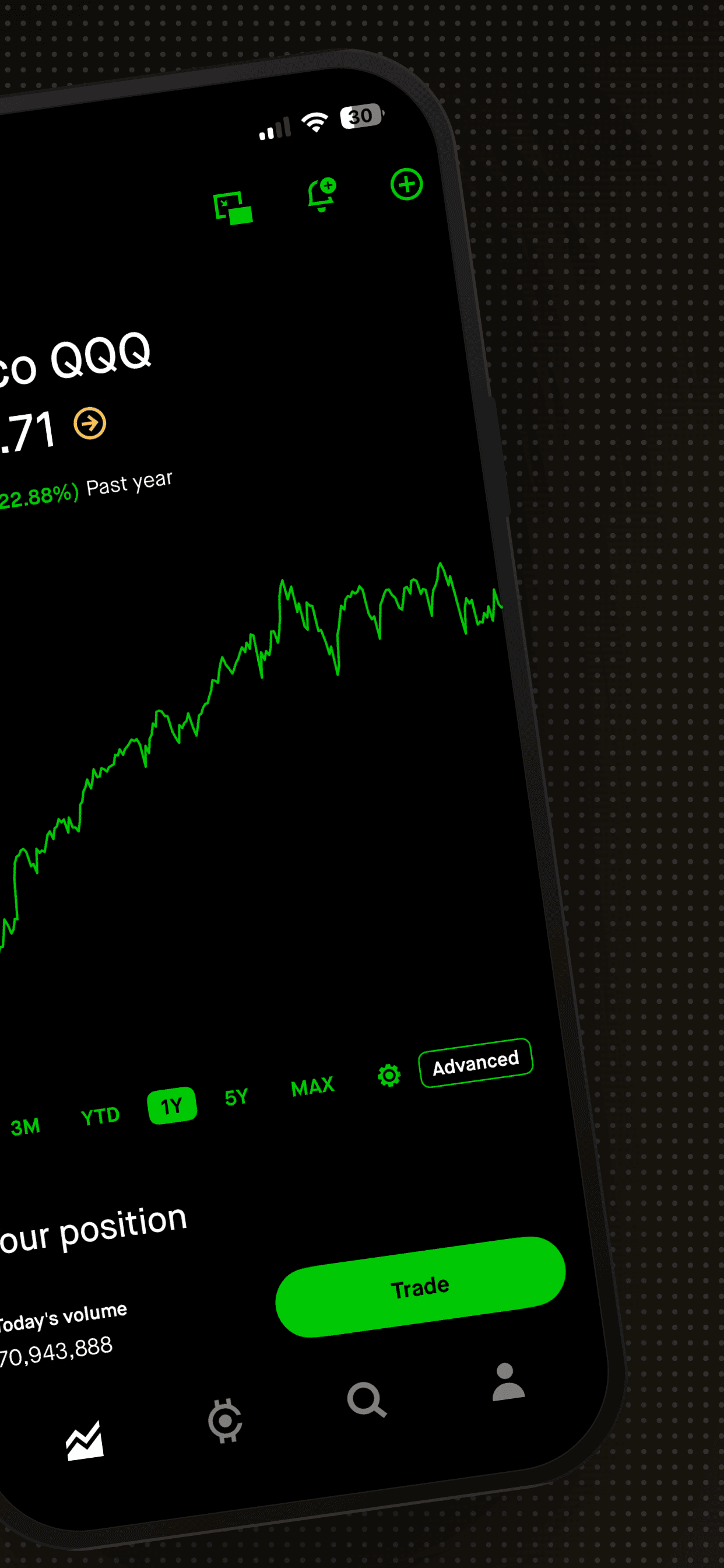
4 productivity screenshot examples
Studio WhitePro
About this templateAdaptive CleanPro
About this templateNordic SlatePro
About this templateClean WhiteFree
About this templateWhat works for productivity app screenshots
Sell calm, not features
Buyers in this category feel overwhelmed. Headlines about clarity and control ("Your week, finally clear") outperform feature lists like "Tags, filters and subtasks".
Show a realistic but tidy state
Demo data should look like a real person's day: a few meetings, a grocery list, one overdue task. Ten perfectly color-coded projects looks like work, not relief.
Prove sync with device variety
If you support iPad or Mac, dedicate one slide to cross-device sync. It's a top purchase driver for paid productivity apps.
Lean on typography
Clean, typographic templates with generous whitespace match the category's expectations and keep the UI readable at thumbnail size.
Frequently asked questions
- What should the first screenshot of a productivity app show?
- Your main overview screen (today, week or inbox) with a headline about the outcome, like clarity or saved time. It should make sense in under two seconds.
- Light or dark templates for productivity apps?
- Light, minimal templates are the category norm and read as calm and trustworthy. A dark template can help you stand out if your app has a strong dark mode.
- Should I show widgets in my screenshots?
- Yes, if you have them. Home screen and lock screen widgets are a visible differentiator and work well as a later slide.
Make your productivity app screenshots
Upload your screenshots, pick a template and export every App Store and Google Play size. Free to start, no signup.
Try Screenshot Otter free →