Guide
How to Use AI to Write App Store Screenshot Captions
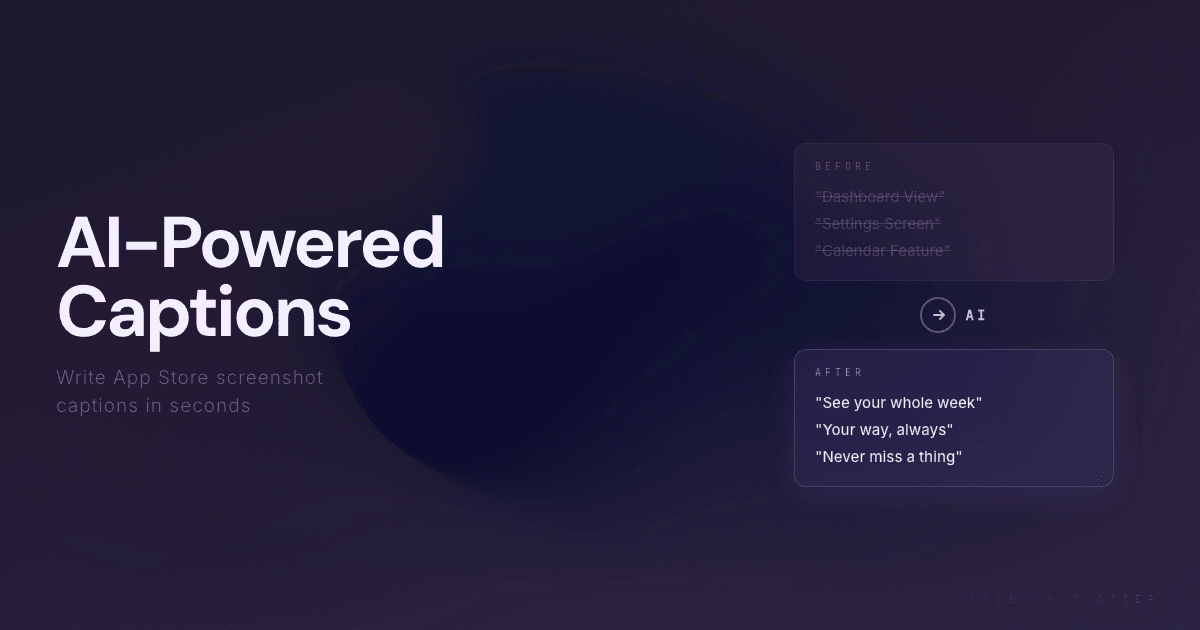
Writing captions used to be the hardest part of making App Store screenshots. Now AI can draft them in seconds. Here is how to use it well, and how to avoid the traps that make AI-generated copy sound hollow.

Scott Stewart · Mar 19, 2026
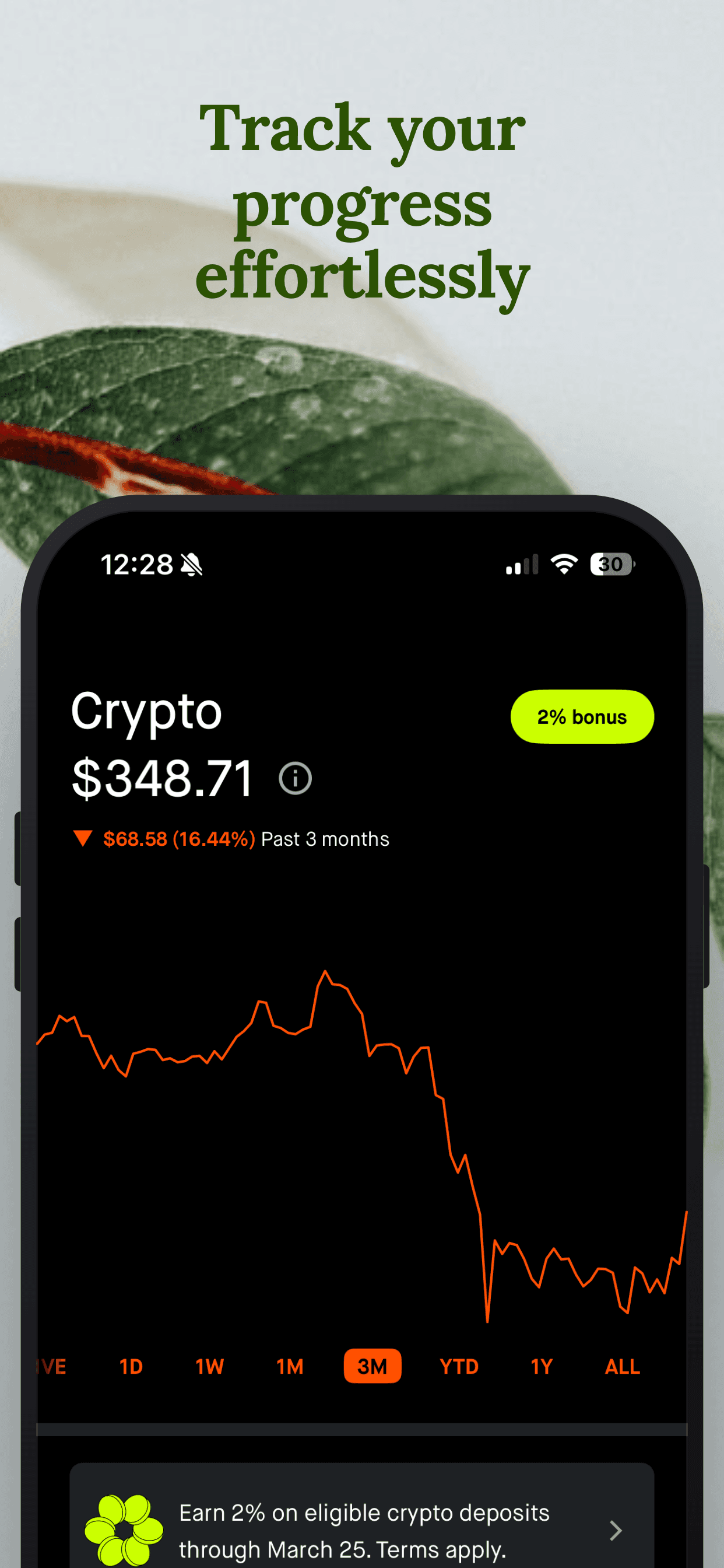
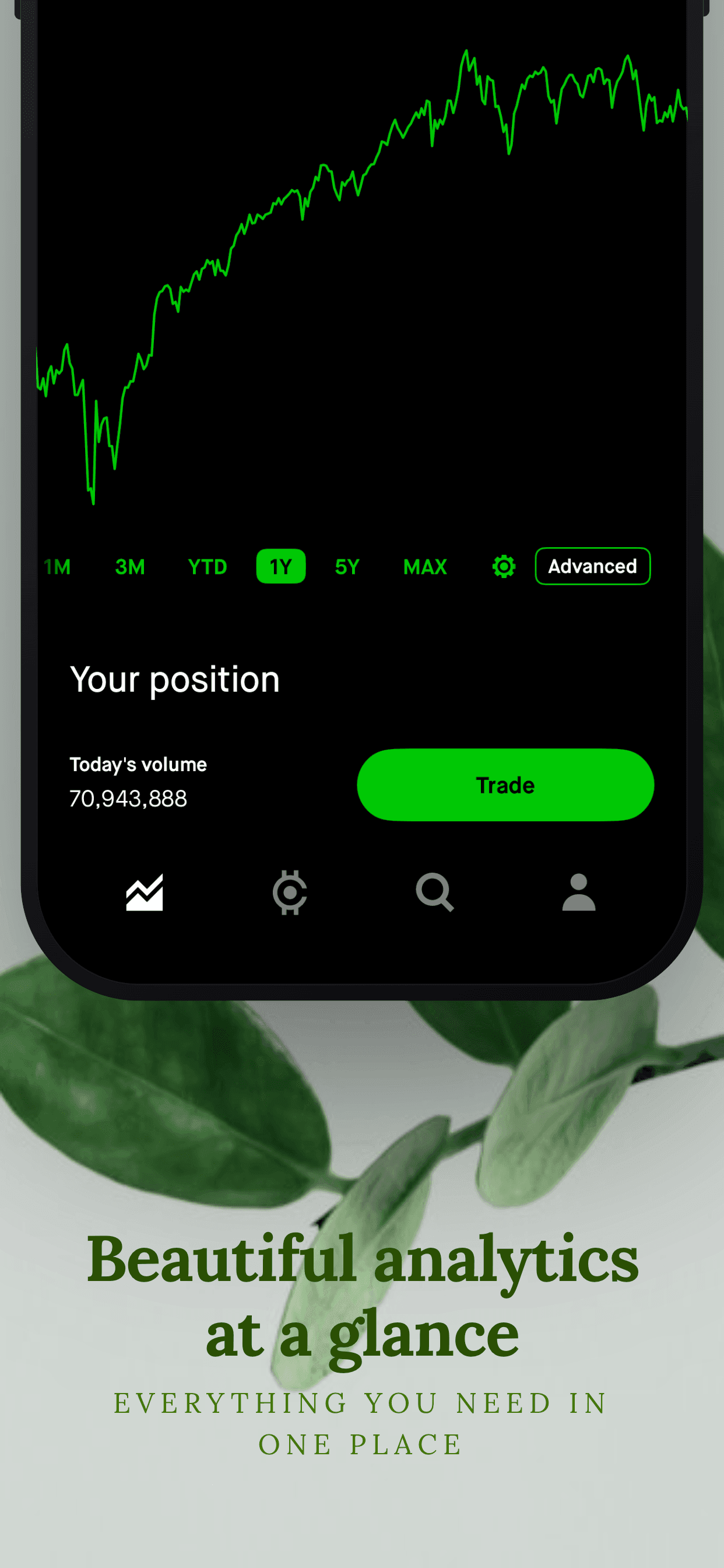
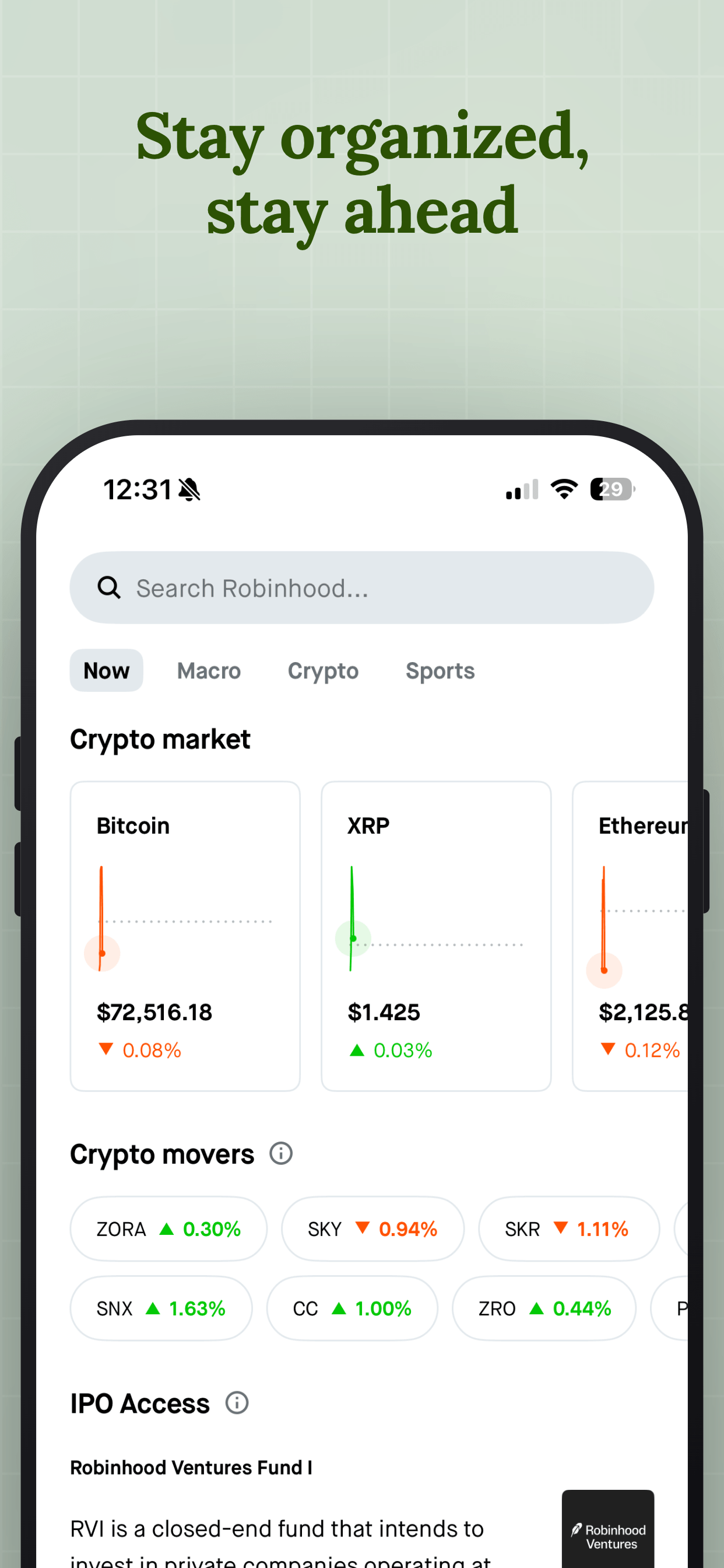
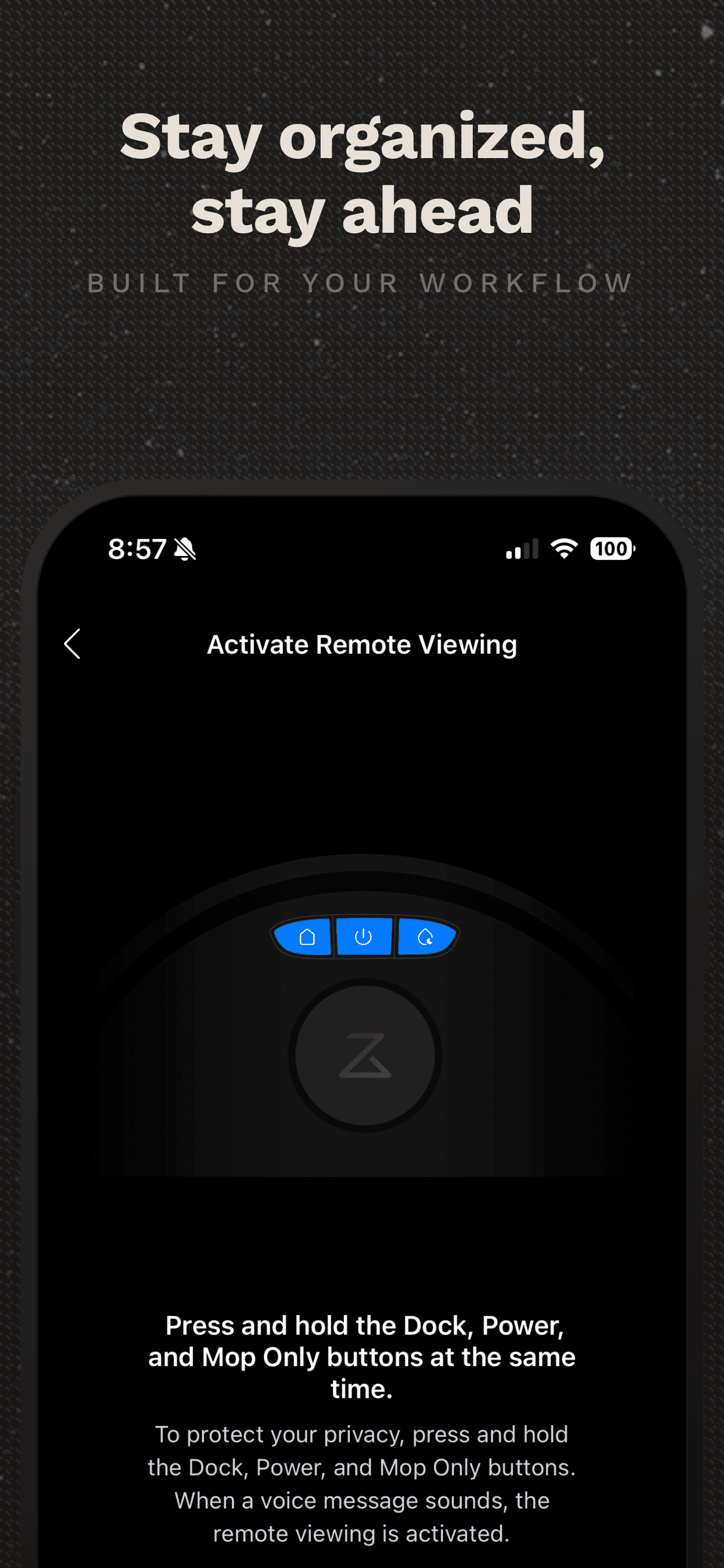
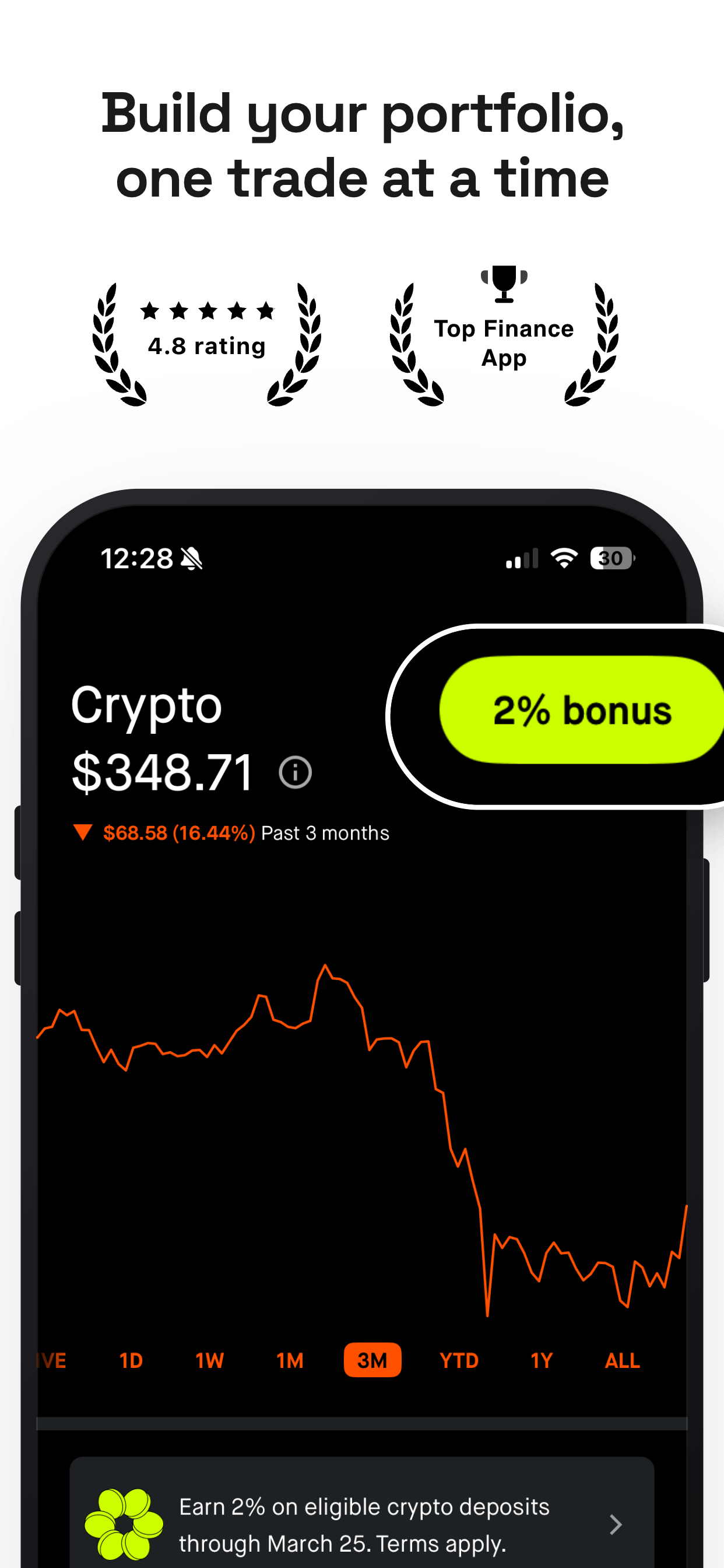
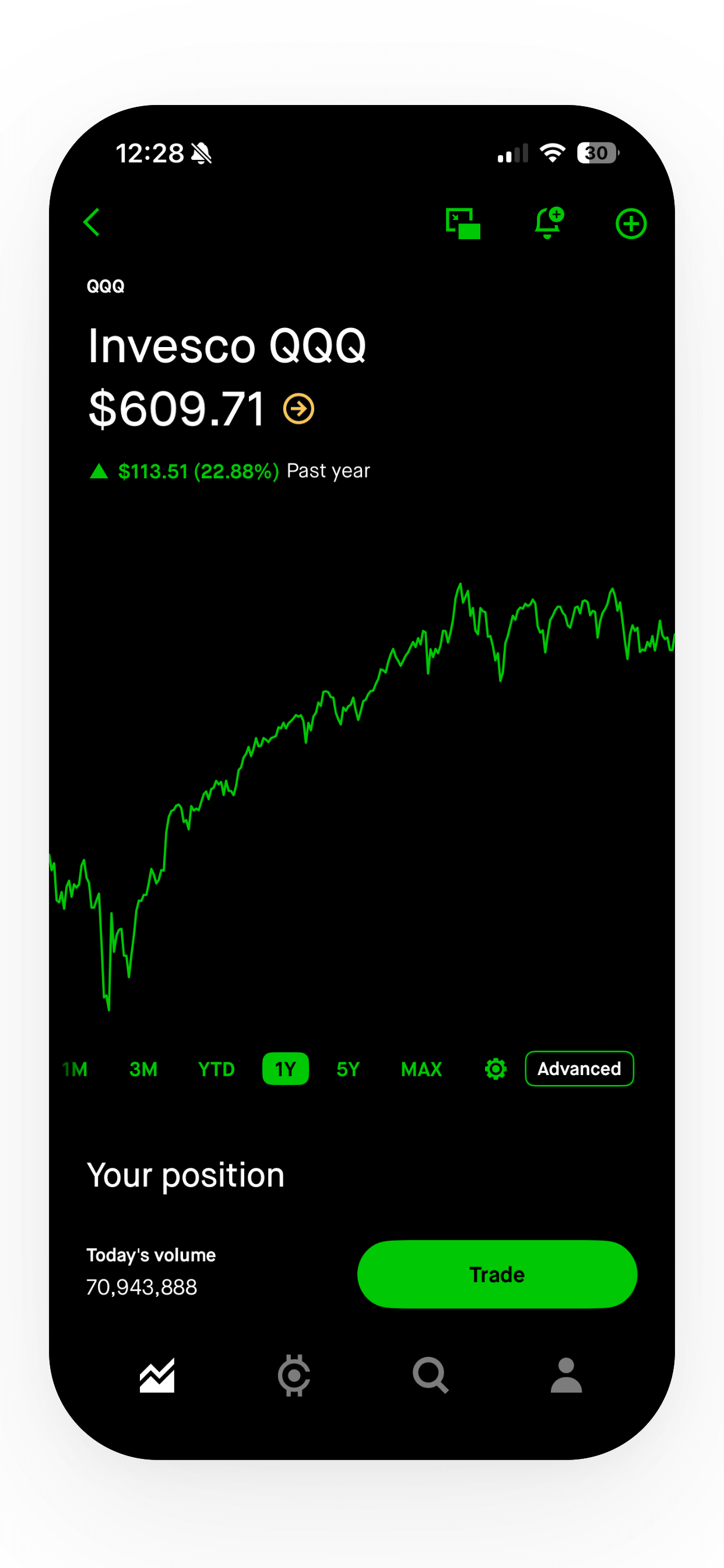
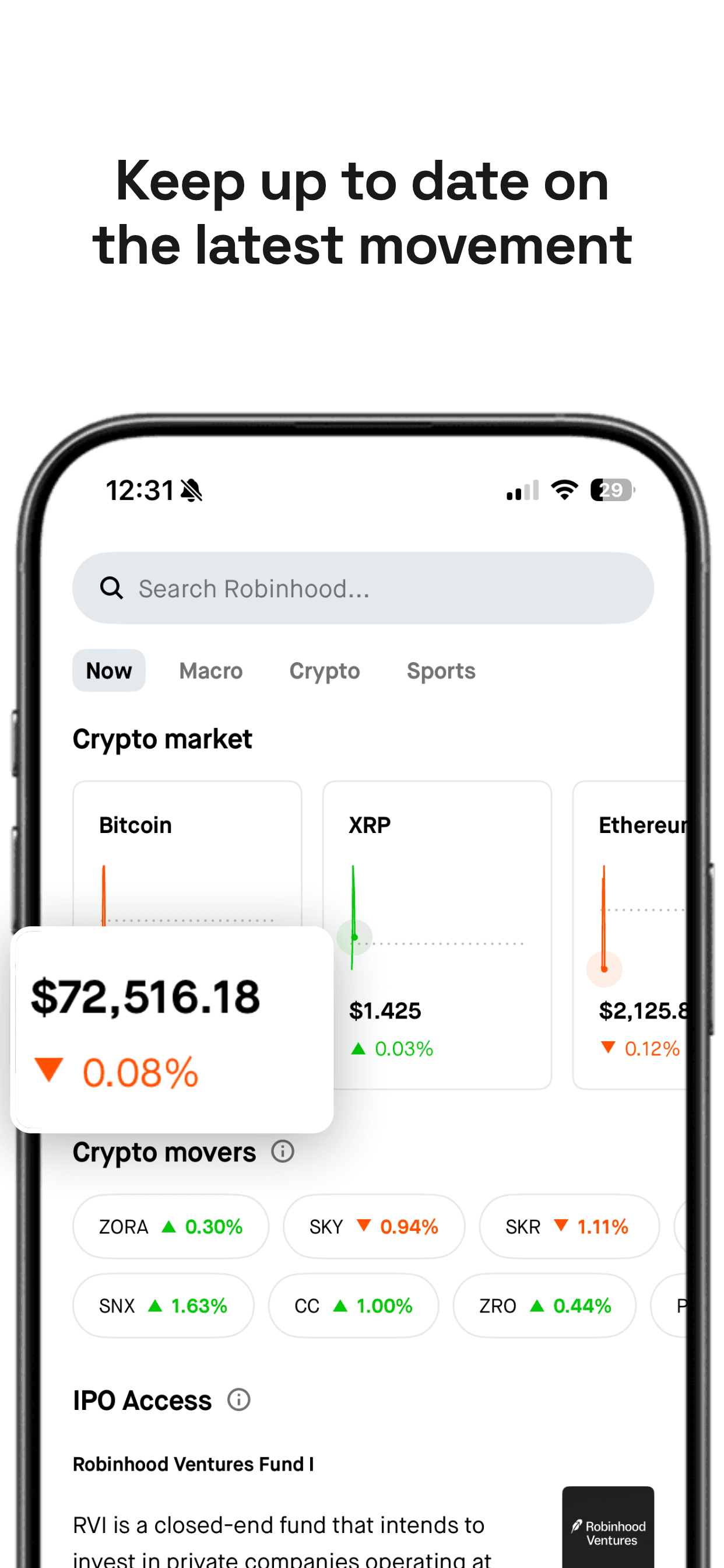
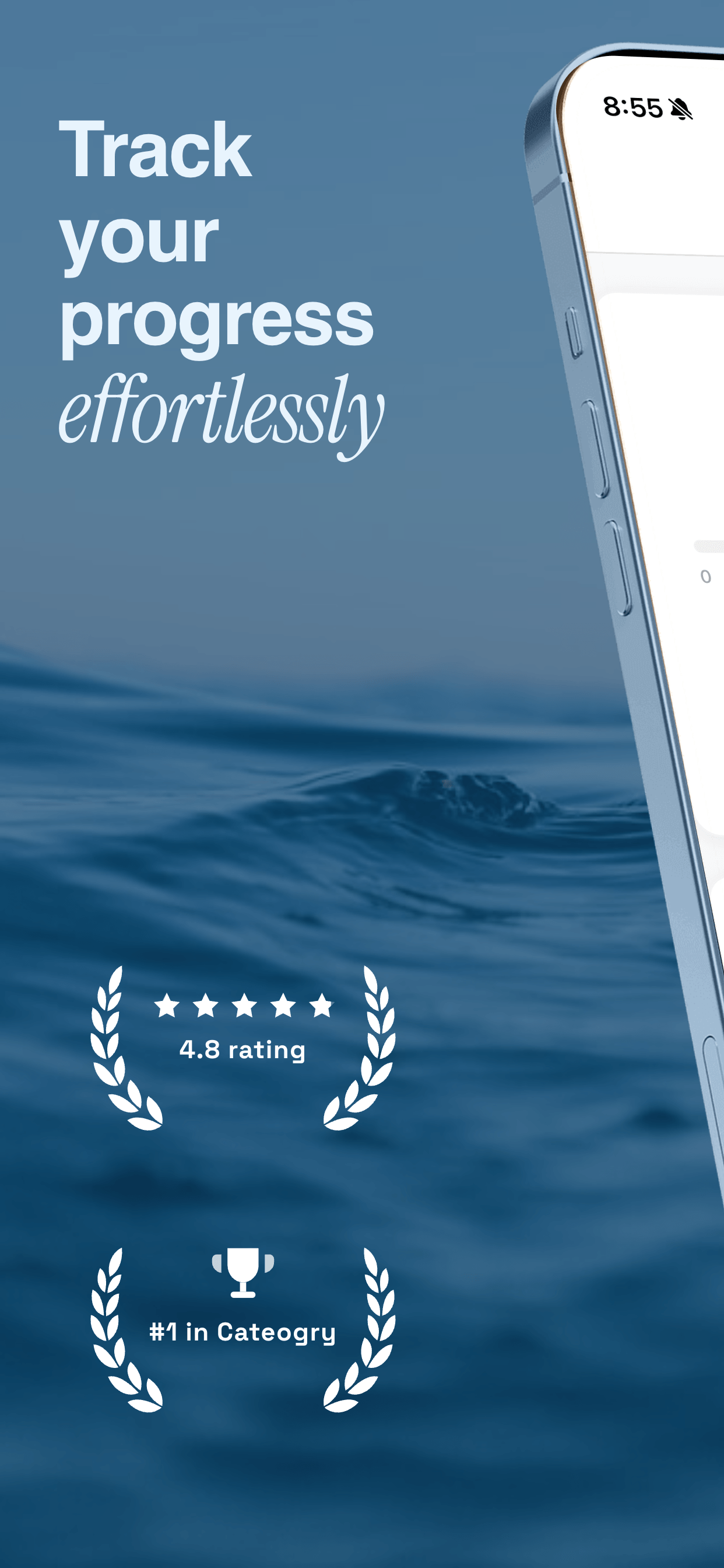
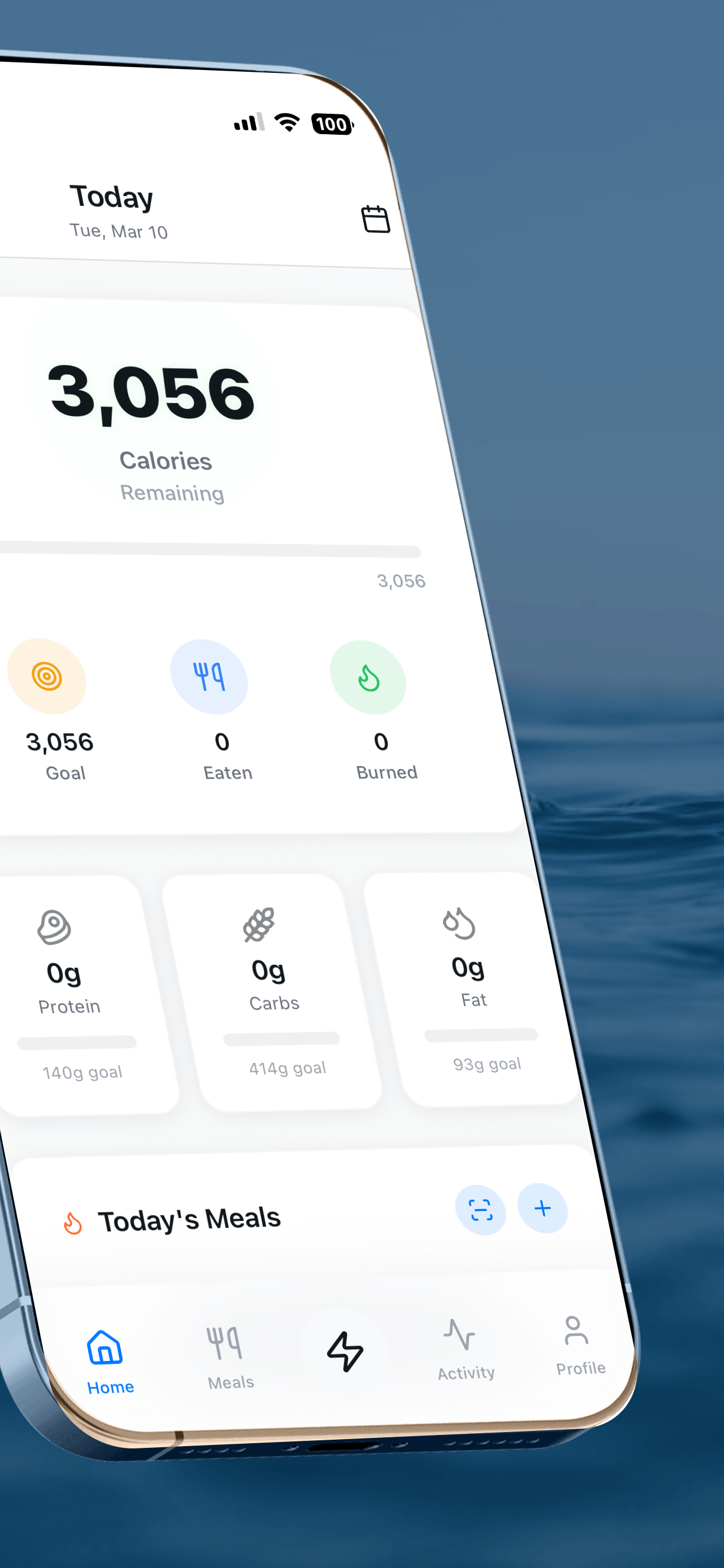
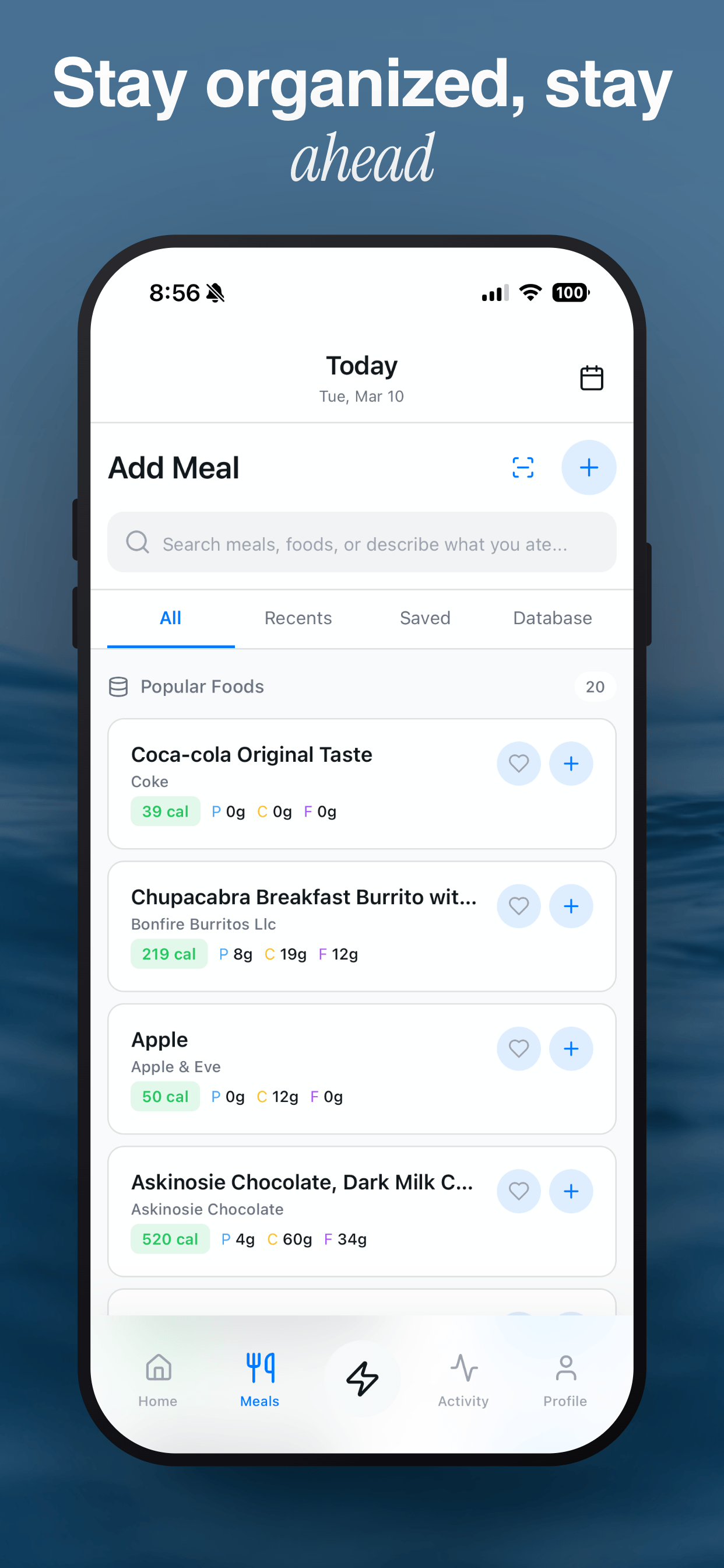
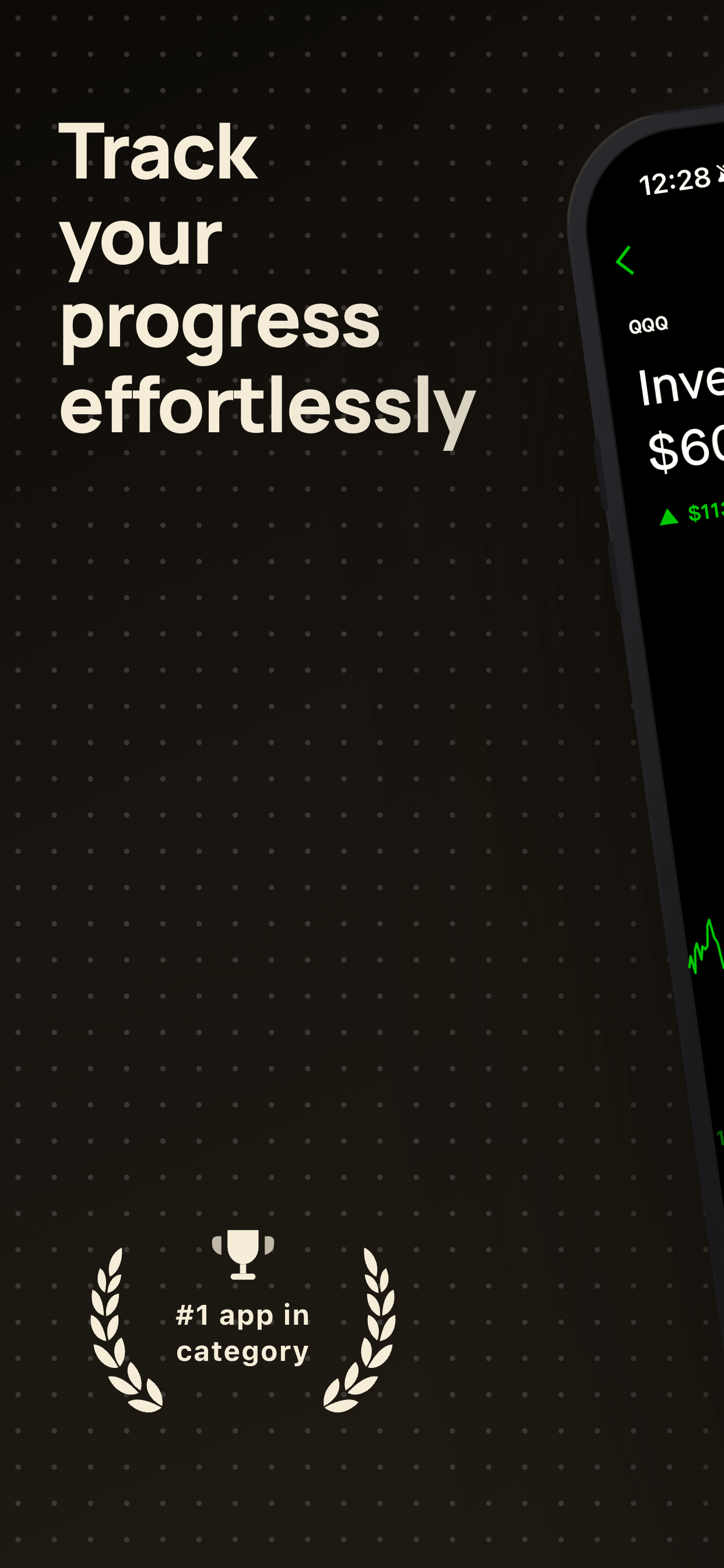
Screenshot captions are the single highest-leverage piece of copy on your App Store listing. They appear in search results, they shape first impressions, and they do most of the persuading before anyone reads your description. But writing them is deceptively hard. You need to distill your app's value into two to six words per slide, keep the tone consistent, vary the structure across the set, and make sure the result reads well at thumbnail size.
AI makes this dramatically faster. Instead of staring at a blank text field for an hour, you can generate a complete set of captions in seconds, then spend your time editing and refining rather than starting from zero. The result is usually better than what most developers write on their own, because the AI has been trained on patterns that convert: benefit-focused phrasing, concise structure, and natural variation between slides.
This guide covers the practical workflow: how to get the best output from AI caption tools, what to watch out for, and how to fold AI into your screenshot creation process. If you want the foundational principles of good caption writing (benefit vs. feature framing, word count, sequencing), read our full caption writing guide first.
Why AI is a good fit for screenshot captions
Caption writing is a constrained creative task. The constraints are specific: short text, benefit-oriented, varied structure, readable at small sizes. These are exactly the kind of rules that AI handles well. It is not writing a novel or a brand manifesto. It is producing five to ten punchy headlines that follow a proven copywriting framework.
The other reason AI works here is volume. If you support multiple languages, you might need 50 or 100 caption variations for a single screenshot set. Doing that manually is days of work. Doing it with AI, plus a native speaker review for your top markets, is an afternoon.
Where AI struggles is context. It does not know your app as well as you do. It cannot see your screenshots. It does not know your target audience's pain points unless you tell it. The quality of AI captions is directly proportional to the quality of your input. Give it vague information and you get vague captions. Give it specifics and you get copy that sounds like it was written by someone who actually uses your app.
Two ways to use AI: generate or improve
Most AI caption tools, including Screenshot Otter's AI Caption Assistant, offer two distinct modes:
Generate from scratch
You describe your app: what it does, who it is for, what makes it different. The AI produces a complete set of captions and subtitles for every slide. This is the right choice when you are starting fresh and do not have any existing copy to work from.
Improve existing captions
You already have captions, but they feel flat, too long, or too feature-focused. The AI takes your current text and rewrites it: tighter phrasing, stronger benefit framing, better variation across the set. This is the right choice when you have a starting point that needs polish.
Both modes produce suggestions that you review per-slide before applying. This is important. AI is a draft machine, not a publish button. You should always read every suggestion, check that it accurately reflects the screen it accompanies, and edit anything that does not sound right.
How to get the best output from AI
The single biggest variable in AI caption quality is the input you provide. A one-sentence app description will produce generic headlines that could apply to any app in your category. A detailed brief will produce captions that feel custom-written.
Here is what to include when generating from scratch:
Your core value proposition: What does your app do, in one sentence? Not a feature list. The single biggest reason someone would download it.
Your target audience: Who is this for? "Everyone" is not an answer. "Freelancers who struggle to track expenses" is. The more specific, the better the output.
Your differentiator: What makes your app different from the five others that do something similar? No login required? Works offline? Faster than alternatives? This gives AI something concrete to work with.
What each screenshot shows: If the AI knows that slide three shows a weekly calendar view, it can write a caption that connects to that screen rather than producing something generic.
Tone preference: Do you want your captions to feel playful, serious, minimalist, bold? A one-word tone direction helps the AI match your brand.
When improving existing captions, the AI already has your current text as context. But you can still guide it: mention if you want shorter headlines, more benefit-focused language, or a specific style shift. The more direction you give, the less editing you will need to do afterward.
The review workflow: what to check
AI will give you a solid first draft. Your job is to turn that draft into something that is accurate, on-brand, and specific to your app. Here is what to check on every slide:
Accuracy: Does the caption match the screen? If the AI writes "Track every workout" but the screenshot shows a meal planning screen, fix it. AI does not see your screenshots, so mismatches are the most common issue.
Specificity: Generic captions like "Simplify your life" are technically correct but not compelling. Push for specifics. "Plan your whole week in 30 seconds" is better than "Organize your schedule easily."
Word count: Count the words in each headline. Two to six is the target. AI sometimes runs long, especially if you gave it a detailed brief. Trim ruthlessly. Every extra word costs readability at thumbnail size.
Variation: Read all captions in sequence. Do they use different sentence structures, or do they all start with a verb? Repetitive patterns make users tune out after slide two. If the AI produced five "Verb your noun" captions, rewrite two or three to break the pattern.
Brand voice: Does the language feel like your app? AI tends toward a neutral, professional tone. If your brand is playful, irreverent, or minimalist, adjust the phrasing to match.
A good rule of thumb: plan to keep about 60-70% of the AI output and edit the rest. That is not a failure. That is the intended workflow. The AI gets you past the blank page and produces a structural foundation. You add the specificity and personality.
Five AI caption pitfalls to watch for
1. Vague superlatives. AI loves words like "powerful," "seamless," "ultimate," and "effortless." These are filler. They sound good in isolation but say nothing specific. If every app in your category can claim the same adjective, it is not doing any work. Replace superlatives with concrete details. "Syncs in under 2 seconds" beats "Lightning-fast sync."
2. Overpromising. AI will sometimes generate captions that oversell what your app actually does. "Never forget anything, ever" is a bold claim for a reminders app. Keep your captions ambitious but honest. If a caption makes a promise your app cannot deliver, scale it back.
3. Repetitive structures. Without explicit guidance, AI often falls into a pattern: "Verb your noun" on every slide. "Track your habits. Manage your goals. Plan your day. Share your progress." That cadence becomes invisible after the second slide. Mix in different structures: questions, outcomes, numbers, identity statements.
4. Ignoring the first screenshot. AI treats all slides equally. You should not. Your first screenshot appears in search results and carries more weight than slides two through five combined. Spend extra time on the AI's suggestion for slide one. It should be your absolute strongest message. If the AI draft for slide one is not immediately compelling, rewrite it from scratch.
5. Generic subtitles. If your template includes subtitles, AI sometimes fills them with padding: "The smart way to manage your day." Subtitles should add a concrete detail that the headline cannot carry: a number, a mechanism, a specific use case. If the subtitle does not add new information, delete it entirely. An empty subtitle is better than a meaningless one.
How it works in Screenshot Otter
Screenshot Otter's AI Caption Assistant is built directly into the screenshot editor. There is no separate tool to open, no prompt to write, and no copy-pasting between apps. Here is the workflow:
Step 1: Upload your raw screenshots and choose a template. Your slides are laid out with placeholder captions or your existing text.
Step 2: Open the AI Caption Assistant. Choose "Generate" to create captions from scratch, or "Improve" to rewrite what you already have.
Step 3: If generating from scratch, describe your app in a few sentences. What it does, who it is for, what makes it different. The more detail you provide, the better the output.
Step 4: The AI produces a headline and subtitle suggestion for every slide. Review each one. Accept, edit, or regenerate any caption that does not fit.
Step 5: Once you are happy with the English captions, use the auto-translate feature to generate localized versions in 40+ languages. Each translation can be reviewed and edited before export.
The AI is powered by Claude, Anthropic's large language model. It has been tuned specifically for the constraints of App Store screenshot captions: short, benefit-focused, varied, and readable at small sizes. Because it runs inside the editor, it can see your slide count and template layout, so the suggestions are tailored to the number of screenshots you are actually using.
AI captions and localization: the multiplier effect
The real power of AI captions shows up when you combine generation with translation. Without AI, localizing your screenshot captions into five languages means writing (or commissioning) 25 to 50 individual caption translations. With AI, you write one set of English captions and translate the entire batch in seconds.
This workflow makes localization practical for indie developers who previously could not justify the time or cost. And localization is one of the highest-return ASO moves you can make. A screenshot with native-language captions outperforms English-only screenshots by a significant margin in non-English markets like Japan, Germany, South Korea, and Brazil.
One important note: AI translation is very good but not perfect. For your top three to five markets by revenue, have a native speaker review the translated captions. Some benefit-focused phrases rely on idioms or cultural references that do not translate directly. A five-minute review by a native speaker catches these issues before they reach your listing. For more on this topic, see our full guide to screenshot localization.
When to use AI vs. writing manually
AI is not always the right tool. Here is a simple decision framework:
Use AI when:
You are starting from scratch and need a first draft. You want to generate multiple caption variants for A/B testing. You need to localize into several languages quickly. You have existing captions that feel flat and need a fresh perspective.
Write manually when:
Your app has a very distinctive brand voice that AI struggles to match. You are writing for a niche audience with specialized terminology. You have already run several A/B tests and know exactly what phrasing resonates with your users. Your screenshot set tells a very specific narrative that requires precise word choices.
For most indie developers, the sweet spot is using AI to generate the initial set and then editing manually. You get the speed benefit of AI and the specificity of human editing. Over time, as you run A/B tests and learn what works for your audience, you will develop instincts about which AI suggestions to keep and which to rewrite. That feedback loop is what turns adequate captions into great ones.
Putting it together: the full AI caption workflow
Step 1: Write a two to three sentence description of your app. Focus on who it is for, what problem it solves, and what makes it different.
Step 2: Upload your screenshots and choose a template. Having the visual layout in place helps you evaluate whether captions fit.
Step 3: Generate AI captions. Review every slide. Check for accuracy, specificity, word count, and variation.
Step 4: Edit the output. Keep what works, rewrite what does not. Spend extra time on slide one.
Step 5: Run the thumbnail test. Zoom out to 25% and confirm every headline is readable.
Step 6: Translate into your target languages. Review translations for your top markets.
Step 7: Export and upload. Set up an A/B test within a week to start learning what converts.
The entire process, from raw screenshots to localized, captioned, export-ready images, takes about 15 to 30 minutes with AI. Without AI, the same work typically takes a full day or more. That time savings adds up fast, especially if you are iterating on captions as part of an ongoing A/B testing program.
Related Guides
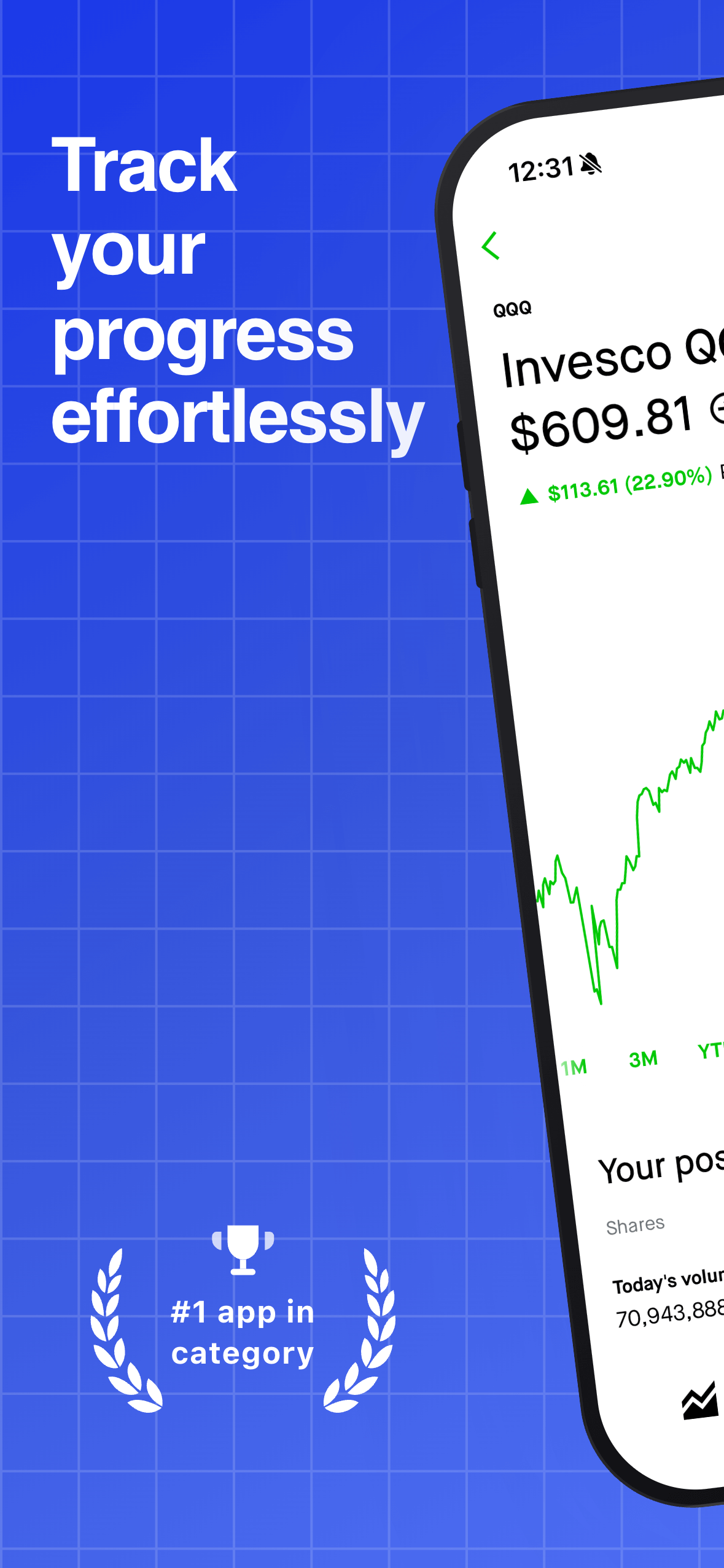
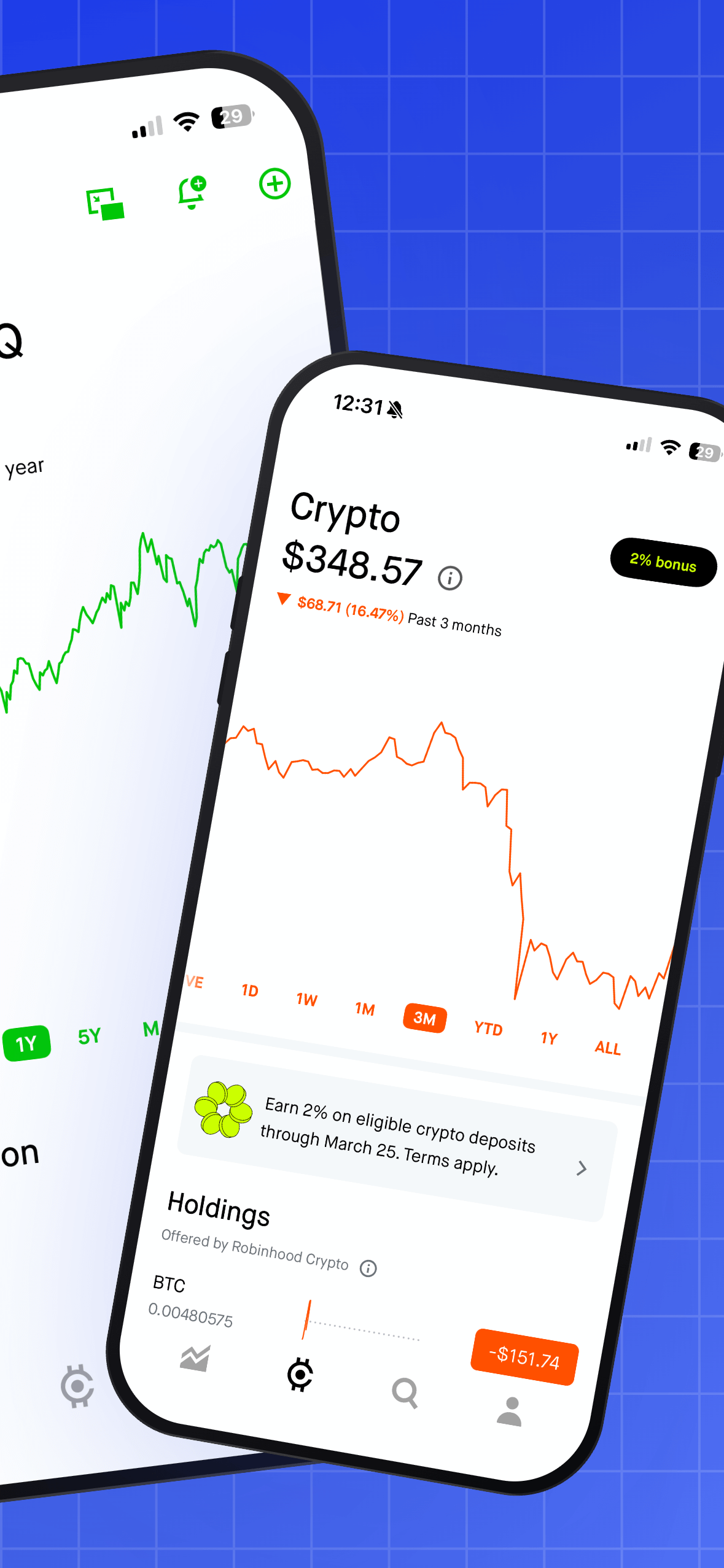
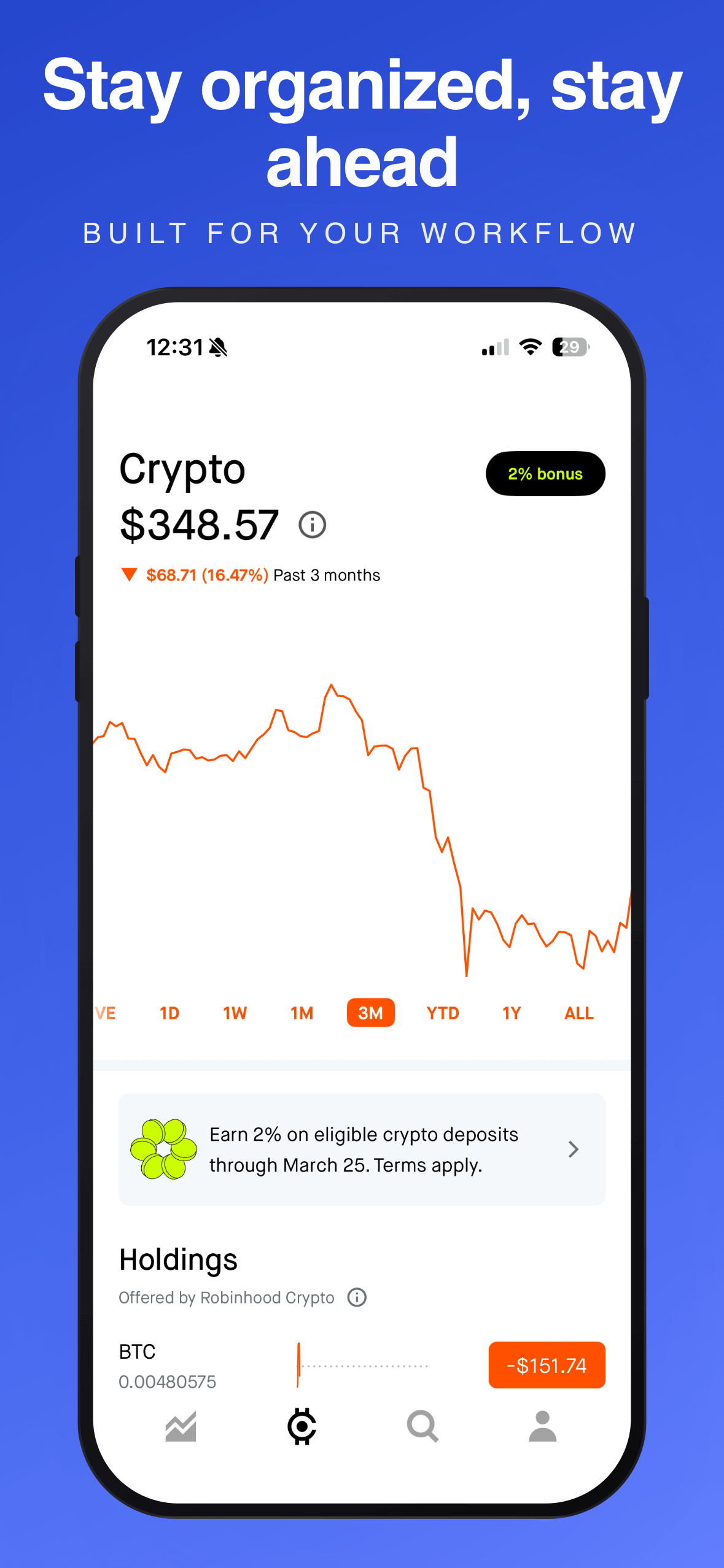
Write captions with AI, then make them beautiful
Screenshot Otter's AI Caption Assistant generates and improves captions for every slide. Powered by Claude. Choose from 40+ premium templates, auto-translate to 40+ languages, export store-ready images. Free to start.
Try Screenshot Otter free →