Guide
App Store Screenshot Mistakes That Kill Your Downloads
Your App Store screenshots are the first thing people see, and the last thing most developers bother to get right. Here are the mistakes that quietly cost you downloads, and how to fix every one of them.

Scott Stewart · Mar 19, 2026
Most apps lose downloads before anyone reads a single line of their description. The reason is almost always the same: screenshots that do not sell.
Think about how you browse the App Store yourself. You see a search result, glance at the first two or three thumbnails, and decide in a few seconds whether to tap or scroll past. That split second is the entire ballgame. If your screenshots have any of the problems below, you are leaking conversions every day.
This guide covers the twelve most damaging screenshot mistakes we see across hundreds of indie apps. For each one, you will get the problem, why it hurts, and what to do instead. If you have not yet created your screenshots, start with our step-by-step screenshot creation guide first.
1. Uploading raw, unframed screenshots
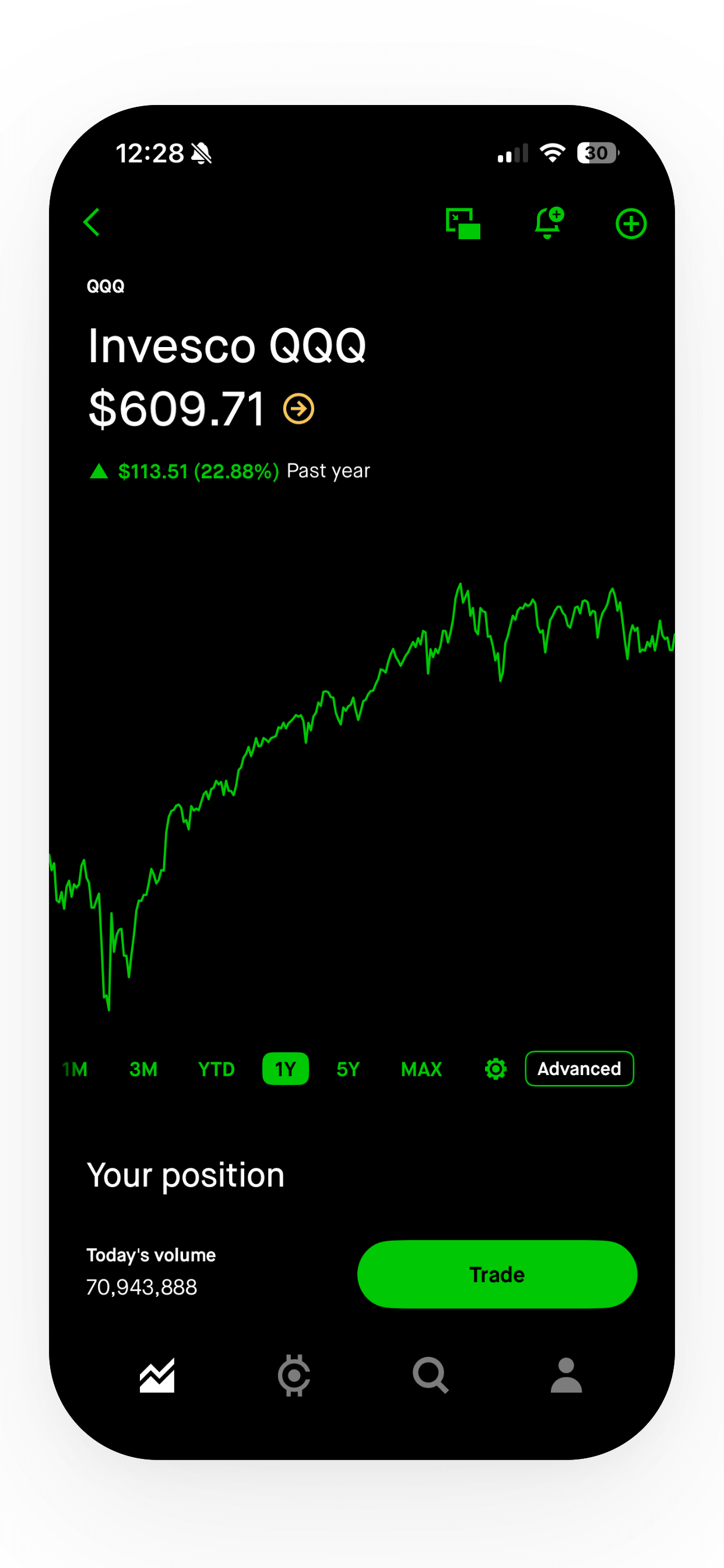
This is the single most common mistake, and the most costly. A raw screenshot, taken straight from the Simulator or a device with no template, no caption, and no visual framing, tells the viewer nothing about why they should care.
At thumbnail size in search results, a bare screenshot is a blur of UI elements. There is no headline to hook the eye, no visual hierarchy to guide attention, and no context for what the user is looking at. Every competitor who uses a proper template with a bold caption and clean framing will look more professional than you by default.
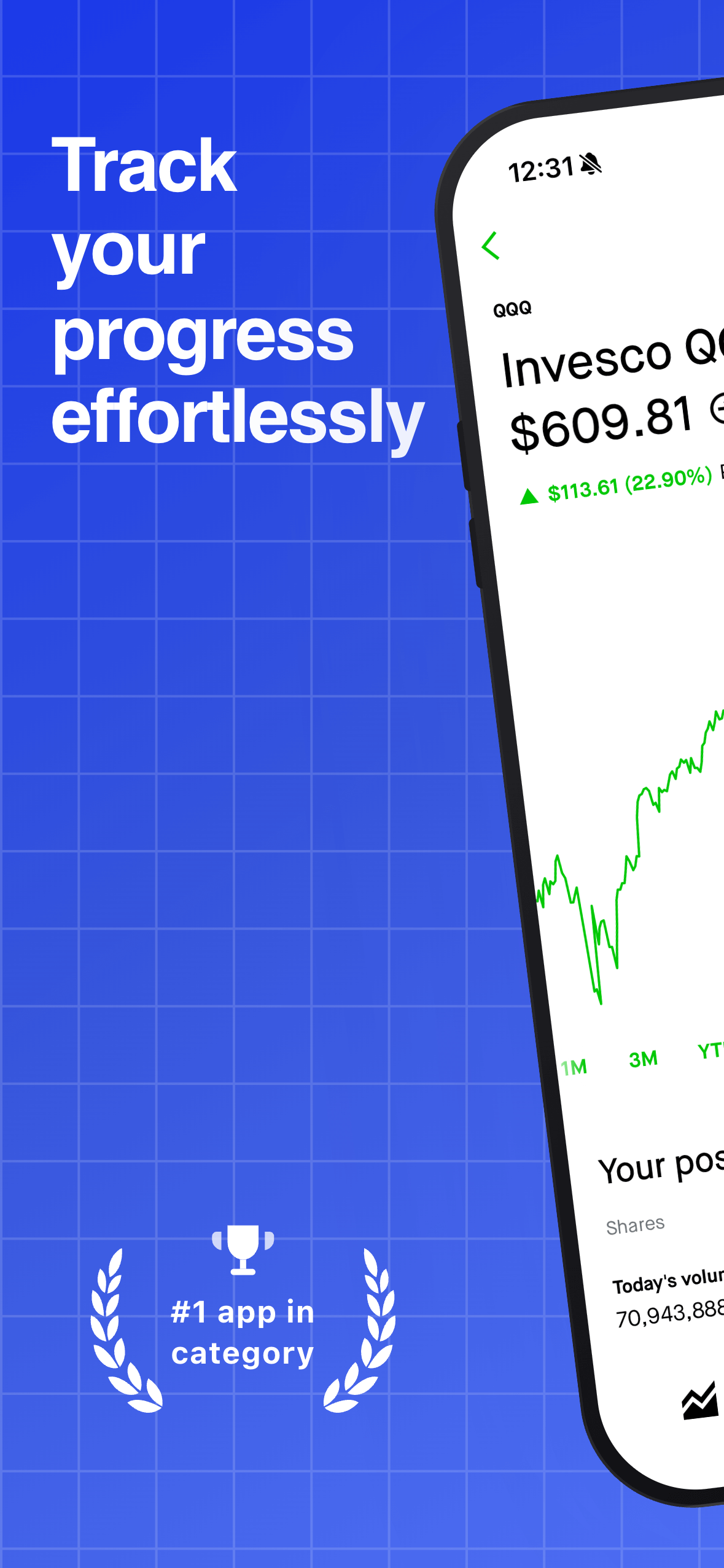
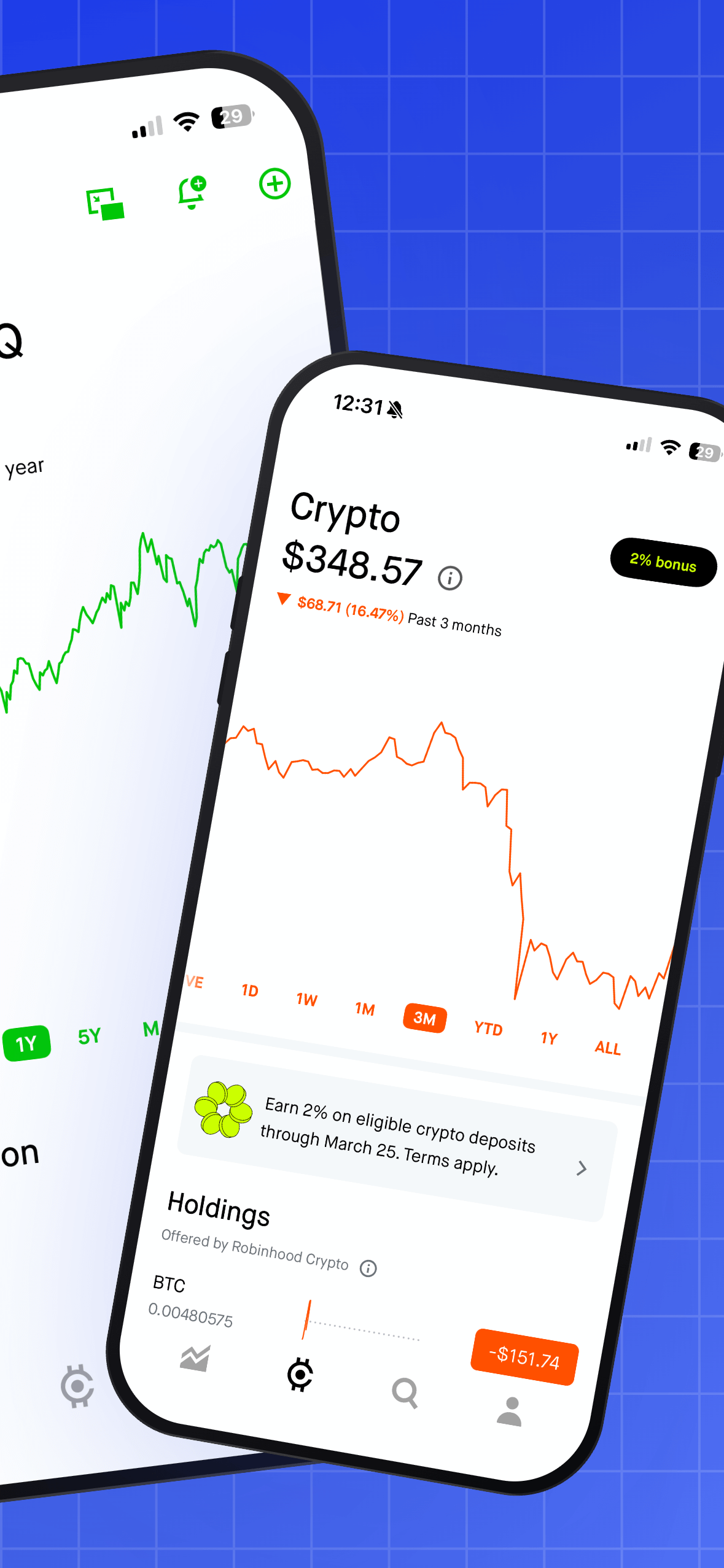
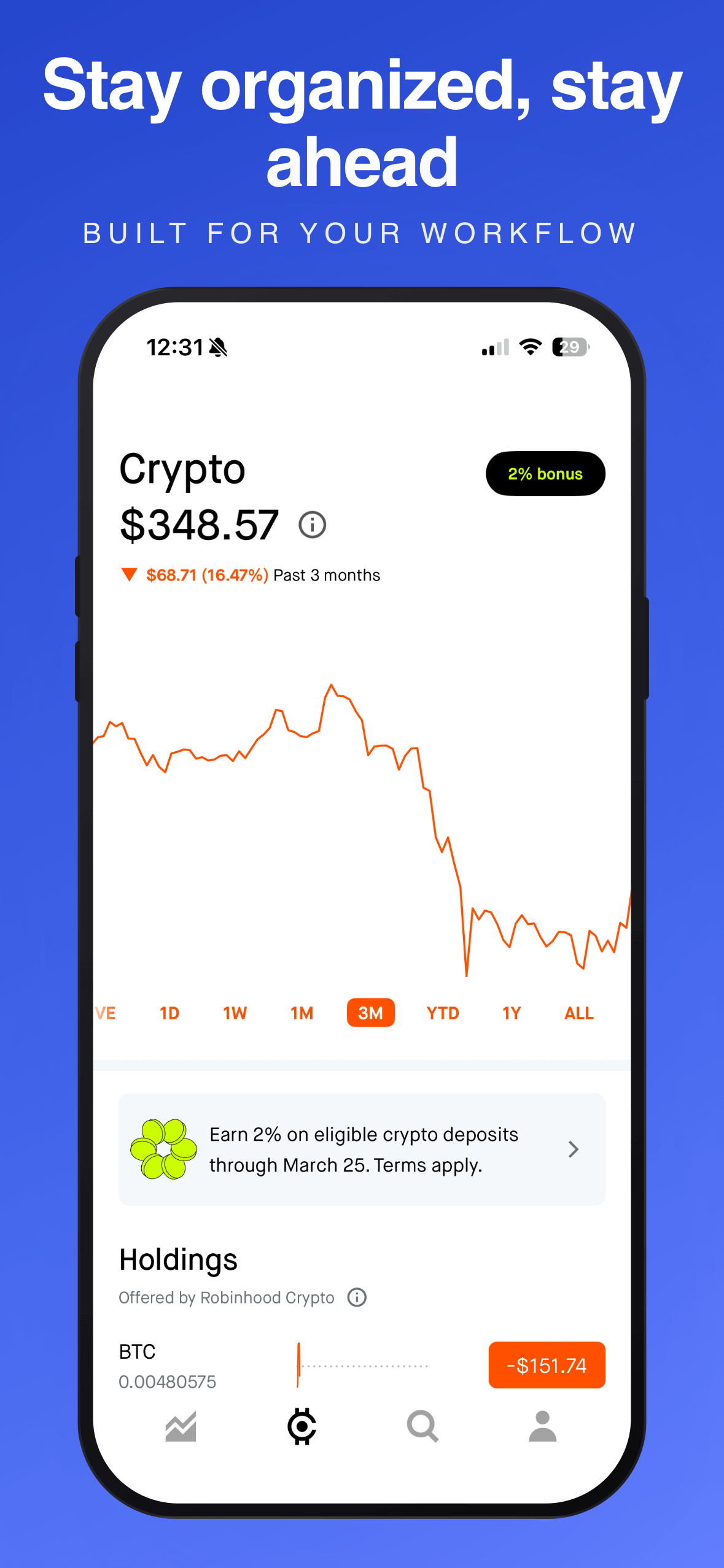
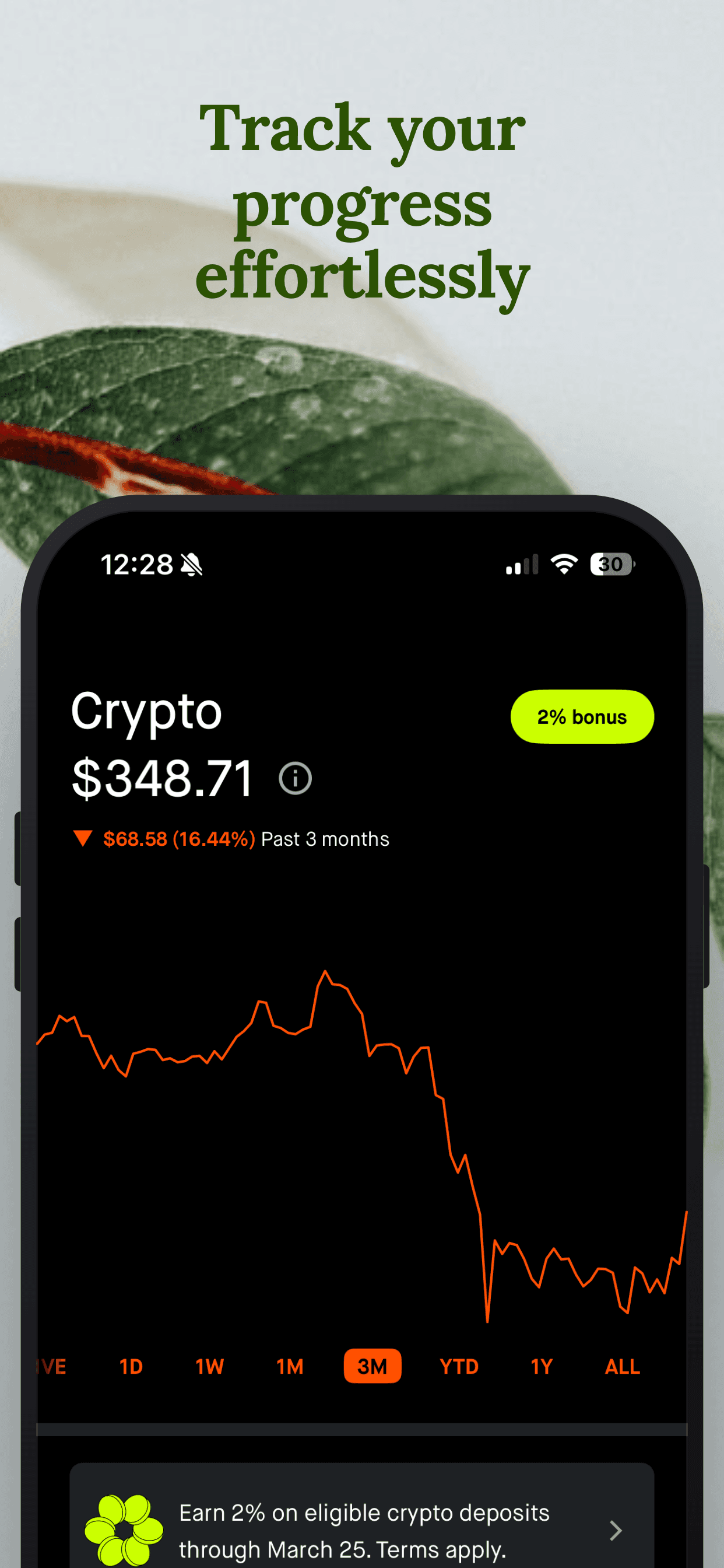
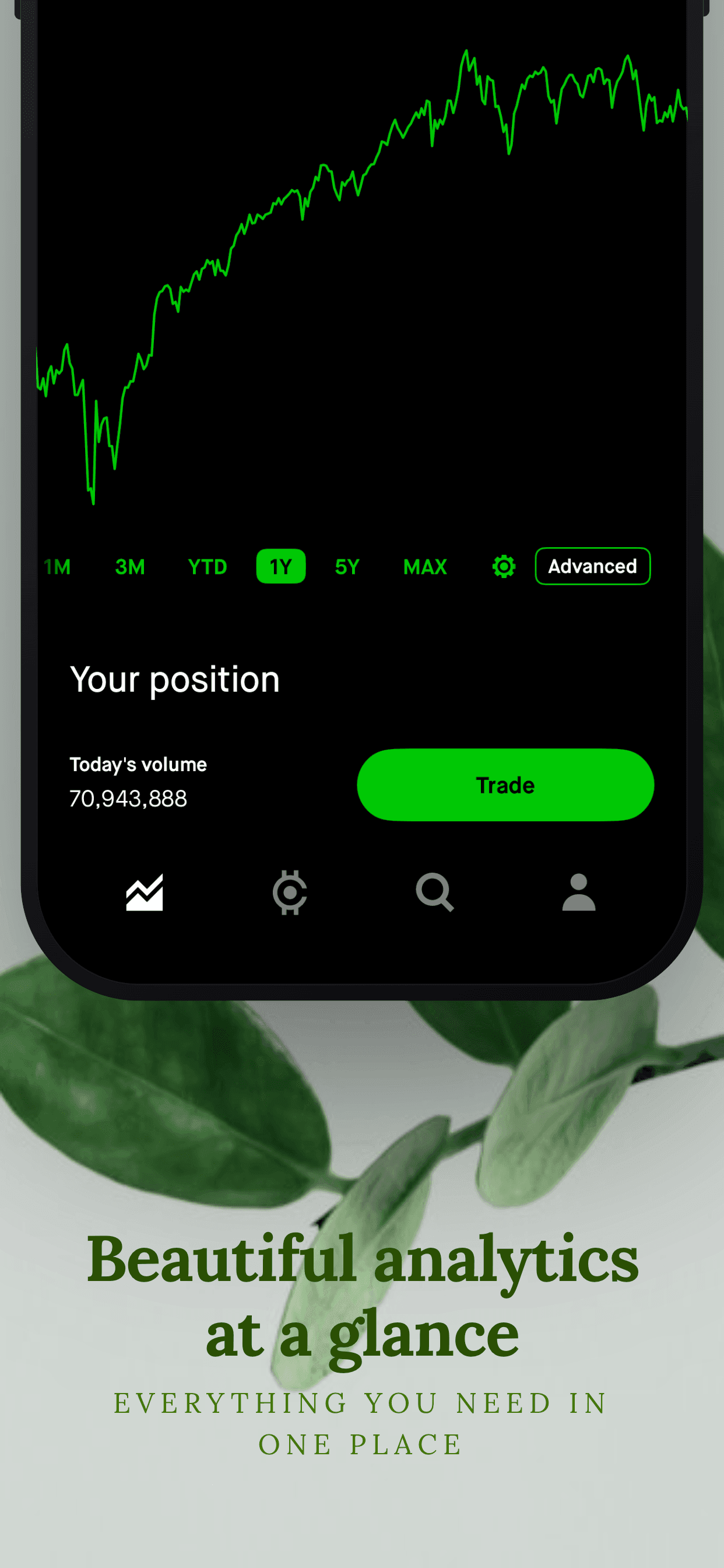
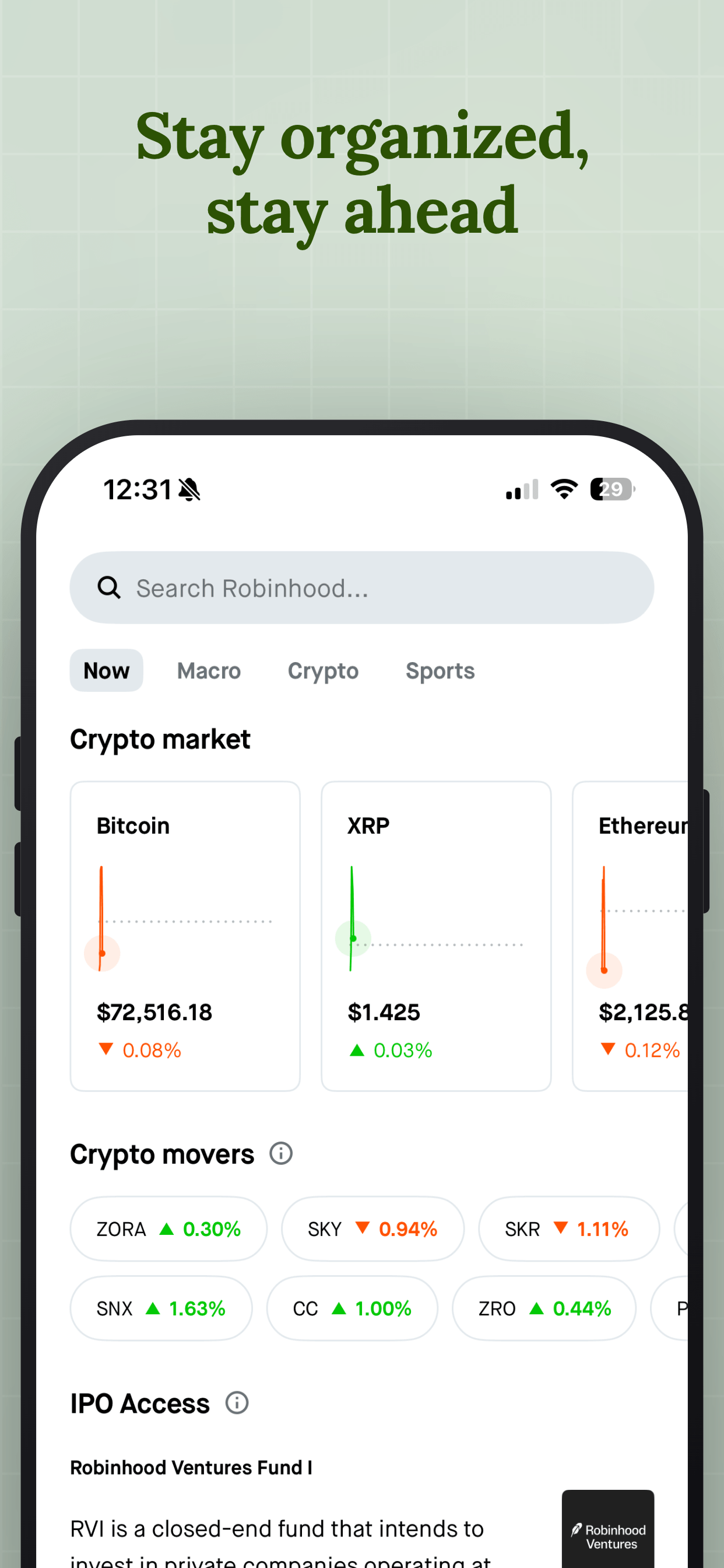
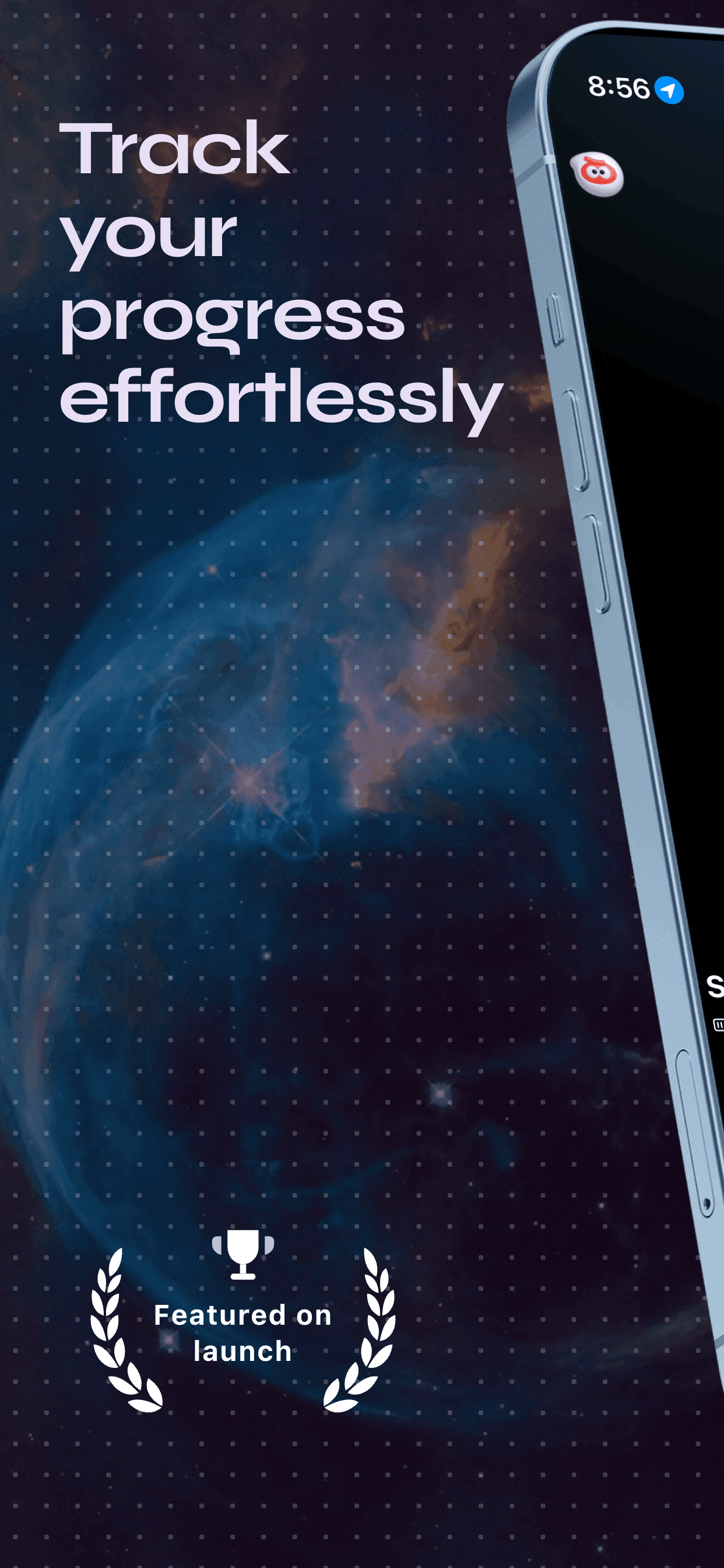
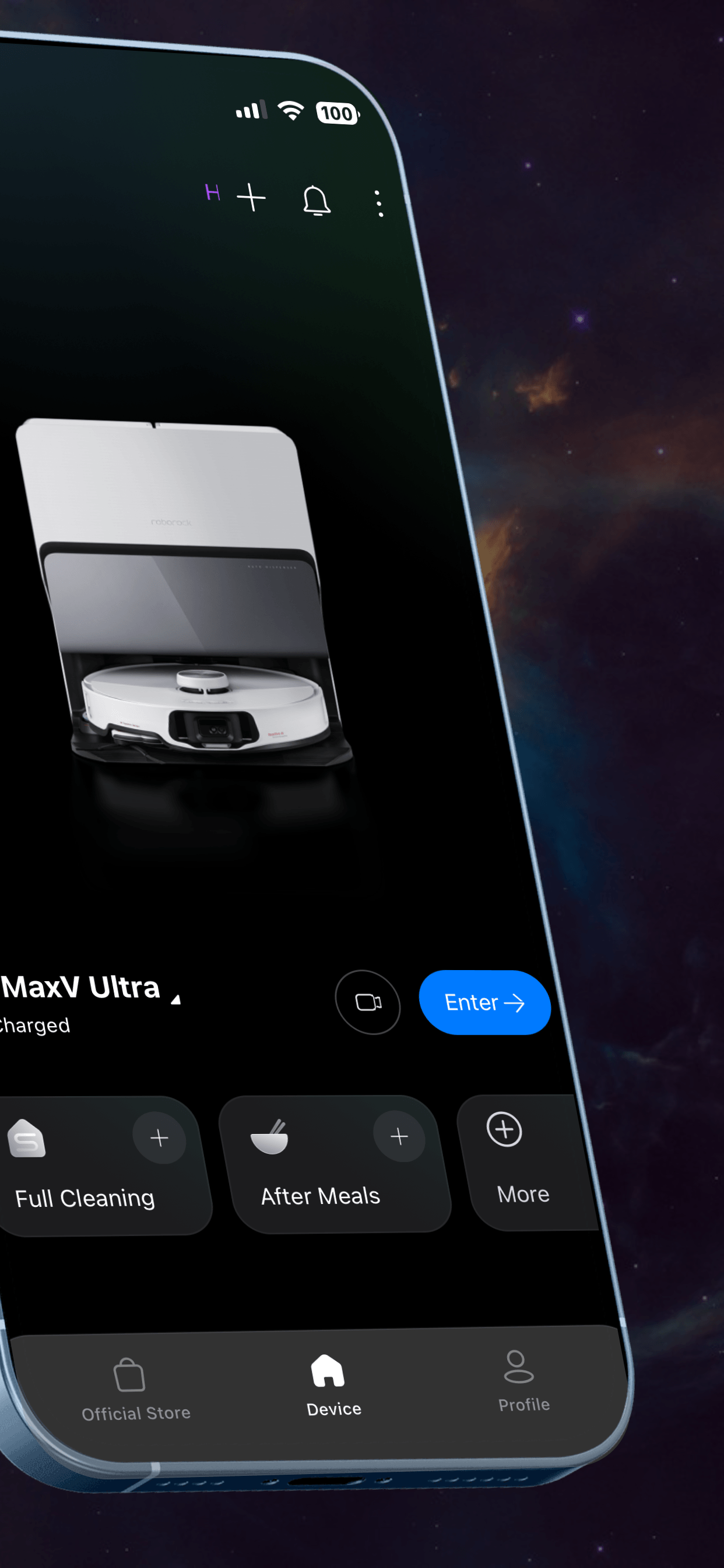
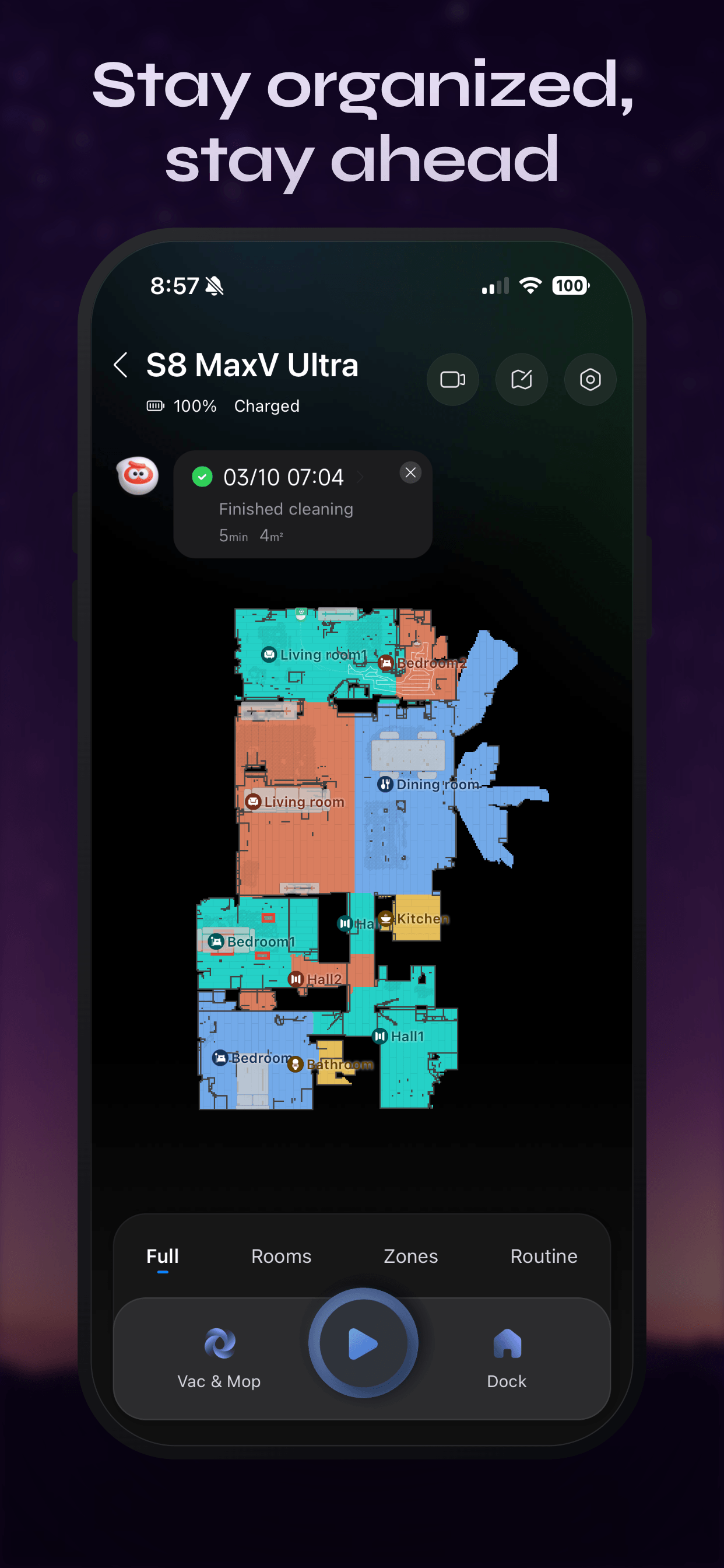
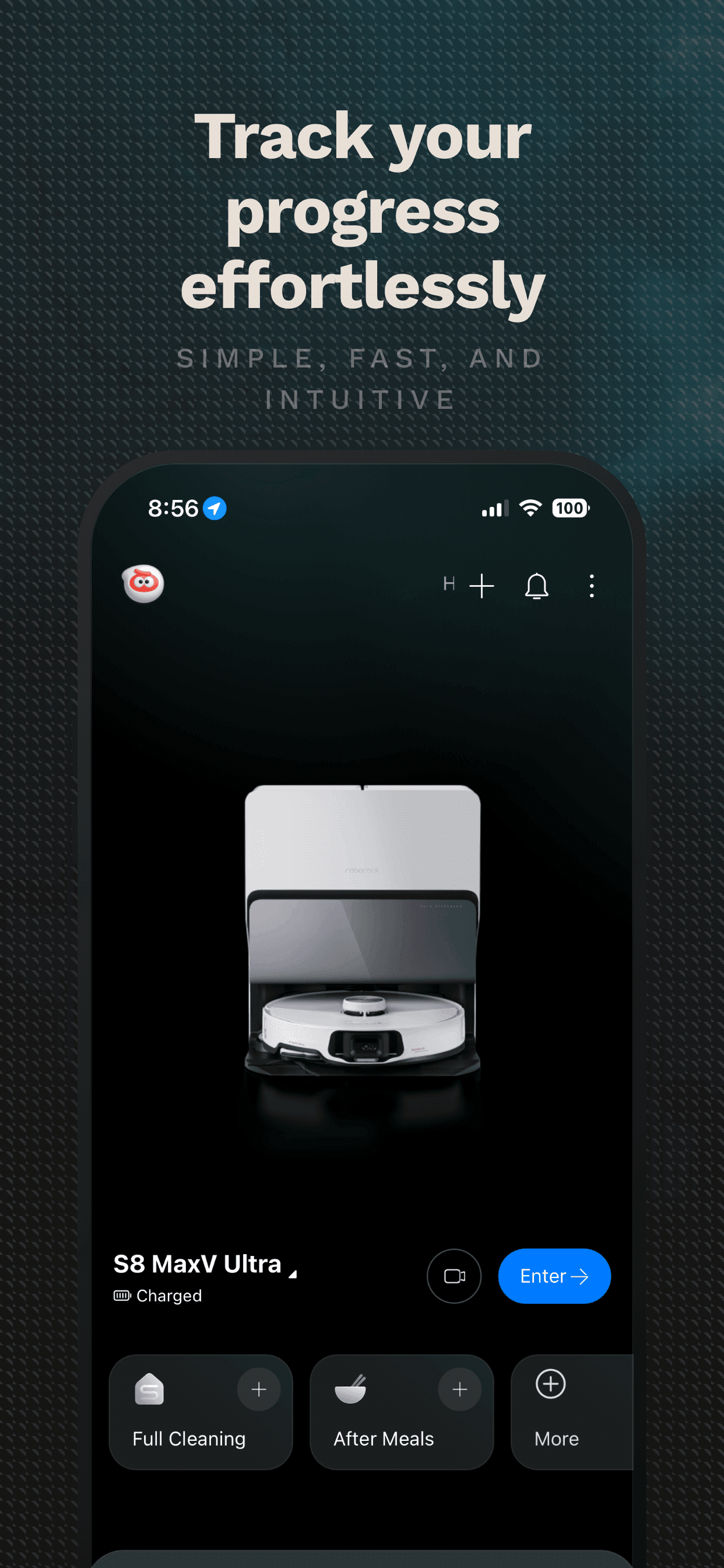
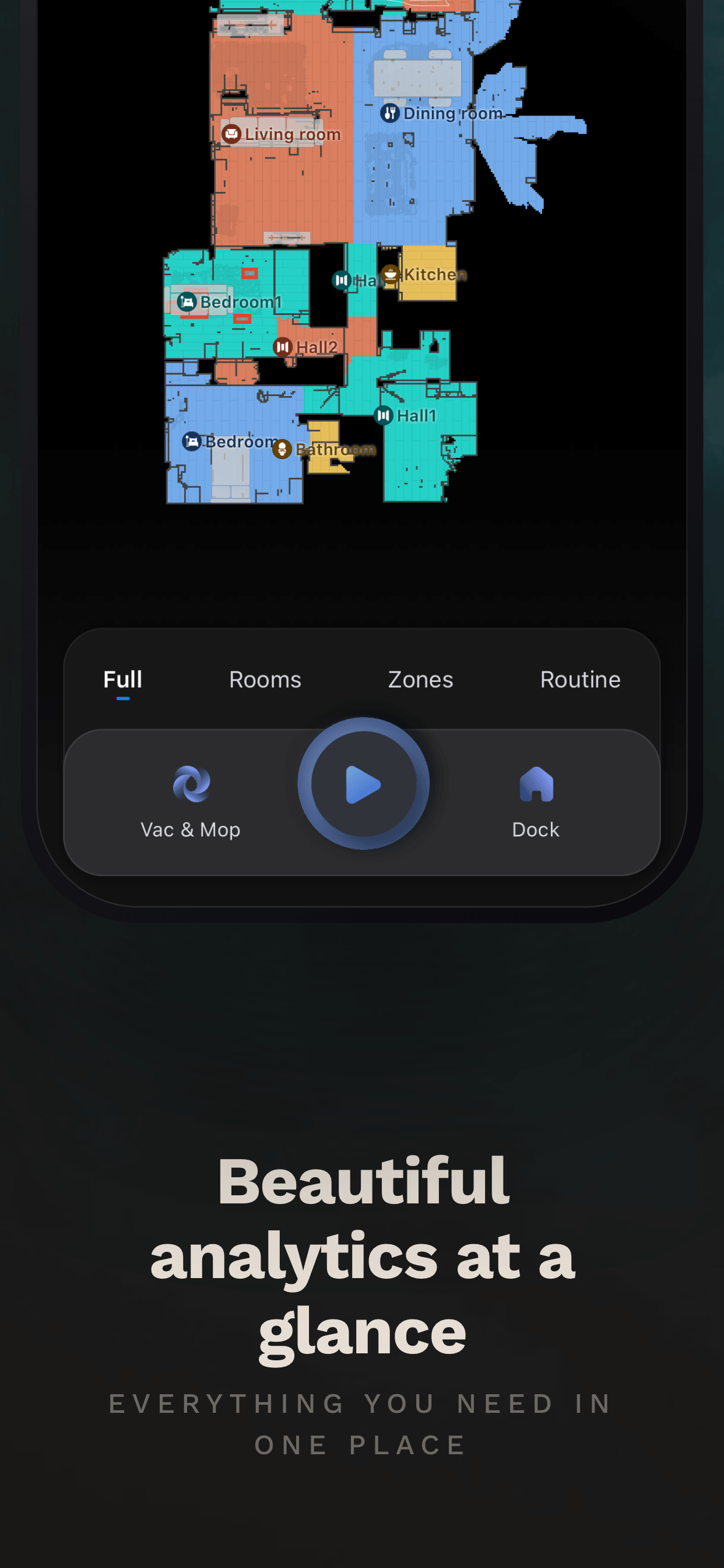
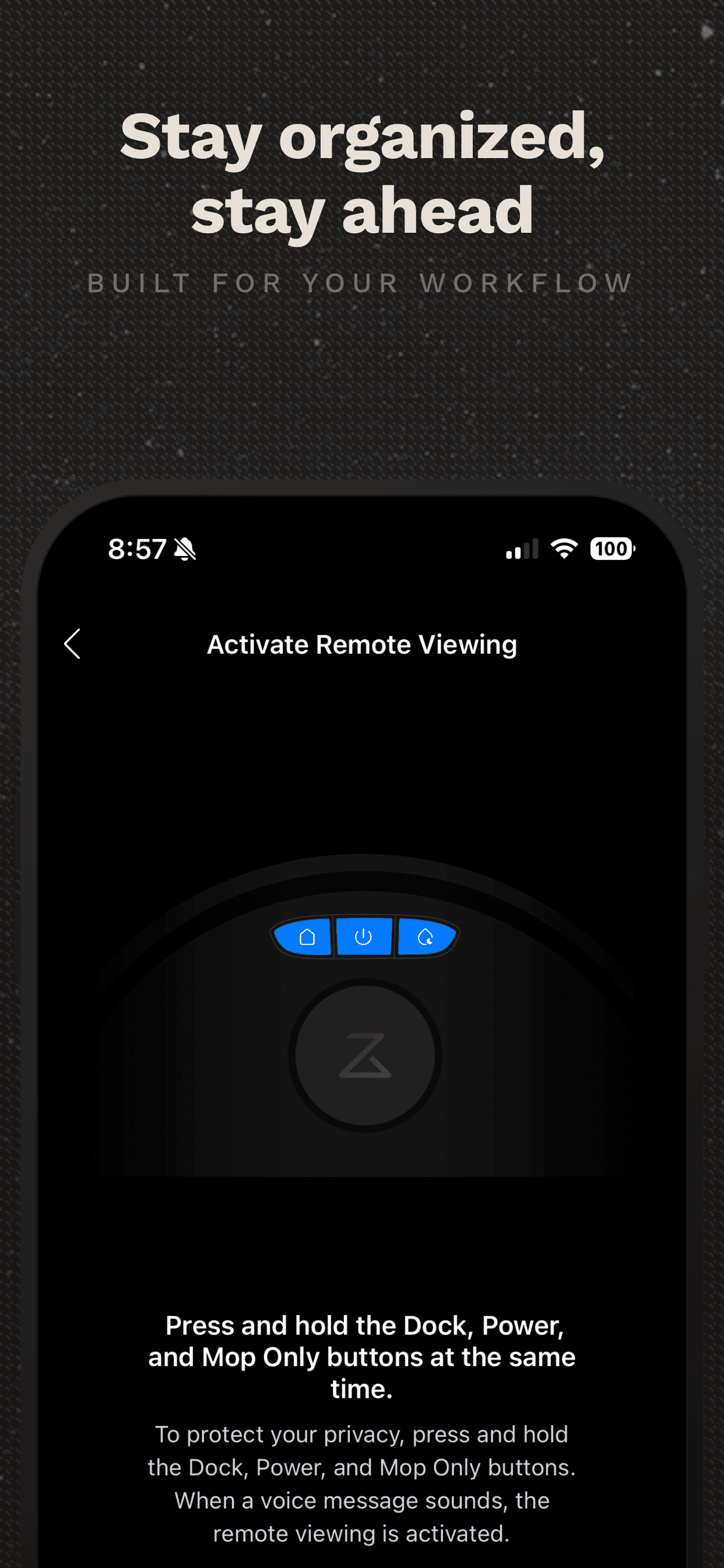
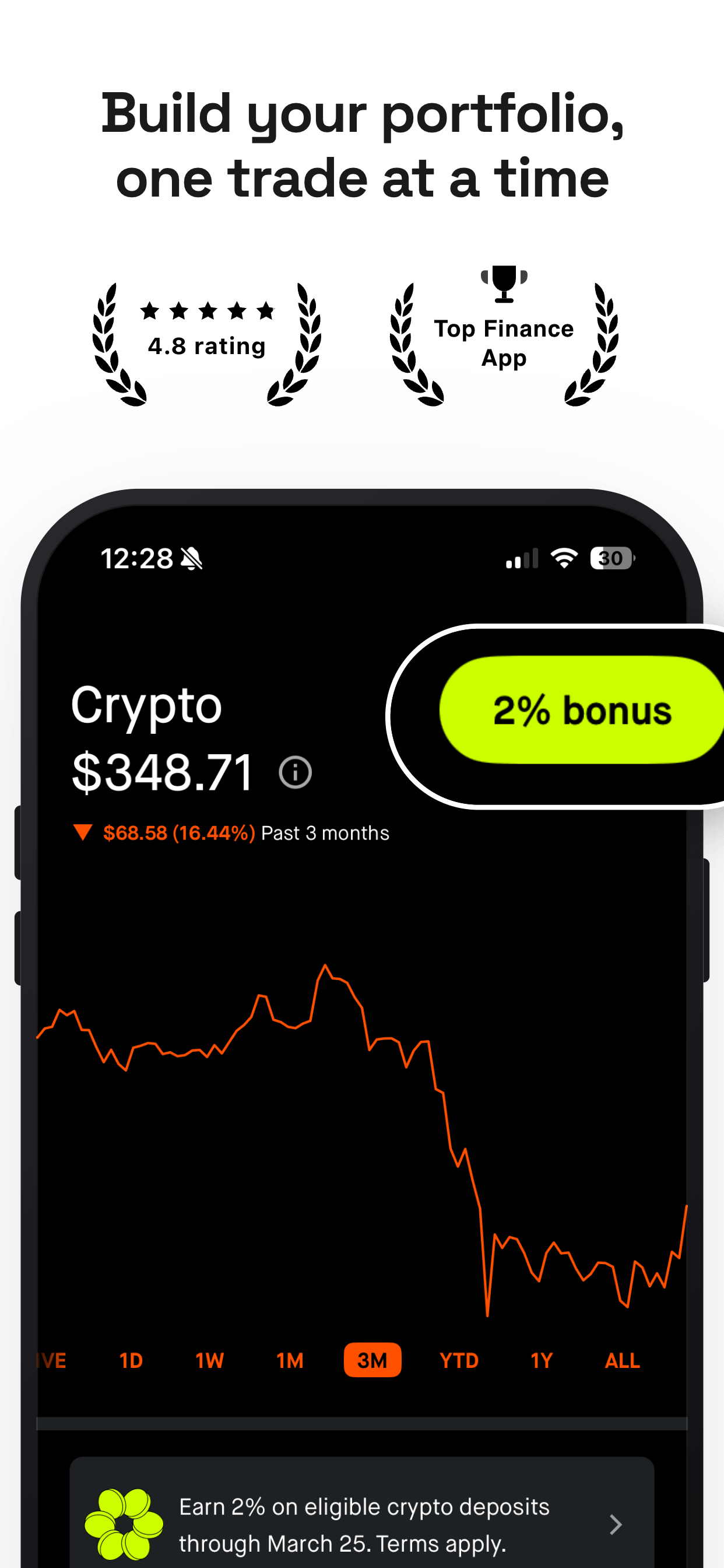
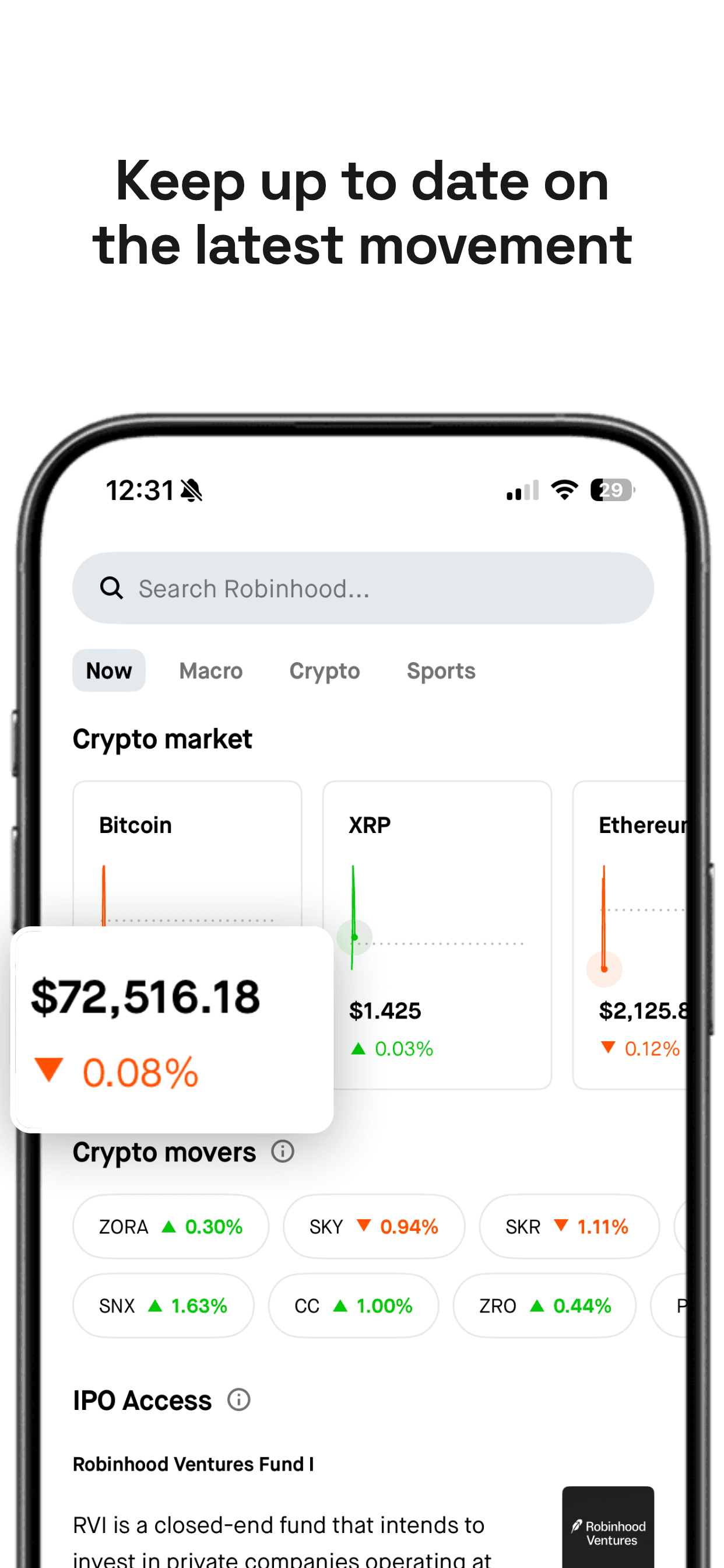
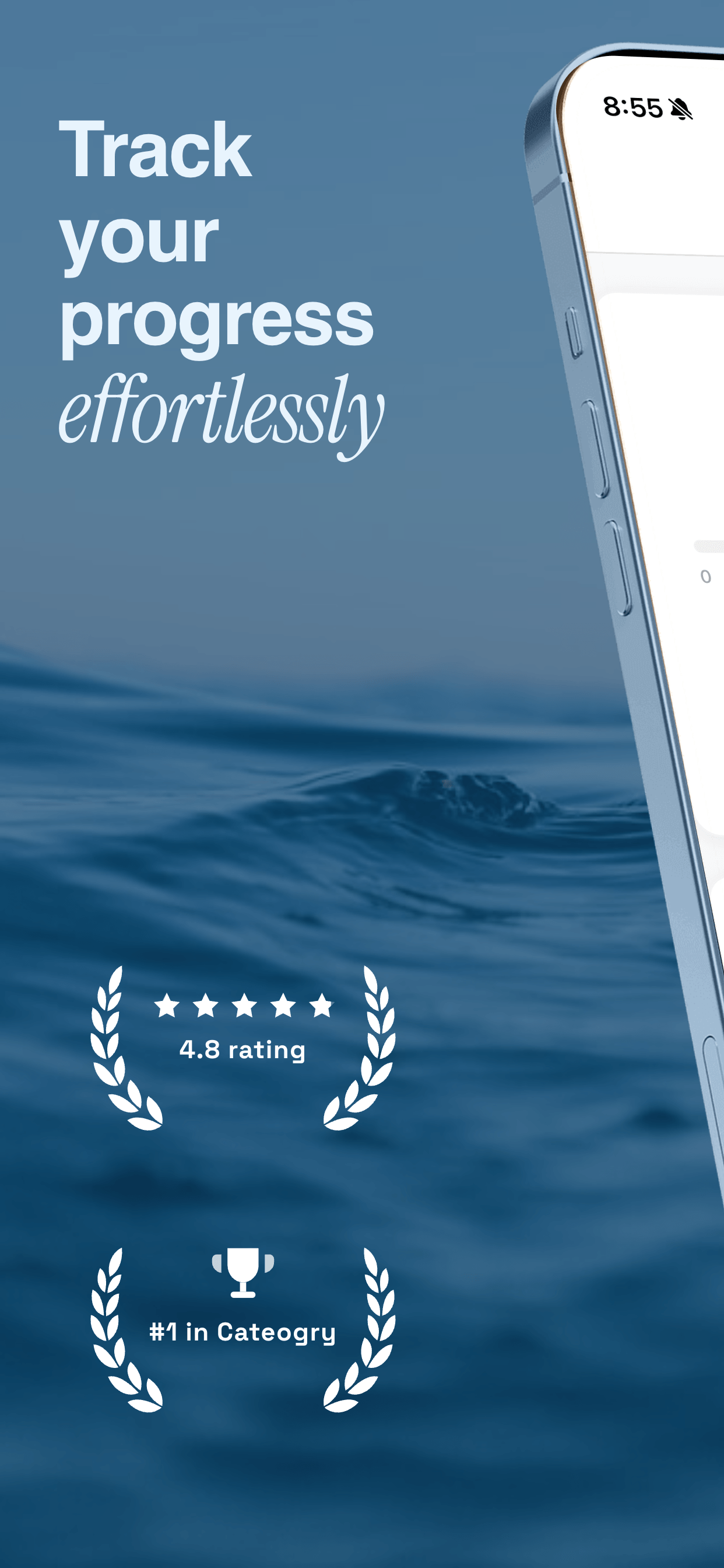
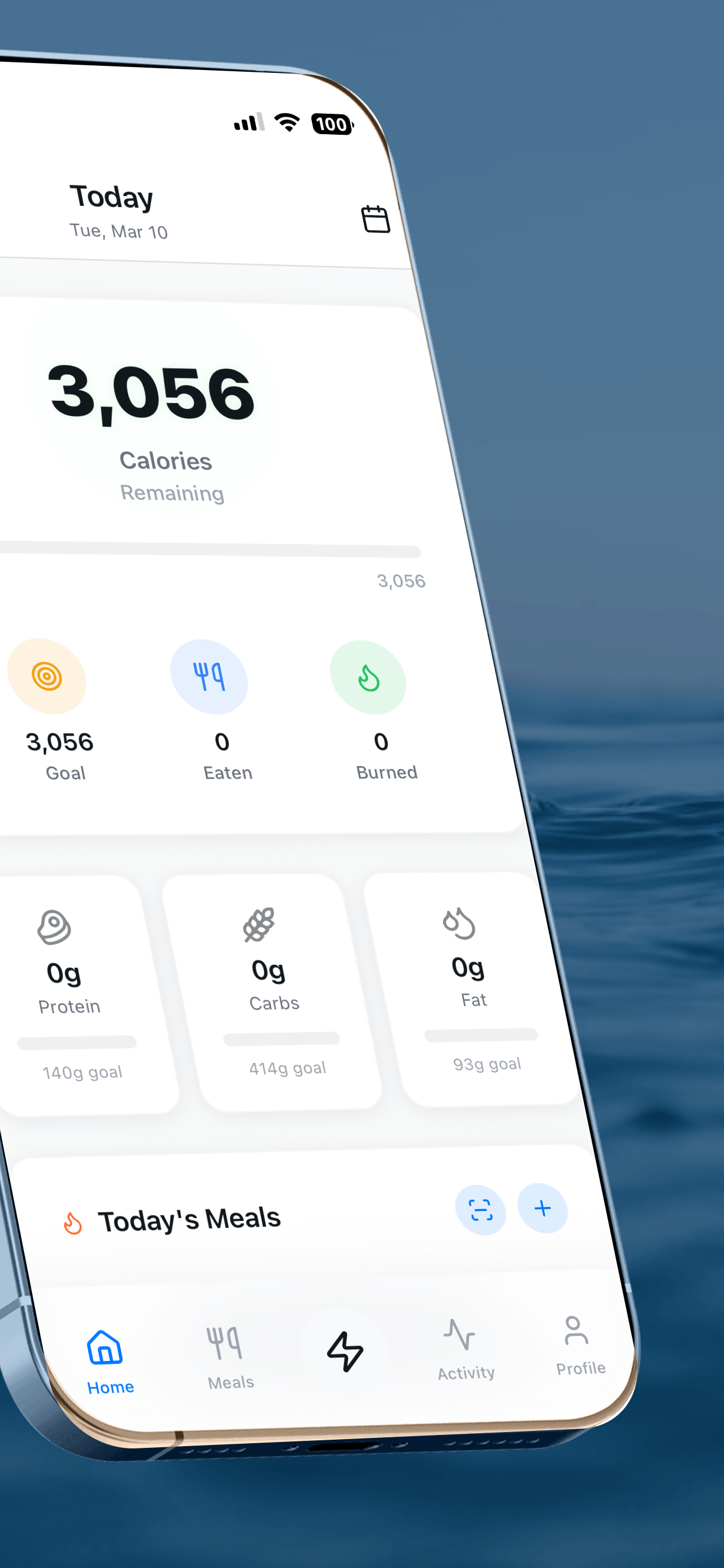
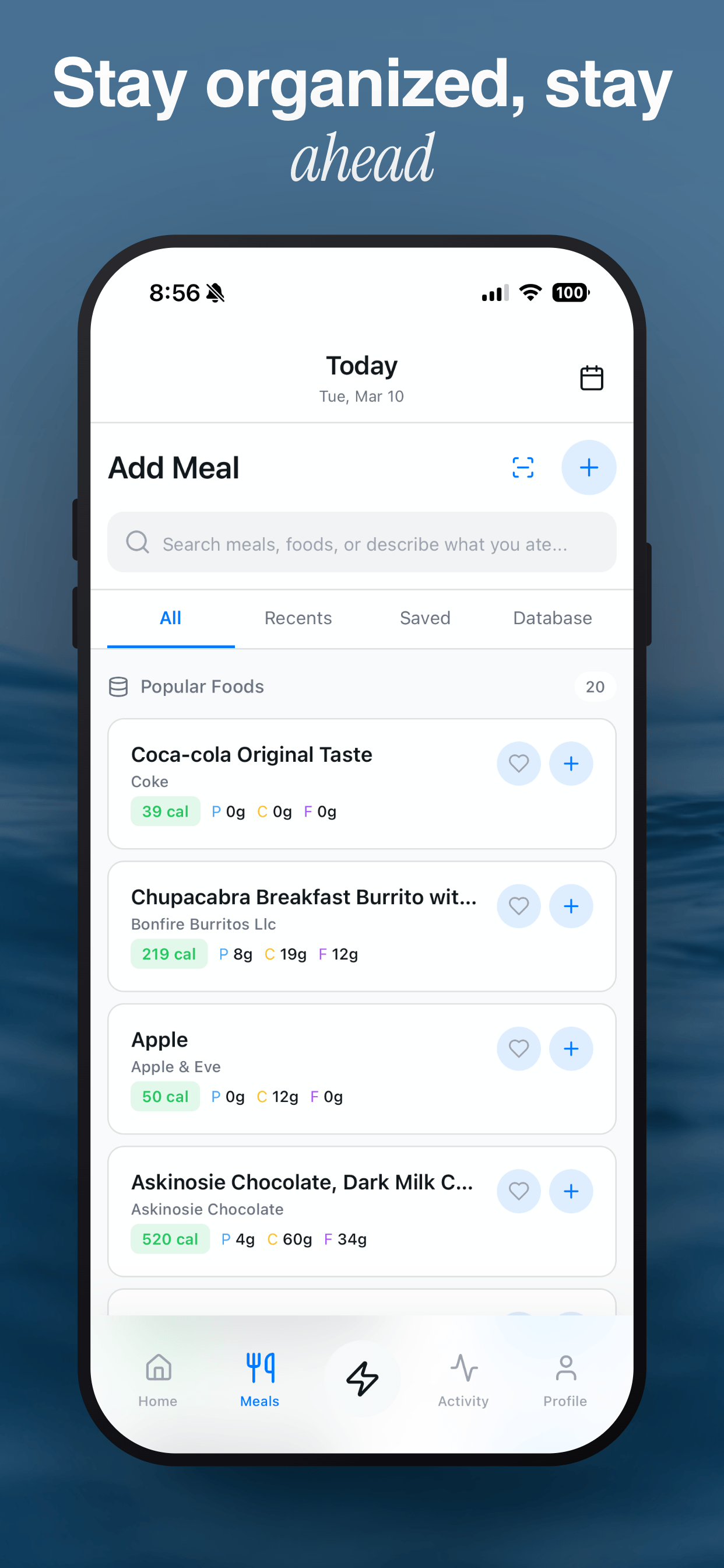
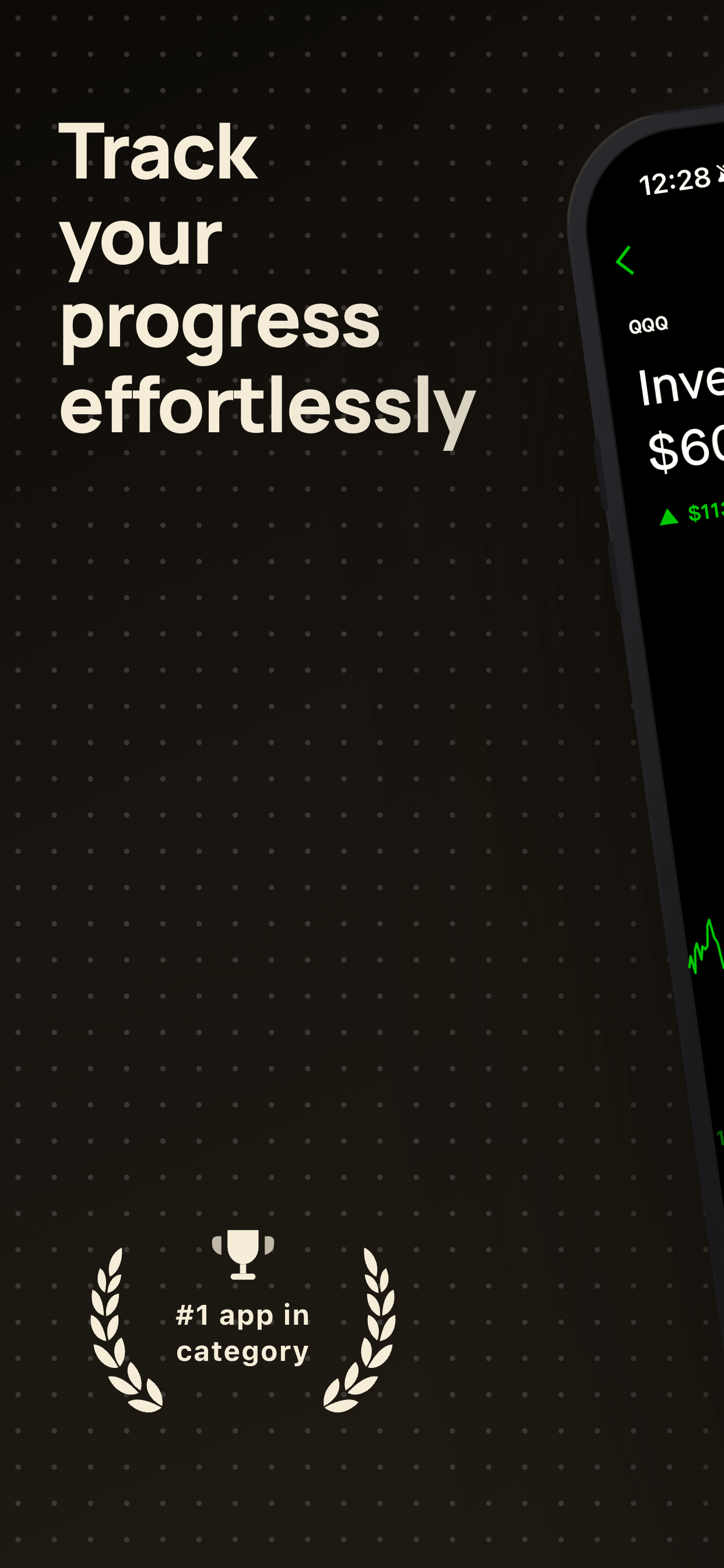
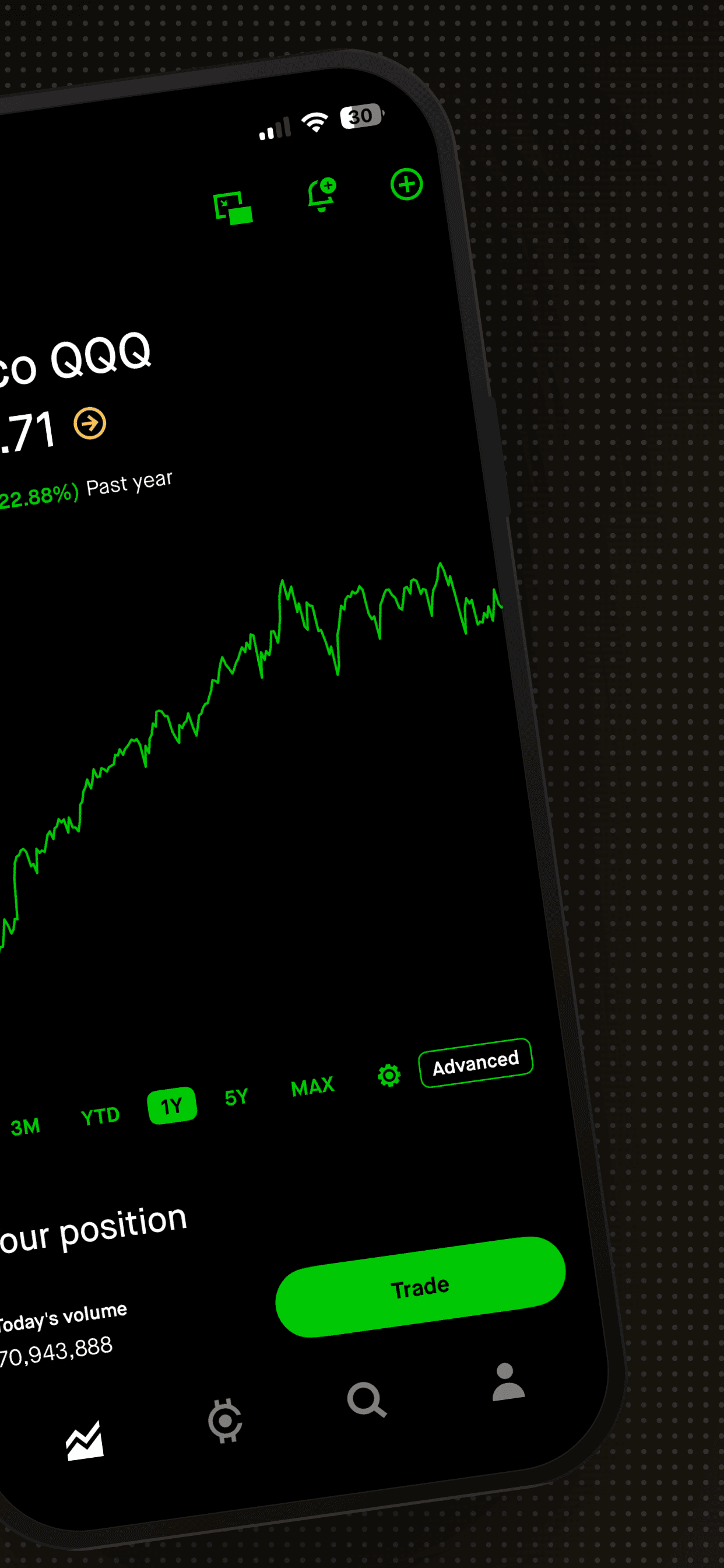
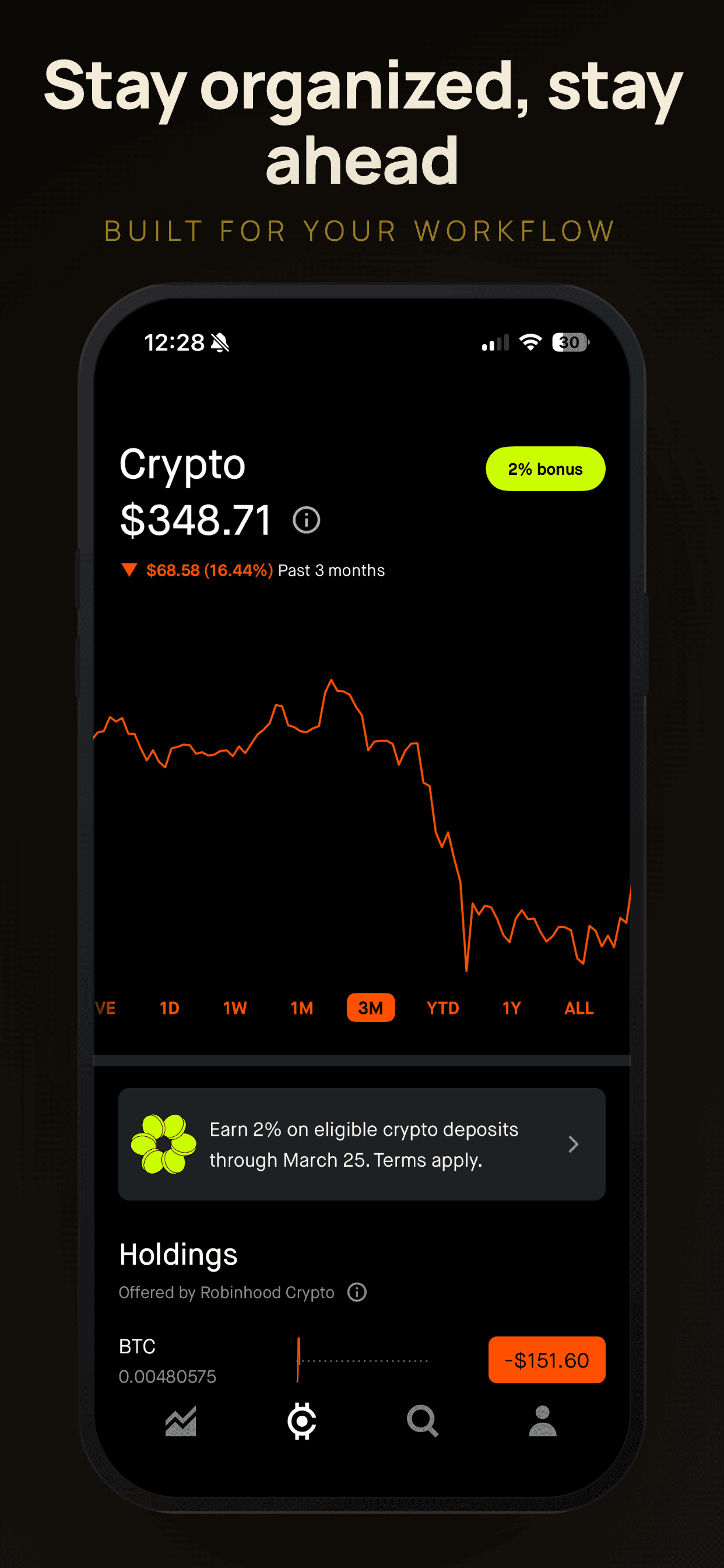
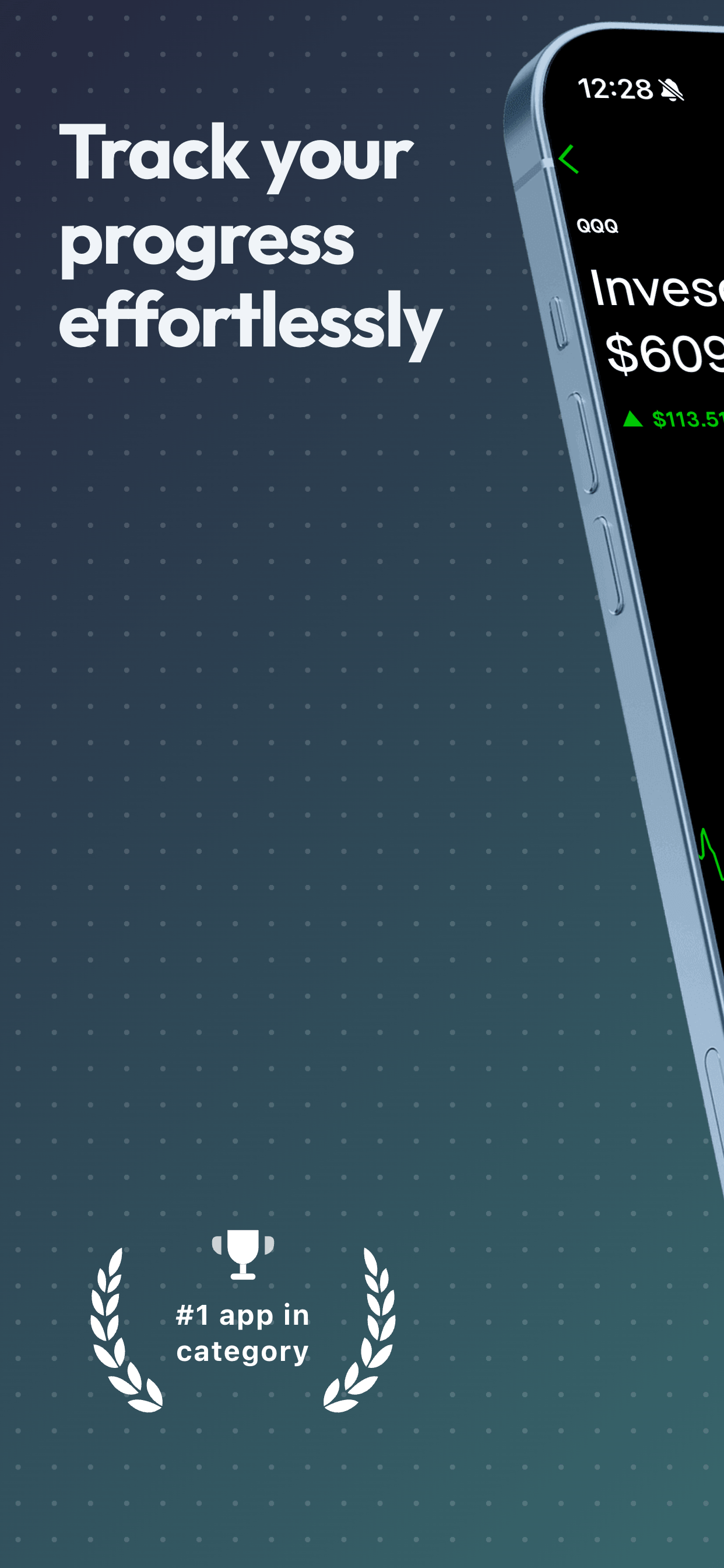
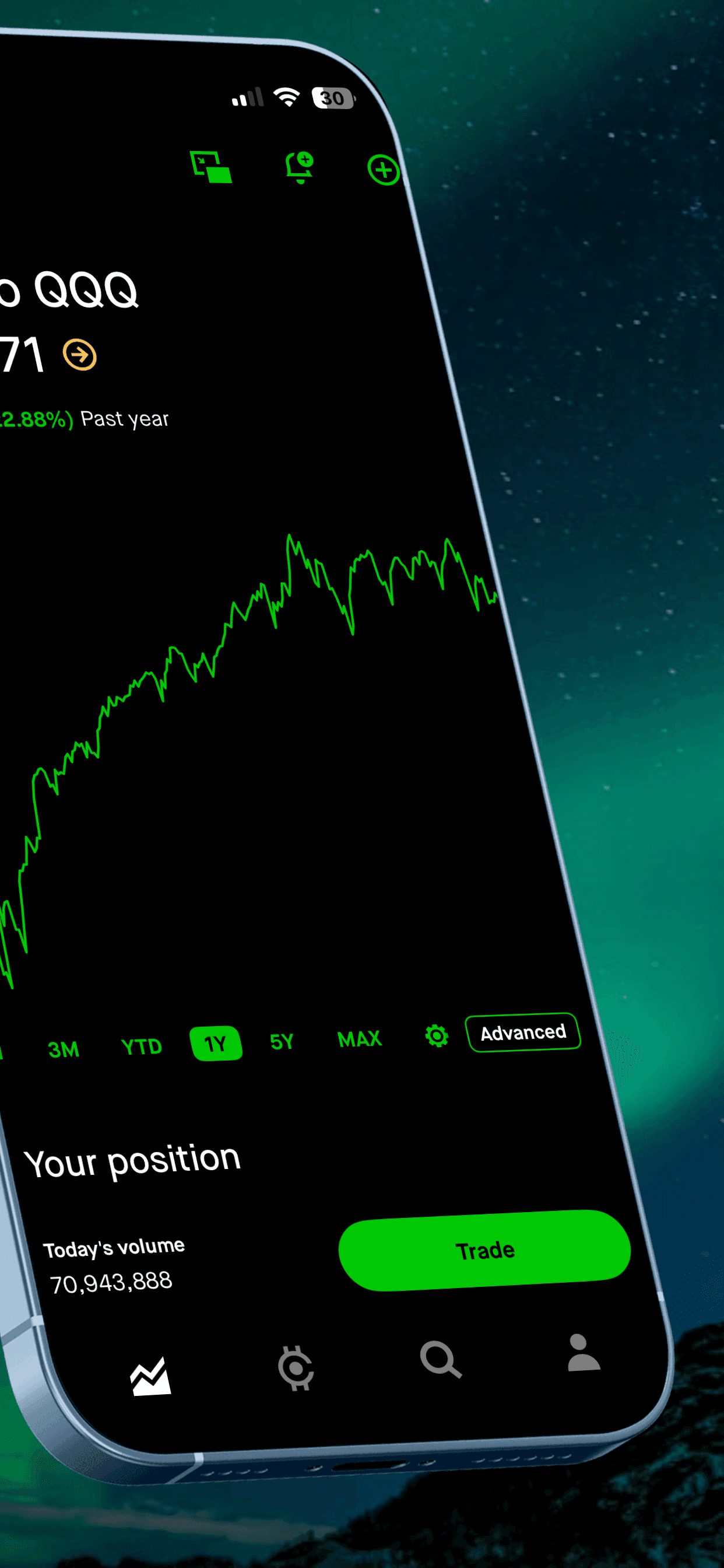
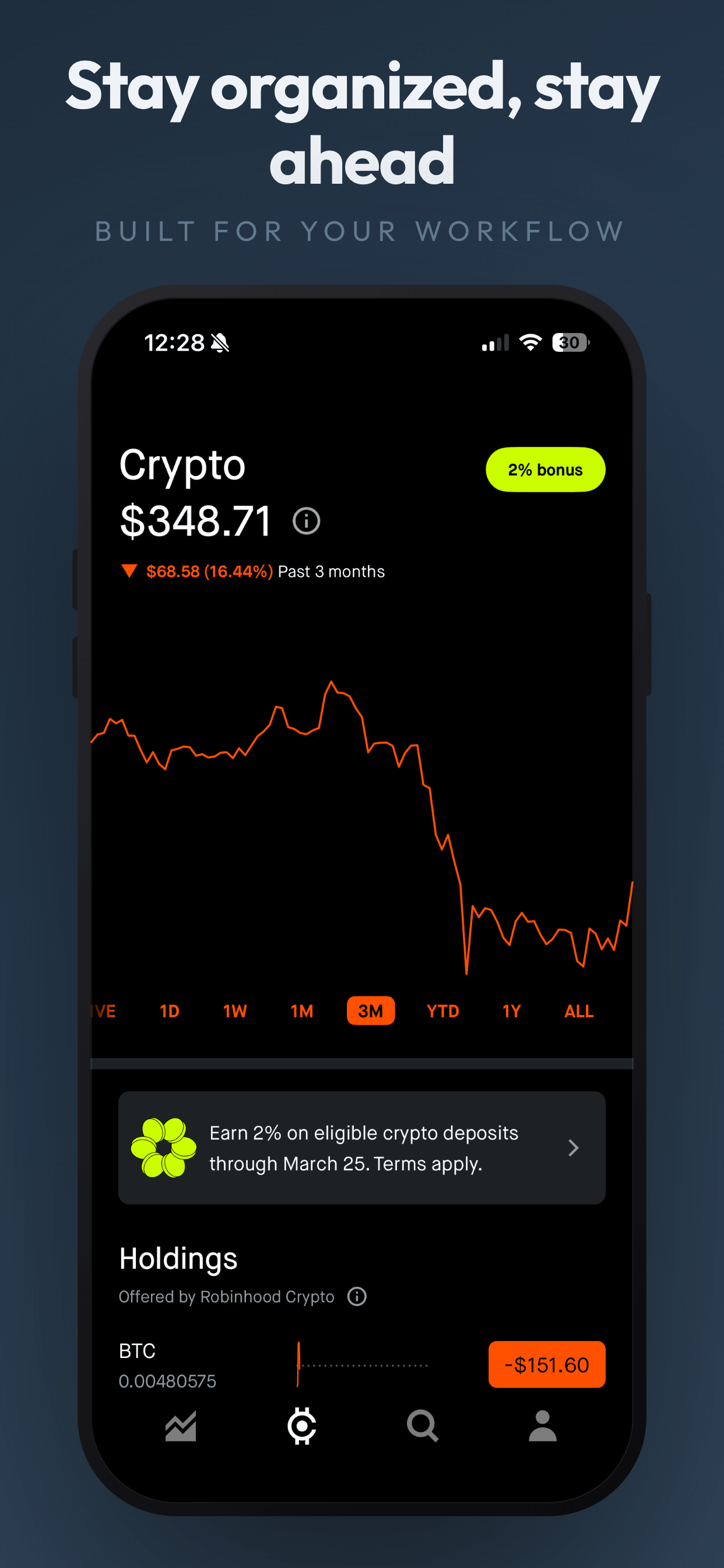
The fix is straightforward: wrap your screenshots in a template that adds a headline, a device frame, and a clean background. You do not need a designer for this. Screenshot Otter can do it in minutes. The goal is not decoration. The goal is giving the viewer a reason to tap.
2. Leading with the wrong screenshot
Your first screenshot is the one that appears in search results. On iOS, it is prominently displayed alongside your app icon and title. It is the single highest-value piece of real estate in your entire listing.
Too many developers put their splash screen, their logo, or a generic "Welcome to [App Name]" on slide one. This wastes the most important position on a branding message that means nothing to someone who has never heard of your app.
Your first screenshot should communicate your strongest value proposition in the fewest possible words. What is the one thing your app does better than the alternatives? That is your slide one. "Track every run automatically" beats "Welcome to RunTracker Pro" by a wide margin. For more on writing strong headline copy, see our caption writing guide.
3. Writing feature labels instead of benefits
"Dashboard," "Calendar View," "Settings," "Analytics." These are screen names, not selling points. When your captions describe what the screen is rather than what the user gets from it, you are forcing the viewer to do mental work to translate your features into personal value. Most people will not bother.
The rule is simple: every caption should be about the user, not about the app. "See your whole month at a glance" is about the user. "Calendar View" is about the app. "Never miss a workout" is about the user. "Exercise Tracker" is about the app. One sells. The other labels.
Run this test on your current screenshots: read each caption and ask, "So what?" If you can answer that question with something more compelling, you have a feature label that needs to become a benefit statement.
4. Cramming too much text onto each screenshot
Some developers try to cram a paragraph of marketing copy onto every slide. Long sentences. Multiple bullet points. Feature lists. They treat each screenshot like a flyer instead of a billboard.
The problem is physics. Your screenshots are viewed at thumbnail size on a phone. At that scale, anything beyond about six words for the headline becomes a block of unreadable gray. The user does not slow down to squint. They just keep scrolling.
Keep your main headline to two to six words. If you need to add a supporting detail, use one subtitle line of eight to twelve words in a smaller, lighter font. One idea per slide. If you find yourself writing more than two lines of text, you are trying to say too much. Split it across two screenshots instead.
5. Ignoring the thumbnail test
You design your screenshots at full resolution, 1290 x 2796 pixels on a large monitor. They look great at that size. But the person browsing the App Store is not seeing them at full resolution. They are seeing them as tiny thumbnails in search results, roughly the width of a postage stamp on a phone screen.
The gap between "looks good on your design canvas" and "readable at thumbnail size" is where most screenshot designs fall apart. Thin fonts vanish. Low-contrast text blends into the background. Subtle design details that took you hours become invisible blobs of color.
Before you finalize anything, zoom your design to 25% and check whether the headline is still readable at a glance. Better yet, send the finished images to your phone and view them in the Photos app at roughly the size they will appear in App Store search. If the caption is hard to read, increase the font size, switch to a bolder weight, or bump up the contrast. This one check will save you from a surprising number of design problems.
6. Using thin or light font weights
What looks elegant and refined on a Dribbble mockup or a 27-inch display does not translate to the App Store. Thin fonts, light weights, and hairline text are unreadable at thumbnail size. They work against you in the exact context where your screenshots need to perform.
Use medium, semibold, or bold weights for your headlines. At the standard 1290 x 2796 resolution, a headline font size of 56 to 72 pixels in weight 600 or above is a reliable starting point. For subtitles, 28 to 36 pixels in weight 400 to 500 holds up well. If you want a premium, editorial look, you can achieve it through spacing, color, and layout without sacrificing font weight.
7. Low contrast between text and background
White text on a light gradient. Dark gray text on a medium gray background. Colored text on a similarly colored background. All of these are contrast failures that make your captions difficult or impossible to read, especially at thumbnail size.
Aim for high contrast in every screenshot. White text on a dark background or dark text on a light background is the safest pattern. If you use colored backgrounds, test the combination by zooming out to 25% and confirming the text pops immediately. If you need to use a photographic background, place a semi-transparent overlay behind the text to guarantee readability.
A good shortcut: if you have to ask yourself whether the contrast is enough, it is not. The headline should jump off the screen without any effort from the viewer.
8. Showing the wrong screens
Not every screen in your app belongs in your screenshots. Settings pages, onboarding flows, login screens, and empty states are internal infrastructure. They are necessary for the app to function, but they do not sell it.
Your screenshots should feature the screens that deliver your core value. The moment of insight. The completed task. The data visualization that makes a user's life easier. Pick screens that look interesting, have real content in them, and demonstrate a tangible outcome. If a screen does not make someone think "I want that," it does not belong in your screenshot set.
A related mistake: showing screens with empty or placeholder data. A todo app with zero tasks, a finance app with $0.00 everywhere, a social app with no posts. These show the shell instead of the value. Populate your screenshots with realistic, compelling sample data that shows the app doing what it does best.
9. Inconsistent visual style across the set
If your first screenshot uses a dark blue background with bold sans serif type, your second uses a gradient with script lettering, and your third switches to a plain white background, your screenshot set will look like it was assembled from different apps. That inconsistency signals a lack of polish, and users notice.
Visual consistency across your entire screenshot set is one of the strongest signals of quality. Same font, same color palette, same caption placement, same background treatment on every slide. The variation should come from the content: different screens, different headlines, sometimes different accent colors within a unified palette. The structure stays constant.
This is one of the biggest advantages of using a template system instead of designing each screenshot from scratch. A good template enforces consistency by default. You focus on choosing the right screens and writing strong captions. The template handles everything else.
10. PNG transparency (the silent rejection)
This is the most common technical rejection for App Store screenshots, and one of the most frustrating because it is invisible. If you export your screenshots as 32-bit PNGs with an alpha channel, Apple will reject them. Your images might look perfectly fine on your computer, with a solid background and no visible transparency. But if the file contains an alpha channel, the submission fails.
The fix: always export as 24-bit PNG or JPEG with no transparency. In most design tools, this means flattening the image or explicitly disabling the alpha channel before export. If you are working in Figma, exporting as JPEG avoids the problem entirely. If you are using a screenshot tool like Screenshot Otter, the exports are already in the correct format.
One way to check: open your exported PNG in Preview on Mac and look at the file info. If it says "Alpha: Yes" or shows 32-bit color, you need to re-export without the alpha channel before uploading to App Store Connect.
11. Using the wrong device dimensions
Apple requires screenshots at exact pixel dimensions matching their supported device displays. The most important size is 1290 x 2796 pixels for the 6.7-inch display (iPhone 15 Pro Max and iPhone 16 Pro Max). For iPads, you need 2048 x 2732 pixels for the 13-inch display. Getting these wrong, even by a single pixel, will block your submission.
A related issue: uploading screenshots that have been padded, stretched, or letterboxed to meet the dimension requirement. If you designed at a different aspect ratio and then added black bars or empty space to hit the target resolution, the result will look cheap and misaligned in the App Store listing. Always design at the native resolution from the start.
For a complete reference of every required dimension, see our App Store screenshot sizes guide.
12. Never testing or iterating
The biggest strategic mistake is treating screenshots as a one-time task. You design them during launch, upload them, and never touch them again. Meanwhile, your competitors are running A/B tests, refining their captions, and gradually improving their conversion rates.
Apple provides Product Page Optimization (PPO) for free. You can test up to three alternate screenshot sets against your current version and see which converts better. Google Play has its own store listing experiments with similar capabilities. Both tools are built in, require no third-party service, and give you real data from your actual users.
Even small improvements compound over time. A 10% lift in conversion rate means 10% more downloads from the same traffic, and that improvement is permanent once you implement the winning variant. The developers who treat screenshots as an ongoing optimization surface, rather than a checkbox at launch, are the ones who steadily pull ahead. For a detailed walkthrough, see our guide to A/B testing App Store screenshots.
Quick audit checklist
Run through this list before your next submission. If you can check every item, your screenshots are in good shape.
Template and framing: Every screenshot uses a consistent template with a device frame, caption, and clean background.
Slide one hook: The first screenshot communicates your strongest value proposition in six words or fewer.
Benefit captions: Every caption is about what the user gets, not what the app does.
Word count: Headlines are two to six words. Subtitles are eight to twelve words max.
Thumbnail test: Every headline is readable at 25% zoom on your design canvas.
Font weight: Headlines use medium, semibold, or bold. No thin or light weights.
Contrast: Text pops against the background without squinting.
Screen selection: Only screens that deliver value. No settings, onboarding, or empty states.
Visual consistency: Same font, colors, and layout across the entire set.
File format: 24-bit PNG or JPEG, no alpha channel.
Dimensions: Exact native resolution for each required device size.
Real device preview: Screenshots previewed on an actual phone at the size users will see them.
Related Guides
Fix your screenshots in minutes, not days
Screenshot Otter gives you 40+ professionally designed templates, AI-powered captions, and instant export at every required size. Upload your raw screenshots and get store-ready images without touching a design tool. Free to start.
Try Screenshot Otter free →