
Guide
App Store Screenshot Rejection Reasons: Why Apple Rejects Your Screenshots (2026)
Most rejected App Store submissions are not rejected for the binary. They are rejected for the screenshots and metadata attached to the binary. Apple has a clear set of rules for what your screenshots can show, what they cannot show, and how they must be formatted, but the rules are spread across half a dozen guideline sections. This guide pulls them into one place, explains every common rejection in plain language, and gives you a pre-submission checklist that catches the issues before review does.

Scott Stewart · May 4, 2026
Quick answer
The four most common screenshot rejection categories are: (1) technical (wrong dimensions, wrong file format, transparency, or file size), (2) accuracy (showing features the app does not have, mockups, or pre-shipped designs), (3) content (prices, third-party trademarks, controversial imagery, or claims that cannot be verified), and (4) metadata (misleading captions, irrelevant keywords baked into the image, or placeholder text). Most rejections cite Guideline 2.3 (Accurate Metadata) or Guideline 4.0 (Design). Fix the screenshots, resubmit metadata only, and you usually clear review within a day or two.
The Four Reasons Screenshots Get Rejected
Apple's App Review team checks your screenshots against three separate sets of rules: the App Review Guidelines, the App Store Connect technical specifications, and the Apple Marketing Guidelines for use of trademarks. A failure in any of those three groups is enough to bounce the submission. Knowing which group your rejection lives in is the first step to fixing it cleanly.
Roughly 95 percent of screenshot rejections fall into one of four buckets. We will walk through each one, with the exact guideline reference, the underlying reason Apple cares, and the fix that gets you through review on the next attempt.
Bucket 1: Technical Specifications
These are the rejections that usually happen at upload time inside App Store Connect, before a human reviewer even sees the submission. They are the easiest to prevent and the easiest to fix.
1. Wrong pixel dimensions
App Store Connect expects exact sizes. A 6.9-inch iPhone screenshot is 1320 by 2868 pixels. A 6.7-inch is 1290 by 2796 pixels. A 6.5-inch is 1242 by 2688 or 1284 by 2778 pixels. Uploading a 1284 by 2778 image into the 6.7-inch slot fails immediately. Confirm the slot's expected dimensions in App Store Connect before exporting.
2. Transparency in the image
Apple requires screenshots without an alpha channel, even when the visible image is fully opaque. PNG exports from Figma, Sketch, and design tools sometimes carry an alpha layer regardless. The fix is to flatten the image against a solid background or export as JPEG (sRGB color space) at high quality.
3. Wrong color profile
Use sRGB for screenshots. Display P3 sometimes uploads but reads slightly differently in App Store Connect, and CMYK-tagged exports from print-oriented tools fail outright. Set the color profile in your design tool to sRGB before export, and confirm with a metadata check on the file.
4. Wrong file format
PNG and JPEG only. WebP, HEIC, AVIF, GIF, and PDF will not upload. PNG is the safer default since JPEG compression occasionally introduces banding in flat-color marketing screenshots.
5. File too large
Apple's documented maximum is generous, but an unoptimized PNG over 50 MB sometimes fails to upload reliably. Run the file through a lossless optimizer like pngquant or ImageOptim before submitting. The visual result is identical, the file is half the size, and the upload succeeds on the first try.
Bucket 2: Accuracy and Truthfulness
These rejections cite App Review Guideline 2.3, Accurate Metadata. Apple's view: a user browsing the App Store should see exactly what the app does. Anything in your screenshots that does not exist in the binary is a problem.
6. Showing features that are not in the build
This is the single most common reason screenshots get rejected after a redesign or feature launch. Marketing screenshots get prepared in advance, the feature ships later than expected, and the screenshots go up showing the unreleased UI. Apple compares screenshots to the running app and rejects the mismatch. Fix: only ship screenshots that match the binary you are submitting, or use an App Store Custom Product Page tied to a future release.
7. Mockups or concept art instead of real UI
A common indie pitfall: a designer mocks up a beautiful marketing screenshot in Figma without ever pulling captures from the real app. The colors are slightly off, a button label is invented, or a screen exists only in the mockup. Apple rejects this under 2.3. Fix: capture every screen from the running app first, then design the marketing layer on top of those real captures.
8. Captions claiming functionality the app does not have
A caption that says "Sync with Apple Watch" when the app has no watchOS target will be flagged. Same with "Works with Siri" if you have no SiriKit integration, "Offline mode" if the app requires the network, or "AI-powered" if there is no machine learning pipeline. Caption claims must match what the app actually does.
9. Outdated screenshots after a redesign
When you ship a major UI overhaul but leave old screenshots in place, Apple notices. The old screenshots no longer represent the app, which is again a 2.3 violation. Refresh screenshots whenever you ship a substantial visual change. This is also the moment to localize and reorder them.
Bucket 3: Content and Trademarks
These rejections come from a mix of sources: App Review Guidelines 1.1 and 5.0 (objectionable content, intellectual property), the Apple Marketing Guidelines (trademarks), and an unwritten rule that App Review applies generously.
10. Prices in the screenshot
"$0.99/month", "Free for 7 days", or any region-specific currency in your screenshot is a reliable rejection. Pricing varies by territory, and Apple wants the price the user sees on the Store page to match what they pay. Captions that compete with the App Store's own price label are a problem. Fix: focus the headline on benefits ("Save hours every week") and let the App Store render the actual price.
11. Third-party trademarks and logos
Showing the Slack logo, Notion logo, or Spotify wordmark in your screenshot to imply integration is risky if you do not have an explicit partnership. Even legitimate integrations often need to use the third-party brand assets per the trademark holder's guidelines. Apple has rejected submissions that use Apple's own logos, product silhouettes, or words like "iPhone" as a primary design element. Use generic device illustrations and your own iconography.
12. App Store badges and ratings
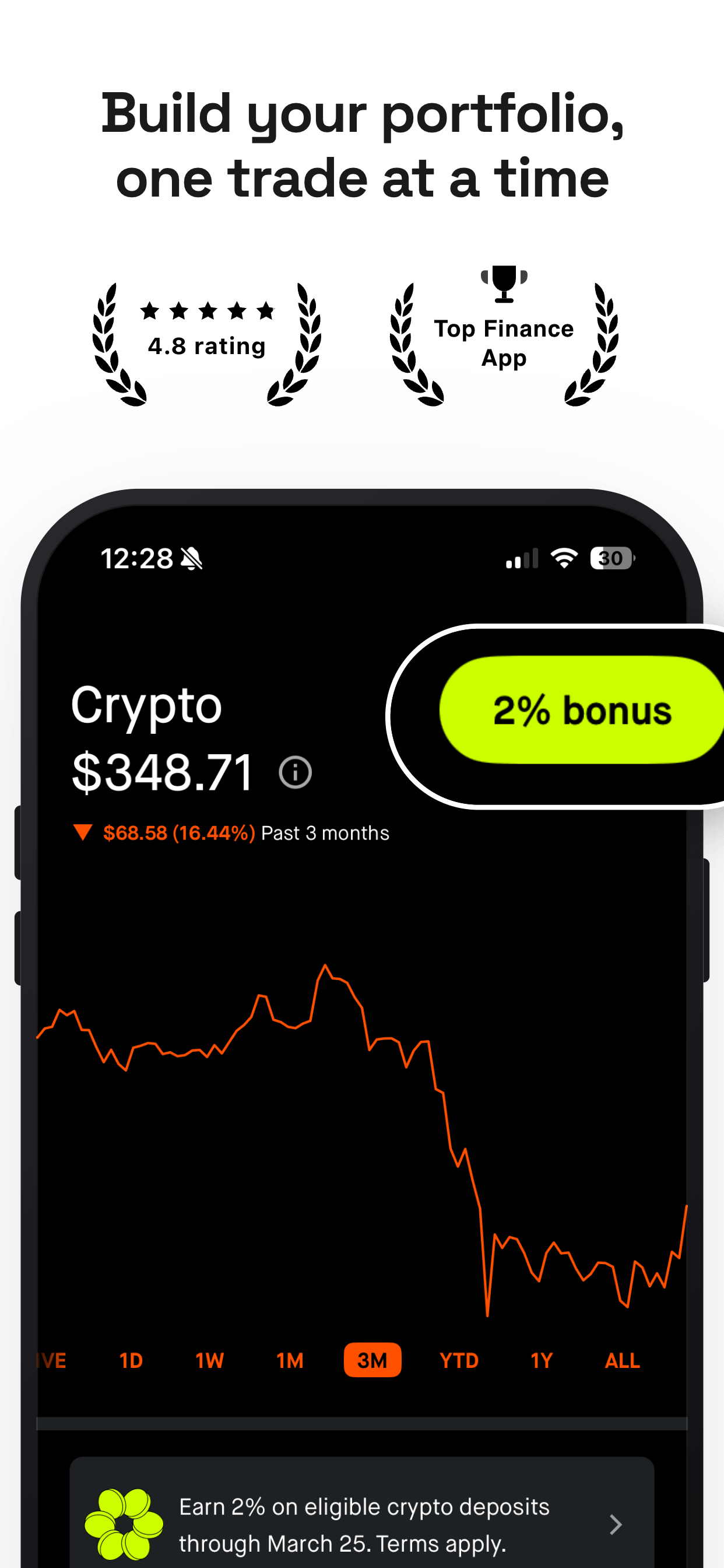
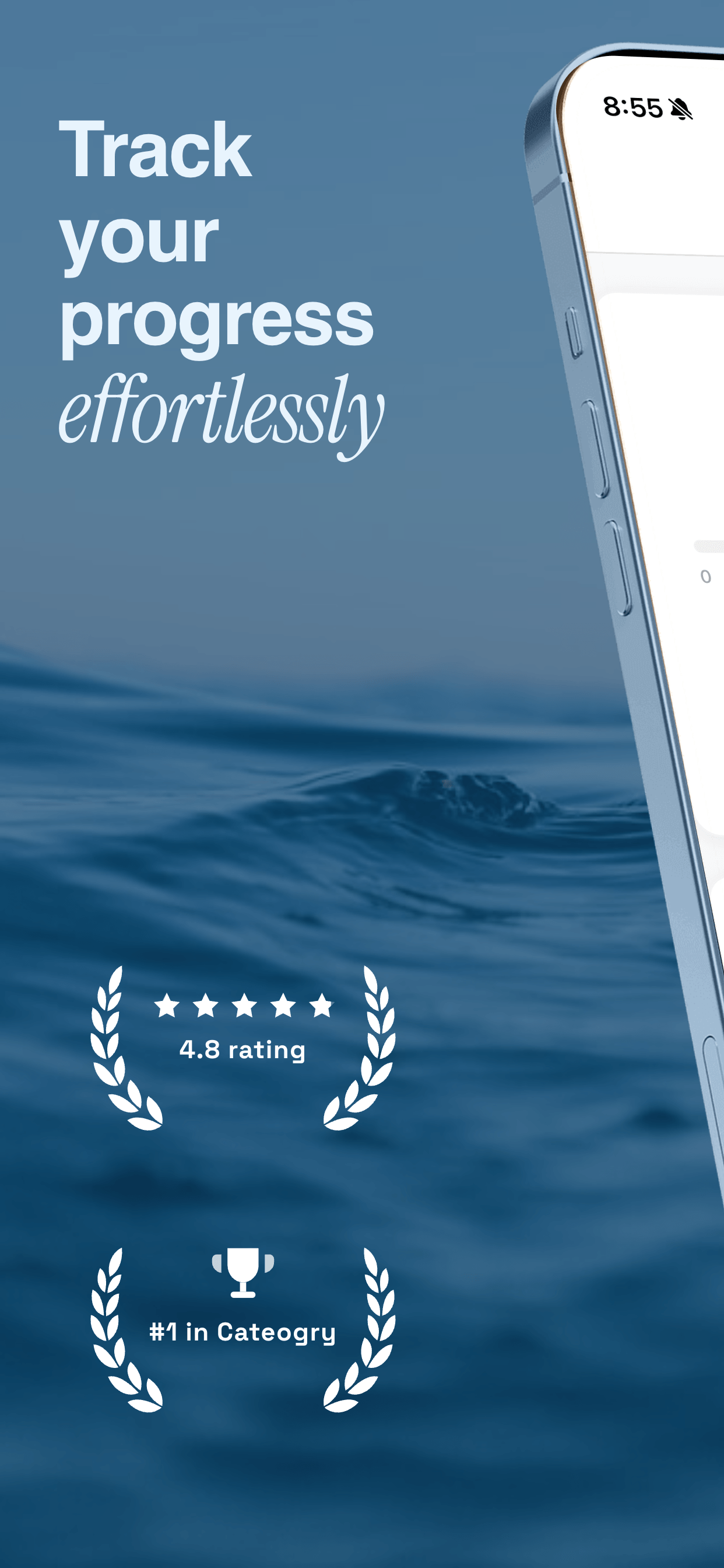
Showing a "5 stars" rating, an "App of the Day" badge, or any App Store-style chip in your screenshot is rejected unless the app actually earned the editorial spot or has permission. The same applies to fabricated press quotes ("As seen on Forbes"). Quotes are allowed only if you attribute them to a real, verifiable source and have the rights to use them.
13. Objectionable or sensitive content
Imagery that is sexually suggestive, glorifies violence, promotes gambling without proper licensing, or shows real alcohol or drug consumption can trigger a rejection. The rule of thumb: your screenshots should be acceptable to a 9-plus age rating audience unless your app is rated higher, and even then, illegal or platform-policy-violating imagery is out.
14. Real personal data or unblurred user content
Showing a real phone number, real email address, real street address, or another user's photos and posts without permission is a privacy issue. Use placeholder data: fictional names, sample addresses, illustrative content that you have rights to. If your app has any social surface, the screenshot data should be obviously fake.
Bucket 4: Metadata and Promotional Claims
Even when the visuals are fine, the words you put on top can push the submission into a rejection. These overlap heavily with App Review Guideline 2.3 and the spam rules in 4.3.
15. Keyword stuffing in captions
Captions that read like SEO copy ("Budget App, Money Tracker, Expense Manager, Finance Planner, Bill Reminder") are flagged as keyword stuffing and rejected under 2.3. Caption copy should be a single, human-readable benefit sentence, not a comma-separated keyword list.
16. Placeholder text left in
"Lorem ipsum", "TODO: write caption", or "Coming soon" left in a screenshot draft will get caught. Less obvious: using the template's default caption ("Your headline here") if you forgot to customize a slide. Always do a final read of every slide, end to end, before you upload.
17. Unverifiable performance claims
"10x faster than the competition", "Used by Fortune 500", or "Award-winning" without a citation will likely be rejected. If you make a quantitative or qualitative claim, it should either be verifiable in the app itself, easily cited, or rephrased as a softer benefit statement.
18. References to other platforms
Captions like "Now on Android too", "Try our web app", or "Available on Google Play" are flagged because Apple does not allow App Store assets to direct users to competing platforms. Cross-platform availability is fine to mention on your website, not on the App Store screenshot.
Mapping Rejections to App Review Guidelines
When App Review sends a rejection message, the most useful line is the guideline number. Here is the short map of which rejection types tend to cite which guideline.
- Guideline 2.3.0 (Accurate Metadata): features not in the build, mockups, outdated UI, performance claims, keyword stuffing.
- Guideline 2.3.7 (App Names and Subtitles): irrelevant or misleading caption copy that contradicts the app's actual purpose.
- Guideline 2.3.10 (Accurate Metadata, Persistent): references to other platforms, third-party trademarks, prices, App Store badges.
- Guideline 4.0 (Design): unapproved branding, copies of Apple's own marketing, visually deceptive layouts.
- Guideline 5.2 (Intellectual Property): third-party logos and trademarks used without permission.
- Guideline 1.1 (Objectionable Content): imagery that is sexual, violent, hateful, or otherwise inappropriate for the rating.
Pre-Submission Screenshot Checklist
Run this checklist on every screenshot before you submit. It takes about five minutes and catches roughly 90 percent of the rejections above.
Dimensions: Each slot has the exact pixel size Apple expects (1320 by 2868 for 6.9-inch, 1290 by 2796 for 6.7-inch, 2064 by 2752 for 13-inch iPad).
Format: PNG or JPEG, sRGB, no alpha channel, under 50 MB.
Truthfulness: Every screen, button, and feature shown exists in the actual binary you are submitting.
No prices: No dollar amounts, "Free", "$0", "Save 50 percent", or any pricing claim in the screenshot copy.
No third-party brands: No Apple, Google, Slack, Notion, Spotify, or other trademarked logos or product names shown without permission.
No badges: No fabricated 5-star ratings, App of the Day badges, or press quotes you cannot cite.
No placeholders: Read every caption end to end. No Lorem, no TODO, no "Headline goes here".
No platforms: No mentions of Android, Google Play, web app, or cross-platform availability.
Privacy: No real names, phone numbers, addresses, or other user data in any screenshot.
Localization: If you are shipping localized screenshots, every locale passes every check above in its own language.
What to Do When Your Screenshots Get Rejected
Rejections are routine, not catastrophic. Apple's rejection message in App Store Connect's Resolution Center will name the guideline (for example, 2.3.10) and usually quote the offending text or describe the problematic element. Read it carefully. You have three reasonable paths from there.
The fastest path is a metadata-only resubmission. If the rejection is for a screenshot or caption issue, you can fix the asset in App Store Connect and submit metadata for review without uploading a new build. This typically clears in a day or two.
The second path is to reply in the Resolution Center with a clarification. If you believe Apple has misread your screenshot (a feature exists but is named differently in the UI, or a third-party brand is actually licensed), explain it clearly with proof. Reviewers are responsive and will often approve once the misunderstanding is resolved.
The third path is to file an appeal with the App Review Board. This is appropriate only when you believe a guideline was applied incorrectly or inconsistently. Use it sparingly, and have evidence ready: links to similar approved apps, a clear statement of the rule, and a reasoned argument for why your case is different.
Special Cases Worth Flagging
Custom Product Pages
Custom Product Pages let you ship up to 35 alternate screenshot sets pointed at different audiences. The same rules apply to every variant, and a single CPP rejection can hold the whole release. Run the checklist per CPP, not just for the default page.
Apple Vision Pro and visionOS
visionOS submissions have additional screenshot rules around showing real-world environment passthrough. Avoid showing identifiable people, private spaces, or branded third-party objects in the passthrough background.
Subscription apps
Subscription apps often want to surface a free trial in screenshots. The phrase "Free trial" is generally safe, but specific durations ("7-day free trial") should match the actual trial configured in App Store Connect. The safest move is a benefit headline with no trial language and let the App Store paywall present the trial.
Games
Games get more latitude on stylized UI in screenshots, but the gameplay shown must reflect the actual game. Cinematic trailers as still-frame screenshots without any in-game UI can be flagged if reviewers cannot tell the screenshot is from the actual gameplay loop.
Beta and TestFlight
Screenshots of beta builds with "beta" watermarks, "TEST" ribbons, or development overlays will be rejected even when the underlying UI is fine. Strip every debug indicator before exporting marketing screenshots.
Frequently Asked Questions
- Can Apple reject an app for screenshot issues alone?
- Yes. Screenshots are part of your app's metadata, and metadata problems are a complete category of App Review rejection (Guideline 2.3). If your screenshots show features that do not exist, include misleading claims, contain unapproved content, or fail Apple's technical specifications, the entire submission can be rejected even when the binary is fine.
- Do I have to use real device frames in my App Store screenshots?
- No. Apple does not require device frames. You can submit raw simulator captures, designed marketing screenshots with phone illustrations, or full-bleed UI without any frame at all. The only hard rule is that the content shown must be your actual app's interface, not mockups of an unbuilt design.
- What happens after my screenshots are rejected?
- App Review Connect sends a Resolution Center message describing the issue and the relevant guideline number. You can either reply with a clarification, request an appeal, or update the screenshots and resubmit. Updating only the screenshots and metadata does not require a new binary, and the review usually takes less time than the original submission.
- Are price tags or 'Free' badges allowed in App Store screenshots?
- Apple discourages prices in screenshots because pricing varies by region and can change. References to 'Free' are usually flagged, and any specific currency amount almost always gets rejected. Use benefit-focused captions ("Track unlimited expenses") rather than price-focused ones ("$0.99 per month").
- Can I use Apple device names or logos in my screenshots?
- You can show your app running on a stylized phone illustration, but you cannot use Apple's marketing renders, the Apple logo, or product names like 'iPhone' as a primary design element. Read the Apple Marketing Guidelines for the exact wording. The safest pattern: a generic device frame in your own brand color, with your app's UI inside.
- Is it faster to fix screenshots than to fix a binary?
- Yes. A metadata-only resubmission (screenshots, descriptions, keywords) does not require a new build upload. You update the assets in App Store Connect and submit them for review. In practice, metadata reviews land within a day or two for most developers, faster than a full app re-review.
Related Guides
Ship screenshots that pass review on the first try
Screenshot Otter exports App Store-ready screenshots at the right dimensions, with sRGB color, no alpha channel, and templates designed around Apple's review rules. Skip the rejection loop.
Try Screenshot Otter free →